
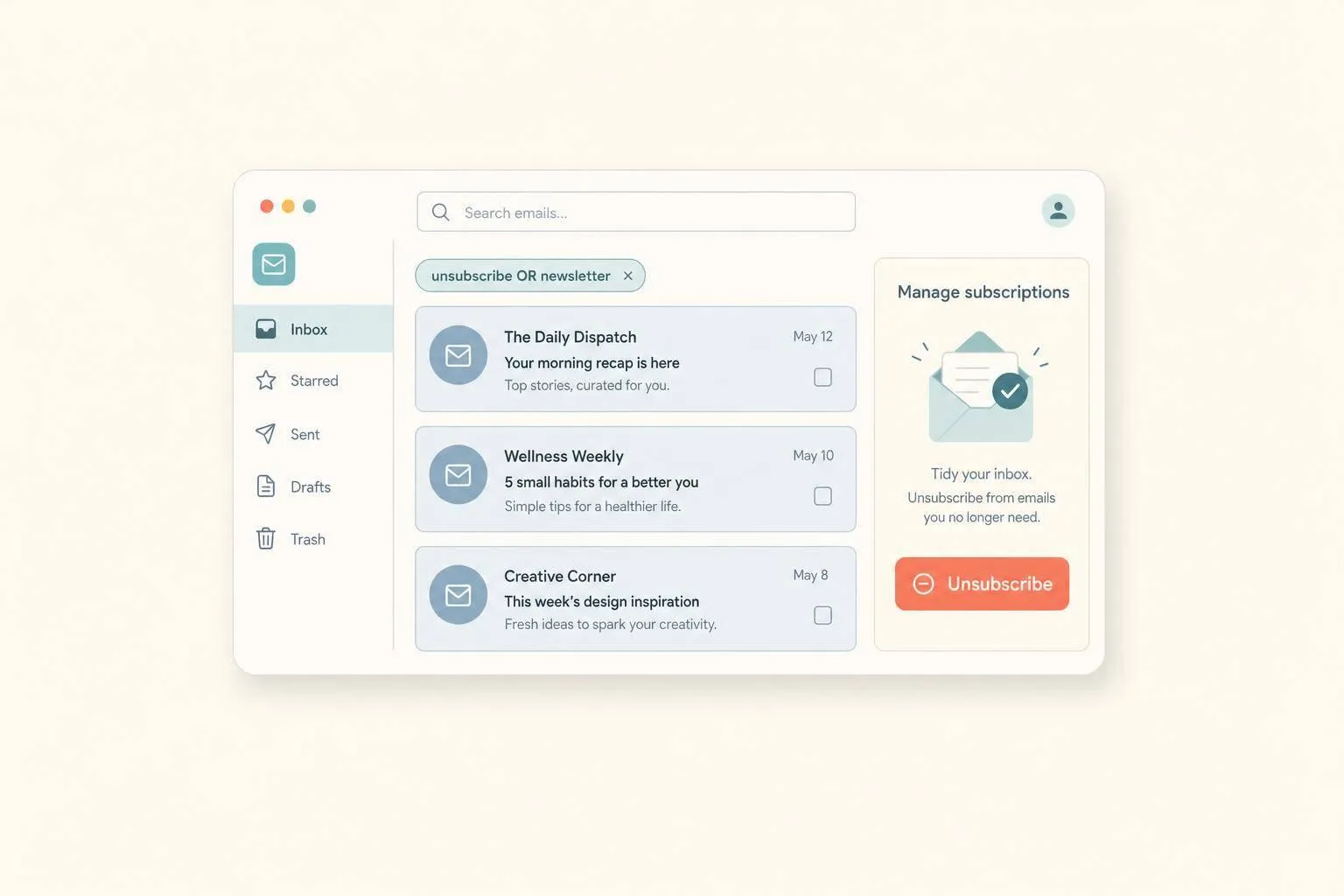
You do not need a third-party app to start cutting inbox clutter. If you use Gmail, I’d begin with Gmail’s own unsubscribe tools, then switch to a bulk cleaner only if I have a big backlog of old promos, newsletters, and social emails.
Here’s the short version:
- Use Gmail first for sender-by-sender unsubscribing
- Search
unsubscribeorcategory:promotionsto find extra lists Gmail does not surface - Do not click unsubscribe in shady emails; mark those as spam instead
- Use filters if a sender keeps mailing you after you opt out
- Use MailSweeper only if I want bulk cleanup, old-message deletion, and inbox sorting in one pass
This matters because inbox-cleanup tools have faced privacy questions before. In 2017, reports about Unroll.me said inbox data was used beyond simple unsubscribe help. That is why many people still prefer to start inside Gmail instead of giving full inbox access to another service.
If I only have a small mess, Gmail is enough. If I have years of buildup and want to cut old clutter and free storage, a bulk tool may save time.
| Option | Best for | Main limit | Cost |
|---|---|---|---|
| Gmail tools | Light cleanup | One sender at a time | Included with Gmail |
| MailSweeper | Large backlog | Needs account connection | $24/year or $99 one-time |
Bottom line: I’d skip Unroll.me, start with Gmail’s built-in options, and use a bulk cleaner only when manual cleanup gets too slow.
How to Easily Unsubscribe from Emails in Gmail
sbb-itb-34b9fd2
Why people avoid Unroll.me for mass unsubscribing
In 2017, reporting found that Unroll.me had broad access to inbox data. That made plenty of Gmail users uneasy about free unsubscribe tools.[1][4] And years later, people still ask the same thing: is it safe?
What 'is unroll me safe' actually means for Gmail users
For Gmail users, this comes down to one thing: scope. How much of your inbox can a service see, and what is it allowed to do with that access?[1][3] If an app asks for full mailbox access and isn't clear about how it makes money, that's a red flag.[4] Before you hand over access to any third-party app, it's smarter to start with Gmail's built-in unsubscribe options.
Start with Gmail's built-in unsubscribe tools
Gmail's Manage subscriptions feature puts your active promos and newsletters in one place. That means you don't have to open email after email just to hunt down unsubscribe links. Start there, especially with the senders Gmail brings to the top.
Find Gmail's Manage subscriptions and remove top senders
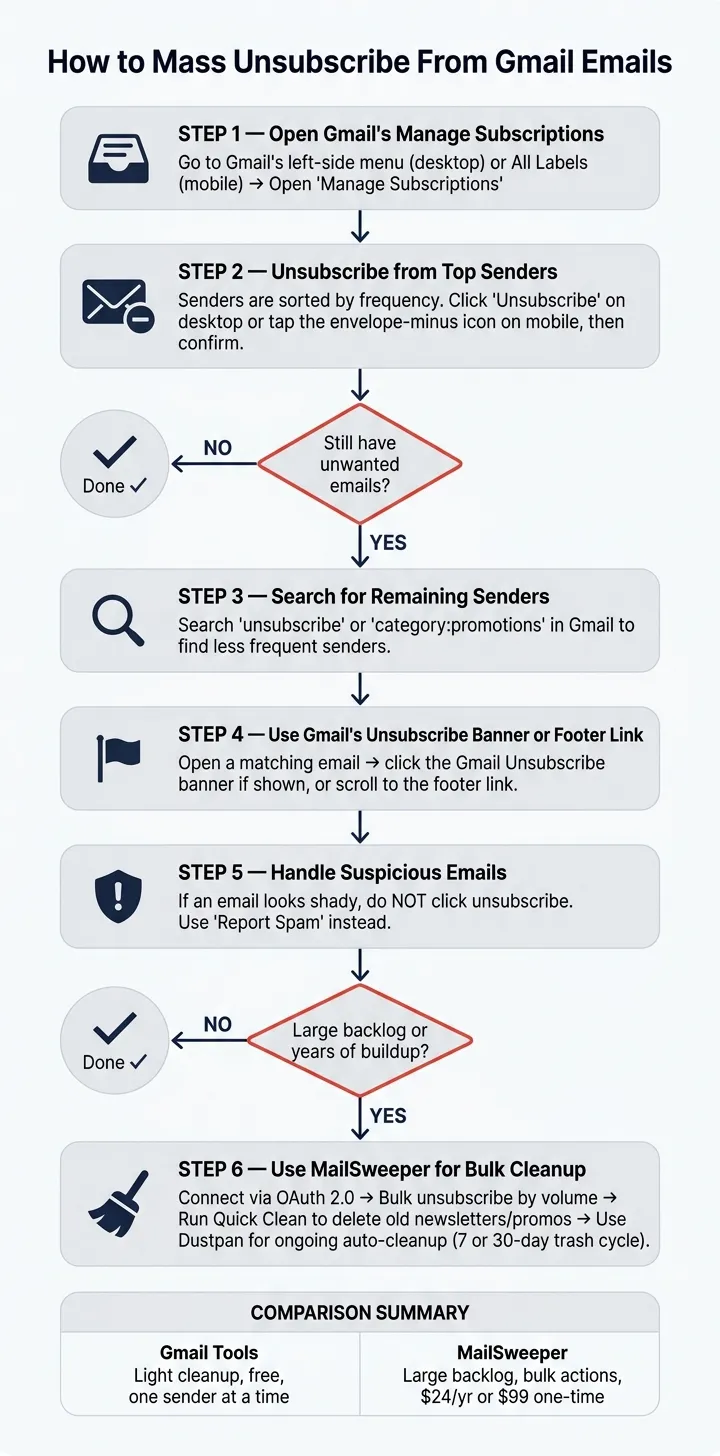
Open Manage subscriptions from Gmail's left-side menu on desktop or the All labels menu on mobile.
Inside that view, Gmail sorts senders by frequency. So the ones filling up your inbox the most show up first. Each sender also includes a recent message count, which helps you spot the biggest offenders fast.
To unsubscribe, click Unsubscribe on desktop or tap the envelope icon with a minus sign on mobile, then confirm.
Note: unsubscribing stops future mail only; delete existing messages separately.
If a sender isn't listed there, go straight to Gmail search.
Use Gmail search and the unsubscribe banner to catch remaining senders
Search unsubscribe or category:promotions in the Gmail search bar to pull up messages from less frequent senders. Then open a matching email and use Gmail's Unsubscribe banner if it appears. No banner? Scroll to the footer and look for an unsubscribe link there.
If a sender keeps emailing you after you unsubscribe, set up a filter to archive or delete future messages. And if an email looks suspicious, don't click unsubscribe at all. Use Report spam instead.
When Gmail's built-in tools don't go far enough, it's time for bulk cleanup.
Mass clean your inbox with MailSweeper
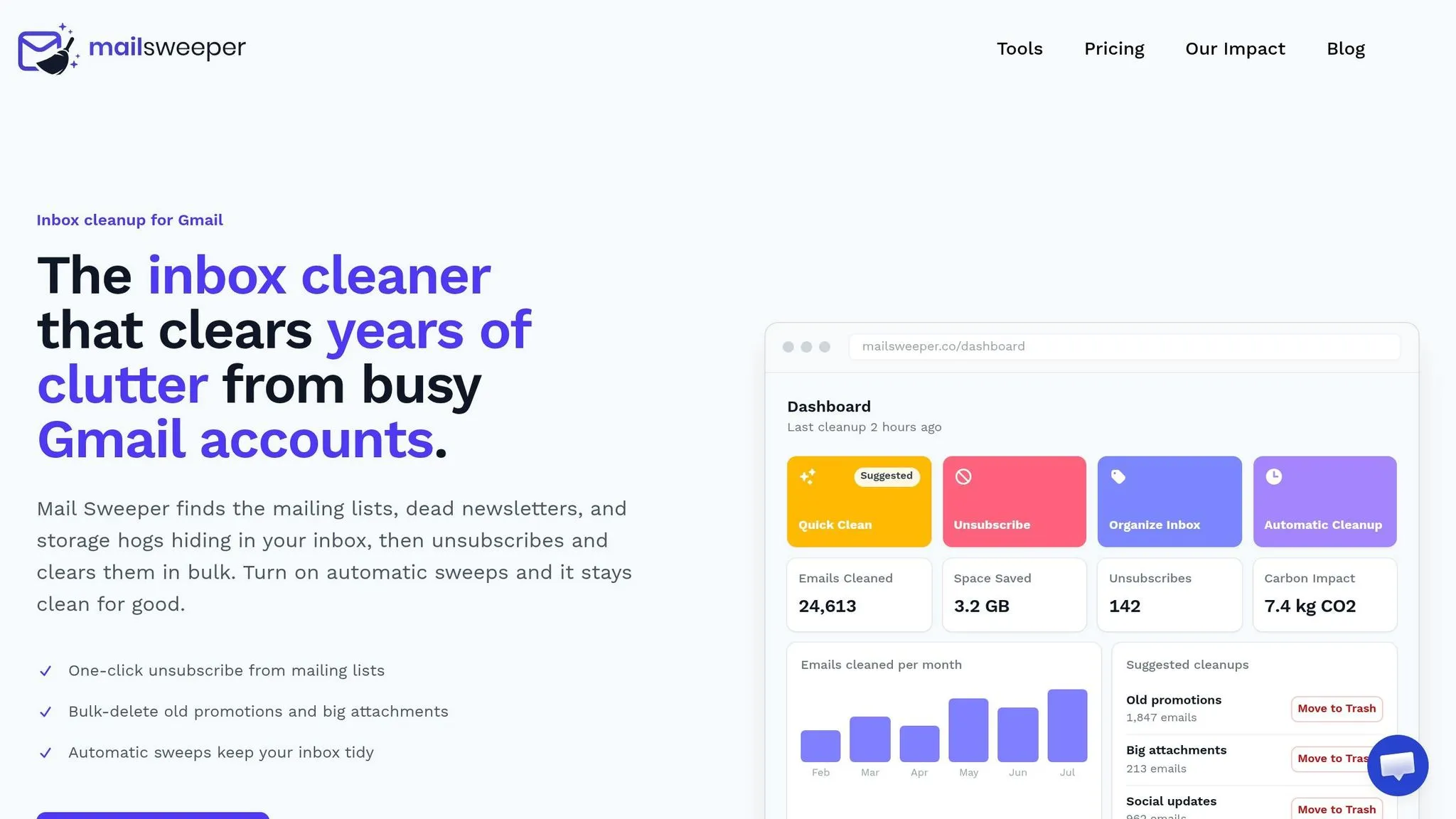
When Gmail’s built-in tools stop short, MailSweeper takes care of the heavy lifting in a single pass. It connects to Gmail through OAuth 2.0, reads only the metadata needed to spot subscriptions, and is CASA certified. Starred, important, and Primary inbox messages stay untouched.[5]
One-click unsubscribe and Quick Clean: remove old clutter fast
MailSweeper’s unsubscribe view shows every mailing list you’re on, ranked by volume. The senders that hit you most often show up first, so you can trim the biggest sources of inbox noise right away. One click unsubscribes you from each list.
Once the backlog is gone, smart labels help keep incoming mail in check. Quick Clean deletes old newsletters, promotions, and social notifications in one pass. It also shows how much storage you got back.
Smart labels and Dustpan sweeps for long-term inbox control
Smart labels move low-value mail out of your primary inbox, so the stuff you care about is easier to spot. Dustpan holds low-value mail for 7 or 30 days, then sends it to trash on its own unless you remove the label first.
MailSweeper pricing and free Gmail cleanup tools
Here’s the current pricing.
| Plan | Price | Details |
|---|---|---|
| Annual | $24/year | Full access, cancel anytime |
| Lifetime | $99 one-time | Everything in Annual, no recurring charges |
If you want to try a few utilities first, free tools are available at mailsweeper.co/tools. These include a bulk unsubscribe finder, a storage cleanup estimator, and a mass-delete scope picker. If your main goal is fast Gmail cleanup, head to /unsubscribe-gmail.
Gmail manual cleanup vs. MailSweeper: which one fits your inbox
Once you've covered the basics, it comes down to one thing: how much backlog you need to clear.
Use Gmail if the pile is small. Use MailSweeper if you need bulk cleanup and want to free up storage.
Gmail's built-in Manage Subscriptions panel works well for lighter cleanup. It's built into Gmail, doesn't need third-party access, and doesn't cost anything beyond your standard Google account. But there's a catch: Gmail handles one sender at a time. So if your inbox is packed with mailing lists, you still have to repeat the same step again and again.
MailSweeper is built for bigger inbox cleanups. It scans senders in seconds [2], lets you take action in bulk, and deals with the old pile-up through Quick Clean and Dustpan sweeps. Gmail's native tools don't handle that old clutter on their own [2].
So the split is pretty simple:
- Pick Gmail for a light cleanup
- Pick MailSweeper for a large backlog
That choice leads straight into the final cleanup step.
Conclusion: The simplest way to unsubscribe from emails at scale
Here’s the simplest path. If you want to avoid a tool with a history of broad inbox access and data sharing, skip Unroll.me.[1] You don’t need to hand over your data just to stop unwanted email.
Start with Gmail’s Manage Subscriptions panel. It’s a fast way to cut the obvious senders and clear some low-hanging fruit. After that, use MailSweeper to deal with the rest of the backlog - bulk unsubscribing, deleting old threads, and stopping new clutter from piling up again.
The result is pretty simple: less manual work, a cleaner primary inbox, and more free Gmail storage without paying for extra storage. Start here: /unsubscribe-gmail.
FAQs
How long do unsubscribe requests take to work?
Clicking unsubscribe only takes a few seconds, but the change usually doesn't happen right away. In most cases, senders need a few days to process your request and remove you from their mailing lists.
If you're still getting emails after a week, contact the sender directly. You can also block the sender or set up a domain filter to help stop the messages.
Will unsubscribing delete old emails too?
No. Unsubscribing from a mailing list only stops future emails from that sender. It doesn't delete the messages already sitting in your inbox.
If you want to get rid of old emails, you'll need to delete them yourself or use Gmail filters to do the heavy lifting. You can also set up a filter and apply it to existing conversations, which is a handy way to clean out your inbox while you unsubscribe.
What should I do if Gmail does not show an unsubscribe option?
If Gmail doesn’t show the standard unsubscribe button, scroll to the bottom of the email. Look for an Unsubscribe, Manage preferences, or Opt out link. Legitimate senders are required to include one.
If the email seems suspicious or comes from someone you don’t know, don’t click any links. Mark it as spam or block the sender in Gmail instead. If the same messages keep piling up, set up a custom filter to delete or archive future emails automatically.
