
Email Management
How to unsubscribe from email lists
Declutter your inbox using built-in unsubscribe tools, search filters, manual opt-outs, and automation—plus safety tips to avoid phishing.
How to unsubscribe from email lists
Managing email clutter can save you time and help you focus. Here's how to unsubscribe from unwanted emails effectively:
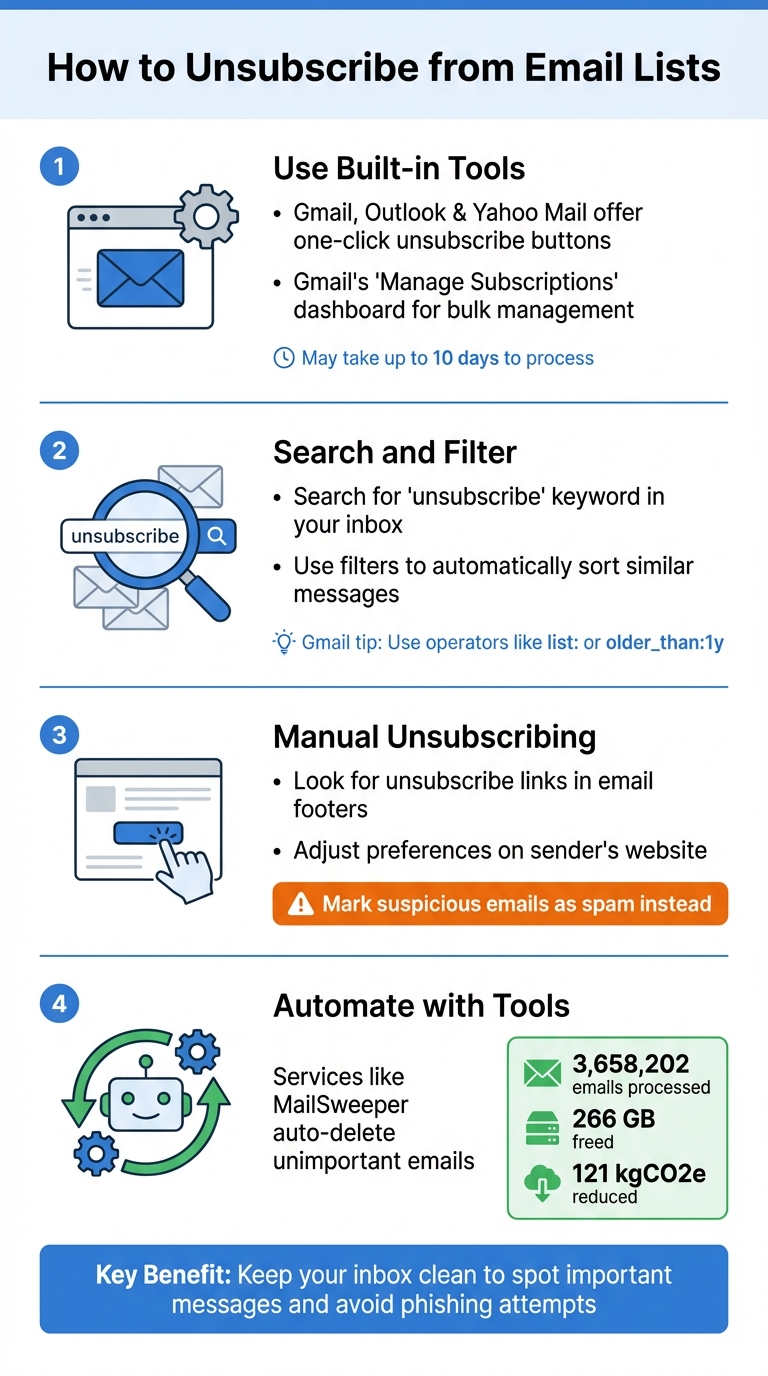
- Use built-in tools: Gmail, Outlook, and Yahoo Mail offer unsubscribe options directly within emails. Gmail even has a "Manage Subscriptions" dashboard for bulk management.
- Search and filter: Use keywords like "unsubscribe" in your email search bar to find and manage subscription emails. Set up filters to automatically sort or archive similar messages.
- Manual unsubscribing: If built-in tools fail, look for unsubscribe links in email footers or adjust preferences on the sender's website. Be cautious with unknown senders - mark suspicious emails as spam instead.
- Automate with tools: Services like MailSweeper can sort and delete unimportant emails automatically, saving you effort.
Unsubscribing keeps your inbox clean, making it easier to spot important messages and avoid phishing attempts.
4 Methods to Unsubscribe from Email Lists: Step-by-Step Guide
Gmail: Unsubscribe From All Mailing List at Once (Manage Email Subscription)
sbb-itb-34b9fd2
Using Built-in Unsubscribe Features
Clearing out your inbox can be much easier when you use the unsubscribe tools already available in your email service. This is a key step toward achieving Inbox Zero. Platforms like Gmail, Outlook, and Yahoo Mail offer built-in options to help you opt out of unwanted emails without hunting for tiny links buried in email footers. These tools work directly within your inbox, saving you time and frustration.
However, unsubscribing isn't always instant. It might take a few days for your request to be processed, and during that time, you could still receive emails from the sender. For Yahoo Mail users, it may take up to 10 days for emails to stop completely. If the emails persist beyond that, blocking the sender might be your next step.
Below, you'll find step-by-step instructions for using these tools in Gmail, Outlook, and Yahoo Mail.
How to Unsubscribe in Gmail
Gmail makes unsubscribing simple, whether you're on a computer or a mobile device. Open any promotional email, and you'll notice an "Unsubscribe" link next to the sender's name at the top of the message. Clicking it will bring up a confirmation pop-up - just hit "Unsubscribe" again to finalize the process.
For a more comprehensive approach, Gmail is introducing a "Manage subscriptions" tool. This feature collects all your active email subscriptions into one dashboard. To access it, click More in the left-hand menu on your desktop, then select Manage subscriptions. From there, you can unsubscribe from any sender with a single click. This tool ensures you're removed from all mailing lists tied to that sender, not just a specific one.
If Gmail can't process the unsubscribe request automatically, you'll see a "Go to website" button instead. Clicking this will redirect you to the sender's site to complete the process manually.
For mobile users on iOS or iPad, Gmail offers "Unsubscribe tips." You can enable this feature by going to Settings > Inbox customizations > Inbox tips and turning it on. This tool provides recommendations for lists you rarely interact with.
How to Unsubscribe in Outlook and Yahoo Mail
Though the interfaces differ slightly, the process of unsubscribing in Outlook and Yahoo Mail is just as straightforward.
In Outlook's web or desktop version, you'll often see a "Getting too much email?" banner above the sender's details in the reading pane. This feature is available for personal accounts but might not appear in business accounts. On mobile, you may need to scroll down to locate the sender's manual unsubscribe link. Alternatively, desktop users can right-click on an email and select Ignore to move all current and future emails from that conversation to the Deleted Items folder.
Yahoo Mail places its unsubscribe button prominently at the top of the message near the sender's name. For quicker management, the "Subscriptions" tab in the left-hand panel lets you view and unsubscribe from all active mailing lists in one place. On Yahoo's mobile app, marking an email as "Spam" can sometimes trigger an unsubscribe option.
A word of caution: Only use these unsubscribe tools with trusted senders. Clicking "Unsubscribe" on a suspicious or phishing email could alert scammers that your email address is active. If you're unsure about the sender, it's safer to mark the email as spam and delete it.
Manual Unsubscribing and Bulk Cleanup Methods
When you’re overwhelmed with subscriptions or can’t find unsubscribe buttons, manual methods and search filters can step in to help. These approaches work alongside built-in tools, giving you more control over cluttered inboxes while boosting efficiency.
Using Search and Filters for Bulk Unsubscribing
If built-in tools don’t meet your needs, search filters can help you tackle unwanted emails. Your email search bar is a handy tool for locating subscription emails. Simply type "unsubscribe" into the search field, as most legitimate promotional emails are required to include this term in their footer.
For Gmail users, advanced search operators can refine your results. For instance:
- Use the
list:operator (e.g.,list:newsletter@example.com) to find emails from specific mailing lists. - Apply
older_than:1yto locate emails you haven’t interacted with in over a year. - Combine terms with
OR(e.g.,"unsubscribe" OR "opt-out") to catch variations in unsubscribe language.
Once you’ve searched, click the top checkbox to select all visible emails, then hit "Select all conversations" to manage them in bulk. From there, you can delete, archive, or set up filters for future emails. To create a filter, open an email, click the three dots (More), and choose "Filter messages like this" to automatically manage similar emails going forward.
"You can create filters so that certain emails 'skip your inbox' and won't appear as new emails. For example, if you get a lot of email newsletters, set up a filter with 'Has the words: unsubscribe' - now, those emails won't distract you, but you can search for them later." - Laura Mae Martin, Google Productivity Expert
Safe Manual Unsubscribing Practices
If you need to manually unsubscribe - especially when links redirect to external sites - always verify the link’s legitimacy. Hover over the link to ensure it leads to a recognizable HTTPS domain (look for the padlock icon in your browser).
For suspicious senders, avoid clicking links altogether. Instead, use the "Report Spam" or "Report Phishing" option. Clicking questionable links can confirm your email is active, potentially increasing spam. Be cautious of vague subject lines (e.g., "Your account needs action!"), odd sender addresses (like "support@kfg82.biz"), or poorly written emails. Legitimate marketing emails usually include a company name, a physical address, and clear, non-urgent language.
If you can’t locate an unsubscribe link, use Ctrl+F (Windows) or Cmd+F (Mac) to search for terms like "unsubscribe", "opt-out", or "manage preferences." For companies where you hold an account, log in to their website and adjust your email preferences under "Account Settings" or "Notifications."
These steps not only help you clean up your inbox but also improve your email provider’s spam filters. Keep in mind that manual unsubscribe requests may take a few days to process. If emails persist after 10 days, mark them as spam. These practices set the stage for more automated solutions, which will be discussed later.
Automating Email Cleanup with MailSweeper
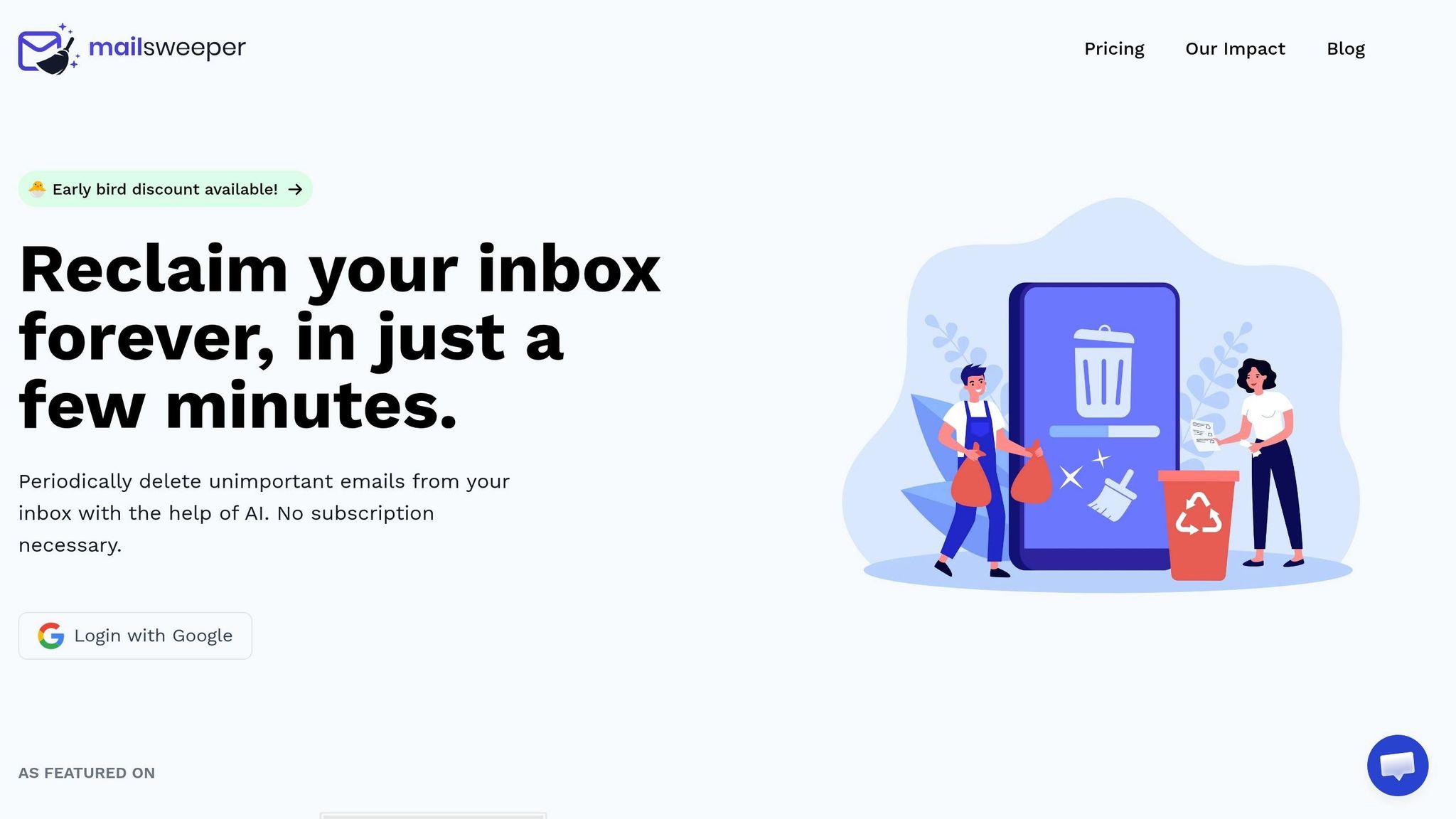
Taking inbox management a step further, MailSweeper automates the cleanup process, saving you time and effort. By connecting to your Gmail account, it uses AI to identify and sort unimportant emails into a "Dustpan" label. These emails are then deleted based on your preferred schedule. Since its launch, MailSweeper has processed an impressive 3,658,202 emails, freed up 266 GB of storage, and helped reduce carbon emissions by 121.00 kgCO2e.
Setting Up the Dustpan Label
Getting started is simple. Sign in with your Google account and make a one-time purchase - no recurring fees required. During setup, you'll answer a few quick questions to specify what types of emails (like newsletters, promotions, or social updates) should be swept. MailSweeper will then create the Dustpan label in your Gmail inbox and start collecting less important emails automatically.
Worried about losing something critical? MailSweeper has safeguards in place. It avoids touching starred or important emails and skips anything in your primary inbox. If you spot an email in the Dustpan that you want to keep, just remove the label manually before the next scheduled cleanup. Plus, MailSweeper is CASA certified, meaning it doesn’t read, store, or sell your private email data.
Adjusting Your Cleaning Schedule
Once the Dustpan label is active, you can set how long emails stay there before being deleted - either 30 or 90 days. Starting with the 90-day option is a good idea, as it gives you more time to review emails before they’re permanently deleted. You can tweak these preferences anytime, and the AI will adapt its filtering based on your manual corrections. To ensure nothing important slips through the cracks, check your Dustpan weekly to recover any misclassified emails. This automatic system works alongside the manual unsubscribe methods and built-in tools discussed earlier, keeping your inbox in top shape.
MailSweeper Pricing Plans
MailSweeper offers three lifetime access plans with a one-time payment - no monthly subscriptions. The Very Early Bird plan for $13.00 has already sold out, while the Early Bird plan at $16.00 has limited availability. The Personal plan, priced at $20.00, is open to all users. Each plan includes AI-powered email cleaning, customizable settings, and the Dustpan system.
Pricing Plans Table
| Plan | Price (One‑time) | Availability | Features |
|---|---|---|---|
| Very Early Bird | $13.00 | Sold Out | Lifetime use, AI cleaning, customizable preferences |
| Early Bird | $16.00 | Limited (3 left) | Lifetime use, AI cleaning, customizable preferences |
| Personal | $20.00 | Available | Lifetime use, AI cleaning, customizable preferences |
With just a single payment, you gain lifetime access to MailSweeper, making it a practical alternative to ongoing storage fees.
Conclusion
Tidy up your inbox efficiently by combining built-in unsubscribe tools, manual efforts like filtering and preference centers, and automation to handle repetitive tasks.
On average, people lose hours each week dealing with unwanted emails. Gmail's "Manage Subscriptions" feature, introduced in mid-2025, has already doubled unsubscribe rates. Email deliverability expert Michael Wright highlights its impact:
"The new Gmail Subscription Center makes it easy for users to see how many emails they're getting from each sender, sorted by highest volume. With a couple of clicks, you can unsubscribe without ever opening a message".
These small changes can lead to noticeable improvements. Aim to review your subscriptions every few months and consider using a secondary email address for signups to keep your primary inbox clutter-free.
A quick tip: unsubscribing removes you entirely from a sender's list, while blocking redirects future emails to spam. For legitimate senders, always use the unsubscribe link. For anything suspicious, mark the email as spam instead.
FAQs
Why do I still get emails after unsubscribing?
Even after you unsubscribe, those pesky emails might still flood your inbox. Why? Some unsubscribe links just don’t work, especially in cases of spam or phishing attempts. In fact, clicking on these links can sometimes backfire by confirming to spammers that your email address is active - inviting even more unwanted messages.
On top of that, some senders intentionally delay or outright ignore unsubscribe requests. And if your email was added to a mailing list without your consent, you might have to jump through a few extra hoops - or take manual action - to completely get yourself removed.
Is it safe to click “Unsubscribe” on every email?
It's not always a good idea to click "Unsubscribe" on every email you receive. While legitimate companies include real unsubscribe links, scammers often use fake ones. Clicking these can confirm your email address is active, potentially inviting even more spam or phishing attempts.
To stay safe, only click "Unsubscribe" on emails from sources you trust. For anything that seems suspicious, it's better to mark the email as spam or set up filters to block them - avoiding any direct interaction with unsubscribe links.
How can I bulk-clean subscription emails fast?
If your inbox is overflowing with subscription emails, tools like Gmail's Manage Subscriptions feature can make cleanup a breeze. This feature lets you view and unsubscribe from newsletters all in one spot. For an even faster solution, consider third-party services that handle bulk unsubscriptions automatically. These tools are easy to set up and can help you declutter your inbox in no time.
More free Gmail tools.
Pair these together for a full inbox reset.
Bulk Unsubscribe from Gmail
See the senders flooding your inbox, ranked by volume — your shortlist for unsubscribes.
Open toolMass Delete Gmail Emails
Build a deletion plan by sender, date, label, or all-unread — with the exact Gmail search to run.
Open toolFind Large Emails in Gmail
Pick a size and we build the exact Gmail search to find your biggest emails — then open it in one click.
Open toolGmail Storage Cleanup
Move the slider to your current Gmail usage to see exactly what to delete to free space.
Open toolInbox Zero Score
Rate your inbox health on a 0–100 scale and see the weekly hours your inbox is costing you.
Open tool