
Email Management
Why Unsubscribing from Emails doesn't work
Unsubscribing often fails—hidden lists, fake links, and old mail keep your inbox full; use Gmail filters, search operators, and AI cleanup to reclaim space safely.
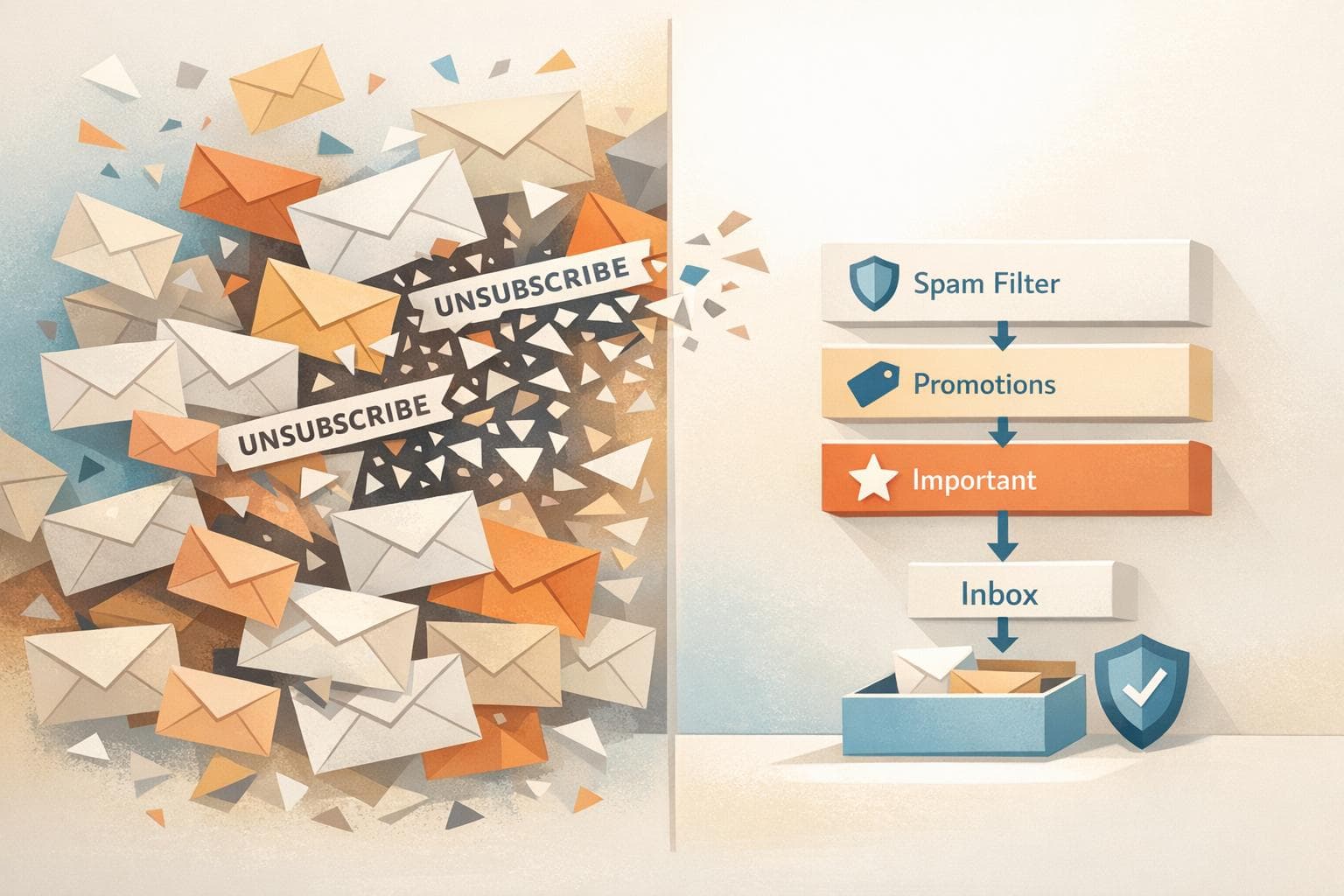
Why Unsubscribing from Emails doesn't work
Even after clicking "unsubscribe", your inbox still overflows with unwanted emails. Why? Unsubscribing often doesn’t stop the clutter because:
- Hidden Mailing Lists: Companies manage multiple lists, so unsubscribing from one doesn’t remove you from others.
- Risky Links: Some unsubscribe links confirm your email is active, leading to more spam or even malware risks.
- Storage Issues: Unsubscribing only stops future emails - it doesn’t clean up old ones already taking up space.
Instead of relying on unsubscribe links, smarter tools like Gmail filters, search commands, and AI-powered cleanup can help you manage your inbox safely and efficiently. Learn how to take control without the risks of manual unsubscribing.
What Happens If A Spam Email Unsubscribe Link Doesn't Work? - TheEmailToolbox.com
sbb-itb-34b9fd2
Why Unsubscribing Doesn't Reduce Inbox Clutter
Hitting the unsubscribe button might feel like a step toward a cleaner inbox, but it rarely delivers the results you hope for. The way email marketing works today makes it tough for opt-out requests to stick - and in some cases, they can even make things worse. Let’s break down how hidden lists, risky links, and storage issues keep your inbox cluttered.
Hidden Mailing Lists and Recurring Marketing Emails
Unsubscribing from one email often just removes you from a single campaign. Big companies usually manage multiple mailing lists - think newsletters, product updates, sales alerts, and regional promotions. So, while you may stop receiving one type of email, others from the same company might still flood your inbox. Carl Chandler, a Certified Privacy Expert, puts it plainly:
"You may still receive emails after unsubscribing because you are on another mailing list for the same company".
To make matters worse, your email address can end up in the hands of third-party marketers. When you sign up for a free article, join a petition, or make an online purchase, your information might be sold to lead brokers or shared through databases. This creates a domino effect, where unsubscribing from one sender doesn’t stop emails from others.
Dangers of Untrustworthy Unsubscribe Links
Not all unsubscribe links are safe. In fact, clicking a suspicious link can make your spam problem worse. Charles Henderson, Executive Vice President of Cybersecurity Services at Coalfire, explains:
"By clicking on a fake link in a spam email, you might be confirming to the spammer that your email address is correct, active and checked on a regular basis".
Scammers use these links to verify active email accounts, turning you into an even bigger target. Worse, some links redirect you to malicious websites that can install malware or steal your login credentials. Then there are dark patterns - unsubscribe links hidden in hard-to-read text, designed to make opting out frustrating or nearly impossible. These tricks make unsubscribing feel like navigating a minefield.
Storage Problems from Accumulated Old Emails
Even when you successfully unsubscribe, it only stops future emails. The promotional messages already in your inbox? They’ll keep sitting there, eating up storage space. And with automated emails making up 90% of non-spam messages, that backlog can grow quickly. Unsubscribing doesn’t tackle the clutter you’ve already accumulated - it’s a forward-looking solution that leaves past messes untouched. To truly clean up, smarter tools for managing and clearing old emails are essential.
Problems with Relying on Unsubscribe Links
Unsubscribe links might seem like a straightforward way to reduce email clutter, but they come with significant risks. From security concerns to wasted time, relying on these links can create more problems than they solve.
Security Threats from Unsubscribe Links
Clicking on unsubscribe links isn’t always as harmless as it appears. In fact, about 1 in every 644 unsubscribe links leads to a malicious website. Charles Henderson, Executive Vice President of Cybersecurity Services at Coalfire, explains the danger:
"If malware is deployed, the spammers can often see everything you're doing on your computer, including capturing keystrokes for your passwords and banking information".
These malicious links can confirm your email is active, opening the door to malware attacks, phishing attempts through fake login pages, and even the resale of your contact information on the dark web. Henderson further points out:
"Just like any business, spammers want a high return on investment. Attaching a fake link to unsubscribe is one of the best ways for scammers to make sure their email hits its mark".
Even unsubscribe links from legitimate companies can be tricky. Many use "dark patterns", such as hiding links in barely visible, grayed-out text, making it hard to tell safe links from dangerous ones. This adds another layer of risk to the already frustrating process of manual unsubscribing.
Time Costs of Manual Unsubscribing
Aside from the security issues, manually unsubscribing is a massive time drain. Even when dealing with legitimate emails, the process often involves multiple steps, like entering verification details or confirming your decision repeatedly. Considering that 90% of non-spam emails are automated and 36.9% of all business emails are unwanted, the time spent adds up quickly.
Adding to the frustration is the legal grace period that allows marketers up to 10 business days to process unsubscribe requests. During this time, you’ll likely continue receiving emails. Privacy engineer Jayati Dev, PhD, sums it up well:
"It's a challenging task. There are so many emails to manage, and unsubscribing from each of them is really hard".
To make matters worse, unsubscribing only removes you from a single mailing list. Your email address may still exist in other databases, perpetuating a never-ending cycle of unwanted messages.
Better Options: Filters, Labels, and Gmail Storage Management
Instead of risking unsafe unsubscribe links or getting bogged down with manual sorting, Gmail's built-in tools - filters, labels, and search commands - offer a smarter way to manage your inbox. These features help you stay organized, identify emails that hog storage, and decide what to keep or delete - all without compromising your security.
Gmail Filtering and Labeling Methods
Gmail filters are your personal inbox assistants, automatically sorting incoming emails based on the rules you set. Combined with Gmail's labels (which act like tags you can apply to multiple emails), they make organization a breeze. For example, you can create a filter to automatically archive, label, mark as read, or delete emails as they arrive.
Here’s a handy trick: use the keyword unsubscribe in the "Has the words" field to catch newsletters. Set the filter to "Skip the Inbox (Archive it)" and "Apply the label: Newsletters." This keeps promotional emails out of your main inbox while still letting you access them if needed. Want to ensure important emails from trusted sources don’t get filtered out? Use the minus operator in the "From" field, like this: -*@trustedcompany.com. Don’t forget to check "Also apply filter to matching conversations" to apply the rule to existing emails.
Another useful tool is the Mute feature, which automatically archives ongoing reply threads. This keeps your notifications quiet without forcing you to unsubscribe. These filtering strategies lay the groundwork for faster inbox cleanup using Gmail’s search commands.
Using Gmail Search Commands for Fast Cleanup
Gmail’s search operators are like a magnifying glass for your inbox, helping you pinpoint emails that are eating up your storage. Did you know the average person accumulates around 8,000 emails annually? Marketing emails with embedded images can take up 2MB to 5MB each, which quickly adds up against Google’s 15GB storage limit shared across Gmail, Google Drive, and Google Photos.
Here’s a quick guide to some useful search operators:
| Search Operator | What It Does | Example |
|---|---|---|
larger:10M |
Finds emails larger than 10MB | larger:10M |
older_than:2y |
Finds emails older than two years | older_than:2y |
has:attachment |
Filters emails with attachments | has:attachment |
category:promotions |
Isolates marketing emails | category:promotions |
filename:pdf |
Finds emails with PDFs | filename:pdf |
is:unread |
Finds all unread emails | is:unread |
You can combine these operators for even more precise searches. For example, use larger:5M older_than:1y to find large, old emails, or category:promotions older_than:30d to quickly locate outdated marketing emails. Once you’ve run a search, click the "Select" checkbox at the top left. If there are more than 50 results, Gmail will offer an option to "Select all conversations that match this search", making mass deletion easy.
Managing Long-Term Clutter and Storage Space
Keep in mind that archiving emails removes them from your inbox but doesn’t free up storage. To reclaim space, you’ll need to delete emails and empty your Trash folder. Gmail automatically deletes messages in the Trash after 30 days, but you can speed things up by clicking "Empty Trash now" after a bulk deletion.
For a more targeted cleanup, use the search operator has:attachment larger:10M to find and assess large files that are eating up space. If archived emails are no longer needed, search in:archive to locate and permanently delete them.
To maintain control over your inbox and storage, set up a regular schedule:
- Delete promotional emails weekly.
- Review large attachments monthly.
- Archive old emails quarterly.
This routine prevents clutter from building up and keeps your storage in check - all while avoiding the risks of unsafe unsubscribe links. You can also leverage top email productivity tools to streamline your workflow. Up next, we’ll explore how AI-powered tools can take your email management to the next level.
Using AI-Powered Cleanup to Automate Email Management
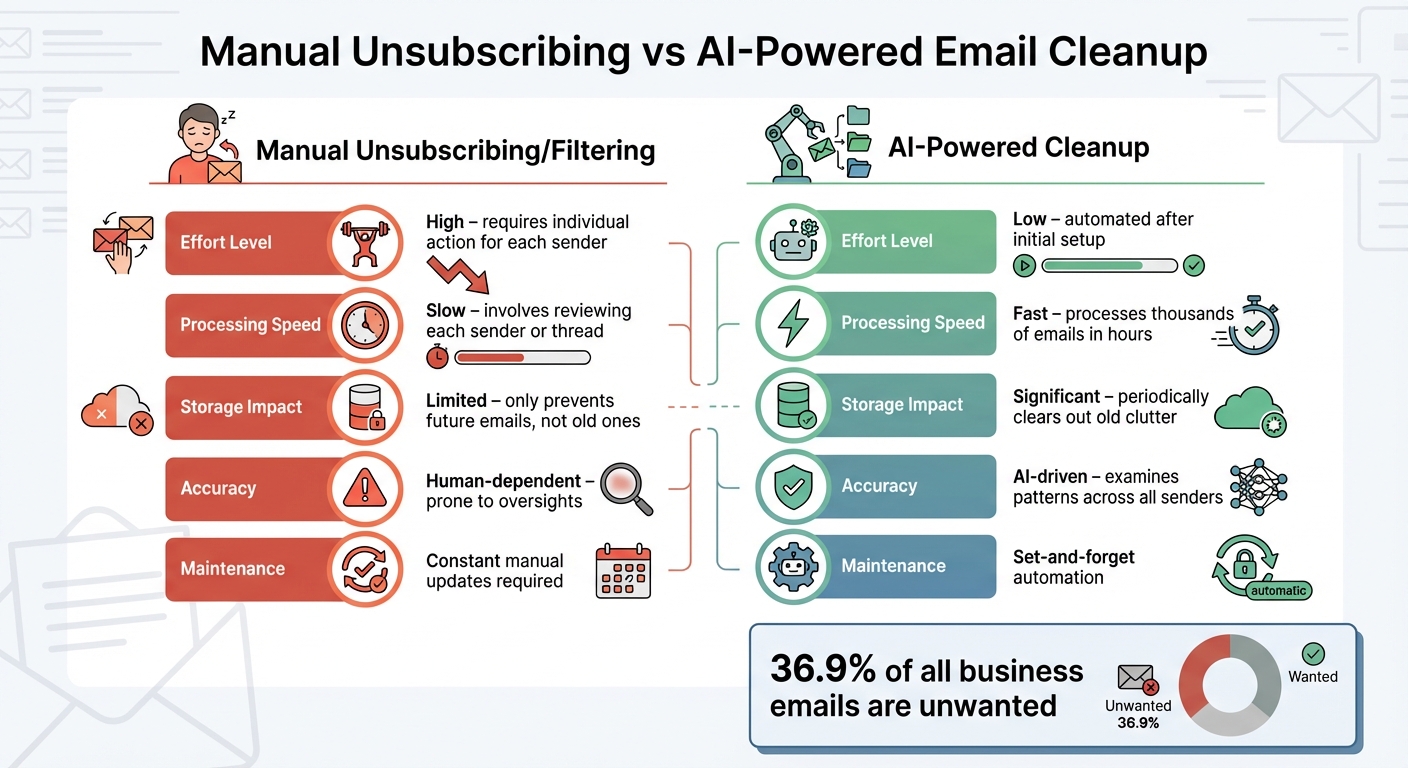
Manual Unsubscribing vs AI-Powered Email Cleanup Comparison
Gmail’s filters and search commands are helpful for keeping your inbox organized, but they still require you to step in regularly. AI-powered tools, on the other hand, take things a step further by learning your email habits and taking care of low-priority emails automatically. This helps tackle the long-term storage issues we mentioned earlier without constant manual effort.
How AI Identifies Low-Priority Emails
AI email tools are designed to recognize patterns in your inbox. They can tell the difference between emails from actual people and those from automated systems, like mailing lists, shopping notifications, or calendar updates. For example, if you often receive promotional emails but rarely open them, the AI might suggest archiving or deleting those threads.
Thanks to advanced natural language processing (NLP), these tools let you manage your inbox in plain, everyday language. Instead of memorizing complex search commands, you can say things like, “Find emails about the quarterly report” or “Show me large attachments from last year.” Some tools even summarize lengthy email threads into quick bullet points, helping you decide at a glance whether to keep or delete them. The real game-changer is predictive cleaning: the AI learns your habits and automatically keeps only the latest newsletter from a sender, while older ones are deleted. Let’s take a closer look at how one tool, MailSweeper, handles this process.
How MailSweeper Keeps Your Inbox and Storage Under Control
MailSweeper offers a feature called "The Dustpan", a Gmail label that separates low-priority emails from your main inbox. Once installed, the tool scans your emails for things like old notifications, calendar invites, and shopping deals, tagging them with the Dustpan label. This keeps your primary inbox clutter-free.
MailSweeper ensures your important emails stay safe. Messages in your primary inbox, starred emails, or those marked as "important" are never touched. And if something ends up in the Dustpan by mistake, you can easily remove the label to keep it. After a set period - either 30 or 90 days, depending on your preference - MailSweeper automatically moves emails in the Dustpan to the trash.
So far, MailSweeper has cleaned up over 3.1 million emails, freeing up 230 GB of storage space for its users. It’s CASA-certified, meaning it doesn’t read, store, or sell your private email data. Unlike subscription-based services, MailSweeper uses a one-time payment model: $13 for the Very Early Bird tier (limited availability), $16 for the Early Bird tier (limited availability), or $20 for the standard Personal plan. This makes it a cost-effective way to stay under Gmail’s 15 GB free storage limit without monthly fees.
These features make MailSweeper a practical alternative to manual email management.
Benefits of AI Cleanup Over Manual Methods
AI-powered cleanup offers clear advantages over manual methods. Unsubscribing and filtering emails manually takes time and effort - you have to identify senders, click unsubscribe (which isn’t always effective), and constantly update your filters as new emails come in. AI tools, on the other hand, automate this process after a quick setup.
| Feature | Manual Unsubscribing/Filtering | AI-Powered Cleanup |
|---|---|---|
| Effort Level | High – requires individual action for each sender | Low – automated after initial setup |
| Processing Speed | Slow – involves reviewing each sender or thread | Fast – processes thousands of emails in hours |
| Storage Impact | Limited – only prevents future emails, not old ones | Significant – periodically clears out old clutter |
| Accuracy | Human-dependent – prone to oversights | AI-driven – examines patterns across all senders |
| Maintenance | Constant manual updates required | Set-and-forget automation |
Chris Doan, Director of Gmail, highlights the effectiveness of AI in email management:
"Gmail blocks more than 99.9% of spam, phishing and malware, and we've recently rolled out new AI-based defenses which cut scam emails by 35%".
Building on Gmail's defenses, AI tools offer personalized cleanup tailored to your inbox habits. For users with extreme clutter - like 3,000+ unread emails - AI tools can clear it all in about an hour, compared to the days it might take to do manually.
The combination of speed, accuracy, and low maintenance makes AI-powered email cleanup a reliable solution for managing inbox clutter and long-term storage. Unlike manual methods that require ongoing effort, AI tools work quietly in the background to keep your inbox organized and under control.
Building a Practical Email Management System
Keeping your inbox under control becomes much easier when you combine manual filters with AI-powered tools. Gmail filters are great for handling predictable, rule-based sorting, while AI tools excel at more complex tasks like identifying low-priority notifications and scheduling regular cleanups. Together, they create a system that not only organizes your inbox initially but also keeps it tidy over time.
Step-by-Step Guide for Better Email Management
To build an effective email management system, you need to combine manual strategies with AI tools in a way that maximizes their individual strengths. Here’s how you can do it:
Start with an initial bulk cleanup using Gmail’s search operators. These operators help you quickly locate and delete large or outdated emails. For example, you can use has:attachment older_than:2y to find old emails with attachments and delete them in bulk. This step immediately clears up storage space and sets the stage for ongoing organization.
Next, set up manual filters in Gmail. Go to "Filters and Blocked Addresses" in Settings and create filters using keywords like unsubscribe to automatically archive marketing emails. You can even use an OR operator to broaden the scope, such as: unsubscribe OR "view in browser" OR "opt out" OR "manage your account". These filters will apply to both new and existing emails, ensuring consistent organization.
For ongoing maintenance, use a tool like MailSweeper. Once installed, it creates a "Dustpan" label to collect low-priority emails, such as old notifications and promotional deals, while leaving important messages untouched. You can set a cleanup schedule - like 30 or 90 days - and MailSweeper will automatically move older emails from the Dustpan to the trash. This addresses Gmail’s limitations on automatic deletion and helps keep your inbox clutter-free without extra effort.
Benefits of Combining Manual Filters with AI Automation
This combined approach addresses a common issue: 36.9% of all business emails are unwanted. Manual filters allow you to target specific senders or keywords with precision, while AI tools like MailSweeper handle the repetitive, large-scale tasks that would otherwise take hours. This means less time spent hunting for unsubscribe links or sorting through endless promotional emails, and more time focused on meaningful work.
Another major advantage is efficient storage management. Gmail’s free 15 GB storage can fill up quickly with spam and large attachments. By using filters to block new clutter and AI tools to periodically clear out older emails, you can stay well below the storage limit. Instead of constantly monitoring your inbox or dedicating hours to manual cleanups, this system works quietly in the background, keeping everything organized and freeing you to focus on what matters most.
Conclusion: Achieving a Clutter-Free Inbox with Better Solutions
Unsubscribing might seem like the obvious fix, but it doesn’t solve the deeper issues of email clutter or protect your inbox effectively. It leaves behind thousands of old emails hogging your storage and can even backfire by confirming your email address is active, potentially increasing spam. Plus, the tedious process of unsubscribing one email at a time is far from practical.
A smarter approach combines Gmail’s built-in filtering tools with the power of AI-driven automation. Manual filters are great for predictable sorting, but tools like MailSweeper take it further. MailSweeper identifies low-priority emails, organizes them under a "Dustpan" label, and automatically clears out older messages by moving them to the trash. This dual approach not only keeps new clutter at bay but also tackles the backlog eating into your free 15 GB of storage.
The key is setting up a system that works for you on autopilot. Start with a bulk cleanup using Gmail search operators, set up filters for recurring emails, and let AI handle the ongoing maintenance. This method keeps your inbox tidy, your storage in check, and your focus on what truly matters - without wasting time on endless unsubscribe clicks.
FAQs
Why doesn’t unsubscribing from emails always reduce inbox clutter?
Unsubscribing from emails doesn’t always solve the problem. Some senders ignore your requests, use misleading unsubscribe links, or simply start sending emails from different addresses. Instead of depending on these links, you can take charge of your inbox with a few smart strategies.
First, make use of your email provider’s filtering and blocking features. You can create rules to automatically sort unwanted emails - like newsletters or promotional messages - into a separate folder or even delete them after a set period. Persistent senders? Block them entirely to prevent their emails from ever reaching your inbox.
For a more streamlined solution, try AI-powered email cleanup tools. These tools can analyze your mailbox, identify clutter, and suggest bulk actions like deleting or archiving. They even learn your preferences over time, making organization easier. Pair this with safe email habits, like avoiding suspicious links or unfamiliar senders, and you’ll keep your inbox tidy without relying on unreliable unsubscribe options.
What are the risks of clicking 'unsubscribe' links in emails?
Clicking an "unsubscribe" link might feel like the easiest way to deal with unwanted emails, but it could open the door to serious security and privacy issues. Scammers often disguise fake unsubscribe buttons to confirm your email is active, which can lead to an avalanche of spam or phishing attacks.
Even links that seem legitimate can redirect you to harmful websites designed to steal your personal information or install malware. In some cases, these links activate tracking scripts, signaling spammers that you interacted with their email. Instead of reducing spam, this often leads to even more unwanted messages flooding your inbox.
To protect yourself, steer clear of clicking unsubscribe links in emails from unknown or questionable senders. Instead, rely on trusted tools to manage your inbox and block unwanted emails effectively.
How can AI tools make managing emails easier and more efficient?
AI-powered email tools take the hassle out of managing your inbox by scanning and organizing emails in just seconds - something that could take hours if done manually. Using advanced language processing, these tools can identify promotional emails, newsletters, and other low-priority messages. This means you can archive, label, or unsubscribe from them in bulk, skipping the need to open each one individually. They also spot patterns, such as frequent senders or recurring subject lines, helping you zero in on the emails that truly matter.
One standout feature of AI is its ability to learn and improve over time. With machine learning, these tools refine their filters based on your habits, minimizing mistakes and staying ahead of evolving spam tactics. When integrated with platforms like Gmail, they can even apply smart filters the moment emails hit your inbox - organizing or deleting them automatically. The result? A streamlined, stress-free inbox that saves you time and effort.
More free Gmail tools.
Pair these together for a full inbox reset.
Bulk Unsubscribe from Gmail
See the senders flooding your inbox, ranked by volume — your shortlist for unsubscribes.
Open toolMass Delete Gmail Emails
Build a deletion plan by sender, date, label, or all-unread — with the exact Gmail search to run.
Open toolFind Large Emails in Gmail
Pick a size and we build the exact Gmail search to find your biggest emails — then open it in one click.
Open toolGmail Storage Cleanup
Move the slider to your current Gmail usage to see exactly what to delete to free space.
Open toolInbox Zero Score
Rate your inbox health on a 0–100 scale and see the weekly hours your inbox is costing you.
Open tool