
Email Management
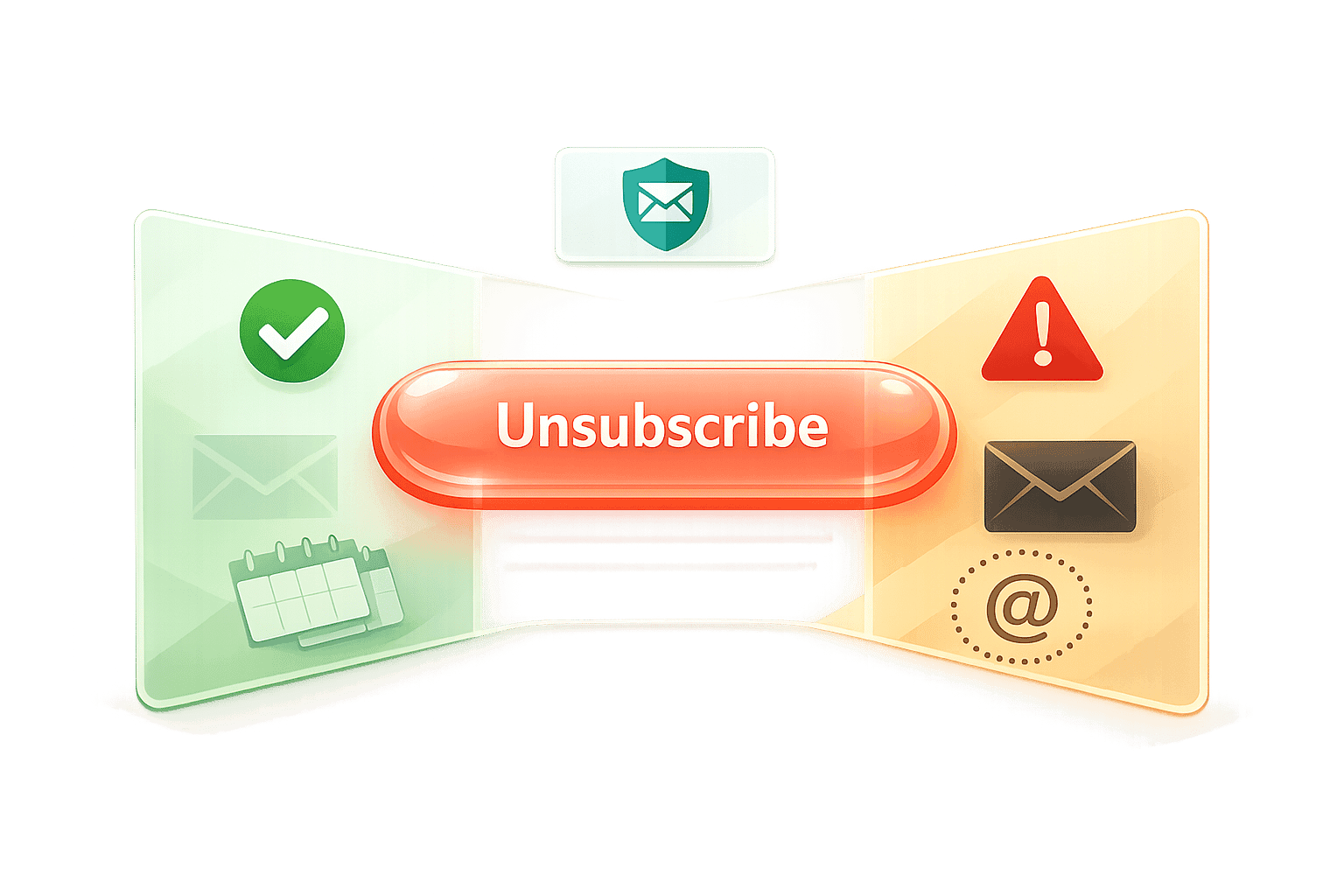
When I click Unsubscribe on an email, what happens?
What happens when you click unsubscribe: trusted senders usually remove you within days, suspicious links can confirm your address, and Gmail uses secure list-unsubscribe.
When I click Unsubscribe on an email, what happens?
When you click "Unsubscribe" on an email, it sends a request to the sender to stop sending you specific types of messages. Here's what happens:
- For trusted senders: Your email is removed from their marketing list. This usually takes 24-48 hours but can take up to 10 business days under U.S. law.
- For suspicious emails: Clicking may confirm your email is active, potentially leading to more spam. Use your email provider's "Report Spam" option instead.
- Gmail's native unsubscribe button: Sends a secure request directly to the sender, reducing risks and skipping unnecessary steps.
Unsubscribing helps reduce inbox clutter and reduce your digital footprint and stops future unwanted emails, but it doesn’t delete old messages or block all communications from the sender. Be cautious with unsubscribe links, especially in emails from unknown sources, as they can be phishing traps.
Quick Tips:
- Use Gmail's built-in unsubscribe button for safety.
- Avoid clicking unsubscribe links in suspicious emails.
- Delete old promotional emails to free up Gmail storage.
How to Clean Out Gmail: NEW Unsubscribe! [2025]
sbb-itb-34b9fd2
What Happens Behind the Scenes When You Unsubscribe
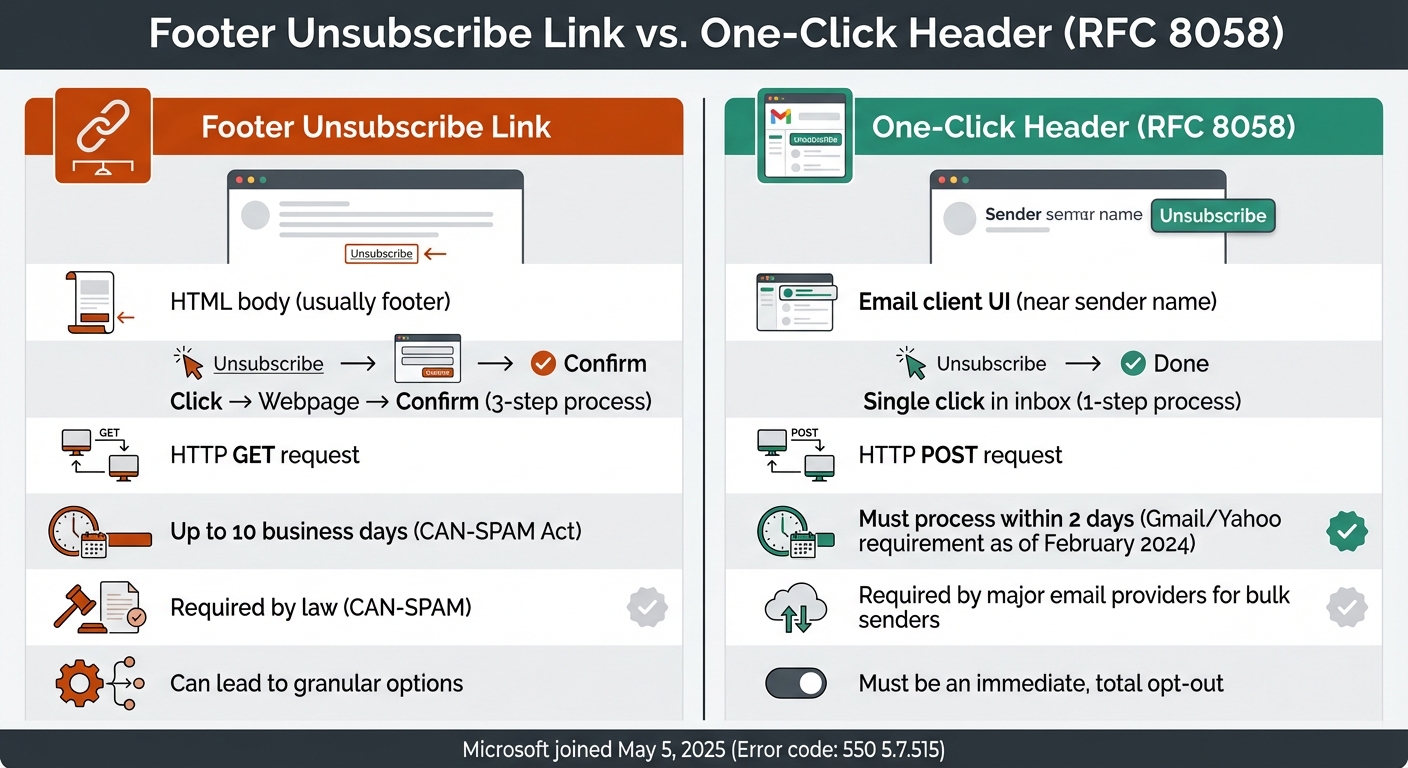
Footer Unsubscribe Link vs One-Click Unsubscribe Header Comparison
When you hit that unsubscribe button, a specific process kicks into gear, and how it unfolds depends on the method used. Whether you’re clicking a traditional footer link or Gmail’s built-in unsubscribe button, the mechanics behind the scenes explain why some unsubscribes feel seamless while others involve extra steps. Here’s a closer look at how these two approaches differ.
How Footer Unsubscribe Links Work
Footer unsubscribe links are tucked into the email’s HTML, typically at the bottom. Clicking one sends an HTTP GET request, which directs you to a confirmation page. From there, your email address gets added to a suppression list - essentially a database of addresses that should no longer receive emails. This process often involves multiple steps, like page loads and confirmations, which can make it feel slower.
Under the CAN-SPAM Act, email senders have up to 10 business days to honor unsubscribe requests. However, platforms like Gmail and Yahoo demand faster action, requiring bulk senders to process these requests within 2 days.
One-Click Unsubscribe Using List-Unsubscribe Headers
Gmail’s native unsubscribe button works differently. It uses List-Unsubscribe headers, hidden data embedded in the email’s header section. When you click the button next to the sender’s name, Gmail sends an HTTP POST request directly to the sender’s server with a List-Unsubscribe=One-Click command. This happens quietly in the background - no browser tabs, no extra steps.
This system follows the RFC 8058 standard, designed to prevent accidental unsubscribes. Why? Anti-spam bots often click links using GET requests to test for malware, but they rarely execute POST requests. This distinction ensures you won’t be unsubscribed by your own security software. As of February 2024, Gmail and Yahoo require all bulk senders to include one-click headers. Microsoft joined the party on May 5, 2025, rejecting non-compliant emails with error code "550 5.7.515".
| Feature | Footer Unsubscribe Link | One-Click Header (RFC 8058) |
|---|---|---|
| Location | HTML body (usually footer) | Email client UI (near sender name) |
| User Action | Click → Webpage → Confirm | Single click in inbox |
| Technical Trigger | HTTP GET request | HTTP POST request |
| Requirement | Required by law (CAN-SPAM) | Required by major email providers for bulk senders |
| Preference Center | Can lead to granular options | Must be an immediate, total opt-out |
Some senders take it a step further by including both an HTTPS URI and a mailto address in their List-Unsubscribe header. This ensures compatibility with email clients like Outlook and Apple Mail. The mailto method sends an automated email to a designated address (e.g., unsub@example.com) to process your opt-out request. Unlike footer links, this method skips any additional user interaction.
Preference Centers and Partial Unsubscribes
While one-click unsubscribe methods offer a quick way out, some senders use preference centers to give you more control. Instead of opting out entirely, you can select which types of emails you want to keep - like weekly newsletters, product updates, or promotional offers. While this approach is helpful for tailoring your inbox, it adds friction by requiring you to make decisions instead of simply unsubscribing.
However, this strategy can backfire. If a sender advertises a one-click unsubscribe but redirects you to a preference center or asks for further action, it could hurt their reputation with email providers. As Matthew Whittaker, Co-founder & CTO of Suped, explains:
If you advertise a one-click unsubscribe... but the linked URL leads to a preference center or requires further action, it can negatively impact your reputation.
Preference centers are ideal for users who want to reduce email clutter without severing ties entirely. But they don’t meet the one-click requirement enforced by Gmail and Yahoo. For bulk senders, the native unsubscribe button must trigger an immediate, complete opt-out with no extra steps. That’s why you might notice both a Gmail unsubscribe button and a footer link in the same email - one ensures instant removal, while the other offers more nuanced control.
Common Problems When Unsubscribing
Even when you follow the unsubscribe process step by step, things don't always go smoothly. Knowing why these issues arise can help you handle them better and avoid the frustration of unwanted emails.
Why You Still Get Emails After Unsubscribing
It’s frustrating to unsubscribe from emails only to see them still showing up in your inbox. This often happens because of processing delays. Email providers typically take 24 to 48 hours to update their systems, meaning emails already queued during this time may still reach you.
Another factor is segmented mailing lists. Many organizations maintain separate lists for different types of emails, such as newsletters, promotions, or product updates. When you unsubscribe, it might only remove you from one list, not all communications from the sender. For large companies, syncing these segmented databases can take time, adding to the delay.
Under the CAN-SPAM Act, marketers have up to 10 business days to process unsubscribe requests. If you’re still receiving emails after this period, the sender is breaking federal law and could face fines of up to $53,088 per email violation. In such cases, using your email provider’s "Report Spam" button can flag the sender and help improve your spam filters.
However, be cautious when dealing with malicious spammers. Clicking unsubscribe on their emails can confirm your email address is active, leading to more junk mail as your address gets sold to other spammers.
Hard-to-Find or Confusing Unsubscribe Links
Some senders intentionally make it difficult to unsubscribe by hiding or disguising the opt-out option. They might bury the link at the bottom of the email in tiny, faint text or use vague language that leaves you unsure if you’ve unsubscribed. Joe Jones, Director of Research and Insights at the International Association of Privacy Professionals, emphasizes:
Organizations are required under applicable privacy laws to make unsubscribing just as easy as subscribing.
To navigate these tricks, use Ctrl + F (or Cmd + F on a Mac) to search for "unsubscribe" within the email. Some companies might redirect you to a preference center, allowing you to pick which emails you want to keep receiving. While this gives more control, it can be frustrating if it requires multiple steps instead of a simple one-click process. Under CAN-SPAM, the unsubscribe process must not charge a fee, ask for more than your email address, or involve more than a single webpage or reply email. If these rules are violated, report the sender as spam immediately.
Fake Unsubscribe Links and Phishing Scams
Adding to the confusion, scammers often use fake unsubscribe links to steal credentials or spread malware. Shockingly, about 1 in every 644 unsubscribe links is malicious or leads to harmful sites. Charles Henderson, Executive Vice President of Cybersecurity Services at Coalfire, explains:
Just like any business, spammers want a high return on investment. Attaching a fake link to unsubscribe is one of the best ways for scammers to make sure their email hits its mark.
These fraudulent links might direct you to websites mimicking well-known brands like Netflix or Amazon to steal login details. Some links even trigger silent downloads of malware or spyware. Scammers also use typosquatting, creating URLs with slight misspellings to trick users into thinking they’re legitimate.
Always preview links by hovering over them before clicking. If the URL looks suspicious - misspelled, unfamiliar, or mismatched with the sender - don’t click it. For unknown senders, it’s safer to use your email client’s "Report Spam" or "Junk" button instead of the unsubscribe link.
The best option? Use the unsubscribe feature built into your email client (like Gmail, Outlook, or Apple Mail). These tools rely on list-unsubscribe headers, bypassing risky links in the email body. For trusted companies, visit their official website and manage your preferences directly instead of clicking on email links. Taking these precautions can help keep your inbox secure and clutter-free.
How Unsubscribing Affects Gmail Storage and Privacy
Unsubscribing from unwanted emails does more than just tidy up your inbox - it also helps manage your Gmail storage and safeguards your privacy. Here's how taking this simple step can make a difference.
Cutting Down Inbox Clutter and Distractions
When you unsubscribe, you stop promotional emails from even reaching your inbox, making it easier to focus on what matters. Studies suggest that every promotional email you open can lead to about 3.2 minutes of mental distraction. By reducing the flow of these emails, you can free up your cognitive bandwidth.
Gmail’s "Manage subscriptions" tool is particularly useful, as it shows which senders are flooding your inbox. By unsubscribing from high-volume senders, you reduce the mental load of sorting through unnecessary content. Plus, there’s a bonus: users who unsubscribe experience 14% less idle data polling on mobile devices, which can add up to 28 extra minutes of smartphone battery life per day.
As Julia Gulevich from GlockApps notes:
Ironically, making unsubscribing easier often improves deliverability rather than hurting it.
But decluttering your inbox is just the start - unsubscribing also has a direct impact on your Gmail storage.
Freeing Up Gmail Storage Space
Promotional emails don’t just clutter your inbox; they also eat into your storage space. While unsubscribing prevents new emails from piling up, it doesn’t automatically delete the ones already sitting in your inbox. As Barbara Krasnoff from The Verge points out:
It's all too easy to subscribe to dozens of company promotions without realizing it... these emails stored up [can] start eating into your Google storage limits.
If you want to reclaim storage quickly, you’ll need to delete existing emails. Using Gmail search commands like label:^unsub or label:^unsub larger_than:100k can help you locate bulk emails and image-heavy newsletters. Many users find themselves with thousands of unread promotional emails before they start a cleanup.
By unsubscribing, you stop these emails from piling up in the future, reducing the need for constant manual deletions. Over time, this keeps your Gmail storage from being unnecessarily drained. But the benefits don’t stop at storage - unsubscribing also helps protect your personal data.
Privacy Benefits of Unsubscribing
Staying subscribed to promotional emails often means you’re being tracked. Many of these emails contain tracking pixels that can monitor your location, device type, and even when and where you open the message. This data is used by marketers to build detailed profiles for targeted advertising and research.
Charles Henderson of Coalfire highlights a more serious risk:
If malware is deployed, the spammers can often see everything you're doing on your computer, including capturing keystrokes for your passwords and banking information.
Unsubscribing puts an end to future tracking from a sender, though it doesn’t erase data they’ve already collected. To request complete data removal, you’d need to file a "right to erasure" request under GDPR Article 17. Fortunately, starting in 2024, Gmail and Yahoo required bulk senders to honor unsubscribe requests within two days, making it easier to cut off unwanted tracking.
For the safest experience, always use Gmail’s built-in "Unsubscribe" button rather than clicking on links within the email body. These native buttons use secure headers (like List-Unsubscribe) to avoid potentially harmful links. And if you’re ever unsure about an unsubscribe link, hover over it to check the URL - if it looks suspicious, mark the email as spam instead.
How to Clean Up Your Email More Effectively
Now that you know the importance of unsubscribing and how it works, it’s time to put that knowledge into action. By combining safe unsubscribe practices with automation tools, you can turn your inbox from a chaotic mess into a well-organized space.
Safe Ways to Unsubscribe from Emails
The golden rule? Only unsubscribe from senders you know and trust. For example, it’s safe to unsubscribe from brands like Target or newsletters from The New York Times. But for unknown senders - or emails that seem suspicious - clicking "unsubscribe" can backfire. As Geri Mileva explains, "Unsubscribing from spam emails also does more harm than good." Clicking that link can confirm to spammers that your email address is active, potentially leading to even more junk mail.
Instead, rely on Gmail’s built-in "Unsubscribe" button, which appears next to the sender’s name. This option uses secure List-Unsubscribe headers, making it safer than clicking links buried in the email. Always hover over a link to check its URL before clicking. If anything looks suspicious, skip the unsubscribe link entirely and use Gmail’s "Report Spam" feature instead. This not only protects your inbox but also helps improve Gmail’s spam filters.
When dealing with suspicious emails, stick to the "Three Don'ts":
- Don’t click on links
- Don’t open attachments
- Don’t reply
Even opening a spam email can activate hidden tracking pixels, revealing your location and device details.
Once you’ve mastered safe unsubscribing, take it a step further by automating how your emails are handled.
Setting Up Gmail Filters for Automatic Email Management
Gmail filters are a powerful way to keep your inbox under control. They let you automatically label, archive, delete, star, or forward emails based on specific criteria like sender, subject line, or keywords. To create a filter, open an email, click the three-dot menu, and choose "Filter messages like these." Gmail will automatically generate a filter based on the sender or subject.
For bulk cleanup, Gmail’s search operators are your best friend. Use commands like:
older_than:1yto find emails over a year oldhas:attachmentto locate large filescategory:promotionsto round up marketing emails
Once you’ve run a search, click "Show search options" and then "Create filter" to set up rules for future emails that meet the same criteria.
Want to double-check your filters? Go to Settings > See all settings > Filters and Blocked Addresses to review or edit them. Before applying a filter, use the "Search" option in the filter creation window to preview which emails will be affected. This helps avoid accidentally deleting anything important.
Using MailSweeper to Automate Email Cleanup
While filters and safe unsubscribing help manage incoming emails, tools like MailSweeper are perfect for tackling the clutter already in your inbox. MailSweeper uses AI to identify unimportant emails and moves them to a special label called "The Dustpan." It’s smart enough to leave your primary inbox, starred messages, and important emails untouched, so you don’t lose anything that matters.
MailSweeper also takes care of old emails automatically. Depending on your settings, it will clean out emails from "The Dustpan" after 30 or 90 days. This means newsletters, promotional messages, and other low-priority emails disappear without any extra effort on your part.
The tool is CASA certified, ensuring your data stays private and secure. With plans starting at just $13 for lifetime access, MailSweeper is an affordable way to simplify email management. When combined with Gmail filters and safe unsubscribe practices, it creates a solid three-layer defense for your inbox: block unwanted emails, organize what’s left, and clean up the rest. This approach keeps your inbox focused on what truly matters, while also freeing up storage space in Gmail.
Conclusion
Hitting "unsubscribe" is just the beginning of reclaiming control over your inbox. The real magic happens when you combine secure unsubscribe methods with tools like automation and smart filtering. Stick to Gmail's native unsubscribe button for trusted senders, flag suspicious emails as spam, and set up filters to keep your inbox organized.
But unsubscribing alone won’t tackle the mountain of old emails clogging up your space. That’s where tools like MailSweeper come in, helping you clear out years of accumulated clutter. Together, these strategies ensure unwanted emails are blocked, important ones stay sorted, and the rest are deleted.
The benefits extend far beyond a cleaner inbox. You’ll save Gmail storage space, minimize distractions, and enhance your privacy. Julia Gulevich, Head of Customer Success at GlockApps, emphasizes:
Not only does ignoring best practices on including an unsubscribe link and honoring unsubscribe requests lead to legal penalties, it also causes financial, reputational, and deliverability losses.
As a user, neglecting inbox management can result in missed opportunities and wasted time. By taking charge, you boost productivity and protect your personal information.
Start by reviewing your subscriptions, setting up filters, and letting automation do the heavy lifting.
FAQs
How can I tell if an unsubscribe link is safe?
To determine if an unsubscribe link is safe, start by confirming the sender's authenticity. Check if the email address or domain matches the official website of the organization. Be on the lookout for red flags like misspelled URLs or strange sender addresses, as these can indicate phishing attempts. If the email seems suspicious, avoid clicking any links. Instead, consider blocking the sender or setting up manual email filters. When unsure, explore other ways to safeguard your privacy and keep your inbox secure.
Why do emails keep coming after I unsubscribed?
Unsubscribing from emails doesn’t always stop them immediately. By law, it can take up to 10 business days to process your request. Plus, if you’re on multiple mailing lists, you’ll need to unsubscribe from each one separately. Sometimes, technical glitches or pre-scheduled emails can lead to delays as well. If all else fails, marking the emails as spam might be a helpful workaround.
Does unsubscribing stop tracking and free Gmail storage?
Unsubscribing from emails might stop future messages from a sender, but it doesn’t address everything. For instance, it won’t remove tracking mechanisms like pixels or free up your Gmail storage. Many services include a "List-Unsubscribe" header to halt email delivery, but the emails you’ve already received will stay in your inbox unless you delete them manually. Plus, tracking tools can still collect data unless you take further steps. If your goal is to reclaim storage or improve privacy, unsubscribing alone isn’t enough - you’ll need to take extra measures.
More free Gmail tools.
Pair these together for a full inbox reset.
Bulk Unsubscribe from Gmail
See the senders flooding your inbox, ranked by volume — your shortlist for unsubscribes.
Open toolMass Delete Gmail Emails
Build a deletion plan by sender, date, label, or all-unread — with the exact Gmail search to run.
Open toolFind Large Emails in Gmail
Pick a size and we build the exact Gmail search to find your biggest emails — then open it in one click.
Open toolGmail Storage Cleanup
Move the slider to your current Gmail usage to see exactly what to delete to free space.
Open toolInbox Zero Score
Rate your inbox health on a 0–100 scale and see the weekly hours your inbox is costing you.
Open tool