
Email Management
How to Mass Delete Emails in Gmail (All at Once)
Step-by-step Gmail desktop method to select and delete all matching emails, with search filters, Trash tips, and automation options.
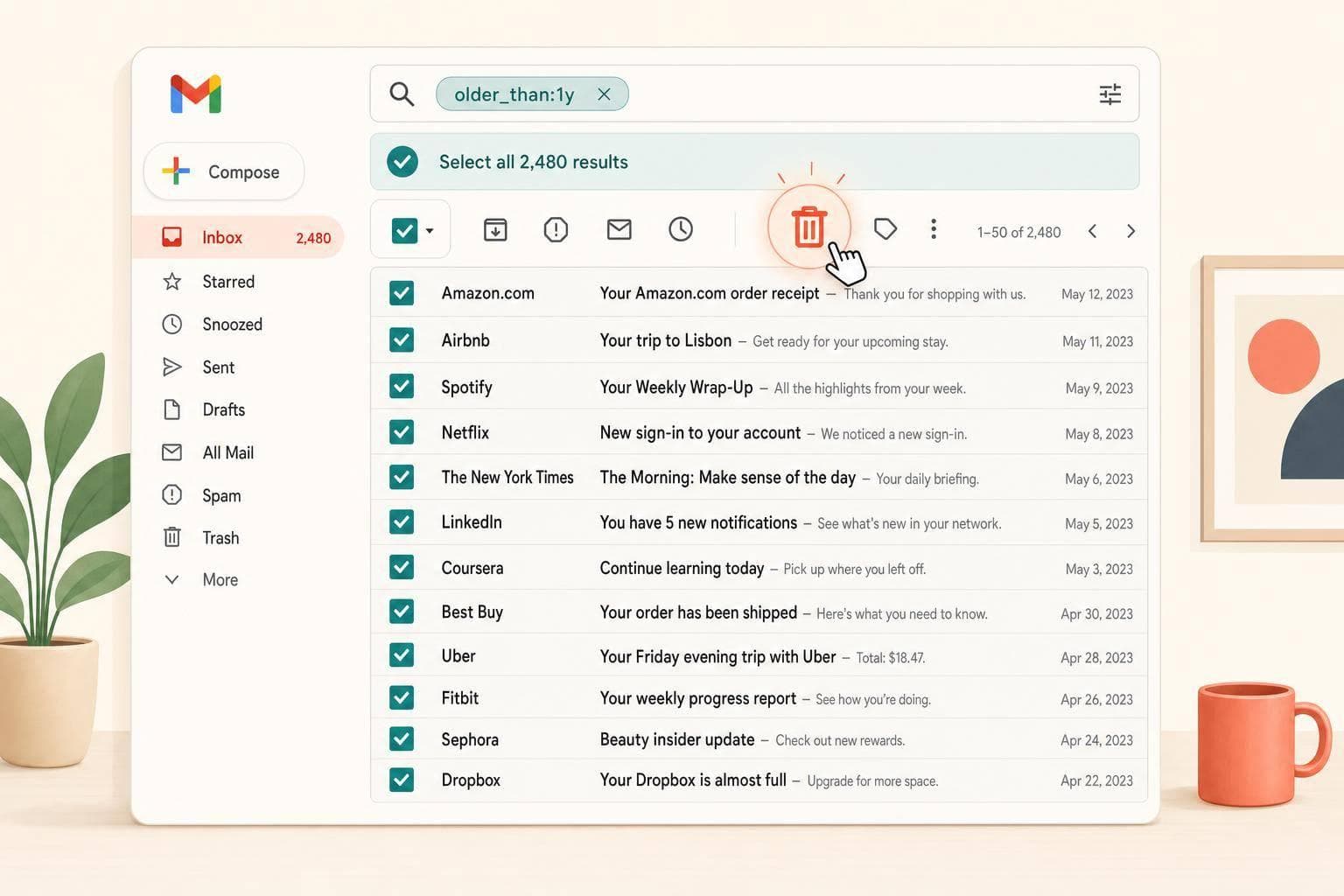
How to Mass Delete Emails in Gmail (All at Once)
If I want to delete a large batch of Gmail messages at once, I use search, select all matching conversations, move them to Trash, and then empty Trash. That is the core process.
Here’s the short version:
- Gmail deletes conversation threads, not just single messages
- The top checkbox first selects only the emails on screen
- To delete everything in a tab, label, or search, I must click “Select all conversations that match this search”
- Deleted mail stays in Trash for 30 days
- Mail in Trash still counts toward Gmail’s 15 GB free storage until Trash is emptied
- Storage totals can take 24 to 72 hours to update
- Desktop works best because mobile does not offer the full select-all flow
If I only want to delete certain emails, I can use filters like:
category:promotionsis:unreadfrom:example@company.comolder_than:2ybefore:2024/01/01category:promotions older_than:1y -is:starred
The safest way is simple: search first, scan the results, then bulk delete. And if inbox cleanup keeps coming back, I can use a rule-based tool to sort low-value mail and delete it later on a set schedule. This is a great way to reduce email clutter automatically and keep your storage under control.
This article walks through the manual Gmail method, the best search filters, the limits of mobile, and when automation makes more sense.
Delete All Gmail Emails
sbb-itb-34b9fd2
How to delete all emails in a Gmail folder or tab at once
Use this when you want to clear a Gmail tab, label, or search result without picking messages one by one.
Use the checkbox and the 'select all conversations' link
Do this in Gmail on desktop. Open the tab or label you want to clear, like Promotions or Social. Then click the top-left checkbox.
At that point, Gmail will select the messages on the page. A banner will appear above your inbox. Click "Select all conversations in [tab]" to grab everything in that tab, not just the first batch you can see.
Then click the trash can icon in the toolbar.
Move emails to Trash and permanently delete them
After Gmail moves the messages to Trash, you can empty Trash right away if you want to free up space sooner. Open Trash, click the top-left checkbox, click "Select all conversations in Trash" in the banner, and then click "Empty Trash now".
Your storage total may take 24 to 72 hours to update. If you want to check where things stand, go to one.google.com/storage.
Why mobile is not ideal for large deletions
Mobile isn't a good fit for big cleanup jobs because it doesn't include the "Select all conversations" flow.
If you're trying to remove only certain kinds of messages, Gmail search filters are the next step.
How to mass delete specific Gmail emails using search filters
When a whole tab feels too broad, search filters help you get much more precise. They let you delete only the Gmail messages you want gone, instead of wiping out an entire tab or label.
Delete Promotions, unread emails, or messages from one sender
Type a search operator right into the Gmail search bar. Use label:promotions or category:promotions to isolate marketing and newsletter emails. Use is:unread to find every message you haven’t opened yet.
You can also use from: to target emails from one sender or even a whole domain. Once the results look right, use Gmail’s select-all banner to delete every matching message.
Delete old Gmail emails by age or date
Use older_than:2y to find emails older than 2 years. Use before:2024/01/01 to target messages sent before a set date.
In practice, the relative version is often easier to use because it keeps moving with time. Run the search, double-check the results, then use the select-all banner to remove the whole batch. This works well for repeat cleanup when you’re dealing with the same type of email over and over.
Combine filters to avoid deleting the wrong emails
Simple filter combinations do a lot of heavy lifting without adding much risk. For example, category:promotions older_than:2y removes old marketing email without touching anything recent.
You can also add -is:starred to leave out messages you flagged yourself. For example: category:promotions older_than:2y -is:starred.
Before you hit the select-all banner on any combined search, scan the first page of results for anything you want to keep. It only takes a few seconds, and it can save you from that “oh no” moment.
A few useful combinations:
category:promotions older_than:1yis:read older_than:6m -is:starredfrom:noreply@ older_than:1y
One small detail matters here: write operators as from:name@email.com, not from: name@email.com.
Automate Gmail cleanup with MailSweeper
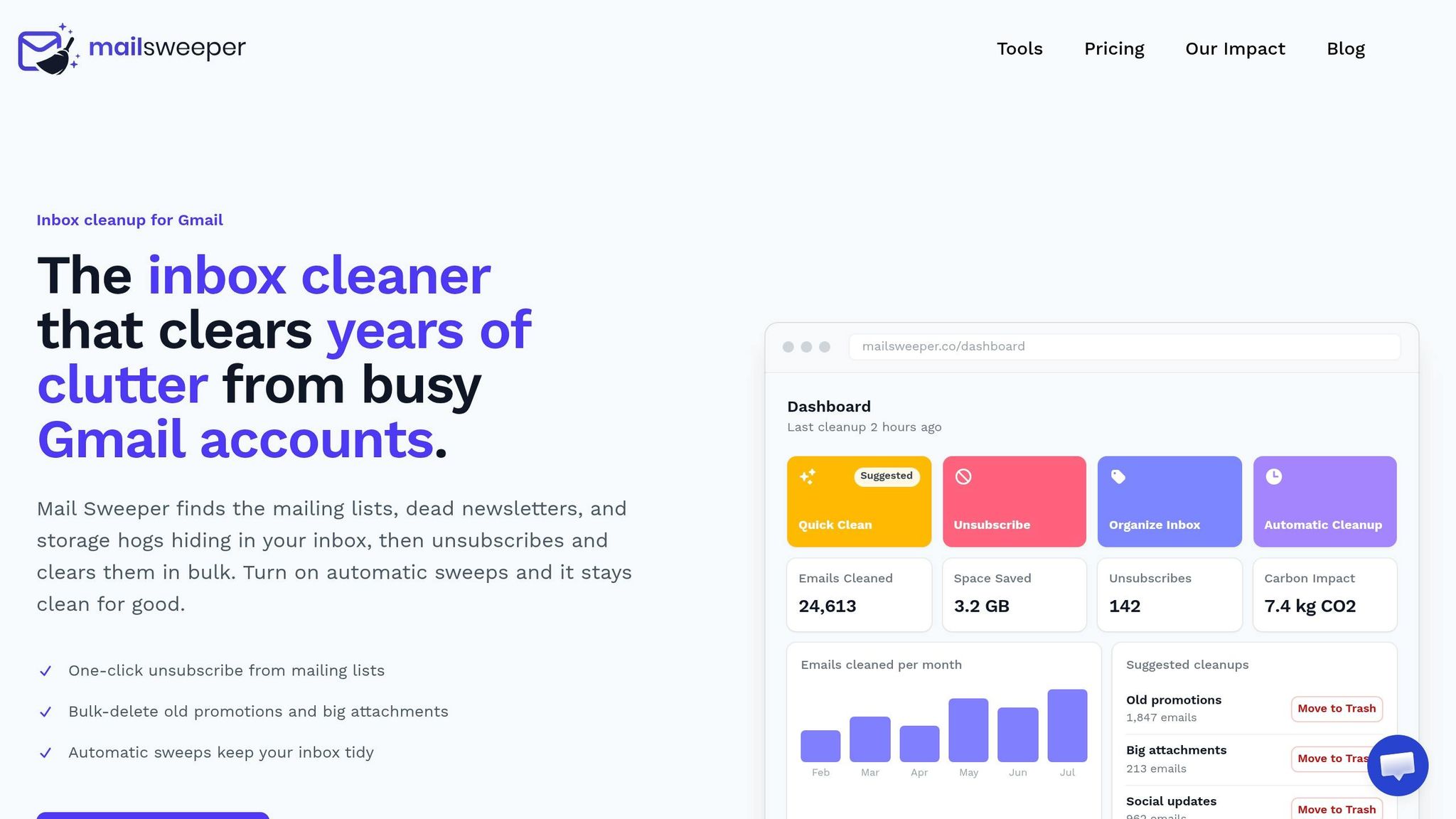
If cleanup keeps piling up, set the rule once and let it run. Instead of doing the same Gmail cleanup over and over, MailSweeper runs cleanups on a schedule. That means you handle the backlog with search filters first, and then MailSweeper helps stop it from coming back. It also moves low-value mail into a separate label, so your inbox stays easier to scan.
How The Dustpan label isolates low-value mail
The Dustpan does this automatically by pulling low-value mail into one spot. That includes things like newsletters and notifications. MailSweeper also excludes emails in your Primary inbox, along with anything marked important or starred, so those messages never land in The Dustpan.
How automatic aging rules cut down repeat cleanup work
You can check The Dustpan whenever you want, then have MailSweeper delete messages after 30 or 90 days.
Why MailSweeper reduces storage pressure
MailSweeper's Personal plan is a one-time $20 payment for lifetime use. It is CASA-certified, uses standard Google scopes, and can be revoked anytime. If you want to check how much space your mail is using, go to one.google.com/storage.
For a one-time cleanup, use Gmail's bulk delete tools. For repeat cleanup, automate the rule.
Manual Gmail bulk delete vs. MailSweeper automation
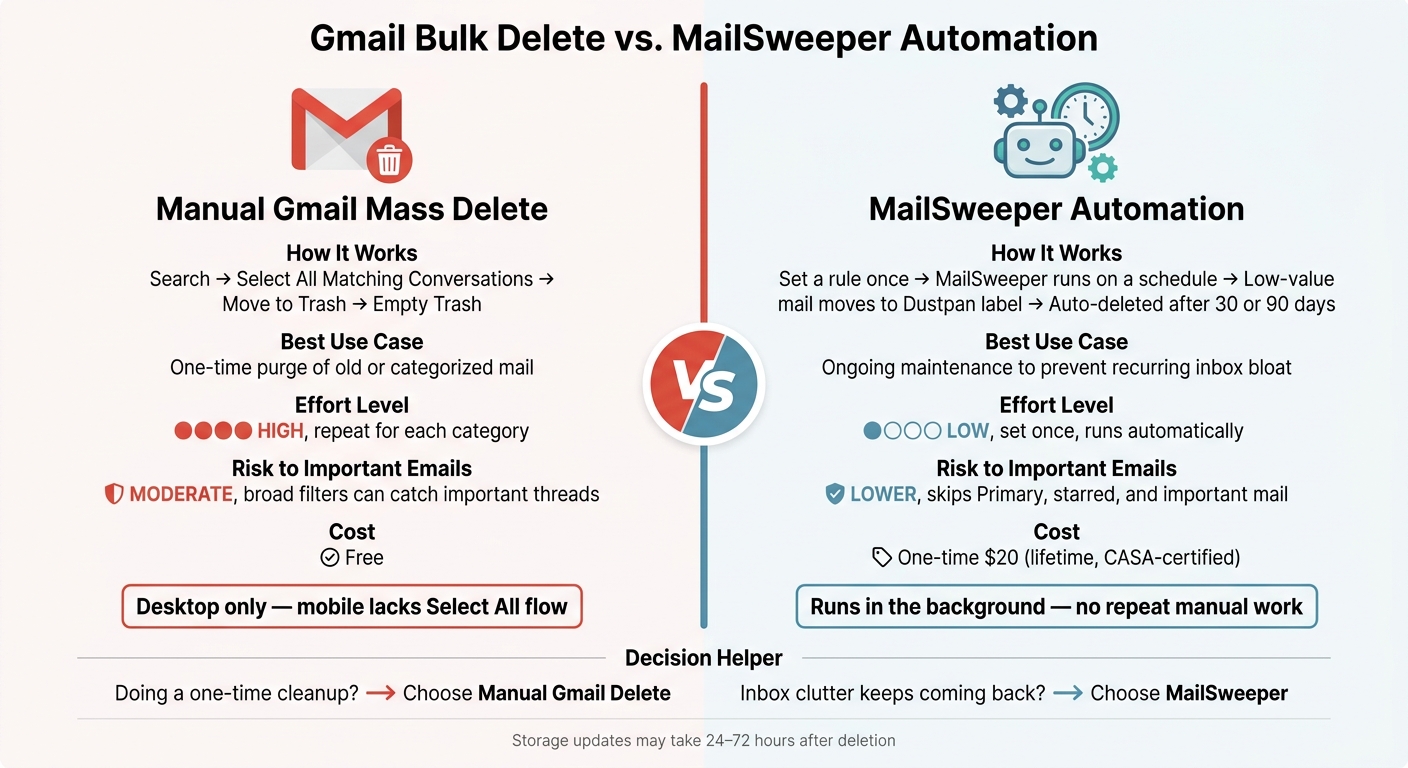
Gmail Bulk Delete vs. MailSweeper: Which Method Is Right for You?
If you want to mass delete emails in Gmail, the best option comes down to one thing: are you doing a one-time cleanup, or do you need mail cleanup to happen on its own?
The table below makes that choice easier.
| Method | How It Works | Best Use Case | Effort Level | Impact on Important Emails |
|---|---|---|---|---|
| Manual Gmail mass delete | Search, select all matching conversations, move to Trash. Conversation View can delete whole threads. | One-time purge of old or categorized mail | High - repeat the process for each category, then empty Trash | Moderate risk - broad filters can catch important threads |
| MailSweeper automation | Scheduled rules delete aged mail from The Dustpan label | Ongoing maintenance to prevent recurring inbox bloat | Low - set it up once, then let it run on a schedule | Lower risk - it skips Primary, starred, and important mail |
MailSweeper handles cleanup in the background with label-based rules.
Conclusion: Choose based on whether cleanup is one-time or ongoing
Use Gmail bulk delete for a one-time cleanup. If inbox clutter keeps piling up, scheduled automation makes more sense. After manual deletion, empty Trash to fix Gmail storage full faster. Then go with the option that fits your email volume and how often the mess comes back.
FAQs
Can I undo a bulk delete in Gmail?
Yes. When you delete an email in Gmail, it goes to Trash and stays there for 30 days.
During that window, you can open Trash, pick the emails you want back, and move them to your inbox. But once Trash is emptied or the 30-day period ends, those emails can’t be recovered.
Why does Gmail select only one page of emails first?
Gmail shows 50 to 100 conversations per page by default to keep the interface responsive. So when you click the master checkbox, Gmail first selects only the emails you can see on that page.
If you want more than that, click Select all conversations that match this search above the message list. That extends the selection to every matching email, including messages that aren't on screen.
How can I safely delete old emails without losing important ones?
Preview your search results before you delete anything. In Gmail, it helps to use specific search operators like older_than: and pair them with exclusions such as -is:starred or -label:important. That way, you’re less likely to wipe out messages you still need.
If you want an extra layer of safety, add a temporary label like "Pending Deletion" first. Let those emails sit for a few days, then give them one more look before sending them to Trash.
You can also make a backup with Google Takeout. And if something slips through, Gmail keeps emails in Trash for 30 days.
More free Gmail tools.
Pair these together for a full inbox reset.
Bulk Unsubscribe from Gmail
See the senders flooding your inbox, ranked by volume — your shortlist for unsubscribes.
Open toolMass Delete Gmail Emails
Build a deletion plan by sender, date, label, or all-unread — with the exact Gmail search to run.
Open toolFind Large Emails in Gmail
Pick a size and we build the exact Gmail search to find your biggest emails — then open it in one click.
Open toolGmail Storage Cleanup
Move the slider to your current Gmail usage to see exactly what to delete to free space.
Open toolInbox Zero Score
Rate your inbox health on a 0–100 scale and see the weekly hours your inbox is costing you.
Open tool