
Email Management
How to Find and Delete Large Emails in Gmail
Manage Gmail storage by finding large emails with operators (e.g., larger:10M), deleting them, emptying Trash, and automating cleanup with filters or MailSweeper.

How to Find and Delete Large Emails in Gmail
Gmail's 15 GB of free storage can fill up quickly with large emails, attachments, and other data. When you hit the limit, Gmail stops sending and receiving emails. Here's how to manage storage and delete large emails to keep your inbox functional without upgrading to paid plans:
- Check Storage Usage: Use Google One to see what's consuming space.
- Find Large Emails: Search in Gmail using
larger:10Mto locate emails over 10 MB. Add filters likeolder_than:1yto find older, large emails. - Delete Emails: Select and move unwanted emails to Trash. Empty the Trash folder to free up space.
- Automate Cleanup: Set up Gmail filters or use tools like MailSweeper for periodic inbox management.
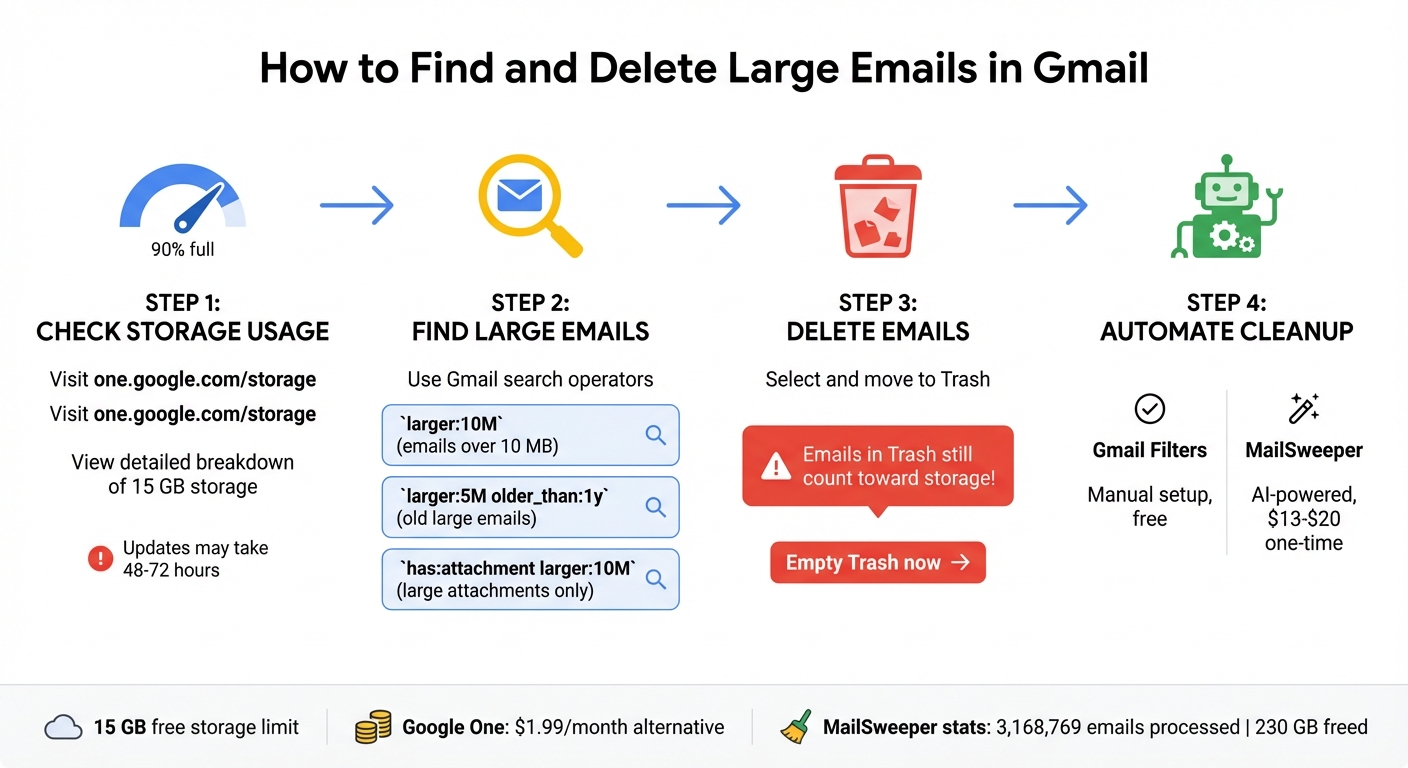
How to Find and Delete Large Emails in Gmail - 4-Step Process
How to Check Your Gmail Storage Usage
View Storage Details Through Google One

To fix Gmail storage full issues, start by seeing how much storage you're using, start by checking the counter in the bottom-left corner of your Gmail inbox on a desktop. For a more detailed breakdown, head over to one.google.com/storage and look under the "Storage Details" section.
For deeper insights, visit Google's Storage Manager at one.google.com/storage/management. This tool highlights which items are taking up the most space, including emails still sitting in your Trash folder. Keep in mind, if you delete files in bulk, it may take up to 48–72 hours for Google's systems to reflect the updated storage numbers.
Once you've reviewed the general storage details, it's time to focus on those large emails that might be eating up a significant chunk of your space.
How to Spot Large Emails Taking Up Space
Google One Storage Manager has a "Clean up by service" section that helps you locate emails with large attachments. Alternatively, you can find these emails directly in Gmail by typing larger:10M into the search bar. This will pull up all emails with attachments over 10 megabytes, giving you a clear picture of what's using up your storage.
sbb-itb-34b9fd2
Finding Large Emails Using Gmail Search Operators
Using Search Operators
Once you've identified large emails using storage tools, Gmail's search operators can help you clean up your inbox more effectively. While Gmail doesn’t let you sort emails by size directly, these operators make it easy to find bulky messages.
Start by typing larger:10M into the Gmail search bar and pressing Enter. You can adjust the size threshold to suit your needs - for example, try larger:5M, larger:10M, or larger:20M to locate emails exceeding those sizes. To focus specifically on attachments, include has:attachment before the size operator, like this: has:attachment larger:10M. This ensures you're filtering out long text threads and only seeing emails with actual file attachments.
For even more precision, use the size: operator to specify an exact size. Once you’ve mastered these basics, you can start combining operators to refine your search even further.
Combining Search Operators for Better Results
Combining search operators allows for highly specific searches, making it easier to pinpoint emails you no longer need. For example, if you're looking to delete older, larger emails, try larger:5M older_than:1y. This command finds emails over 5 MB that are more than a year old. You can also adjust the time frame by using d for days, m for months, or y for years - for instance, older_than:6m will locate emails older than six months.
Want to narrow things down even more? Add operators like from: to filter by sender or filename:pdf to find large PDF files. For instance, larger:10M filename:pdf older_than:2y will show all PDF attachments over 10 MB that are at least two years old. If you’re only interested in emails from your inbox, include label:inbox in your query.
The best part? These search operators aren’t limited to desktop use - they work just as well in the Gmail app on Android and iOS. That means you can track down and delete large emails even when you’re on the go.
How to Delete Large Emails Manually
Selecting and Deleting Emails
To remove large emails, start by clicking the checkbox in the top-left corner to select all visible emails. If your search results span multiple pages, Gmail will show a link that says "Select all conversations that match this search" - click it to include everything.
Once your emails are selected, click the trash can icon in the top menu bar. This action moves the selected emails to your Trash folder (labeled as "Bin" in some regions). However, keep in mind that emails in Trash still count toward your 15 GB Gmail storage limit until they’re permanently deleted.
"Large emails can quickly take up valuable Gmail storage space, which is why you should learn how to delete emails that exceed a certain size." - David Morelo, Writer, Clean Email
After clearing your inbox, you’ll need to empty the Trash to fully reclaim that storage space.
Emptying Trash to Free Up Space
Deleting emails is only part of the process - moving them to Trash doesn’t free up space immediately. To finish the cleanup, open the Trash folder from the sidebar and click "Empty Trash now" to permanently delete all its contents. If you prefer to remove specific emails, select them individually and click "Delete forever."
While Gmail automatically clears Trash after 30 days, manually emptying it lets you free up space right away. Just be cautious - permanent deletion cannot be undone, so double-check the folder before confirming. Afterward, review your storage to see the updated space availability.
Using Filters to Automate Large Email Management
Creating Filters for Large Emails
Gmail filters are a handy way to manage large emails automatically and avoid running into storage problems. To set up a filter, start by clicking the gear icon in the top-right corner of Gmail. Select "See all settings", go to the "Filters and Blocked Addresses" tab, and click "Create a new filter."
You can define size criteria by using options like "greater than" a specific value (e.g., 10 MB) or by entering search operators. For instance, typing larger:10M in the "Has the words" field will pinpoint emails over 10 MB. Similarly, has:attachment larger:5M zeroes in on emails with attachments larger than 5 MB.
Once you've set your criteria, click "Create filter" and choose an action. Options include "Delete it" (which sends emails straight to Trash), "Skip the Inbox (Archive it)" (keeping emails accessible but out of sight), or "Apply the label" (tagging them for later review). If you're hesitant to delete emails immediately, applying a label like "Large Attachments" gives you time to review them before deciding whether to remove them permanently.
"Gmail doesn't offer a built-in way to sort emails by size... But that doesn't mean you're out of luck. Gmail does offer powerful search operators that let you filter emails by size." – Paul Anthonioz, Content Editor, Mailmeteor
For even more control, you can combine search operators. For example, larger:5M older_than:1y filters emails over 5 MB that are more than a year old, while has:attachment larger:10M narrows the focus to emails with particularly large attachments.
Filters aren't just for future emails - they also work well alongside manual deletion to keep your inbox tidy. Once you've set up filters for incoming messages, you can apply them to older emails as well.
Applying Filters to Existing Emails
By default, new filters only apply to incoming emails. However, you can use them to clean up your existing inbox too. While creating a filter, check the box labeled "Also apply filter to matching conversations" before clicking "Create filter." This ensures the filter processes all emails in your account that meet the criteria you've set.
For instance, if you create a filter with larger:10M and enable "Delete it", all matching emails will move to Trash. To free up space, you'll need to empty the Trash, as emails stored there still count toward your storage quota until they're permanently deleted.
This retroactive application is a quick way to tackle storage issues and organize your inbox in one go.
Quickly bulk delete emails in gmail | 3 Quick Techniques
Automating Cleanup with MailSweeper

After tackling email clutter manually, automating the process can make inbox management much simpler and more efficient.
Unlike Gmail filters, which require manual setup, MailSweeper uses AI to handle cleanup automatically. It periodically removes large, unnecessary emails, saving you time and effort. Plus, it offers a one-time payment model - Very Early Bird: $13, Early Bird: $16, Personal: $20 - so you won't have to worry about recurring fees.
How MailSweeper Works
MailSweeper's standout feature, The Dustpan, is designed to gather large, unimportant emails into a dedicated Gmail label. Using AI, it scans your inbox to identify emails that take up valuable storage but don't need to stick around - like promotional messages with hefty attachments or outdated notifications.
The tool is careful not to touch emails in your Primary inbox, starred messages, or those marked as "Important." You can easily review the Dustpan label and remove it from emails you'd like to keep before they’re deleted.
Since its launch, MailSweeper has processed over 3,168,769 emails, freeing up a combined 230 GB of storage space for users. It’s also CASA certified, meaning it doesn’t read, store, or sell your private email data.
Setting Up MailSweeper for Periodic Cleanup
Getting started with MailSweeper is straightforward. During installation, you'll answer a few quick questions to specify which types of emails to target. For instance, you might choose to focus on shopping receipts, social media notifications, or promotional emails with large attachments. Once set up, MailSweeper works in the background, moving older emails from the Dustpan to Trash after 30 or 90 days, depending on your preferences.
This automated system eliminates the hassle of manually searching for large emails (e.g., using Gmail's larger:10M operator) or setting up new filters every few months. With MailSweeper handling the cleanup, all you need to do is periodically empty your Trash folder to reclaim storage space effortlessly.
Conclusion
Clearing out large emails is a smart way to prevent storage issues that can block new messages or attachments. Keeping an eye on your 15 GB storage limit helps you avoid the need for a Google One subscription, which starts at $1.99 per month.
Using Gmail's search operators, like larger:10M, makes finding bulky emails straightforward. However, manually sifting through and deleting them can be time-consuming. For a more efficient solution, consider combining these manual methods with automated cleanup tools.
Gmail's built-in features are great for quick fixes, but pairing them with automation ensures long-term storage management. Remember, emails in the Trash still count toward your storage limit for 30 days before they’re permanently deleted. Emptying your Trash regularly is an easy way to reclaim space.
FAQs
How can I find and delete emails that take up the most space in Gmail?
To clear out large emails in Gmail, start by using the search bar with size-specific commands. For instance, enter larger:10M to locate emails that exceed 10 MB. You can refine the search further by adding filters like has:attachment to focus on emails with attachments or older_than:1y to target older messages.
Another option is Gmail’s advanced search. Click the down arrow in the search bar, set a size filter (e.g., greater than 20 MB), and check the box for attachments if needed. Once you’ve identified the oversized emails, select and delete them. Don’t forget to empty your Trash folder to ensure the space is permanently freed up.
If you’re looking for an automated approach, tools like MailSweeper can help identify and clean up large or unnecessary emails efficiently, saving you time and effort.
How can I search for and delete large emails in Gmail?
To locate large emails in Gmail, you can use search operators like larger:<size> (for example, larger:10M to find emails over 10 MB), has:attachment, and older_than:<time> (such as older_than:1y to identify emails older than a year). You can even combine these operators for more specific searches - for instance, has:attachment larger:5M older_than:1y will help you find old emails with attachments that take up significant space.
After pinpointing these emails, deleting them can free up storage space and make your inbox more manageable. If manually sorting through emails feels like too much work, tools like MailSweeper can simplify the process by automating inbox cleanup, saving you time and effort.
How can MailSweeper help manage large emails in Gmail?
MailSweeper takes the hassle out of managing your Gmail inbox by automatically spotting and deleting large or unnecessary emails. This not only clears up precious storage space but also keeps your inbox tidy - no manual work required.
With its automated cleanup, MailSweeper saves you time, cuts down on digital clutter, and keeps your inbox focused on the emails that matter most.
More free Gmail tools.
Pair these together for a full inbox reset.
Bulk Unsubscribe from Gmail
See the senders flooding your inbox, ranked by volume — your shortlist for unsubscribes.
Open toolMass Delete Gmail Emails
Build a deletion plan by sender, date, label, or all-unread — with the exact Gmail search to run.
Open toolFind Large Emails in Gmail
Pick a size and we build the exact Gmail search to find your biggest emails — then open it in one click.
Open toolGmail Storage Cleanup
Move the slider to your current Gmail usage to see exactly what to delete to free space.
Open toolInbox Zero Score
Rate your inbox health on a 0–100 scale and see the weekly hours your inbox is costing you.
Open tool