
Email Management
Delete Large Attachments in Gmail: Step-by-Step
Find and delete large Gmail attachments using search operators or Google One Storage Manager; empty Trash to free space, or automate cleanup with MailSweeper.
Delete Large Attachments in Gmail: Step-by-Step
Struggling with Gmail's 15 GB storage limit? Large attachments are likely the culprit. If your storage fills up, you can't send or receive emails, and Google warns that exceeding the limit for two years could lead to permanent data loss. Here's how to fix it:
- Check Storage Usage: Use Gmail's storage counter or visit the Google One Storage page for a detailed breakdown.
- Find Large Emails: Use Gmail search commands like
larger:10MBto locate emails with big attachments. - Delete and Empty Trash: Select and delete these emails, then permanently clear your Trash to free up space.
- Use Tools for Bulk Cleanup: Google One Storage Manager helps review and delete large files quickly.
- Automate Cleanup: Tools like MailSweeper can automatically manage large or old emails, saving you time.
Follow these steps to reclaim space and avoid storage headaches. Remember, storage updates may take 48–72 hours to reflect.
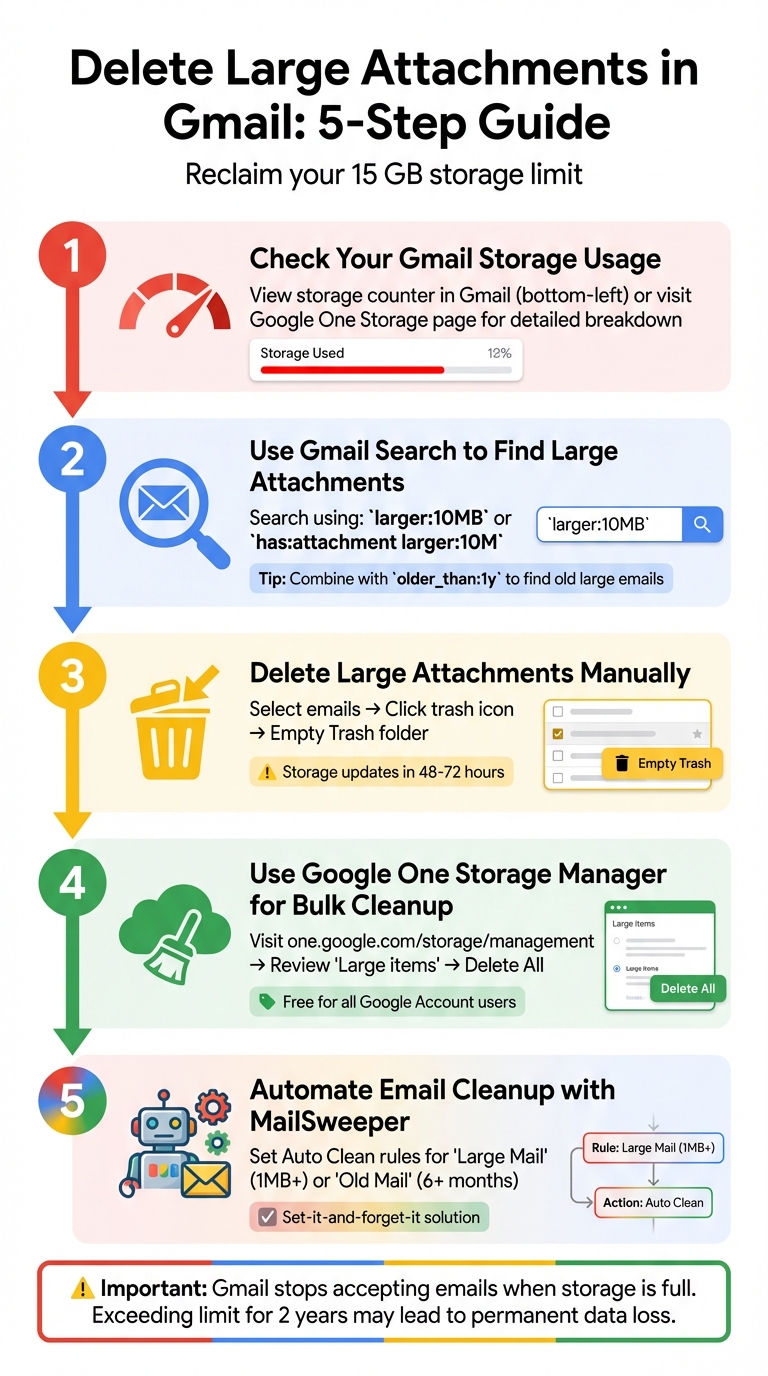
5-Step Process to Delete Large Gmail Attachments and Free Up Storage
Step 1: Check Your Gmail Storage Usage
Access Gmail Storage Details
Start by checking how much storage you're using. Gmail provides a quick overview of your storage usage across its services, but the level of detail varies depending on where you look.
For a quick glance, scroll to the bottom-left corner of your Gmail inbox in a desktop browser. You'll see a counter showing how much space you've used. However, this number doesn’t break down how storage is distributed among Gmail, Google Drive, and Google Photos.
To get a detailed view, head over to the Google One Storage page. Log in to your Google account, go to Google One, and click on the "Storage" tab. This page provides a clear breakdown of how many gigabytes each service is using, helping you identify which one is consuming the most space.
Once you’ve got a clear picture of your storage usage, you can move on to identifying and managing large files and emails.
Find Large Files and Emails
To locate large files in Google Drive, click on the "Storage" option in the left-hand menu. This will display your files sorted from largest to smallest, making it easy to spot the biggest space consumers.
For emails and other items, use the "Storage Manager" feature on Google One. This tool categorizes items, such as large attachments and bulky files, under sections like "Clean up suggested items". It’s a handy way to find and decide which files or emails to delete. Keep in mind that emails in Trash and Spam still count toward your storage until they’re permanently deleted.
After you delete large files or emails, note that it may take 48 to 72 hours for Google’s systems to update and show your new available storage space.
Step 2: Use Gmail Search to Find Large Attachments
Search by Email Size
Gmail’s search bar is a handy tool for finding emails with large attachments. To get started, type larger:10MB (or larger:10M) into the search bar, and Gmail will pull up all emails that are over 10 megabytes.
If you want even more precision, you can use size: followed by the exact size in bytes. For example, size:5000000 will find emails that are 5MB in size. Alternatively, click the sliders icon in the search bar, choose "greater than", and enter a value in MB, KB, or bytes.
To exclude emails without attachments, combine has:attachment with your size query. This is particularly helpful since Gmail caps attachments at 25MB - anything larger is automatically sent as a Google Drive link.
Once you’ve located emails with large attachments, you can refine your search further using filters.
Refine Searches with Filters
After identifying emails with large attachments, you can narrow the results down even more. For example, combining older_than: with size queries helps you find older emails that are taking up space. A search like larger:5M older_than:1y will show emails over 5MB that are more than a year old. Adjust the time frame with queries like older_than:6m for six months or older_than:2y for two years.
Need to focus on specific senders? Add the from: filter. For instance, from:boss@company.com larger:10M will show large attachments from your boss. You can also search within a size range using larger:5M smaller:10M to find emails between 5MB and 10MB. To exclude certain senders, use a minus sign. For example, larger:10M -from:newsletter@site.com will filter out emails from that sender.
Here are some examples of combined search queries you might find useful:
| Search Goal | Operator Example |
|---|---|
| Attachments from a sender over a set size | from:boss@company.com larger:10M |
| Attachments older than 2 years | has:attachment older_than:2y |
| Large emails within a date range | larger:5M after:2023/01/01 before:2023/12/31 |
| Large files NOT from a specific sender | larger:10M -from:newsletter@site.com |
Step 3: Delete Large Attachments Manually
Select and Delete Emails with Large Attachments
To start clearing out emails with large attachments, use Gmail's search operators like has:attachment larger:10M. This will filter out the emails that are taking up the most space. Once the results appear, select emails by ticking the checkbox next to them. To select all visible emails, click the checkbox at the top left of your inbox. If your search retrieves more than 50 emails, Gmail will show a link that says, "Select all conversations that match this search." Click it to ensure every matching email is included.
After selecting the emails, click the trash icon to move them to the Trash folder. However, keep in mind that your storage won't free up until you permanently delete these emails.
Permanently Remove Emails from Trash
Deleted emails sit in the Trash folder for 30 days before being automatically removed. To reclaim storage right away, empty the Trash manually. Navigate to the Trash folder by clicking "More" in the left sidebar, then selecting "Trash." At the top of the list, you'll see the option to "Empty Trash now." Click this link to permanently delete all emails in the folder. Alternatively, you can select specific emails and click "Delete Forever" if you want to keep certain messages. Be careful, though - once deleted, these emails are gone for good.
It's important to note that Google may take 48 to 72 hours to update your available storage after a large deletion.
"Allow time (up to 48–72 hours) for your storage to update after deleting multiple files at once." - Google Support
While manually deleting emails gives you full control, it’s worth weighing its advantages and drawbacks.
Manual Deletion: Pros and Cons
Manually deleting emails can be effective, but it comes with both benefits and challenges. Here's a breakdown:
| Feature | Pros | Cons |
|---|---|---|
| Cost | Free; no extra tools or subscriptions needed. | Can be time-consuming, especially with a large volume of emails. |
| Control | Lets you review each email to avoid deleting anything important. | Risk of accidentally deleting critical emails, especially with "Select All." |
| Tools | Relies on Gmail's built-in features, accessible on any device. | Requires familiarity with using search operators. |
| Storage | Targets bulky emails directly, freeing up space efficiently. | Storage updates may take up to 72 hours to reflect. |
Manual deletion is a solid option if you have a manageable number of emails and want to carefully review what you're deleting. But if you're dealing with thousands of messages or want a long-term fix for storage issues, you might want to explore faster, automated solutions.
Step 4: Use Google One Storage Manager for Bulk Cleanup

Review and Delete Large Files Using Storage Manager
Google One Storage Manager offers a simple, visual way to handle storage across Gmail, Google Drive, and Google Photos. It's available to everyone with a Google Account, even those using the free 15 GB plan.
To get started, head to one.google.com/storage/management through your browser or access it via your Google Account settings on mobile.
Storage Manager organizes your files into three main categories: Discarded items (like Trash and Spam), Large items (emails with big attachments and large files in Drive), and Other items (such as unsupported videos). If you're focusing on Gmail, go to the "Large items" section and click "Review and free up" under the Gmail category. You’ll see a list of your largest emails, complete with file sizes. From there, you can either delete individual items or use the "Delete All" option to clear them permanently.
Keep in mind, any files deleted through Storage Manager are gone for good - they skip the Trash entirely. Also, it can take 48 to 72 hours for Google to reflect the updated storage space after a bulk cleanup. Be cautious, as exceeding your storage quota for too long could affect your account access.
sbb-itb-34b9fd2
Step 5: Automate Email Cleanup with MailSweeper

Set Up MailSweeper for Hassle-Free Cleanup
Manually sorting through emails can feel like an endless chore. That’s where MailSweeper steps in, using AI to keep your Gmail inbox organized without constant effort.
Once installed, MailSweeper creates a special label called "The Dustpan" to collect less important emails. It ensures that emails marked as important, starred, or in your primary inbox remain untouched. You can set up Auto Clean rules to target specific types of emails, like 'Large Mail' (e.g., emails over 1 MB or 10 MB) or 'Old Mail' (e.g., unread promotional emails older than six months). These emails are then automatically deleted after a set timeframe, such as 30 or 90 days.
MailSweeper integrates seamlessly with your Google Account, making it a true "set-it-and-forget-it" tool. It takes the hassle out of email cleanup, transitioning you from manual sorting to effortless automation.
Why MailSweeper Is Worth It
MailSweeper saves you time by automatically identifying and deleting large attachments and other space-hogging emails. This helps prevent your Gmail account from hitting its 15 GB storage limit, which can save you from paying for extra space. For a one-time fee of $20, you get lifetime access to a tool that keeps your inbox clean and manageable.
Finding and deleting large files in Gmail to save space
Conclusion
To free up space in Gmail, start by checking your storage usage. Use the search query has:attachment larger:10MB to find and delete large emails taking up unnecessary room. Don’t forget to empty your Trash folder - emails linger there for 30 days unless you remove them permanently.
Once you’ve cleared some space, keeping your inbox clutter-free requires regular effort. If you hit the storage limit, Gmail will stop accepting new emails, and senders will get bounce-back notifications.
For ongoing upkeep, automation can be a lifesaver. While manual searches allow for precise targeting of specific emails, tools like MailSweeper can take care of deletions in the background. Features like Auto Clean rules let you define parameters for large or old emails, ensuring the system manages them without you lifting a finger. This kind of automation helps avoid the headache of running out of space again.
Keep in mind, storage updates might take 48–72 hours to reflect after a significant cleanup. If your Gmail storage still seems full, check Google Drive and Google Photos - they share the same 15 GB storage pool and could be the real source of the problem.
To prevent future storage issues, consider setting a reminder to review your account every few months. Better yet, let automation handle it for you. Staying proactive with large attachments and old emails can keep your Gmail running smoothly and save you from spending money on extra storage you might not need.
FAQs
How do I find and delete large email attachments in Gmail?
To quickly locate large attachments in Gmail, you can use Gmail's built-in search operators. Here's how:
- Open Gmail in your web browser.
- In the search bar, type
larger:10Mto find emails that are over 10 MB in size. To refine your search, addhas:attachmentto focus only on emails with attachments (e.g.,has:attachment larger:10M). You can also include filters likeolder_than:1yto target older emails specifically. - Hit Enter to see the results. Review the emails, select the ones you no longer need, and click the Trash icon to delete them. Remember to empty your Trash folder afterward to permanently free up space.
If you'd prefer an automated approach, tools like MailSweeper can identify and remove unnecessary emails with large attachments, making storage management quicker and easier.
What are the advantages of using MailSweeper to clean up your Gmail inbox?
MailSweeper takes the hassle out of email cleanup by automatically spotting and removing unnecessary or oversized messages from your Gmail inbox. This not only clears up space but also helps you avoid hitting the 15 GB storage limit shared across Gmail, Drive, and Photos - saving you from needing to buy extra Google One storage.
Powered by AI, MailSweeper eliminates the tedious task of hunting down large attachments or messy email threads. It keeps your inbox tidy, boosts Gmail's performance, and cuts down on the stress of managing a cluttered mailbox - all without requiring a subscription or constant manual work.
How long does it take for Gmail storage to update after deleting emails?
When you delete emails in Gmail, they’re sent to the Trash folder, where they’ll stay for up to 30 days before being permanently deleted. During this time, the emails still take up storage space. To free up space right away, you can manually empty the Trash instead of waiting for the automatic deletion after 30 days.
More free Gmail tools.
Pair these together for a full inbox reset.
Bulk Unsubscribe from Gmail
See the senders flooding your inbox, ranked by volume — your shortlist for unsubscribes.
Open toolMass Delete Gmail Emails
Build a deletion plan by sender, date, label, or all-unread — with the exact Gmail search to run.
Open toolFind Large Emails in Gmail
Pick a size and we build the exact Gmail search to find your biggest emails — then open it in one click.
Open toolGmail Storage Cleanup
Move the slider to your current Gmail usage to see exactly what to delete to free space.
Open toolInbox Zero Score
Rate your inbox health on a 0–100 scale and see the weekly hours your inbox is costing you.
Open tool