
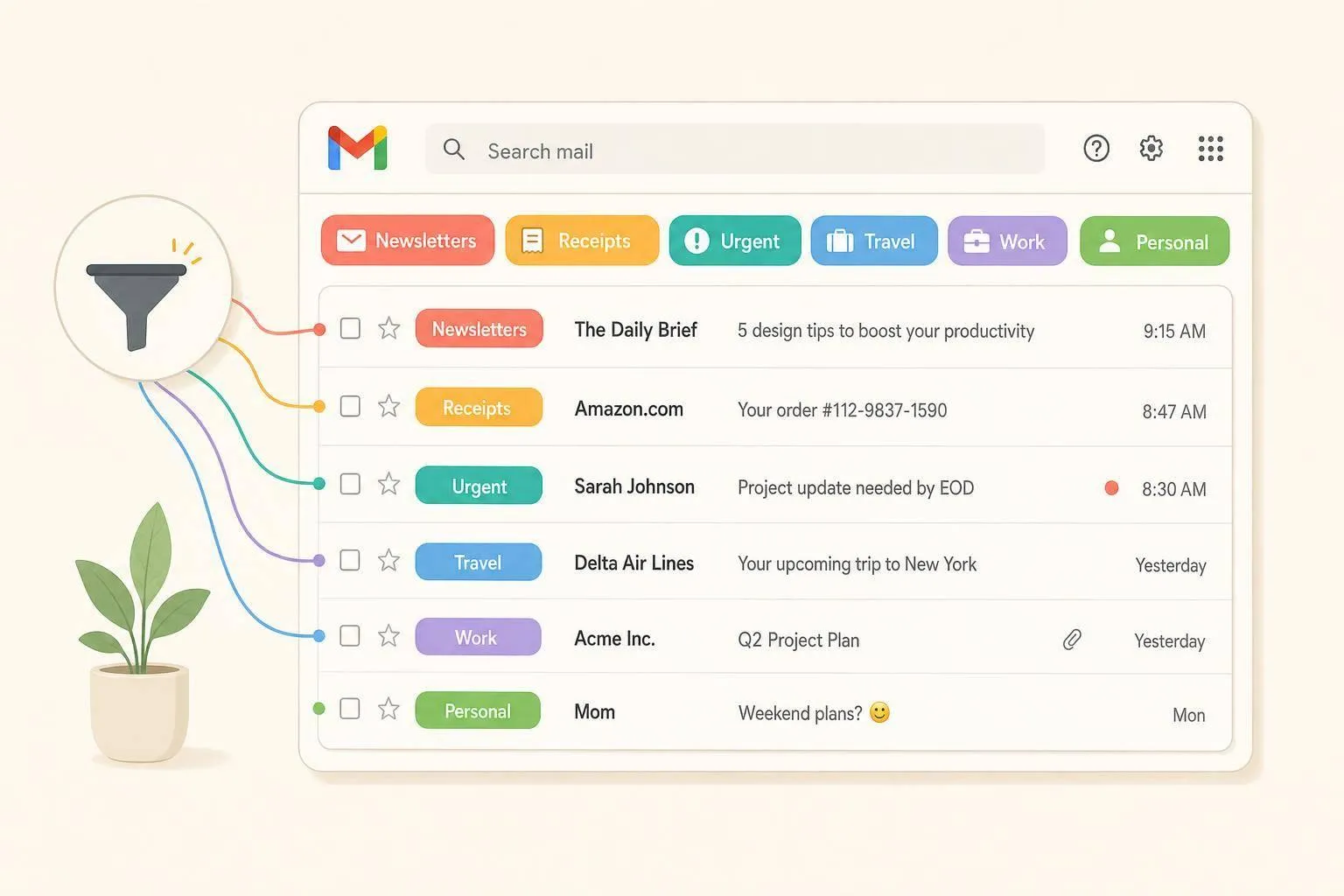
Gmail has no folders. A label does the job. One email can carry several labels at once, and only you see them. The people you email do not get your labels. Move to is what makes a label act like a folder: Gmail applies that label and takes Inbox off the message, so it leaves the inbox and shows up under the label.
On a computer:
- Open Gmail.
- On the left, next to Labels, click Create new label. If the sidebar list is collapsed, click More at the bottom of the sidebar first.
- Enter a name. To put it inside another label, check Nest label under and pick the parent.
- Click Create.
The same dialog is under Settings (the gear icon), See all settings, Labels, Create new label. Google's steps are in Create labels to organize Gmail. You can create up to 5,000 labels.
A short set is easier to keep than a label for every sender. How to organize a Gmail inbox is that setup: a few labels, filters for the mail that repeats, and the category tabs.
Create the label on a computer
Create new label sits next to the Labels heading in the left sidebar. The More link at the bottom of that sidebar only expands a collapsed list. Open it when the heading is tucked away, then click Create new label.
Name it for the pile you will actually open later: Bills, Tax Docs, Travel, Clients. The name is the folder name.
Nest a label (a subfolder)
Check Nest label under in the create dialog and choose the parent. Bills and Tax Docs can sit under Finance. That is the whole subfolder. Gmail does not have a separate subfolder command.
To nest a label you already made, hover it, click the three dots (More), click Edit, check Nest label under, and save.
Opening the parent does not list mail that only has the child label. Finance shows mail labeled Finance. Bills shows mail labeled Bills. A search works the same way: label:finance is the parent, and a label called Tax Docs is label:tax-docs.
Color, and show or hide it
Color is on the computer. Hover the label, click More, then Label color, and pick a color. Add custom color is your own background and text. Google's help caps custom colors at 100. Each background-and-text pair counts as one. If a new custom color will not save, you are at that cap. Use a standard color, or reuse one you already made.
To show or hide a label in the left list:
- Click the gear icon, then See all settings.
- Open the Labels tab.
- Next to the label, click Show or Hide.
Hide only shortens the sidebar. The label stays on the mail, and search still finds it. If a label you made is missing from the sidebar, this tab is the first place to look.
Conversation view changes what a new label sticks to. With conversation view on, which is Gmail's default, the label applies to the messages already in the thread, and a later reply does not inherit it. With conversation view off, the label stays on the specific messages you labeled.
Move mail into the folder
Two toolbar buttons get confused because both mention labels. Google's toolbar help names them separately: Move to means "Move the message to a label," and Label as means "Add or remove a label."
| Action | What happens | Still in the inbox? |
|---|---|---|
| Move to | Applies the label and removes Inbox | No |
| Label as (the Labels button) | Adds or removes labels and leaves the rest | Yes, if it was already there |
| Archive | Removes Inbox only. Other labels stay | No |
Move to is the folder action. Select the conversations, click Move to, and pick the label. The message leaves the inbox, shows under that label, and remains in All Mail. It is the same end state as applying the label and then archiving.
Label as is the tag action. Check Receipts and the message gains Receipts. If it was in the inbox, it stays in the inbox, now with a label chip on it. Google's own "move an email to another label" steps use this menu when you want a move out of it: uncheck the current label (including Inbox), select the new label, and apply.
You can drag a conversation from the inbox list onto the label name in the left sidebar. From the inbox, that matches Move to. From search results or from All Mail, the drop adds the label and leaves Inbox in place. If the message is still in the inbox afterward, select it and use Move to.
File a whole search at once
- Click the search box. A sender is
from:news@example.com. A tab iscategory:promotions. Press Enter. - Set the sort to Most recent. The select-all link does not appear on Most relevant.
- Click the checkbox at the top of the list. That selects this page, often 50 conversations.
- Click Select all conversations that match this search.
- Click Move to and pick the label.
The page checkbox alone leaves the rest of the search where it was. The same banner is what mass delete in Gmail uses when the next click is the trash can.
File new mail with a filter
A filter applies the label as mail arrives, so you are not dragging the same newsletter every week. You set it up on a computer. The click path is in how to create filters in Gmail.
For folder behavior, check two actions:
- Apply the label, then pick the label. You can create the label from that list.
- Skip the Inbox (Archive it), so the message does not also sit in the inbox.
Also apply filter to matching conversations is on that same screen. Leave it unchecked and the filter waits for new mail. Check it and Gmail runs the actions once on conversations already in the account that match. Click Search on the criteria screen first so you can see that set. The checkbox is a one-time pass. The saved filter still handles mail that arrives later.
A reply is filtered only when the reply itself matches the search. A filter on one subject line misses the reply if the subject changed.
On the Gmail app
Checked against Google's Create labels to organize Gmail on November 3, 2026, for Android and for iPhone and iPad.
iPhone or iPad. The help page documents creating a label in the app:
- Open the Gmail app.
- Tap the menu at the top left.
- Under Labels, tap Create new.
- Enter a name and tap Save.
To file mail, touch and hold the messages, tap More, then Change labels. Uncheck the current labels, select the new one, and tap Done. A swipe can do the move: Settings, Inbox customizations, Swipe actions, then Right swipe or Left swipe, then Move.
The iPhone help also has a smaller automatic label. Settings, Inbox customizations, Labels, the label, Add. Type a sender under From. And adds a subject or a keyword. Save labels new mail that matches. It does not include Skip the Inbox or Also apply filter to matching conversations. Those are on the computer filter screen.
Android. The English Android help page now documents creating a label in the app:
- Open the Gmail app.
- Tap the menu at the top left.
- Under All labels, tap Create label.
- Enter a name and tap Save.
That is a change from older copies of the same article, and from a Google Community reply on October 29, 2025, which said the Android app could not create labels. If Create label is missing under All labels, this phone's app does not offer it. Create the label in a browser. It shows up in the app after that.
To file mail on Android, touch and hold the messages, tap More, then Move to, and choose the label. Label as on that More menu adds labels and leaves the message where it is. A swipe can move too: Settings, your account's General settings, Swipe actions, Change, Move to.
The Android help page does not include the iPhone automatic-label screen. Auto-filing with Skip the Inbox and Also apply filter to matching conversations is still a computer task on both phones. A filter you create on a computer runs on the account, including mail you read in the app.
Nesting (Nest label under) and label colors are on the computer article. They are not in the Android or iPhone create steps.
Where the mail goes
Moved mail is still one copy of the message. Move to takes the Inbox label off and leaves the label you chose. Archive takes Inbox off and leaves every other label as it was. Either way the message stays in All Mail, still turns up in search, and still counts toward the storage on the account. Where archived emails go in Gmail is the difference between Archive, Delete, and Trash.
Deleting the message is the other direction. Google's label help says that when you delete an email, it is removed from every label and from the inbox. Deleting the label does not do that. The messages stay in All Mail and under any other label they still have. How to delete labels in Gmail is the remove steps on a computer and in the app, including what happens to labels nested under the one you delete.
When the folder is a pile of mail you do not need
A label files mail. It does not throw it away, and it does not free storage.
MailSweeper does not create your folders. The Dustpan label is for the categories you turn on (promotions, social, updates, and forums). It skips important, starred, sent, and draft mail, then a schedule moves that mail to Trash. Use it when a label is mostly newsletters and alerts. Leave the Dustpan label itself in place. Removing it takes away the pile those messages were waiting in.
FAQs
Can I create folders in the Gmail app?
You can create the label, which is the folder. On an iPhone or iPad, Google's help says Menu, then Create new under Labels. On Android, the English help page checked November 3, 2026 says Menu, then Create label under All labels. If that item is missing, create it in a browser. Nesting a label under another one, and label colors, are on a computer.
What is the difference between a label and a folder in Gmail?
Gmail has labels, and an email can have more than one. A folder in other mail apps holds the only copy, so moving it takes it out of the previous folder. In Gmail, Label as adds a tag and can leave the message in the inbox. Move to adds the label and removes Inbox, which is the folder behavior.
How do I make a subfolder in Gmail?
On a computer, create or edit the label and check Nest label under, then pick the parent. The Gmail app's create steps do not include that checkbox. Mail labeled only with the child does not show up when you open the parent. Open the child label itself.
Does deleting a label delete the emails?
No. The label comes off the messages, and the messages stay in All Mail. Delete the messages first if you want them gone. The steps, and what happens to nested labels, are in how to delete labels in Gmail.
Why is the email still in my inbox after I label it?
Label as adds the label and leaves Inbox on. Use Move to, or uncheck Inbox in the label menu. A filter needs Skip the Inbox (Archive it) as well as Apply the label if new mail should skip the inbox.
