
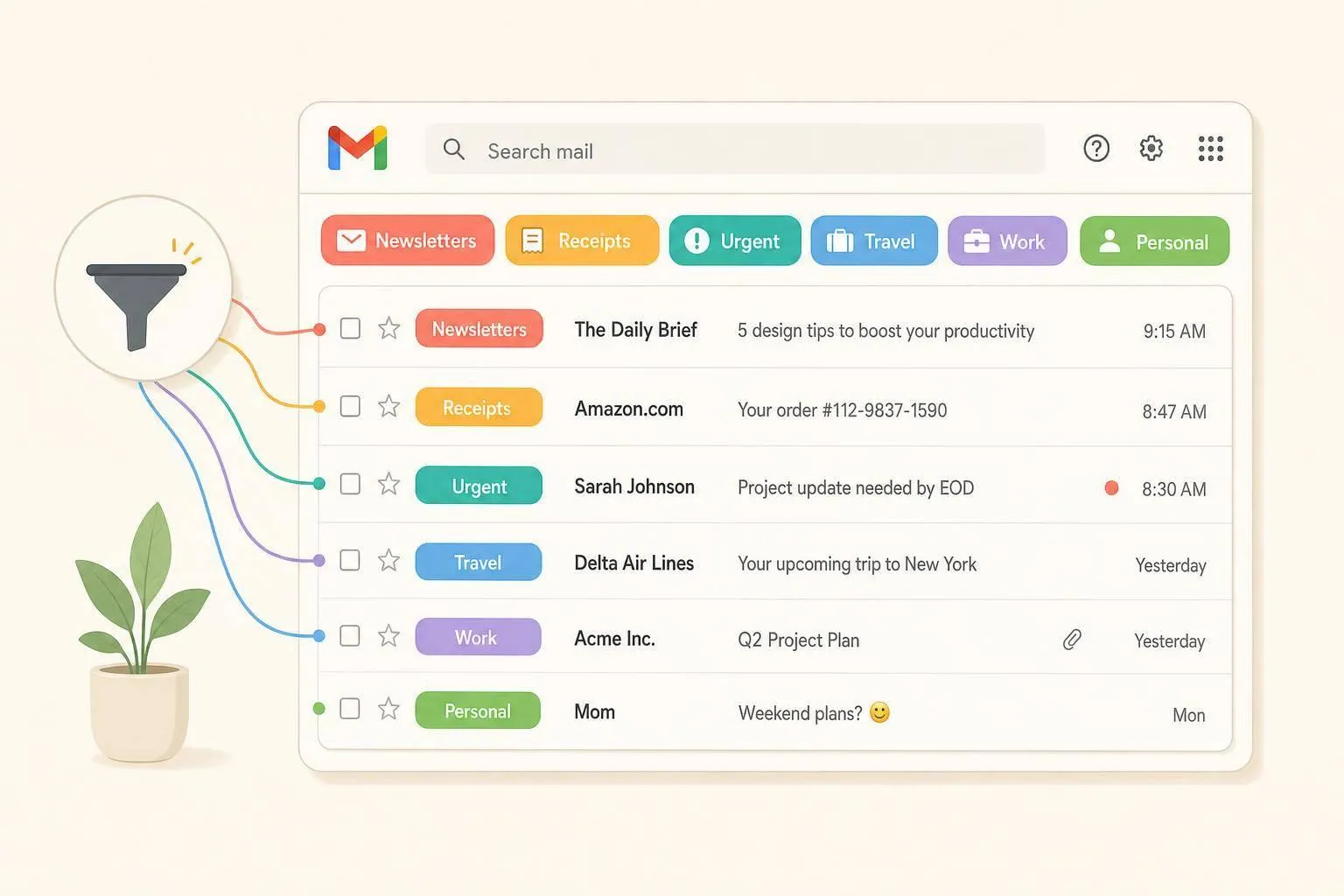
Deleting a label in Gmail takes that tag off every message and removes the label from the sidebar. The emails stay. They remain in All Mail, in the inbox if they were there, and under any other label they still have. Storage does not change, because the messages were never deleted.
On a computer:
- Open Gmail.
- In the left sidebar, hover the label. If it sits under another label, expand the parent first. If you do not see it, it may be hidden: Settings, then See all settings, then Labels, then show.
- Click the three dots (More).
- Click Remove label and confirm.
In the Gmail app: Android uses Menu, Settings, your account, Manage labels, the label, Delete. iPhone and iPad use Menu, Settings, Inbox customizations, Labels, the label, Delete.
Do the email deletion first if you want the messages gone too. Once the label is deleted, you cannot search for it.
How to delete a label in Gmail on a computer
Labels you created appear in the left sidebar under your account's label list. Scroll, or click More at the bottom of the sidebar if the list is collapsed.
Hover the label name until the three-dot More button shows, then click Remove label. Gmail asks you to confirm. Confirming removes the label from your messages and deletes the label. It does not delete the messages. That is the whole operation. There is no Trash for labels, and there is no undo button. You can recreate the label later, but you would have to apply it to the messages again yourself.
Two different buttons share the word "remove":
- More, then Remove label, on the sidebar deletes the label itself.
- The Remove label button in the toolbar, while you are viewing that label with messages selected, only strips the label from the selection. The label stays in the sidebar for everything else.
If the label is missing from the sidebar, it is often hidden rather than gone. Click the gear icon, See all settings, Labels, and click show next to it. Hiding is the better choice when you might want the tag again and only want a shorter sidebar.
How to delete labels in the Gmail app
The phone apps can delete a label. They cannot nest labels or change label colors. Do that on a computer. If Delete is missing, update the Gmail app. Label deletion on Android reached the app in 2026 and is not on every old version.
Android:
- Open the Gmail app.
- Tap the menu at the top left.
- Tap Settings, then the account.
- Tap Manage labels.
- Tap the label, then Delete.
iPhone or iPad:
- Open the Gmail app.
- Tap the menu at the top left.
- Tap Settings.
- Tap Inbox customizations, then Labels.
- Tap the label, then Delete.
Same result as on the computer: the label is gone, the emails are not.
Nested labels
Gmail lets you put a label inside another one. Finance might contain Bills and Tax Docs. You set that by checking Nest label under when you create or edit the label.
Deleting the parent deletes the labels nested under it. They do not move up to the top of the sidebar. The messages are still not deleted. They lose the parent label and the child labels.
To keep a child, edit it before you delete the parent:
- Hover the child label, click More, then Edit.
- Uncheck Nest label under.
- Save.
- Then remove the parent.
Opening or searching the parent does not list mail that only has a child label. label:finance is the Finance label, not Bills and Tax Docs underneath it. Open the child from the sidebar when that is the mail you mean.
Deleting a label does not delete the emails
A label is a tag, not a folder. One message can have several labels, and removing one of them leaves the message in place. Google's own description of the other direction is the useful contrast: when you delete an email, it is removed from every label and from the inbox. Deleting the label does not go the other way.
Nothing about storage changes. The messages still count toward your 15 GB. To free space you have to delete the messages, then empty Trash. Trash holds them for 30 days, and they keep using storage until then. How to delete old emails in Gmail covers the age searches and emptying Trash.
If you do want the emails gone, delete them while the label still exists:
- Click the label in the sidebar, or search for it (below).
- Sort by Most recent.
- Click the checkbox at the top of the list, then Select all conversations that match this search. On a label view the banner may say Select all conversations in that label. The page checkbox alone is only the first 50 or 100.
- Click the trash can and confirm.
- After the mail is in Trash, delete the label itself if you still want it gone.
For a label name with spaces, Gmail's search uses hyphens: a label called Tax Docs is label:tax-docs. If the search comes back empty, click the label in the sidebar instead of retyping it. To delete only the unread mail under a label, add is:unread, as in label:newsletters is:unread, and follow how to delete all unread emails in Gmail. The select-all details for any large delete are on mass delete Gmail emails.
Take a label off the mail and keep the label
Use this when the label is still useful and only some messages should lose it.
- Open the label, or search
label:your-label. - Select the conversations. Use the select-all banner if you mean all of them.
- Click the label icon in the toolbar and uncheck that label.
The messages stay. The label stays. New mail can still get it from a filter.
Check filters after you delete a label for good. Click the gear icon, See all settings, Filters and Blocked Addresses. A filter that applied the label is not deleted with it. Edit or delete that filter so it does not keep a rule you no longer want. If the filter was also set to Skip the inbox or Delete it, those actions are still there even though the label is gone.
Labels you cannot delete
Gmail will not let you remove its own labels: Inbox, Starred, Snoozed, Important, Sent, Drafts, Spam, Trash, and Chats. You can hide some of them from the sidebar under Settings, See all settings, Labels.
Categories are not labels you created. Primary, Social, Promotions, Updates, and Forums cannot be deleted. You can turn the tabs off under Settings, See all settings, Inbox, Categories. The category is still there, and category:promotions still finds that mail. Gmail categories explains what each tab holds. How to organize a Gmail inbox is the setup guide if you are deciding which custom labels to keep before you delete the rest.
Tidying old labels is part of inbox cleanup
A sidebar full of one-off labels (old trips, finished jobs, newsletters you meant to read) makes the labels you do use harder to find. It does not, by itself, fill your storage.
A practical pass:
- Hide a label you might search again later. The tag stays on the mail.
- Delete a label whose name no longer means anything. The mail stays in All Mail.
- Delete the mail first when the label was only a holding pen for clutter, then delete the label.
- Un-nest anything you want to keep before you delete a parent.
- Leave 🧹 Dustpan alone if you use MailSweeper. That label is the review pile. Removing it does not stop new clutter from arriving, and it takes away the place those messages were waiting.
MailSweeper does not delete your labels. It adds one, Dustpan, and routes promotions, social, and updates you choose into it, then moves that mail to Trash after 30 or 90 days. Starred, important, and Primary mail are left alone. That is the part label cleanup cannot do: the volume. Labels only describe the mail. They do not throw it away.
FAQs
Does deleting a label in Gmail delete the emails?
No. The label is removed from every message that had it, and the messages stay in All Mail and under any other label. Delete the messages yourself, from that label, if you want them gone.
What happens to nested labels if I delete the parent?
Gmail deletes the nested labels too. They do not become top-level labels. Edit each child, uncheck Nest label under, and save before you remove the parent. The emails remain either way.
How do I remove a label from emails without deleting the label?
Select the messages, click the label icon in the toolbar, and uncheck the label. The sidebar Remove label command is the one that deletes the label for the whole account.
Can I delete Inbox, Spam, or Promotions?
No. Those are built in. You can hide system labels in Settings under Labels, and you can turn category tabs off under Inbox. You cannot delete them.
Why can't I find a label I know I created?
It is probably hidden. Go to Settings, See all settings, Labels, and click show. Hiding a label does not remove it from messages.
Can I delete a Gmail label on my phone?
Yes. On Android: Settings, your account, Manage labels, the label, Delete. On iPhone or iPad: Settings, Inbox customizations, Labels, the label, Delete. Update the app if that screen is missing. Nesting still has to be done on a computer.
