
Email Management
How to Delete Old Emails in Gmail (Automatically)
Find and remove old Gmail messages automatically using search operators, filters, Google Apps Script, or a no-code cleanup tool.

How to Delete Old Emails in Gmail (Automatically)
If your Gmail inbox is overloaded with old emails, here’s the good news: you can automate the cleanup process. Gmail offers various tools like search operators, filters, and even Google Apps Script to help you delete emails based on their age. Alternatively, third-party tools like MailSweeper can simplify the task even further.
Here’s a quick summary of your options:
- Search Operators: Use commands like
older_than:1yto find emails older than a year and delete them in bulk. - Filters: Automatically manage incoming emails by setting rules, but they don’t work on existing emails.
- Google Apps Script: Automate deletion of old emails daily, but it requires coding skills.
- MailSweeper: A no-code tool that automates email cleanup for $20 (one-time payment).
Each method has its pros and cons, depending on your technical skills and need for automation. Whether you prefer manual control or a hands-free solution, there’s an option for everyone to declutter their inbox.
How to Automatically Delete Old Emails in Gmail (2026) - Auto-Cleanup
Using Gmail Search Operators to Find and Delete Old Emails
Gmail search operators are a handy way to streamline your email cleanup process. Instead of scrolling through endless messages, you can use these built-in tools to quickly locate older emails. A particularly useful operator for this is older_than, which filters emails based on their age. The format is straightforward: older_than:[number][unit]. Units include d for days, w for weeks, m for months, and y for years. For instance, typing older_than:1y in the search bar will display all emails older than one year.
How to Search for Old Emails
Start by entering your query in Gmail’s search bar. For example, typing older_than:6m will show emails older than six months, while older_than:2y retrieves those older than two years. Want to refine your search further? Combine operators like older_than:1y category:promotions to find promotional emails older than a year, or older_than:90d is:unread to locate unread emails older than 90 days.
If you prefer searching by a specific date, use the before operator with the format before:YYYY/MM/DD. For example, before:2023/01/01 will find emails received before January 1, 2023. Keep in mind that Gmail doesn’t support decimals in its operators. So instead of older_than:1.5y, use older_than:18m or older_than:547d to achieve the same result.
Before deleting anything, double-check your search results. Run the query, review a few pages of emails, and make sure no important messages are included. For added caution, you can apply a label to the results and take a few days to review them before deleting.
How to Delete Multiple Emails at Once
To delete emails in bulk, click the checkbox in the top-left corner above your email list. This will select the visible emails. If you want to delete all emails matching your search, look for the link at the top of the results that says "Select all conversations that match this search" and click it.
Once selected, click the trash icon to move the emails to your Trash folder. Emails in the Trash folder remain there for 30 days before being permanently deleted. During this time, they still count toward your 15 GB Google storage limit. If you need to free up space immediately, navigate to the Trash folder and click "Empty Trash Now" to remove them permanently.
| Operator | Function | Example |
|---|---|---|
older_than: |
Finds emails older than a specific timeframe | older_than:2y |
before: |
Finds emails received before a specific date | before:2023/05/01 |
larger: |
Finds emails larger than a specific size | larger:5M |
is:unread |
Targets only unread emails | is:unread older_than:1y |
Setting Up Gmail Filters to Manage Incoming Emails
Gmail filters let you automate how incoming emails are handled by applying specific rules. These rules can be based on various criteria like the sender's email address, subject line, keywords, file size, or whether the email includes attachments. Once a filter detects a match, it can automatically take actions such as deleting the email, archiving it, marking it as read, applying a label, or forwarding it to another address.
How to Create Filters for New Emails
To set up a filter, start by clicking the gear icon in Gmail, selecting See all settings, navigating to Filters and Blocked Addresses, and then clicking Create a new filter. Here, you can define your criteria. For instance, if you want to filter out emails from a particular sender, enter their address (e.g., noreply@socialmedia.com) in the From field. To filter specific types of emails, like recurring newsletters, you can type Daily Digest in the Subject field. You can also use the Has the words field to include advanced search operators, such as larger:10MB, to target emails exceeding a certain size.
Once you've set your criteria, click Search to preview emails that match the filter. This step ensures you don’t accidentally apply the filter to important messages. If everything looks good, click Create filter and choose an action, like Delete it, to send those emails directly to the Trash folder without them cluttering your inbox.
If you're unsure about deleting emails right away, you can take a more cautious approach. Select Apply the label instead and create a label like "Pending Deletion." Let the filter run for a few days and review the labeled emails. If you're confident they're unnecessary, you can edit the filter later and change the action to Delete it. This trial phase minimizes the risk of losing emails you might need.
Why Gmail Filters Don't Work for Existing Emails
It’s important to note that Gmail filters only apply to new emails as they arrive - they don’t monitor your inbox for older messages or automatically delete emails based on their age. For example, you can’t set a filter to delete emails once they’re 90 days old. Filters only act on incoming emails that meet the criteria you’ve established at the time they’re received.
That said, Gmail does offer a one-time option to clean up existing emails when creating a filter. By checking the box for "Also apply filter to matching conversations", you can apply the filter’s rules to emails already in your inbox. For example, if you use older_than:1y in the Has the words field, the filter will delete emails older than one year immediately. However, this action won’t continue to delete emails as they age; emails currently six months old won’t be automatically deleted once they hit the one-year mark.
"Gmail filters do work to automatically delete new incoming emails that match your rules. Gmail filters do not automatically delete existing emails as they age - there is no native 'auto-delete after X days' feature."
– Sandy Writtenhouse, Clean Email
If you need continuous, automated actions based on email age, you’ll need to explore the Google Apps Script section for more advanced solutions.
Automating Email Deletion with Google Apps Script
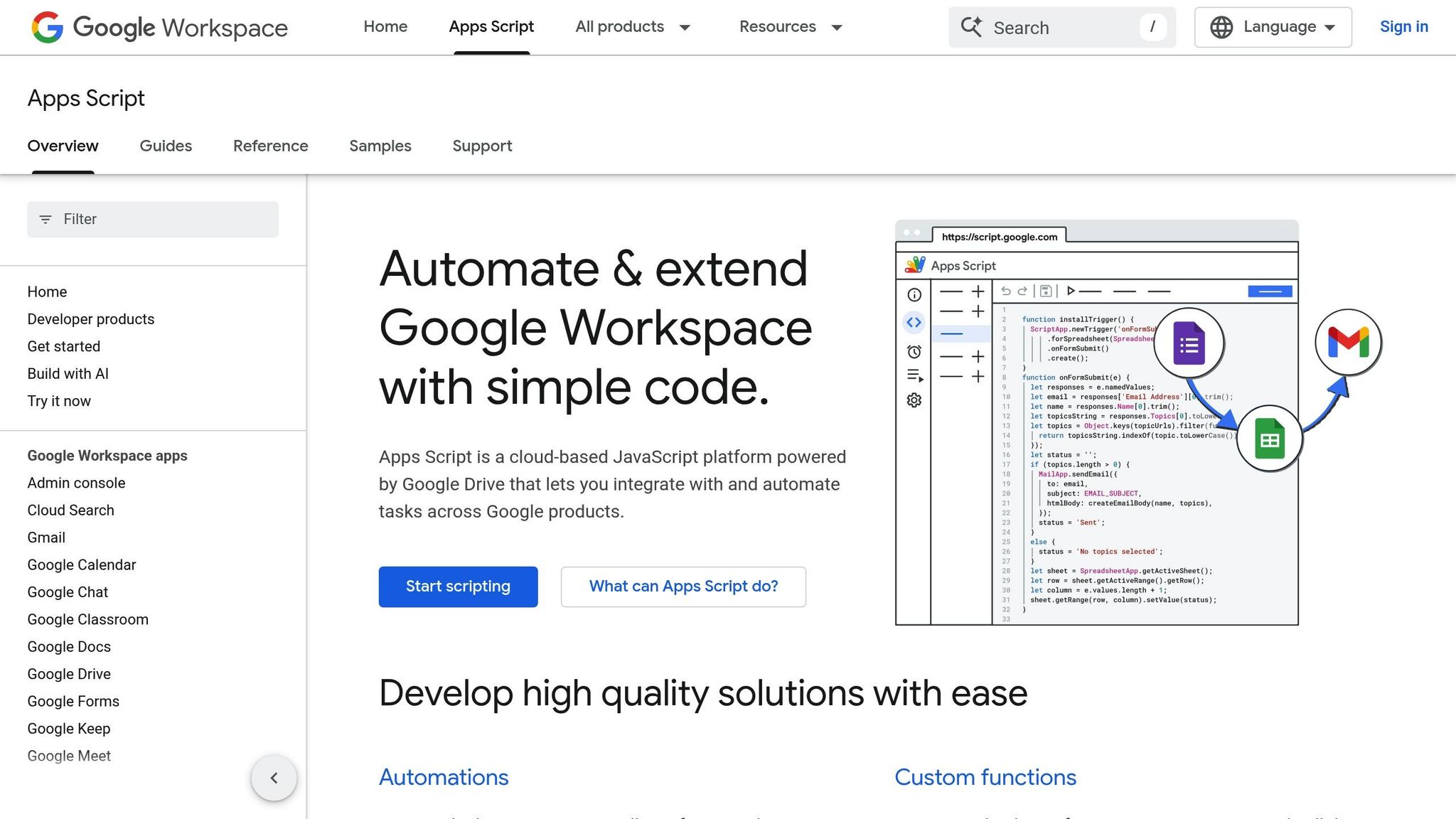
If you're tired of manually cleaning up your Gmail inbox, Google Apps Script offers a way to automate the process. While Gmail's filters are great for managing new incoming messages, they don’t help much with existing emails. That’s where Google Apps Script steps in - it can scan your inbox daily and automatically delete emails that have reached a certain age, like 30, 60, or 90 days.
The best part? It’s all hands-free once set up. For instance, you can create a script using the query older_than:90d to target emails older than three months and schedule it to run every night. Unlike Gmail’s one-time filters, this script keeps working in the background, ensuring your inbox stays clean without you lifting a finger.
Writing a Script to Delete Old Emails
To get started, head over to Google Apps Script, sign in, and create a new project. Give it a name like "Gmail Auto-Purge." Then, paste in a script that uses the GmailApp.search() function to find the emails you want to delete. For example:
var threads = GmailApp.search('older_than:30d');

for (var i = 0; i < threads.length; i++) {
  threads[i].moveToTrash();
}
This script searches for emails older than 30 days and moves them to your Trash folder, where they’ll stay for 30 days before permanent deletion. Feel free to adjust the timeframe (30d, 60d, 90d, etc.) to suit your needs.
If you’d rather review emails before deleting them, you can tweak the script to apply a label like "Ready for Deletion" instead of moving them to the Trash right away. For large inboxes, process emails in smaller batches (e.g., 100–500 threads at a time) to avoid script timeouts.
Scheduling Your Script to Run Automatically
Once your script is ready and working, you can set it to run on a schedule. In the Apps Script editor, click on the Triggers icon (a clock symbol) in the left-hand menu, then click + Add Trigger. Here’s how to configure it:
- Select function: Choose your deletion function from the dropdown.
- Event source: Set it to Time-driven.
- Type of timer: Pick Day timer.
- Time window: Choose a slot like Midnight to 1 AM for off-hours cleanup.
Click Save, and your script will now run automatically at the specified time. You can also adjust the frequency - choose an Hour timer for more frequent cleanups or a Week timer if you prefer a slower schedule.
Handy Gmail Search Operators
Here’s a quick guide to some Gmail search operators you might find useful for customizing your script:
| Search Operator | Purpose | Example |
|---|---|---|
older_than: |
Finds emails older than a specific timeframe (days, months, years) | older_than:2y |
category: |
Filters emails by Gmail categories like Promotions or Social | category:promotions |
label: |
Targets emails with a specific label you’ve created | label:DeleteMe |
before: |
Finds emails sent before a specific date | before:2024/01/01 |
With these tools, you can create a tailored email cleanup system that works exactly the way you want. Turn it on, and let the automation handle the rest!
sbb-itb-34b9fd2
Using MailSweeper for Automated Email Cleanup

If scripts aren’t your thing, MailSweeper is here to make life easier. This no-code, AI-powered tool takes care of the tedious task of decluttering your Gmail inbox. No coding skills? No problem. MailSweeper does the work for you, identifying and clearing out unnecessary emails automatically.
How MailSweeper Works
MailSweeper adds a special label called "Dustpan" to your Gmail. This label acts as a catch-all for less important emails, while your critical messages - like starred emails, those marked important, or anything in your Primary inbox - remain untouched. It’s like having a personal assistant that understands what you need and what you don’t. Plus, you’re in control: you decide when emails in the Dustpan get deleted.
Setting Your Cleaning Schedule
Want to control how long emails linger? MailSweeper allows you to set specific timeframes, such as 30 or 90 days, for automatically deleting old messages from the Dustpan. Once you’ve set your preferences, the tool handles the rest, ensuring your inbox stays organized without any extra effort.
Pricing and Data Privacy
MailSweeper keeps things simple with a one-time payment of $20 for lifetime access - no subscriptions, no hidden fees. On top of that, it’s CASA (Cloud App Security Assessment) certified, meaning your email data is protected with top-notch security measures. You can rest easy knowing your privacy is a priority.
Gmail Methods vs. MailSweeper: Which Option Is Right for You?
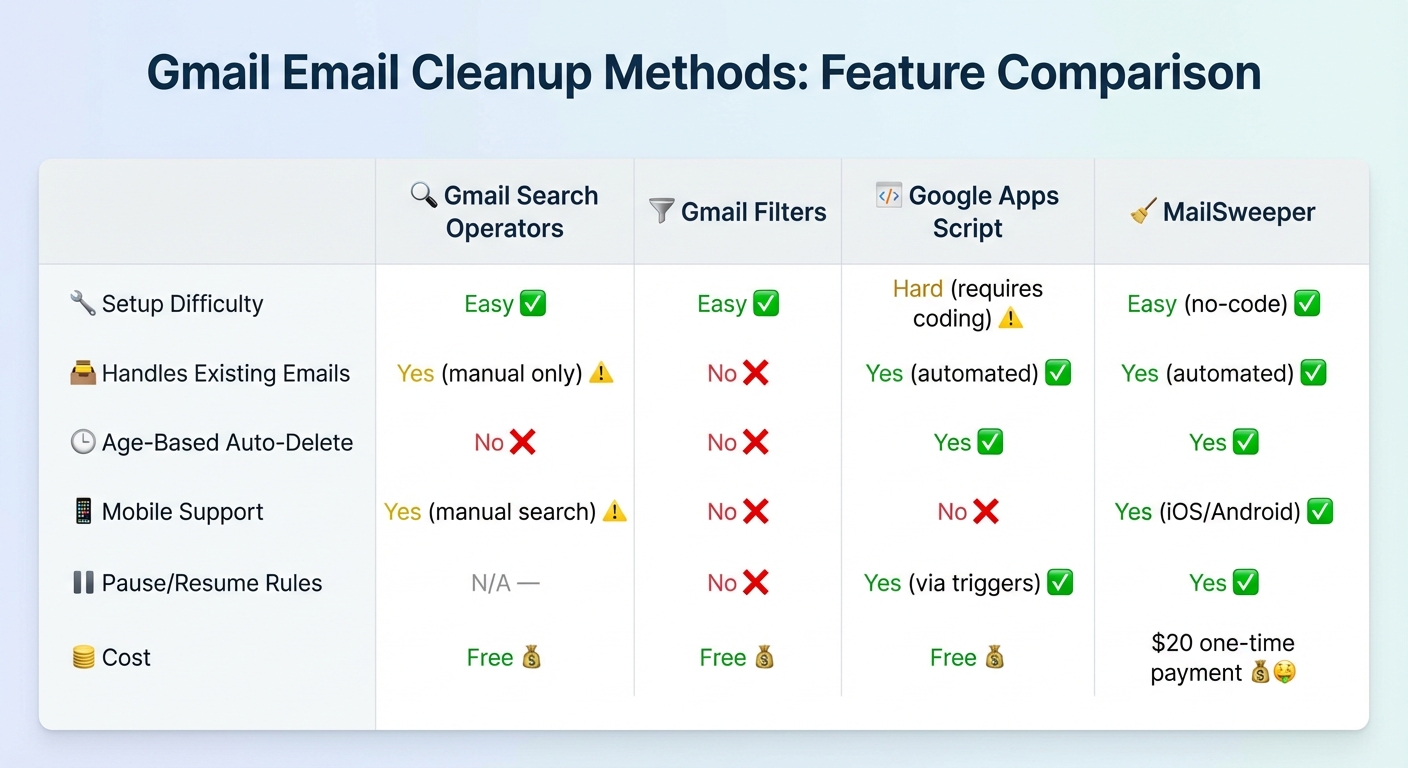
Gmail Email Cleanup Methods Comparison: Features, Difficulty, and Cost
Let’s dive into how Gmail’s built-in tools stack up against MailSweeper when it comes to managing your inbox efficiently.
If you’re deciding between Gmail’s native features and MailSweeper, the choice largely hinges on your level of technical know-how and how much automation you need. Gmail’s search operators are perfect for quick, one-off cleanups. For instance, you can use commands like older_than:1y to find and delete old emails in just a few minutes. However, this method has a major drawback - it’s manual and needs to be repeated regularly, which can become tedious if you’re dealing with thousands of emails.
Gmail filters, on the other hand, only work on new emails. If you’re looking for automated, age-based deletion for existing emails without using a third-party tool like MailSweeper, you’ll need to turn to Google Apps Script. While this script-based solution can automate the process, it requires coding skills and thorough testing to avoid mistakenly deleting important emails. This is where MailSweeper steps in as a more user-friendly alternative.
MailSweeper addresses these limitations by offering continuous automation. Unlike Gmail’s tools, MailSweeper doesn’t require manual intervention or coding expertise. It monitors your inbox in real time and automatically deletes emails that meet your age-based criteria. Plus, it comes with full mobile support, letting you manage cleanup rules directly from your phone. Need to pause a rule for a while? MailSweeper makes it as easy as a single click - something Gmail’s filters can’t do.
Here’s a clear breakdown of how these options compare:
Feature Comparison Table
| Feature | Gmail Search Operators | Gmail Filters | Google Apps Script | MailSweeper |
|---|---|---|---|---|
| Setup Difficulty | Easy | Easy | Hard (requires coding) | Easy (no-code) |
| Handles Existing Emails | Yes (manual only) | No | Yes (automated) | Yes (automated) |
| Age-Based Auto-Delete | No | No | Yes | Yes |
| Mobile Support | Yes (manual search) | No | No | Yes (iOS/Android) |
| Pause/Resume Rules | N/A | No | Yes (via triggers) | Yes |
| Cost | Free | Free | Free | $20 one‑time payment |
MailSweeper provides a hassle-free, automated solution that works in the background, saving you time and effort. If you’re okay with occasional manual cleanups, Gmail’s free tools might work just fine. But for those who want a hands-off approach, MailSweeper’s one-time payment offers long-term convenience and peace of mind.
Conclusion
Cleaning up your Gmail inbox doesn't have to be a daunting task. Each method we've covered has its strengths: Gmail search operators are perfect for quick, one-time cleanups, Gmail filters help you stay on top of incoming emails, and Google Apps Script offers automation for those comfortable with coding.
Here’s a staggering fact: over 60% of emails in the average inbox are more than two years old. These outdated messages can take up over 1 GB of storage and may even contain sensitive information like login credentials or payment details .
For a hands-off approach, consider MailSweeper, which automatically deletes emails based on age. It's fully mobile-compatible and available for a one-time payment of $20. Unlike Gmail's manual or script-based solutions, MailSweeper delivers a completely automated experience.
Pick the method that suits your needs and enjoy the benefits of a cleaner, more secure inbox. Whether you prefer Gmail's built-in tools or an automated service like MailSweeper, you'll be taking a step toward better productivity, enhanced security, and less digital clutter.
FAQs
How can I make sure important emails aren’t deleted when cleaning up my Gmail inbox?
When tidying up your Gmail, it's essential to safeguard important emails. A great way to do this is by creating filters that specifically exclude them. For instance, if you're setting up a filter to delete older emails, you can define criteria like a date range (before:2023/01/01) and include exclusions such as is:starred or label:important. This way, only the emails you no longer need will be targeted.
Before applying any filter, take advantage of Gmail's Search feature to preview the results. This lets you double-check that the correct emails are selected. Plus, Gmail offers a 30-day window for emails in the Trash, giving you some breathing room to recover anything deleted by mistake. To be extra cautious, you might want to back up your emails using Google Takeout before starting the cleanup. This ensures you can organize your inbox efficiently without worrying about losing something crucial.
What are the advantages of using Google Apps Script instead of Gmail's built-in tools?
Google Apps Script gives you more control and flexibility in managing your Gmail inbox than the standard tools. While Gmail filters are great for automatically sorting new emails based on specific rules, they fall short when it comes to handling older emails or setting up automated tasks like deleting messages after a set number of days.
With Apps Script, you can write custom programs to search emails using criteria like date, sender, or size, and then take actions such as archiving, deleting, or organizing them on a schedule. Since these scripts run in Google’s cloud, they can execute automatically - daily, weekly, or at any interval you choose - without any manual input. This means you can set up advanced cleanup routines, enforce retention policies, or even connect Gmail with other Google tools like Sheets or Drive for additional features.
If you need precise, automated email management, Apps Script opens up possibilities far beyond what Gmail’s built-in tools can achieve.
Is MailSweeper a safe tool for automatically deleting old emails in Gmail?
MailSweeper is built to be a safe and dependable solution for automating email cleanup in Gmail. Leveraging advanced AI, it efficiently identifies and removes emails you don’t need, all while safeguarding the ones that matter most.
With data privacy at the forefront, MailSweeper employs strong protection measures to keep your information secure, so you can enjoy a clutter-free inbox without worrying about your personal data.
More free Gmail tools.
Pair these together for a full inbox reset.
Bulk Unsubscribe from Gmail
See the senders flooding your inbox, ranked by volume — your shortlist for unsubscribes.
Open toolMass Delete Gmail Emails
Build a deletion plan by sender, date, label, or all-unread — with the exact Gmail search to run.
Open toolFind Large Emails in Gmail
Pick a size and we build the exact Gmail search to find your biggest emails — then open it in one click.
Open toolGmail Storage Cleanup
Move the slider to your current Gmail usage to see exactly what to delete to free space.
Open toolInbox Zero Score
Rate your inbox health on a 0–100 scale and see the weekly hours your inbox is costing you.
Open tool