
Email Management
How Gmail Handles Data Retention
Explains Gmail's default retention, 30-day Trash/Spam deletion, inactive-account and storage limits, plus Workspace Vault retention options.

How Gmail Handles Data Retention
Gmail retains emails in your Inbox and All Mail folders indefinitely, as long as your account remains active and within the 15GB storage limit. However, messages in Trash and Spam are automatically deleted after 30 days. If your account is inactive for two years or exceeds storage limits for over two years, Google may delete stored content. For businesses using Google Workspace, administrators can set custom retention rules using Google Vault, offering more control over email storage and compliance. Tools like MailSweeper can help automate email clean-up for personal accounts.
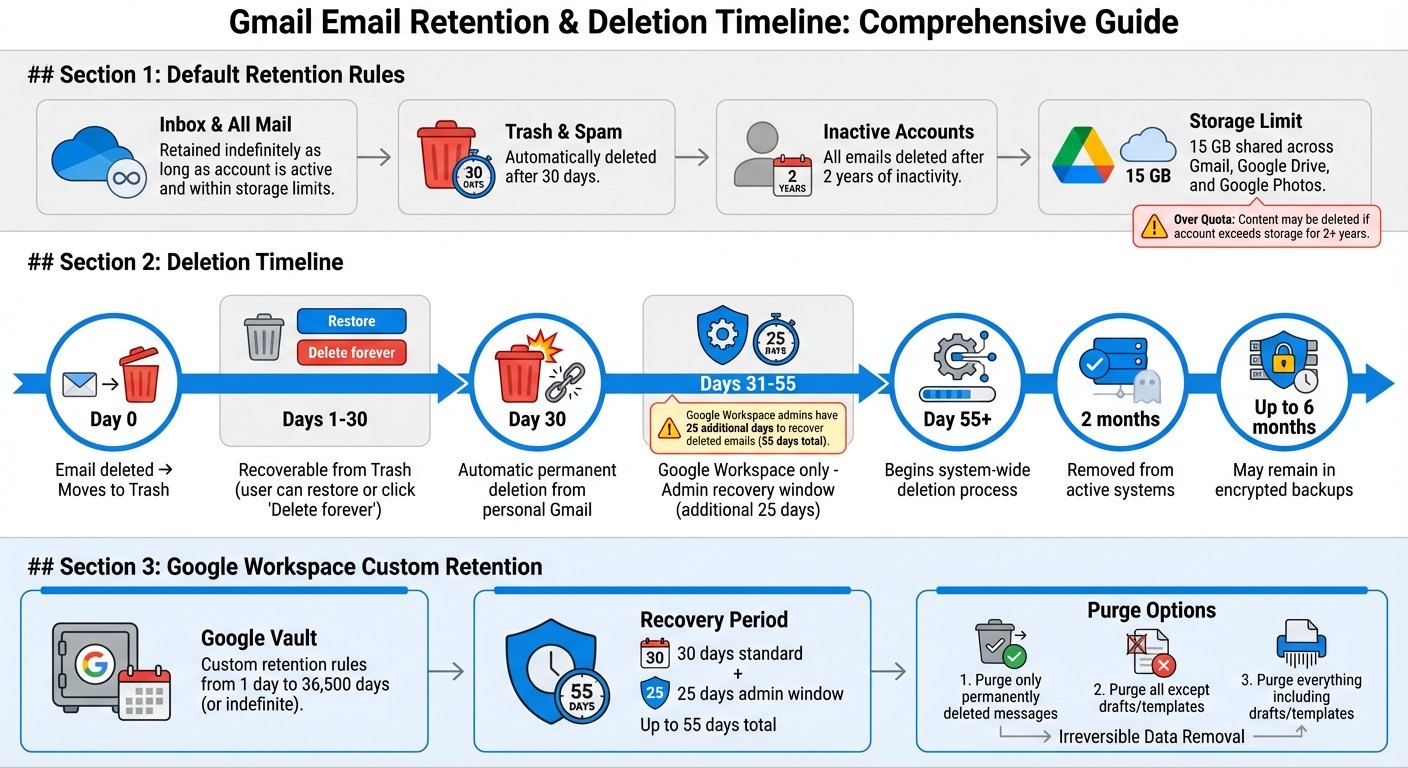
Gmail Email Retention Timeline and Deletion Process
How Gmail Handles Data Retention by Default
Retention Rules for Inbox, Trash, and Spam Folders
Gmail keeps emails in your Inbox and All Mail folders indefinitely, provided your account remains active and you stay within your storage limits. In other words, your messages will stick around unless you decide to delete them yourself.
However, emails in the Trash and Spam folders are treated differently. These messages are automatically and permanently deleted after 30 days. There's also an important caveat for inactive accounts: if you don’t log in to your Gmail account for two years, Google might delete your emails. To avoid this, make sure to sign in periodically.
Your storage limit also plays a key role in how long your emails are retained.
How Storage Limits Affect Email Retention
Every Gmail message and attachment, including those in Spam and Trash, contributes to the 15 GB of storage shared across Gmail, Google Drive, and Google Photos.
If you hit your storage limit, Gmail will keep your existing emails but block any new ones from coming in. To resume receiving emails, you’ll need to either delete some files or upgrade your storage with a Google One membership.
Google also has policies for accounts exceeding their storage limits long-term. If your account remains over quota for two years or more, Google may delete your content. Before taking such action, they’ll send multiple notices and give you at least three months to resolve the issue.
Custom Retention Settings for Google Workspace Users
How to Configure Retention Rules in Google Vault
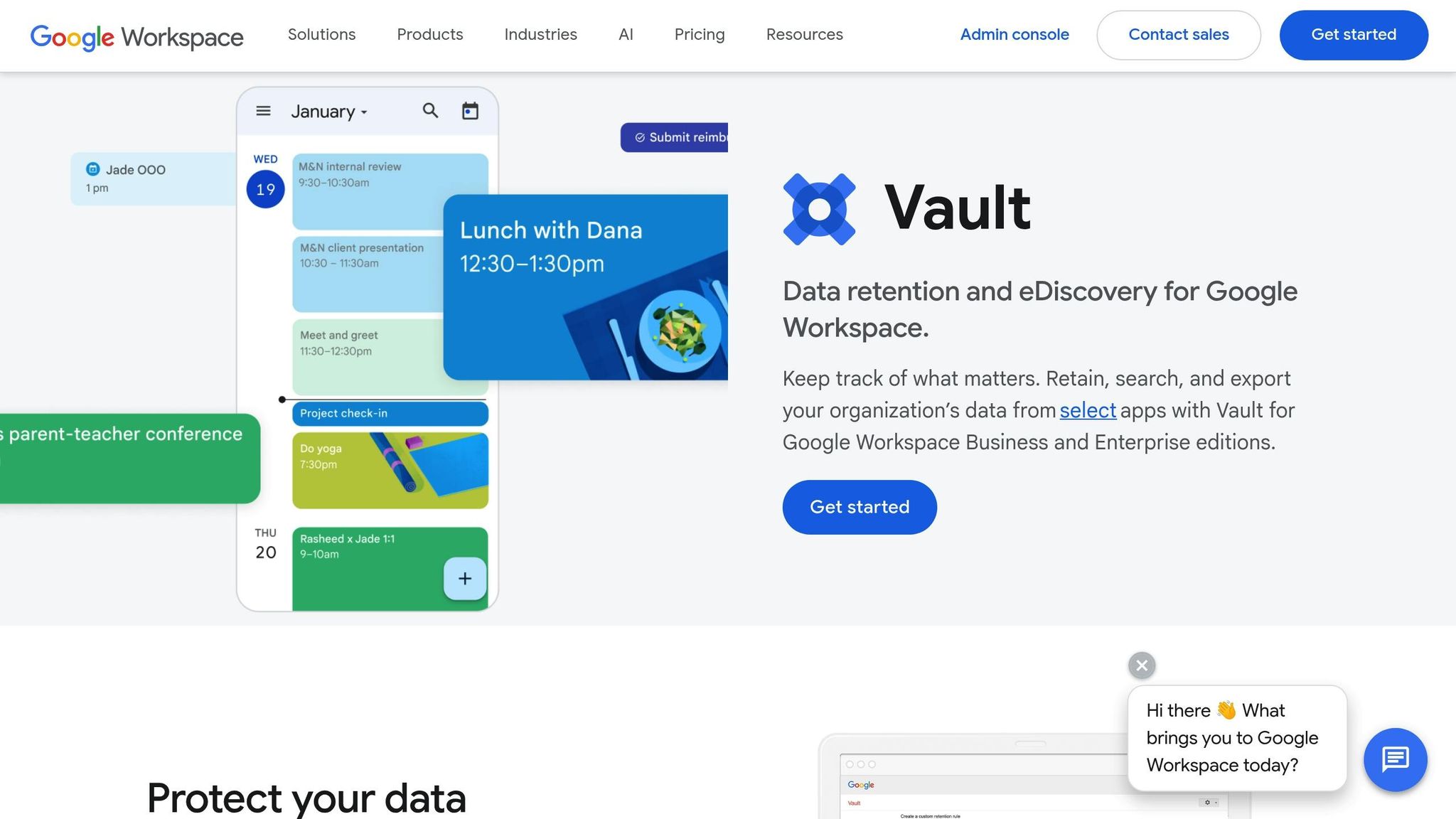
Google Workspace administrators rely on Google Vault to set up custom retention rules tailored to their organization's needs. Unlike Gmail's default 30-day deletion policy for Trash and Spam, these rules allow for precise control over how long emails are retained and when they are purged.
To create a custom retention rule, sign in at vault.google.com, navigate to "Retention" → "Custom Rules", and select "Create." Choose Gmail as the service, specify the organizational unit, and set the retention period, which can range from 1 day to 36,500 days - or even indefinitely.
Once the retention period ends, you’ll need to decide what happens to the emails. Options include purging only permanently deleted messages, purging all messages except drafts and templates, or purging everything, including drafts and templates. For example, a company might enforce a 5-year retention policy for emails belonging to executives.
"An improperly configured retention rule can allow Gmail to immediately and irreversibly purge messages. Use caution when you create or change retention rules. We recommend that you test new rules on a small set of accounts before you apply the rules to your entire organization." - Google Support
Testing new rules on a limited group of users is crucial. Misconfigurations can lead to irreversible data loss. If multiple rules overlap for the same message, the rule with the longest retention period takes precedence. These granular controls are vital for organizations that need more than Gmail's default settings, striking a balance between compliance and operational needs.
When to Use Custom Retention Policies
Custom retention policies in Google Vault are essential for organizations with specific compliance and storage requirements. While Gmail's default settings may work for personal accounts, businesses often face stricter demands.
Industries like financial services, healthcare, and legal practices commonly implement custom retention rules to meet regulatory standards. For instance, an organization might enforce a 1-year retention policy for most employees while requiring longer retention periods for departments handling sensitive or regulated data. Custom rules can also target specific date ranges or keywords, preserving emails related to particular projects or clients.
This flexibility ensures that each department can meet its unique compliance needs without applying a one-size-fits-all solution. By tailoring rules to organizational units, businesses can maintain better control over their data while staying compliant with industry regulations.
How Do I Set Up Email Retention In Gmail? - TheEmailToolbox.com
sbb-itb-34b9fd2
What Happens When Emails Are Permanently Deleted
Once retention settings have done their job, knowing how permanent deletion works is key to managing your email data efficiently.
The Permanent Deletion Process in Gmail
When you delete an email, it moves to the Trash folder, where it stays for 30 days. During this time, you can either recover it or permanently delete it by clicking "Delete forever". After 30 days, Gmail automatically removes the email, ending your ability to recover it in personal Gmail accounts.
For Google Workspace users, administrators have an extra 25 days to recover deleted emails through the "Restore data" tool in the Admin console. This extends the recovery period to a total of 55 days from the initial deletion.
Behind the scenes, Gmail marks emails for deletion by applying a system-generated label called ^deleted. This label is added when you empty the Trash, click "Delete forever", or when Gmail automatically removes emails after 30 days. Gmail’s policies ensure these messages are retained for at least 30 days after the label is applied.
"When the additional 25-day period ends, messages are permanently deleted from your Google Workspace account and can't be restored by an admin or by Google. For privacy reasons, Google doesn't store account data past the additional 25-day deletion period." - Google Workspace Admin Help
After this period, Google's systems continue working behind the scenes to erase the data entirely.
How Google's Backup Systems Handle Deleted Data
When an email is permanently deleted from your account, Google removes it from your view immediately and begins a system-wide deletion process. This process usually takes about two months from the time of deletion.
Google’s infrastructure includes encrypted backups, which serve as an additional layer of protection. However, these backups may retain deleted data for up to six months. These backups are part of Google’s internal disaster recovery and data management processes and are not accessible for recovering emails.
For organizations using Google Workspace with Google Vault, emails may be recoverable beyond the standard 55-day period if retention rules or legal holds are in place. That said, Vault doesn’t restore emails directly to Gmail. Instead, administrators can search for and export the data, which must then be imported separately.
This thorough process highlights how Gmail handles email data even after it’s been deleted, ensuring both security and compliance.
How to Manage Your Gmail Retention Settings
Gmail offers flexible ways to handle email retention, whether you prefer manual control or automated tools. The options available depend on whether you're using a personal Gmail account or Google Workspace.
Where to Find Retention Settings in Gmail
For individual Gmail users, there isn’t a dedicated menu labeled "retention settings" for automatic email deletion. Instead, Gmail relies on manual deletion and storage management. By default, any email you delete moves to the Trash, where it’s permanently removed after 30 days.
If you’re running out of storage, open Gmail and navigate to the Manage storage option in Google One’s storage manager. Under Clean up by service, select Gmail to review and delete emails or attachments taking up space. Keep in mind, Gmail shares its 15 GB of free storage with Google Drive and Google Photos.
To delete emails manually, select the messages you no longer need and click Delete. For bulk deletion, Gmail’s search operators (like from:, after:, or has:attachment) can filter specific emails for easier cleanup. To permanently clear deleted emails, go to More > Trash and click Empty Trash now.
If this process feels tedious, automation tools can make email cleanup much easier.
How MailSweeper Automates Email Retention
Manually managing email retention can be a hassle, but MailSweeper offers an automated solution. Its Dustpan feature identifies and organizes unimportant emails, saving you time.
Once installed, MailSweeper adds a Dustpan label to your Gmail inbox. It automatically collects emails it deems unimportant, while skipping those in your primary inbox or marked as important or starred. Based on your settings - every 30 or 90 days - MailSweeper runs a cleanup task to delete older emails in the Dustpan.
This tool reduces storage costs, minimizes digital clutter, and saves time. Plus, MailSweeper is CASA-certified for data privacy and integrates seamlessly with your Google account. Best of all, it doesn’t require a subscription, making it a convenient way to automate email retention.
Conclusion
Key Takeaways
Gmail keeps your Inbox and All Mail emails indefinitely, as long as your account stays active and within the 15 GB storage limit. However, emails in the Trash or Spam folders are automatically deleted after 30 days, and accounts that remain inactive for two years will lose all stored messages.
For Google Workspace users, there are additional tools to manage email retention. Google Vault allows administrators to set custom retention rules, ensuring compliance with legal and organizational requirements. While these features are robust, the responsibility for safeguarding data ultimately lies with you or your organization's IT team.
Managing retention manually can be overwhelming, especially for large inboxes. That’s where tools like MailSweeper come in. MailSweeper streamlines the process by identifying less important emails and moving them to a designated "Dustpan" label. It also automatically deletes old emails based on your chosen time frame (30 or 90 days). This helps reduce storage costs and declutter your inbox - all without requiring a subscription. Plus, it ensures your data stays secure while keeping your inbox organized.
Whether you're using Gmail for personal use or as part of Google Workspace, having a clear email retention strategy is essential. Automation tools like MailSweeper make it easier to stay on top of email management, so you can focus on more important tasks instead of sifting through outdated messages.
FAQs
What does Google do with inactive Gmail accounts after two years?
If you go more than two years without signing into your Gmail account, Google might permanently delete it under their inactive account policy. This would wipe out everything tied to your account - emails, Drive files, Photos, contacts, and any other data associated with it.
To prevent this, make it a habit to log in occasionally or use tools that help you keep track of your email activity and storage. Regular activity keeps your data secure and accessible.
How can administrators set up and manage Gmail's email retention policies?
Google Workspace administrators can use Google Vault - a tool for e-discovery and data governance - to manage Gmail’s email retention policies. Through Vault, admins have the flexibility to set default retention rules that apply across the board or craft custom retention rules tailored to specific needs, such as keywords, date ranges, or specific organizational units.
For default rules, administrators can modify the retention duration or disable the rule entirely. When more precise control is needed, custom rules come into play. These allow admins to define conditions, like emails older than 365 days or those containing specific terms, set a retention period, and decide whether to retain or automatically delete the emails once the period ends. Additionally, admins can apply holds to specific accounts or groups, ensuring emails are preserved indefinitely, even if other rules would normally delete them.
Since misconfigured settings can lead to irreversible data loss, reviewing all configurations carefully is crucial. To further streamline storage management and reduce inbox clutter, tools like MailSweeper can work alongside retention policies by identifying and removing low-priority emails. This approach not only ensures compliance but also keeps storage usage efficient.
What are the best ways to automate email cleanup in Gmail?
Gmail comes equipped with tools to help you keep your inbox organized without much effort. For instance, emails that are sent to Trash or marked as Spam are automatically deleted after 30 days, so there’s no need to manually clear them out. If you’re a Google Workspace user, administrators can set up retention rules in Google Vault to automatically remove emails after a set period - an option particularly helpful for meeting compliance requirements.
For those looking for more advanced options, tools like MailSweeper can take automation to the next level. This tool uses AI to identify and delete low-priority or redundant emails, cutting down on clutter and even helping to reduce storage costs. Plus, it doesn’t require ongoing subscriptions, offering a hassle-free way to complement Gmail’s built-in features and keep your inbox running smoothly.
More free Gmail tools.
Pair these together for a full inbox reset.
Bulk Unsubscribe from Gmail
See the senders flooding your inbox, ranked by volume — your shortlist for unsubscribes.
Open toolMass Delete Gmail Emails
Build a deletion plan by sender, date, label, or all-unread — with the exact Gmail search to run.
Open toolFind Large Emails in Gmail
Pick a size and we build the exact Gmail search to find your biggest emails — then open it in one click.
Open toolGmail Storage Cleanup
Move the slider to your current Gmail usage to see exactly what to delete to free space.
Open toolInbox Zero Score
Rate your inbox health on a 0–100 scale and see the weekly hours your inbox is costing you.
Open tool