
Email Management
Gmail Storage Costs Explained
Running out of shared cloud storage is avoidable—reclaim space with targeted email cleanup, automation tools, or a suitable paid plan.
Gmail Storage Costs Explained
Running out of Gmail storage? Here’s what you need to know: Google gives you 15 GB of free storage shared across Gmail, Drive, and Photos. But once you hit that cap, Gmail stops sending and receiving emails. To avoid this, you can either clear space or upgrade to a Google One plan, starting at $1.99/month for 100 GB.
Quick Tips:
- Free Tier: 15 GB shared across Gmail, Drive, and Photos.
- Paid Plans: Start at $1.99/month (100 GB) and go up to $49.99/month (10 TB).
- What Counts: Emails, attachments, files in Drive, and photos.
- Clean-Up: Delete large emails (
larger:10M), clear Trash/Spam, and unsubscribe from unnecessary emails. - Business Accounts: Use pooled storage under Google Workspace plans.
Avoid unnecessary upgrades by managing your storage smartly. Use filters, delete oversized emails, or try tools like MailSweeper to automate cleanup. For heavy users or businesses, paid plans provide extra space and flexibility.
How Gmail Storage Works
Google Account Storage and the 15 GB Free Tier
Your Gmail storage is part of your overall Google Account storage. Every personal Google Account includes 15 GB of free cloud storage, which is shared across Gmail, Google Drive, and Google Photos. This means everything - your emails, vacation snapshots, and important documents - pulls from the same storage pool.
For example, if you’ve used 12 GB in Google Drive, you’ll only have about 3 GB left for Gmail and Photos. Even the most meticulously organized inbox won’t help if other services are eating up your storage. Once you hit the 15 GB cap, Gmail will stop sending and receiving emails until you either clear up space or upgrade to a paid plan.
What Counts Toward Gmail Storage
Your Gmail storage includes all emails in your account - whether they’re in your Inbox, Sent folder, custom labels, Spam, or Trash. Attachments also count, and a single email with a large file can use up much more space than thousands of simple text emails. Organizing messages with labels or archiving them doesn’t reduce storage usage, as the emails remain in your account.
Deleting emails isn’t an instant fix either. Messages in the Trash still count toward your storage limit until you empty the Trash manually or wait 30 days for it to clear automatically. To keep an eye on your storage use, you can visit the Google One Storage Manager or check the storage settings in Google Drive.
Next, let’s look at how storage options vary between personal and business accounts.
Free vs Paid Gmail Storage
If the free 15 GB isn’t enough, Google One plans start at $1.99 per month for 100 GB of storage. With these plans, you can allocate the extra space as needed across Gmail, Drive, and Photos.
Business accounts under Google Workspace handle storage differently. Instead of individual limits, storage is pooled across all users in the organization. Administrators can set limits for specific users, monitor who’s using the most storage, and decide how to distribute the available space. Individual users, however, are only responsible for managing their own usage within the limits set by the admin.
How Much Does Gmail Storage Cost? - TheEmailToolbox.com
Gmail Storage Costs for Personal Users
Google One Storage Plans and Pricing Comparison 2025
Google One Storage Plans and Pricing

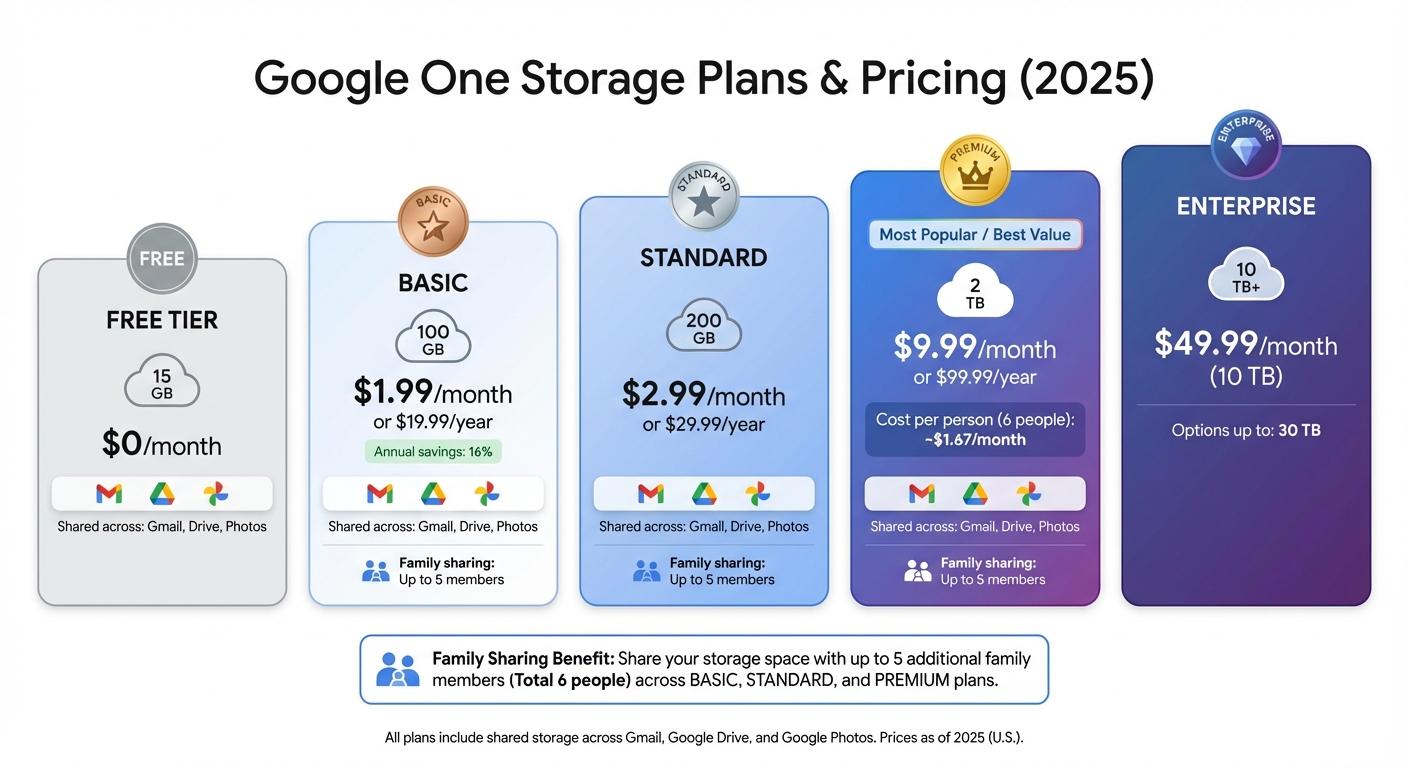
If the free 15 GB of storage isn’t cutting it, upgrading to Google One is the next step. In the U.S., as of 2025, here’s a breakdown of the main plans:
- Basic: 100 GB for $1.99/month or $19.99/year (a 16% savings when billed annually)
- Standard: 200 GB for $2.99/month or $29.99/year
- Premium: 2 TB for $9.99/month or $99.99/year
These plans don’t just expand your Gmail storage - they also cover Google Drive and Google Photos. Plus, you can share your storage with up to five family members at no extra cost. For example, splitting the 2 TB plan among six people brings the cost to about $1.67 per person each month. For those with massive storage needs, Google offers even larger plans, such as 10 TB for $49.99/month, with options going up to 30 TB.
The best plan for you depends on how you use Gmail. Let’s take a closer look.
How Gmail Usage Affects Your Costs
Your email habits play a big role in determining whether the free 15 GB is enough or if you need to upgrade.
- Light users: If you mostly send text emails with occasional small attachments, you’re likely using just a few GB each year. By regularly clearing out Spam and Trash, you can comfortably stay within the free tier.
- Moderate users: Sharing photos, PDFs, and other documents can quickly add up. Gmail alone might take up 20–30 GB, and when combined with Google Drive and Photos, your total can hit 50–100 GB. For these users, the 100 GB plan at $1.99/month provides a practical buffer to avoid running out of space.
- Heavy users: If you’re storing large files like videos or archives, you might need the 2 TB plan to keep everything running smoothly. Picking the right plan ensures you avoid service interruptions and keeps your storage costs manageable.
Knowing your usage patterns is crucial, especially since exceeding your limit can lead to service disruptions.
What Happens When You Exceed Storage Limits
If you go over your storage limit, you’ll quickly feel the impact - email and file operations are halted until you either free up space or upgrade. Google’s policies also state that accounts exceeding their quota for an extended period may face content deletion. It’s a good idea to monitor your storage regularly to avoid these issues.
sbb-itb-34b9fd2
Gmail Storage Costs for Businesses
Google Workspace Plans and Storage Allocation
When it comes to Gmail storage for businesses, everything runs through Google Workspace. These plans bundle Gmail with other productivity tools and are designed to fit the needs of different teams.
Here’s a breakdown of the main business plans:
- Business Starter: 30 GB per user for $6 per user/month
- Business Standard: 2 TB of pooled storage for $12 per user/month
- Business Plus: 5 TB of pooled storage for $18 per user/month
For larger organizations, Enterprise plans offer expandable storage options.
Unlike personal Gmail accounts, where each user gets a fixed 15 GB, business plans use pooled storage. This means the total storage is shared across all users in the organization. For example, if 10 employees are on the Business Plus plan, the team has a total of 50 TB (10 users × 5 TB) to share. This flexibility is great for teams where some users need more space than others, as unused storage from one person can be utilized by another.
To keep operations smooth, businesses need to actively monitor and manage their storage. Thankfully, the Google Workspace Admin Console provides tools to help with this.
Managing Gmail Storage in a Business Context
The Google Workspace Admin Console is your go-to for keeping tabs on storage. It shows detailed metrics for each user and alerts you when the organization is nearing its storage limit. Setting alerts at 80% capacity is a smart way to stay ahead of potential issues.
One of the most effective ways to manage storage is by using retention policies. These allow admins to automate the deletion of emails based on specific criteria. For instance, you could set a rule to delete emails older than two years or target certain messages based on labels or senders. These policies work in the background, reducing manual effort while keeping storage in check. You can also automate the clearing of Spam and Trash folders or use Google Vault for more advanced retention and compliance needs.
To maximize storage efficiency:
- Implement automated retention rules.
- Regularly clear Spam and Trash folders.
- Train employees to archive older emails instead of letting them pile up.
How to Reduce Gmail Storage Costs
Understanding Gmail's storage costs is one thing, but keeping your inbox optimized is the key to avoiding overages and unnecessary expenses.
Finding and Deleting Large Emails
One of the fastest ways to free up space is by targeting your largest emails. Use search queries like larger:10M or combine filters such as has:attachment larger:10M older_than:2y to quickly locate and delete oversized, older emails.
Attachments are often the main culprits when it comes to eating up storage. Marketing emails, like those from retailers such as Amazon, can easily exceed 10 MB each. Some users have reported recovering anywhere from 2 to 5 GB of space just by deleting newsletters with images or photo attachments.
To get even more specific, try searching for particular file types with filters like filename:pdf or filename:zip. Once you've identified these bulky offenders, select them and hit "Delete."
If manual cleanup feels too tedious, automated tools can make the process much easier.
Using AI-Powered Cleanup Tools
Manually sifting through emails can be both time-consuming and easy to forget. That’s where AI-powered tools come in handy, automating the process and identifying unimportant emails based on your preferences.
Take MailSweeper, for example. This tool scans your inbox for less important emails - such as newsletters, receipts, and notifications - and deletes them on a schedule you set, like every 30 or 90 days. By default, it protects starred emails, important messages, and those in your primary inbox.
MailSweeper has already helped users delete over 3 million emails and recover 219 GB of storage. For instance, a user nearing the 15 GB free limit with 12 GB of data could cut their usage in half by removing over 5,000 promotional emails in just one month. This could save them from upgrading to Google One's $1.99/month Basic plan, translating to about $24 in annual savings. Unlike subscription-based services, MailSweeper offers lifetime access for a one-time fee of $16 to $20.
Building Better Email Cleanup Habits
Good habits can go a long way in managing your Gmail storage. Regularly empty your Spam and Trash folders, as these still count toward your 15 GB limit. Use the "Unsubscribe" link at the bottom of promotional emails to reduce future clutter - unchecked high-volume senders can eat up as much as 500 MB of storage each month.
Gmail filters can also be a game-changer. Head to Settings > Filters to create rules for specific senders or types of emails. For instance, setting a filter for "promotions larger:1M" can automatically archive or delete large marketing emails as they come in, keeping your inbox organized and preventing storage issues.
Make it a habit to review your storage monthly. Regular routines like clearing your Trash weekly, unsubscribing from unnecessary emails, and setting up smart filters can free up 1–3 GB of space consistently. Since attachments and spam account for about 70% of Gmail storage, combining manual deletions, AI tools like MailSweeper, and filter-based habits can make managing your inbox much easier and help you stay within the free storage tier.
Conclusion
With Gmail's 15 GB of free storage shared across Drive and Photos, it doesn't take long for space to run out. Once you hit that limit, Google might stop sending and receiving emails - a frustrating situation that often pushes users toward upgrading to paid Google One plans. For businesses, there are also scalable storage options available.
But here's the thing: upgrading isn't your only option. A few smart strategies can help you reclaim space and stay within the free tier. Start by targeting large emails using search filters like larger:5M. Build habits like unsubscribing from unwanted emails, regularly emptying your Trash folder, and setting up filters to keep your inbox organized. These small changes can make a big difference.
For those looking to simplify the process, automation tools can be a game-changer. AI-powered tools like MailSweeper take the hassle out of email cleanup by automatically deleting unimportant messages on a schedule. Users have reported reclaiming significant storage space with MailSweeper, which is available for a one-time fee of $16 to $20. It's a practical, cost-effective way to manage your inbox without committing to recurring storage fees.
FAQs
What happens if I run out of Gmail storage space?
If your Gmail storage reaches its limit, Google might temporarily block you from sending or receiving emails. This storage cap also impacts other Google services like Drive and Photos, as they all share the same storage pool.
To prevent interruptions, you can take steps like deleting large or unneeded emails, emptying your spam and trash folders, or opting for a paid Google One plan to expand your storage. Tools such as MailSweeper can simplify the cleanup process by automatically removing unnecessary emails, helping you save time and manage storage efficiently.
How can I manage Gmail storage effectively without paying for more space?
To keep your Gmail storage under control without paying for more space, start by clearing out emails you no longer need. Focus on old promotions, newsletters, or social updates that tend to pile up. Don’t forget to empty your Spam and Trash folders regularly - they count toward your storage limit too.
If you prefer a hands-off solution, try tools like MailSweeper. This tool can automatically sort through your emails, flagging and deleting less important ones on a regular schedule. It’s a simple way to keep your inbox tidy, save time, and avoid hitting storage limits - all without spending a dime.
What’s the difference between personal and business Gmail storage plans?
Personal Gmail accounts include 15 GB of free storage, which is shared across Gmail, Google Drive, and Google Photos. If you find yourself running out of space, you can upgrade to a larger storage plan by subscribing to a monthly or annual plan.
For businesses, Gmail storage is part of Google Workspace, starting with 30 GB per user. Higher-tier plans offer even greater storage capacity, with some enterprise options providing unlimited space. These business plans also come with added perks like advanced security features, collaboration tools, and admin controls tailored to meet the needs of organizations.
More free Gmail tools.
Pair these together for a full inbox reset.
Bulk Unsubscribe from Gmail
See the senders flooding your inbox, ranked by volume — your shortlist for unsubscribes.
Open toolMass Delete Gmail Emails
Build a deletion plan by sender, date, label, or all-unread — with the exact Gmail search to run.
Open toolFind Large Emails in Gmail
Pick a size and we build the exact Gmail search to find your biggest emails — then open it in one click.
Open toolGmail Storage Cleanup
Move the slider to your current Gmail usage to see exactly what to delete to free space.
Open toolInbox Zero Score
Rate your inbox health on a 0–100 scale and see the weekly hours your inbox is costing you.
Open tool