
Email Management
Gmail email categories, an overview
Gmail's five categories turn chaotic inboxes into organized, prioritized workflows using training, labels, filters and AI-driven cleanup.
Gmail email categories, an overview
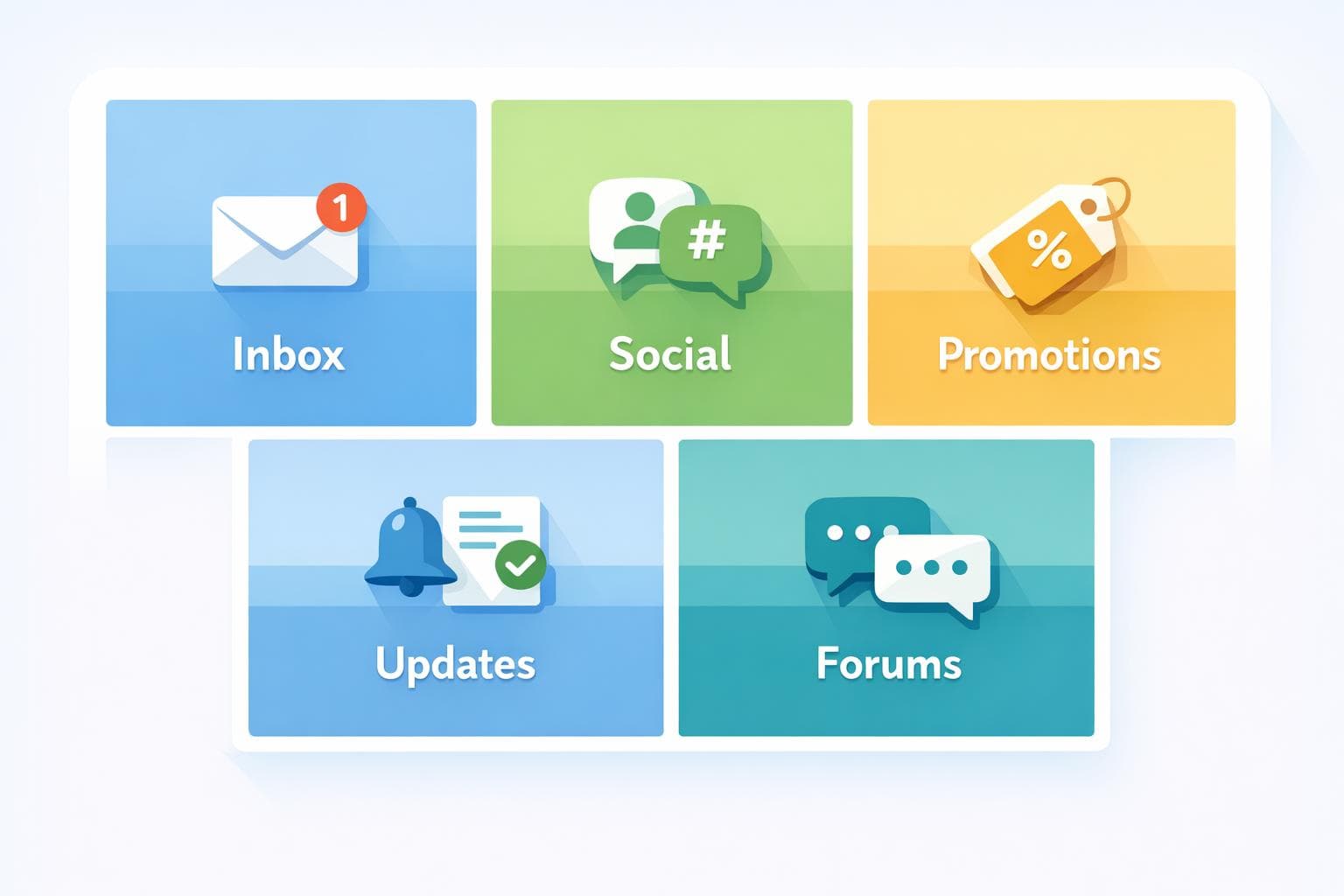
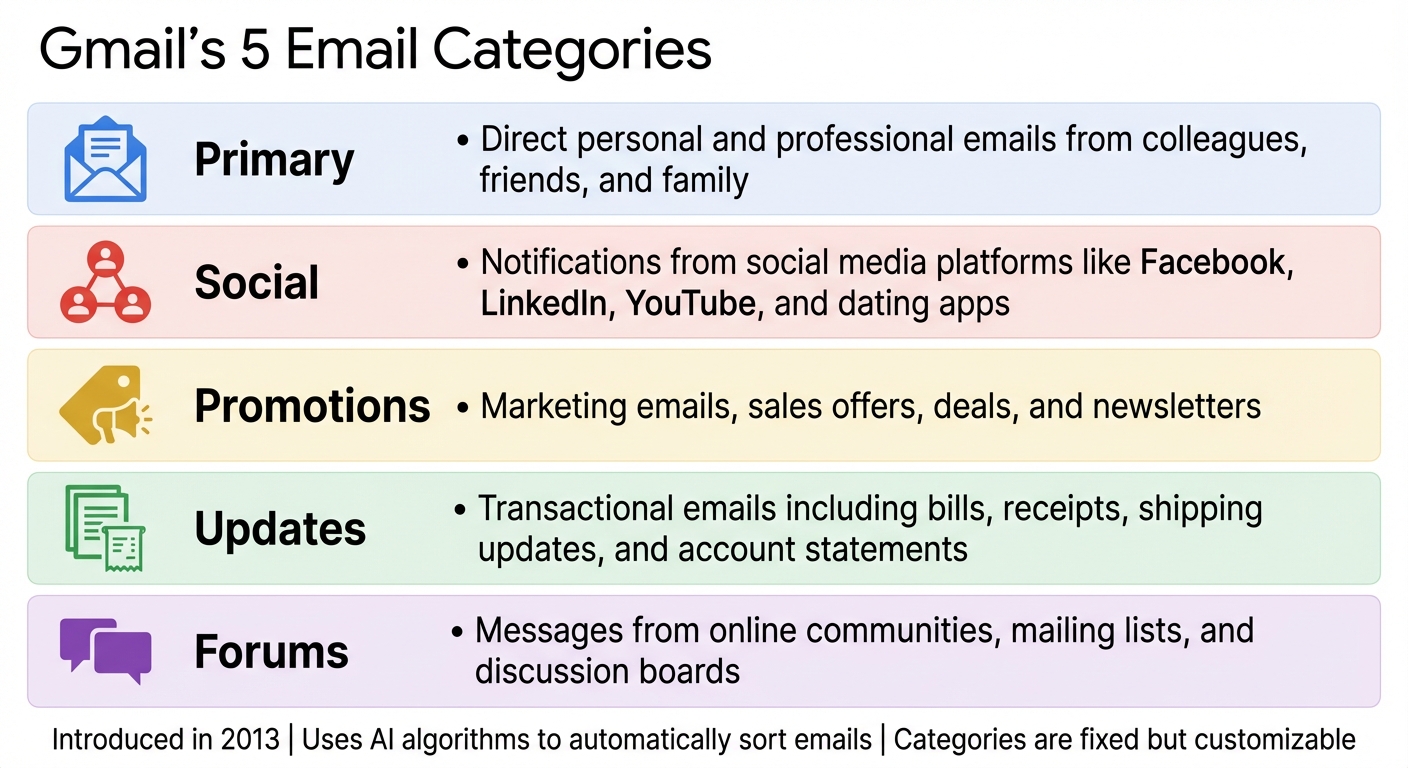
Gmail's email categories make managing your inbox easier by automatically sorting messages into five predefined tabs: Primary, Social, Promotions, Updates, and Forums. Introduced in 2013, this feature uses algorithms to organize emails based on content, sender, and user behavior. Unlike custom labels, categories are fixed and cannot be altered, though you can choose which tabs to display.
Here’s a quick breakdown of the five categories:
- Primary: Direct personal and professional emails.
- Social: Notifications from social media platforms.
- Promotions: Marketing emails, deals, and newsletters.
- Updates: Transactional emails like receipts and reminders.
- Forums: Messages from discussion groups and mailing lists.
Gmail also allows you to fine-tune these categories by training its sorting algorithm, creating filters, and pairing categories with labels for better organization. Advanced tools like AI-powered features and third-party add-ons, such as MailSweeper, further simplify email management by prioritizing important emails and automating cleanup tasks.
Whether you’re dealing with hundreds or thousands of emails, Gmail’s categories and AI tools offer practical solutions to keep your inbox organized and clutter-free.
Gmail's 5 Email Categories Explained: Primary, Social, Promotions, Updates, and Forums
Understanding and using Gmail Category Tabs: Intro to Gmail
Gmail's 5 Default Categories
Gmail's five default categories help you quickly identify different types of emails, making it easier to focus on what matters most. Knowing how each tab works can save you time and keep your inbox organized. These categories also play a key role in Gmail's AI-driven cleanup tools, which we'll explore later in this guide.
Primary is where your most important emails land. Think of it as the go-to spot for personal and professional conversations. This includes direct messages from colleagues, friends, family, or anyone Gmail flags as important. If you star a message, you can tweak settings to ensure it always stays in Primary, no matter where it was initially sorted.
Social collects notifications from platforms like YouTube, Facebook, LinkedIn, and even dating apps. By keeping these alerts separate, Gmail ensures your main inbox isn’t overwhelmed with social updates.
Promotions is where marketing emails live - things like sales offers, newsletters, and deals. Gmail’s smart sorting keeps these out of your Primary inbox while distinguishing them from spam, so you don’t miss legitimate offers.
Updates is designed for transactional and automated emails. Think bills, receipts, shipping updates, account statements, and reminders. It’s also a handy spot for keeping track of financial records and order confirmations. Want to find flight or hotel bookings? Use the search term category:reservations, even though "Reservations" isn’t a visible tab.
Forums gathers emails from online communities, mailing lists, and discussion boards. This makes it simple to manage these messages in one place, separate from your direct conversations. Up next, we’ll dive into how you can customize these categories to make your inbox even more efficient.
How to Customize Gmail Categories
Gmail gives you the flexibility to decide which categories show up in your inbox, tweak sorting settings, and pair them with labels and filters for better organization. Here’s how you can activate these features and fine-tune how Gmail manages your emails.
Turn Categories On or Off
These features are available only when using the Default inbox type. On a desktop, click the Settings gear icon, set the "Inbox type" to Default, then click Customize, select the categories you want, and hit Save. On mobile, tap Menu → Settings → choose your account → Inbox customizations → Inbox categories, and toggle the tabs you want to enable.
However, if your Gmail account contains more than 250,000 emails, you’ll need to archive or delete enough messages to fall below this threshold before you can enable categories. If you turn off all tabs except Primary, Gmail doesn’t stop sorting your emails - it just combines everything into a single view. Behind the scenes, Gmail continues categorizing emails, which you can still access as labels in the left sidebar. By default, notifications are only sent for emails in the Primary tab.
Train Gmail's Sorting Algorithm
You can teach Gmail how to sort your emails by dragging a message from one tab to another on desktop. Gmail will then ask if you’d like to apply this preference to future emails from the same sender. On mobile, open the email, tap the More menu (three dots), select Move to, and pick the correct category.
"While Gmail takes all of these signals into account, the most important one is your direct input. Your actions teach Gmail how best to sort your email based on your preferences." - Matthew Izatt, Product Lead, Google Workspace Platform
Adding a sender to Google Contacts often ensures their emails land in the Primary tab. You can also create a filter for specific senders and use the "Categorize as:" option to assign a category. Similarly, replying to emails signals ongoing communication, which helps prioritize those messages in the future. Let’s explore how labels and filters can further refine your inbox organization.
Use Categories with Labels and Filters
You can take Gmail’s default settings a step further by combining categories with labels and filters. Labels act as custom tags that work alongside Gmail categories. For instance, you can create a filter to automatically assign both a category and a label (e.g., route receipts to the Updates category with a "Finance" label). Search operators like category:updates label:receipts help you quickly locate specific emails.
Additionally, you can star important emails and configure them to appear in the Primary tab no matter their original category. To do this, enable the "Include starred in Primary" option in your settings. This combination of categories, labels, and filters ensures your inbox stays organized and tailored to your needs.
sbb-itb-34b9fd2
AI-Powered Inbox Organization
Gmail's AI doesn’t just sort your emails - it prioritizes and even summarizes them for you. By analyzing patterns like who you email most, which messages you engage with, and key phrases, Gmail uses machine learning to automatically mark certain emails as important. The Priority Inbox feature divides your emails into three sections: Important and Unread, Starred, and Everything Else.
In early 2026, Gmail unveiled its AI Inbox feature, designed to provide personalized briefings. Blake Barnes, VP of Product at Gmail, explained:
"With email volume at an all-time high, managing your inbox and the flow of information has become as important as the emails themselves. To help, we're bringing Gmail into the Gemini era and making it your personal, proactive inbox assistant".
This feature ensures critical emails, like bills or urgent reminders, are easy to spot by identifying VIPs based on your contacts and interaction history. Now, let’s dive into the advanced AI tools that make inbox management even more seamless.
Gmail's Built-In AI Features
Gemini AI takes email organization to the next level with features like AI Overviews. These summaries condense lengthy email threads into digestible insights, so you can quickly grasp the main points without scrolling through every message. It can even generate action item lists and simplify complex threads with multiple replies.
For quick replies, Gmail offers contextual smart responses that adapt to your tone and the conversation’s context. Another standout is natural language search, which lets you type queries like, “Who was the plumber that gave me a quote last year?” and Gmail will locate the relevant email - no matter where it’s buried.
While features like Help Me Write and Suggested Replies are available to all 3 billion Gmail users for free, advanced tools require a Google AI Pro or Ultra subscription.
How MailSweeper Works with Gmail Categories
Enhancing Gmail’s AI capabilities, MailSweeper adds another layer of automation to keep your inbox tidy. Once installed, MailSweeper creates a Dustpan label in your inbox - a dedicated space for less important emails. The AI ensures that emails in your Primary tab or those you’ve marked as important or starred are excluded from this label.
The Dustpan is especially effective for high-traffic categories like Promotions and Forums. Instead of manually sifting through endless marketing emails or discussion threads, MailSweeper identifies emails you’ve ignored and moves them to the Dustpan. Over time (every 30 or 90 days, depending on your settings), MailSweeper automatically deletes these emails, cutting down on storage costs and reducing inbox clutter without requiring constant oversight.
Category-Based Cleanup Strategies
Promotions and Forums categories are often the biggest culprits when it comes to storage-heavy emails. Start by identifying senders who frequently fill these categories without adding much value. Use search operators like category:promotions or category:forums to spot trends, then create filters to direct emails from those senders straight to the Dustpan.
However, not all emails in these categories are disposable. For instance, receipts or tax-related documents in the Updates category might need to be saved. MailSweeper allows you to exclude specific senders or apply custom labels to ensure important emails are preserved before they hit the Dustpan. Keep in mind that Gmail’s category system has a limit - if your inbox exceeds 250,000 emails, it may stop functioning properly. Regular cleanup ensures you maintain access to Gmail’s powerful AI tools.
Conclusion
Gmail's categories and AI-powered tools can turn an overwhelming inbox into an organized, efficient workspace. With its five default categories - Primary, Social, Promotions, Updates, and Forums - Gmail uses machine learning to automatically sort incoming emails, helping to keep your inbox manageable .
You can take this a step further by training Gmail's algorithm to better understand your preferences. By consistently managing emails and setting up custom labels and filters, you can create a highly personalized inbox. For tabs like Promotions and Forums, which often receive a high volume of messages, tools like MailSweeper can simplify cleanup. Its Dustpan label automatically identifies less important emails and deletes them after 30 or 90 days, helping to free up storage space.
Another handy feature is "Send & Archive", which moves replied-to threads out of your inbox automatically, keeping your workspace clutter-free. By adopting these strategies, you can turn email management from a daily hassle into a streamlined process, making your inbox a tool for productivity rather than stress.
FAQs
How do I customize the categories shown in my Gmail inbox?
To change which categories appear in your Gmail inbox using a computer, follow these steps:
- Click the Settings ⚙️ icon in the top-right corner of your inbox and make sure the Inbox type is set to Default.
- In the Quick Settings panel, click Customize.
- Check or uncheck the boxes next to the categories you want to display or hide (Primary, Social, Promotions, Updates, Forums).
- Hit Save to apply your changes.
A couple of things to note: Gmail only supports its pre-set categories - you can’t add custom tabs. Additionally, if your inbox contains more than 250,000 messages, the category tabs will be disabled until you archive or delete some emails. Keeping your inbox tidy can ensure these features remain available and make managing your emails easier.
How can AI tools like MailSweeper enhance Gmail categories?
AI tools like MailSweeper integrate effortlessly with Gmail’s built-in categories - Primary, Social, Promotions, Updates, and Forums - to streamline your inbox management. By analyzing your email habits, MailSweeper can spot emails you no longer need, such as outdated updates or promotional newsletters. It can then either delete them or assign relevant labels, eliminating the need for you to sort through everything manually.
The result? You save time, avoid hitting Gmail’s 15 GB free storage limit, and keep your inbox focused on the emails that truly matter. With MailSweeper, Gmail’s categories transform into a practical system for staying organized and efficient.
How does Gmail decide which emails go into each category?
Gmail relies on a machine-learning algorithm to automatically sort your emails into categories like Primary, Social, Promotions, Updates, and Forums. It takes into account details like the sender's address, subject line, content of the email, and even how you’ve interacted with similar messages in the past to decide where each email belongs.
What’s more, Gmail learns from how you handle your emails. For instance, if you move a message to a different tab, star it, or mark it as important, the system picks up on these cues. Over time, it adapts to your preferences, making your inbox feel more organized and aligned with the way you manage your messages.
More free Gmail tools.
Pair these together for a full inbox reset.
Bulk Unsubscribe from Gmail
See the senders flooding your inbox, ranked by volume — your shortlist for unsubscribes.
Open toolMass Delete Gmail Emails
Build a deletion plan by sender, date, label, or all-unread — with the exact Gmail search to run.
Open toolFind Large Emails in Gmail
Pick a size and we build the exact Gmail search to find your biggest emails — then open it in one click.
Open toolGmail Storage Cleanup
Move the slider to your current Gmail usage to see exactly what to delete to free space.
Open toolInbox Zero Score
Rate your inbox health on a 0–100 scale and see the weekly hours your inbox is costing you.
Open tool