
Email Management
Best Filters for Gmail Inbox Cleanup
Smart filters and adaptive AI cut Gmail clutter to minutes, auto-sorting, archiving, or deleting emails and freeing storage.
Best Filters for Gmail Inbox Cleanup
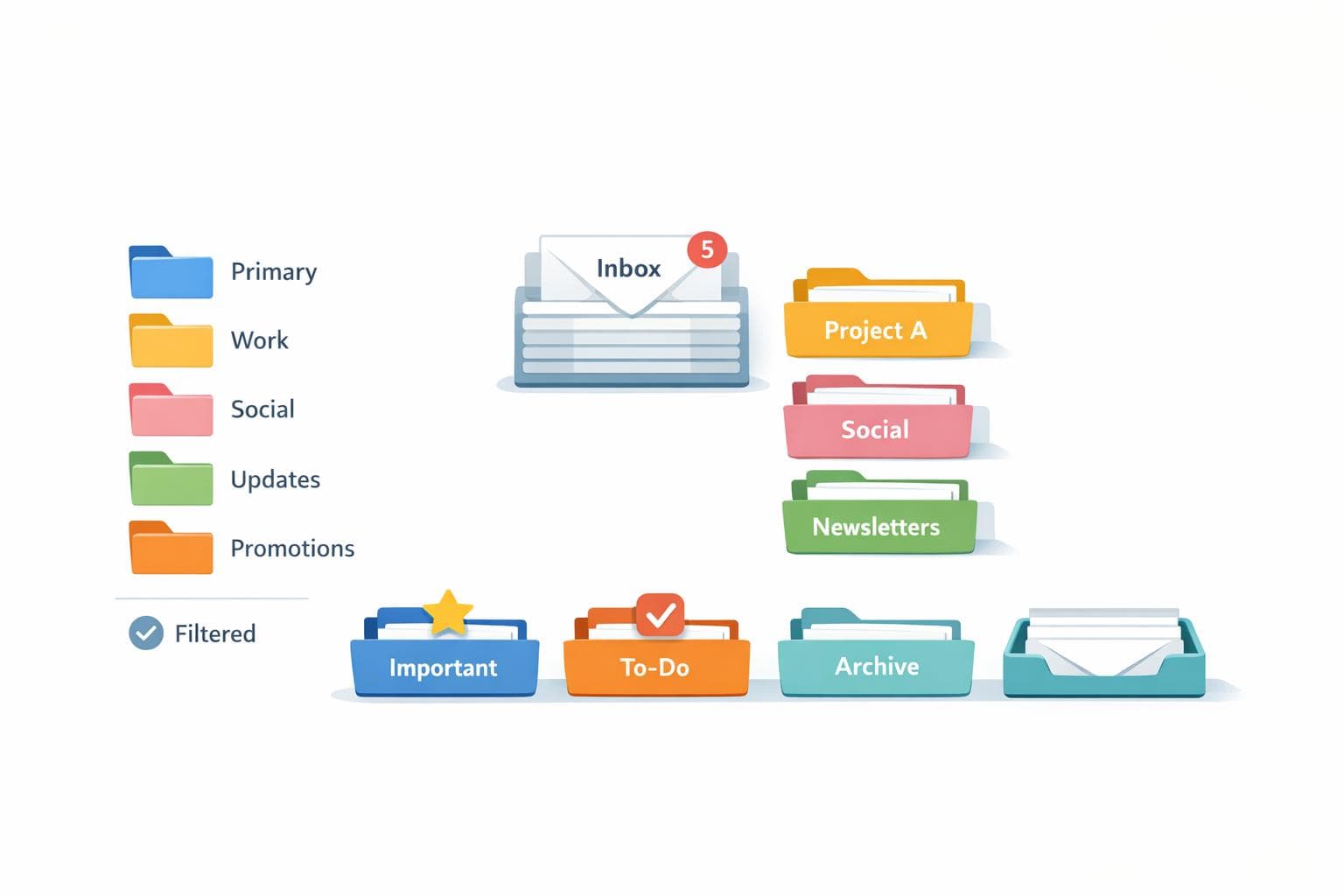
Want a clutter-free Gmail inbox? Filters can transform your email chaos into an organized space by automatically sorting, labeling, archiving, or deleting emails. Here’s what you need to know:
- Save time: Filters automate email management, cutting inbox time to under 2 minutes daily.
- Stay organized: Sort emails by sender, keywords, or size; apply labels or archive instantly.
- Reduce stress: Remove distractions like promotions or newsletters before they reach you.
- Free up storage: Identify and clean up large attachments or old emails.
Example filters to try:
- Delete promotional emails by filtering keywords like “unsubscribe.”
- Archive emails from specific senders or domains.
- Label emails by keywords for quick organization.
- Flag large attachments (e.g., over 10 MB) for cleanup.
- Highlight key emails with actions like starring or marking as important.
For extra help, tools like MailSweeper use AI to handle clutter Gmail filters might miss, offering a one-time solution for long-term inbox management.
Take control of your inbox today with these simple filter tips and tools!
How to Set Up Gmail Filters
Creating Your First Gmail Filter
There are three ways to create Gmail filters, and the quickest method is through the search bar. Click the "Show search options" icon, enter your criteria (like sender, keywords, or file size), and then hit "Create filter." From there, choose actions such as "Skip the Inbox" or "Apply the label" and confirm your choices.
Another option is to start with an email. Select it, click the "More" icon (three vertical dots), and choose "Filter messages like these." Gmail will auto-fill the criteria for you. Confirm or tweak them, pick your desired actions, and create the filter.
For a more detailed setup, go to Settings, navigate to "Filters and Blocked Addresses," and click "Create a new filter." This method also lets you view and manage all your existing filters in one place.
Before finalizing, preview the filter by clicking "Search" to ensure it catches only the emails you want. Once satisfied, activate the filter. To apply it to existing emails, check the box for "Also apply filter to matching conversations." After creation, you can always adjust filters to better fit your inbox needs.
Customizing Filters for Your Inbox
Fine-tune your filters by combining criteria. For example, to handle emails from a specific company, enter their domain (e.g., @company.com) in the "From" field. For newsletters, type "unsubscribe" in the "Has the words" field to automatically label or archive them.
You can also use Gmail's search operators for more precision. Combine senders with OR (e.g., from:amazon.com OR from:ebay.com), exclude terms with a minus sign (e.g., unsubscribe -newsletter), or search for exact phrases by putting them in quotes (e.g., "view in browser").
Since Gmail organizes emails with labels instead of folders, you can streamline your inbox by selecting both "Skip the Inbox (Archive it)" and "Apply the label." This moves emails directly into a labeled category without cluttering your main inbox. You can even combine multiple actions, like applying a label, starring a message, and marking it as important - all in one filter.
To keep your inbox manageable, use the "Size" filter to target emails with large attachments. For instance, set a filter for emails larger than 10 MB to label or flag them for cleanup later. And for messages from key contacts, use the "Never send it to Spam" action to ensure they always land in your inbox.
Top 6 Gmail Filters for Productivity!
5 Gmail Filters for Inbox Cleanup
Here are five practical filters to help you streamline your Gmail inbox and keep it organized.
Filter 1: Automatically Delete Promotional Emails
The word "unsubscribe" is a reliable way to flag marketing emails and newsletters. To set this up, enter "unsubscribe" in the "Has the words" field and choose "Delete it" as the action. For a broader reach, use this search string:
unsubscribe OR "view in browser" OR "view as a web page" OR "privacy policy" OR "click here" OR "view online" OR "update your preferences" OR "opt out" OR "manage your account"
Emails sent to Trash will stay there for 30 days before being permanently deleted. If you'd rather review them later, select "Skip the Inbox (Archive it)" and assign a label.
Filter 2: Archive Emails from Specific Senders
To filter emails from a particular domain, type *@companyname.com in the "From" field. You can also include multiple senders in one filter using the OR operator, like this:
From:(manager@work.com OR hr@work.com)
Next, set the filter to "Skip the Inbox (Archive it)" and optionally "Apply the label" to keep these messages organized. Gmail's label system works like folders, helping you categorize emails without cluttering your inbox.
Filter 3: Organize Emails by Keywords and Labels
Use quotation marks to filter emails with exact phrases, such as "Project Alpha Update". Combine this with "Apply the label" to automatically sort messages by project, client, or topic.
For more flexibility, group terms with parentheses, like (urgent OR immediate), to prioritize specific emails. To exclude certain messages, use the minus sign, such as -newsletter@trustedsource.com. Gmail allows you to apply multiple labels and actions in a single filter for better organization.
Filter 4: Handle Large Attachments and Older Emails
Large attachments can quickly eat up your Gmail storage. Use the larger:10M search operator to filter emails with attachments over 10 MB. To target specific file types, try filename:pdf or filename:zip.
For older emails, the before: operator (formatted as YYYY/MM/DD) can help you locate messages from a specific time period. When creating these filters, check the box for "Also apply filter to matching conversations" to include existing emails. Assign labels like "Large Attachments" or "Old Emails" for easy review before deciding what to delete.
Filter 5: Highlight Important Emails
Ensure critical messages stand out by creating filters for key contacts or subjects. Use the "From" field to specify important senders and add actions like "Star it", "Mark as important", and "Apply the label." This way, essential emails are easy to spot as soon as they arrive.
sbb-itb-34b9fd2
Using MailSweeper with Gmail Filters
Gmail Filters vs MailSweeper AI: Feature Comparison for Inbox Management
Gmail filters can help organize your inbox, but they often require constant manual updates to stay effective. This is where MailSweeper (https://mailsweeper.co) steps in. By leveraging AI, it works alongside your Gmail account to automatically identify and clear out unimportant emails, cutting down on clutter and helping you save on storage costs.
How MailSweeper Integrates with Gmail
MailSweeper connects directly to your Gmail account and labels unimportant emails with a "Dustpan" tag. Over time, it takes care of these messages by permanently deleting them every 30 to 90 days, freeing up valuable storage space without you lifting a finger.
Unlike Gmail’s manual filters - which rely on preset rules like archiving promotional emails or sorting by keywords - MailSweeper’s AI learns and adapts to your email habits. It catches the clutter that static rules miss, making it a perfect complement to your existing filters. This seamless integration not only saves you time but also makes inbox management far less stressful.
Benefits of MailSweeper for Inbox Management
MailSweeper is designed to address the shortcomings of manual filters, offering several key advantages:
- Time Savings: Constantly tweaking Gmail filters can be a time-consuming task. MailSweeper automates this process, removing the need for manual intervention and simplifying your email cleanup.
- Storage Cost Reduction: Gmail filters can delete emails, but only if you’ve manually defined every possible scenario. MailSweeper’s AI automatically identifies emails that take up unnecessary space, ensuring they don’t linger in your archive.
- Affordable Pricing: With a one-time payment ranging from $13 to $20, MailSweeper eliminates the need for recurring fees, making it a cost-effective solution for long-term inbox management.
MailSweeper vs. Manual Gmail Filters
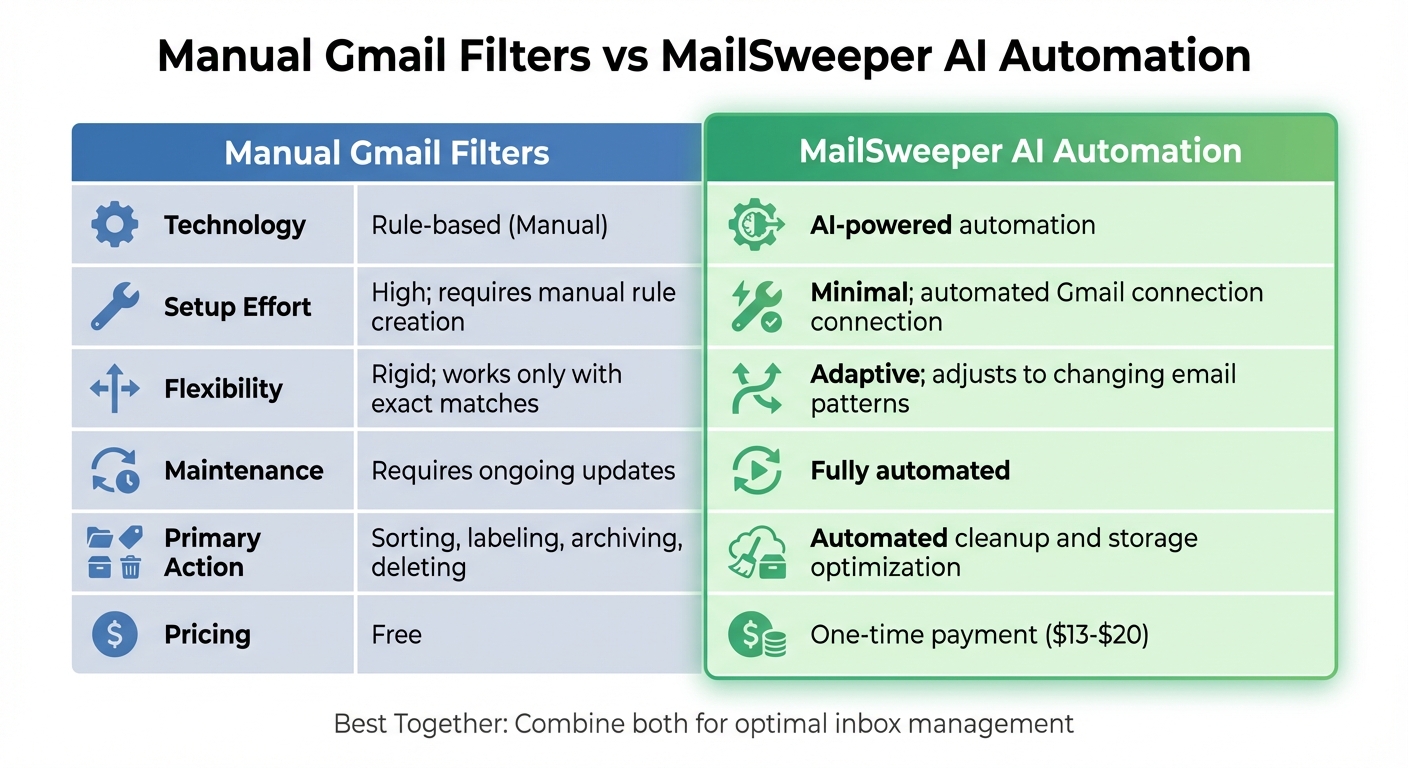
MailSweeper’s AI-driven approach offers a smarter, more efficient alternative to Gmail’s manual filters. Here’s a side-by-side comparison:
| Feature | Manual Gmail Filters | MailSweeper AI Automation |
|---|---|---|
| Technology | Rule-based (Manual) | AI-powered automation |
| Setup Effort | High; requires manual rule creation | Minimal; automated Gmail connection |
| Flexibility | Rigid; works only with exact matches | Adaptive; adjusts to changing email patterns |
| Maintenance | Requires ongoing updates | Fully automated |
| Primary Action | Sorting, labeling, archiving, deleting | Automated cleanup and storage optimization |
| Pricing | Free | One-time payment |
While Gmail filters are great for predictable tasks, like sorting emails from specific senders or with certain subject lines, MailSweeper goes a step further. Its AI adapts to your communication patterns, handling the nuances that manual filters simply can’t manage. Together, they create a streamlined and efficient way to tackle your inbox chaos.
Conclusion
Gmail filters are a game-changer when it comes to keeping your inbox organized. By automatically sorting, labeling, archiving, or even deleting emails, these tools can save you a ton of time on daily email management. The five filters we’ve discussed - removing promotional clutter, archiving emails from specific senders, sorting messages with keywords and labels, managing large attachments, and separating important emails - tackle some of the most common inbox headaches. With the right setup, you could cut your email management time down to less than two minutes.
However, while Gmail filters are effective, they aren’t perfect. They can struggle to keep up with changing email patterns, often requiring manual tweaks to stay relevant. That’s where MailSweeper (https://mailsweeper.co) comes into play. This AI-powered tool identifies and eliminates the clutter that static rules might miss. Best of all, it’s a one-time investment of $13 to $20 - no subscription needed.
Start by using Gmail filters to handle your biggest email challenges, and then let MailSweeper take care of the unpredictable mess. Together, these tools create a low-maintenance system that keeps your inbox tidy, giving you more time and headspace to focus on what truly matters.
FAQs
How can I set up a Gmail filter to automatically delete promotional emails?
To set up a Gmail filter that automatically deletes promotional emails, here’s what you need to do:
- Open Gmail on your computer, click the gear icon, and choose See all settings.
- Navigate to the Filters and Blocked Addresses tab, then click Create a new filter.
- In the filter options, type
category:promotionsinto the Has the words field. This ensures the filter targets emails from the Promotions tab. - Click Create filter, check the box for Delete it, and optionally select Also apply filter to matching conversations to remove existing promotional emails.
- Hit Create filter again to save your changes.
If you want an even easier way to keep your inbox clutter-free, you might want to try MailSweeper. It’s an AI-powered tool designed to identify and delete unnecessary emails, helping you stay organized without lifting a finger.
What are the advantages of using MailSweeper with Gmail filters?
Using MailSweeper alongside Gmail filters creates an efficient, two-layer system to keep your inbox under control. Gmail filters are perfect for handling basic tasks like automatically sorting or deleting emails based on keywords or sender information. But MailSweeper steps in to do even more - it uses AI to understand which emails you consider unimportant and removes them safely, while leaving the ones you actually need untouched.
This setup not only saves you time by cutting down on manual inbox management but also boosts your productivity. Plus, it can help you stay within Gmail’s free 15 GB storage limit. And here’s the best part: MailSweeper comes with a one-time cost of $20 - no subscriptions, no recurring fees. That means you get ongoing AI-powered inbox cleanup while saving both time and money over the long term.
How can I use Gmail filters to manage emails with large attachments?
You can take advantage of Gmail filters to automatically manage emails with large attachments, helping you save space and keep your inbox tidy. Start by using search operators like has:attachment larger:10M older_than:6m. This will locate emails with attachments larger than 10 MB that are older than six months. Once you've narrowed down the results, click the Show search options icon, input the criteria into the "Has the words" field, and select Create filter. From there, you can set actions such as Apply label, Skip Inbox (Archive it), or Delete it to automate how similar emails are handled in the future.
For an even more hands-off approach, tools like MailSweeper can regularly find and delete unnecessary large attachments, saving you from manually updating filters. By combining Gmail's built-in tools with automation, you can easily stay within the 15 GB free storage limit.
More free Gmail tools.
Pair these together for a full inbox reset.
Bulk Unsubscribe from Gmail
See the senders flooding your inbox, ranked by volume — your shortlist for unsubscribes.
Open toolMass Delete Gmail Emails
Build a deletion plan by sender, date, label, or all-unread — with the exact Gmail search to run.
Open toolFind Large Emails in Gmail
Pick a size and we build the exact Gmail search to find your biggest emails — then open it in one click.
Open toolGmail Storage Cleanup
Move the slider to your current Gmail usage to see exactly what to delete to free space.
Open toolInbox Zero Score
Rate your inbox health on a 0–100 scale and see the weekly hours your inbox is costing you.
Open tool