
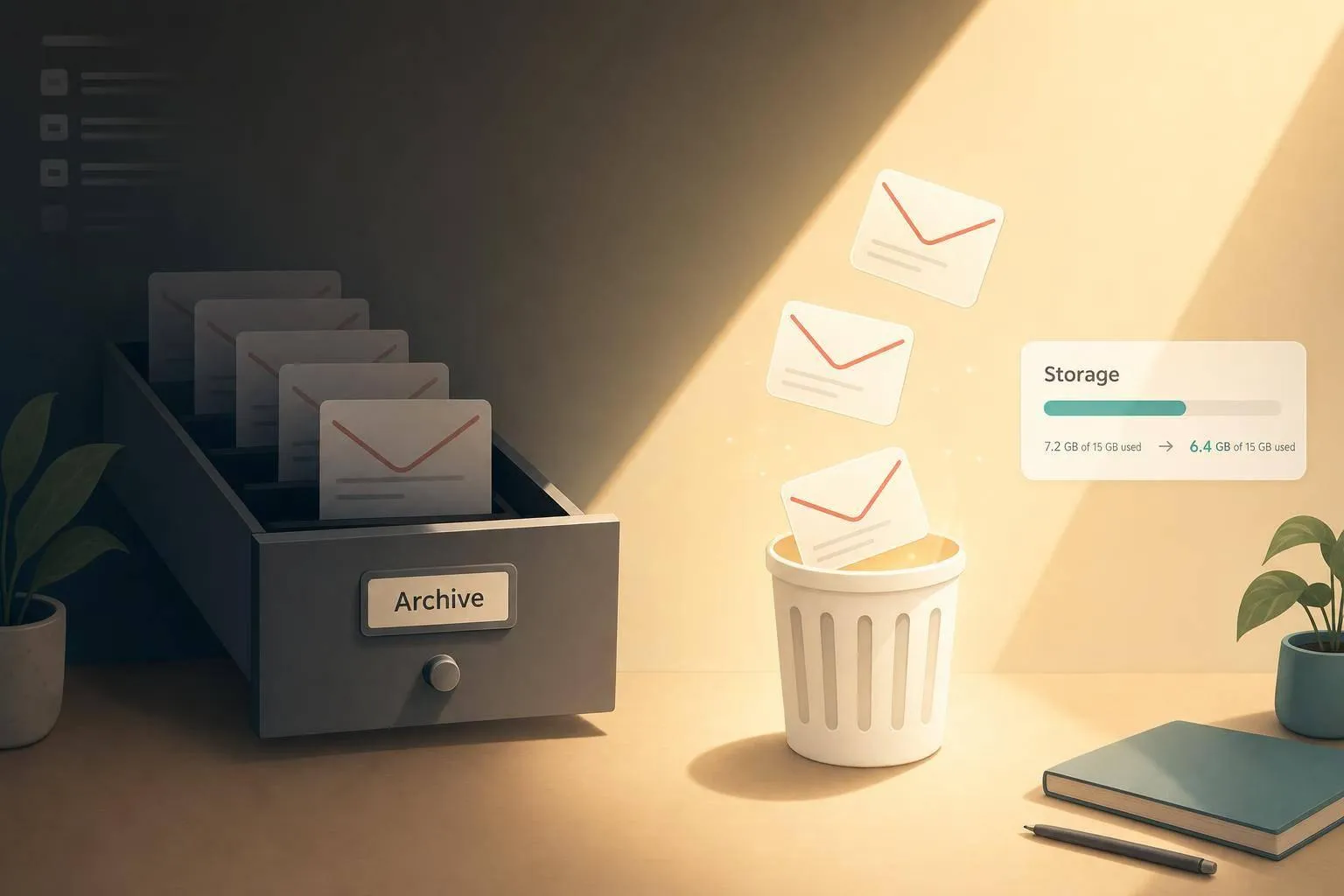
Archived emails do not leave Gmail. They stay in All Mail, still show up in search, and still count toward your 15 GB of shared Google storage.
If I want a clean answer, it’s this:
- Archive removes an email from the Inbox
- The email stays in All Mail
- Archive does not free storage
- Delete sends mail to Trash
- Mail in Trash still uses space until it’s removed after 30 days or I empty Trash myself
- If someone replies to an archived thread, it can go back to the Inbox
That means archive is for hiding clutter from the Inbox, while delete is for making room in my account.
If I need to find archived mail, I can open All Mail or search with terms like in:archive, has:attachment, larger:10M, and older_than:1y. If I need space, I should focus on old newsletters, promos, and large attachments, then empty Trash and Spam.
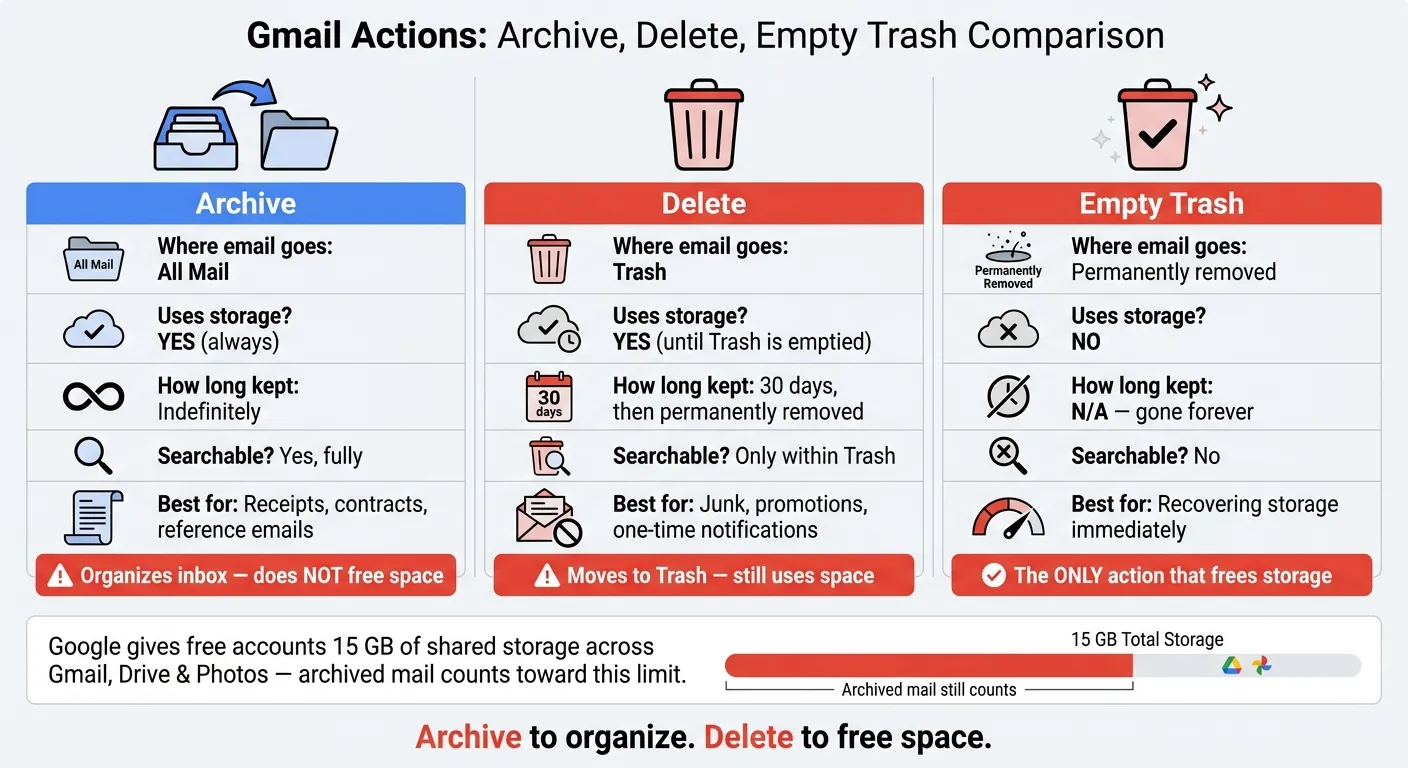
| Action | Where email goes | Uses storage? | Best use |
|---|---|---|---|
| Archive | All Mail | Yes | Keep mail without Inbox clutter |
| Delete | Trash | Yes, until emptied | Remove mail I don’t need |
| Empty Trash | Permanently removed | No | Get storage back |
Bottom line: archive to organize, delete to free space.
My Gmail Is Full, and Google’s Threatening to Stop My Email. How Do I Make Space?
sbb-itb-34b9fd2
How Gmail archive works
Archive is an action, not a folder.
When you archive an email in Gmail, Gmail removes the Inbox label. The message still stays in your account and still shows up in All Mail. If that email already has other labels, those labels stay put. So if you tagged a message before archiving it, you can still find it under those labels.
There’s another detail that trips people up. If someone replies to an archived thread, Gmail adds the Inbox label back on its own. That conversation shows up in your Inbox again.
That’s why All Mail matters more than “Archive” as a place. Archive changes the message’s state. All Mail is where that message still lives.
Gmail All Mail vs archive
All Mail and archive are not the same thing.
All Mail is a view. Archive is a message state. That’s the simplest way to think about it.
All Mail shows every non-deleted message in Gmail, including:
- Inbox mail
- Sent mail
- Archived mail
So yes, archived mail appears in All Mail. But All Mail also includes messages that are not archived, like emails still sitting in your Inbox and messages in Sent.
Archive vs delete: what actually happens to your email
Archiving and deleting both get a message out of your Inbox. But under the hood, they do very different jobs.
| Archive | Delete | |
|---|---|---|
| Where it goes | All Mail | Trash |
| Counts toward storage | Yes | Yes, until Trash is emptied |
| How long it's kept | Indefinitely | 30 days, then permanently removed [1] |
| Searchable | Fully searchable | Only within Trash |
| Best for | Receipts, contracts, reference emails | Junk, promotions, one-time notifications |
Here’s the key point: deleting is what clears space, and that only happens after Trash is emptied.
Once that clicks, archived mail gets a lot less confusing. It becomes much easier to find old messages and much easier to clean up the stuff you don’t need.
How to find archived emails in Gmail
Archived mail lives in All Mail. So if you need to track something down, start there. You can also use Gmail search, which is usually much faster than digging through message after message.
Open All Mail on desktop and mobile
On desktop, scroll down the left sidebar and click More. That opens the longer list of folders and labels. From there, select All Mail. Your archived messages will show up in that view. [1][3]
On the Gmail mobile app on Android or iOS, tap the three-line menu icon in the top-left corner. Then scroll down and tap All Mail. You'll get the same All Mail view there too. [6][4][3]
Use search operators to find archived messages faster
If your account is packed with old messages, scrolling through All Mail can feel like looking for a needle in a haystack. Search is the better route.
Use in:archive to show only archived messages. Then add extra filters to narrow things down:
| Operator | What it does |
|---|---|
in:archive | Shows only archived messages |
in:archive from:support | Archived mail from a specific sender |
in:archive has:attachment | Archived messages with attachments |
in:archive larger:10M | Archived messages over 10 MB |
in:archive older_than:1y | Archived messages older than one year |
If you manage a large account, combining operators is the fastest way to zero in on one message. For example, in:archive from:support older_than:1y can help narrow older support emails.
How to tell if a message is archived
In All Mail, the fastest way to check whether a message is archived is to look for the Inbox label.
Archived messages appear in All Mail without the Inbox label. They can still keep other labels, but if the Inbox label is missing, the message is archived. [1][4][2]
Why archived emails still use up Gmail storage
Now that archived mail sits in All Mail, the next step is figuring out what to delete first.
Archiving cleans up your inbox. It does not cut your storage use. The email stays in Gmail, and any attachments stay there too, so the message still counts against your quota. The rule is simple: archive to organize, delete to free space.
Google gives free accounts 15 GB of shared storage across Gmail, Drive, and Photos, and archived mail counts toward that total.[4][5] That cap applies no matter where the message shows up in Gmail.
What actually frees up storage in Gmail
Only deleting mail frees space. Even then, Gmail doesn't remove it right away. Deleted messages stay in Trash for 30 days, and Spam also keeps using space until you empty it. So if you want storage back now, delete the messages and then empty both Trash and Spam.
If you reach the 15 GB limit, Gmail stops receiving new mail until you clear some space.
Which archived emails to delete first
Start with the stuff you're least likely to need again. That usually includes:
- Old newsletters
- Promotional emails
- Social notifications
- Old receipts and statements you no longer need
If you want the biggest win first, search for large archived emails by typing has:attachment larger:10M into Gmail's search bar.[3] That helps you spot messages with big attachments, which tend to eat up space fast.
You can narrow it down even more with older_than:2y to find older content you're less likely to need.[7] Once you find the right messages, delete them. Don't archive them again.
Next, use Gmail's bulk actions and cleanup tools to clear archived mail faster.
How to clean out archived emails and keep Gmail under control
How to bulk delete archived emails in Gmail
If you need to fix Gmail storage full because archived mail is eating up space, go after the oldest low-value messages first.
Start with this Gmail search: in:archive older_than:2y -is:starred -is:important
That pulls up archived emails older than two years, while leaving starred and important messages alone. Select the first 50 results, then click "Select all conversations that match this search" to grab every match. Move those emails to Trash, then empty Trash if you want the space back.
You can tighten the search a bit more with filters like -label:Receipts or -label:Work, but only if those labels contain mail you want to keep.
Once you finish the one-time purge, it helps to set up a system so archived clutter doesn't pile up again.
Use Gmail tools and MailSweeper for ongoing cleanup
If you want a built-in option, Google One's storage manager can show large files across Gmail, Drive, and Photos in one place.
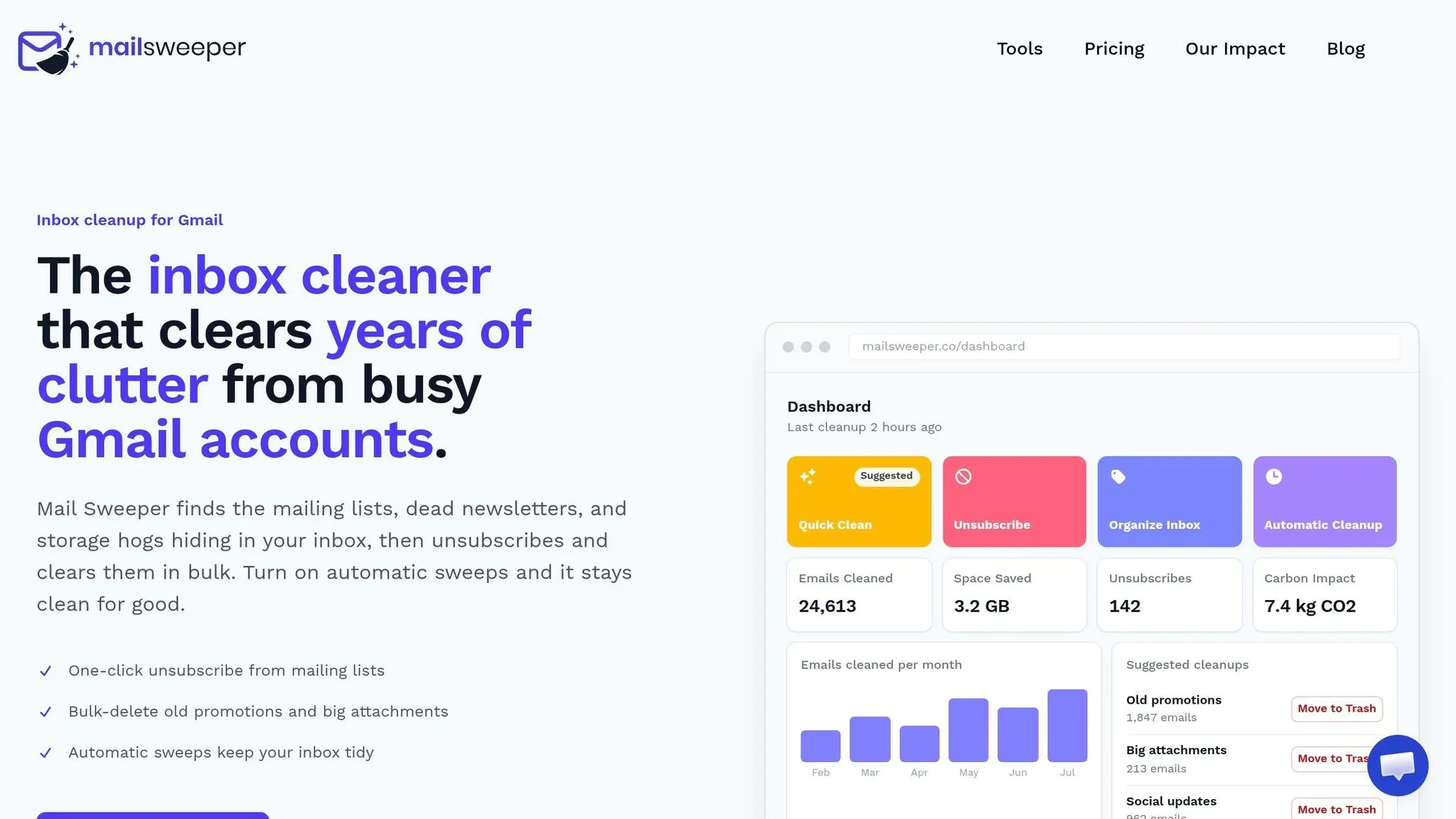
For regular Gmail cleanup, MailSweeper can clear out old promotions and newsletters in one pass. After you connect it to your Gmail account, its Quick Clean feature sweeps through old promotions and newsletters in minutes and shows exactly how much storage was reclaimed.
For upkeep, the Dustpan feature sends chosen mail to a review label, then moves it to Trash on your schedule. Starred, important, and Primary mail stay untouched.
Conclusion: Archive organizes your mail - delete is what saves space
Archive keeps your inbox tidy. Delete is what gives you space back.
Archived messages still count toward Gmail's 15 GB quota, and you only get that storage back after Trash is emptied. Start with old newsletters, promotions, and other low-value archived mail.
FAQs
Can I archive and delete at the same time?
No. In Gmail, archiving and deleting are two different actions.
Archiving removes an email from your Inbox, but it still stays in All Mail. Deleting sends the email to Trash, where it remains for 30 days before Gmail removes it for good.
So if you're deciding what to do, you need to pick one: archive it or delete it.
Why did an archived email return to my Inbox?
An archived email can move back to your Inbox on its own when someone replies to that conversation.
Here’s why: Gmail treats the thread as active again when a new message comes in. So it puts the conversation back in your Inbox so you don’t miss the follow-up.
If you don’t want it sitting there, just archive it again after you’ve dealt with the new reply.
Does All Mail include deleted messages too?
No. All Mail shows the messages in your account that haven’t been deleted or marked as spam.
If you delete an email, it moves to Trash. It stays there for 30 days before it’s removed for good. While it’s in Trash, it no longer shows up in All Mail.
