
Email Management
10 Gmail Tips for Free Storage Optimization
Free up Gmail's shared 15GB with 10 practical cleanup tactics that remove large attachments, clear Trash/Spam, and automate maintenance.
10 Gmail Tips for Free Storage Optimization
Gmail's free 15 GB storage is shared across Gmail, Google Drive, and Google Photos, making it easy to run out of space over time. Hitting the limit stops email delivery and file uploads. This guide offers 10 practical tips to reclaim storage without upgrading to a paid plan. Key methods include:
- Search for large emails using operators like
larger:10Mto delete space-hogging messages. - Clear Trash and Spam folders, as these still count toward your storage.
- Use Google's Storage Manager to identify and delete large files across services.
- Delete old sent emails with attachments to free up storage.
- Bulk delete newsletters and promotions using search filters.
- Move attachments to Google Drive or local storage.
- Automate cleanup with tools like MailSweeper to handle low-priority emails.
- Create monthly and yearly maintenance routines to stay on top of clutter.
Each strategy targets specific storage issues, helping you manage Gmail effectively and avoid unnecessary costs.
Gmail Tips: Clean Up Your Inbox in 2025
1. Find and Delete Large Emails Using Gmail Search Operators
Gmail search operators are a quick and effective way to locate space-hogging emails. For instance, typing larger:10M in the search bar will pull up emails larger than 10 MB. You can tweak the size parameter to suit your needs - larger:5M for emails over 5 MB, or larger:20M for those exceeding 20 MB.
Want to narrow things down further? Combine multiple operators. For example, has:attachment larger:10M filters emails with attachments over 10 MB. Adding a date filter like older_than:1y focuses on older messages, so a query like has:attachment larger:10M older_than:1y helps you zero in on outdated, bulky emails that are likely no longer needed.
You can even search by file type. For example, filename:pdf larger:5M locates large PDF files, while from:sender@example.com larger:5M pulls up emails from a specific sender with large attachments. This level of precision makes it easy to target and manage the emails taking up the most space.
Here’s a handy reference for some useful search queries:
| Search Query | What It Finds | Best For |
|---|---|---|
larger:20M |
Emails over 20 MB | Quickly identifying the largest messages |
has:attachment larger:10M older_than:1y |
Large attachments older than one year | Safely clearing out old, unnecessary files |
filename:pdf larger:5M |
PDF files over 5 MB | Spotting large documents to save elsewhere |
before:2020/01/01 has:attachment |
Emails with attachments before January 1, 2020 | Removing very old attachments |
Once you’ve refined your search, it’s time to delete. Review the results, save any important attachments by downloading them to your computer or uploading them to Google Drive, and then select the emails you want to delete. Click the trash icon, and if prompted, choose "Select all conversations that match this search" to remove all matching emails. Don’t forget to empty your Trash folder afterward to permanently free up space.
How Well It Reduces Gmail Storage Usage
Deleting large emails can free up a surprising amount of storage almost instantly. For example, a single 25 MB video attachment counts against Gmail’s 15 GB limit. If you’ve got dozens of similar emails, you could reclaim gigabytes of space in no time.
Let’s break it down: deleting 50 emails averaging 15 MB each frees up about 750 MB. Searching for larger:20M might reveal a handful of massive messages that, once deleted, could recover hundreds of megabytes in minutes. This method is especially effective for users who frequently send or receive large files like presentations, media, or design projects.
Since Gmail shares its 15 GB storage limit with Google Drive and Google Photos, every large email you delete gives you more room across all three services. If Gmail is a major contributor to your storage usage, this approach is a game-changer.
How Easy It Is to Implement for Gmail Users
You don’t need any special tools or tech skills to use Gmail search operators. The process is simple: open Gmail, type your query in the search bar, and hit Enter. Results show up instantly, and you can delete emails in just a few clicks.
Here’s a quick step-by-step guide:
- Open Gmail on your computer or mobile device.
- Click the search bar at the top of the screen.
- Enter a query like
larger:10M has:attachmentand press Enter. - Look through the results and save any important emails or attachments.
- Select the emails you want to delete, then click the trash icon.
- Visit the Trash folder and click "Empty Trash now" to permanently delete the emails and free up space.
Keep in mind that emails in the Trash folder still count toward your storage limit until they’re permanently removed, so don’t skip that final step.
Long-Term Storage Management Benefits
Making a habit of using search operators for cleanup can save you from future storage headaches. Instead of letting large attachments pile up unnoticed, run a quick search once a month to catch and delete space-hogging emails. Queries like larger:20M or older_than:1y larger:5M can help you stay on top of things. This not only keeps your inbox organized but also improves Gmail’s performance and reduces those annoying “storage almost full” warnings.
Over time, you may even find yourself adopting better email habits, like using Google Drive to share large files instead of attaching them directly to emails. This keeps your emails smaller while still making files accessible.
To keep things manageable, consider setting a recurring reminder to search for large emails - like running larger:10M has:attachment on the first of every month. Regular cleanups like this help you stay well within Gmail’s 15 GB limit, preventing storage issues before they arise.
How It Relates to Gmail's Free Storage Limits
This approach is perfect for anyone looking to maximize free storage without paying for upgrades. Every email and attachment you delete frees up space not just in Gmail, but also in Google Drive and Google Photos. Large emails with attachments like PDFs, videos, or ZIP files can quickly eat into your 15 GB limit, so targeting these first is a smart move.
2. Empty Trash and Spam to Recover Space Immediately
Did you know that deleting an email in Gmail doesn’t immediately free up space? Instead, those emails sit in your Trash folder, still counting toward your 15 GB storage limit. The same goes for spam emails - they linger in the Spam folder, quietly taking up space until you delete them permanently. This means you might unknowingly have gigabytes of "deleted" emails still consuming storage.
Thankfully, emptying these folders is one of the quickest ways to reclaim space. While Gmail automatically clears out Trash and Spam after 30 days, waiting that long isn’t ideal if you’re already nearing your storage limit. Manually clearing these folders provides instant relief, which is especially important if you’ve hit the limit and can’t send or receive new emails. Here’s how you can do it:
Steps to Empty Trash or Spam:
- On Desktop: Open Gmail, click "More" in the left-hand menu, and select "Trash" (or "Spam"). Then, click "Empty Trash now" (or "Delete all spam messages now") at the top and confirm.
- On Mobile: Tap the menu icon (three horizontal lines), scroll to Trash (or Spam), and tap "Empty trash now" (or "Empty spam now") when prompted.
Before you empty these folders, it’s a good idea to quickly scan for any important messages, like receipts, work emails, or password reset links that may have been accidentally deleted or flagged as spam.
How This Frees Up Gmail Storage
The amount of space you recover depends on how many emails and attachments are sitting in these folders. If you’ve been using Gmail for years without clearing Trash or Spam, you might be surprised at how much storage you can recover - sometimes hundreds of megabytes or even several gigabytes.
For instance, let’s say you’ve deleted 100 emails with attachments averaging 5 MB each over the past month. Those emails alone could be using up 500 MB in your Trash folder. Spam emails, while often smaller, can add up quickly if you receive dozens of promotional messages daily. These seemingly "hidden" emails could be pushing you closer to Gmail’s 15 GB limit without you even realizing it.
By clearing out Trash and Spam, you’re not just freeing up space for new emails - you’re also making room for files and photos stored in Google Drive and Google Photos, as Gmail shares its storage quota across these services.
Why It’s So Simple for Gmail Users
This is one of the easiest ways to optimize your Gmail storage. Unlike other methods, such as deciding which emails to delete or unsubscribing from newsletters, emptying Trash and Spam is straightforward and low-risk. These folders are specifically for emails you no longer need, so there’s minimal chance of accidentally losing something important.
The process is also quick - storage recovery is usually immediate or happens within a few minutes. You can verify the freed-up space by checking the storage indicator at the bottom of your Gmail inbox or visiting Google’s storage settings page for a detailed breakdown.
Long-Term Benefits of Regular Maintenance
Making it a habit to clear your Trash and Spam folders regularly - say, once a month - can prevent these folders from silently eating into your storage over time. This is especially important because once you hit Gmail’s storage limit, you won’t be able to send or receive emails until you free up space.
Think of this as part of a broader email maintenance routine. For example, once a month, you could delete large emails, clean out old promotions, and then manually empty Trash and Spam to lock in the storage savings. On a yearly basis, you might go a step further by deleting especially old emails (e.g., those older than three to five years) and again clearing Trash and Spam to make sure everything is permanently removed.
This layered approach keeps your Gmail storage manageable without the need to upgrade to a paid plan, ensuring you maximize the benefits of each cleanup.
How It Ties to Gmail’s Free Storage Limit
Every email and attachment in Gmail - whether in your inbox, Sent folder, Trash, or Spam - counts toward the 15 GB of free storage shared across Gmail, Google Drive, and Google Photos. Emptying Trash and Spam is a quick, effective way to reclaim part of that space, especially since these folders are already filled with emails you’ve marked as unnecessary.
Many users facing "storage full" warnings find that clearing Trash and Spam is the first step in troubleshooting. It’s a fast and easy win that can restore functionality, allowing you to send and receive emails again. Once you’ve cleared these folders, you’ll have the breathing room to tackle more involved tasks, like deleting large attachments or organizing your inbox with labels and filters.
3. Use Google's Storage Manager for Bulk Cleanup
Google's Storage Manager is a handy tool that helps free up space across your entire Google account. Instead of manually hunting for large emails or files, this tool provides a visual breakdown of how your 15 GB of free storage is being used across Gmail, Google Drive, and Google Photos.
The tool highlights the biggest space users first, sorting items into categories like "Large items", "Spam", and "Deleted items." For those who’ve never done a thorough cleanup, a single session with Storage Manager can clear out several gigabytes - especially if you’ve got large attachments, outdated Drive files, or high-resolution photos taking up space.
To use it, log in to your Google account and go to the storage management page (you’ll find it under "Storage" in your account settings). Here, you’ll see a breakdown of how much space Gmail, Drive, and Photos are consuming. From there, you can dive into specific categories and delete items in bulk.
How Well It Reduces Gmail Storage Usage
Storage Manager is effective because it addresses all three services - Gmail, Drive, and Photos - that share your 15 GB free storage limit. Many users mistakenly think Gmail is the sole culprit, but Drive files and Photos often take up significant space too. This tool gives you a complete picture, making it easier to identify and remove the real storage hogs.
In Gmail, categories like "Large emails" and "Deleted emails/Trash" let you quickly find emails with hefty attachments. For instance, a few dozen emails with attachments over 10–25 MB each can easily consume 1–2 GB. Add large Drive files (like video projects or old backups) and bulky photos, and you could recover 1–5 GB or more in just one session, depending on how long it’s been since your last cleanup.
The tool also flags spam and trashed emails that still count toward your storage. Many users don’t realize that deleted emails linger in the Trash for up to 30 days, quietly using up space. Storage Manager makes it easy to permanently remove these items, freeing up space instantly.
How Easy It Is to Implement for Gmail Users
One of the best things about Storage Manager is its simplicity. You don’t need to memorize Gmail search operators or dig through settings. The interface uses clear labels, icons, and straightforward "Review and delete" buttons. Categories like "Large files", "Spam", and "Deleted items" are self-explanatory, so you can clean up your storage in just a few clicks.
Here’s a simple workflow:
- Step 1: Open Storage Manager and review how your storage is divided among Gmail, Drive, and Photos.
- Step 2: In Gmail, check categories like "Large emails", "Spam", and "Trash." Select items you no longer need and delete them in bulk.
- Step 3: Switch to Drive and Photos to remove large files and media. Text-only emails take up minimal space, but attachments and photos can be storage-heavy.
- Step 4: Empty the Trash in each service to ensure deleted items no longer count against your quota. Then check the storage meter to see how much space you’ve reclaimed.
The process is quick, and you’ll see immediate results. You don’t need technical skills - just a willingness to let go of old files and emails you no longer need.
Long-Term Storage Management Benefits
Making Storage Manager part of your routine can help you avoid running out of space unexpectedly. By doing a cleanup every few months, you can keep Gmail clutter-free and responsive while reducing the risk of hitting the 15 GB limit when you need to send or receive emails.
This habit also helps you stay organized across Drive and Photos. Regularly removing outdated project files, duplicate photos, and old promotional emails doesn’t just free up space - it makes it easier to find the files and messages that matter most. Plus, it’s a great way to avoid paying for extra storage by staying within the free limits.
Experts recommend reviewing large items and emptying Spam and Trash every few months to maintain free space and smooth performance. You can even integrate Storage Manager into a monthly or quarterly routine alongside other inbox cleanup methods, like deleting old promotions or large attachments, to stay ahead of storage issues.
How It Relates to Gmail's Free Storage Limits
Since Gmail, Drive, and Photos share the same 15 GB free storage limit, Storage Manager is an essential tool for managing your account. If you only clean up Gmail but ignore Drive and Photos, you might still hit the limit and lose the ability to send or receive emails.
When your account maxes out its storage, you can’t send or receive new emails. Storage Manager is a quick fix because it centralizes cleanup across all three services. By targeting the largest items - whether they’re in Gmail, Drive, or Photos - you can reclaim space fast and keep using email without interruptions.
For instance, if you’re short on time, Storage Manager is the fastest way to clean up space. It consolidates large attachments, spam, and other clutter into one place, so you don’t have to manually search for what to delete. Instead, you can focus on items that free up the most space, quickly.
While Storage Manager is great for periodic deep cleanups, it works well alongside other tools. Gmail search operators and filters give you more precise control over specific senders, dates, or labels, while apps like MailSweeper can handle ongoing inbox maintenance. Together, these methods ensure your account stays organized and within storage limits. Storage Manager, however, is the go-to tool for tackling the biggest storage issues across Gmail, Drive, and Photos in one go.
4. Delete Old Sent Messages with Attachments
While many people focus on cleaning their inbox, they often overlook the Sent folder, which can quietly hoard a significant amount of storage space. Every email you send with an attachment - whether it's a PDF, spreadsheet, presentation, image, or video - takes up room in your storage. With Gmail's 15 GB free storage limit, these attachments can pile up over time, eating into your available space.
Once these attachments are received and saved elsewhere, keeping them in your Sent folder is usually unnecessary. Deleting old sent emails with attachments is a quick and effective way to free up storage without disrupting your current inbox or workflow. Here's how you can tackle this.
How It Impacts Gmail Storage Space
Sent emails with attachments are often some of the largest files in your Gmail account. A single attachment can be several megabytes, and Gmail stores them uncompressed, meaning a 25 MB file takes up just as much space as thousands of plain text emails.
If you frequently send large files - like project reports, media files, or presentations - your Sent folder can quickly become a storage hog. Deleting years of these emails can free up hundreds of megabytes or even gigabytes. For instance, if you’ve sent dozens of emails with attachments ranging from 10–25 MB, a single cleanup session could recover 1–2 GB or more.
Since Gmail counts sent emails toward your total storage limit, clearing out this often-overlooked folder can make a noticeable difference. If you’ve never cleaned your Sent folder, you might find it’s using a large chunk of your storage, especially if you regularly share documents, images, or videos via email.
Quick Steps to Clean Up Sent Attachments
Removing old sent emails with attachments is a simple process that doesn’t require any extra tools. Gmail’s built-in search functions make it easy to find and delete these space-wasters. Most users can complete this task in 10–20 minutes. Here’s how:
- Step 1: Open Gmail on your computer and type
in:sent has:attachment larger:10Minto the search bar. This will show sent emails with attachments over 10 MB. You can adjust the size filter - trylarger:5Mto find smaller files orlarger:20Mto target the largest ones first. - Step 2: Review a few emails to ensure they’re safe to delete. Look for outdated project files, old drafts, or shared documents you no longer need.
- Step 3: Select all matching emails. Click the checkbox at the top of the list, then click "Select all conversations that match this search" to include every email in the results.
- Step 4: Delete the selected emails by clicking the trash icon. Then, go to the Trash folder and click "Empty Trash now" to permanently remove them and reclaim the storage immediately.
To focus on older emails, you can add a date filter. For example, in:sent has:attachment larger:10M before:2022/01/01 will find sent emails with large attachments from before January 1, 2022. This ensures you keep more recent emails while clearing out older, less relevant ones.
This method works efficiently, even if your Sent folder contains thousands of emails. It’s easy to use, doesn’t require technical knowledge, and only takes a bit of time to make a big difference.
Keeping Storage Under Control Long-Term
Regularly cleaning out sent attachments can prevent your storage from creeping up over time. Integrate this task into your routine Gmail maintenance, alongside inbox cleanup and emptying the Trash folder. Running a search like in:sent has:attachment larger:5M before:2023/01/01 every 6 to 12 months can help keep large, outdated files from accumulating.
For most users, a biannual or annual review is enough. However, if you frequently send large files, you might benefit from quarterly cleanups. Tie this task to other digital maintenance activities, like end-of-year file organization or quarterly financial reviews, to make it a regular habit.
After your initial cleanup, consider using tools like MailSweeper to help maintain a lean inbox. This AI-powered tool can automatically identify and delete less critical emails, such as old promotions or routine notifications, before they pile up. By keeping your inbox tidy, you’ll reduce the chances of large sent attachments pushing you close to Gmail’s 15 GB limit.
Why This Matters for Gmail’s Free Storage Limits
Gmail’s 15 GB free storage is shared across Gmail, Google Drive, and Google Photos. Large sent attachments eat into this shared space, leaving less room for incoming emails, new files, or photo backups. If you don’t manage your storage, you could hit the limit and lose the ability to send or receive new emails until you free up space or upgrade to a paid plan.
Cleaning up sent attachments is a cost-free way to avoid hitting this cap. Many users forget that sent emails count toward their storage, not just received ones. By targeting this often-overlooked folder, you can delay or even avoid the need for a paid upgrade.
Before deleting, narrow your search by size and date, and exclude starred or labeled emails by adding -is:starred to your query. Save important files - like legal or tax documents - to Google Drive or local storage before deleting the email copy. Start with the oldest emails (before:2021/01/01) to minimize the risk of accidentally deleting something you might still need.
For future emails, consider sharing large files via Google Drive or another cloud service instead of attaching them directly. This simple change can help keep your Sent folder from becoming a storage burden.
5. Delete Newsletters and Promotions in Bulk with Filters
Newsletters and promotional emails may seem harmless at first glance, with individual sizes ranging from 50–100 KB. But over time, they can quietly pile up and consume a surprising amount of storage space. If you’ve been subscribed to marketing lists, retail updates, or daily digests for months - or even years - these emails can balloon into hundreds of megabytes or even gigabytes of wasted storage. Unlike work-related emails or personal messages, promotional content typically becomes irrelevant within days or weeks, making it an ideal candidate for bulk deletion.
Gmail's search tools and filters make it easy to locate and delete these emails in bulk, and you can even automate the process to keep your inbox in check moving forward.
How It Helps Free Up Gmail Storage
Promotional emails can take up a surprising amount of space over time. With daily messages landing in your inbox, it’s not uncommon for them to occupy 500 MB to several GB after just a few months. For example, if you’re subscribed to 20 brands and each sends three emails per week, you’re looking at over 3,000 emails a year. That’s roughly 300–600 MB - or more - of clutter.
Since Gmail’s 15 GB of free storage is shared with Google Drive and Google Photos, every gigabyte you clear out of your inbox creates more room for important files and messages. Regularly cleaning out newsletters and promotions can help you avoid hitting Gmail’s storage cap, potentially saving you from having to upgrade to a paid plan.
How to Tackle Bulk Deletion in Gmail
Getting rid of newsletters and promotions is one of the easiest ways to reclaim storage space. Start by heading to Gmail’s Promotions tab. From there, you can select all emails and delete them in bulk. Don’t forget to empty your Trash afterward to permanently free up the space.
For a more focused cleanup, Gmail’s search operators can be a big help. For instance:
category:promotions before:2024/01/01
This filters out all promotional emails received before January 1, 2024. If you want to target specific senders, you can use:
from:newsletter@retailer.com
This approach allows you to review emails before deleting them, ensuring nothing important gets tossed by mistake. If you’re unsure about deleting certain emails, consider archiving them instead.
Long-Term Management with Gmail Filters
The real game-changer is setting up filters to handle newsletters and promotions automatically. Gmail’s filter settings, found under "Filters and Blocked Addresses", let you define rules based on criteria like sender addresses or keywords. From there, you can choose actions like archiving or deleting these emails.
A smart strategy is to create filters that archive promotional emails after 30 days. This keeps your inbox uncluttered while still giving you access to recent messages if needed. For newsletters you no longer care about, you can send them straight to Trash (keep in mind that emails in Trash are deleted after 30 days). Pairing these filters with a monthly review or quarterly cleanup ensures your inbox stays organized and your storage usage remains manageable.
Automating Cleanup with MailSweeper
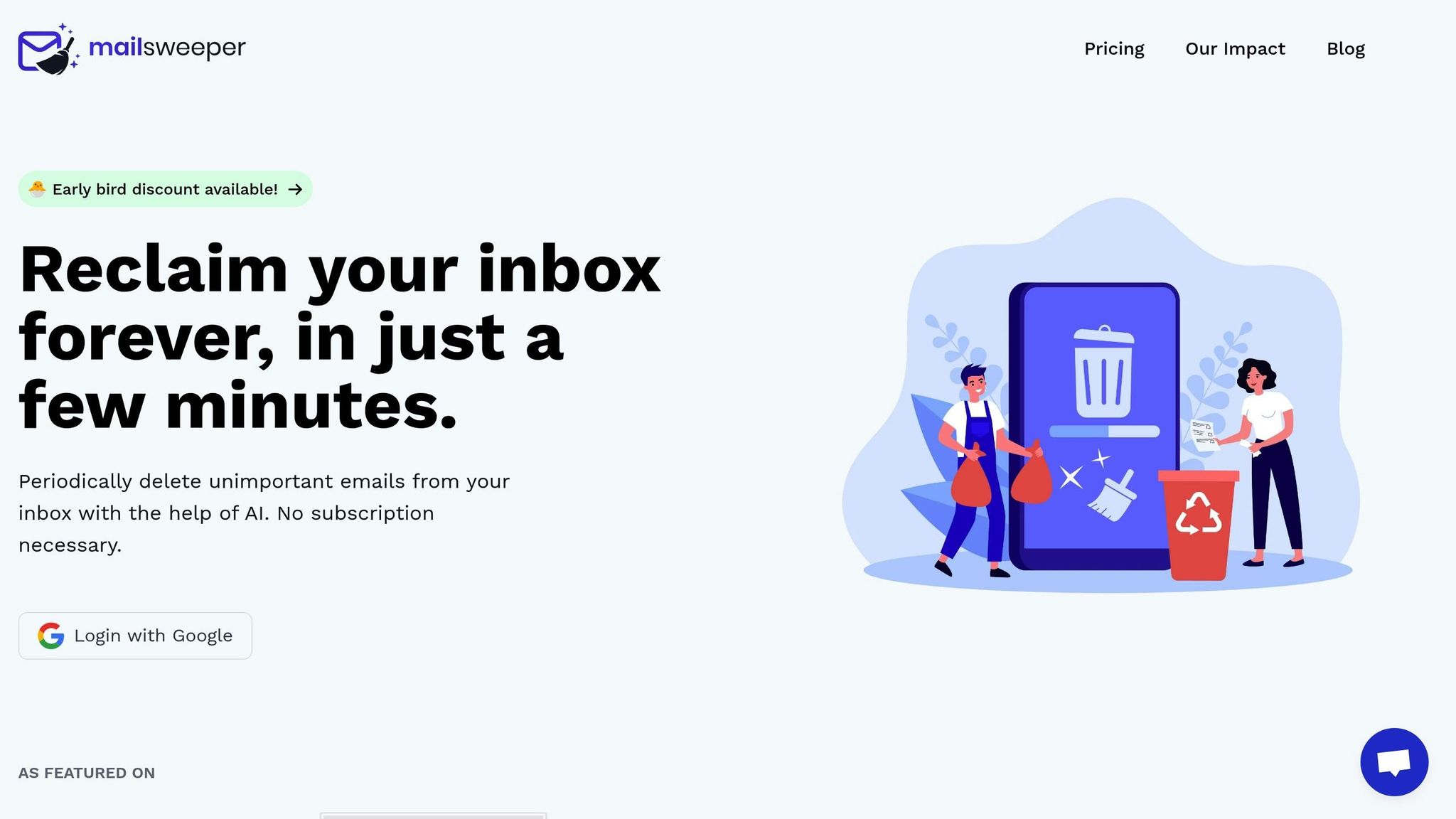
For those who want to take it a step further, tools like MailSweeper can automate the process even more. MailSweeper uses AI to identify and periodically delete unnecessary emails, including newsletters and promotions. According to the company, MailSweeper has already helped users reclaim 213 GB of storage by cleaning up over 2.96 million emails.
As MailSweeper notes:
"Most of our users are able to save GBs of data."
and
"Many of our users have been able to downgrade email storage to a free tier!"
By automating these tasks, MailSweeper reduces the need for constant manual cleanups, keeping your inbox lean and efficient over time.
Staying Within Gmail’s Free Storage Limits
Combining manual cleanup with automation ensures you manage Gmail's shared storage effectively. Remember, Gmail’s 15 GB of free storage is shared across Gmail, Google Drive, and Google Photos. Once you hit that limit, you won’t be able to send or receive emails - a major inconvenience for both personal and professional communication. By regularly deleting newsletters and promotions, you can free up space and avoid running into storage issues.
Before diving into mass deletions, take a moment to unsubscribe from newsletters you no longer read. Most promotional emails include an unsubscribe link at the bottom. Clicking it will stop future emails from that sender. If the sender doesn’t offer an option to unsubscribe - or continues sending emails despite your request - set up a Gmail filter to automatically archive or delete those emails. This proactive approach keeps your inbox tidy and ensures your storage remains under control.
6. Archive Important Emails Instead of Deleting Them
Archiving emails is a great way to keep your inbox tidy, but it doesn't reduce the amount of storage you're using. Many people mistakenly believe that moving emails to the archive will free up space, but that's not how it works. While archiving can help you stay organized, it won't lower your storage usage.
Does Archiving Save Gmail Storage?
No, it doesn’t. When you archive an email in Gmail, it’s simply moved from your inbox to the "All Mail" folder. The email, along with any attachments, still counts toward your 15 GB Google Account storage limit, which covers Gmail, Google Drive, and Google Photos.
For example, if you archive an email with a 10 MB attachment, that 10 MB is still part of your storage usage, whether the email is in your inbox or archived. To actually free up space, you’ll need to delete emails and empty the Trash folder. Archiving alone won’t reduce your storage by even a single byte.
Many users archive emails thinking it solves their storage issues, only to hit the 15 GB limit anyway. If your goal is to free up space, deletion is the only solution.
How Simple Is Archiving in Gmail?
Even though it doesn’t save space, archiving is incredibly easy and can be a useful tool for managing your inbox. On the Gmail web app, you can select emails and click the "Archive" button - it looks like a box with a downward arrow. On mobile, you can swipe left on a message or tap the three-dot menu to choose "Archive."
Archived emails remain accessible under the "All Mail" label and are fully searchable. This makes archiving a convenient option if you want to clean up your inbox without permanently losing access to important messages. Unlike deleting, which can lead to regret if you need the email later, archiving offers a safe middle ground. Use it to declutter your inbox, but plan to delete emails periodically if you need to recover storage.
Benefits of Archiving for Long-Term Organization
While archiving doesn’t free up storage, it’s excellent for maintaining a well-organized inbox. By archiving emails you might need later - like receipts, contracts, or tax documents - you ensure they’re easy to find while keeping your inbox focused on current messages. This approach prevents your inbox from becoming an overwhelming mess, making it easier to spot large or outdated emails that can be deleted.
A clean inbox also makes bulk cleanup simpler. When you’re ready to delete old newsletters, large attachments, or outdated promotions, it’s easier to find them if they’re not buried under archived messages. Think of archiving as a way to separate emails into "keep for later" and "actively working on" categories, streamlining the process of managing what stays and what goes.
The trick is knowing when to archive and when to delete. Archive emails you may need in the future, like a job offer letter or a receipt for a major purchase. Delete emails that are clearly junk, outdated, or unnecessary, especially those with large attachments. Archiving keeps important messages searchable, but deletion is the key to freeing up space.
Staying Within Gmail’s Free Storage Limits
Since archived emails remain in "All Mail" and count toward your storage, they don’t reduce your usage. Gmail’s 15 GB free storage is shared across Gmail, Drive, and Photos, so every email - whether archived, in your inbox, or in Trash - uses space.
To avoid hitting the 15 GB limit, you’ll need to delete unnecessary emails and attachments or consider upgrading to a paid storage plan. A good long-term strategy is to archive emails for organization and periodically review them for deletion. For instance, you could set a quarterly schedule to go through archived emails, identify those with large attachments or outdated content, and delete them permanently. Don’t forget to empty your Trash folder afterward to actually free up space.
For those who want a more automated approach, tools like MailSweeper can be a game-changer. MailSweeper uses AI to identify and delete unimportant emails, including old archived ones, helping you manage storage without constant manual effort. By combining smart archiving with regular deletions, you can keep your inbox organized and stay within Gmail’s free storage limits. Remember: archiving keeps things neat, but only deletion clears up space.
sbb-itb-34b9fd2
7. Organize and Remove Clutter with Labels and Categories
Labels and categories might not free up storage space on their own, but they’re incredibly useful for streamlining your email cleanup process. Think of them as a filing system that helps you quickly locate emails for deletion. With an organized inbox, you can spot large attachments, old newsletters, and outdated messages in seconds - no more wasting hours scrolling through a cluttered mess.
The real power of labels lies in how they simplify storage management. Without them, emails blend together, making it tough to figure out which ones are taking up the most space. By creating clear categories, you can easily identify storage-heavy emails and delete them. This organization sets the stage for more effective cleanup strategies, as discussed in later sections.
How Well It Reduces Gmail Storage Usage
Labels won’t directly reduce storage since they’re purely for organization. However, they make it much easier to manage and delete unnecessary emails. For example, creating a "Promotions" label allows you to view all marketing emails in one place and delete them in bulk. Similarly, a "Newsletters" label can help you locate emails with large images or attachments that are eating up space.
Here are some effective label ideas:
- Large Attachments for emails with files over 5 MB
- Old Promotions for marketing emails older than six months
- Newsletters for subscription emails
- Receipts for purchase confirmations
- Sent - Large Files for emails you’ve sent with big attachments
To keep things manageable, aim for about 10–15 labels and review them regularly - monthly or quarterly works well. Pairing labels with filters can also prevent clutter from building up. For instance, you can set up a filter to label promotional emails automatically and archive them after 30 days. This keeps your inbox clean without requiring constant manual effort.
How Easy It Is to Implement for Gmail Users
Setting up labels in Gmail is straightforward and doesn’t require any technical skills. Just click "Create new label" in the left sidebar, name your label (e.g., "Newsletters" or "Receipts"), and optionally nest it under a parent label for better organization. Creating each label takes less than a minute.
Once your labels are ready, you can manually drag emails into them or use Gmail filters to automate the process. To set up a filter, go to Settings > Filters and Blocked Addresses, create a filter, and specify criteria like sender, keywords, or date range. Then, choose "Apply the label" as the action. This automation ensures incoming emails are sorted without extra effort.
The bigger challenge is staying consistent. Many users set up labels but forget to review them, letting clutter pile up again. Regularly checking and deleting unnecessary emails is key. Automation tools can also help by balancing control with efficiency, keeping your inbox tidy over the long term.
Long-Term Storage Management Benefits
A well-maintained label system offers several advantages:
- Accountability: Labels make it easy to see which categories are taking up the most space. For example, if your "Travel" label is packed with old boarding passes and hotel confirmations, it’s a clear sign that cleanup is overdue.
- Proactive Management: Regular reviews of labeled emails prevent your storage from hitting critical levels. Instead of waiting for Gmail’s 15 GB limit to disrupt your email usage, you can schedule monthly reviews to stay ahead. A simple calendar reminder - like the first Sunday of each month - can help.
- Efficiency: Labels make it easier to spot duplicate emails or redundant attachments, saving time during cleanup. This proactive approach is far more effective than waiting until your storage is almost full.
- Automation: You can use labels to set up auto-deletion rules. For instance, create a filter for newsletter emails, label them, and then set a rule to delete messages older than 90 days. This approach minimizes manual work while keeping storage under control.
How It Relates to Gmail's Free Storage Limits
Although labels don’t directly affect Gmail’s 15 GB shared storage limit, they’re a powerful tool for managing it more effectively. Remember, Gmail shares this storage with Google Drive and Google Photos. By organizing your emails with labels, you can quickly identify and delete large emails or attachments, freeing up space for other services. For example, a "Heavy Files" label can help you decide whether to delete emails with large attachments or move those attachments to Google Drive or local storage.
This kind of organization becomes especially important as you approach your storage limit. Warning signs include Google’s "storage almost full" notification, storage usage exceeding 80% of the limit, slower email performance, or being unable to send or receive emails. If you notice any of these issues, review your labels. Use search operators like larger:10M to find emails with large attachments and delete them as necessary. Don’t forget to empty your Trash and Spam folders, as deleted emails still take up space until permanently removed.
To keep your labels effective, follow these best practices:
- Audit your labels periodically, merging or deleting unused ones to avoid over-complication.
- Review your filter rules every few months to ensure they still match your email habits.
- Establish a routine to review and delete emails older than one year.
8. Move Large Attachments to Google Drive or Local Storage
Attachments can quickly eat up Gmail storage space. High-resolution videos, presentations, or other large files can easily exceed 50 MB, while simple text emails take up minimal room. The good news? You don’t have to say goodbye to these files forever - just move them to Google Drive or your local storage to free up space in Gmail.
Here’s how it works: save important attachments to Google Drive or download them to your computer, then delete the original email and empty your Trash. This method keeps your files safe while significantly reducing the space your Gmail account consumes. It's especially useful for hefty project files, videos, high-res images, or archives you want to keep but don’t need cluttering your inbox.
Why This Frees Up Gmail Storage Fast
Attachments are often the biggest storage hogs in Gmail. Since Gmail’s storage is part of your shared 15 GB Google account quota, moving attachments elsewhere frees up that space instantly. For example, if you move 20 emails with 25 MB attachments each, you’ll reclaim 500 MB in no time.
Certain types of files are prime candidates for relocation, such as old project files, slide decks, PDFs, high-resolution photos, videos, or large archives (e.g., ZIP or RAR files). To find these space-heavy emails, use Gmail search operators like in:sent has:attachment larger:10M or has:attachment filename:(mp4 OR mov OR zip). These commands help you pinpoint the biggest offenders quickly.
How to Get Started
This process is straightforward, even for non-tech-savvy users. Start by searching your Gmail for large attachments using queries like larger:10M or has:attachment larger:5M. If you want to focus on files you’ve sent, try in:sent has:attachment.
Once you’ve identified the emails, decide where to store the attachments. For files you’ll need on multiple devices, click the "Save to Drive" icon next to the attachment and organize it into a clearly labeled folder, like “Client Projects” or “Family Photos.” For extremely large files or sensitive documents that don’t need frequent access, download them to your computer or an external drive. This keeps your cloud storage focused on active files while using local storage for long-term archiving.
After saving the attachment, delete the email and empty your Trash to reclaim the space. Before deleting, double-check that the file opens correctly and is stored where you intended. For critical documents, like tax records or contracts, it’s a good idea to keep at least two copies - one in Drive and one on a local or external drive.
Long-Term Benefits of Attachment Management
Regularly moving attachments out of Gmail has more perks than just saving space. A lighter inbox is faster and easier to navigate. Plus, storing files in Google Drive or on your computer creates a centralized, organized system that’s far more efficient than searching through old email threads to find a specific file.
This habit also simplifies ongoing maintenance. Instead of digging through thousands of emails, you can focus on reviewing a few Drive folders or backup drives every few months. Combined with other practices, like clearing out your Trash and Spam folders or unsubscribing from unnecessary newsletters, this strategy helps you avoid the frustration of hitting your storage limit and losing the ability to send or receive emails.
To make this a routine, run a quick search each month for recent large attachments using newer_than:30d has:attachment larger:10M. Move the files you need to Drive or local storage, then delete the corresponding emails. Every few months, revisit older emails with older_than:1y has:attachment and repeat the process. This consistent approach will keep your Gmail usage well under the free 15 GB limit.
Tying It Back to Gmail's Free Storage Limits
Since Gmail shares its storage quota with Google Drive and Photos, moving attachments is one of the most effective ways to manage your space. Every megabyte you free up in Gmail gives you more room for other files or photos. Plus, using Google Drive links instead of attaching large files to emails prevents duplicates from piling up in your Inbox and Sent folders.
For an overview of your storage usage, check out Google’s Storage Manager tool. You can find it by going to Settings > Storage in Gmail or visiting one.google.com/storage. This tool highlights large items across Gmail, Drive, and Photos, making it easy to decide what to delete or move. And for future emails, consider sharing Drive links instead of attachments - it’s a smarter way to keep your Gmail storage under control.
9. Automate Email Cleanup with MailSweeper
Manually cleaning out your Gmail inbox often feels like a last-minute scramble, triggered only when storage warnings pop up. By then, your inbox is likely flooded with thousands of promotional emails and notifications. MailSweeper takes a different approach - it works automatically to identify and delete low-priority emails, keeping your Gmail organized and efficient without the hassle.
Storage Savings Impact
MailSweeper focuses on clearing out emails that quietly hog space over time, such as marketing campaigns, social media notifications, shipping updates, and newsletters. These emails often include embedded images or attachments that, while small individually, add up significantly across thousands of messages. Using advanced AI, MailSweeper scans your inbox to find emails with little long-term value and deletes them based on your custom retention rules.
By automatically removing 100–200 emails every week, MailSweeper prevents tens of thousands of unnecessary messages from piling up. To date, the tool has cleared over 2.9 million emails and saved users a collective 213 GB of storage space.
Unlike one-time manual cleanups, MailSweeper’s ongoing process ensures your inbox doesn’t refill with clutter. While a deep clean might temporarily free up a few gigabytes, without regular maintenance, those gains disappear as new promotional emails and notifications roll in.
How Easy It Is to Implement for Gmail Users
Getting started with MailSweeper is quick and straightforward. In just 10–15 minutes, you can sign in with your Google account, select the email categories you want to target, and let the tool automatically create a "Dustpan" label. There’s no need for browser plugins or complicated configurations - it integrates seamlessly with your Gmail setup.
The Dustpan label collects emails marked as low-priority while leaving your Primary inbox, starred messages, and important emails untouched. If an email lands in the Dustpan that you want to keep, simply remove the label, and MailSweeper won’t delete it.
You can customize retention rules, such as deleting newsletters older than 30 days or promotional emails older than 14 days. Before permanent deletion, you’ll have the chance to review emails in the Dustpan, giving you complete control. Once configured, MailSweeper runs periodic cleanups - usually every few days - moving outdated emails from the Dustpan to the Trash, where Gmail automatically deletes them after 30 days.
Long-Term Storage Management Benefits
The real advantage of automation becomes clear over time. Manual cleanups can take 30–60 minutes and are easy to put off until you’re nearly out of space. MailSweeper, on the other hand, works quietly in the background, handling repetitive tasks so you don’t have to. Set your rules once, and the tool takes care of the rest.
This approach ensures consistent management of low-priority emails, preventing them from building up over years. Pairing MailSweeper with habits like moving large attachments to Google Drive or local storage can help you stay well below Gmail’s free 15 GB storage limit.
With automated cleanup, there’s no need for constant monitoring. A quick quarterly review of your MailSweeper activity summary and Google’s Storage Manager is usually enough to make sure everything is running smoothly. If your email habits change, you can easily adjust your rules.
How It Relates to Gmail's Free Storage Limits
Gmail’s 15 GB of free storage is shared across Gmail, Google Drive, and Google Photos. Every unnecessary email takes up space that could be used for important files or cherished photos. Hitting the limit can disrupt your ability to send or receive emails, which could affect password resets, invoices, travel confirmations, and other critical communications. By proactively clearing out bulk emails, MailSweeper helps you save that space for what truly matters.
This ongoing cleanup can delay the need to upgrade to paid storage. MailSweeper itself is a one-time purchase (the Personal plan costs $20), making it a cost-effective solution that quickly pays for itself.
To get the most out of MailSweeper, combine it with other best practices, like moving large attachments to external storage, regularly emptying your Trash and Spam folders, and using Gmail’s search operators to find and delete oversized files. Together, these strategies tackle both email volume and file size, helping you stay within Gmail’s free tier without constant manual effort.
10. Set Up Monthly and Yearly Maintenance Routines
A one-time inbox cleanup is helpful, but let’s be honest - emails and attachments never stop piling up. The best way to stay within Gmail's free 15 GB storage limit is by making cleanup a regular habit. Building on earlier tips like deleting large emails, managing attachments, and automating tasks, setting up monthly and yearly routines can make a big difference. These routines ensure your inbox stays manageable and storage warnings don’t catch you off guard.
How Gmail Users Can Get Started
Setting up a maintenance routine is easier than you might think. All it takes is a calendar reminder and about 10–20 minutes each month.
Start by adding a monthly reminder to your Google Calendar - say, on the first of every month. When the notification pops up, follow a simple checklist:
- Use search operators like
larger:10Morlarger:5Mto find and delete large emails you no longer need. - Search for newsletters and marketing emails with queries like
category:promotionsand remove outdated ones. - Manually empty your Trash and Spam folders. While Gmail automatically clears these after 30 days, doing it yourself frees up space immediately.
Next, check Google's Storage Manager to see how much space Gmail, Google Drive, and Google Photos are using. For a yearly deep clean, set aside 30–60 minutes once or twice a year. Use date-based searches like before:2021/01/01 to locate and delete older email threads. If there are important emails you want to keep, export them using Google Takeout before deleting. It’s also worth reviewing your Google Drive - sort files by size and move rarely accessed large files to an external drive or local storage.
Does It Really Help With Storage?
The results of consistent maintenance depend on your email habits, but the potential savings can be impressive. For users who haven’t cleaned up their accounts in years, a single deep clean across Gmail, Drive, and Photos can recover several gigabytes of storage. Once that initial cleanup is done, sticking to monthly and yearly routines keeps storage growth under control.
Focus your efforts on emails with large attachments (over 5–10 MB). These are often the biggest space hogs. Many guides highlight that targeting large attachments, old emails, and unused Drive files is usually enough to stay well under the 15 GB limit.
To make things even easier, consider pairing manual cleanup with automation tools like MailSweeper. These tools can handle repetitive tasks, such as clearing out promotional emails and notifications, reducing the time you need to spend each month.
Why Regular Maintenance Matters
Making cleanup a recurring habit does more than free up space - it saves you from the frustration of running into "storage full" errors that block sending or receiving emails. Regular maintenance also keeps Gmail, Drive, and Photos running smoothly, making it easier to organize and find what you need without the stress of emergency cleanups.
Over time, these routines can improve your overall email habits. You might start sending fewer large attachments, opting instead to share links via Google Drive. You’ll likely unsubscribe from unnecessary mailing lists and develop a better sense of what’s worth keeping. This not only helps reduce clutter but also promotes better data hygiene and privacy.
Staying Within Gmail's Free Storage Limits
Google’s 15 GB of free storage is shared across Gmail, Google Drive, and Google Photos. Every email, attachment, Drive file, and high-resolution photo contributes to this shared limit. If you store large files in Drive or upload original-quality photos to Photos, your Gmail inbox can fill up faster than expected.
Comparison Table
Expanding on earlier Gmail cleanup tips, this table offers a quick reference for effective strategies to manage storage-hogging emails. By using these search operators in Gmail’s search bar, you can easily pinpoint and address emails that are taking up valuable space. Think of it as a shortcut to apply the detailed methods discussed earlier.
Gmail Search Operators for Email Cleanup
Want to know which emails are eating up your storage? These search operators are your go-to tools.
| Search Operator | Function | Usage Example |
|---|---|---|
larger:10M |
Finds emails larger than 10 MB | Perfect for tackling storage warnings by targeting the biggest files |
in:sent has:attachment larger:5M |
Shows large sent emails with attachments | Ideal for clearing out hefty sent items |
category:promotions older_than:1y |
Filters old promotional emails in the Promotions tab | Great for removing outdated sale emails from last year |
in:trash |
Displays items in Trash that still count toward storage until emptied | Handy for double-checking deletions to ensure permanent removal |
has:attachment |
Lists all emails with attachments | Useful for identifying storage-heavy messages |
before:2023/01/01 |
Filters emails sent before January 1, 2023 | Helps bulk delete or archive older emails |
older_than:1y |
Finds emails older than one year | Enables quick cleanup of outdated messages |
category:social older_than:6m |
Targets social media notifications older than six months | Great for clearing out stale updates without affecting personal mail |
For more precise results, you can combine operators. For instance, using larger:5M has:attachment older_than:1y will locate large, old attachments that may no longer be needed. This method can free up several gigabytes in just one session.
One-Time Cleanup vs. Regular Maintenance
Here’s a side-by-side look at the difference between one-time cleanup efforts and regular inbox management. While one-time actions offer immediate storage relief, consistent habits help prevent your inbox from reaching Gmail’s 15 GB free storage limit over time.
| Activity Type | Example Action | Time Needed | Storage Saved |
|---|---|---|---|
| One-time cleanup | Use larger:10M has:attachment older_than:1y to delete old, large emails |
15–30 minutes | Often frees up 1–3 GB+ in older accounts |
| One-time cleanup | Use Google Storage Manager to delete "Large items" | 10–20 minutes | Can recover 1–5 GB, depending on attachment volume |
| One-time cleanup | Bulk delete old promotions with category:promotions older_than:2y |
10–15 minutes | Clears hundreds or thousands of emails, saving hundreds of MB |
| Regular maintenance | Monthly empty Trash and Spam | 2–5 minutes per month | Prevents deleted items from quietly consuming hundreds of MB over time |
| Regular maintenance | Review large new attachments with larger:5M has:attachment newer_than:1m |
5–10 minutes monthly | Stops large files from piling up, slowing storage growth |
| Regular maintenance | Quarterly clear promotions using category:promotions older_than:6m |
10–15 minutes per quarter | Keeps marketing emails under control, saving tens to hundreds of MB |
| Regular maintenance | Yearly review of old emails with older_than:3y has:attachment |
20–40 minutes annually | Can reclaim 1–2 GB in long-standing accounts |
| Regular maintenance | Automate cleanup with MailSweeper | A few minutes to set up, then minimal ongoing effort | Users collectively saved 213 GB of storage |
Your results will depend on factors like email volume, attachment size, and how often you clean up. Combining manual searches with tools like MailSweeper ensures your inbox stays organized and efficient. These strategies, paired with earlier tips, help you maintain a clutter-free Gmail account while reclaiming valuable storage space.
Conclusion
Staying within Gmail's 15 GB free storage limit is entirely doable with consistent inbox maintenance. If you hit the limit, you’ll no longer be able to send or receive emails, which can disrupt everything from work updates to critical banking notifications.
The strategies shared in this article - like using search operators such as larger:10M and has:attachment, clearing out Trash and Spam regularly, utilizing Google’s Storage Manager, and transferring large files to Drive or local storage - can help you free up hundreds of megabytes, even several gigabytes, without spending a penny. Manual cleanup gives you precise control, and Gmail’s built-in tools, like labels, filters, and categories, make it easier to identify and delete low-priority emails in bulk. Together, these methods can help you achieve a streamlined, clutter-free inbox.
For added convenience, automation tools like MailSweeper can handle the heavy lifting by automatically clearing out unnecessary emails before they pile up. So far, MailSweeper users have collectively saved 213 GB of storage and removed 2,962,250 emails. The tool uses a "Dustpan" label to collect clutter while preserving starred, important, and primary inbox messages. It then moves older emails to Trash on a schedule you set, such as every 30 or 90 days.
"If you're paying for extra email storage, then yes! Many of our users have been able to downgrade email storage to a free tier!" – MailSweeper FAQ
By blending manual methods, Google’s tools, and automation, you can sustainably manage your inbox and keep your storage under control. Since Gmail’s free storage is shared with Google Drive and Google Photos, every oversized attachment, outdated email, or ignored message in Trash slowly chips away at your available space. These tactics work together to ensure your inbox stays organized without the need for additional costs.
To keep things manageable, set up a simple monthly routine to delete large recent emails and empty Trash and Spam. Once a year, do a deep clean using Storage Manager and time-based searches (e.g., before:2022/01/01) to get rid of older, unnecessary messages. With this approach, most U.S. users can avoid upgrading to paid storage unless they genuinely need extra space for large media files or business documents.
The key is to stop letting emails pile up endlessly. By periodically decluttering, you can maintain productivity, keep important emails safe, and avoid unnecessary expenses - all while sticking to free storage options.
FAQs
What are some easy ways to use Gmail search to find and delete large emails?
To clean up your Gmail inbox and free up space, you can use search operators to quickly locate large emails. For instance, enter size:10MB in the search bar to find emails larger than 10MB. If needed, you can adjust the size value to suit your needs.
You can also combine filters like has:attachment larger:5MB to specifically target emails with large attachments. Once the filtered results appear, go through them and delete any emails you no longer need.
These straightforward steps can help you manage your storage effectively without having to switch to a paid plan.
How can Google's Storage Manager help optimize Gmail storage?
Google's Storage Manager is a handy feature designed to help you clear up space in your Gmail account. It identifies large files, old emails, and other items that may be using up your storage. The tool offers a clear view of how your space is divided across Gmail, Google Drive, and Google Photos, making it easier to decide what to keep and what to delete.
With this tool, you can swiftly find and remove emails with large attachments, as well as clean out spam or trash folders. This helps keep your Gmail tidy and ensures you stay within the free storage limits.
How can MailSweeper help me manage Gmail storage more effectively?
MailSweeper makes managing your email a breeze by automatically spotting and clearing out unnecessary emails from your inbox. This keeps you within Gmail's free storage limits, cuts down on clutter, and saves you the hassle of manually sorting through messages. It's a straightforward solution to keep your inbox tidy and running smoothly - no subscription required.
More free Gmail tools.
Pair these together for a full inbox reset.
Bulk Unsubscribe from Gmail
See the senders flooding your inbox, ranked by volume — your shortlist for unsubscribes.
Open toolMass Delete Gmail Emails
Build a deletion plan by sender, date, label, or all-unread — with the exact Gmail search to run.
Open toolFind Large Emails in Gmail
Pick a size and we build the exact Gmail search to find your biggest emails — then open it in one click.
Open toolGmail Storage Cleanup
Move the slider to your current Gmail usage to see exactly what to delete to free space.
Open toolInbox Zero Score
Rate your inbox health on a 0–100 scale and see the weekly hours your inbox is costing you.
Open tool