
Email Management
Batch Email Processing: Gmail Storage Tips
Free up Gmail storage fast with batch email processing: find large attachments, archive old mail, empty Trash, and automate cleanup.
Batch Email Processing: Gmail Storage Tips
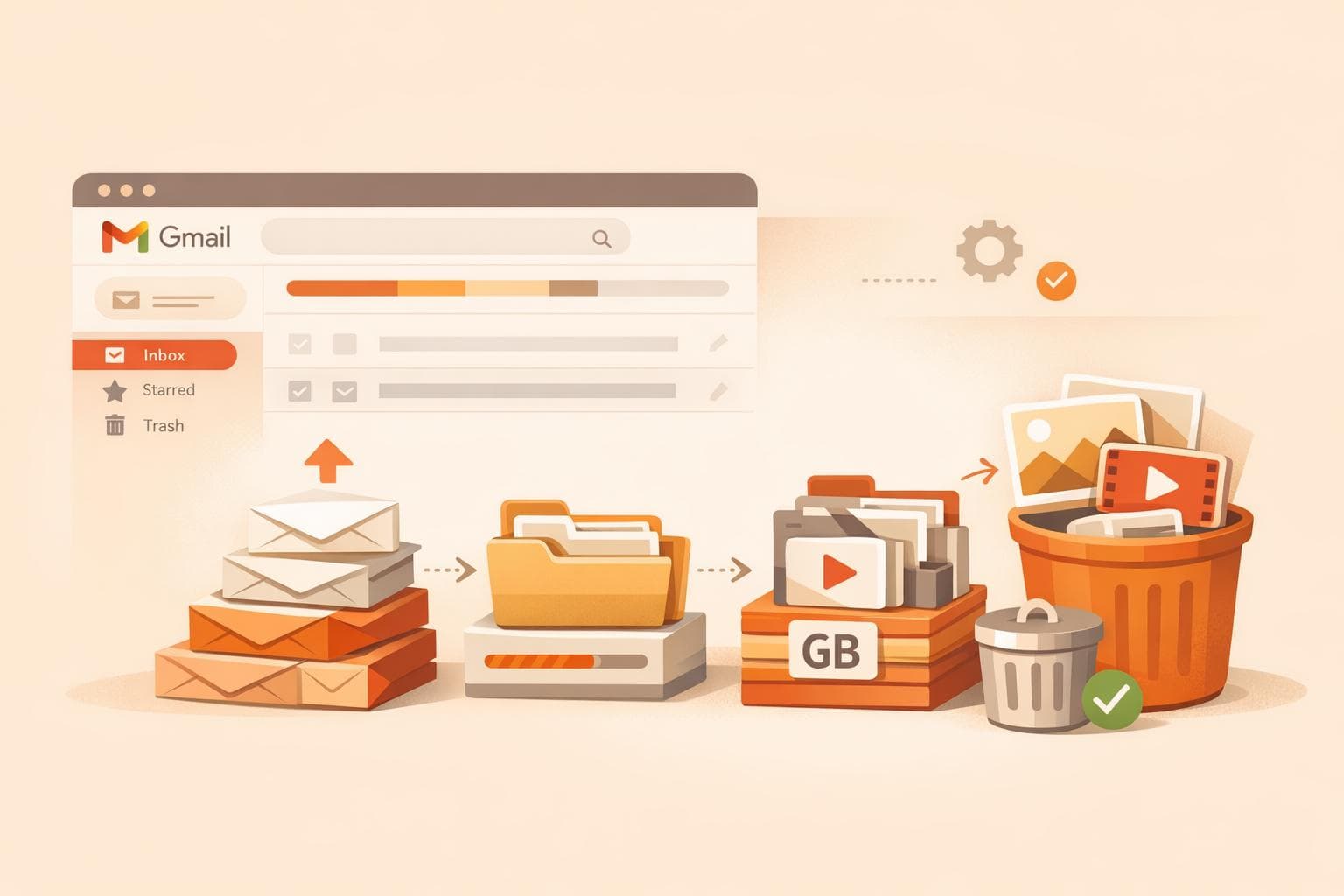
If your Gmail is running out of space, batch email processing can help you reclaim storage quickly. Gmail’s free 15 GB is shared with Google Drive and Photos, so hitting the limit can block new emails. Here’s how you can clean up your inbox effectively:
- Find and delete large emails: Use search operators like
larger:10Mto locate emails with big attachments. - Archive older emails: Move messages older than a year (
older_than:1y) to "All Mail" to declutter your inbox. - Empty Trash and Spam: These still count toward your quota, so clear them regularly.
- Organize by categories: Use filters like
category:promotionsto delete low-priority emails in bulk. - Automate cleanup: Tools like MailSweeper can tag and delete non-essential emails on a set schedule.
How to FREE UP GMAIL STORAGE FAST
Preparing Your Gmail Account for Batch Processing
Gmail Search Operators Quick Reference Guide
Before diving into bulk email actions, take a moment to ensure your Gmail account is set up properly. This helps avoid accidental deletions and ensures everything runs smoothly.
Check Your Current Storage Usage
Gmail offers 15 GB of free storage, which is shared across Gmail, Google Drive, and Google Photos. To get a clear picture of how your storage is being used, visit drive.google.com/drive/quota. This tool provides a detailed breakdown of your storage consumption.
Remember, your Gmail quota includes everything - emails, attachments, and even items in your Spam and Trash folders. If you use an Android device, you might notice that WhatsApp backups often take up a significant amount of space. Keep in mind that after deleting items, it can take up to 48–72 hours for your storage to reflect the changes.
Once you’ve checked your storage, it’s time to secure your important emails before making any bulk changes.
Protect Your Important Emails
To safeguard your most critical emails, use stars and labels. Before performing any batch actions, mark essential emails with a star or assign custom labels like "URGENT" or "Keep." This ensures these messages won’t accidentally get deleted or moved. Gmail’s AI also helps by automatically flagging emails as important based on your interactions - like who you email most frequently or which messages you open and reply to. You can easily review these flagged emails by searching for is:important and adjust their status if needed.
For added protection, set up filters for specific senders or keywords. For instance, create a filter to label emails from your boss, clients, or family. This way, these emails are automatically categorized and remain untouched during bulk actions.
Once your key emails are secure, you’re ready to use Gmail’s search operators to target clutter effectively.
Learn Gmail Search Operators
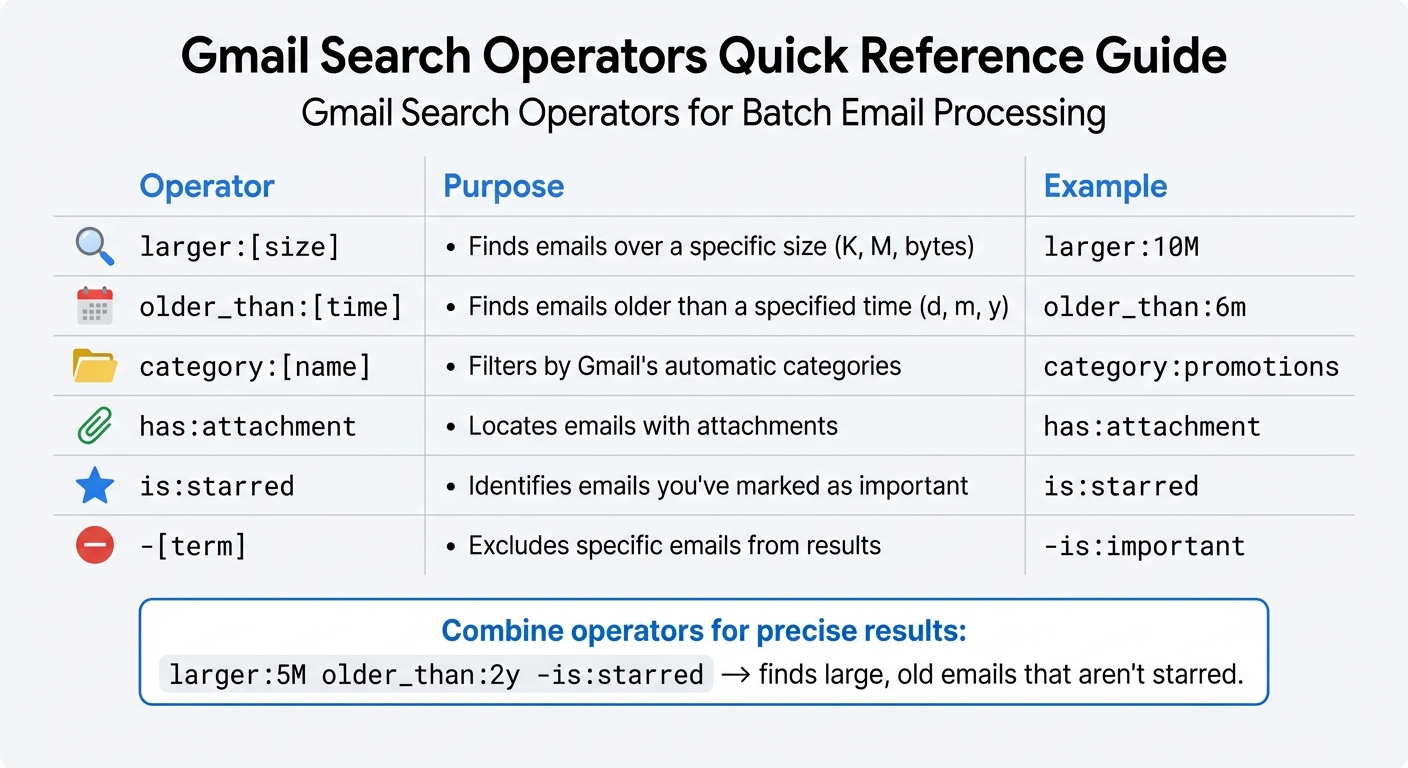
Search operators are incredibly useful for pinpointing specific emails during batch processing. They allow you to search with precision, saving time and effort. For instance, use larger:10M to locate emails with attachments or content over 10 megabytes, or older_than:6m to find messages older than six months. You can even combine operators for more specific results. For example, larger:5M older_than:2y -is:starred will help you find large, older emails that aren’t marked as important.
Here’s a quick guide to some handy Gmail search operators:
| Operator | Purpose | Example |
|---|---|---|
larger:[size] |
Finds emails over a specific size (K, M, bytes) | larger:10M |
older_than:[time] |
Finds emails older than a specified time (d, m, y) | older_than:6m |
category:[name] |
Filters by Gmail’s automatic categories | category:promotions |
has:attachment |
Locates emails with attachments | has:attachment |
is:starred |
Identifies emails you’ve marked as important | is:starred |
-[term] |
Excludes specific emails from results | -is:important |
Once you’ve tested a search string and confirmed the results, consider creating a filter to handle similar emails automatically in the future. This turns a one-time cleanup into an effortless, ongoing process.
Batch Cleanup Methods to Free Up Gmail Storage
Once you've backed up your important emails and mastered search operators, it's time to tackle the clutter. These methods will help you reclaim storage space while complementing your earlier efforts.
Archive Old Emails in Bulk
Archiving is a handy way to tidy up your inbox without permanently deleting emails. To find older messages, use the search operator older_than:1y, which pulls up emails older than a year. After running the search, click the "Select all" checkbox at the top of the page. By default, this only selects the visible emails on the current page. To select everything, click the blue link that says Select all conversations that match this search. Then, hit the archive button (the folder icon with a down arrow). The emails will move to "All Mail", making them searchable but removing them from your inbox. However, keep in mind that archiving doesn’t reduce your storage usage - it simply organizes your inbox. To locate these emails later, search for in:archive or navigate to the "All Mail" label.
Remove Emails with Large Attachments
Attachments can eat up a lot of your Gmail storage. To find emails with large files, click the "Show search options" icon in the search bar and enter a size filter, such as larger:10M, to identify emails over 10 megabytes. Before deleting these emails, save any important attachments. You can click "Add to Drive" on the attachment to store it securely. Once you've saved what you need, use the two-step selection method: check the box at the top, then click Select all conversations that match this search. After that, hit the delete icon to move these emails to your Trash folder. Keep in mind that emails in Trash still count toward your storage quota for 30 days. To free up space immediately, go to the "Trash" label in the left sidebar and click Empty Trash now.
Clean Up by Email Category
Gmail automatically organizes your inbox into categories like Social, Updates, Forums, and Promotions. These categories often collect countless low-priority emails. To clean them, use search operators such as category:promotions or category:social. For more targeted results, combine operators like category:promotions older_than:1y to find promotional emails older than a year. Use the two-step selection method to delete all results, but for very large accounts, consider deleting in smaller batches to avoid triggering Gmail’s security blocks. You can refine your efforts further by searching for keywords like "unsubscribe" within the Promotions category to quickly identify newsletters. For added efficiency, enable keyboard shortcuts in Gmail settings. For example, press * and a simultaneously to select all emails on a page, then press # to delete or e to archive them.
sbb-itb-34b9fd2
Using Automation Tools to Simplify Gmail Cleanup
Manual email cleanup works, but let’s face it - it’s time-consuming and not exactly fun. That’s where automation tools come in. They handle the heavy lifting for you, running in the background to keep your inbox tidy without the need for constant manual effort.
How MailSweeper's Dustpan Feature Works

MailSweeper introduces the 🧹Dustpan label to your Gmail account, making email cleanup smarter and easier. Using AI, it identifies less important emails - like notifications, outdated calendar invites, and promotional deals - and tags them with the Dustpan label. The tool smartly avoids emails in your primary inbox or those you've starred or marked as important. If there’s an email you want to keep, simply remove the Dustpan label.
MailSweeper is CASA certified, ensuring your email privacy is protected. With millions of emails processed to date, this tool has helped users free up hundreds of gigabytes of storage space.
Set Your Dustpan Cleaning Schedule
You can customize how often the Dustpan feature cleans up your inbox - every 30 or 90 days is a common choice. Setting it up is straightforward: log in, set your preferences, and install the tool. This gives you ample time to review emails tagged with the Dustpan label in your Gmail sidebar. If something important gets flagged, just remove the label to save it.
For added protection, you can star key emails to keep them safe from automated cleanup. By combining this automated schedule with your regular email management routines, you’ll keep your inbox organized without the hassle.
Why a One-Time Payment Saves Money
MailSweeper offers lifetime access for a one-time payment of $20. If you act quickly, you can grab an Early Bird discount for just $16 (while supplies last). This eliminates the need for monthly subscription fees. Keeping your Gmail storage under the 15 GB free limit can help you avoid paying for extra space. And if you’re already paying for additional storage, MailSweeper can help you clear out unnecessary emails, potentially letting you downgrade to the free tier. With automated cleanup and no recurring costs, you’ll save both time and money in the long run.
Keeping Your Gmail Storage Clean Over Time
Doing a one-time cleanup of your Gmail is helpful, but without regular upkeep, storage problems can creep back in. By staying consistent with maintenance, you can keep your inbox organized and avoid hitting the 15 GB free storage cap. A mix of regular routines and automation can help you manage your Gmail effortlessly.
Set Up Weekly and Monthly Cleanup Routines
Building simple habits can go a long way in preventing storage headaches. Each week, make it a point to empty your Trash and Spam folders - emails in these folders still count toward your storage until they’re permanently deleted. Once a month, take a few minutes to run specific searches like size:15m (to find large attachments) or older_than:3y (to locate older emails you no longer need). These quick searches can help you pinpoint and remove emails that take up unnecessary space.
Use Automation for Hands-Off Maintenance
While manual cleanups are effective, automating the process can take the workload off your plate. Tools like MailSweeper’s Dustpan feature can be set to run automatically on a schedule you choose - every 30 days, 90 days, or whatever works for you. This feature identifies and deletes low-priority emails, ensuring your important messages stay intact. By combining these automated cleanups with your monthly manual checks, you can keep your inbox tidy without much effort.
Conclusion
Keeping your Gmail storage under control doesn’t have to feel like a daunting task. With batch processing techniques - such as searching for large attachments, archiving older emails, and clearing out trash and spam folders - you can free up a significant amount of space in just a few minutes. These quick actions make it easier to stay within Gmail’s free 15 GB limit, helping you avoid the need for paid storage upgrades.
If you want to take it a step further, automated tools can make the process even simpler. For instance, MailSweeper's Dustpan feature automates email cleanup by identifying and managing non-essential messages while leaving your important emails untouched. Plus, its one-time payment model eliminates the hassle of ongoing subscription fees, giving you a hands-off way to maintain a clutter-free inbox.
But the perks don’t stop at saving money. A well-organized inbox makes it easier to find what you need, reduces distractions, and helps you focus on what truly matters. Instead of wasting time sorting through endless emails, you can spend your energy on the things that are most important to you.
FAQs
What’s the easiest way to find and delete large emails in Gmail?
To clear up space in Gmail quickly, you can target and delete large emails with just a few simple steps:
-
Search for large emails: Open Gmail on your computer and use the search bar to run a size-based query. For example, type
larger:10Mto find emails over 10 MB. Want to be more specific? Tryhas:attachment larger:5M older_than:1yto locate older emails with attachments. - Select and delete: Click the checkbox at the top of your email list to select all matching emails, then choose the option to include all conversations from the search. Hit the trash icon to delete them.
- Empty the Trash: To reclaim the space immediately, make sure to empty your Trash folder after deleting the emails.
If you’re looking for an automated solution, MailSweeper’s Dustpan feature can make your life easier. It organizes unimportant large emails into a review folder and deletes them after 30 or 90 days. This handy tool is available for a one-time fee of $20.
How can automation tools like MailSweeper help with managing Gmail storage?
Managing your Gmail storage can be a breeze with tools like MailSweeper. This tool’s standout feature, called "Dustpan", uses AI to automatically sort out low-priority emails, leaving your important messages - like those in your Primary inbox, starred, or marked as important - completely undisturbed. It even takes care of older emails by deleting them after 30 or 90 days (depending on your settings), cutting down on clutter without any manual effort.
By clearing out unnecessary emails regularly, MailSweeper not only saves you time but also helps you avoid the expense of upgrading to paid Google storage plans. Plus, it contributes to more eco-friendly email habits by lowering the carbon footprint tied to storing excessive data. This hands-off solution keeps your inbox tidy, improves productivity, and ensures your key messages stay right where they should be.
Does archiving emails free up storage space in Gmail?
Archiving emails in Gmail shifts them out of your inbox and places them in the "All Mail" folder. However, this doesn’t free up any storage space. The archived emails remain in your account and still count toward your total storage limit. To actually clear up space, you might want to delete emails you no longer need or use tools like MailSweeper to automatically tidy up unimportant messages over time.
More free Gmail tools.
Pair these together for a full inbox reset.
Bulk Unsubscribe from Gmail
See the senders flooding your inbox, ranked by volume — your shortlist for unsubscribes.
Open toolMass Delete Gmail Emails
Build a deletion plan by sender, date, label, or all-unread — with the exact Gmail search to run.
Open toolFind Large Emails in Gmail
Pick a size and we build the exact Gmail search to find your biggest emails — then open it in one click.
Open toolGmail Storage Cleanup
Move the slider to your current Gmail usage to see exactly what to delete to free space.
Open toolInbox Zero Score
Rate your inbox health on a 0–100 scale and see the weekly hours your inbox is costing you.
Open tool