
Email Management
How to clean email fast
Fast Gmail cleanup: empty Trash/Spam, use search and date filters, remove large attachments, automate cleanup, and manage storage.

How to clean email fast
Drowning in emails? Here's how you can clean your inbox quickly and efficiently:
- Empty Trash and Spam: Clear these folders to fix Gmail storage full issues immediately.
- Use Gmail Search Operators: Find and delete large or old emails using commands like
larger:10Morolder_than:1y. - Date Filters: Target emails from specific timeframes with operators like
before:2024/03/30. - Automate Cleanup: Tools like MailSweeper use AI to remove unimportant emails, saving hours of manual work.
- Google One Storage Manager: Manage overall storage across Gmail, Drive, and Photos effectively.
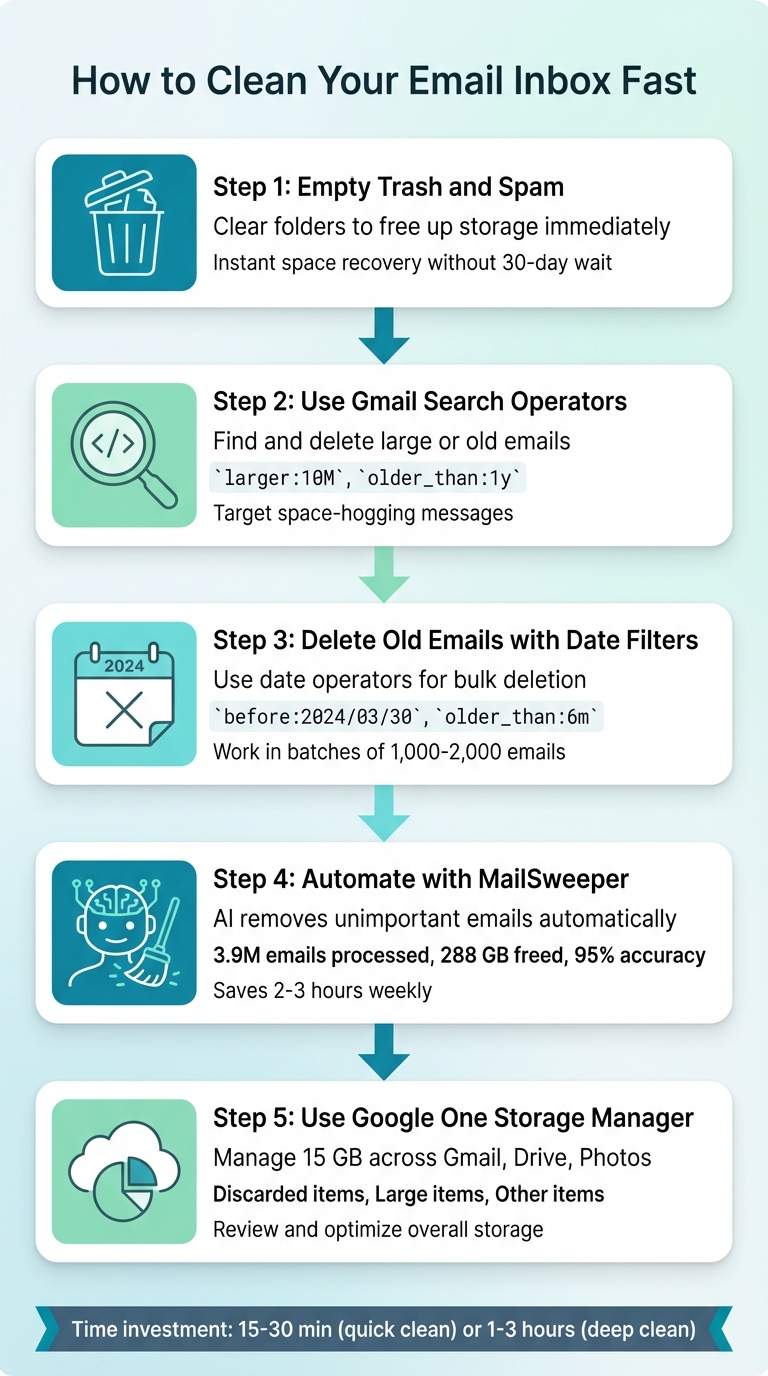
5-Step Process to Clean Your Email Inbox Fast
Clean Up Your Gmail Inbox The SMART Way! (FAST & EASY) - Inbox Zero
sbb-itb-34b9fd2
Step 1: Empty Your Trash and Spam Folders
Start by clearing out your Trash and Spam folders. This step instantly frees up storage space, skipping Gmail's usual 30-day wait before automatically deleting these items.
"Empty trash and spam folders: This is the quickest way to recover space. Until you permanently clear items in these folders, they count against your storage limit." - Google Help
If these folders have been neglected for a while, clearing them can make a noticeable difference in your available storage.
How to Empty Trash and Spam Folders
On your computer:
- Open Gmail and click More in the left sidebar to reveal hidden folders.
- Select the Trash label, then click Empty Trash now at the top of the message list. Confirm by clicking OK.
- To clear the Spam folder, select the Spam label and click Delete all spam messages now.
On your iPhone or Android:
- Tap the Menu icon (three horizontal lines) in the upper-left corner.
- Choose Trash or Spam, then tap Empty Trash Now or Empty Spam Now.
- Confirm the deletion when prompted.
For a quicker way to navigate on the web, press GL, type "trash", and jump straight to the Trash folder.
When Storage Updates Appear
Storage updates might not show immediately. Google's system can take 48 to 72 hours to reflect changes. If your account still shows as full, wait for this processing period before moving on to the next step.
Step 2: Use Gmail Search Operators for Bulk Deletion
Gmail doesn’t let you sort emails by size, but search operators make it easy to locate those space-hogging messages. These commands, entered directly into the search bar, work on both desktop and mobile.
One of the most effective operators for clearing storage is larger:, which identifies emails above a specific size. You can define the size in megabytes (M) or kilobytes (K). For instance, typing larger:10M will display all emails larger than 10 megabytes. Since Gmail limits attachments to 25 MB per email, focusing on messages over 10 MB often reveals the biggest storage offenders.
Here’s how to track down and delete large attachments that could be clogging your inbox.
Find Large Attachments
To locate emails with hefty attachments, use the command has:attachment larger:10M in the Gmail search bar.
On the web: Once the results load, click the Select checkbox at the top left of the email list. If there are more than 50-100 results, Gmail will show a link that says "Select all conversations that match this search." Click it to select every matching email, then hit the trash icon to delete them.
On mobile: Tap the thumbnails next to each email to select them. Once selected, use the Select all option to capture every matching email before deleting.
For a more focused cleanup, combine operators. For example:
- Use
larger:5M smaller:10Mto find emails between 5 MB and 10 MB. - Try
has:attachment larger:3M older_than:1yto locate large attachments from over a year ago that you probably don’t need anymore.
After identifying and deleting these emails, don’t forget to empty your Trash to finalize the cleanup.
Empty Trash After Bulk Deletion
When you delete emails, they’re moved to the Trash folder, but storage space isn’t freed up until the Trash is emptied. To reclaim space immediately, go to the Trash folder and click Empty Trash now. This ensures your storage reflects the changes without waiting the standard 30 days.
If you still notice limited storage after clearing out large emails, take a look at Google Photos and Google Drive - these services share the same 15 GB storage cap as Gmail.
Step 3: Delete Old Emails Using Date Filters
Clearing out old emails can quickly declutter your inbox, and Gmail's date filters make this process much simpler. Instead of manually reviewing every email, you can use specific search operators to target messages from certain timeframes and delete them in bulk.
Use Date-Based Search Operators
Gmail offers four main date operators to refine your searches: before:, after:, older_than:, and newer_than:. Here's how they work:
before:andafter:: Use these with exact dates in the formatYYYY/MM/DD. For example, typingbefore:2024/03/30will pull up all emails sent before March 30, 2024.older_than:andnewer_than:: These are ideal for relative timeframes. Use shorthand likedfor days,mfor months, andyfor years. For instance,older_than:1yretrieves emails older than one year.
After running your search, select all the matching emails and delete them. For larger volumes, work in batches of 1,000 to 2,000 emails to avoid slowing Gmail down. If you need to narrow your focus further, combine operators like this: after:2023/01/01 before:2024/01/01 to filter emails from a specific year.
Combine Filters for Targeted Deletion
Date filters become even more effective when combined with additional search terms. For example:
- Exclude important emails: Use the minus sign (
-) to leave out specific messages. For instance,older_than:1y -is:starredwill find emails older than a year but skip anything you've starred, such as flagged receipts or critical notes. - Inbox-specific cleanup: To focus only on your active inbox, try
in:inbox older_than:6m. This will target emails older than six months that are still sitting in your inbox, leaving archived messages untouched. - Category-specific cleanup: Want to clear out old promotional emails? Combine filters like
category:promotions older_than:6mto remove outdated marketing emails while keeping personal or work-related messages intact. - Attachment-focused cleanup: Large attachments can eat up storage space. Use
older_than:2y has:attachmentto find older emails with attachments. Before deleting, skim through the first page to ensure nothing important is included.
Once you're confident in your selection, delete the emails and empty your Trash to immediately free up storage space. These targeted strategies make it easier to clean out your inbox while keeping essential messages safe.
Next, you can streamline this process even further by setting up automated cleanup tools like MailSweeper. Stay tuned for how to make your email management even simpler.
Step 4: Automate Email Cleanup with MailSweeper

Once you've tackled bulk deletion and set up filters, you can take your inbox management to the next level with MailSweeper. This tool uses AI to handle the tedious task of identifying and removing unimportant emails for you.
Manual cleanup can be time-consuming and requires constant effort. MailSweeper simplifies this process by automatically scanning and deleting unnecessary emails. To date, it has processed over 3.9 million emails and freed up 288 GB of storage space for its users.
How to Use MailSweeper's Dustpan Feature
MailSweeper includes a handy feature called the Dustpan, designed to streamline inbox organization. You can install it quickly from the Chrome Web Store - setup takes less than two minutes. Once installed, it adds a "🧹Dustpan" label to your Gmail account.
The AI behind MailSweeper scans your inbox and flags low-priority emails, such as newsletters, promotional messages, and notifications, while skipping starred, important, or primary inbox emails. In testing, this system has achieved an impressive 95% accuracy rate in identifying unimportant messages.
If the AI mistakenly tags an email you'd like to keep, you can manually remove the Dustpan label. Doing so not only keeps the email but also helps the system learn your preferences, improving its accuracy over time.
Set Up Automatic Cleanup
To maximize efficiency, you can configure automatic deletion. Navigate to the Auto-Cleanup Settings in the sidebar and choose a deletion timer - 30 days for a more aggressive approach or 90 days for a more cautious cleanup. Once set, MailSweeper will automatically delete emails marked with the Dustpan label after the specified time.
This feature can save you 2–3 hours every week. In one case study, a user reduced a cluttered 10,000-email inbox down to just 500 emails in a single week.
MailSweeper Pricing and Plans
MailSweeper operates on a one-time payment model, eliminating the need for monthly subscriptions. Here’s a breakdown of the current plans:
| Plan | Price | Status |
|---|---|---|
| Early Bird | $16.00 | Limited (3 left) |
| Personal | $20.00 | Available |
Both plans include lifetime access to all features, such as AI-driven cleanup, customizable settings, and the Dustpan system. (Note: The Very Early Bird plan priced at $13.00 is no longer available.)
This pricing structure makes MailSweeper an affordable option, particularly for those managing high-volume inboxes with 100+ daily emails. Furthermore, the tool is CASA-certified, compatible with Gmail on Chrome, and supports US date formats (MM/DD/YYYY).
Step 5: Use Google One Storage Manager

After tackling automated email cleanup, it’s time to manage your overall storage more effectively.
Google's Storage Manager helps you review and optimize the shared 15 GB of free storage across Gmail, Google Drive, and Google Photos. It categorizes your data into three groups: "Discarded items" (Trash and Spam), "Large items" (emails with big attachments, large files, and high-resolution photos), and "Other items" (like unsupported videos or WhatsApp backups). These categories make it easy to identify what’s taking up the most space.
Use Storage Manager for Gmail Cleanup
To access Storage Manager on a desktop, go to one.google.com, scroll to the "Get your space back" section, and click "Free up account storage". On mobile, open the Google One, Drive, or Gmail app, and look for options like "Clean up space" or "Manage storage". Focus on emails with large attachments, as clearing these can quickly free up space. For instance, a single 25 MB email attachment takes up as much space as roughly 250 plain text emails. Use the "Review and free up" feature to view specific files and sort them by size or switch between list and grid views to decide what to delete.
Keep in mind: deletions made through Storage Manager are permanent. If you're over your storage limit, you might see a "cleanup target" banner indicating how much data needs to be removed to restore normal functionality. Also, note that storage updates can take 24 to 72 hours after large deletions.
"Google reserves the right to completely remove all of your Gmail, Photos, and Drive content... if you remain over your storage quota for 2 years or longer." - Michael Perrigo, Chromebook Expert
Clean Up Drive and Photos Storage
Once Gmail is sorted, move on to the "Large files" section in Google Drive and the "Large photos and videos" category in Google Photos. If you have old "Google Photos" folders in Drive from before July 2019, these are no longer synced with your current Photos library and can often be deleted to reclaim significant space. For photos and videos, consider downloading important ones locally using the "Download" option before deleting them. Unlike Gmail, items deleted from Photos or Drive through Storage Manager are sent to the trash, where they remain recoverable for 60 days.
Conclusion
Clearing out Trash and Spam, using search operators and date filters, automating with MailSweeper, and managing storage through Google One can transform a cluttered inbox into a well-organized one. Depending on your approach, it might take just 15 to 30 minutes for a quick refresh or 1 to 3 hours for a deeper clean.
MailSweeper's automation can reduce the time spent on manual cleanup by as much as 50%. After the initial overhaul, maintaining your inbox becomes much easier, requiring only 10–15 minutes a day. This means fewer moments of stress over unread emails and more time to focus on the messages that truly matter.
FAQs
How can I delete emails without losing anything important?
To delete emails safely, avoid mass deletion without reviewing them first. Use Gmail's search operators to filter emails based on specific criteria, like age or size, to ensure you don't accidentally remove important messages. Before hitting delete, carefully review your selections. If you're hesitant to delete, consider archiving emails instead - this keeps them accessible but clears up your inbox. Finally, double-check your trash folder before permanently deleting anything to ensure nothing crucial gets lost.
Which Gmail search operators should I use first to free up space fast?
Running out of Gmail storage? Here's a quick trick: use search operators to pinpoint emails that are hogging space. For example:
- Use
larger:10Mto find emails over 10 MB. - Try
older_than:1yto locate emails that are more than a year old.
Want to get even more specific? Combine them! For instance, has:attachment larger:5M older_than:1y will show you older emails with large attachments. These tools make it easy to spot and delete the emails that are eating up your storage.
Why doesn’t my Gmail storage drop right after I delete emails?
When you delete emails in Gmail, the storage space isn't freed up instantly. This is because the deleted emails are moved to the Trash folder, where they stay for 30 days. If you want to reclaim storage space sooner, you'll need to manually empty the Trash folder. Otherwise, the emails will automatically be removed after the 30-day period.
More free Gmail tools.
Pair these together for a full inbox reset.
Bulk Unsubscribe from Gmail
See the senders flooding your inbox, ranked by volume — your shortlist for unsubscribes.
Open toolMass Delete Gmail Emails
Build a deletion plan by sender, date, label, or all-unread — with the exact Gmail search to run.
Open toolFind Large Emails in Gmail
Pick a size and we build the exact Gmail search to find your biggest emails — then open it in one click.
Open toolGmail Storage Cleanup
Move the slider to your current Gmail usage to see exactly what to delete to free space.
Open toolInbox Zero Score
Rate your inbox health on a 0–100 scale and see the weekly hours your inbox is costing you.
Open tool