
Email Management
How to Find the Largest Attachments in your Gmail Inbox
Find and remove large Gmail attachments with search operators, Google Storage Manager, or automation, save files before deleting to free space.
How to Find the Largest Attachments in your Gmail Inbox
Your Gmail's 15 GB storage is shared across emails, Google Drive, and Photos. Large email attachments often consume a significant portion of this space, impacting your ability to send or receive emails. To regain space, use Gmail search operators like larger:10M to locate emails with big attachments. Alternatively, Google's Storage Manager simplifies cleanup by identifying space-hogging files across services. Always review and save important attachments before deletion. For automated inbox maintenance, tools like MailSweeper can help streamline the process.
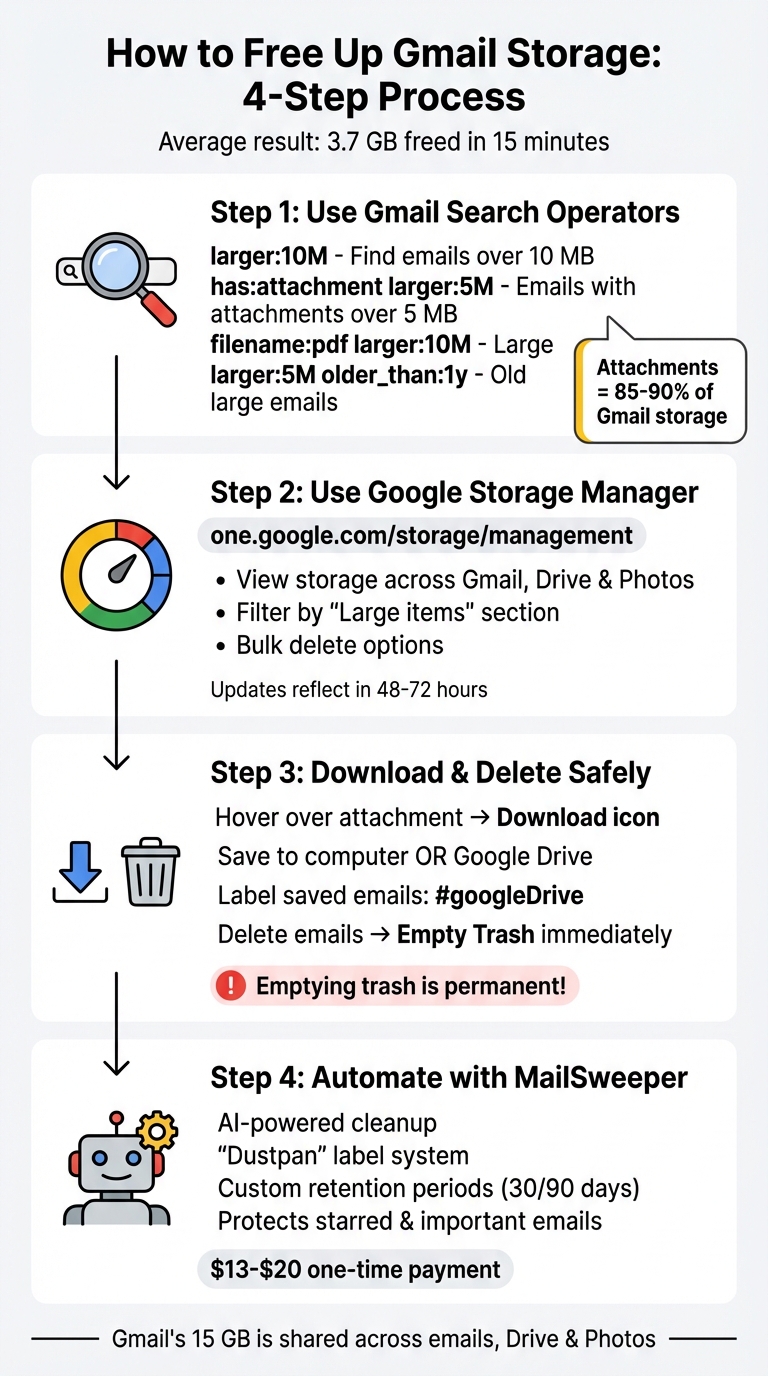
4-Step Process to Find and Delete Large Gmail Attachments
Find and Delete VERY LARGE GMAIL Messages - Full Guide Step by Step
Step 1: Use Gmail Search Operators to Find Large Attachments
Since Gmail doesn’t offer a "sort by size" option, search operators are your go-to tool for identifying emails that take up the most space. These operators are simple commands you can type directly into the Gmail search bar to filter messages based on size.
How to Use larger: and size: Operators
The primary operators for this task are larger: and size:. While they’re similar, there’s a slight difference: larger:10M finds emails larger than 10 MB, while size:10M includes emails that are exactly 10 MB or larger.
To use them, click the Gmail search bar (or press /), type your query, and hit Enter. For instance, entering larger:10M will display all emails over 10 MB. You can specify size in bytes (default), kilobytes (KB/k), or megabytes (MB/m). For example, size:5m and size:5000k will yield nearly identical results.
Here’s a fun fact: a 2025 analysis of 10,000 Gmail accounts by TechUseful revealed that users who searched for larger:15m and deleted those emails freed up an average of 3.7 GB of storage in less than 15 minutes. Talk about quick results!
If you prefer not to type commands, you can click the "Show search options" icon (the sliders next to the search bar), choose "Greater than" under the Size field, enter your desired size, and Gmail will generate the query for you.
Once you’ve mastered these basics, you can refine your searches even further by combining operators.
Combine Operators for Better Results
Stacking operators together can help you zero in on exactly what you’re looking for. For example, using has:attachment larger:5M will exclude large threads without attachments and focus only on emails with files. This is especially helpful since attachments typically make up 85-90% of Gmail storage, while email text accounts for just 8-12%.
Want to target specific file types? Use the filename: operator. For example, filename:pdf larger:10M finds hefty PDF files, while filename:mp4 size:20M locates large video files. You can even add a time filter, like larger:5M older_than:1y, to find large emails that are over a year old - likely candidates for deletion.
Here’s a quick reference table:
| Search Query | What It Does |
|---|---|
larger:5M has:attachment |
Finds emails over 5 MB with attachments |
size:10M filename:pdf |
Locates PDF files that are 10 MB or larger |
larger:10M older_than:1y |
Shows large emails received over a year ago |
larger:5M smaller:10M |
Finds emails between 5 MB and 10 MB |
has:attachment -in:trash larger:15M |
Finds large attachments, excluding those in the Trash folder |
One thing to note: Gmail’s search index updates every 10-15 minutes, so very recent emails might not show up immediately.
Step 2: Use Google's Storage Manager to Find and Delete Large Attachments
Google's Storage Manager is a handy tool to locate and remove large files across Gmail, Google Drive, and Google Photos. It categorizes storage-heavy items into sections like "Large items" and "Emails with large attachments", helping you easily identify what's eating up your 15 GB of free storage.
How to Access Google Storage Manager
The Storage Manager offers a straightforward way to manage large attachments across Google services, much like search operators do.
To get started, head to one.google.com/storage/management. Here, you'll see a detailed breakdown of your storage usage across all Google services. Look for sections like "Clean up suggested items" or "Discard items", which highlight files and emails with large attachments. You can filter by service by clicking on the Gmail icon to zero in on large email attachments. Android users might also notice WhatsApp backups listed among the items.
Delete Emails with Large Attachments
Before deleting, take a moment to review the emails flagged by the Storage Manager. This tool allows you to browse specific emails and files, making it easier to decide what to keep or remove. As Mailmeteor explains:
Google's Storage Manager lets you quickly delete large emails in bulk, without digging through your inbox manually. Just keep in mind that once you delete an email from here, it's gone for good, so double-check before removing anything important.
Once you've selected the emails to delete, click Permanently delete. To free up the space immediately, go to your Gmail Trash and click "Empty Trash now". Be aware that Google's systems may take 48 to 72 hours to fully reflect your updated storage after a large-scale deletion. Up next, explore how to safely download and remove attachments to keep your important files secure.
sbb-itb-34b9fd2
Step 3: Download and Delete Attachments Safely
Before deleting emails, take a moment to review each one. Open emails from your search results to confirm the content and decide if the attachments are important or not. By hovering your cursor over an attachment, you’ll see a download icon, allowing you to save files locally before taking further steps. This precaution helps ensure you won’t accidentally lose important documents, photos, or other files that might still be needed.
Review Attachments Before Deleting
You can narrow down your search by looking for images or videos within a specific date range. This makes it easier to identify duplicates or files that are no longer necessary. Taking this extra step ensures you only delete what’s unnecessary, keeping your storage organized and efficient.
Save Files to Google Drive or Your Computer
Saving attachments is straightforward. Hover over the file, click the "Download" icon, and store it on your computer. If you prefer cloud storage, click the "Add to Drive" icon to save the file directly to Google Drive. For Microsoft Office files, selecting "Edit with Google Docs/Sheets/Slides" will automatically create a copy in your Drive. To stay organized, consider labeling emails with saved attachments using a tag like #googleDrive. This way, you can quickly identify which emails are safe to delete.
Once you’ve backed up the files you need, it’s time to delete the emails and reclaim storage space if your Gmail is full.
Delete Emails and Empty Your Trash
After saving attachments, select the emails you no longer need and click the trash icon. Keep in mind that moving emails to Trash doesn’t immediately free up space - those emails still count against your storage. To clear space right away, go to the "Trash" or "Bin" folder in Gmail’s left-hand menu and click "Empty Trash now". Be cautious, as this action cannot be undone. Double-check that all important files are saved before confirming. Once the trash is emptied, you can check the storage counter in the bottom-left corner of Gmail to see how much space you’ve recovered.
Step 4: Advanced Search Tips and Automated Cleanup with MailSweeper
Advanced Search Filters for Specific File Sizes
After using Google's Storage Manager for a general cleanup, you can take things a step further by narrowing down specific types of clutter. Use Gmail's advanced search filters to target attachments within particular size ranges. This is especially helpful for locating medium-sized files that might be overlooked but still take up valuable space. You can also refine your search by adding date ranges or filtering by sender to make the process even more precise.
Since attachments make up a significant portion - around 85–90% - of the storage used by active Gmail accounts, reviewing these filtered results monthly can help you stay on top of inbox organization and storage management.
Automate Cleanup with MailSweeper
Manually managing your inbox can be effective, but automation is where you can save time and effort. That’s where MailSweeper comes in. Once installed, MailSweeper works by assigning a "Dustpan" label to emails it deems unimportant. This includes emails with large attachments but excludes anything in your primary inbox or messages you’ve starred or flagged as important.
MailSweeper goes a step further by automatically deleting emails based on your chosen retention period - whether it’s 30 days, 90 days, or another timeframe. Its AI ensures that essential files are safeguarded while unnecessary attachments are removed, making inbox maintenance practically effortless.
MailSweeper Pricing Plans
MailSweeper operates on a one-time payment model, so you won’t have to worry about recurring fees. Here’s a breakdown of the current plans:
| Plan Name | Price | Features | Availability |
|---|---|---|---|
| Very Early Bird Plan | $13 (one-time) | AI email cleaning, customizable preferences, lifetime access | Sold out |
| Early Bird Plan | $16 (one-time) | AI email cleaning, customizable preferences, lifetime access | 3 left |
| Personal Plan | $20 (one-time) | AI email cleaning, customizable preferences, lifetime access | Available |
With these plans, you can streamline your inbox cleanup without the hassle of ongoing payments. Whether you’re looking to maintain a tidy inbox or reclaim storage space, MailSweeper offers a straightforward and efficient solution.
Conclusion
Managing large Gmail attachments doesn’t have to be complicated. By using search operators like larger:10M or size:5MB, you can quickly locate emails that are taking up valuable storage space, avoiding the limitations of basic search tools.
Google's Storage Manager offers an easy way to review your shared 15 GB storage, working seamlessly with Gmail’s advanced search filters like has:attachment filename:pdf to find specific file types. This hands-on method is especially effective when combined with automation for handling larger volumes of emails.
For those looking to streamline the process, tools like MailSweeper can help. Its Dustpan feature automatically clears out unnecessary emails based on your selected retention period, all while safeguarding your main inbox, starred messages, and important attachments.
FAQs
What's the difference between Gmail search operators and Google's Storage Manager?
Gmail search operators and Google's Storage Manager are both tools designed to help you manage your Gmail storage, but they serve different purposes and cater to different preferences.
Gmail search operators, such as larger:10M or size:5MB, give you the ability to perform manual searches within Gmail. By entering these commands directly into the search bar, you can pinpoint specific emails or attachments based on size, date, or other criteria. This method is great if you want precise control and prefer to review items individually before deciding what to delete.
Google's Storage Manager takes a broader, automated approach. It provides an overview of your storage usage across Gmail, Google Drive, and Google Photos. The tool highlights large files and offers bulk cleanup options, making it a convenient way to manage storage without requiring detailed searches.
Each tool has its strengths, so the choice depends on whether you prefer hands-on control or a more streamlined, automated solution.
What should I do before deleting large attachments in Gmail?
Before you start deleting large attachments in Gmail, make sure you’re not getting rid of anything you might need later. Go through the emails with large attachments and decide if the files are worth keeping. If they are, save them to your computer or upload them to a cloud storage service so you can access them in the future.
After deleting the emails, remember to empty your Trash folder. Until you do, those emails and attachments will still take up space. This step is crucial for actually freeing up storage. By taking these precautions, you’ll avoid losing important data and only remove files you no longer need.
How does MailSweeper help clean up my Gmail inbox automatically?
MailSweeper takes the hassle out of managing your inbox by automatically sorting through large or old emails. It handles the removal of unnecessary attachments and clears up storage space, so you don’t have to. This keeps your inbox tidy, prevents you from hitting Gmail’s storage cap, and ensures your important data stays safe.
More free Gmail tools.
Pair these together for a full inbox reset.
Bulk Unsubscribe from Gmail
See the senders flooding your inbox, ranked by volume — your shortlist for unsubscribes.
Open toolMass Delete Gmail Emails
Build a deletion plan by sender, date, label, or all-unread — with the exact Gmail search to run.
Open toolFind Large Emails in Gmail
Pick a size and we build the exact Gmail search to find your biggest emails — then open it in one click.
Open toolGmail Storage Cleanup
Move the slider to your current Gmail usage to see exactly what to delete to free space.
Open toolInbox Zero Score
Rate your inbox health on a 0–100 scale and see the weekly hours your inbox is costing you.
Open tool