
To block emails on Gmail, open a message from that sender, click More next to Reply, and choose Block "[sender]". Future messages from that email address go to Spam. The person is not notified. Mail already in your inbox stays there until you delete it.
On a computer:
- Open Gmail.
- Open a message from the sender.
- At the top right, next to Reply, click More (⋮).
- Click Block "[sender]".
Google's help describes Block as what happens to later mail. It is not the Delete button, so the message you have open stays put until you delete it, or until you click Report spam if you also want that copy in Spam.
On the Gmail app
The Android and iPhone/iPad apps use the same menu. Google's steps:
- Open the Gmail app.
- Open the message.
- At the top right, next to Reply, tap More.
- Tap Block "[sender]".
To unblock from the app, open a message from that sender (check Spam if it is not in the inbox) and tap More, then Unblock "[sender]". The full blocked-address list is on the computer, under Settings.
What blocking does
After you block an address, later messages from it go to Spam. Google's spam help adds a stricter detail: if you then click Not spam on one of those messages, Gmail still treats later mail from a blocked address as spam. You have to unblock them. That is the difference between Block and a one-time Report spam.
Blocking does not:
- Email the sender, or bounce their message. Gmail's block article says future mail goes to Spam, which means it was accepted and filed, not rejected. They are not told that you blocked them. A Google Workspace admin can set a rejection notice for blocked senders. That is an admin setting, not the Block item in your own Gmail.
- Delete mail already in the inbox, Promotions, or anywhere else. Those copies stay until you delete them.
- Cover a domain, a display name, or a second address. Block "[sender]" is the address on that message.
sales@shop.exampleandnews@shop.exampleare two blocks. - Stop phone calls or text messages. Gmail's block is an email address. Calls and SMS are settings in the Phone app or Messages, not in Gmail.
Spam still counts toward the storage included with a Google Account, along with Trash. Google permanently deletes mail that has been in Spam or Trash for 30 days. You can also open Spam and delete it sooner.
The opposite job, keeping a sender out of Spam, is how to prevent a sender from going to spam in Gmail. A Never send it to Spam filter does not override a block. Unblock the address first.
See who you blocked, and unblock them
On a computer:
- Open Gmail.
- Click the gear icon, then See all settings.
- Open Filters and Blocked Addresses.
- Check the box next to each address you want to restore.
- Click Unblock selected addresses.
You can also open any message from that sender and click More, then Unblock "[sender]". If you cannot find one, look in Spam. Google's phone instructions unblock from the message. The blocked-address list under Settings is the computer steps above.
After you unblock, Google says later mail goes to the inbox. If it still lands in Spam, mark one Not spam, add the sender to Google Contacts, or create a filter with Never send it to Spam. Those steps are in the guide linked above.
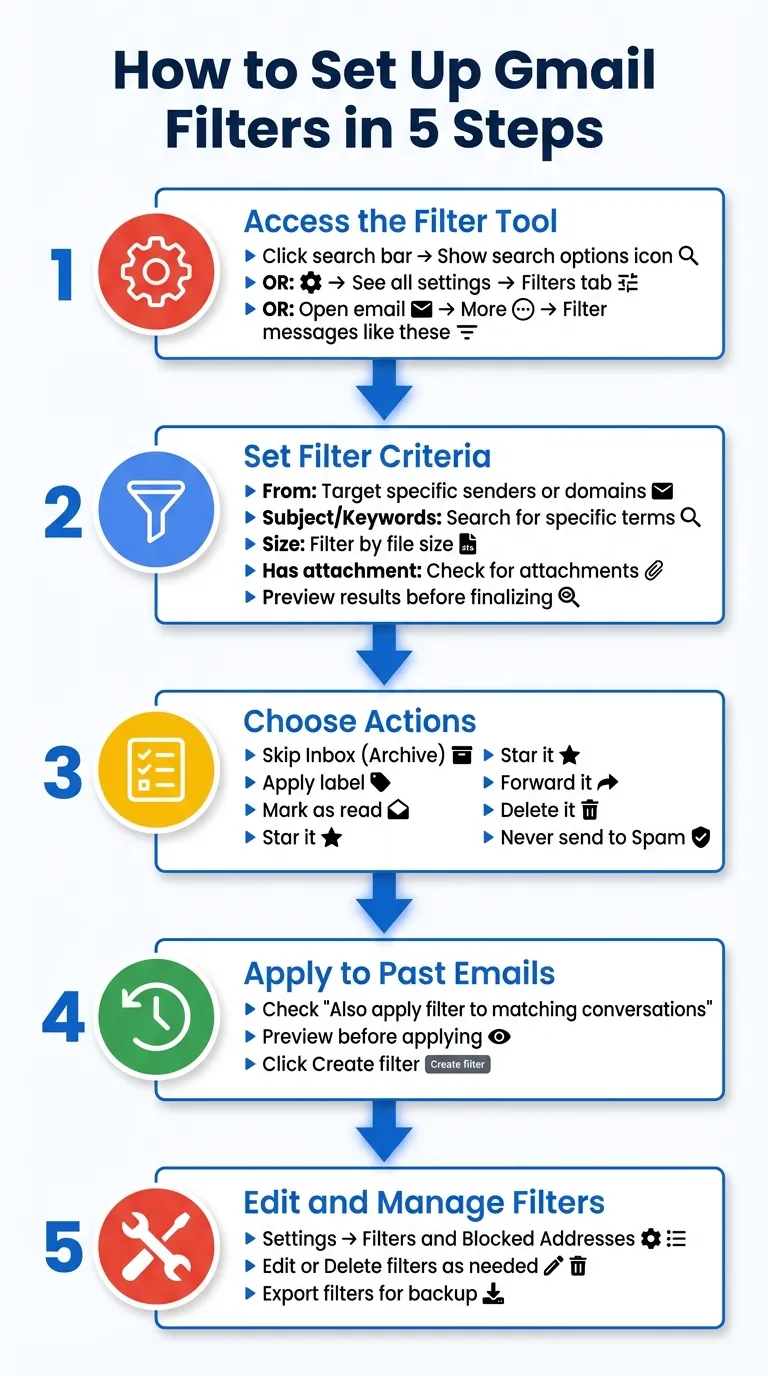
Creating and editing filters is a computer task. Google's help says you have to open Gmail on a computer to create a filter. The steps are in how to set up Gmail filters.
Block a domain, or several senders
Block cannot take a whole domain. A filter can.
Gmail's filter actions include archive, delete, star, label, and forward. The spam-related checkbox is Never send it to Spam. There is no Send it to Spam. Delete it moves matching mail to Trash, not to Spam. Trash keeps it for 30 days.
On a computer:
- Click Show search options in the search box.
- In From, enter
*@example.com. Google's Workspace filter examples use that pattern for everyone at a domain. The same search isfrom:(@example.com)orfrom:*@example.com. - Click Create filter.
- Check Delete it.
- Click Create filter.
Look at the search results before you check Also apply filter to matching conversations. That box deletes mail already in the account. Leave it off if you only want future mail stopped.
For a handful of addresses rather than a domain, one filter can use Gmail's grouping operator: {from:a@example.com from:b@example.com}. Put that in Has the words, check Delete it, and create the filter.
Delete it is the wrong action for a company you still buy from. A receipt and a newsletter often share a domain. Block the one address that is a problem, or unsubscribe, instead of deleting @store.example.
Unsubscribe when the mail is a newsletter
Block is for an address you do not want to hear from. It does not take you off a mailing list. The list can keep sending, including from a new address, and those messages sit in Spam.
For a list you signed up for, Google's help says to unsubscribe:
- Open the message.
- Next to the sender's name, click Unsubscribe.
- In the pop-up, click Unsubscribe. Some senders show Go to website instead.
It can take a few days for the mail to stop. Unsubscribing from one message may only leave one list. On a computer, More in the left menu, then Manage subscriptions, shows lists Gmail has found for that account.
If there is no Unsubscribe link, or they ignore it, block the address or use the delete filter above. How to unsubscribe in Gmail walks through that click. Once Gmail is connected, MailSweeper can put many of those senders on a delete filter instead of opening each message.
Promotional mail that is clutter rather than one person is a different cleanup. How to delete all promotions in Gmail selects the Promotions tab in one pass.
Delete what they already sent
Block leaves the backlog. On a computer:
- Search
from:sender@example.com. Usefrom:(@example.com)for a domain. - Set the sort to Most recent. The select-all link does not appear on Most relevant.
- Click the checkbox at the top of the list. That is only this page.
- Click Select all conversations that match this search.
- Click Delete.
The same search and the page-size limit are covered in how to sort Gmail by sender and bulk-delete. Delete all Gmail emails is the same select-all banner for other searches.
With conversation view on, that delete moves the whole thread to Trash, including messages from other people in the thread. Open the thread and use More, then Delete this message, when you only want one of them.
Deleted mail stays in Trash for 30 days and still uses storage until you empty Trash or the 30 days run out. Open Trash and click Empty Trash now when you want it gone.
The Gmail app can search from:, and Select all there takes about 50 loaded messages at a time. It has no "every conversation that matches" control. Use a computer, or the desktop site in the phone's browser, for a real backlog.
Report spam, report phishing, or block
These three are easy to mix up. They do different jobs.
| Action | What you click | What happens |
|---|---|---|
| Report spam | Select the message, then Report spam | That message moves to Spam. Google receives a copy. Later mail from the same sender might go to Spam. Not spam can undo that for future mail. |
| Report phishing | Open the message, More, then Report phishing | Use this when the message is trying to get a password, a payment, or other personal information. Do not reply or open links first. |
| Block | More, then Block "[sender]" | Later mail from that address goes to Spam, and it keeps doing so after Not spam, until you unblock. |
Report spam when the message is junk and you want Gmail to learn from it. Report phishing when it is a scam. Block when you want that exact address in Spam from now on, even if you move one message back to the inbox.
If someone is harassing or threatening you, Google's help says that can violate Gmail's program policies, and that you should contact local authorities if you are in danger. Block is not a substitute for that.
Where MailSweeper fits
MailSweeper does not block senders, and it does not file mail in Spam.
What it does is the cleanup Block leaves behind:
- Delete emails on a sender moves the messages already in the account from that address to Trash. You can undo that while they are still in Trash.
- Unsubscribe on a sender adds that address to a Gmail filter that deletes future mail from them, again to Trash. When MailSweeper finds an unsubscribe link, it also shows Sender's page so you can open the list's own opt-out. The filter does not contact the mailing list by itself.
- Quick Clean moves matching mail to Trash: promotions older than a year, social notifications older than six months, updates older than a year, unread mail older than ten years, and messages with attachments over 10 MB. On the category screen you can change the age to 6 months, 1 year, 2 years, 5 years, or 10 years.
- The Dustpan label is applied to the categories you turn on (promotions, social, updates, and forums). The filter skips important, starred, sent, and draft mail. A schedule then moves Dustpan mail to Trash after 7, 14, 30, 90, or 180 days. Starred and important mail are skipped again at sweep time.
That is useful when the problem is a pile of newsletters, not one person. For one harassing address, use Block. For a list you joined, unsubscribe, then delete the backlog. MailSweeper is the backlog and the repeat pass. Deleted mail still goes to Gmail Trash for 30 days. Annual is $24/year, with a 14-day free trial if you have not subscribed before, or $99 once.
FAQs
Does the sender know I blocked them?
No. Gmail does not send a "you were blocked" notice, and it does not bounce the message. Later mail from that address is delivered to your Spam. They only know if you tell them, or if they notice you stopped answering.
Why am I still getting emails from someone I blocked?
Block files future mail in Spam, so check Spam before assuming it failed. It also applies to one address. A new address, even at the same company or with the same display name, is not blocked. Messages that arrived before you clicked Block stay in the inbox until you delete them. A newsletter that ignores unsubscribe often rotates the From address. Block each one, or delete the domain with a filter.
How many senders can I block in Gmail?
Google does not publish a limit for the Block button on a personal Gmail account. The list is under See all settings, then Filters and Blocked Addresses. An admin blocked-sender list in Google Workspace is a different setting, with its own documented limits, and it is not this button. For a domain, use a filter instead of blocking addresses one by one.
Can I block an entire domain in Gmail?
Not with Block. That menu item is one email address. Create a filter with From set to *@example.com, or search from:(@example.com), and check Delete it. That sends the domain's mail to Trash. It cannot send the domain to Spam. Filters have no "send to Spam" action.
How do I unblock someone?
On a computer, open Settings, See all settings, Filters and Blocked Addresses, check the address, and click Unblock selected addresses. From a message, including one in Spam, click More, then Unblock "[sender]". On the Gmail app the message menu is the same. The full list is on the computer.
