
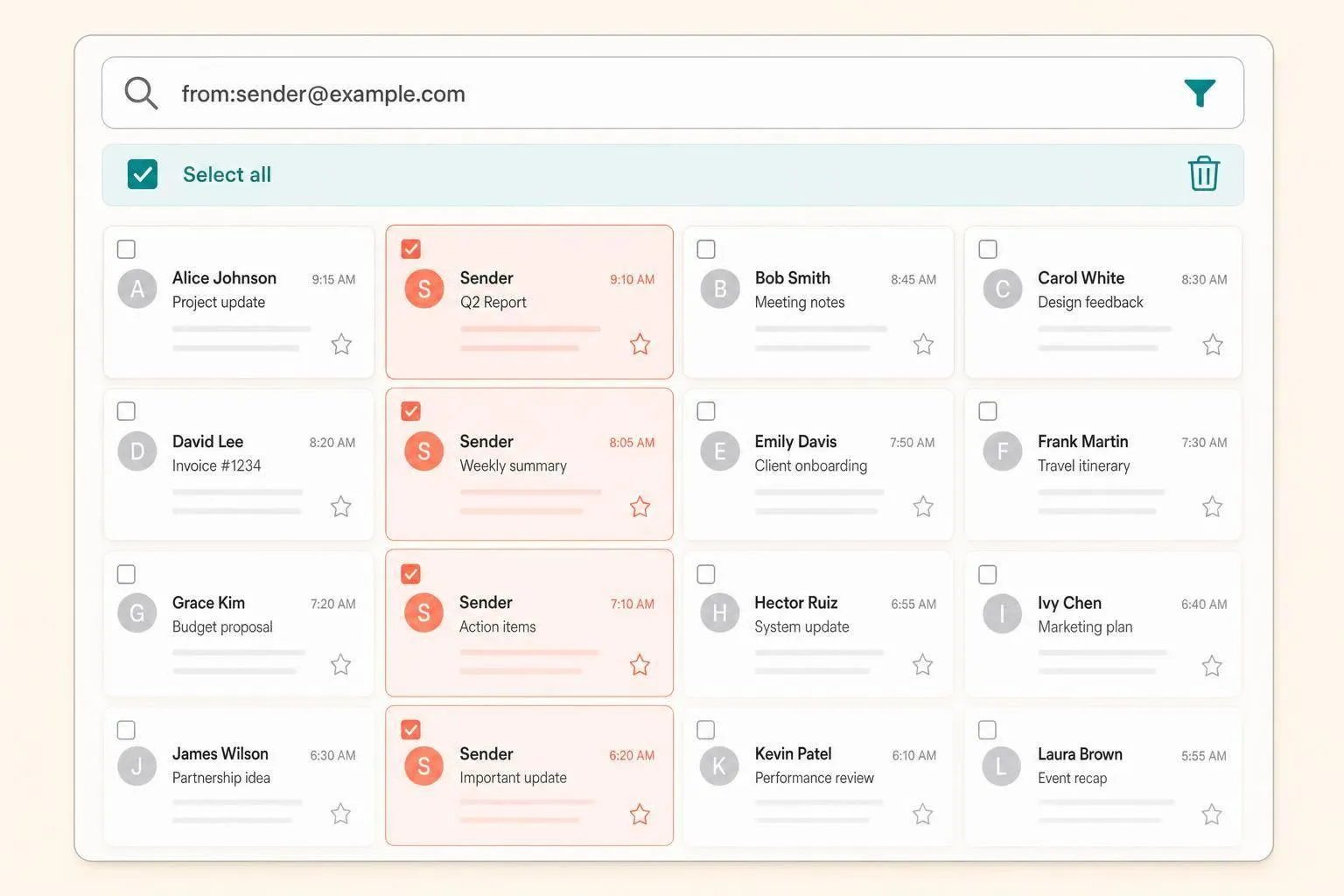
Gmail does not have a sort-by-sender button. If I want to see all emails from one person or company, I use Gmail search with from:. If I want to delete them in bulk, I select the search results and then click Gmail’s “Select all conversations that match this search” link on desktop.
Here’s the whole article in plain English:
- I use
from:search to group email from one sender, name, or domain - I can narrow results with filters like
older_than:,has:attachment, andbefore: - To bulk-delete, I must select all matching conversations, not just the first 50 or 100 shown on the page
- Gmail keeps deleted mail in Trash for 30 days
- I can set up a filter and label so future messages from that sender skip the inbox or get archived
- If I have many repeat senders, a tool like MailSweeper can show which senders take up the most space and let me clean them up in batches
The main point: Gmail doesn’t sort by sender in a list view, but I can still get almost the same result by searching by sender, reviewing the grouped messages, and deleting or filtering them in a few clicks.
A few facts matter here:
- Gmail search works on desktop and mobile
- The bulk “select all matching” link works only on desktop
- A sender search still shows results in date order, not sender order
- Bulk cleanup is safer if I exclude items like starred or important mail before deleting
If I just want the short answer, it’s this: search with from:sender@example.com, click the top checkbox, click “Select all conversations that match this search,” then move the messages to Trash. After that, I can add a filter so the same sender stops cluttering my inbox again.
How To Delete All Emails from One Sender in Gmail - FAST & EASY
sbb-itb-34b9fd2
How to Group Emails by Sender Using Gmail Search
Use Gmail’s from: operator to pull every message from one sender into a single search view. It’s a simple way to scan that sender’s full backlog before you delete anything.
Run a from: Search in Gmail
Click the search bar at the top of Gmail and type from: followed by the sender’s address, display name, or domain. For example:
from:billing@acme.com- shows every email from that exact addressfrom:@acme.comorfrom:*@acme.com- shows messages from a whole domainfrom:"John Doe"- uses quotes for an exact display-name match
The same from: search works in the Gmail app on iOS and Android.
Use Gmail's "Find Emails From" Shortcut
If you already have a message from that sender open, there’s an even easier way. Right-click the email and select Find emails from [Sender]. Gmail will fill in the search for you and show all messages from that sender [2][5].
On mobile, open the message, tap the sender’s avatar or name, and choose See emails or All emails from this sender [4][7].
Narrow Results With Advanced Search Fields
Once the sender search is running, you can combine it with other operators to narrow the results:
| Operator | Use | Example |
|---|---|---|
older_than: | Find emails older than a set period | from:sender@example.com older_than:2y |
has:attachment | Show only emails with files attached | from:sender@example.com has:attachment |
larger: | Find larger emails | from:sender@example.com larger:5M |
before: / after: | Filter by a specific date (YYYY/MM/DD) | from:sender@example.com before:2025/01/01 |
For instance, from:newsletters@acme.com older_than:1y helps you review older mail before bulk deletion.
Once the sender is grouped, select all matching messages and move them to Trash in one action.
How to Bulk-Delete All Emails From One Sender in Gmail
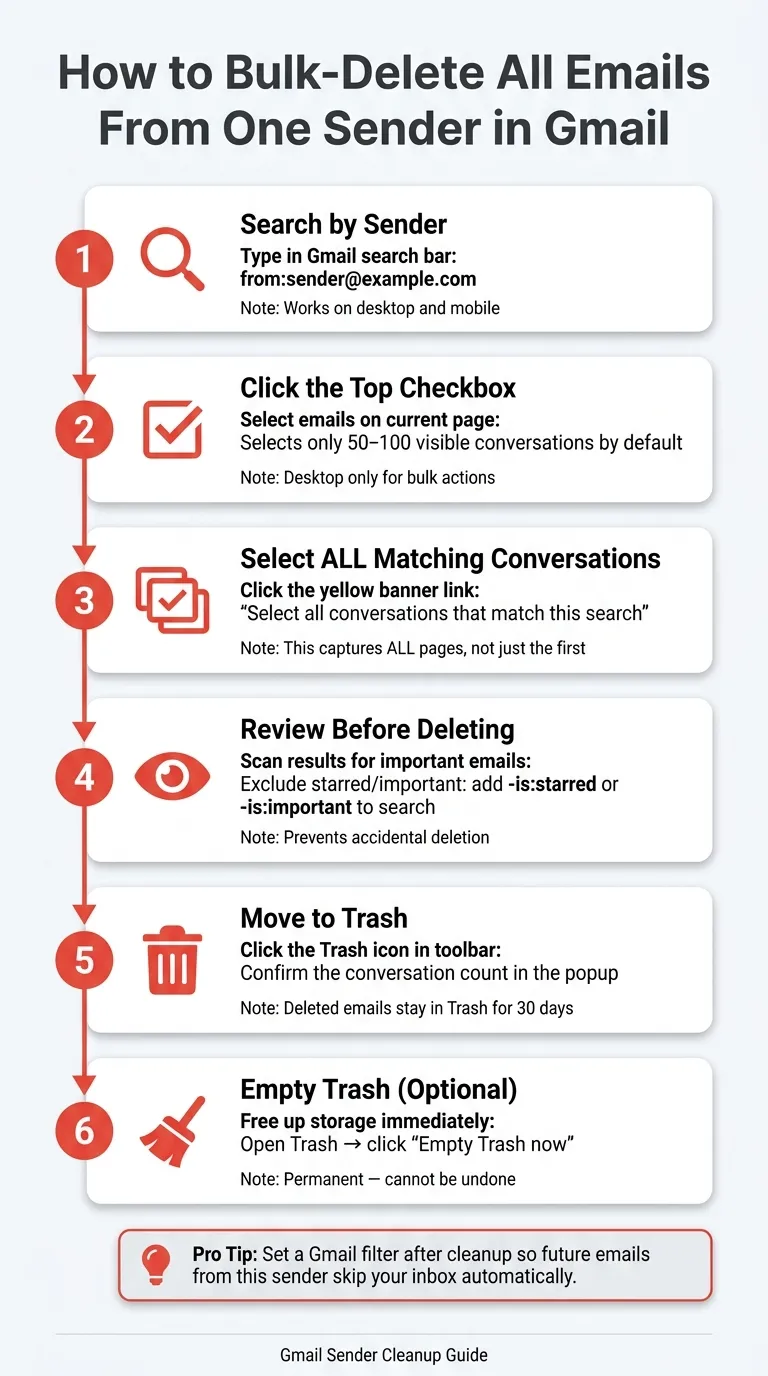
If you want to delete every email from one sender, you need to select all search results, not just the messages you can see on the first screen.
Select All Matching Emails, Not Just the First Page
By default, Gmail shows only 50 or 100 conversations per page. So when you click the checkbox in the top-left corner, Gmail selects only the current page at first [8][3]. That trips up a lot of people.
Here’s the extra step: after you click the checkbox, look for the yellow banner above the message list. It will say, "Select all conversations that match this search." Click "Select all conversations that match this search", and Gmail will select every matching email across all pages [8][3][9].
One thing to know: this bulk-select link works only on desktop. So if you’re doing a big cleanup, use Gmail in a desktop browser. The same step is how you clear a date range, a label, or unread mail — those scopes are on delete all Gmail emails.
Next, take a second to check the selection before sending everything to Trash.
Review Before Deleting
Before you delete anything, make sure your search still includes only that sender. It’s smart to scan the first page first, because a sender search can also pull in starred, important, and archived conversations [8][6].
If the results look too broad, tighten the search with filters like -is:starred or -is:important before selecting everything [10][8].
Once the selection looks right, click the Trash icon in the toolbar. Gmail may show a bulk delete confirmation, so check the conversation count before you confirm [8][3].
Deleted emails stay in Trash for 30 days before Gmail removes them for good [4][8][9]. If you need storage space right away, open Trash from the left sidebar and click "Empty Trash now" [8][3].
Set Up Gmail Filters and Labels to Stay Organized by Sender
Once you’ve cleared out a sender’s old emails, the next move is simple: set a filter so those messages stop landing in your inbox. It takes about a minute, and it saves a lot of repeat cleanup later.
Build a Sender Filter From the Search Panel
Click the search options icon next to Gmail’s search bar to open the advanced search panel. Then enter the sender’s email address in From and click Create filter at the bottom of the window [4][6].
If you want to filter an entire domain, type the domain into From instead. That catches variations like marketing@brand.com, support@brand.com, and noreply@brand.com [3][6].
Apply Labels or Skip the Inbox Automatically
After you click Create filter, Gmail shows a set of actions for that rule. For the cleanest setup, these are the ones to use:
- Skip the Inbox and Apply the label - keeps your inbox cleaner while making each message from that sender easy to find under its own label in the sidebar [11]
- Mark as read - archives emails without adding unread counts in the sidebar [11]
- Never send it to Spam - makes sure Gmail’s spam filter doesn’t catch messages you still want to see [11]
Avoid Delete it unless you want those emails removed for good [11].
Before you save the filter, check "Also apply filter to matching conversations". That tells Gmail to apply the new rule to all existing emails from that sender right away [4][11].
Use MailSweeper to Find High-Volume Senders and Delete Faster
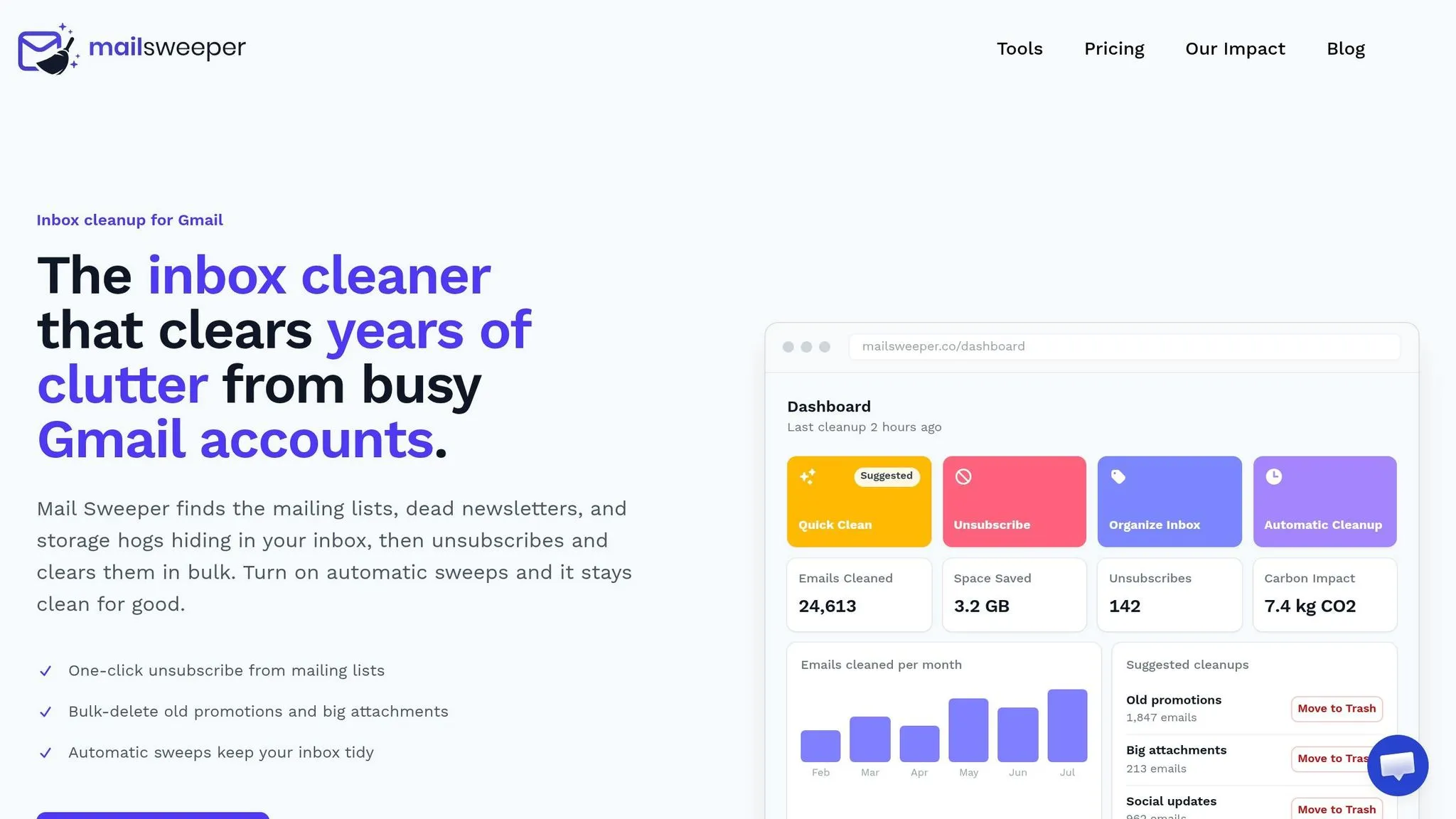
Gmail's from: search is handy when you're cleaning up one sender at a time. But if your inbox is packed with dozens of repeat senders, doing that over and over gets old fast. MailSweeper helps by ranking senders so you can go after the biggest inbox offenders first.
See Which Senders Are Filling Your Gmail
If you want to sort Gmail by sender faster, the first move is simple: find out who's sending the most mail.
MailSweeper uses Gmail data to rank senders by email volume [1]. That gives you a clear view of which newsletters, promos, and automated senders are taking up the most space.
Delete a Sender's Backlog or Unsubscribe in One Step
Once you know which senders are driving the clutter, you can clean them up in batches instead of running one search after another.
You can bulk-delete a sender's old messages in one action. The Quick Clean feature removes old promotions and newsletters in minutes while automatically protecting your starred, important, and primary inbox messages [1]. After that, you can unsubscribe to stop new mail from coming in [1].
Conclusion: The Simplest Way to Sort Gmail by Sender
Gmail doesn't offer a built-in sort-by-sender view, but you still have a workable path. The easiest native method is to use from: searches with the "Select all conversations that match this search" link to bulk-select and delete a sender's emails.
If you want to avoid the repetitive manual work, MailSweeper adds a sender-frequency view, faster bulk deletion, one-click unsubscribe, and cleanup automation in one interface. You can spot the biggest senders, delete their backlog, and unsubscribe in the same flow.
FAQs
Can I sort Gmail by sender on mobile?
Yes. The Gmail app doesn't have a dedicated sort button, but you can still filter emails by sender on mobile.
Just type from:sender@example.com into the search bar. You can also open an email from that sender, then tap their name or avatar to see all emails from them.
This works the same on Android and iPhone.
How do I delete all emails from one domain?
In Gmail, type from:@domain.com into the search bar and press Enter. Then click the checkbox in the top-left corner to select the emails on the page, and choose Select all conversations that match this search.
Next, click the trash icon to send those emails to the Bin.
If you want Gmail to handle this from now on, open the search options and click Create filter. You can set a rule to automatically delete future emails from that domain.
Will deleting sender emails remove them forever?
Not immediately. In Gmail, deleted emails move to Trash, where they stay for 30 days before Google removes them for good.
If you want them gone sooner, you can empty Trash yourself. Also, deleting emails you already have won't stop new ones from showing up from that sender. For that, you'll need to unsubscribe, block the sender, or set up a filter.
