
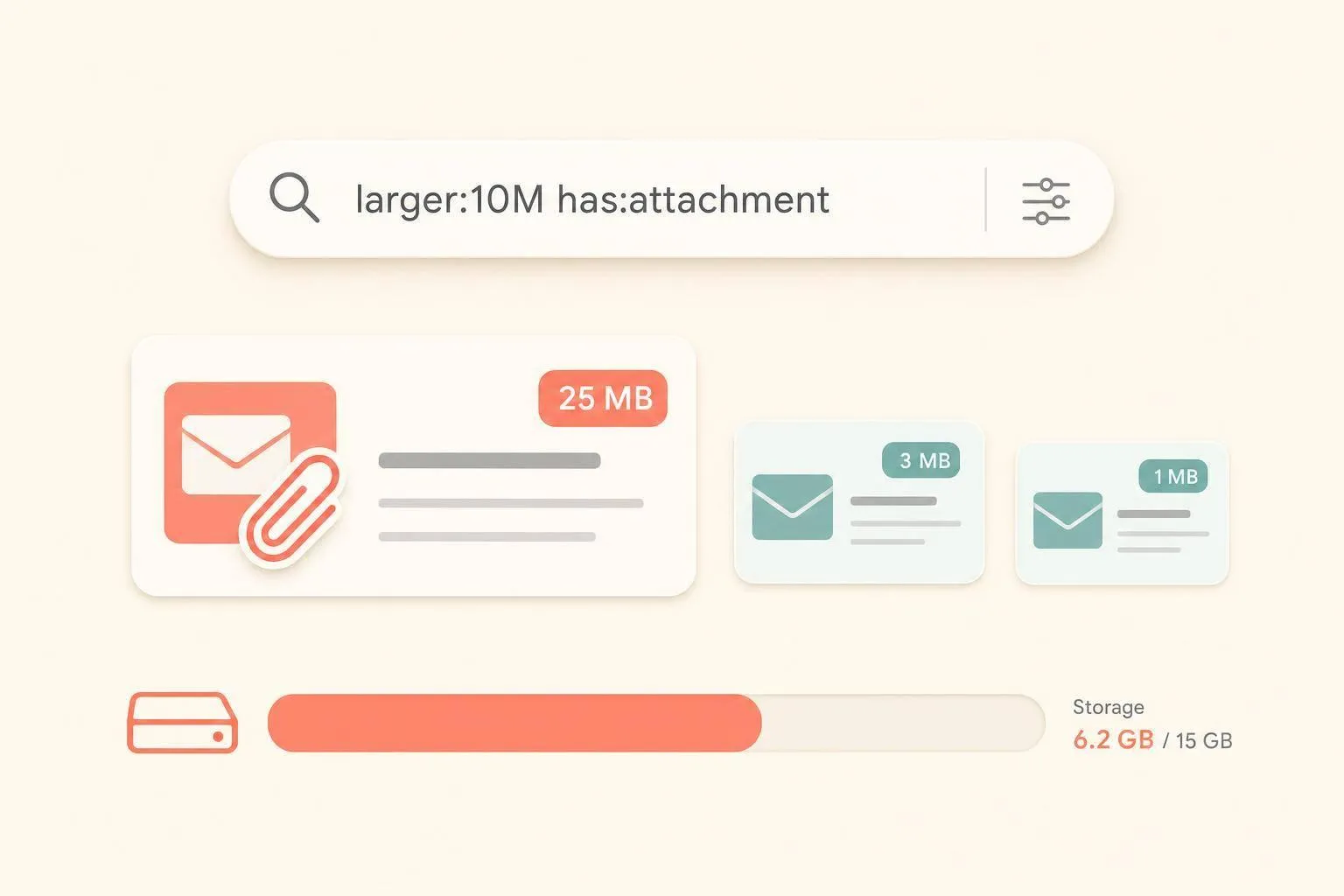
Gmail does not let me sort emails from biggest to smallest. So if I want to find what’s using my storage, I need to use Gmail search filters like larger:, smaller:, and has:attachment.
Here’s the short version:
- I can find big emails with searches like
has:attachment larger:10M - Gmail shows those results in date order, not size order
- A good place to start is 25 MB, then 10 MB, then 5 MB
- Old promo emails, newsletters, and large sent files are often the first things I check
- Deleted Gmail messages stay in Trash for 30 days, and they still count toward storage until I remove them for good
That matters because Gmail storage is shared with Google Drive and Google Photos through my Google account. So even a few large emails with attachments can take up more space than I expect.
If I want the fastest path, I use these first:
larger:25Mhas:attachment larger:10Molder_than:1y larger:5Mcategory:promotions larger:5Mfrom:me larger:5M
I can do this on desktop or in the Gmail app, but bulk select works best on desktop because Gmail lets me click “Select all conversations that match this search.” If I want a top-level view first, I can also check Google One storage management at one.google.com/storage/management.
The main idea is simple: Gmail doesn’t have a sort-by-size button, but size search operators get me close enough to find the biggest space hogs fast and clean them up with less risk.
How to Search and Sort Emails by Size in Gmail | How To Find The Large Mails In Size In Gmail
sbb-itb-34b9fd2
How to use Gmail search operators to find large emails
Type a size operator into Gmail search and press Enter. Gmail will then show messages that match that file size range. The goal here is simple: find the biggest emails first so you can free up space fast.
How to search with larger:, smaller:, and size:
The three operators you’ll use most are larger:, smaller:, and size:.
larger:shows messages above the size you entersmaller:shows messages below the size you entersize:matches one exact size
Use M for megabytes and K for kilobytes. For example, larger:10M finds emails bigger than 10 MB. If you skip the suffix, Gmail reads the number as bytes, so size:1000000 equals 1 MB. One small detail matters here: use larger:10M, not larger: 10M.
Once you can search by size, you can narrow things down even more and zero in on the safest messages to delete.
How to combine size filters with attachment, age, sender, and category searches
Gmail reads space-separated operators as AND. That means every part of the search has to match.
Here are a few searches worth trying:
| Search Query | What It Finds |
|---|---|
has:attachment larger:10M | Emails with attachments larger than 10 MB |
older_than:1y larger:5M | Large emails more than a year old, often safe to delete |
from:me larger:5M | Large files you sent |
category:promotions larger:5M | Large marketing emails or newsletters |
larger:10M -is:starred | Big emails while protecting starred messages |
-is:starred is a handy filter because it leaves out protected messages, which helps you avoid deleting something important by mistake.
A good rule of thumb: start with the biggest emails first. You’ll clear more storage with fewer deletions.
If you want to build these searches faster, use MailSweeper's large-email search builder: https://www.mailsweeper.co/find-large-emails-gmail.
Start with large thresholds, then work down
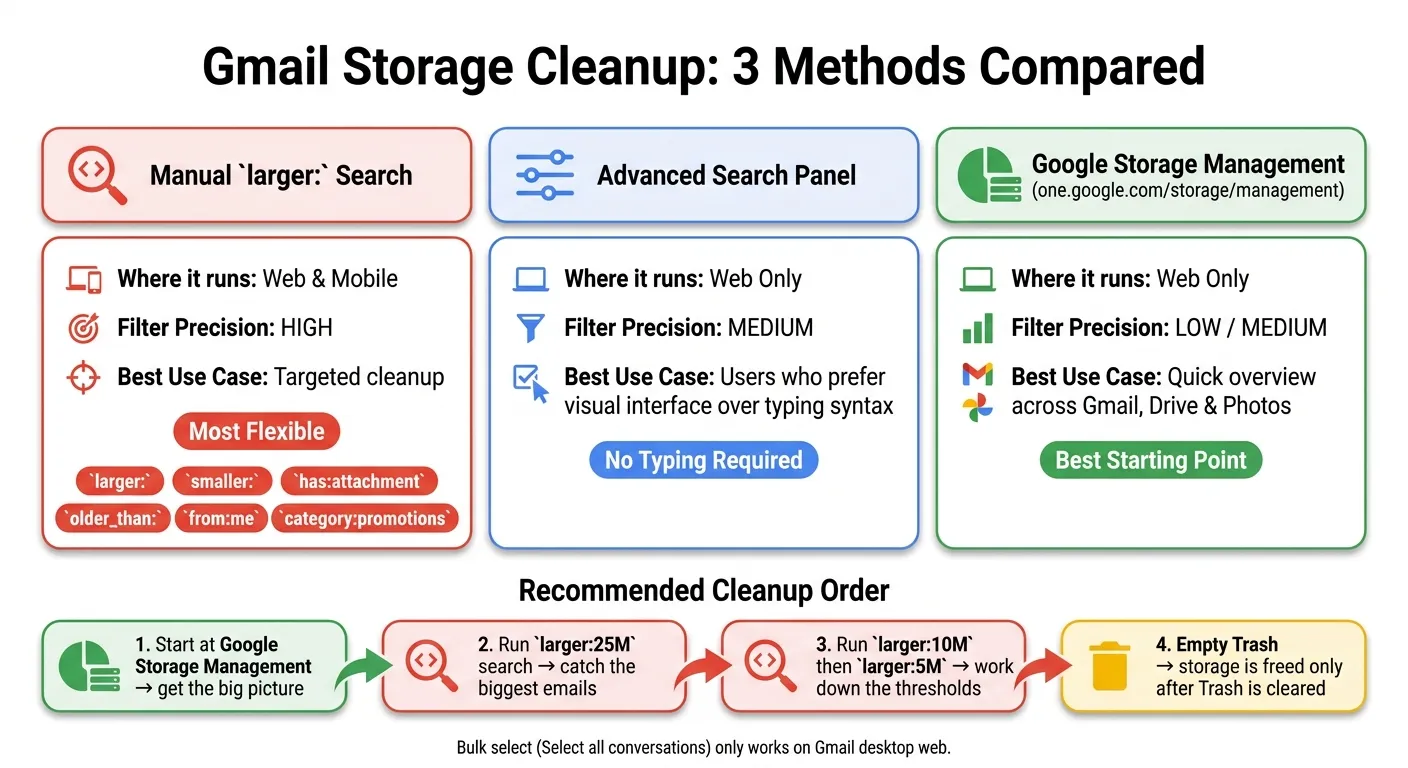
Start with larger:25M first. Then move to larger:10M, and after that, larger:5M.
That step-by-step approach keeps the mess under control. You spot the biggest storage hogs first, then work your way down without getting buried in thousands of smaller emails right away.
How to find large emails in Gmail on desktop, mobile, and Google storage tools
Once you know the size operators, the next step is simple: pick the fastest tool for the job. Some tools are better for pinpoint searches. Others help you spot the biggest space hogs across your Google account before you start deleting anything.
Run a size search in Gmail on the web
Open Gmail, enter your size query, and press Enter. Gmail will show every message that matches. Then click the master checkbox to select the visible results, and click the blue "Select all conversations that match this search" link. That step matters. It expands the selection to all matching emails, not just the ones on the page you're viewing.
If you'd rather not type search operators by hand, click the Show search options icon on the right side of the search bar. This opens the Advanced Search panel. Inside, you'll see a Size field where you can pick "greater than" or "less than" and enter a size in MB, KB, or bytes.
Run size searches in the Gmail mobile app
For a quick check while you're away from your computer, the Gmail app works fine. It supports the same size operators, so you can tap the search bar and type larger:10M just like you would on desktop.
The catch is bulk cleanup. The mobile app can run the search, but bulk selection is still desktop-only.
So, mobile is good for quick triage or deleting a few messages. If you're trying to clear out hundreds at once, a computer is the better move.
Use Google storage management to spot large attachments
If you want the big picture first, start with Google storage management. Google's storage management page at one.google.com/storage/management gives you a visual view of what's taking up space across Gmail, Google Drive, and Google Photos. You can spot the biggest items across those services without typing any search queries, which makes it a solid place to start before narrowing things down.
Each option does a slightly different job:
| Method | Where it runs | Filter precision | Best use case |
|---|---|---|---|
Manual larger: search | Web & mobile | High: Combine size, date, sender, and file type | Targeted cleanup |
| Advanced Search Panel | Web only | Medium: Form-based size and date fields | Users who prefer a visual interface over typing syntax |
| Google Storage Management | Web | Low/Medium: Pre-categorized views | Quick overview of the largest items across Google services |
How to clean up large Gmail messages safely
After you find big messages with larger: searches, clean them up in a careful order. Finding them is only the first step. The goal is to clear out the biggest junk without tossing tax records, contracts, or receipts by mistake.
Review before deleting and follow a low-risk cleanup order
Start with the biggest and oldest results. Before you delete anything in bulk, scan the first batch of emails. If you see something worth keeping, star it or add a label.
Next, tighten your search with safety exclusions. For example, larger:10M -is:starred -is:important leaves starred and marked messages out of the results. Once the list looks like clutter, use the "Select all conversations that match this search" link on desktop to select the full result set, not just the emails shown on the page.
Deleted messages go to Trash for 30 days, but they still count against your storage until you remove them for good. [1][2]
Target old promotions, newsletters, and forgotten attachments
A good place to start is Promotions. Marketing emails often include large images and PDF catalogs, so category:promotions larger:5M can bring up a lot of storage-heavy clutter fast.
For older junk, older_than:2y has:attachment larger:5M is a solid filter. These messages are often the safest ones to remove: old, bulky, and less likely to hold anything you still need.
Use MailSweeper's large-email search builder and AI cleanup
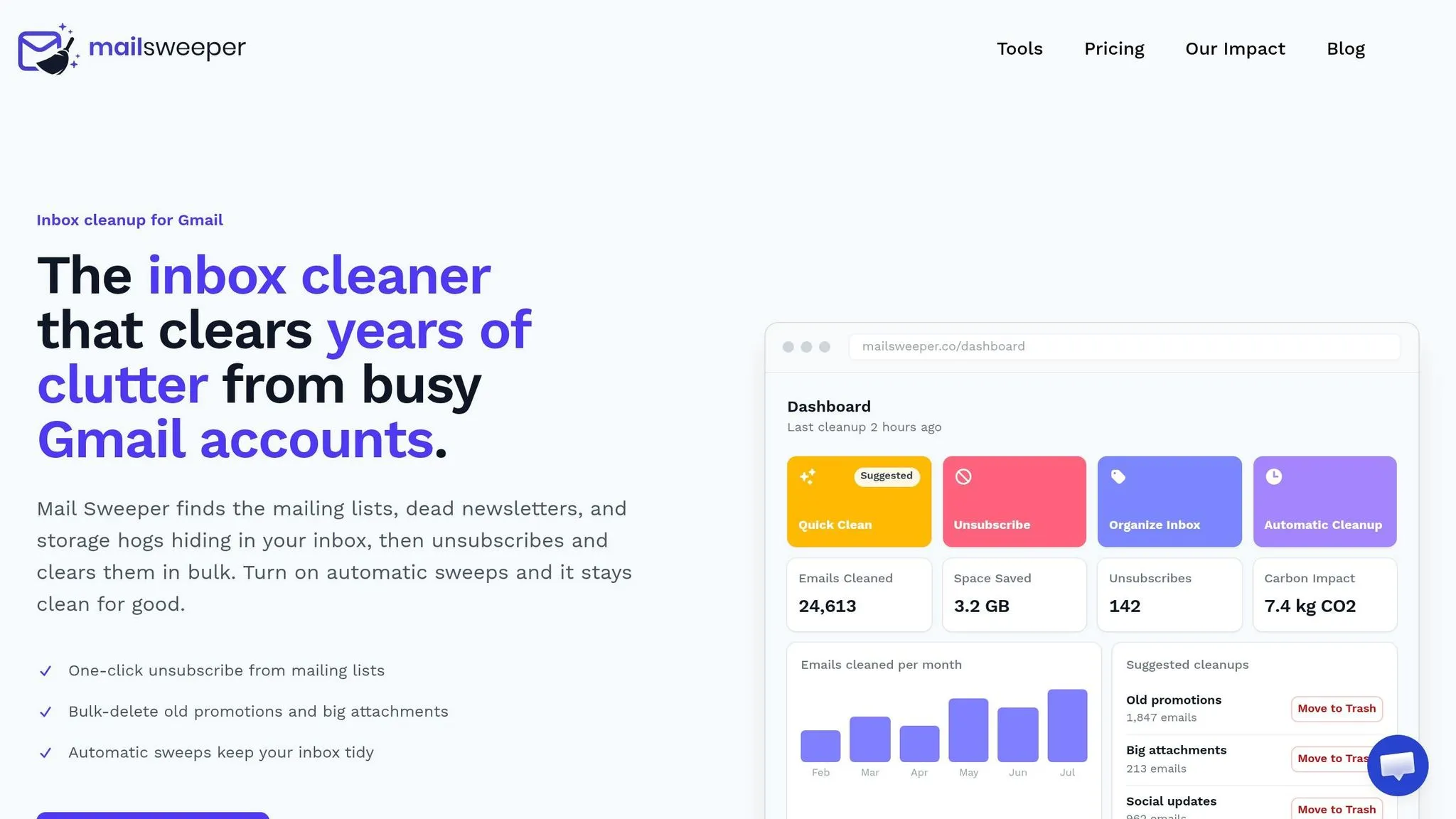
Use MailSweeper's free large-email search builder to build a Gmail query based on size, age, and category filters. If you want cleanup to keep running over time, MailSweeper can handle it on a schedule you set.
If you'd rather skip manual query building, use the search builder link above.
Conclusion: The fastest way to find what is using your Gmail storage
Gmail doesn’t include a built-in sort-by-size option. But the larger: search operator gets you close, and fast.
A good place to start is has:attachment larger:10M. That search pulls up the biggest emails first, especially the ones with large attachments. In plain terms, it’s the fastest way to sort Gmail by size even without an actual size-sorting button.
After you delete what you don’t need, empty Trash.
If you want to build the search a bit faster, try MailSweeper's free large-email search builder. Run the search, check the results, and lower the threshold if you need to dig deeper.
FAQs
Why can’t Gmail sort emails by size?
Gmail doesn’t come with a built-in sort by size option. So instead of sorting emails in a column, you use search operators to filter them.
That’s where operators like larger: and size: come in. They act as a simple workaround and help you find emails that are taking up more space.
Do emails in Trash still use Google storage?
Yes. Emails in Trash still count toward your 15 GB storage limit for 30 days.
Gmail clears Trash after that, but the space doesn't open up until then. If you want to free up space right away, open Trash and click Empty Trash now.
What’s the best Gmail search to find large files?
Use Gmail search operators in the search bar. Gmail can’t sort by size, but you can filter with larger:.
For attachments over 10 MB, search has:attachment larger:10M. Want to narrow it down a bit? Use has:attachment larger:10M older_than:1y.
You can swap 10M for 5M or 20M, then delete emails you don’t need and empty Trash to reclaim storage.
