
Email Management
Finding large attachments in Gmail with advanced queries
Reclaim shared storage by finding and deleting oversized email attachments with advanced search queries and size filters.
Finding large attachments in Gmail with advanced queries
Struggling with Gmail storage limits? Here's the fix: Gmail's advanced search operators can help you quickly locate and delete emails with large attachments, freeing up space in your 15 GB storage. Use commands like larger:10M to find emails with attachments over 10 MB, or combine it with older_than:1y to target older, space-hogging emails. For specific file types, try filename:pdf larger:5M to identify large PDF attachments. Remember, deleted emails sit in the Trash for 30 days, so empty it to reclaim space immediately.
If manual cleanup feels tedious, tools like MailSweeper can automate the process. It identifies and deletes unimportant, storage-heavy emails after a set period, saving you time and effort. At a one-time cost of $16 (limited offer), it’s a handy way to keep your inbox organized and storage under control.
Start by running larger:10M in Gmail to identify the biggest culprits eating up your storage.
How to FREE UP GMAIL STORAGE FAST
sbb-itb-34b9fd2
Basic Gmail Search Operators for Finding Large Attachments
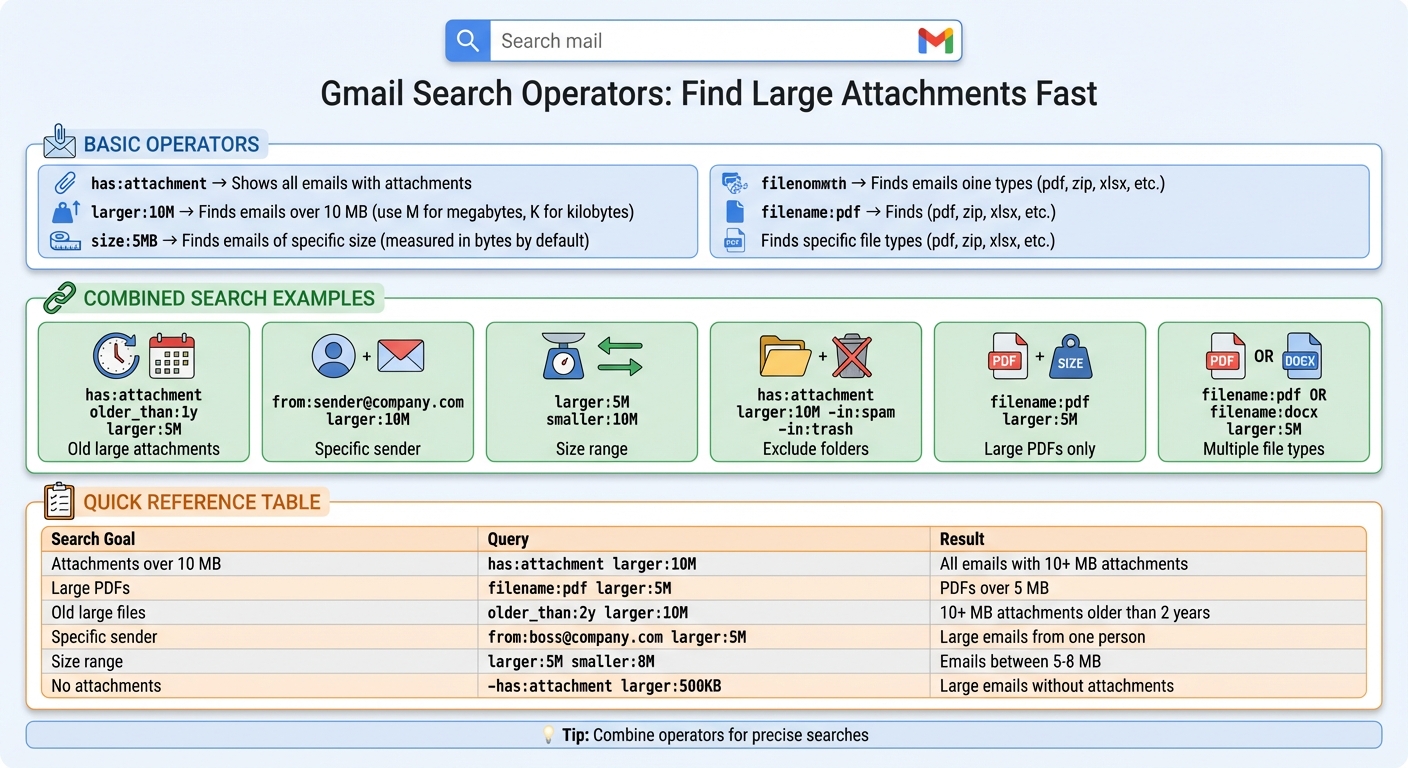
Gmail Search Operators Quick Reference Guide for Finding Large Attachments
Gmail's search operators are like shortcuts you type into the search bar, instantly filtering your inbox to show emails that meet specific criteria.
Using has:attachment and larger:
The has:attachment operator is your go-to for finding emails with attachments. Just type it into Gmail’s search bar, and you’ll see all messages containing attachments. To narrow things down, pair it with the larger: operator to find emails with bigger file sizes. For instance, entering has:attachment larger:10M will display emails with attachments over 10 MB. You can adjust the size by replacing "10M" with another value - like larger:5M for files over 5 MB or larger:20M for anything exceeding 20 MB. The "M" stands for megabytes, but you can also use "K" for kilobytes (e.g., larger:500K).
Using size: and filename: for Specific Files
The size: operator works similarly to larger:, but it measures file size in bytes by default. For example, size:5000000 will locate emails larger than approximately 5 MB (since 5,000,000 bytes equals about 5 MB). To simplify, you can also write size:5MB. While size: is great for exact measurements, many users find larger: easier to use for general searches.
If you’re looking for a specific file type, the filename: operator is incredibly handy. For example, typing filename:pdf will pull up all emails with PDF attachments, while filename:zip will find compressed files. You can even search for a specific file name, like filename:budget.xlsx. Want to get even more precise? Combine this with size filters - for example, filename:pdf larger:5M will show only PDFs larger than 5 MB. This makes it easy to track down large files like presentations, videos, or spreadsheets that might be taking up valuable space. By combining these operators, you can create tailored searches to locate exactly what you need in no time.
Combining Search Operators for Better Results
Stacking multiple search operators can help you zero in on emails based on size, date, sender, and file type. This approach is especially useful for organizing your inbox or clearing out unnecessary clutter and fixing storage issues.
Search Examples for Common Scenarios
Finding old, space-hogging attachments: Use has:attachment older_than:1y larger:5M to locate attachments over 5 MB that are more than a year old. If you need a different timeframe, you can adjust the query with older_than:2y for two years or older_than:6m for six months. Just modify the unit - "y" for years, "m" for months, or "d" for days.
Targeting specific senders: To find emails over 10 MB from a specific sender, try from:marketing@company.com larger:10M.
Creating size brackets: Break down your inbox into manageable chunks by using size brackets. For example, larger:5M smaller:10M identifies emails between 5 MB and 10 MB, while larger:10M smaller:15M focuses on slightly larger emails.
Excluding junk folders: Add -in:spam -in:trash to your search query to skip over emails in your spam or trash folders. For example, has:attachment larger:10M -in:spam -in:trash ensures you're only working with actionable emails. Keep in mind, deleted emails still count toward your storage for 30 days.
Once you’re comfortable with these basics, you can start crafting more detailed custom searches.
Building Custom Search Queries
Custom queries take search operators to the next level, letting you tailor results to meet specific needs. Begin with your main goal - whether you're targeting file size, email age, or file type - and add filters as needed. For instance, if you're looking for large video files tied to a specific project, you could use filename:mov larger:20M subject:"Q4 campaign". The subject: operator limits results to emails with certain words in the subject line, while filename:mov narrows the search to video files.
Boolean logic: Use OR (in uppercase) to broaden your search to multiple file types. For example, filename:pdf OR filename:docx larger:5M finds large PDFs or Word documents. For exact phrases, wrap the terms in quotation marks (e.g., "budget report 2025") to avoid irrelevant matches. You can also group terms with parentheses, such as from:(john@company.com OR sarah@company.com) larger:10M, to find large emails from either sender.
The exclusion operator: The - operator helps refine results by excluding what you don't need. For instance, if you're looking for large emails without attachments - like lengthy text threads - use -has:attachment larger:500KB. To exclude specific file types, try has:attachment larger:5M -filename:pdf, which filters out PDFs while keeping other large attachments.
| Search Goal | Recommended Query |
|---|---|
| Find emails with attachments over 10 MB | has:attachment larger:10M |
| Find large PDFs specifically | has:attachment filename:pdf larger:5M |
| Find old large attachments | has:attachment older_than:2y larger:10M |
| Find large emails from a specific sender | from:boss@company.com larger:5M |
| Find large emails without any attachments | -has:attachment larger:500KB |
| Find emails within a specific size range | larger:5M smaller:8M |
What to Do After Finding Large Attachments
Once you've identified emails with large attachments, it's time to decide which ones to keep and which to remove. Open each email to confirm whether the attachment is still relevant. The Google One Storage Manager can simplify this process by offering a centralized view of storage-heavy files across Gmail, Drive, and Photos.
When cleaning up, start by targeting emails older than a year (you can use the older_than:1y search operator), promotional newsletters, or automated notifications with bulky attachments. If an attachment is important but you need to free up space, download it to your computer or an external storage device before deleting the email. For critical email threads, consider exporting them as PDF or EML files to retain a record without consuming Gmail storage. After that, save any essential files and delete the unnecessary emails permanently.
Reviewing and Saving Important Files
Before hitting delete, take a moment to review the content of each email. Attachments that seem outdated at first glance might include important documents like contracts, receipts, or project files. To ensure you don't lose anything valuable, download these attachments or save them to Google Drive for future access.
Google One Storage Manager plays a key role here, offering a visual breakdown of what's taking up space and enabling bulk deletions. Just remember, once you delete something permanently, it's gone for good. This careful review process helps ensure you keep critical data while freeing up Gmail storage.
Deleting or Archiving Emails
Once you've saved what matters, you can start clearing space by deleting or archiving emails. It's important to note that archiving doesn’t reduce storage usage - it simply moves emails out of your inbox into the "All Mail" folder. To actually reclaim space, you must delete the emails. Keep in mind, emails in the Trash still count toward your 15 GB limit for 30 days. To recover space immediately, go to Trash and select "Empty Trash now".
| Action | Storage Impact | Ideal For |
|---|---|---|
| Archive | None (Email stays in "All Mail") | Reducing inbox clutter without losing access |
| Delete to Trash | None (Until 30 days pass) | Temporarily removing unwanted emails |
| Empty Trash | Immediate storage recovery | Finalizing the cleanup to free up space |
| Download & Delete | Immediate storage recovery | Retaining important files while clearing Gmail storage |
Automating Email Cleanup with MailSweeper

Gmail's advanced search tools are great for uncovering large attachments, but manually sorting through emails and deleting them? That’s a time sink. Enter MailSweeper, an AI-driven tool designed to simplify your email cleanup process. It takes the hassle out of managing storage by automating the heavy lifting.
How the Dustpan Feature Works
At the heart of MailSweeper is the Dustpan feature - a Gmail label that gathers unimportant emails with large attachments automatically. Once installed, MailSweeper scans your inbox for storage-heavy emails that aren’t critical (like those you haven’t starred or marked as important). These emails are then moved to the Dustpan label, keeping your main inbox clutter-free.
You decide how long emails stay in the Dustpan before they’re permanently deleted. Most users opt for 30 or 90 days, depending on their comfort level with auto-deletion. After this set period, MailSweeper deletes the emails, freeing up storage without requiring manual intervention. This automated system works seamlessly alongside the manual search techniques you may already use.
Using MailSweeper with Gmail Search Queries
MailSweeper shines even brighter when paired with Gmail’s search operators. For instance, you can use a query like larger:10M older_than:2y to locate older, bulky attachments manually. Then, let MailSweeper take over to handle similar emails in the future. This combination gives you immediate control over your inbox while preventing future clutter.
The tool integrates perfectly with Gmail’s native search functions - like size: and has:attachment - and actively monitors your inbox. This means you can still perform targeted searches when needed, but MailSweeper ensures storage-heavy emails don’t pile up again.
MailSweeper Pricing
MailSweeper keeps its pricing simple with a one-time payment structure - no subscriptions to worry about. The Personal plan costs $20, but if you act quickly, you could snag the Early Bird plan for just $16 (only 3 spots left). Unfortunately, the Very Early Bird plan at $13 has already sold out. All plans include AI-powered email cleaning, customizable settings, and secure integration with Google accounts, backed by CASA certification for data privacy.
| Plan Name | Price | Availability |
|---|---|---|
| Very Early Bird | $13 (one-time) | Sold out |
| Early Bird | $16 (one-time) | 3 spots left |
| Personal | $20 (one-time) | Available |
Conclusion
Gmail's advanced search operators make it easy to find emails that take up a lot of storage space. For example, running a query like larger:10M or combining has:attachment older_than:1y can help you quickly locate those hefty messages that are eating away at your 15 GB of shared Google storage. Just don’t forget to empty your Trash folder manually after deleting emails - otherwise, those files will sit there for 30 days, still taking up space. While this process works, it can feel a bit tedious.
That’s where MailSweeper can save the day. Its Dustpan feature automates the cleanup process by scanning your inbox for large, unnecessary emails and deleting them after the retention period you set. It’s like having a personal assistant keeping your inbox tidy without the extra effort.
Take a moment to run a search for larger:10M to see which emails are hogging space. Once you’ve deleted what you don’t need and emptied your Trash, consider using MailSweeper - available now for just $16 (hurry, only 3 spots left) - to keep your Gmail streamlined and clutter-free.
With the right mix of smart search queries and automation, you can reclaim your storage and ensure your Gmail stays organized and ready for what matters most.
FAQs
Why does my Gmail storage not drop after deleting big emails?
When you delete emails in Gmail, they aren't removed from your storage right away. Instead, they are moved to the Trash, where they stay for up to 30 days before being permanently deleted. If you want to free up space immediately, you’ll need to manually empty the Trash folder.
Additionally, take a look at other folders, like your Sent or Drafts, for large emails or backups that might still be taking up space. Permanently deleting these items can help reduce your used storage right away.
What’s the best size threshold to search (5 MB vs 10 MB vs 20 MB)?
A size threshold of 10 MB works well for locating large attachments in Gmail. This size is ideal because it helps pinpoint substantial files without being overly inclusive or too restrictive. It’s a widely suggested approach for efficiently managing emails that take up significant storage.
Can I move attachments to Google Drive and delete the emails safely?
You can free up space in your Gmail account by moving large email attachments to Google Drive and then deleting the emails. Here's how to do it:
- Use search operators like
larger:10Morhas:attachment larger:5Mto quickly locate emails with large attachments. - Save any important attachments to Google Drive by downloading them directly or using the "Save to Drive" option in Gmail.
- Once you're sure you've saved everything you need, delete the emails to reclaim storage space.
This process is straightforward and a reliable way to manage your Gmail storage. Just double-check that all critical files are securely saved before deleting anything, so you don’t risk losing essential information.
More free Gmail tools.
Pair these together for a full inbox reset.
Bulk Unsubscribe from Gmail
See the senders flooding your inbox, ranked by volume — your shortlist for unsubscribes.
Open toolMass Delete Gmail Emails
Build a deletion plan by sender, date, label, or all-unread — with the exact Gmail search to run.
Open toolFind Large Emails in Gmail
Pick a size and we build the exact Gmail search to find your biggest emails — then open it in one click.
Open toolGmail Storage Cleanup
Move the slider to your current Gmail usage to see exactly what to delete to free space.
Open toolInbox Zero Score
Rate your inbox health on a 0–100 scale and see the weekly hours your inbox is costing you.
Open tool