
If your Promotions tab is packed, the fix is simple: delete the emails, empty Trash, then block new promo mail from stacking up again. In Gmail, deleted messages sit in Trash for 30 days, so storage space does not come back until Trash is cleared.
Here’s the whole process in plain English:
- On desktop: open
category:promotions, select all conversations, move them to Trash, then empty Trash. - On mobile: delete promo emails in batches, or switch your browser to Desktop site for full bulk selection.
- To keep them gone: use Unsubscribe, set Gmail filters like
has:unsubscribe, and send known promo senders straight to Trash. - To free space faster: search for old or large promo emails, such as
category:promotions older_than:6morlarger:5M.
A few things matter here. Archive does not free storage. Delete does. And before I wipe Promotions, I’d move any receipts, travel emails, or login codes I still need.
Delete All Promotions in Gmail - TURN OFF Promotions Tab (2026)
sbb-itb-34b9fd2
Quick comparison
| Task | Desktop Gmail | Gmail app | Mobile browser in desktop mode |
|---|---|---|---|
| Delete all Promotions at once | Yes | No | Yes |
| Batch delete only | Yes | Yes | Yes |
| Empty Trash right away | Yes | Yes | Yes |
| Best for large cleanup | Yes | No | Yes |
| Best for long-term control | Filters, unsubscribe | Filters, unsubscribe | Filters, unsubscribe |
Bottom line: I’d use desktop for the first cleanup, then use filters and unsubscribes to cut future clutter. If you want less repeat work, an automation tool can keep sweeping promo mail to Trash on a schedule.
How to Delete All Promotions in Gmail on Desktop
If you use Gmail in a desktop browser, you can delete Promotions in bulk.
Open the Promotions Tab or Search category:promotions
Open the Promotions tab, or run a search for category:promotions, to pull up all promotional email. If you don't see the tab, turn it on in Settings → Inbox.
You can also tighten the search with operators like category:promotions older_than:6m or category:promotions larger:5M.
Once Gmail loads the results, you're ready to select everything at once.
Select All Promotions Conversations and Move Them to Trash
Click the top checkbox in the upper-left corner of the message list. That selects the messages now showing on the page.
Then, when the banner shows up above the list, click Select all conversations in Promotions. That tells Gmail to grab every promotional email in your account, not just the first batch you can see.
After that, click the Trash icon in the toolbar, or press # on your keyboard, to move the emails to Trash.
If the selection banner doesn't show up, scroll to the end of the results and run the search again in Compact view.
Empty Trash to Permanently Delete the Emails
Gmail keeps deleted messages in Trash for 30 days before it removes them on its own. So if you stop after deleting, you won't free up storage right away.
To clear the space now, open Trash in the left sidebar and click Empty Trash now. [1][5]
Take a final look for anything you still need, then empty Trash.
If you also use Gmail on your phone, the mobile steps are next.
How to Delete Promotions in the Gmail App on iPhone and Android
Gmail's app doesn't let you select all messages in the Promotions tab at once. So if you're using iPhone or Android, you'll need to delete emails in batches.
Open Promotions and Select Messages in Batches
Tap the menu icon in the top-left corner of the app, then scroll down to Promotions. From there, long-press an email or tap the sender avatar to enter selection mode. Then tap the top checkbox to select the visible batch, which is usually around 50 to 100 messages at a time.
Tap the Trash icon to send those emails to Trash, then repeat the process until you've cleared the tab. After that, open Trash and tap Empty Trash now.
If you have a big backlog, using desktop mode in a mobile browser is often much faster.
How to Delete More Promotions from Mobile
If you want a one-pass method, open Gmail in a mobile browser, switch to Desktop site, and use Select all conversations in Promotions. [1][3]
If you'd rather stay in the app, try the search operator category:promotions larger:5M to surface the biggest messages first. That way, even a few fast batches can free up a decent chunk of storage before you work through the rest. [4]
Once you've cleared the backlog, the next move is cutting down new promotions so they don't pile up again.
How to Stop Promotions from Coming Back
Once you've cleared the backlog, the next job is simple: slow the stream of new promo email. If you don't, the Promotions tab fills right back up and you're back where you started.
Use Unsubscribe Links and Gmail Filters to Cut the Volume
Start with the easy wins. Gmail shows an Unsubscribe link for many senders, right next to the sender's name at the top of the email.[1][4]
That works well for mailing lists from legit companies. A few clicks now can save you from deleting the same junk over and over later.
You can also set up a Gmail filter with has:unsubscribe to catch most marketing email from legitimate senders. Set the action to Delete it, and matching messages will go straight to Trash.[2]
For senders you know you don't want, make a filter with from:sender@example.com and send mail from that address to Trash. If you still need receipts or shipping alerts, add exclusions like -subject:receipt or -from:store.com so order confirmations, receipts, and delivery updates don't get swept up with the promo stuff.[4]
Automate Ongoing Cleanup with MailSweeper
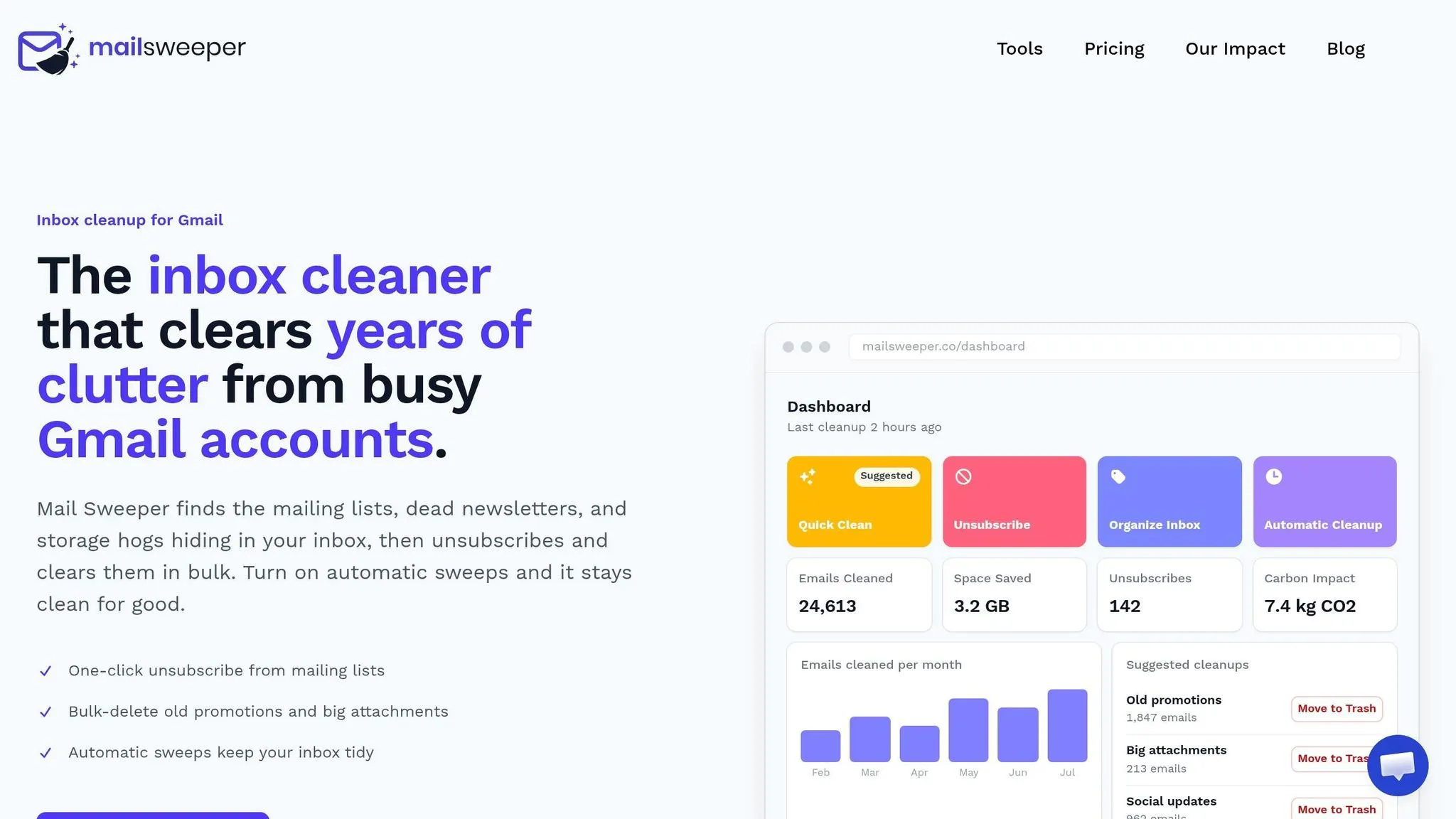
If you'd rather not keep doing manual cleanups, scheduled deletion is the easier path after the first big purge. MailSweeper does an immediate bulk sweep when you connect your Gmail account, then keeps moving new promotional clutter to Trash on a set schedule.
It leaves starred emails, important messages, and Primary mail alone. So if your goal is to keep Promotions under control without doing the same cleanup every few months, MailSweeper fits that job well.
Manual Gmail Cleanup vs. MailSweeper: Which to Use and When
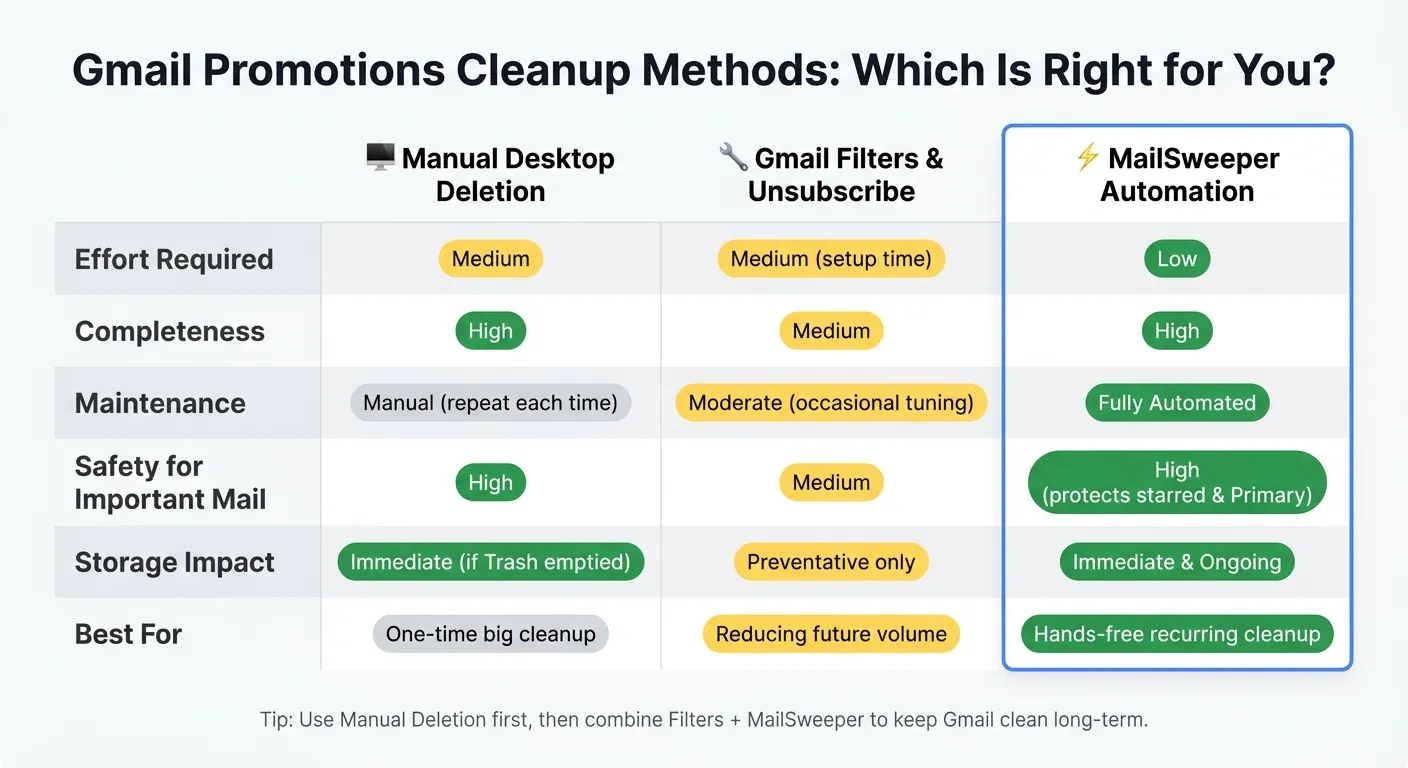
Each option solves a different part of the problem. Manual deletion on desktop is a good pick for a one-time cleanup. Filters and unsubscribes help cut down what lands in your inbox going forward. MailSweeper takes care of repeat cleanup in the background.
| Method | Effort | Completeness | Maintenance | Safety for Important Mail | Storage Impact |
|---|---|---|---|---|---|
| Manual Desktop Deletion | Medium | High | Manual | High | Immediate if Trash emptied |
| Gmail Filters & Unsubscribe | Medium (setup) | Medium | Moderate | Medium | Preventative |
| MailSweeper Automation | Low | High | Automated | High (protects starred/Primary) | Immediate & ongoing |
Conclusion: Clear Your Promotions and Keep Gmail Clean
Clearing Promotions comes down to two steps: wipe out the backlog, then stop it from piling up again.
On desktop, bulk-select emails in Promotions, send them to Trash, then empty Trash. On mobile, you can delete them in batches or switch to desktop mode if you want more control. The same method for a sender, a date range, or unread mail is on delete all Gmail emails.
The long-term fix is simple: unsubscribe from emails you don't want, set up filters, and let MailSweeper take care of repeat cleanup on a schedule. Delete Promotions once, then keep Gmail clean with unsubscribes, filters, and MailSweeper's scheduled cleanup. That's the whole workflow.
FAQs
Will deleting Promotions remove important receipts or travel emails?
Yes. Deleting your Promotions tab can wipe out things you didn't mean to lose, like receipts, flight or hotel confirmations, and even password-reset emails that Gmail dropped there by mistake.
Before you bulk delete anything, take a minute to scan the Promotions tab and move any important messages to Primary. You can also star those emails or add a label, then leave them out of your cleanup with search operators like -is:starred or -label:Important.
Why didn’t my Gmail storage drop after I deleted Promotions?
Deleting emails from Promotions usually sends them to Trash first. So they’re not gone from your account right away, and they can still count toward your storage for up to 30 days unless you empty Trash yourself.
Even after you permanently delete those emails, your storage total may not update right away. In many cases, it can take anywhere from 48 hours to 7 days for the new storage amount to show up.
Can I auto-delete future promo emails without deleting everything else?
Yes - in Gmail, you can set up a filter with category:promotions and choose Delete it. That sends future promotional emails straight to the trash.
That said, be careful. Some messages in Promotions still matter, like receipts, order updates, or warranty details.
A safer approach is to keep those out of the filter by:
- starring them
- moving them to Primary
- adding exceptions for certain senders or keywords
That way, Gmail clears the clutter without tossing emails you may need later.
