
Email Management
How to prevent sender from going to spam in Gmail
Stop important messages landing in Gmail's Spam: mark 'Not Spam', create 'Never send to Spam' filters, add contacts, and verify SPF/DKIM/DMARC.
How to prevent sender from going to spam in Gmail
Tired of missing important emails because they end up in Gmail's spam folder? Here's the quick fix:
- Mark emails as "Not Spam": Move misfiled emails back to your inbox and train Gmail to recognize them as legitimate.
- Create Gmail Filters: Set up rules to ensure emails from trusted senders skip the spam folder entirely.
- Add senders to your contacts: Gmail prioritizes emails from your saved contacts.
- Check sender authentication: Ensure SPF, DKIM, and DMARC are properly configured for trusted domains.
These steps help you take control of your inbox, ensuring critical messages land where they belong. Keep reading for detailed instructions on how to implement these solutions effectively.
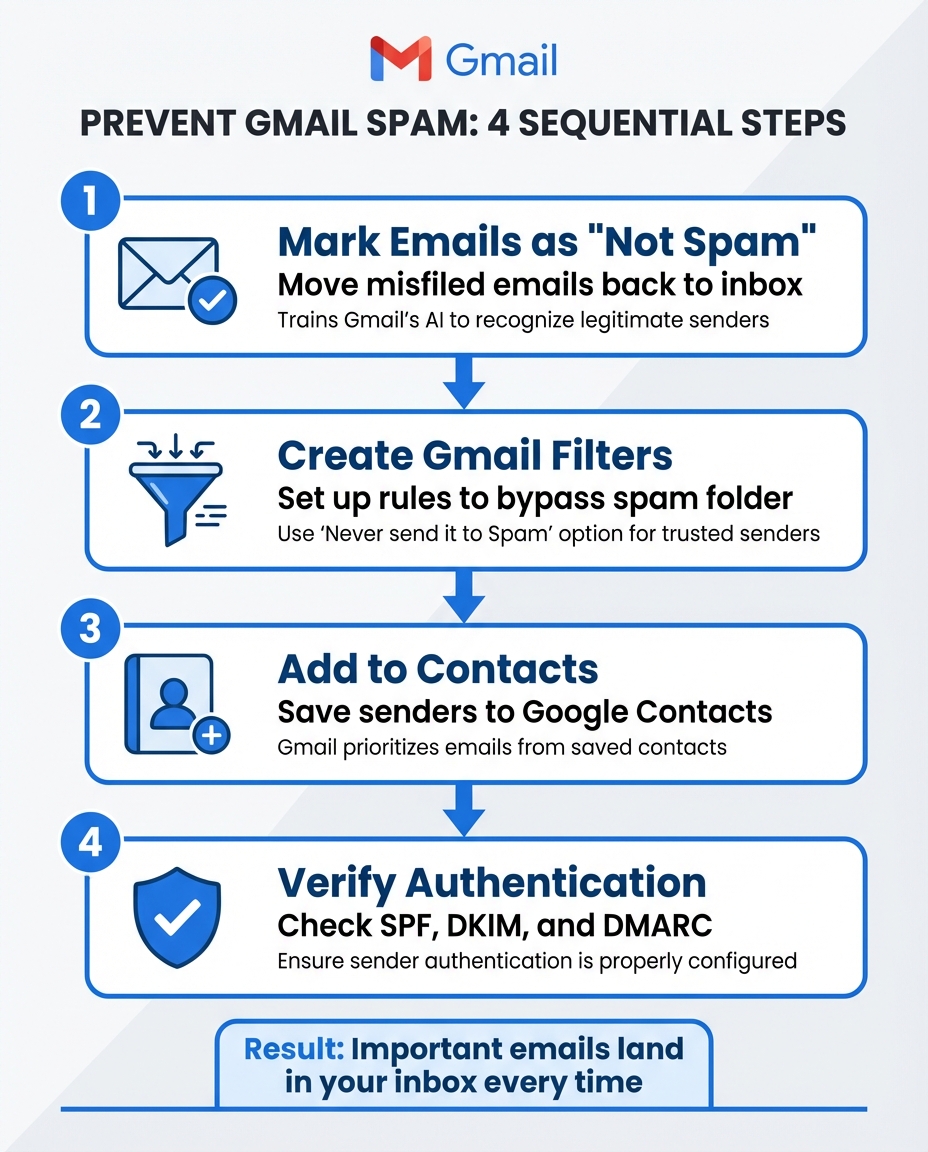
4 Steps to Prevent Emails from Going to Spam in Gmail
Gmail Filter - Never Send To Spam How To Tutorial
How Gmail's Spam Filtering Works
If you want to avoid trusted emails being flagged as spam, it helps to know how Gmail's filtering system works.
Gmail relies on AI, trained on billions of messages, to tackle ever-changing spam tactics. Neil Kumaran, Group Product Manager for Gmail Security & Trust, explains:
To protect users at scale, we rely on machine learning powered by user feedback to catch spam and help us identify patterns in large data sets - making it easier to adapt quickly to ever-changing spam tactics.
This system blocks over 99.9% of spam, phishing attempts, and malware before they ever hit your inbox. It’s a highly effective setup, but understanding what triggers these filters is key to ensuring your emails land where they should.
Gmail evaluates multiple signals at once, including sender authentication via SPF, DKIM, and DMARC. It also uses advanced tools like RETVec (Resilient & Efficient Text Vectorizer), which detects sneaky tricks like obfuscated text - think "fr€€ w1nn3r" - that might bypass simpler filters. This approach not only improves spam detection but also reduces the chance of legitimate emails being flagged by mistake.
What Triggers Gmail's Spam Filter
A variety of factors can send emails straight to the spam folder. One of the biggest culprits is missing or improperly configured authentication. Without valid SPF, DKIM, or DMARC records, emails are flagged as untrustworthy. Starting in late 2025, bulk senders who exceed a 0.3% spam complaint rate may even have their emails rejected at the SMTP level.
Content also matters. Gmail examines subject lines, link structures, HTML formatting, and headers. For instance, misleading headers like "Re:" or "Fwd:" on emails that aren’t actual replies are considered deceptive. Sudden spikes in email volume from new domains without a gradual warmup can also raise red flags. Gmail favors consistent, predictable sending patterns. Additionally, when users hit "Report Spam", it gives Gmail’s AI more data to refine its filters and flag similar emails in the future.
Why Legitimate Emails Get Flagged as Spam
Even legitimate emails can end up in spam due to user engagement and other factors.
Low engagement is a frequent issue. Gmail tracks recipient behavior - high rates of deleting emails without opening them or unsubscribing immediately signal that the content isn’t welcome. Allegrow’s research highlights this:
Gmail rewards reply behavior more than almost any other metric. A sender who consistently generates replies, even modest ones, is statistically unlikely to be a spammer.
New senders often face hurdles since domains without an established history lack the reputation data Gmail uses to assess trustworthiness. Shared email infrastructures can also be problematic; if one sender on the same IP engages in bad practices, it can affect everyone else using that IP. Even transactional emails - like receipts or password resets - from legitimate companies might get flagged if they include marketing-style HTML or lack proper authentication.
How to Mark Emails as Not Spam in Gmail
Sometimes, important emails can mistakenly land in your spam folder. The fastest way to fix this is by marking them as "Not Spam." This action not only moves the email back to your inbox but also helps Gmail's machine learning system recognize future emails from that sender as legitimate.
Google Support explains this process:
Gmail uses machine learning to better understand your preferences, and to recognize spam. When you manually mark a message as not spam, Gmail learns how to manage messages addressed to you.
Steps to Mark an Email as Not Spam
If you're using a computer:
- Open Gmail and click More on the left-hand menu.
- Go to the Spam folder.
- Check the box next to the email you want to recover.
- Click Not spam.
The email will immediately move back to your inbox.
For mobile devices, the steps are slightly different:
- Open the Gmail app and tap Menu (the three horizontal lines).
- Navigate to Spam and open the email you want to recover.
- Tap More (three dots) and select Report not spam.
Tip: If the sender is blocked, unblock them first to prevent their emails from being flagged as spam in the future.
Improve Gmail's Accuracy with Batch Actions
If multiple emails from the same sender are ending up in spam, you can address them all at once. On a computer, simply check the boxes next to all the relevant emails in the Spam folder and click Not spam. This sends a stronger signal to Gmail’s system about your preferences.
Google underscores this point:
"As you report more spam, Gmail identifies similar emails as spam more efficiently".
In short, the more legitimate emails you unmark, the better Gmail becomes at identifying that sender’s messages as trustworthy. If issues persist, consider adding the sender to your contacts or creating a filter to ensure their emails go directly to your inbox.
Stay tuned to learn how to create Gmail filters for even more control over your inbox.
How to Create Gmail Filters to Prevent Spam
If marking emails as "Not Spam" isn’t cutting it, Gmail filters offer a more reliable way to ensure important emails land directly in your inbox.
Filters let you take control of email delivery. Unlike relying on Gmail’s machine learning to adjust over time, filters give you the power to set clear rules. By creating a filter, you can tell Gmail to bypass spam filtering for specific senders or domains. It’s the most dependable way to make sure crucial emails don’t get lost in the spam folder.
Step-by-Step: Creating a Gmail Filter
Here’s how to set up a filter in Gmail:
- Open Gmail on your computer and click the Show search options icon in the search bar.
- In the "From" field, type the sender’s email address or just the domain (like "@company.com") to include all emails from that organization.
- Click Create filter at the bottom of the window.
- On the next screen, check the box labeled Never send it to Spam. This ensures emails matching your filter will always skip the spam folder.
- Finally, click Create filter to save and activate the rule.
Shortcut tip: If you already have an email from the sender, check the box next to it, click the More icon (three vertical dots) in the toolbar, and select Filter messages like these. Gmail will automatically fill in the filter criteria for you.
How to Apply Filters to Past Emails
When creating a filter, look for the checkbox labeled Also apply filter to matching conversations. Selecting this option will apply your spam-bypass rule to all existing emails that match the sender or domain. This is a great way to recover legitimate emails previously flagged as spam and move them back to your inbox in one go.
One thing to note: If the sender is blocked under Settings > Filters and Blocked Addresses, you’ll need to unblock them first. Filters won’t override a blocked sender rule.
sbb-itb-34b9fd2
More Ways to Improve Email Deliverability
Ensuring important emails land in your inbox goes beyond just relying on filters and spam settings. A few additional steps can add extra assurance and help establish the legitimacy of senders.
Add Senders to Your Gmail Contacts
One simple yet effective way to improve email deliverability is by adding senders to your Google Contacts. When you save an email address, Gmail recognizes it as trustworthy, which significantly reduces the chances of those messages being flagged as spam. As Google Workspace Admin Help notes:
When a user adds an external address to their contacts list, Gmail won't mark messages from the external address as spam.
This method is particularly handy when you're using the Gmail app on mobile devices, where creating detailed filters isn't an option. To add a contact, visit contacts.google.com, click "Create contact", and enter the sender's details. For even more reliability, combine this step with a Gmail filter to ensure critical emails always make it to your inbox.
While adding senders to your contacts builds trust on your end, proper email authentication ensures Gmail sees the sender as legitimate.
Verify Sender Authentication (SPF, DKIM, DMARC)
Emails often end up in spam folders when Gmail can't verify the sender's identity. This is where authentication protocols come in. SPF, DKIM, and DMARC work together to confirm that an email is genuine and hasn't been tampered with:
- SPF (Sender Policy Framework): Verifies that the email is sent from an authorized server.
- DKIM (DomainKeys Identified Mail): Uses a digital signature to ensure the email's content hasn't been altered.
- DMARC (Domain-based Message Authentication, Reporting & Conformance): Provides instructions to Gmail on how to handle authentication failures.
To check if an email is properly authenticated, open it in Gmail, click the More icon (three vertical dots), and select "Show original." In the "Authentication-Results" section, look for "PASS" next to SPF, DKIM, and DMARC. If any of these checks fail, the sender may need to update their domain settings. Even if you've added them to your contacts, unauthenticated emails can still be flagged or filtered.
Taking these extra steps helps ensure that important messages consistently reach your inbox.
How MailSweeper Helps Manage Gmail Spam
MailSweeper builds on Gmail's filtering system by making email management even more efficient, helping you maintain a cleaner, more organized inbox.
Gmail's filters are great at blocking spam, but their effectiveness can be hindered by a cluttered inbox. When thousands of low-priority emails pile up, it’s easy to miss important messages or misfiled emails. MailSweeper addresses this by automatically sorting out less critical emails, ensuring your inbox stays streamlined and Gmail's filters work more effectively.
Using the Dustpan Label to Reduce Clutter
One of MailSweeper's standout features is the Dustpan label, which temporarily holds emails that don’t need immediate attention. Once installed, MailSweeper adds this label to your Gmail and uses AI to identify and sort out low-priority messages. It leaves your primary inbox untouched and avoids moving starred or flagged emails, ensuring important messages remain front and center.
By moving less urgent emails into the Dustpan, your inbox becomes less overwhelming, making it easier to spot the emails that truly matter. Plus, this separation allows Gmail's native filters to focus on essential messages without being bogged down by irrelevant ones. The Dustpan doesn’t delete anything outright - it simply organizes emails for later review, giving you control over what stays and what goes.
From here, you can set up MailSweeper to handle older emails automatically, keeping your inbox tidy over time.
Customizing Email Cleanup Settings
MailSweeper takes email organization a step further by letting you automate cleanup tasks. You can schedule emails in the Dustpan to be deleted or archived after 30 or 90 days, depending on your preferences.
If you’re worried about losing something important, you can choose to archive emails instead of deleting them. This ensures nothing critical is lost while still keeping your inbox manageable. By reducing the total number of stored messages, you improve Gmail's ability to filter and prioritize new emails accurately. This minimizes the chance of important messages being marked as spam, keeping your inbox both clean and effective.
Conclusion
Keeping important emails out of the spam folder doesn’t have to be complicated. By focusing on three main strategies - marking emails as "Not Spam", setting up permanent filters, and adding trusted senders to your contacts - you can help Gmail learn which messages matter most to you. Every time you unmark an email, Gmail gets better at recognizing trusted senders.
Using filters with the "Never send it to Spam" option ensures that critical emails always reach your inbox. Combine this with proper sender authentication, and you’ll see a noticeable improvement in email deliverability. A well-organized inbox also plays a big role in making these strategies work smoothly.
When your inbox is cluttered with low-priority emails, it’s harder to notice misfiled messages or spot patterns in what’s being flagged as spam. Tools like MailSweeper’s Dustpan feature can help by sorting out less urgent emails automatically. This keeps your main inbox focused on what’s important while allowing Gmail’s filters to perform more effectively.
Take a moment to check your spam folder and unmark any legitimate emails. Then, set up filters for your key senders and think about using tools like MailSweeper to keep your inbox tidy. By staying proactive - unmarking emails, creating filters, and keeping your inbox organized - you’ll help Gmail deliver the messages you need, right where you need them.
FAQs
Why do some legit emails still go to Spam?
Gmail’s spam filters rely on machine learning to evaluate factors like domain reputation, email content, and user behavior. Sometimes, legitimate emails can end up in the spam folder if they contain elements that resemble spam, such as questionable links, specific keywords, or if the sender’s domain has a low reputation. To avoid missing important messages, mark such emails as "Not Spam" and add trusted senders to your contacts or approved sender list.
Will a filter override Gmail’s spam filter?
Filters in Gmail are a handy way to organize your emails. They let you sort messages into specific folders or your inbox based on criteria you set, like sender, subject, or keywords. However, it's important to note that these filters don't replace Gmail's default spam filtering. Instead, they work together with Gmail's system, helping you better manage your emails and reducing the chances of important messages being flagged as spam.
How can I check SPF, DKIM, and DMARC in Gmail?
Gmail relies on SPF, DKIM, and DMARC to verify the authenticity of emails, but you won't be able to view these records directly within Gmail. To check them, you'll need to access your domain's DNS settings. Look for:
- SPF: Defines which mail servers are allowed to send emails on behalf of your domain.
- DKIM: Adds a digital signature to your emails to confirm they haven't been tampered with.
- DMARC: Specifies how to handle unauthenticated emails, like whether to reject, quarantine, or allow them.
You can use DNS lookup tools to confirm these records are properly configured. This helps ensure your emails are authenticated and reduces the chances of them being flagged as spam.
More free Gmail tools.
Pair these together for a full inbox reset.
Bulk Unsubscribe from Gmail
See the senders flooding your inbox, ranked by volume — your shortlist for unsubscribes.
Open toolMass Delete Gmail Emails
Build a deletion plan by sender, date, label, or all-unread — with the exact Gmail search to run.
Open toolFind Large Emails in Gmail
Pick a size and we build the exact Gmail search to find your biggest emails — then open it in one click.
Open toolGmail Storage Cleanup
Move the slider to your current Gmail usage to see exactly what to delete to free space.
Open toolInbox Zero Score
Rate your inbox health on a 0–100 scale and see the weekly hours your inbox is costing you.
Open tool