
Email Management
Gmail Important Tag: How does it work?
How Gmail's Important tag predicts priority emails using contacts, behavior and keywords; learn to train, hide or disable it and use filters.
Gmail Important Tag: How does it work?
Gmail’s Important tag helps you focus on high-priority emails by using AI to predict which messages matter most. These emails are marked with a yellow icon in your inbox. Gmail’s algorithm evaluates factors like how often you interact with a sender, the keywords in emails, and whether you open or reply to certain messages. You can also manually adjust these markers, teaching Gmail to better align with your preferences over time.
Key Features:
- Yellow Marker: Indicates important emails based on your habits.
- Signals Used: Contact frequency, email engagement, keywords, manual corrections, and addressing.
- Search Shortcut: Use
is:importantto quickly find flagged emails. - Inbox Layout Options: Enable "Important first" or "Priority Inbox" for better organization.
- Manual Control: Mark or unmark emails as important to refine Gmail’s predictions.
- Filters: Automate importance tagging with custom rules.
If you prefer not to use this feature, you can turn it off or hide the markers while keeping Gmail’s sorting active. Tools like MailSweeper can also help manage clutter while respecting Gmail’s importance tags.
What is the Important Icon in Gmail?
How Gmail Decides Which Emails Are Important
How Gmail Determines Email Importance: 5 Key Signals Explained
Gmail uses an algorithm to figure out which emails you’re likely to care about most. It learns from your habits, adapting over time to highlight messages that deserve your attention.
Signals Gmail Uses
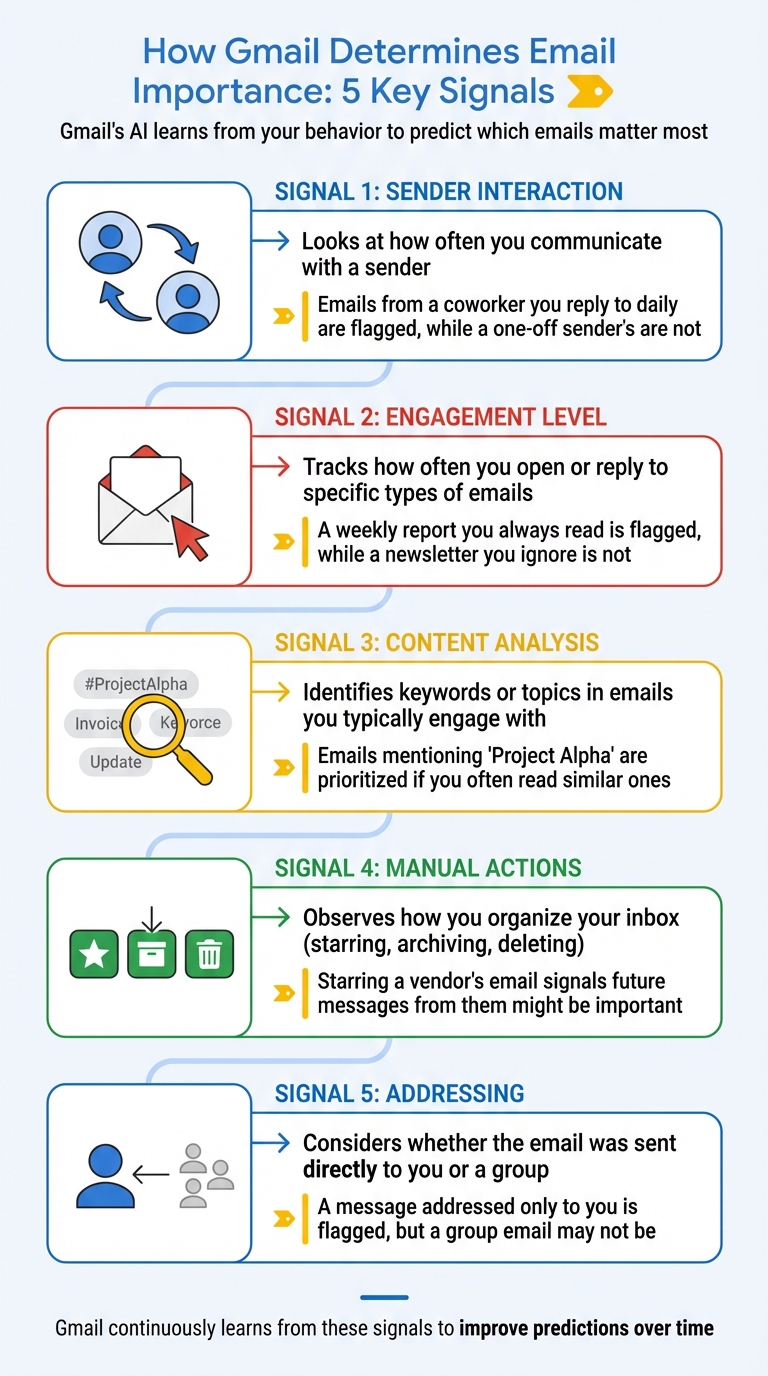
The algorithm relies on several signals to determine importance. One of the key factors is contact frequency - emails from people you interact with regularly are given more weight. Gmail also tracks your actions, like opening, replying, starring, archiving, or deleting messages. Emails you consistently ignore will gradually lose their importance status, while ones you engage with often are flagged.
Keyword analysis helps too. For instance, if you usually open emails containing words like "invoice" or "Project Alpha", Gmail will prioritize new messages with similar terms. Another important factor is manual user corrections. If you mark or unmark an email as important, Gmail adjusts its predictions accordingly. You can hover over the yellow importance marker for an explanation of why a message was flagged.
Addressing also plays a role. Emails sent directly to you are more likely to be marked important than those sent to large groups or through BCC.
Importance Signals Breakdown
Here’s a quick look at the main signals Gmail uses:
| Signal Category | Description | Real-World Example |
|---|---|---|
| Sender Interaction | Looks at how often you communicate with a sender. | Emails from a coworker you reply to daily are flagged, while a one-off sender’s are not. |
| Engagement Level | Tracks how often you open or reply to specific types of emails. | A weekly report you always read is flagged, while a newsletter you ignore is not. |
| Content Analysis | Identifies keywords or topics in emails you typically engage with. | Emails mentioning "Project Alpha" are prioritized if you often read similar ones. |
| Manual Actions | Observes how you organize your inbox (e.g., starring, archiving, deleting). | Starring a vendor’s email signals future messages from them might be important. |
| Addressing | Considers whether the email was sent directly to you or a group. | A message addressed only to you is flagged, but a group email may not be. |
It’s worth noting that importance markers function differently from starring. Starring is entirely manual - you decide what to star. Importance markers, however, are predictions made by Gmail’s AI, which you can adjust if needed. As Google Support explains:
Gmail uses several signals to decide which messages to automatically mark as important, including: Whom you email, and how often you email them; Which emails you open; Which emails you reply to; Keywords that are in emails you usually read; Which emails you star, archive, or delete.
Finding and Viewing Important Emails
Spotting Important Emails
Gmail makes it easy to identify important emails by marking them with a yellow icon right next to the sender's name in your inbox. If Gmail doesn’t consider an email important, the icon will appear as an empty outline instead of being filled in yellow.
You can hover over the yellow icon to see why Gmail flagged the email as important. For instance, it might say something like, "Gmail marked it as important because of the people in the conversation" or mention keywords you frequently interact with.
Want to see all your important emails in one go? Just type is:important into the search bar, and Gmail will pull up a list of all messages marked as important.
Once you've identified these emails, you can tweak your inbox layout to keep them easily accessible.
Filtering Your Inbox View
Important emails might still get lost in the mix of other messages, but Gmail offers tools to prioritize them. The yellow marker helps, but adjusting your inbox layout can make these emails stand out even more. Head to Settings > Inbox and check out the "Inbox type" options.
The Important first layout is a great choice. It separates your inbox into two sections: "Important" at the top and "Everything else" below, so you can focus on high-priority emails first. If you want even more control, try the Priority Inbox layout. It lets you customize sections like "Important and unread" or "Starred", giving you a tailored way to organize and manage your important messages.
Training Gmail to Recognize Your Priorities
Manually Marking Emails as Important
You can help Gmail understand your email preferences by using the importance marker - the arrow icon next to a sender's name. When you click an empty marker, it turns yellow, signaling Gmail to treat that email as important. If you click a yellow marker, it clears, letting Gmail know those types of messages are less critical.
Every time you adjust the importance marker, you're giving Gmail valuable feedback. For instance, if you always mark emails from your boss as important, Gmail will start flagging all their messages on its own. On the flip side, if you consistently clear the marker on promotional emails, Gmail will deprioritize similar messages over time.
You can also hover over a yellow marker to see why Gmail flagged a specific email as important. Once you've mastered this manual process, you can take it a step further by setting up filters.
Creating Filters for Automatic Marking
Filters are a great way to automate marking emails as important, saving you time and effort.
Here’s how to set one up:
- Open Gmail on your computer and click the Show search options icon in the search box.
- Enter details, like a sender’s email address or specific keywords.
- Click Create filter and check the box for Always mark it as important.
- Hit Create filter again to save your settings.
You can also create a filter based on an existing email. Check the box next to the message, click More (the three dots), and choose Filter messages like these. Add any additional criteria, select Always mark it as important, and save the filter. If you need to review or edit your filters later, go to Settings > See all settings > Filters and Blocked Addresses.
Using filters ensures that important emails are automatically highlighted, keeping your inbox organized and efficient.
Improving Gmail's AI Over Time
Gmail doesn’t just rely on manual inputs or filters - it also learns from how you interact with your inbox. It pays attention to who you email most, which messages you open or reply to, and which ones you star, archive, or delete. Over time, Gmail uses this data to refine its predictions about what matters most to you.
To make sure Gmail is learning from your actions, go to Settings > See all settings > Inbox and confirm that Use my past actions to predict which messages are important to me is enabled. If you’d rather Gmail not track your behavior, you can switch to Don't use my past actions to predict which messages are important in the same menu.
sbb-itb-34b9fd2
Turning Off the Important Tag
Disabling Importance Predictions
If you'd rather Gmail stop analyzing your email activity to decide which messages are important, you can turn this feature off. Start by opening Gmail on your computer, click the Settings gear icon, and choose See all settings. Go to the Inbox tab and find the "Importance markers" section. Select the option labeled Don't use my past actions to predict which messages are important, then scroll down and hit Save Changes.
This will prevent Gmail from tracking your email behavior for tagging purposes. Just a heads-up: you’ll need to make this adjustment on a computer, as the Gmail mobile app doesn’t allow direct access to these settings. However, once updated in your browser, the changes will sync across your devices.
Want to keep Gmail’s tagging but reduce the visual clutter? Check out the next section to hide the markers instead.
Hiding the Importance Markers
If you like Gmail's predictive tagging but don’t want to see the yellow importance markers, you can hide them while keeping the feature active. To do this, go to Settings > See all settings > Inbox. Under the "Importance markers" section, select No markers and click Save Changes.
This removes the yellow icons from view while Gmail continues to classify emails as important. You can still locate these messages using the search operator is:important. And if you're using inbox layouts like "Important first" or "Priority Inbox", hiding the markers won't affect how your emails are sorted. However, turning off importance predictions entirely will, as those layouts depend on Gmail's algorithm to organize your inbox.
How MailSweeper Works with Gmail's Important Tag
The Dustpan Label and Important Emails
MailSweeper works hand-in-hand with Gmail's Important tag, making it easier to manage clutter without risking your important emails. When you install MailSweeper, it adds a Dustpan label to your Gmail. This label is where non-essential emails - like promotions and newsletters - are collected. Meanwhile, emails marked as important or starred are automatically excluded from this folder in real time.
As Gmail's AI identifies emails with the yellow importance marker, MailSweeper recognizes these signals and ensures those emails stay out of the Dustpan. This way, your priority messages remain untouched while MailSweeper focuses on organizing and tidying up less critical content.
Cleaning Up Without Losing Important Messages
MailSweeper periodically clears out older emails from the Dustpan, typically after 30 or 90 days, depending on your settings. Because it respects Gmail's importance markers, you can declutter your inbox and save on storage space without worrying about losing essential emails.
Want to double-check that your important emails are safe? Simply search is:important in Gmail. If there are additional emails you want to protect, you can star them, and MailSweeper will automatically exclude them from deletion.
As you interact with your inbox - marking emails as important or unimportant - you’re helping train Gmail's AI. MailSweeper adapts to these changes, refining its system to better protect the emails that matter most to you.
Wrapping Up
Gmail's Important tag and MailSweeper work together to keep your inbox tidy and focused. Gmail's AI learns to identify high-priority emails based on your activity, while MailSweeper takes care of the less important ones by moving them to your Dustpan folder and clearing them out periodically, depending on your preferences.
This combination brings order to your inbox. By manually marking emails as important or unimportant, you help Gmail's AI refine its predictions and guide MailSweeper to better understand which emails to prioritize. Each adjustment you make helps the system align more closely with your needs, creating an inbox that mirrors your preferences.
To get started, enable Priority Inbox in Gmail's settings. Use the is:important search operator to review flagged emails and make corrections by updating the importance marker as needed.
FAQs
How do I change which emails Gmail marks as important?
To change how Gmail identifies important emails, click the yellow importance marker (a small arrow) next to the email. This action toggles the email's importance status, allowing Gmail to learn your preferences over time.
By consistently updating these markers, you can guide Gmail to prioritize the emails that are most relevant to you, helping to keep your inbox tidy and streamlined.
How does Gmail decide which emails are marked as important?
Gmail relies on several factors to decide which emails deserve the important label. This includes tracking who you email most often, how frequently you engage with specific messages (like by opening or replying), and the keywords in the emails you tend to read.
It also pays attention to actions you take, such as starring, archiving, or deleting emails. These behaviors give Gmail clues about your preferences.
By analyzing these patterns, Gmail's system works to highlight the emails that are most relevant to you, helping you stay organized and focus on what truly matters.
How can I turn off Gmail's 'Important' tag feature?
If you want to turn off Gmail's 'Important' tag feature, you can do so through your settings. Start by clicking on Settings in Gmail and then choose See all settings. Next, head over to the Inbox tab. Look for the Importance markers section and select the option to disable them.
With this change, Gmail will stop automatically tagging emails as important, giving you more control over how you organize your inbox.
More free Gmail tools.
Pair these together for a full inbox reset.
Bulk Unsubscribe from Gmail
See the senders flooding your inbox, ranked by volume — your shortlist for unsubscribes.
Open toolMass Delete Gmail Emails
Build a deletion plan by sender, date, label, or all-unread — with the exact Gmail search to run.
Open toolFind Large Emails in Gmail
Pick a size and we build the exact Gmail search to find your biggest emails — then open it in one click.
Open toolGmail Storage Cleanup
Move the slider to your current Gmail usage to see exactly what to delete to free space.
Open toolInbox Zero Score
Rate your inbox health on a 0–100 scale and see the weekly hours your inbox is costing you.
Open tool