
Email Management
Gmail's Automatic Categories: how to use them for maximum productivity
How Gmail's five automatic categories work, how to customize tabs and filters, and how MailSweeper can auto-clean secondary tabs.
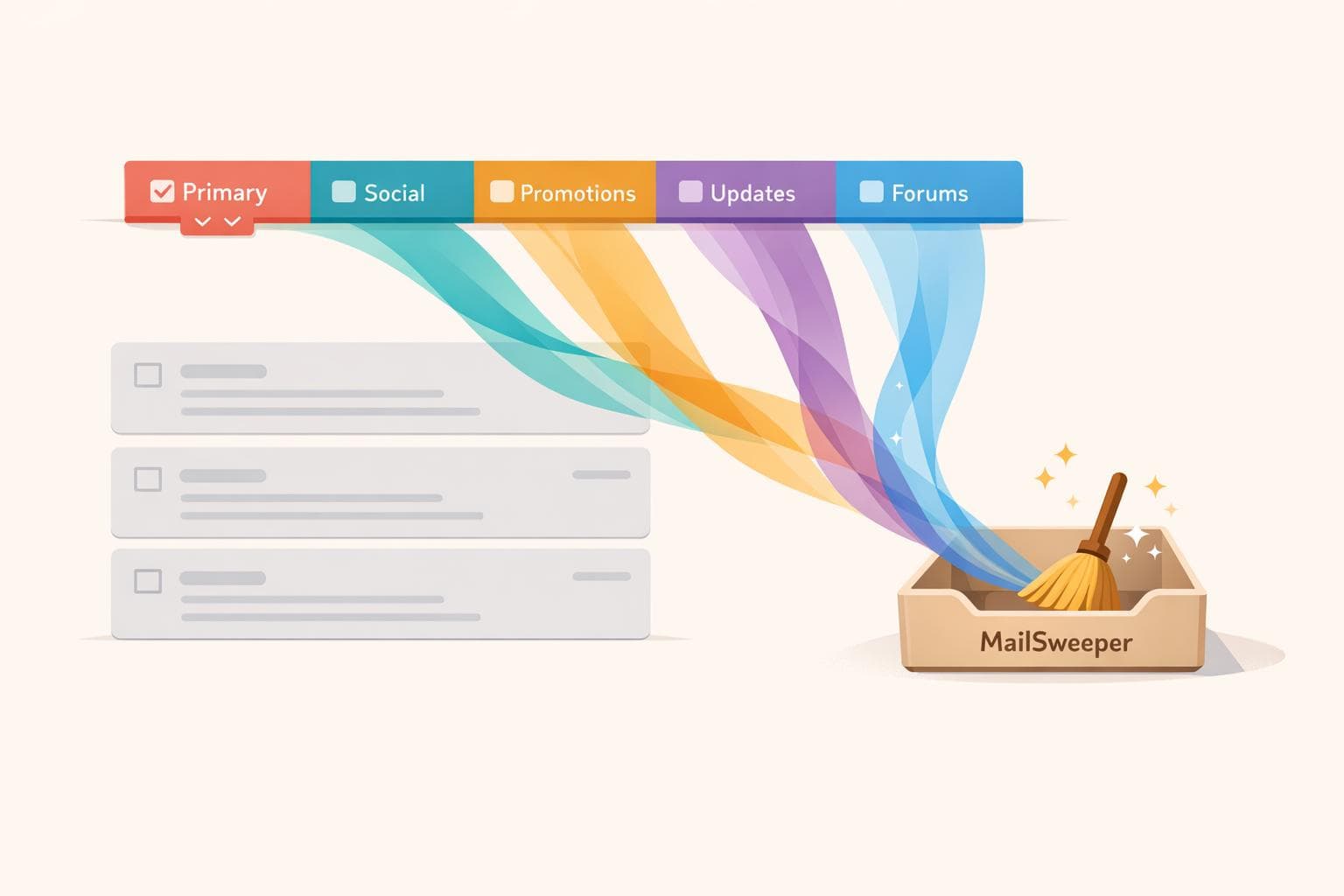
Gmail's Automatic Categories: how to use them for maximum productivity
Tired of email overload? Gmail's Automatic Categories can help you manage the 121 emails the average person receives daily. Here's how it works:
- Gmail sorts your inbox into five tabs: Primary, Social, Promotions, Updates, and Forums.
- Emails are automatically categorized using machine learning, keeping your Primary tab focused on personal and important messages.
- You can customize these tabs, move emails manually, and set up filters to fine-tune the system.
- Notifications are limited to your Primary tab, reducing distractions.
- Over time, Gmail learns your preferences for even better sorting.
For additional help, tools like MailSweeper can automatically clean up less important emails in secondary tabs, ensuring a clutter-free inbox.
How to quickly organize your gmail into categories
Gmail's 5 Automatic Categories Explained
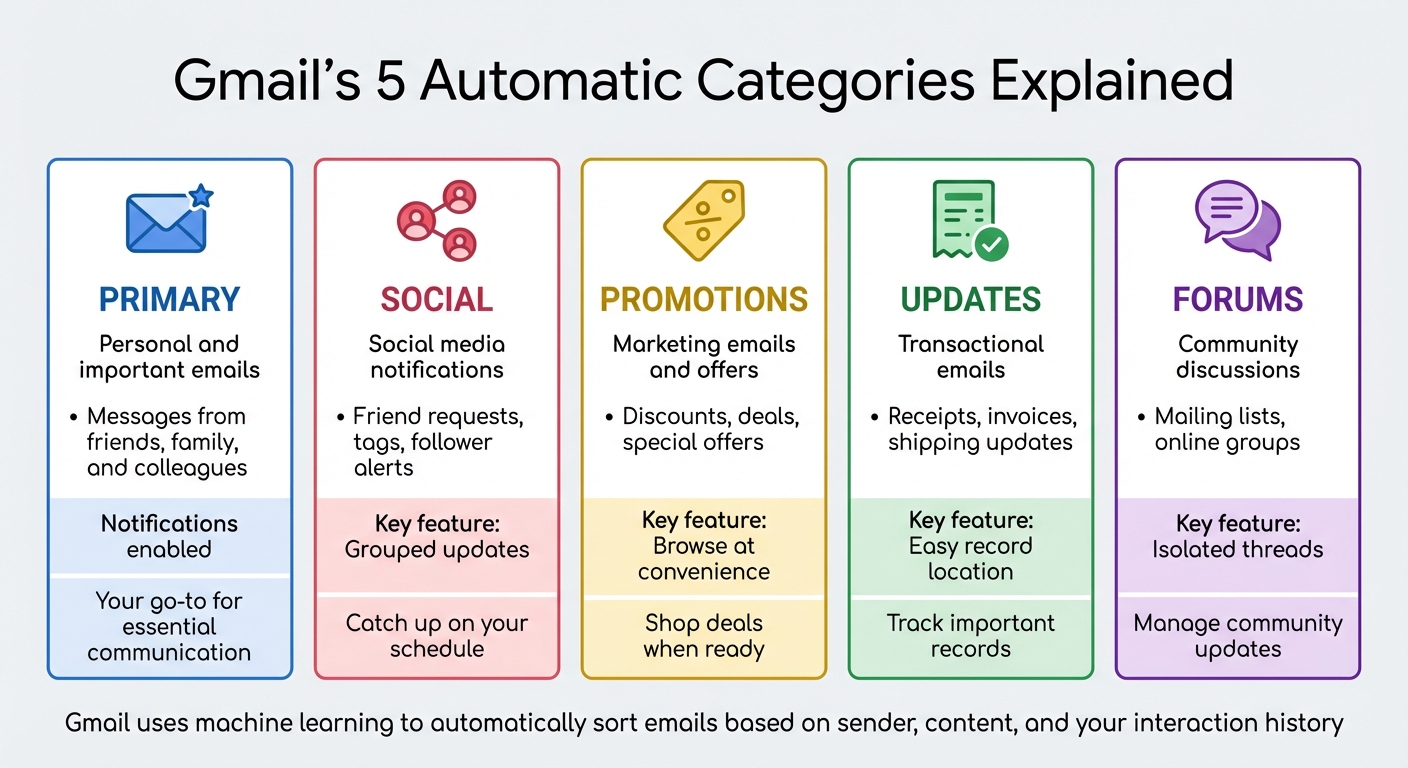
Gmail's 5 Automatic Categories and Their Functions
Gmail organizes your inbox into five distinct tabs, each designed to streamline your email experience. Here's a breakdown of what each tab does and how it helps you stay on top of your messages.
Primary
This is the heart of your inbox, reserved for personal and important emails. Messages from friends, family, and colleagues - basically, anything that doesn’t belong in the other categories - land here. Gmail also prioritizes notifications for emails in this tab, ensuring you never miss something meaningful. Think of it as your go-to space for direct, essential communication.
Social
All those notifications from social media platforms? They’re tucked away in the Social tab. Whether it's a friend request, a tag, or a new follower alert, Gmail keeps these updates out of your Primary inbox. This way, you can catch up on social activity when it suits you, without being distracted by constant pings.
Promotions
Promotional emails, discounts, and special offers find their home in the Promotions tab. Instead of clogging your main inbox, these messages are neatly grouped here. You can browse deals at your convenience or ignore them altogether. Interestingly, many users check this tab regularly to stay updated on offers.
Updates
Transactional emails like receipts, invoices, and shipping updates are sorted into the Updates tab. This makes it easy to locate important records without sifting through unrelated messages.
Forums
If you're part of online communities, mailing lists, or discussion groups, those messages will show up in the Forums tab. By isolating these threads, Gmail ensures they don’t interfere with higher-priority emails.
Gmail uses machine learning to decide where each email belongs, analyzing factors like the sender, content, and even your interaction history. If you manually move an email to a different tab, Gmail learns from this and adjusts future sorting for similar messages.
Understanding these categories allows you to tailor Gmail’s tabs to suit your needs, making your inbox a tool for productivity rather than a source of stress.
How to Customize Gmail's Automatic Categories
Take charge of Gmail's category tabs with these simple steps.
Turn On and Customize Category Tabs
Start by clicking the gear icon in Gmail and selecting Settings. Under Inbox type, choose Default, then click Customize. Check the boxes for the tabs you want - Primary, Social, Promotions, Updates, and Forums - and hit Save. If you want starred emails to show up in the Primary tab, select "Include starred in Primary".
Using the Gmail app on mobile? Tap the menu icon, then go to Settings > [Your Account] > Inbox type > Default Inbox. From there, tap Inbox categories and pick the tabs you prefer. Keep in mind, Gmail's category tabs are only available for accounts with fewer than 250,000 emails.
Move Emails Between Categories Manually
You can help Gmail learn your preferences by manually moving emails between tabs. On a computer, drag and drop an email from one tab to another, or right-click the email and choose the move option. If Gmail asks whether to apply this change to future emails from the sender, confirm to set it as the new default.
On mobile, open the email, tap the three-dot menu, select Move to, and choose the desired tab. Matthew Izatt, Product Lead for Google Workspace Platform, highlights the importance of user input:
"While Gmail takes all of these signals into account, the most important one is your direct input. Your actions teach Gmail how best to sort your email based on your preferences."
Adding a sender to your contacts or replying to their emails can also signal Gmail that they're important, which often moves them to the Primary tab.
Set Up Filters for Automatic Categorization
Filters can save you time by sorting incoming emails automatically based on criteria like sender or keywords. To create a filter, click the search options icon, enter your criteria, and choose "Categorize as:" followed by your desired tab. Then, click Create filter.
You can also create a filter from an existing email. Select the email, click More (the three-dot menu), and choose Filter messages like these. Review the results with Search, then finalize by selecting Create filter. To manage filters, go to Settings > See all settings > Filters and Blocked Addresses. Filters can handle multiple tasks at once, such as marking an email as important while assigning it to the Primary tab.
These steps give you the tools to make Gmail work more efficiently for you, tailored to your specific needs.
sbb-itb-34b9fd2
Productivity Tips for Each Gmail Category
Gmail's automatic email sorting is a game-changer, but to truly make the most of it, you can fine-tune each category for maximum efficiency. Here's how to keep each tab working for you.
Primary: Focus on What Matters
The Primary tab is where your most important emails live, so keeping it tidy is essential. Start by archiving emails as soon as you've dealt with them. Use Gmail's yellow importance marker to flag key emails and train the system to recognize what matters to you. For VIP contacts, set up filters to automatically mark their messages as important. Turn on the "Send & Archive" button in your settings to clear conversations from your inbox immediately after replying. And for emails that don’t need an immediate response, use the Snooze feature to make them reappear when they’re actually relevant.
Social: Tame Notification Overload
Social media notifications can quickly spiral out of control. Mute conversations you don't need to follow, so future replies go straight to your archive. If your Social tab is overflowing, select all conversations and archive or delete them for a fresh start. For more control, create filters for specific platforms to automatically mark notifications as read or archive them. If certain senders keep spamming your inbox, block them to route their emails to Spam automatically.
Promotions: Manage Marketing Emails
Promotional emails can easily overwhelm your inbox if left unchecked. Use an email alias when signing up for newsletters, then set up filters to label or archive these messages automatically. Instead of just deleting unwanted emails, unsubscribe using the link next to the sender's name - this stops them from coming back. For a quick cleanup, select all emails in the Promotions tab and archive or delete them in bulk. When you need to find a specific deal, use search operators to locate it easily without digging through clutter.
Updates: Stay on Top of Bills and Receipts
The Updates tab is your go-to for receipts, bills, and confirmations, so it pays to keep it organized. Star important financial emails and create filters for utility or subscription senders to group them automatically. To find specific receipts fast, use the search bar with "category:updates" and relevant keywords. Once you've processed an email, archive it to keep the tab manageable while still making it searchable in All Mail.
Forums: Cut Through the Noise
Forum emails can flood your inbox with endless replies. Mute threads you no longer need to follow - this way, future messages will be archived automatically. For a quick reset, select all conversations in the Forums tab and archive them. If you want to keep up with forum updates on your own time, set a filter to archive new messages while keeping them searchable for later. This approach lets you stay informed without constant interruptions.
How MailSweeper Works with Gmail Categories
While Gmail does a decent job of sorting emails into categories, it doesn’t stop your inbox from becoming cluttered. That’s where MailSweeper steps in. It works alongside Gmail’s categorization system, automatically managing and clearing out less important emails, so you can focus on what truly matters.
The Dustpan: Automatically Clearing Out the Clutter
MailSweeper’s Dustpan feature takes care of emails in Gmail’s secondary tabs - Social, Promotions, Updates, and Forums - by collecting them for periodic deletion. Importantly, it leaves your Primary inbox untouched and protects any emails you’ve starred. This means crucial messages stay safe while things like promotional offers, order confirmations, and social media alerts are neatly swept away.
Customize Your Cleanup Schedule
MailSweeper lets you decide how long emails in these secondary tabs stick around. You can set the cleanup cycle to either 30 or 90 days. For example, you might choose 90 days for the Updates tab to keep receipts and order confirmations longer, while setting 30 days for Promotions to clear out ads faster.
This system also helps you stay below Gmail’s 250,000-email limit, where Google disables the Default inbox type and category tabs. To keep MailSweeper running smoothly, make sure your Gmail inbox is set to the "Default" type in your settings.
One-Time Payment, Lifetime Access
MailSweeper offers lifetime access for a one-time payment of $13–$20. No subscriptions, no recurring fees - just a simple, affordable solution.
Conclusion
Using Gmail's automatic categories alongside MailSweeper can transform the way you manage your inbox, making it more organized and efficient. Gmail's five tabs - Primary, Social, Promotions, Updates, and Forums - offer a structured way to sort emails. By treating the Primary tab as your priority zone and scheduling time to process the other tabs, you can stay on top of your email flow. Adjusting Gmail's rules by moving misplaced emails to the correct tabs ensures better accuracy over time. You can also boost productivity by starring key emails, muting unnecessary threads, and setting aside time to review less urgent tabs like Promotions and Social.
MailSweeper takes Gmail's organization a step further by automatically removing older emails from secondary tabs - Social, Promotions, Updates, and Forums - without touching your Primary inbox or starred messages. With cleanup cycles of 30 or 90 days, you decide how long emails stick around before they're cleared. For a one-time fee of $13–$20, MailSweeper offers lifetime access, helping you maintain a clutter-free inbox effortlessly. Activate the tabs that match your workflow, and let MailSweeper handle the rest.
FAQs
How do I customize Gmail's categories to organize my inbox better?
You can tweak Gmail's categories to streamline your inbox by deciding which tabs to display and how your emails are sorted.
On a desktop, head to Settings, click the Inbox tab, and check or uncheck categories like Primary, Social, Promotions, Updates, or Forums to suit your needs.
Using the Gmail app on mobile? Tap Settings > [Your Account] > Inbox > Inbox categories, then pick the tabs you want to include. For even better organization, you can train Gmail by marking emails as important or not, setting up filters, or combining categories with labels. These small changes can help you focus on what’s important and keep your inbox tidy.
How can I efficiently manage promotional emails in Gmail?
To keep promotional emails under control in Gmail, start by using the Promotions tab. This feature automatically separates marketing emails and deals from your primary inbox, making it easier to focus on important messages without unnecessary distractions.
You can also use filters and labels to streamline how promotional emails are handled. For example, you can set up filters to automatically archive or delete certain types of promotional content. Taking a few minutes to review and clear out outdated promotions regularly can help free up storage and keep things organized.
Lastly, if there are newsletters or mailing lists you no longer find useful, unsubscribe. This quick action prevents future clutter and makes it easier to maintain a clean inbox, so you can focus on emails that matter most.
How does MailSweeper improve Gmail's automatic email categories?
MailSweeper takes Gmail's automatic email categories to the next level with AI-driven tools designed to simplify inbox management. It can automatically sort less critical emails into custom labels like "Dustpan", so you can focus on the emails that truly matter.
With features like AI-powered sorting and automatic cleanup, MailSweeper enhances Gmail's default categories - such as Primary, Social, and Promotions - by providing an extra layer of organization. This means less manual sorting for you and a clutter-free inbox that's easier to navigate.
By automating these tasks, MailSweeper ensures that important emails get your attention while unnecessary ones are neatly managed in the background. The result? A more streamlined and productive email experience.
More free Gmail tools.
Pair these together for a full inbox reset.
Bulk Unsubscribe from Gmail
See the senders flooding your inbox, ranked by volume — your shortlist for unsubscribes.
Open toolMass Delete Gmail Emails
Build a deletion plan by sender, date, label, or all-unread — with the exact Gmail search to run.
Open toolFind Large Emails in Gmail
Pick a size and we build the exact Gmail search to find your biggest emails — then open it in one click.
Open toolGmail Storage Cleanup
Move the slider to your current Gmail usage to see exactly what to delete to free space.
Open toolInbox Zero Score
Rate your inbox health on a 0–100 scale and see the weekly hours your inbox is costing you.
Open tool