
Email Management
How the Gmail Important Flag Works
Learn how Gmail's yellow importance marker uses machine learning to flag key emails, what signals it uses, how to adjust settings, and tips to train your inbox.
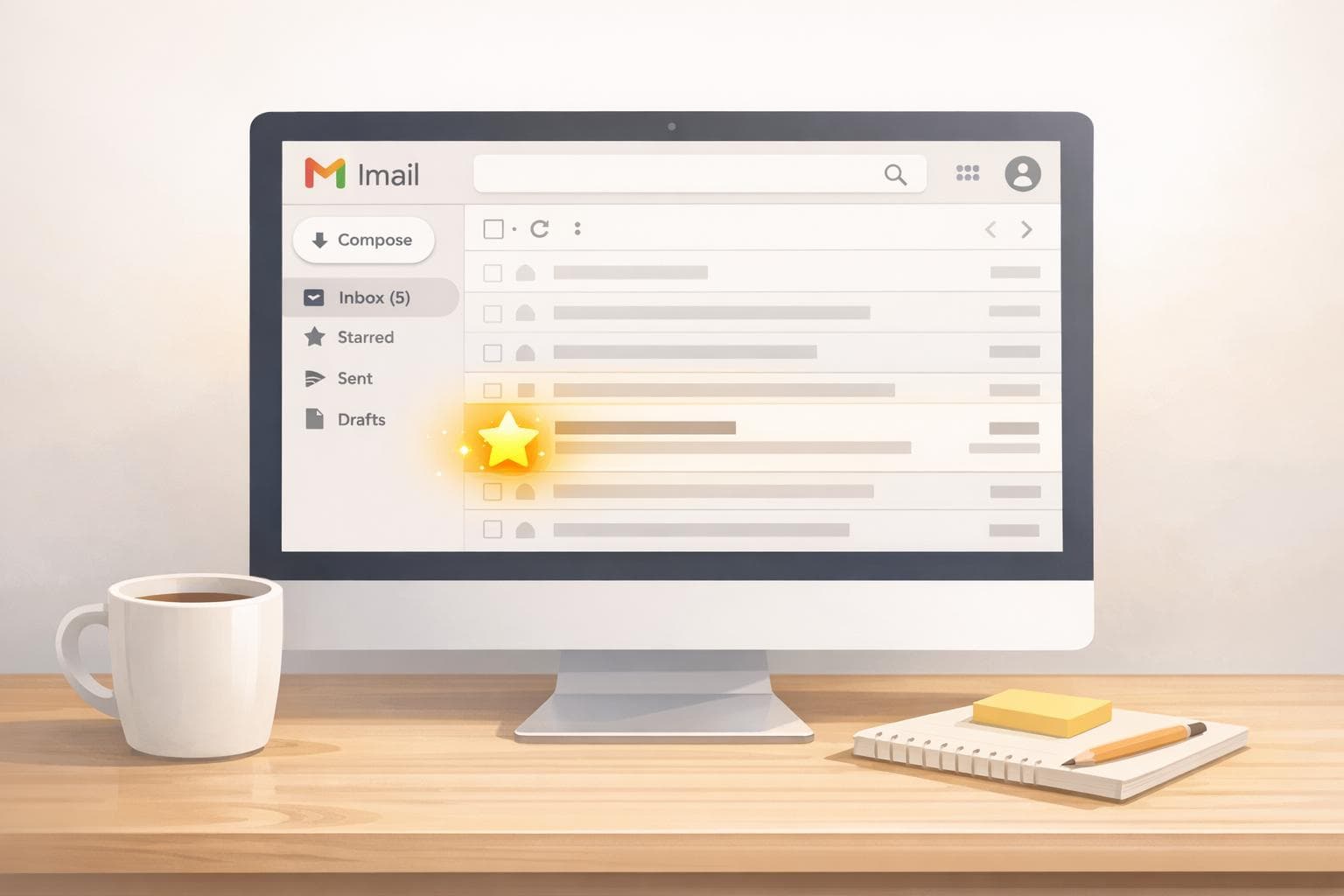
How the Gmail Important Flag Works
Gmail's Important Flag helps you focus on emails that matter by automatically marking them with a yellow tag. Using machine learning, Gmail analyzes your habits - like who you contact, which emails you open, and how you interact with messages - to decide what’s important. You can also manually mark or unmark emails to refine its accuracy.
Key Points:
- Yellow Marker: Flags important emails for quick identification.
- AI Learning: Tracks your behavior to improve over time.
- Manual Adjustments: You can mark/unmark emails to guide Gmail.
- Priority Inbox: Organizes flagged emails into a dedicated section.
- Search Tools: Use
is:importantto find all flagged messages.
To manage this feature, go to Settings > See all settings > Inbox, where you can enable or disable markers, adjust sorting, or turn off Gmail’s predictions entirely. This feature streamlines your inbox, focusing on key messages while reducing distractions.
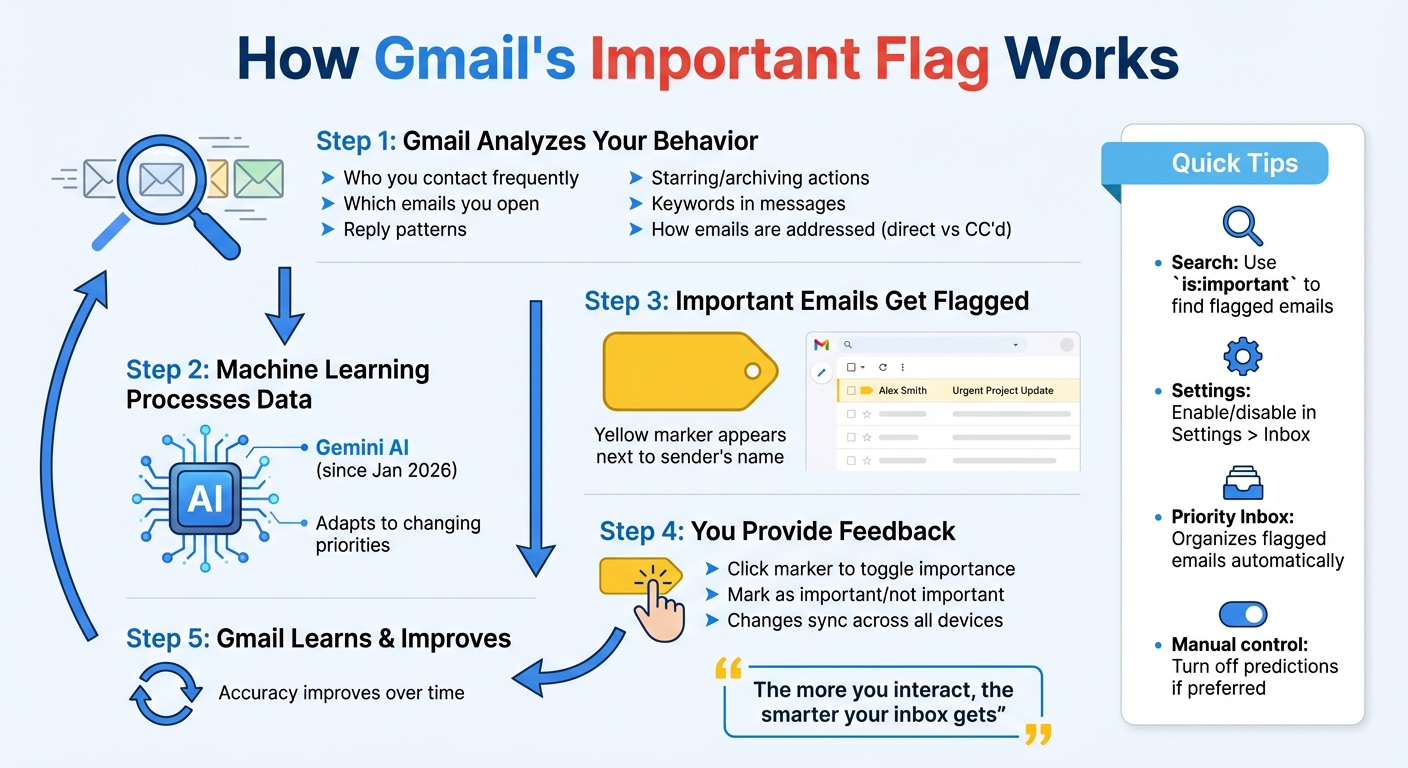
How Gmail's Important Flag Works: Machine Learning Process
How to Prioritize Your Emails in Gmail NOW! (Show Important Emails First)
How Gmail Identifies Important Emails
Gmail takes the hassle out of managing your inbox by using smart technology to flag emails it thinks are important to you. It relies on machine learning to study how you interact with your emails - like which ones you open, reply to, or delete - and factors in details such as how often you contact someone, the keywords in messages, and how emails are addressed. For example, emails sent directly to you are considered more relevant than those where you're just CC'd or part of a bulk mailing list. Actions like starring, archiving, or deleting emails also teach Gmail what matters to you, helping it make better predictions over time.
"Gmail decides what you're likely to classify as important... using criteria such as how you treated similar messages in the past, how the message is addressed to you, and other factors." - Heinz Tschabitscher
Signals Gmail Uses to Flag Emails
Gmail looks at a variety of clues to decide whether to mark an email with that familiar yellow importance tag. One key factor is how often you exchange emails with a particular sender - frequent contacts are more likely to have their messages flagged. Your habits also come into play. For instance, if you consistently star certain types of emails or quickly archive promotional ones, Gmail learns from those actions. You can even check why an email was flagged by hovering over the yellow marker, which might display a note like, "It's important because of the people in the conversation". These personalized signals help Gmail prioritize what lands in your primary inbox.
AI Improvements in Email Detection
Gmail’s AI has gotten even better at keeping up with your changing priorities. Since January 2026, its "Gemini" AI has made email sorting smarter and faster. This advanced system quickly adapts to new patterns, like when you start interacting more with a new contact or focusing on a specific project. As Zahra Thompson, a technology analyst, explains:
"The more you do things like respond to certain emails and mark items as important, the smarter your inbox will get about how to sort, thanks to machine learning algorithms." - Zahra Thompson
If you prefer to manage email importance on your own, Gmail gives you the option to turn off its predictions. Just head to Settings > See all settings > Inbox and choose "Don't use my past actions to predict which messages are important". Keep in mind, though, that disabling this feature means you'll need to manually flag messages as important.
How to Spot Important Emails in Your Inbox
Recognizing important emails in Gmail can save you time and help you stay organized. Gmail uses a visual marker system to flag emails that might need your attention, so you don’t have to open every single message to figure out what’s urgent.
The Yellow Marker Icon
Gmail marks important emails with a yellow flag icon right next to the sender’s name. If the flag is solid yellow, the email is marked as important. If it’s just a gray outline, it’s not. Hovering over the marker gives you a quick explanation of why Gmail flagged the email as important. Want to see all your flagged emails in one go? Just type is:important into the Gmail search bar.
If you don’t see these markers in your inbox, they might be turned off. To enable them, head to Settings > See all settings > Inbox, and in the "Importance markers" section, select Show markers. Once enabled, these changes will sync across your devices, including the Gmail app on your phone.
These markers not only make it easier to spot priority emails but also work seamlessly with Gmail’s sorting tools.
How It Works with Priority Inbox
The importance markers play a big role in how Gmail’s Priority Inbox organizes your messages. This feature automatically divides your inbox into sections, typically starting with "Important and unread" at the top, followed by "Starred", and then "Everything else." To turn on Priority Inbox, go to Settings > See all settings > Inbox, set the "Inbox type" to Priority Inbox, and click Customize to adjust which sections you want to see.
You can also click on the yellow marker to toggle its status, which helps Gmail learn your preferences over time. The more you interact with these markers, the better Gmail gets at sorting your emails into the right categories.
Using the Important Flag to Organize Your Email
Getting a handle on Gmail's importance markers can make managing your inbox a whole lot easier. This feature not only highlights high-priority emails but also helps you keep them organized so they don’t disappear into the chaos.
Automatic Sorting to the Primary Tab
Gmail uses tabs like Primary, Social, Promotions, and Updates to organize your emails. Messages flagged as important typically land in the Primary tab, where personal and work-related conversations are usually found. If an important email ends up in the wrong tab, you can drag it to Primary to help Gmail learn your preferences.
Want to make flagged messages even easier to find? Switch to the "Important first" inbox view. Just go to Settings > See all settings > Inbox, and choose this layout. This setup brings flagged emails front and center, making them hard to miss while also setting the stage for MailSweeper’s cleanup features.
How MailSweeper's Dustpan Protects Important Emails
MailSweeper’s Dustpan feature ensures that flagged emails stay safe during cleanups. When you run a cleanup, Dustpan automatically skips emails marked as important or starred. This way, you can clear out the clutter without worrying about accidentally deleting something critical.
Dustpan focuses on unflagged emails outside the Primary tab, deleting them after 30 or 90 days - whichever you prefer. By working seamlessly with Gmail’s importance markers, it ensures your VIP emails and priority threads stay intact, while the rest of your inbox gets a much-needed refresh.
sbb-itb-34b9fd2
Training Gmail to Recognize Your Important Emails
Gmail’s ability to detect important emails improves the more you interact with it, but it relies on your input to truly understand what matters to you. By actively giving feedback, you can help Gmail refine its predictions.
Manually Marking Emails as Important or Not Important
You can guide Gmail by adjusting the importance marker next to an email. Simply click the yellow marker beside the sender’s name to toggle its importance. If you hover over the marker, Gmail will explain why it flagged the message - common reasons include frequent interactions with the sender or the presence of keywords you typically engage with.
Using a mobile device? Open the email, tap the three dots in the top corner, and choose either "Mark as important" or "Mark as not important". Any changes you make will automatically sync across all your devices, ensuring consistent updates to your inbox.
If you want even more control, Gmail offers ways to customize how it handles importance markers.
Changing Importance Settings in Gmail
To tweak Gmail’s predictions, head to Settings (gear icon) > See all settings > Inbox, and locate the "Importance markers" section. Here, you can adjust settings to suit your preferences.
If you’d rather Gmail stop making predictions based on your behavior, select Don't use my past actions to predict which messages are important and hit Save Changes. This will disable Gmail’s learning process, though you can still manually mark emails as important or not. Alternatively, if you don’t want to see the markers at all, choose No markers in the same section.
Keep in mind that these settings are only accessible through a web browser, but any changes you make will sync across all your devices. To review emails Gmail currently considers important, type is:important into the search bar. This lets you spot trends and fine-tune your feedback as needed.
When to Use the Important Flag and Tips for Better Results
Gmail's Important Flag takes inbox organization to another level by helping you manage email overload more effectively. It works hand-in-hand with Gmail's smart sorting features to bring essential messages to the forefront.
The Important Flag is particularly useful if you frequently communicate with a specific group, like your manager, key clients, or team members. Gmail learns from your email habits and prioritizes messages from these contacts, saving you time and effort.
To make the most of it, consider setting up filters. For example, you can mark emails from VIP senders or specific aliases (like yourname+urgent@gmail.com) as always important in Gmail's Settings. This ensures critical messages are flagged, especially during Gmail's learning phase.
For even better organization, try layering flags with stars. Use stars to mark emails for follow-ups while muting irrelevant threads to keep your inbox clutter-free. If Gmail mistakenly flags newsletters or alerts as important because of common keywords, unmark them immediately to fine-tune its accuracy.
Pros and Cons of the Important Flag
| Benefits (Pros) | Limitations (Cons) |
|---|---|
| Automatic Prioritization: Highlights key messages without requiring manual sorting. | Occasional Misclassification: May flag non-essential emails, like newsletters, due to keyword overlap. |
| Behavioral Learning: Adapts to your habits over time for better accuracy. | Initial Setup Needed: Requires manual adjustments during the early stages to work effectively. |
| Customizable Options: Filters allow you to ensure specific senders are always flagged. | No Outgoing Indicators: Doesn't communicate urgency to recipients. |
| Quick Visual Cues: The yellow marker makes it easy to spot important emails at a glance. | Privacy Concerns: May not always align with workplace priorities, as it's based on your personal interactions. |
These tips can help you stay on top of your inbox and keep distractions to a minimum while Gmail's tools do the heavy lifting.
Conclusion
Gmail's Important Flag uses AI to learn your email habits - like who you communicate with, which emails you open, and specific keywords - to identify priority messages, marked with a yellow tag. You can help Gmail get smarter by manually marking emails as important or not, which fine-tunes its predictions over time.
Once an email is flagged, your ongoing interactions further shape Gmail's accuracy. If Gmail makes a mistake, simply click the importance marker to correct it. For better organization, try using the Priority Inbox feature to keep crucial emails front and center. You can also use search operators like is:important to quickly find all flagged messages or set up filters to automatically mark emails from VIPs as important.
To complement Gmail's tools, MailSweeper's Dustpan feature works in the background to clean up your inbox. While Gmail focuses on identifying key messages, MailSweeper automatically deletes unimportant emails after 30 or 90 days - excluding those in your Primary inbox or flagged as important or starred. Together, Gmail's smart filtering and MailSweeper's cleanup system ensure your inbox stays focused on what matters most.
FAQs
How does Gmail decide which emails are marked as important?
Gmail leverages machine learning to figure out which emails matter most to you. It studies your habits - like who you email often, how you interact with messages, and actions such as opening, replying, starring, archiving, or deleting. It even takes note of keywords in the emails you tend to engage with.
Over time, this system gets smarter, fine-tuning its predictions based on your behavior. You can also guide it by manually marking emails as important or removing that label, helping Gmail align with your preferences.
Can I change which emails Gmail marks as important?
In Gmail, you can manually change an email's importance by clicking the yellow importance marker next to the email. Toggling it on or off adjusts the email's status and helps Gmail's AI understand your preferences over time.
By regularly marking emails as important or not, you can train Gmail to better prioritize the messages that are most relevant to you. This makes managing your inbox easier and keeps things more organized.
What can I do if Gmail incorrectly marks an email as important?
If Gmail marks an email as important by mistake, you can fix it by clicking the yellow importance marker (the small tag icon) next to the email. This will turn it off and help Gmail understand your preferences over time.
If you notice this happening often, you can fine-tune how Gmail decides what’s important. Just go to the Inbox tab in your Gmail settings and update the importance marker settings. Adjusting these settings helps Gmail prioritize emails in a way that works better for you.
More free Gmail tools.
Pair these together for a full inbox reset.
Bulk Unsubscribe from Gmail
See the senders flooding your inbox, ranked by volume — your shortlist for unsubscribes.
Open toolMass Delete Gmail Emails
Build a deletion plan by sender, date, label, or all-unread — with the exact Gmail search to run.
Open toolFind Large Emails in Gmail
Pick a size and we build the exact Gmail search to find your biggest emails — then open it in one click.
Open toolGmail Storage Cleanup
Move the slider to your current Gmail usage to see exactly what to delete to free space.
Open toolInbox Zero Score
Rate your inbox health on a 0–100 scale and see the weekly hours your inbox is costing you.
Open tool