
Email Management
How to whitelist an email
Whitelisting trusted senders prevents vital messages from landing in spam and keeps your inbox organized.
How to whitelist an email
Whitelisting ensures emails from trusted senders always land in your inbox instead of the spam folder. Here's how you can do it across Gmail, Outlook, and Yahoo Mail:
- Gmail: Create a filter in settings to bypass spam for specific email addresses or domains.
- Outlook: Add senders to the "Safe Senders List" via Junk Email options.
- Yahoo Mail: Set up filters to direct trusted emails straight to your inbox.
Spam filters can misclassify important emails like password resets or event confirmations. By whitelisting, you avoid missing key messages and keep your inbox organized. Regularly review your whitelist to remove outdated entries and maintain security. Pair this with tools like MailSweeper for better inbox management.
How to Whitelist an Email or Domain in Outlook?
sbb-itb-34b9fd2
Why You Should Whitelist Emails
Whitelisting is a simple yet powerful way to ensure you receive important emails without them getting lost in spam folders. Did you know that about 16% of all email campaigns, receipts, and sales follow-ups never make it to the inbox? That’s one out of every six critical messages that could vanish without you even realizing it.
Prevent Important Emails from Being Blocked
Spam filters are designed to protect you from unwanted emails, but they’re not perfect. For example, Microsoft Outlook delivers only 75.6% of emails to the inbox, while Gmail does slightly better at 87.2%. Still, plenty of legitimate messages - like password resets, meeting confirmations, or client communications - end up flagged as spam.
Automated alerts are especially at risk. Because they often resemble marketing emails, spam filters can mistakenly classify them as junk. By the time you dig through your spam folder and find that critical message, it might already be too late. As the Superhuman Team says, "Whitelisting ensures that Gmail never misidentifies a message". It’s a simple way to make sure emails from trusted senders always arrive on time.
Improve Your Email Organization
Whitelisting doesn’t just stop spam filters from blocking important emails - it also helps you keep your inbox organized. When you whitelist a sender, you’re essentially creating a VIP list, signaling to your email provider that these messages deserve priority. This can save you hours of frustration searching for lost invoices or event invites.
For even better results, pair whitelisting with tools like MailSweeper. MailSweeper’s Dustpan feature automatically collects less important emails for periodic cleanup, while whitelisting ensures that key messages - like those from clients or colleagues - stay in your primary inbox. To make it even easier, whitelist entire domains (e.g., *@company.com) rather than individual addresses. This way, all current and future emails from that organization are automatically approved.
How to Whitelist Emails in Gmail, Outlook, and Yahoo Mail
How to Whitelist Emails in Gmail, Outlook, and Yahoo Mail
Each email platform has its own method for whitelisting emails. Here's how to make sure MailSweeper notifications and other important emails always land in your inbox.
How to Whitelist Emails in Gmail
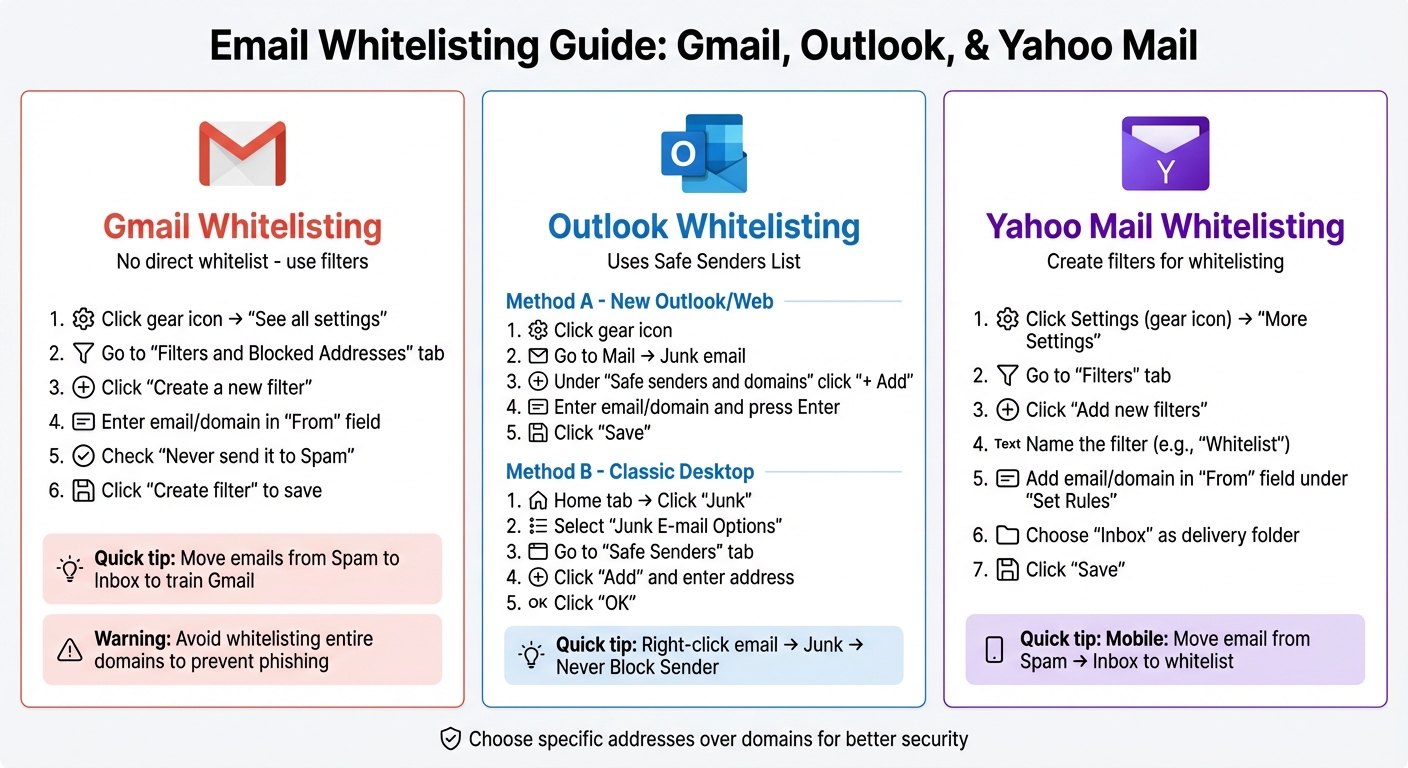
Gmail doesn't have a direct "Whitelist" option, but you can create a filter to keep emails out of spam. Here's how to do it on a computer:
- Open Gmail, click the gear icon, and choose "See all settings."
- Go to the "Filters and Blocked Addresses" tab, then click "Create a new filter."
- In the "From" field, type the email address you want to whitelist (e.g., MailSweeper's notification address) or an entire domain like
@example.com. - Click "Create filter", check "Never send it to Spam", and save by clicking "Create filter" again.
If an email ends up in Spam, open it, click the three-dot menu, and select "Move to Inbox." This action helps Gmail learn what emails you consider important.
"Filters are the closest thing Gmail has to a 'safe sender' or 'whitelist.'" - Illinois Center for Transportation
To stay safe, avoid whitelisting entire domains unless absolutely necessary. Stick to specific email addresses to minimize phishing risks.
How to Whitelist Emails in Outlook
Outlook uses a Safe Senders List to prevent emails from going to the Junk folder. Here’s how to set it up:
For the new Outlook or Outlook on the web:
- Click the gear icon in the top-right corner.
- Go to Mail > Junk email.
- Under "Safe senders and domains", click "+ Add."
- Enter the email address or domain, press Enter, and click "Save."
For the classic Outlook desktop app:
- On the Home tab, click "Junk" in the Delete group, then choose "Junk E-mail Options."
- Go to the "Safe Senders" tab and click "Add."
- Enter the email address or domain and click "OK."
Alternatively, you can right-click an email, select "Junk", and choose "Never Block Sender." To ensure MailSweeper emails appear in your Focused tab, right-click a message and choose "Always move to Focused."
How to Whitelist Emails in Yahoo Mail
In Yahoo Mail, creating a filter is the best way to whitelist emails:
- Click the Settings (gear icon) in the top-right corner and select "More Settings."
- Go to the "Filters" tab on the left and click "Add new filters."
- Name the filter (e.g., "Whitelist" or "Trusted Senders").
- Under "Set Rules", add the email address or domain in the "From" field.
- Choose "Inbox" as the folder to deliver messages to and click "Save."
For the Yahoo Mail mobile app, open the Spam folder, select the email you want to whitelist, tap "Move", and choose "Inbox." This action usually ensures future emails from the sender go directly to your inbox.
How to Manage Your Whitelist
Review and Update Your Filters Regularly
Keeping your whitelist up to date is essential. Take time every few months to review it and remove any outdated email addresses. Old entries can clutter your inbox and may even pose security risks if those accounts are compromised.
Don't forget to check your spam folder regularly, too. Studies show that spam folders can hold up to 50% of your emails. Before hitting "delete all", scan for any important messages that might have been wrongly classified.
"Check your whitelist regularly to make sure it contains only active and relevant senders. Remove outdated or unnecessary entries." - Paul Anthonioz, Content Editor, Mailmeteor
If a trusted sender changes their email domain, update your whitelist immediately. Also, keep an eye on custom rules or antivirus settings that might override your whitelist and misdirect emails.
Whenever possible, whitelist specific email addresses rather than entire domains. Whitelisting a whole domain might seem easier, but it can leave you vulnerable to phishing attacks if someone within that domain sends harmful content.
By maintaining a clean and current whitelist, you can ensure that important emails flow smoothly into your inbox. Once you've done this, tools like MailSweeper can help streamline the process further.
Use MailSweeper with Whitelisting
After fine-tuning your whitelist, let MailSweeper take over to keep your inbox organized. Whitelisting ensures that emails from key senders - like your bank, clients, or MailSweeper notifications - land safely in your Primary inbox. Meanwhile, MailSweeper's AI sorts unimportant emails into the Dustpan, where they’re automatically deleted after a set time.
This system keeps your trusted emails secure while clearing out the clutter. MailSweeper won’t touch messages you’ve flagged as important, starred, or saved in your Primary inbox, so your whitelisted emails stay protected. The result? Lower storage costs and a cleaner, more manageable inbox.
For even better organization, use filters to tag whitelisted emails into folders like "Work" or "Invoices." This way, your main inbox stays neat, and you’ll never lose track of important messages.
Wrapping It Up
Whitelisting emails is a straightforward way to take charge of your inbox and ensure that important messages don’t slip through the cracks. It acts as a manual override for aggressive filtering systems that sometimes mislabel crucial emails.
Whether you’re using Gmail, Outlook, or Yahoo Mail, the steps in this guide can help you prioritize emails from key senders like clients, partners, or essential services. By adding trusted contacts to your whitelist, you’re essentially training your email provider to recognize and prioritize these messages, which improves its accuracy over time.
"Choosing to whitelist an email address is the best way to make sure you don't miss vital emails again." - Simon Haven, Content Creator
Regularly reviewing your whitelist, as mentioned earlier, is a smart way to stay ahead of evolving spam tactics. This ensures your inbox remains efficient and aligns perfectly with MailSweeper’s approach to keeping things organized.
By making whitelisting a habit, you gain better control over your inbox. Take a few minutes each week to check your spam folder for any misclassified emails and update your whitelist as needed. These small efforts reinforce your preferences and keep everything running smoothly.
Pairing whitelisting with MailSweeper gives you a powerful combo: trusted emails land safely in your Primary inbox, while MailSweeper’s AI handles the clutter, moving unimportant messages to the Dustpan. This keeps your inbox tidy and helps manage storage costs effectively.
FAQs
Is it safer to whitelist an email address or a whole domain?
It's usually a better idea to whitelist a specific email address rather than an entire domain. This approach minimizes the chances of letting in unwanted or harmful emails. That said, whitelisting an entire domain can make sense for well-trusted organizations with numerous email addresses - provided you're confident in the domain's overall security.
Why do whitelisted emails still sometimes go to spam?
Whitelisted emails can still end up in the spam folder because whitelisting only impacts the spam rules of your email client. It doesn't bypass the server-side or global spam filters, which evaluate messages using broader criteria and may still flag them as spam.
How often should I review and clean up my whitelist?
It's a good idea to go through your whitelist regularly to keep it up-to-date and effective. Try to do this every few months or at least once a quarter. By reviewing it often, you can remove outdated or incorrect entries and add new trusted senders. This keeps your whitelist organized and helps maintain smooth email deliverability.
More free Gmail tools.
Pair these together for a full inbox reset.
Bulk Unsubscribe from Gmail
See the senders flooding your inbox, ranked by volume — your shortlist for unsubscribes.
Open toolMass Delete Gmail Emails
Build a deletion plan by sender, date, label, or all-unread — with the exact Gmail search to run.
Open toolFind Large Emails in Gmail
Pick a size and we build the exact Gmail search to find your biggest emails — then open it in one click.
Open toolGmail Storage Cleanup
Move the slider to your current Gmail usage to see exactly what to delete to free space.
Open toolInbox Zero Score
Rate your inbox health on a 0–100 scale and see the weekly hours your inbox is costing you.
Open tool