
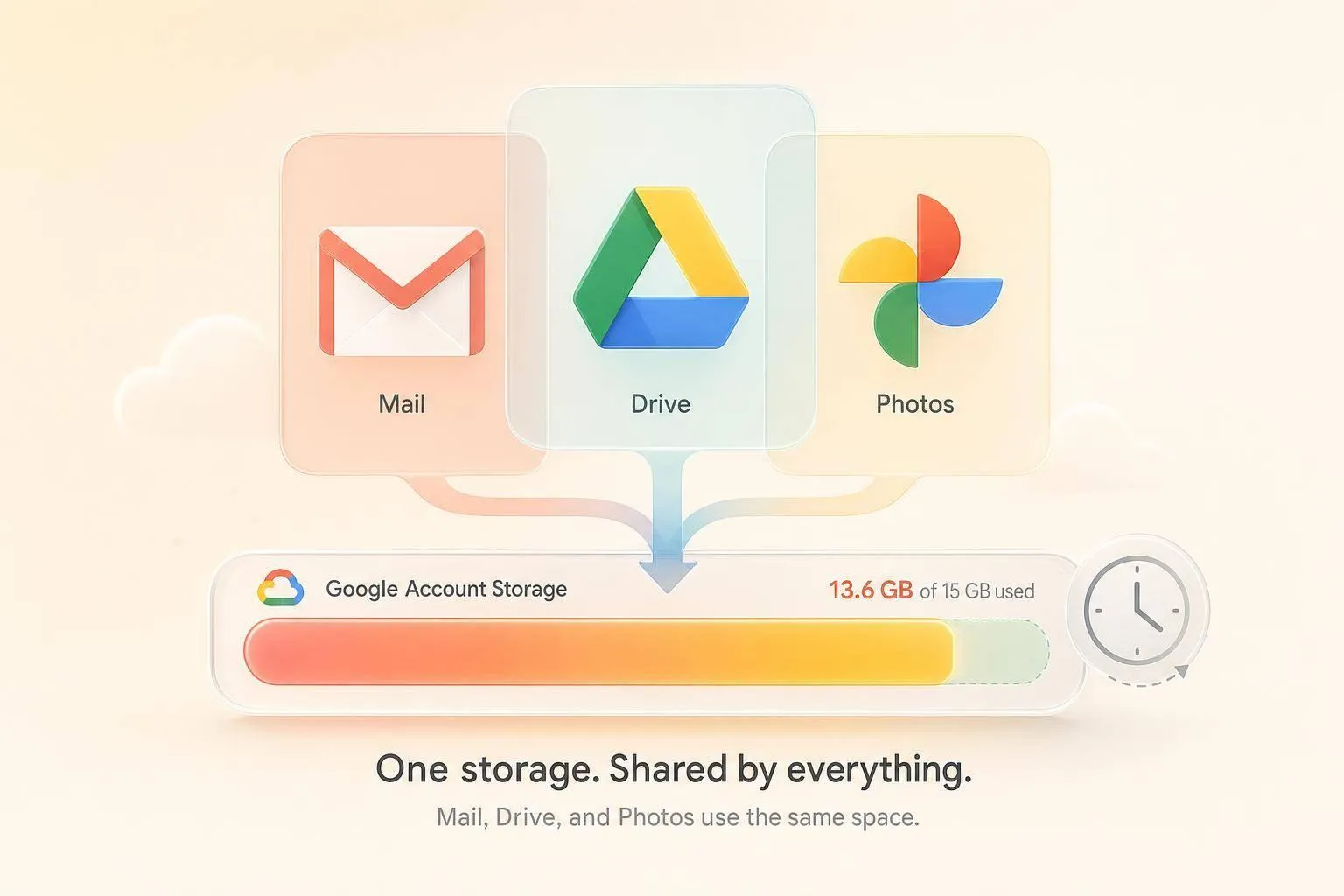
If Gmail still says your storage is full after you deleted mail, the space is usually still sitting in Trash, Spam, Google Drive, or Google Photos - and Google may take 24 to 72 hours to update the meter.
I’d boil it down to this: deleting inbox mail alone often does almost nothing if you don’t also empty trash folders everywhere. Google gives you 15 GB of free shared storage across Gmail, Drive, and Photos, so one full service can keep the whole account at the limit.
Here’s the short answer:
- Trash and Spam still count until you empty them
- Drive and Photos use the same 15 GB pool
- Large attachments can use more space than tons of small emails
- Storage updates are not instant and may take 24–72 hours
What I’d check first:
- Empty Gmail Trash
- Empty Gmail Spam
- Delete large files from Google Drive, then empty Drive Trash
- Delete large items from Google Photos, then empty Photos Trash
- Search Gmail for big emails like
larger:10M - Wait up to 72 hours for Google to recalculate
This article explains where the missing space usually is, what actions free space right away, and how to keep the problem from coming back.
FIXED: Gmail Storage Full Issue (Easy Free 2026 Solution)
sbb-itb-34b9fd2
Why Your Storage Is Still Full
Deleting inbox mail is only one part of the cleanup. Gmail can still show as full when storage is tied up in Trash, Spam, Drive, Photos, or when Google hasn't updated the storage bar yet.
If Gmail still looks packed, the missing space is often sitting somewhere other than your inbox.
Trash and Spam Still Count Until You Empty Them
When you delete a message in Gmail, it doesn't vanish right away. It moves to Trash, and those emails, along with their attachments, still count against your storage for up to 30 days[6][7]. Spam works the same way. Messages left in the Spam folder keep using storage until they're removed for good[6].
That adds up fast. If you get lots of promos, receipts, or auto-generated emails, Trash and Spam can quietly hold hundreds of megabytes or more.
Google Drive and Google Photos Share the Same 15 GB
A free Google account comes with 15 GB of shared storage across Gmail, Google Drive, and Google Photos[3][4]. It's one shared pool, not three separate buckets. So if Drive or Photos is taking up most of that space, deleting email may barely move the needle.
The usual culprits are large videos, bulky PDFs, and photos or videos backed up in Original quality.
Large Attachments and Indexing Delays Can Hide the Real Problem
A small number of large attachments can eat more space than thousands of plain-text emails. On top of that, Google may take 24 to 72 hours to refresh the storage bar after big deletions[5].
Once you see where the space is going, you can clear the folders that actually free it.
How To Free Up Space That Actually Counts
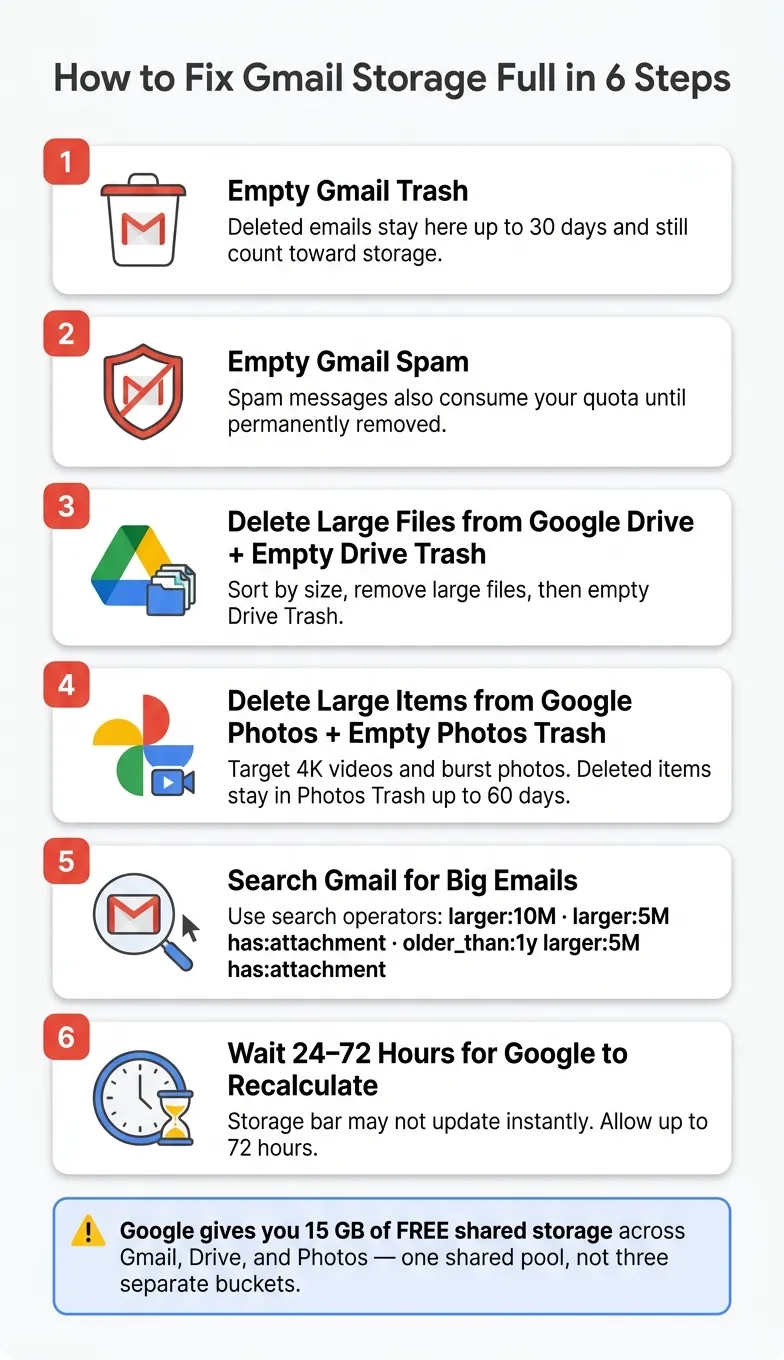
Free up space in this order: Trash, Spam, Drive, Photos, then large emails. That order matters because the first goal is to clear data that affects Google's shared 15 GB limit right away.
Empty Gmail Trash and Spam First
Start with Trash and Spam in Gmail, on desktop or mobile. This is the low-hanging fruit.
One thing trips people up all the time: Archive removes a message from your Inbox, but it still counts toward storage. If you want space back, you need to delete the message and then empty Trash.
If you clear Trash and Spam and the storage bar barely changes, that usually means the bulk of your data is sitting in Drive or Photos.
Delete Large Files From Drive and Photos, Then Clear Their Trash
Next, check Google Drive. Open it and click the storage bar in the bottom-left corner. That view sorts files by size, with the biggest items first, so you can spot the worst space hogs fast. Remove anything you no longer need by right-clicking the file and selecting Remove.
Then do the part many people miss: open Trash in Drive and click Empty trash. If you skip that step, the files keep counting against your storage.
For Google Photos, go to photos.google.com and use the Storage manager's Review and delete tools, such as Large photos and videos. You can also filter by Videos. In a lot of accounts, 4K videos and burst photos take up the most room.
After you delete items, open the Trash in Photos and empty it there too. Deleted photos can stay in the Photos Trash for up to 60 days, and they still count against your storage until you empty Trash[2].
Find Oversized Emails, Then Wait for Storage To Recalculate
After Drive and Photos, go back to Gmail and clean out large attachments.
Use searches like:
larger:10Mlarger:5M has:attachmentolder_than:1y larger:5M has:attachment
That last one is handy if you want to target older messages that are less likely to matter. Delete what you don't need, then empty Trash so the space is released.
If the storage bar doesn't move at once, don't panic. Google may take 24–72 hours to recalculate storage[2][8]. Check again after 24–72 hours.
How MailSweeper Helps Keep the Problem From Coming Back
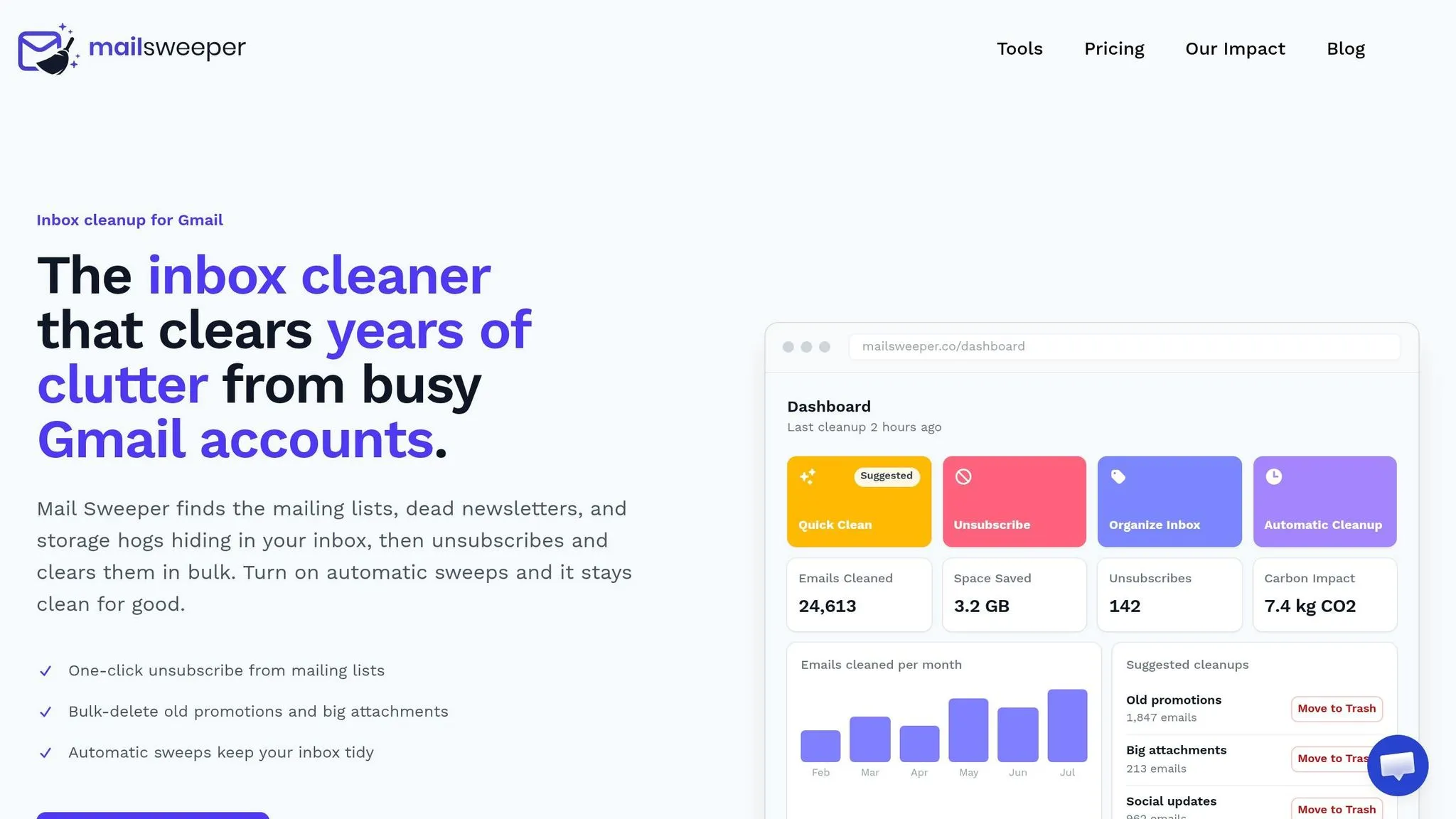
Once you clear out Trash, Spam, Drive, and Photos, the next step is keeping that mess from creeping back in. That’s where MailSweeper comes in. It helps you stay ahead of repeat clutter so your inbox doesn’t slide right back to where it was.
Use Quick Clean and One-Click Unsubscribe To Remove Recurring Clutter
Quick Clean scans your Gmail for common low-value categories like promotions, newsletters, social notifications, and other bulk senders. Then it groups them into bundles you can review and clear in one action.
That means you don’t have to pick through piles of junk email one by one. You can deal with whole batches at once, which saves a lot of time. By default, Quick Clean skips Starred items, Primary messages, recently replied-to threads, and mail marked important.
After that, you can stop a lot of new clutter before it even lands. One-click unsubscribe puts your biggest senders in one place, so you can remove yourself from recurring email lists without digging through message after message.
Set Automatic Sweeps So Low-Value Email Does Not Build Up Again
After your first cleanup, automatic sweeps take over the routine work. You pick categories like Promotions, Social, and Updates, then choose a 30- or 60-day cycle.
MailSweeper will remove unstarred, low-value email on that schedule. At the same time, Primary messages, starred mail, and anything marked important stay untouched. Before a sweep runs, MailSweeper shows an impact summary, so you can see exactly what’s about to be affected.
Use MailSweeper's Free Tools To Target Storage-Heavy Email
If you’re planning a bigger cleanup, start with the free tools. At mailsweeper.co/tools, you can map out cleanup by sender, label, size, or storage target.
That gives you a simple way to spot which email is eating up the most space before you start deleting in bulk.
Conclusion: Check the Shared Quota, Clear Trash Everywhere, Then Stay on Top of Storage
If Gmail still says your storage is full after you’ve deleted messages, the usual reasons are pretty simple: Trash and Spam still count, Google Drive and Google Photos use the same 15 GB, and storage updates can take time. The good news? Each of those issues has a clear fix.
Once you know what’s keeping the meter stuck, the cleanup is pretty direct. Empty Trash and Spam in Gmail first. Then go into Google Drive and Google Photos, delete large files, and clear the Trash folders there too. After that, remove big attachments from Gmail, empty Trash again, and give Google time to recalculate your storage. That update can take 24–72 hours[1][9].
After the cleanup, the next step is making sure the mess doesn’t creep back in. MailSweeper helps cut down on repeat clutter so your quota doesn’t fill right back up.
Check the shared quota. Clear Trash everywhere. Then keep it under control.
FAQs
Why is Gmail still full after emptying Trash?
Your storage may still be full because the 15 GB limit is shared across Gmail, Google Drive, and Google Photos.
So even if you delete a bunch of emails, that may not fix the problem if Google Drive or Google Photos is taking up part of that space too. It’s one storage pool, not three separate buckets.
There’s one more catch: deleted emails in Trash and Spam can still count for up to 30 days unless you remove them for good.
Does archiving emails free up Gmail storage?
No. Archiving emails does not free up Gmail storage.
Archiving simply removes messages from your inbox. The emails still stay in your account, and they still count toward your 15 GB storage limit.
If you want to free up space, you need to delete those emails and then empty Trash.
If you need help finding archived emails you may want to remove, use in:archive.
How can I see what is using my Google storage?
Log in to your Gmail account, then head to Settings and Storage to see where your space is going.
You can also check the storage overview in your Google account. It shows how your 15 GB is divided across Gmail, Google Drive, and Google Photos, which makes it easy to spot which service is taking up the most room.
