
Cloud Storage
How Google Photos Affects Gmail Storage
Photos share a 15GB pool with Gmail and Drive; upload quality, Trash, and large videos can fill Gmail's storage.
How Google Photos Affects Gmail Storage
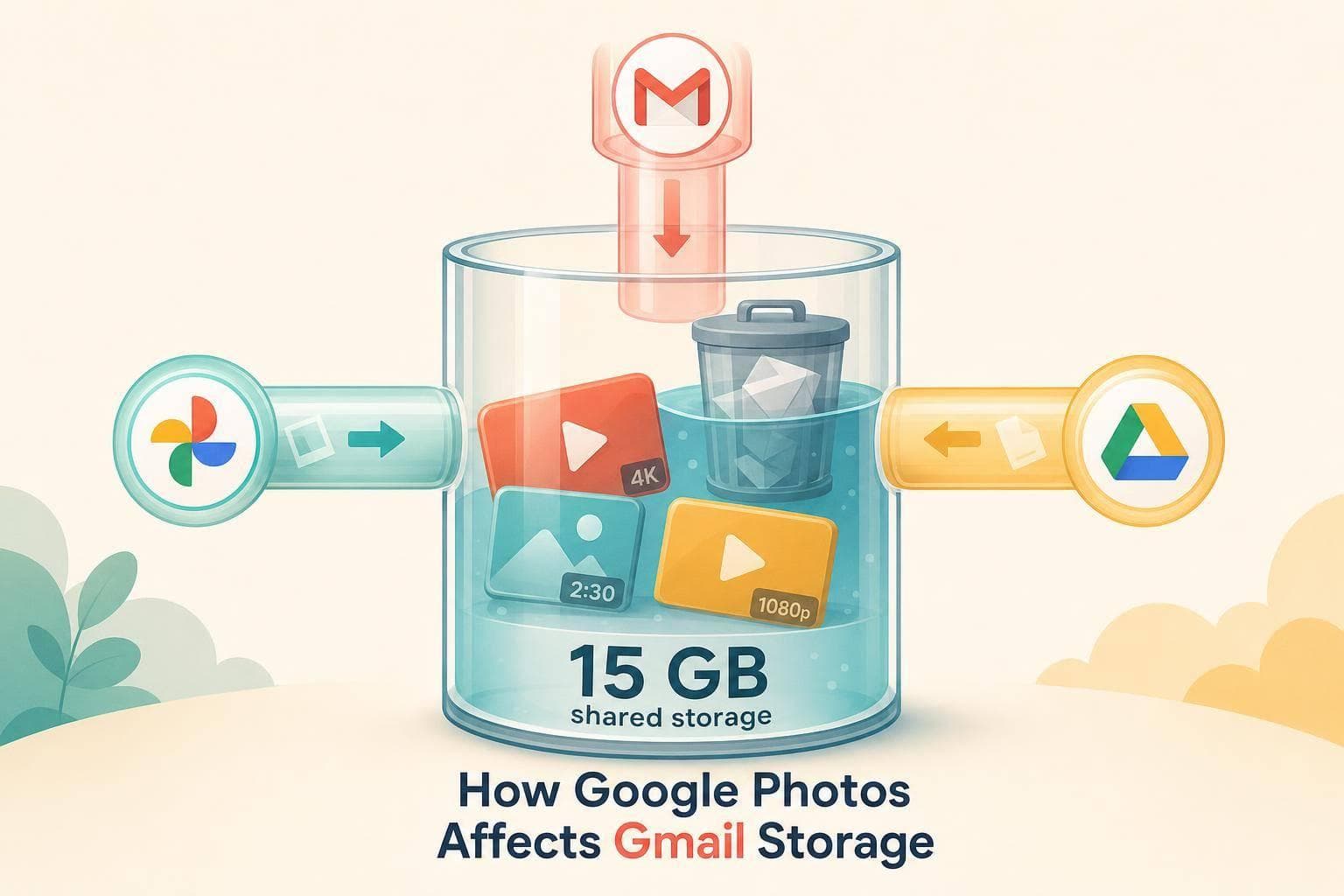
Yes - Google Photos can take space away from Gmail. Gmail, Google Drive, and Google Photos share the same 15 GB free storage pool in a personal Google account, so if Photos fills up, Gmail can stop sending or receiving mail.
Here’s the short version:
- 15 GB is shared across Gmail, Drive, and Photos
- Original quality photo uploads have always counted toward storage
- Since June 1, 2021, Storage saver and Express uploads also count
- Photos deleted from your phone do not free Google account storage
- Items in Google Photos Trash may still count until you empty Trash
- If you’re near the limit, check which service uses the most space and clean that one first
If I were trying to fix this fast, I’d do three things:
- Check my storage breakdown at Google One or Google Drive storage
- Delete large videos and junk in Google Photos
- Remove Gmail messages with big attachments, then empty Trash and Spam
That’s the whole issue in plain English: more photos and videos in Google Photos = less room for Gmail. And once your account is full, both email and backups can run into problems.
Google Storage Full? 3 Easy Fixes for Gmail, Photos & Drive
sbb-itb-34b9fd2
What Counts Toward Storage in Google Photos
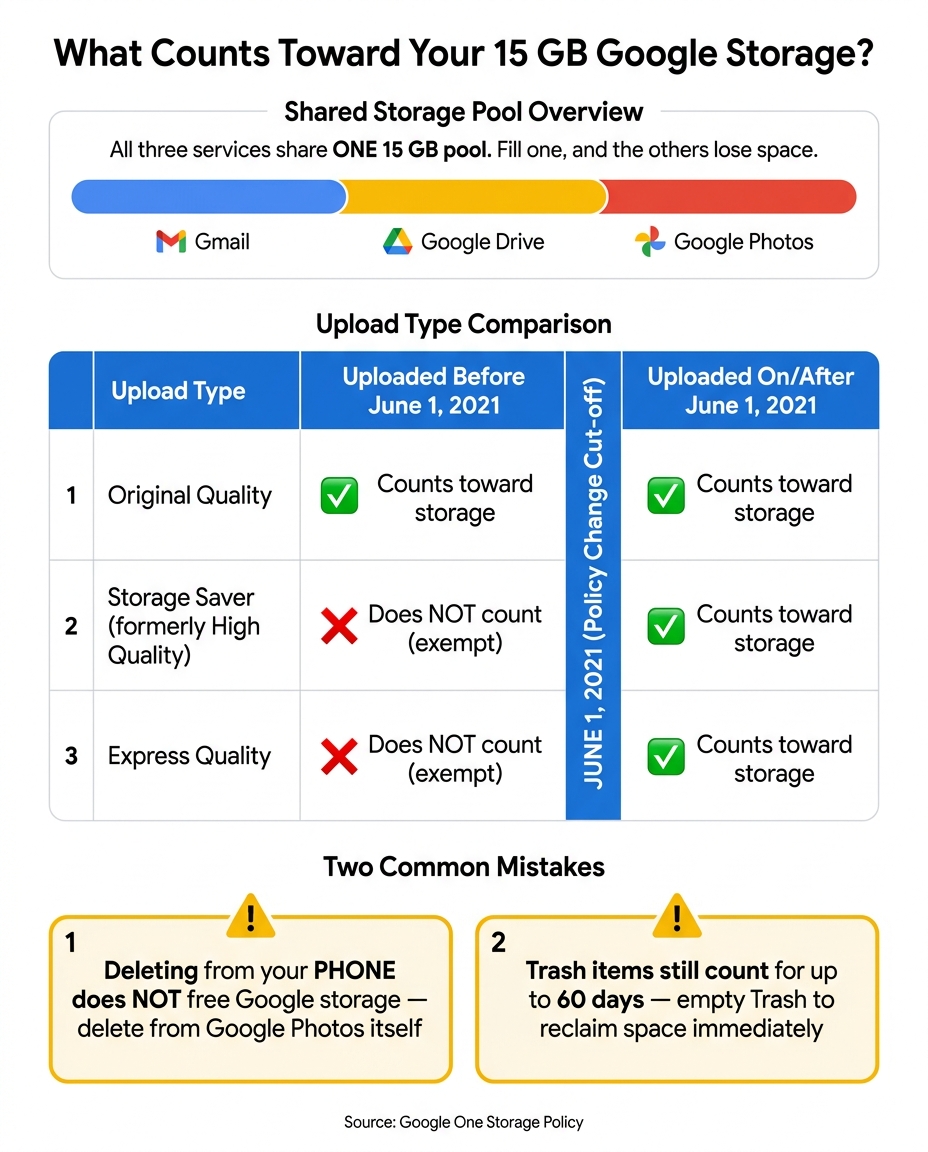
Google Photos Upload Types & Storage Impact Cheat Sheet
Not every photo or video in Google Photos hits your storage the same way. What matters most is how you uploaded it and when you uploaded it. If you're trying to fix Gmail storage full, this is the part that trips people up.
Photo Uploads That Reduce Space Available for Gmail
Original quality uploads have always counted toward your Google Account storage, no matter when you added them.
Google changed the rules on June 1, 2021. Starting on that date, Storage saver uploads, which used to be called High quality, and Express quality uploads also started counting toward the shared 15 GB limit. Anything uploaded in those modes before June 1, 2021 still does not count.
| Upload type | Counts toward storage? |
|---|---|
| Original quality (any date) | Yes - always counted |
| Storage saver / High quality - before June 1, 2021 | No - older uploads remain exempt |
| Storage saver / High quality - on or after June 1, 2021 | Yes - counts like any other upload |
| Express quality - on or after June 1, 2021 | Yes - counts toward storage |
One easy mistake: switching your backup setting to Storage saver doesn't make Google Photos free again. It just means future backups may take up less room. And if you upload a lot of video, that shared storage pool can disappear fast.
Common Mistakes That Stop You From Reclaiming Storage
Deleting a photo from your phone does not free up Google Photos storage. It only removes the copy saved on your device.
The version stored in Google Photos still counts against your shared limit, which means it still cuts into the space Gmail can use, until you delete it from Google Photos itself and empty the Trash.
There's another catch. Deleted items can stay in Trash for up to 60 days, and they still count during that time unless you clear Trash yourself. On top of that, storage totals don't always update right away, so you may see a short delay after deleting files.
Next, check your storage breakdown to see whether Photos or Gmail needs cleanup first.
How to Check Whether Photos or Gmail Is Using More Space
Start by checking your storage totals. If you skip that step, you might spend time cleaning the wrong service. The breakdown shows where to begin.
Check Your Storage Breakdown on Desktop or Mobile
Google’s storage page shows usage by service. On desktop, open drive.google.com/settings/storage or one.google.com/storage/management after signing in to the correct Google Account. On mobile, use the Google One app or go to Google Photos > profile picture > Photos settings > Backup > Manage storage. These tools show how much space each service uses in your account.
| Service | Storage used |
|---|---|
| Gmail | 7.2 GB |
| Google Photos | 6.1 GB |
| Google Drive | 1.3 GB |
| Total | 14.6 GB of 15 GB |
In this example, only 0.4 GB - about 400 MB - is left. That’s not much room. A few big attachments or a single video could tip Gmail over the limit.
Clean the Biggest Storage User First
Once you have the numbers, start with the service using the most space. That gives you the fastest path to getting room back.
If Google Photos has the biggest number, clean that first. Videos, screenshots, and near-duplicate shots are often the fastest things to remove because they can take up a lot of space or pile up fast.
If Gmail is using more, start there instead. Emails with large attachments, promo messages, and old automated alerts are usually the easiest wins.
After each cleanup session, go back to the storage page and refresh the numbers. That tells you how much space you got back. If your total is still above 14 GB of 15 GB, take it as a warning and move to the next largest category. It’s smart to check this once a month, or after a period when you’ve taken lots of photos or received a heavy wave of email.
If Photos is the largest category, the next step is freeing space there.
How to Free Up Storage in Google Photos and Protect Gmail Space
If Google Photos is using the most space, start there. Cut what you don't need, then make a small settings change so storage doesn't fill right back up.
Start by Deleting Large or Unneeded Photos and Videos
Use Google Photos' storage tools to spot large videos, blurry photos, screenshots, and other junk. Start with the stuff you'll miss the least, especially long videos and duplicate shots. Every gigabyte you remove from Photos gives Gmail more breathing room.
One step most people miss: after you delete files, open the Trash in Google Photos and empty it. Until you clear Trash, those deleted items still count against your storage.
Once Photos is cleaned up, shift over to Gmail if you still need more space.
Change Backup Quality to Slow Future Storage Growth
Set Upload size to Storage saver. It shrinks file size and works well for most day-to-day photos. For normal viewing, most people won't notice much difference.
On desktop, go to photos.google.com → Settings → Upload size and choose Storage saver. On mobile, go to Photos settings → Backup & sync → Upload size, or the matching path in your app version. It's smart to check this after setting up a new phone, since some devices switch back to Original quality.
If you want to shrink files that were already uploaded in Original quality, use Recover storage under Settings → Manage storage. That compression is permanent, so use it for everyday photos, not files you can't replace.
Then move on to Gmail clutter so email doesn't eat up the room you just cleared.
Clean Up Gmail Alongside Google Photos
If cleaning up Google Photos still doesn't free enough space, Gmail is the next place to look. Every message you remove opens up more room for new photo backups.
Remove Email Clutter That Competes With Photo Storage
The fastest way to free Gmail space is to go after the biggest storage hogs first: large attachments, old newsletters, social alerts, Spam, and Trash.
A simple Gmail search like has:attachment larger:10M can surface emails with attachments over 10 MB. Once you delete those messages, make sure to empty both Trash and Spam so the storage is actually freed.
Automate Gmail Cleanup With MailSweeper
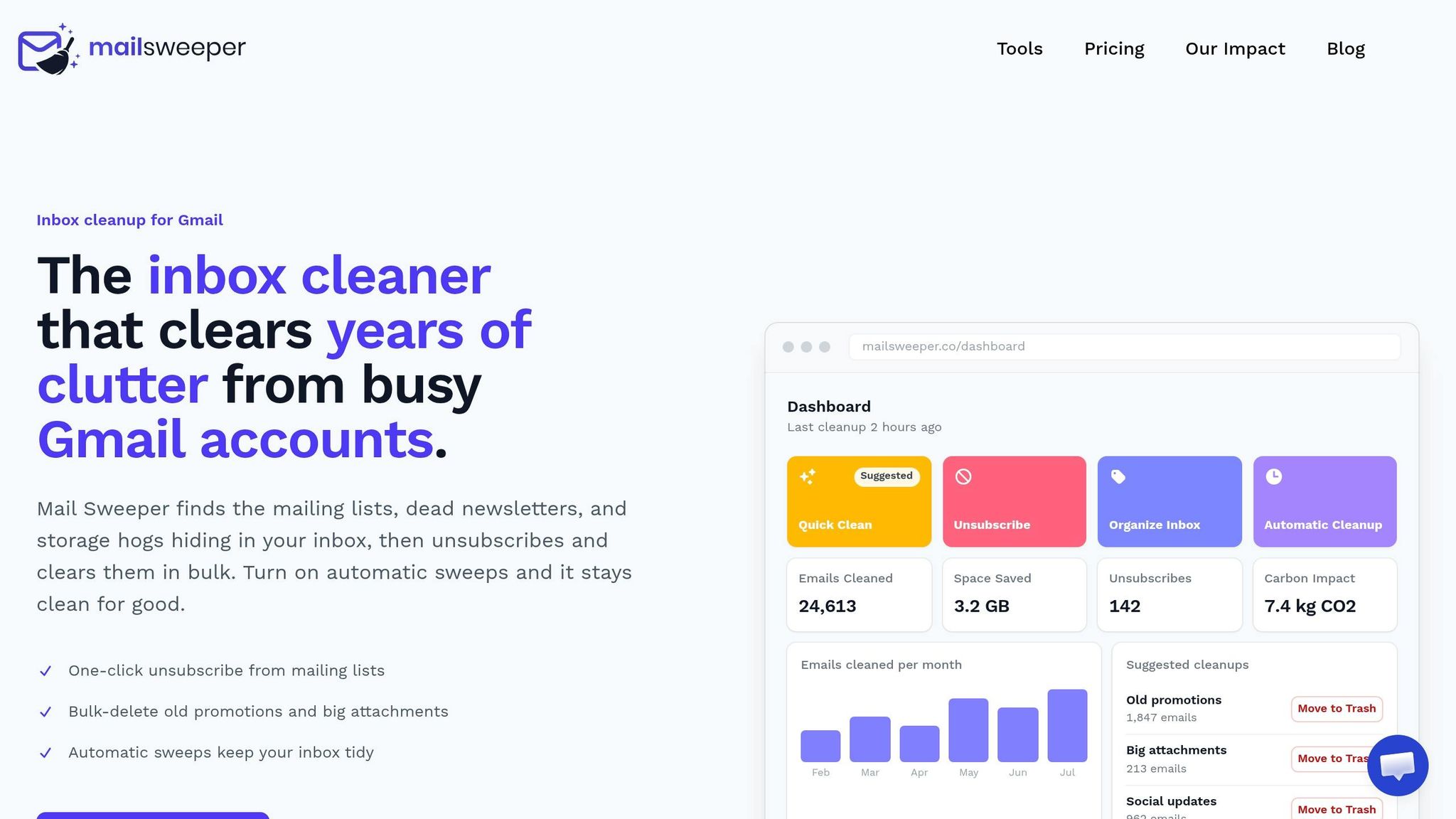
If doing this by hand feels like a chore, MailSweeper can do the cleanup for you.
MailSweeper adds a Dustpan label that gathers low-priority email while leaving out Primary, starred, and important messages. Then, on a schedule you choose, it deletes Dustpan mail after 30 or 90 days. That gives you a simple way to win back shared storage without digging through every message one by one.
Keep Gmail Lean to Protect Photo Storage
Google Photos and Gmail pull from the same storage pool. So when your photo and video uploads pile up, Gmail has less room to work with - and the reverse is true too.
It's smart to check your storage breakdown first so you know where cleanup will do the most good. From there, removing large files in Photos and clearing out clutter in Gmail both help keep your account under the limit.
FAQs
Why is Gmail full if I only use Google Photos?
Your Google account comes with 15 GB of shared storage across Gmail, Google Drive, and Google Photos. That means if Drive or Photos starts eating up space, Gmail gets less room to work with.
And when that shared storage fills up, Gmail may stop letting you send or receive messages. That’s where MailSweeper can help. It removes unimportant emails to clear space, while leaving important or starred messages alone.
How long does it take storage to update after deleting photos?
After you delete photos or files, your available storage may take 48 to 72 hours to update. Google handles those changes in the background, so the new total doesn't always show up right away.
There’s one more thing to watch: items in Trash or Spam stay there for 30 days. During that time, they still count toward your storage until they’re permanently removed.
Do old Google Photos uploads still count toward storage?
Yes. Old Google Photos uploads count toward your shared 15 GB storage limit.
That storage is shared across Gmail, Google Drive, and Google Photos. So when you save photos and videos, they take up space that would otherwise be available for emails and attachments.
More free Gmail tools.
Pair these together for a full inbox reset.
Bulk Unsubscribe from Gmail
See the senders flooding your inbox, ranked by volume — your shortlist for unsubscribes.
Open toolMass Delete Gmail Emails
Build a deletion plan by sender, date, label, or all-unread — with the exact Gmail search to run.
Open toolFind Large Emails in Gmail
Pick a size and we build the exact Gmail search to find your biggest emails — then open it in one click.
Open toolGmail Storage Cleanup
Move the slider to your current Gmail usage to see exactly what to delete to free space.
Open toolInbox Zero Score
Rate your inbox health on a 0–100 scale and see the weekly hours your inbox is costing you.
Open tool