
Email Management
How to Delete All Gmail Emails at Once (Safely)
Move all mail to Trash, then empty Trash to delete permanently and free storage; use All Mail and filters to avoid mistakes.
How to Delete All Gmail Emails at Once (Safely)
Yes, I can delete all Gmail emails at once - but I should do it in 2 steps: move everything to Trash, then empty Trash. In Gmail, mail sits in Trash for 30 days, and it still uses storage until I remove it from Trash.
Before I start, I should save any emails I may need, like receipts, tax records, work messages, or starred mail. Then I should open All Mail on desktop, select all conversations, send them to Trash, and use search filters like older_than:2y if Gmail struggles with a large mailbox.
Here’s the short version:
- Start in All Mail, not just Inbox
- Select all conversations in that view
- Move them to Trash
- Empty Trash to remove them for good
- Use filters if the mailbox is too large
- Check storage after to make sure space dropped
A few Gmail facts matter here:
- Inbox is not all mail
- All Mail does not include Spam or Trash
- Trash keeps mail for 30 days
- Storage only drops after Trash is emptied
| Step | What happens | Storage freed? | Can I undo it? |
|---|---|---|---|
| Move to Trash | Mail leaves All Mail view and goes to Trash | No | Yes, within 30 days |
| Empty Trash | Mail is removed for good | Yes | No |
If I want a clean inbox without losing mail I still need, the safest move is to save key messages first and delete in batches when needed.
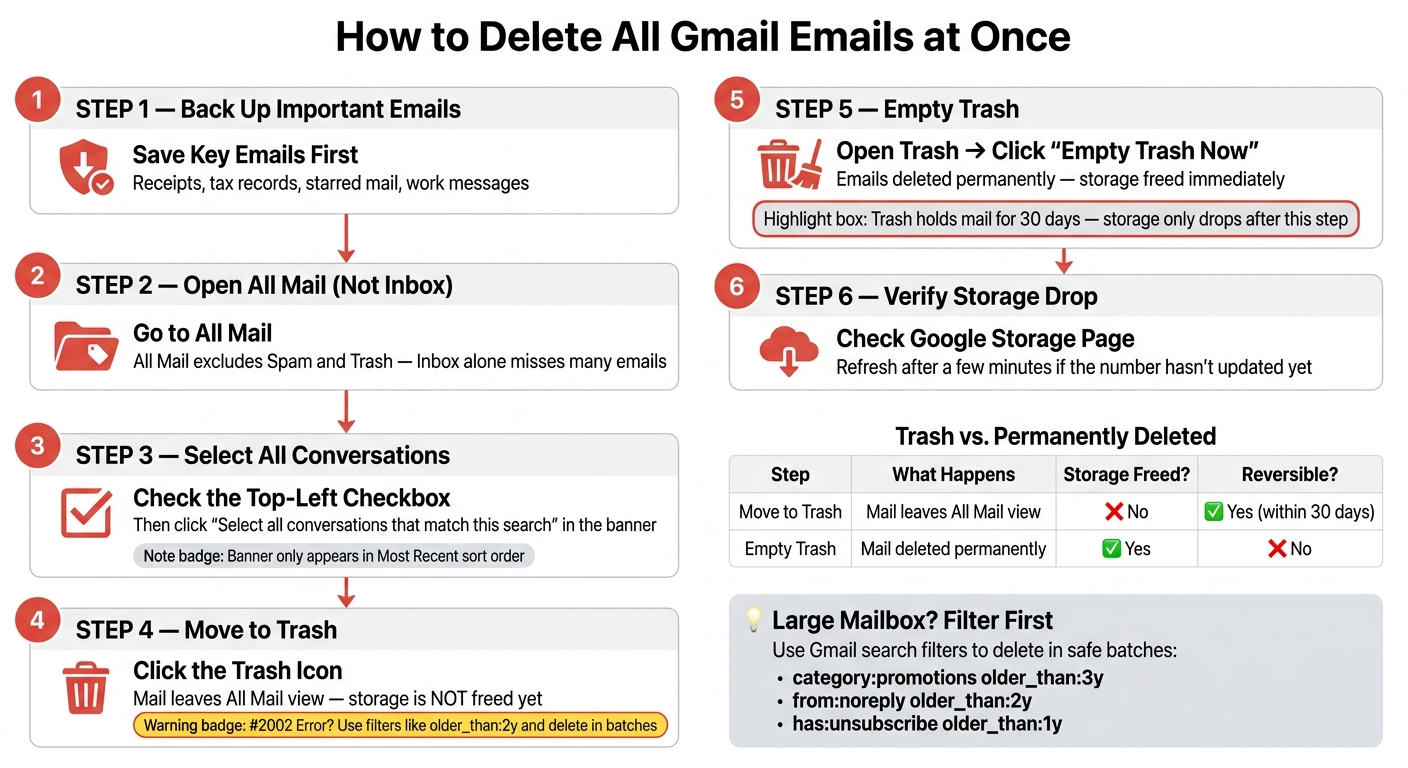
How to Delete All Gmail Emails at Once: Step-by-Step Visual Guide
How to Mass Delete Emails on Gmail (2026)
sbb-itb-34b9fd2
How to delete all Gmail emails at once on desktop
On desktop, open Gmail in your browser and go to All Mail first.
Use the checkbox and the full-selection banner
Click the top-left checkbox to select the messages on the current page. Then watch for the banner that appears above the inbox. Click Select all conversations that match this search to grab every message in that view, then hit the trash can icon to move them to Trash.
One small catch: that banner shows up only when the list is sorted by Most recent. If Gmail throws a #2002 error because the mailbox is huge, work in smaller chunks instead. Search filters like older_than:2y or category:promotions older_than:5y can make that much easier.
Repeat by tab or label if needed
All Mail includes every email except Spam and Trash. If you want to clear things out in stages, use the same steps in Promotions, Social, or any custom label.
After each batch, refresh the tab and empty Trash so the storage space is actually freed up.
Delete for good: Empty Trash and know the 30-day limit
If you already moved Gmail emails to Trash, this is the step that finishes the wipe.
When you delete emails in Gmail, they go to Trash first. They stay there for 30 days, and they still count toward your storage until you empty Trash.
How to empty Gmail Trash now
Open Trash from the left-hand sidebar. Then, at the top of the message list, click Empty Trash now and confirm.
That removes all messages permanently, and your storage frees up right away.
If Empty Trash now gets stuck, try deleting emails in smaller batches inside Trash.
What each step does
- Delete to Trash: You can still get the emails back for 30 days, and storage is not freed.
- Empty Trash: The emails are gone for good, and storage is freed right away.
Empty Trash is the step that frees storage.
After that, check whether your storage total dropped.
Use search filters to make a full wipe safer
If All Mail feels too big to clear in one shot, filter first. Gmail search helps you trim the mess without touching email you may still want.
Delete by date, sender, or category first
Gmail search lets you narrow the delete target so you can clear low-priority mail first. For example, try searches like category:promotions older_than:3y, from:noreply older_than:2y, or has:unsubscribe older_than:1y.
Those searches tend to pull up newsletters, automated alerts, and other routine messages that pile up fast. It’s an easy way to clean in batches instead of trying to wipe everything at once.
Once the results are filtered, bulk-select and delete them. If your inbox is huge, go in smaller date ranges so the process stays under control.
Reset the inbox without losing email you need
Set aside anything important by moving it to a label like Reference. Then delete the remaining results in smaller batches.
That approach gives you a cleaner inbox without tossing mail you may need later.
Check storage after deletion and use a better cleanup method next time
Check that storage was freed
Once you empty Trash, make sure the cleanup did what you expected. Open your Google storage page and check whether your used storage went down.
If the number doesn’t change right away, give it a few minutes and refresh the page.
If you want a category-by-category view, plus a look at attachments, use the Gmail storage cleanup tool.
Main points to remember
Here’s the short version:
- Delete moves mail to Trash first.
- Empty Trash to delete permanently.
- Storage drops after Trash is emptied.
- Use search filters first if you want a safer wipe.
If you want a set-and-forget option so clutter doesn’t pile up again, MailSweeper can handle cleanup over time with Dustpan, which catches newsletters and promotions before they stack up.
FAQs
Can I delete Gmail emails on my phone?
Yes, but the Gmail app has limits.
You can delete single emails or hand-pick small batches. But "Select all conversations that match this search" is mostly a desktop browser feature.
If you want a true mass delete, use Gmail on a desktop browser. It’s also smart to delete emails in smaller date-range batches, which can help avoid errors.
Will deleting emails remove attachments too?
Yes. When you delete an email, you also delete its attachments because they’re stored as part of the same message.
That email moves to Trash, where it stays for 30 days before it’s permanently deleted. Until you empty Trash yourself or the 30-day period ends, the email and its attachments can still count toward your storage quota.
Why didn’t my Gmail storage drop right away?
Deleting emails doesn't free up storage right away because Gmail keeps them in Trash for 30 days. During that time, those messages still count toward your 15 GB storage limit.
If you want to get that space back now, empty the Trash folder manually after you delete the emails.
More free Gmail tools.
Pair these together for a full inbox reset.
Bulk Unsubscribe from Gmail
See the senders flooding your inbox, ranked by volume — your shortlist for unsubscribes.
Open toolMass Delete Gmail Emails
Build a deletion plan by sender, date, label, or all-unread — with the exact Gmail search to run.
Open toolFind Large Emails in Gmail
Pick a size and we build the exact Gmail search to find your biggest emails — then open it in one click.
Open toolGmail Storage Cleanup
Move the slider to your current Gmail usage to see exactly what to delete to free space.
Open toolInbox Zero Score
Rate your inbox health on a 0–100 scale and see the weekly hours your inbox is costing you.
Open tool