
In the Gmail app, touch and hold a message, tap the others you want, and tap Delete. Select all stops at 50 messages. Deleting every message, or thousands that match a search, is a computer job. Those steps are on how to delete all Gmail emails at once.
Checked against Delete messages in Gmail for Android, iPhone and iPad, and computer, and against Change your Gmail settings, on November 13, 2026.
Select the messages, then tap Delete
To select multiple emails in the Gmail app, start with one message and add the others. Google's current Android article and iPhone and iPad article use the same delete steps. The shortcut that starts a selection is what differs.
A few specific messages:
- Open the Gmail app.
- Touch and hold each message you want to delete.
- At the top, tap Delete.
Up to 50 at once:
- Touch and hold one message.
- At the top left, tap the box next to Select all. Google says that, by default, this selects up to 50 messages.
- At the top, tap Delete.
- For the next 50, scroll to the top of the page, tap Select all again, then tap Delete.
That box is on both phone articles. It is not the computer notification "Select all conversations that match this search." The phone articles do not include that notification. The same box is what how to mark all emails as read in Gmail uses when the next tap is Mark as read.
On Android, Sender image is a general setting. When it is on, tap the sender's photo to select. When it is off, touch and hold. After the first message is selected, tap the other photos, or touch and hold the other rows, then tap Delete.
On iPhone or iPad, tap Menu, then Settings, and turn Show Sender Images on. When it is on, tap the sender's profile image. When it is off, the list shows checkboxes. Tap those, or touch and hold each row, then tap Delete.
More is not how you add a message. Google uses More inside Trash, when you move a message back.
Android's Conversation view groups a thread into one row. The delete article still counts the selection as messages, and Select all still stops at 50.
Search, then select
Both phone articles say to search when you want specific mail, then use the same selection. Leave no space after the colon.
| Search | What it lists |
|---|---|
from:name@example.com | Mail from one address |
after:2025/3/29 before:2025/4/5 | Mail in that date window. This is Google's example. |
"Confidential" | Mail containing that phrase |
has:attachment | Mail with a file attached |
A sender search is how you delete multiple emails from one person without scrolling the inbox. Run from: and the address, read the first results, then touch and hold or tap Select all and Delete. Select all still stops at 50 messages of that search. The desktop step that selects every match is in how to sort Gmail by sender and bulk-delete.
What the phone will not select
On a computer, the checkbox at the top selects the current page, and a notification offers the rest. Google's example is "All 50 conversations on this page are selected. Select all 2,000 conversations in Inbox." The phone articles do not list that notification, so hundreds or thousands of messages are many passes of 50. The computer path is how to delete all Gmail emails at once.
Google's help documents that notification on the computer article only. This page stays with the app steps above.
Trash, for 30 days
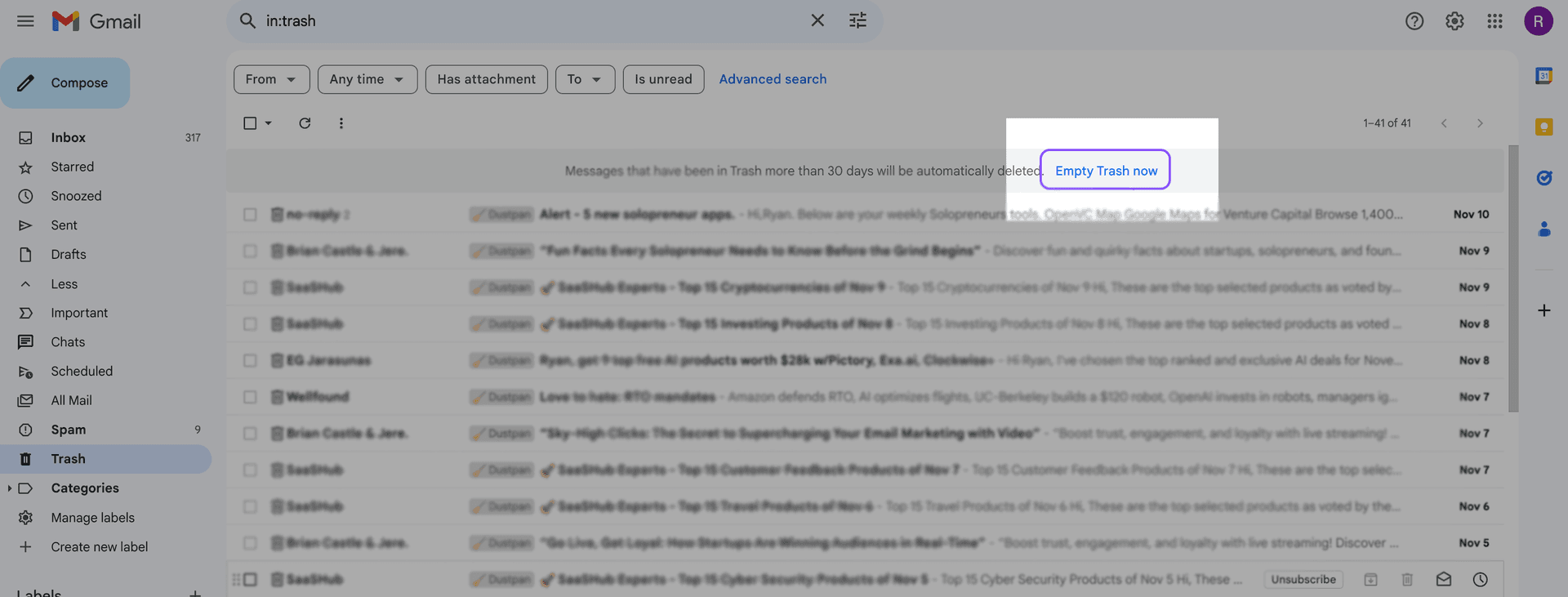
Delete moves the message to Trash. Google's delete article says that for up to 30 days you can find it there, move it back, or delete it permanently. After 30 days it is permanently deleted. A draft you delete is the exception: you can't recover it from Trash.
On Android: tap Menu, then Trash, touch and hold the message, tap More, then Move to, and choose Inbox.
On iPhone or iPad, the item is Move, not Move to. Tap Menu, then Trash, touch and hold, tap More, then Move, and choose Inbox.
The rest of the restore is in how to recover deleted emails in Gmail. Emptying the folder sooner, with Empty trash now, is in how to empty Trash in Gmail. Mail in Trash still counts toward storage until those 30 days pass or you empty it.
Swipe, for a few messages
A swipe acts on one row, which is faster for a few emails. Archive and delete are both options, and the default is not the same on the two phones.
On Android: tap Menu, then Settings, then General settings, then Swipe actions. Next to Right swipe or Left swipe, tap Change, then Delete. The settings page lists archive, delete, mark as read or unread, move to a label, or snooze, and says the default follows the action you already chose. Setting Archive on that screen is in Archive Gmail messages.
On iPhone or iPad: tap Menu, then Settings. Under Inbox, tap Inbox customizations, then Mail swipe actions, then Right swipe or Left swipe, then Trash. The action is named Trash, not Delete. The settings page says a swipe archives by default, unless you changed "When removing messages, I prefer to..." in general settings. If the label still says Archive, the message leaves the inbox and stays in All Mail. It is not in Trash.
With messages selected, both phones also have Archive: touch and hold, then tap Archive. The message leaves the inbox, stays under All mail, and a reply brings it back. Delete sends it to Trash instead. Where archived emails go in Gmail is that split.
Where MailSweeper fits
MailSweeper does not select messages in the Gmail app. Use the steps above for several specific emails on a phone.
A sweep moves mail under the Dustpan label to Trash. That label is for the categories you turn on: promotions, social, updates, and forums. It skips spam, mail already in Trash, starred mail, and important mail. What it moves stays in Trash for the same 30 days. Deleting the whole mailbox stays on how to delete all Gmail emails at once.
FAQs
Why can't I select all emails in the Gmail app?
Select all selects up to 50 messages. Google's Android article and iPhone and iPad article both say to scroll to the top and tap it again for the next 50. They do not include the computer notification that selects every conversation in a folder or a search.
How do I delete multiple emails from one sender on my phone?
Search from: and the address, with no space after the colon. Touch and hold the messages, or tap Select all, then tap Delete. The cap is still 50. To select every match in one step, use a computer. That banner is in how to sort Gmail by sender and bulk-delete.
Does deleting on my phone delete them on my computer?
In the Gmail app, yes. There is one copy of the message. Gmail messages are missing says deleting it from any device synced with the account removes that copy. Delete in the Gmail app moves it to Trash, so the computer shows it in Trash for 30 days, not in the inbox.
Another app on the phone can do something else. The same article names clients such as Apple Mail, and Gmail's IMAP settings say a client can leave a delete in All Mail, or permanently delete it after 30 days. If the computer inbox still shows the message, look in All Mail and Trash before you delete it again.
