
Email Management
How AI Auto-Labels Gmail Emails
How AI auto-labels low-priority Gmail into a Dustpan, auto-deletes on a schedule, and reduces storage use and inbox clutter.
How AI Auto-Labels Gmail Emails
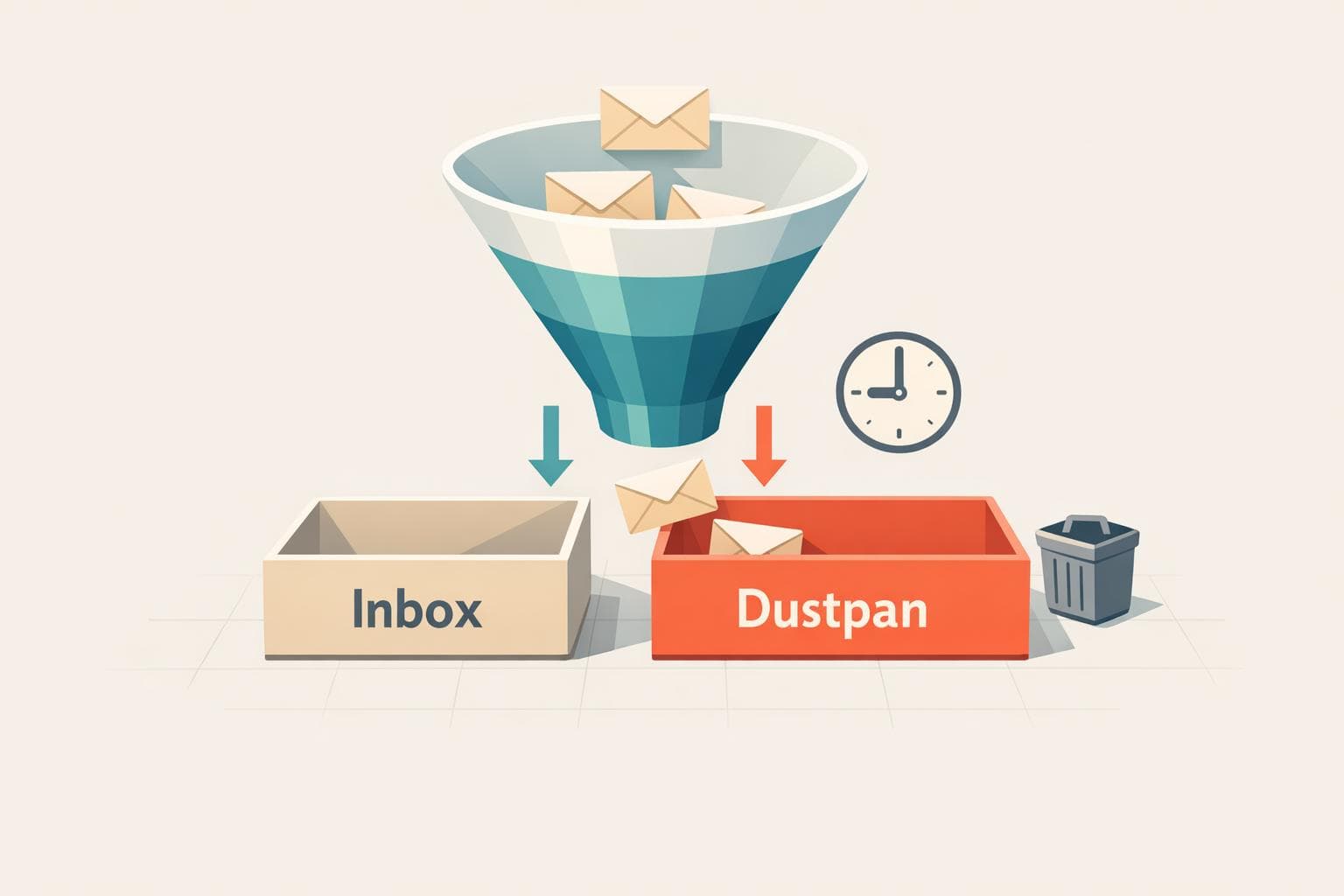
Tired of managing a cluttered Gmail inbox? AI tools like MailSweeper can help by automatically sorting low-priority emails into a dedicated "Dustpan" label. This saves time, reduces storage costs, and even helps cut down on energy usage tied to email storage. Here’s how it works:
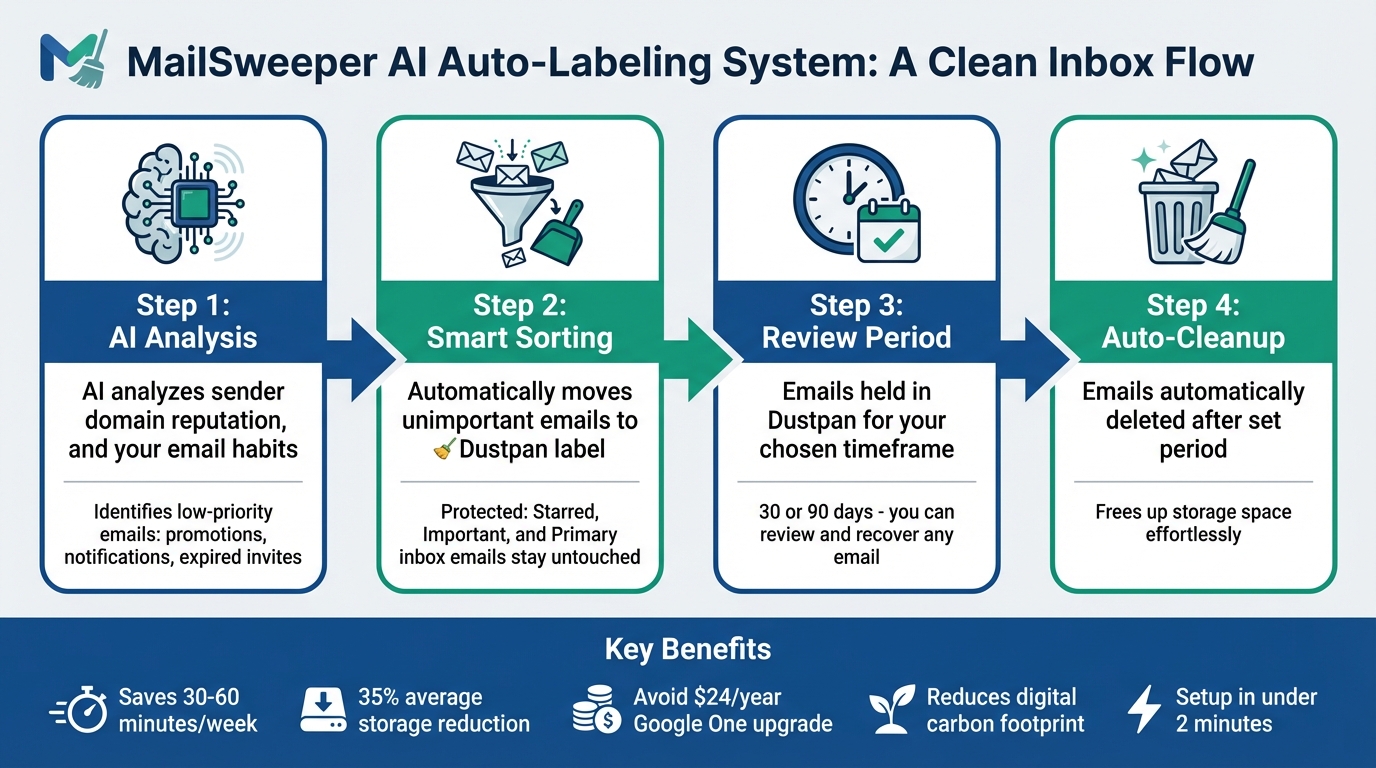
- AI-Powered Sorting: MailSweeper identifies less important emails (e.g., promotions, notifications) and moves them to the Dustpan label.
- Automatic Cleanup: Emails in the Dustpan are deleted after 30 or 90 days, depending on your settings.
- Protected Emails: Starred, important, or primary inbox emails remain untouched.
- Easy Setup: Install MailSweeper in under two minutes and customize cleaning rules through its dashboard.
- Cost Savings: Users report up to 35% storage reduction, avoiding Gmail storage upgrades.
With MailSweeper, you can achieve a cleaner inbox, save time, and avoid paying for extra storage - all while staying in control of your email organization.
How MailSweeper AI Auto-Labels and Cleans Gmail Emails in 4 Steps
Understanding the Dustpan Label in MailSweeper

What is the Dustpan Label?
The Dustpan label is the cornerstone of MailSweeper's email management system. This Gmail label acts as a temporary holding space for low-priority emails, like notifications, expired invites, and promotional deals, before they are permanently deleted.
When you install MailSweeper, the Dustpan label automatically appears in your Gmail sidebar. It serves as an AI-powered sorting tool, collecting emails you likely don’t need to keep. But don’t worry - you’re in full control. If you spot an email in the Dustpan that you want to save, just remove the label before the next cleanup cycle.
Now, let’s take a closer look at how MailSweeper’s AI decides which emails belong in the Dustpan.
How the Dustpan Label Works in Gmail
The Dustpan label functions as a staging area for emails flagged as unimportant. MailSweeper uses your preferences to analyze incoming messages and automatically sorts low-priority emails into the Dustpan. Smart exclusions are built into the system to ensure that critical emails remain untouched.
"By default, we will never delete emails that are 'starred', marked important, or in your primary inbox. Only emails in the categories of your choosing will be swept into the dustpan." - MailSweeper
MailSweeper is designed to respect your starred, important, and primary inbox emails. It only moves messages from selected categories - like promotions, social updates, or notifications - to the Dustpan. These emails remain there for a timeframe you set, such as 30 or 90 days. Once that period is up, MailSweeper clears out the Dustpan by sending its contents to Gmail’s trash, freeing up your storage space effortlessly.
Step-by-Step Guide to Installing MailSweeper
Installing MailSweeper for Gmail
Getting MailSweeper set up is quick and easy - it takes less than two minutes. Start by visiting MailSweeper's website and clicking the "Get Started" button. Sign in using your Google account, then grant MailSweeper the necessary permissions to access and manage your emails. These permissions allow the AI to analyze your inbox, apply the Dustpan label, and perform regular cleanups.
MailSweeper is CASA-certified, ensuring your security and privacy. It doesn’t read, store, or sell your email data, so you can trust it to streamline your inbox without compromising your information.
Once the setup is complete, you'll either see an on-screen confirmation or receive a welcome email with further instructions. If the Dustpan label doesn’t appear in Gmail, check its settings under Gmail Labels to ensure everything is configured correctly.
After this, you can start personalizing your Dustpan rules to suit your email management preferences.
Activating and Customizing the Dustpan Label
Once installed, the Dustpan label is activated automatically. MailSweeper’s AI immediately gets to work, sorting low-priority emails into the Dustpan while keeping your important messages untouched.
To fine-tune how MailSweeper operates, log in to your MailSweeper dashboard at mailsweeper.co and navigate to Settings > Cleaning Rules. Here, you can adjust the cleaning interval to either 30 days for a more frequent cleanup or 90 days if you’d like emails to stick around a little longer. Save your settings, and MailSweeper will handle the rest, automatically deleting older emails in the Dustpan based on your chosen schedule - no extra effort required.
How AI Categorizes Emails into the Dustpan
AI-Driven Email Analysis
MailSweeper's AI takes a smarter approach to sorting emails compared to traditional Gmail filters. Instead of just scanning for keywords, it digs deeper by analyzing sender metadata - things like domain reputation, how frequently the sender contacts you, and your past interactions with them. This allows the system to flag bulk senders or low-priority sources, such as marketing lists, without disrupting your essential communications.
When setting up the system, you'll answer a few targeted questions to help the AI identify what you consider unimportant. From there, it zeroes in on high-volume, low-value emails - think notifications you rarely open, expired calendar invites, or promotional deals flooding your inbox. Unlike basic filters, this AI assesses the context of emails, determining their intent (e.g., requests, updates, or general information), urgency, and even how conversations evolve over time.
As you manage your inbox - snoozing, ignoring, or deleting messages - the AI learns from your behavior. Over time, it fine-tunes itself to better align with your unique email habits, ensuring the system becomes more accurate the more you use it. This dynamic learning process is what drives the system's ability to consistently sort emails with precision.
Ensuring High Accuracy and Minimal Errors
To minimize mistakes, the system has built-in safeguards. Emails marked as starred, important, or belonging to your primary inbox are automatically protected. Similar tools achieve accuracy rates of 90–95% by combining rule-based filtering with continuous learning, and MailSweeper follows a similar approach.
The Dustpan feature acts as a holding area where emails are temporarily stored before deletion. This gives you the opportunity to review and recover any email that might have been incorrectly flagged. By periodically checking the Dustpan label in Gmail, you can manually save anything you'd like to keep, ensuring peace of mind while the AI does the heavy lifting.
Managing and Customizing Auto-Labeled Emails
Reviewing Emails in the Dustpan
To get started, open Gmail and find the 🧹Dustpan label in the left sidebar under Labels. Clicking on it will show you all the emails the AI has flagged as unimportant. Make it a habit to check this folder weekly or bi-weekly, giving it a quick scan to ensure no important emails were misclassified.
If you spot an email that shouldn’t be in the Dustpan, select it and click the Labels icon (or use the three-dot menu to choose "Change labels"). Remove the 🧹Dustpan label and assign it a more appropriate one, like Primary or a custom label you’ve created. For added protection, you can star or flag these emails - MailSweeper automatically avoids placing starred or flagged emails in the Dustpan. Every time you make these manual adjustments, the system learns from your preferences, gradually improving its accuracy. Regularly reviewing and correcting misclassifications helps keep your inbox tidy without losing track of what’s important.
Adjusting Labeling and Cleaning Rules
Once you’ve reviewed your Dustpan, you can fine-tune the cleaning rules to better suit your needs. Log into your MailSweeper dashboard at mailsweeper.co to access these settings. Go to Settings > Cleaning Rules to adjust how often emails are cleaned out - choose from cycles of 30, 60, or 90 days, depending on how much time you want to review emails before they’re permanently deleted. If certain types of emails, like newsletters, keep ending up in the Dustpan by mistake, you can create custom filters to fix this. For instance, add a filter to exclude emails from "newsletter@domain.com" or use keywords like "unsubscribe" to prevent similar messages from being flagged.
For even more control, advanced filter options allow you to set specific criteria and decide whether to Apply to Dustpan or Exclude those emails entirely. This blend of rule-based adjustments and machine learning ensures the system adapts to your habits over time. To keep everything running smoothly, revisit and refine these filters every few months as your email patterns change.
sbb-itb-34b9fd2
Benefits of AI Auto-Labeling with MailSweeper
Saving Time and Reducing Inbox Stress
MailSweeper's AI takes the hassle out of email management by sorting low-priority emails into the Dustpan folder. This feature alone can save users an impressive 30–60 minutes per week - time that can be redirected toward more important tasks. One user even shared how they transformed their inbox, cutting down over 5,000 unread emails to fewer than 100 actionable ones. For anyone chasing the elusive "Inbox Zero", this tool makes it feel much more achievable.
By automating the organization process, MailSweeper doesn’t just save time - it also clears mental clutter. The Dustpan's automatic cleanup ensures your inbox stays tidy without you having to lift a finger. Managing emails shifts from being a daily chore to a seamless, behind-the-scenes operation.
And there’s more: MailSweeper doesn’t just boost productivity - it can also help you save money on email storage.
Lowering Email Storage Costs
If you’re a Gmail user, you know the drill: 15 GB of free storage shared across all Google services. Heavy email users often hit that limit quickly. When that happens, upgrading to 100 GB with Google One will cost you about $1.99 per month, or roughly $24 per year. Here’s where MailSweeper steps in. Its periodic cleanup feature - whether set to a 30- or 90-day cycle - can cut down your email storage usage by 20–50%, making those upgrades unnecessary.
Take this example: one user running a 90-day cleanup cycle saw their email storage drop from 10 GB to 6 GB in just one month. That simple change saved them $24 annually by avoiding a Google One subscription. On average, users report a 35% reduction in storage after three months. For small businesses, the savings can add up even more. One team using Google Workspace saved $120 per year by applying Dustpan cleanups across their accounts.
And beyond the financial benefits, reducing storage has another perk - it’s better for the planet.
Impact on Digital Carbon Footprint
Storing emails isn’t as harmless as it seems. Every email you keep uses energy, whether it’s for running servers or cooling data centers. According to research from the University of California, emails contribute to 4% of the global carbon emissions linked to data centers. To put it in perspective, emails were responsible for 150 million tonnes of CO₂e in 2019 - about 0.3% of the world’s total carbon footprint. Each gigabyte of email data emits an estimated 0.2–0.5 kg of CO₂e annually.
"The easiest thing for now is just to delete unimportant emails. This is why we built MailSweeper."
– MailSweeper
How I Made Gmail Manage Itself With AI! (NoCode)
Conclusion
Tired of battling a cluttered Gmail inbox every day? MailSweeper's Dustpan label makes email management a breeze by automating the process. Using AI, it pinpoints unimportant emails - like outdated notifications, promotional deals, and expired calendar invites - so your inbox stays focused on what truly matters. Meanwhile, your priority emails remain untouched and easy to access.
This automation doesn't just simplify your day - it saves you time in the long run. Tasks that used to take 30 minutes of manual effort are now handled seamlessly, giving you back hours each week for more important work.
Getting started is simple. MailSweeper installs in just a few minutes, and you can begin customizing your email cleanup right away. With a one-time purchase of $16 (early bird pricing) or $20 for the standard personal plan, there are no recurring subscription fees to worry about.
You’ll always have control - review and adjust Dustpan labels whenever you like. Plus, the AI continuously learns from your email habits, improving its accuracy over time without requiring extra effort from you. It’s a set-it-and-forget-it tool, built with security and privacy in mind, and backed by CASA certification.
Whether your goal is achieving Inbox Zero, cutting down on email storage costs, or even reducing your digital carbon footprint, MailSweeper takes the hassle out of Gmail management. Install it today and take back control of your time.
FAQs
Can I undo a mistake if an important email lands in Dustpan?
To fix this, simply remove the Dustpan label from the email. This will prevent it from being automatically deleted, allowing you to review and restore it whenever necessary.
What Gmail access does MailSweeper need to auto-label and delete emails?
MailSweeper requires read-only access to your Gmail account in order to automatically label and delete emails. This access is fully encrypted to safeguard your privacy, and no data is ever stored on external servers.
Will Dustpan cleanup also free up Google Drive and Photos storage?
Yes, Dustpan Cleanup can indirectly help free up space in Google Drive and Photos. By reducing the storage used in Gmail, it ensures you don’t hit the shared storage limit across Gmail, Drive, and Photos. This makes it easier to manage your overall Google storage efficiently.
More free Gmail tools.
Pair these together for a full inbox reset.
Bulk Unsubscribe from Gmail
See the senders flooding your inbox, ranked by volume — your shortlist for unsubscribes.
Open toolMass Delete Gmail Emails
Build a deletion plan by sender, date, label, or all-unread — with the exact Gmail search to run.
Open toolFind Large Emails in Gmail
Pick a size and we build the exact Gmail search to find your biggest emails — then open it in one click.
Open toolGmail Storage Cleanup
Move the slider to your current Gmail usage to see exactly what to delete to free space.
Open toolInbox Zero Score
Rate your inbox health on a 0–100 scale and see the weekly hours your inbox is costing you.
Open tool