
Email Management
10 Gmail Shortcuts for Faster Email Navigation
Master 10 essential Gmail keyboard shortcuts to jump between inbox, labels, drafts, tasks, and messages faster; enable and customize shortcuts for a quicker workflow.
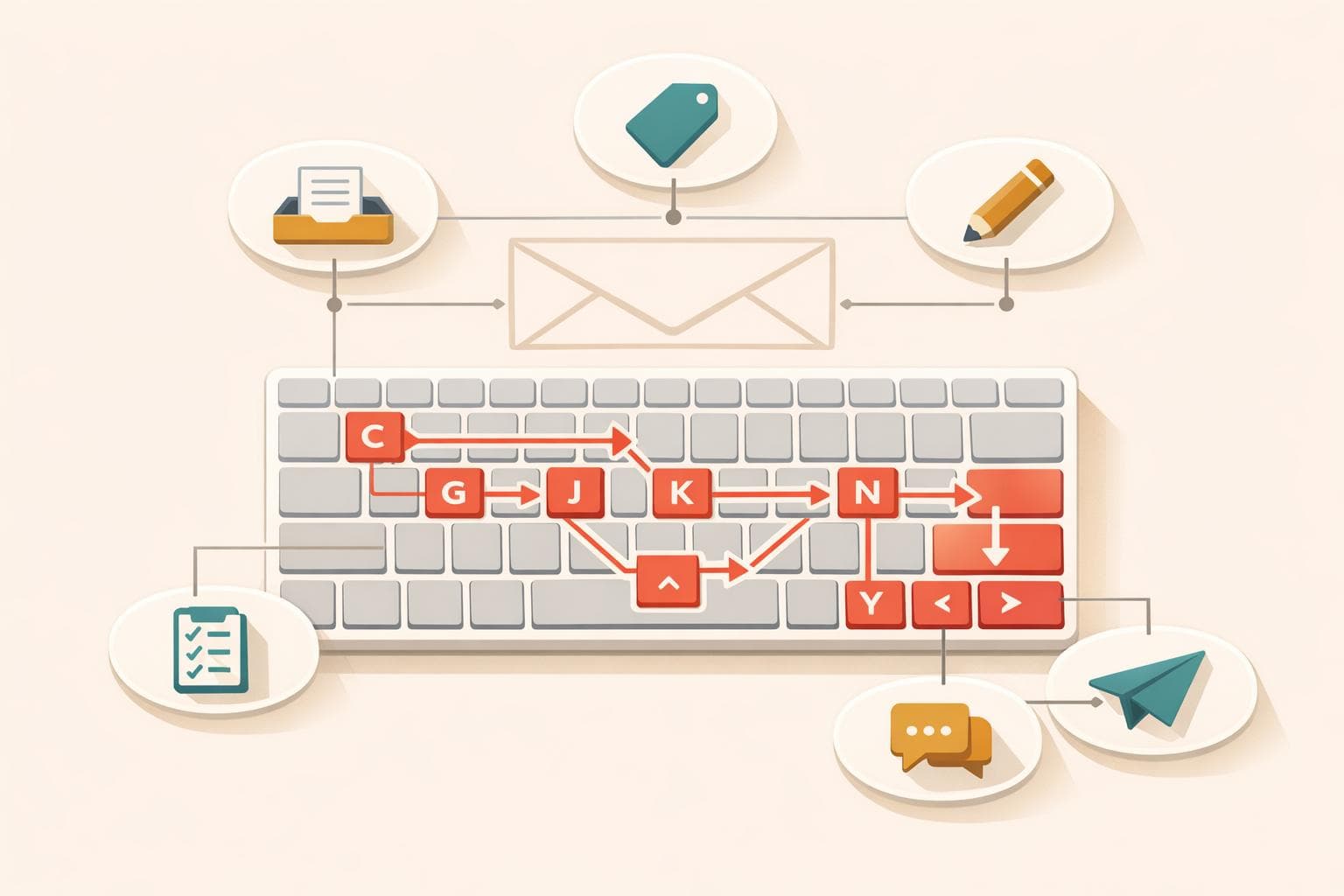
10 Gmail Shortcuts for Faster Email Navigation
Tired of wasting time clicking through Gmail? These 10 keyboard shortcuts can transform how you manage emails - no mouse required. From jumping to your inbox to archiving messages in seconds, these shortcuts are easy to learn and save you time daily.
Key Shortcuts You Need to Know:
- Inbox:
gthenito go straight to your inbox. - Starred Emails:
gthensto access important messages. - Sent Emails:
gthentto view sent items. - Drafts:
gthendto revisit unfinished emails. - All Mail:
gthenato see every email (except spam/trash). - Tasks:
gthenkto open Google Tasks. - Labels:
gthenlto search and jump to labels. - Scroll Older/Newer Emails: Use
jandkto move between conversations. - Select Emails:
xto toggle selection for quick actions like delete or archive.
How to Enable Shortcuts:
- Click the gear icon in Gmail.
- Go to See all settings > General.
- Turn on Keyboard shortcuts and save changes.
These shortcuts keep your hands on the keyboard, boosting efficiency and cutting down on distractions. Start with a few and build up as you go!
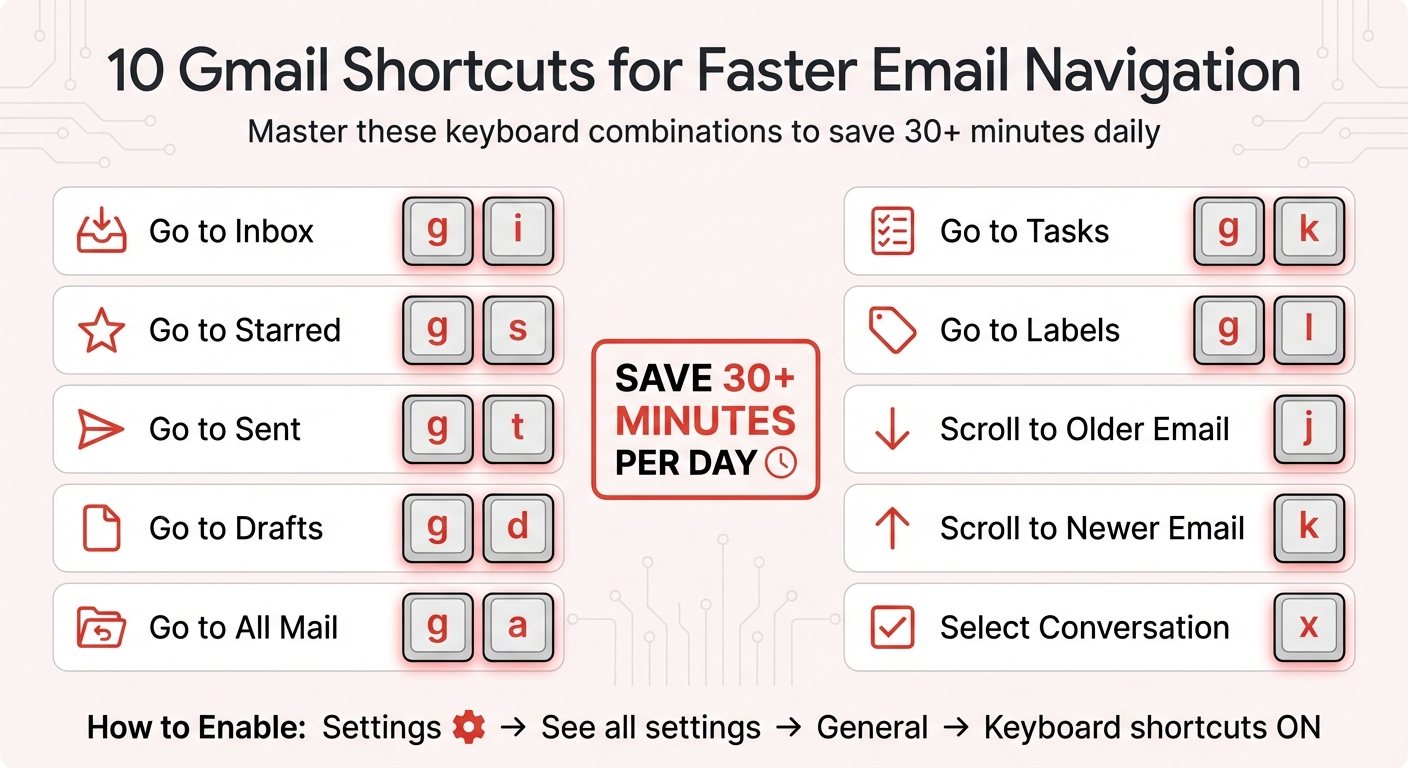
10 Essential Gmail Keyboard Shortcuts Cheat Sheet
How to find, use, and customize keyboard shortcuts in Gmail #57
sbb-itb-34b9fd2
1. Go to Inbox (g then i)
Want to jump straight to your Inbox in Gmail? Press g, then i - it’s that simple. This shortcut lets you return to your Inbox instantly, no matter where you are in Gmail. Forget about searching for the sidebar or fumbling with your mouse; this is a quick and efficient way to reset your view. Whether you’re deep in a label, reviewing sent messages, or checking drafts, g then i brings you back to home base.
Here’s the trick: press g first, release it, and then press i. They need to be pressed one after the other, not simultaneously. If it doesn’t work, try pressing Esc first to clear focus from any text fields, like the search bar or compose window. Once you’ve mastered this, you’ll find it’s a game-changer for navigating Gmail.
Think of this shortcut as your Gmail “home button.” It’s perfect for quickly switching back to your Inbox without disrupting your workflow.
"Some users report saving 30+ minutes a day just by cutting out mouse clicks and using shortcuts for routine actions." - Elie Steinbock, Author, GetInboxZero
2. Go to Starred (g then s)
Need quick access to your most important emails? Just press g, then s, and Gmail will take you straight to your Starred folder. It’s as intuitive as it sounds - g for "go" and s for "starred." This simple shortcut saves you from hunting through the sidebar or clicking around with your mouse.
No matter where you are in Gmail - whether you're checking drafts, sent messages, or a specific label - the g then s combo instantly redirects you to your starred emails. Saikat Basu, Editor at MakeUseOf, highlights its convenience: "Once I started using g + i, g + s, and g + d, the left sidebar became irrelevant." It’s a great way to stay focused on what matters most.
Stars are perfect for marking emails that need follow-up, contain time-sensitive info like flight details or meeting links, or require attention later. Gmail also offers colored stars and icons (called Superstars) for added organization. To enable these, head to the "Stars" section in your settings.
If the shortcut doesn’t work, check that keyboard shortcuts are turned on in your Gmail settings. And if you ever forget the shortcut, press Shift + ? to bring up Gmail’s full list of shortcuts.
3. Go to Sent (g then t)
Want to jump straight to your Sent folder in Gmail? Just press g then t - no matter where you are in your inbox.
This shortcut gives you quick access to your recently sent emails and all their details. Saikat Basu, Editor at MakeUseOf, highlights how navigation shortcuts like this "can help minimize the small pauses that break focus" when managing emails.
Once in the Sent folder, you can use j/k to scroll through emails, o/Enter to open one, and Shift + t to add an email to Google Tasks.
If the shortcut isn’t working, double-check that keyboard shortcuts are enabled by going to Settings > General > Keyboard shortcuts on. Ready for more? Learn how to access your Drafts just as easily!
4. Go to Drafts (g then d)
Press g followed by d to jump straight to your Drafts folder.
This shortcut is a lifesaver when you need to revisit unfinished emails without wasting time. Elie Steinbock, an author at Inbox Zero, puts it perfectly: "These 'go to' shortcuts essentially teleport you around Gmail. Instead of clicking the sidebar, reach any major section with a couple keys."
Make sure to press g and d in sequence (not at the same time) to open Drafts. Once there, you can use o or Enter to open an email or navigate through messages with j and k.
This is especially handy when you're interrupted mid-email. For instance, if you start composing a message with c but get sidetracked, you can quickly pick up where you left off by pressing g then d. Once you're done, press g then i to return to your inbox. Just double-check that keyboard shortcuts are enabled under Settings > General before trying this out. Coming up: learn how to access all your mail with one simple command.
5. Go to All Mail (g then a)
Gmail's navigation shortcuts make managing your inbox much simpler. Press g then a to open All Mail - this is where Gmail stores every message, except those in Spam or Trash.
When you archive an email using e, it disappears from your inbox but remains accessible in All Mail. As Elie Steinbock, Founder of Inbox Zero, explains: "Archiving is great for clearing clutter while keeping emails searchable." Think of it this way: your inbox is like a to-do list, showing only active and unprocessed messages, while All Mail is your filing cabinet, holding your entire email history. Made a mistake? Just hit z to undo, or use / to search your archive.
While in All Mail, you can move between conversations using j and k. If you accidentally archive a message, z can reverse it instantly, and / lets you search for specific emails in seconds.
6. Go to Tasks (g then k)
Press g followed by k to open the Google Tasks sidebar instantly - no mouse needed. Whether you're reading an email, writing a draft, or scrolling through your archive, this shortcut works anywhere in Gmail. It’s designed to keep your workflow smooth and uninterrupted.
The beauty of this shortcut lies in its ability to save time and maintain focus. As Dave Johnson from Business Insider puts it, "Shortcuts can save you a lot of time and mouse gymnastics." In the Tasks pane, you can add new tasks, check them off, or assign due dates - all without ever leaving Gmail.
Here’s a handy example: when you get an email that requires follow-up, press Shift + T to add it to your Tasks list. Then, hit e to archive the email. This keeps your inbox tidy while ensuring you don’t lose track of important to-dos. Whenever you need to review your tasks, just press g and k again to pull up the list.
And if you ever forget a shortcut, press Shift + ? to bring up Gmail's full keyboard shortcut guide.
7. Go to Labels (g then l)
Press g followed by l (lowercase 'l') to open Gmail's label search box. From there, type the name of your label and use the Up/Down arrow keys to navigate through suggestions. Once you've highlighted the correct label, press Enter to select it. This shortcut works no matter where you are in Gmail - whether you're reading, drafting, or browsing your archive.
This is especially handy if your sidebar is packed with labels. Instead of scrolling endlessly or digging through nested categories, you can type a few letters and jump straight to the label you need. As Charlotte Dawson from Clean Email puts it, "Keyboard shortcuts can save you hours when working, managing emails, or simply organizing your mailbox."
If your labels include special characters (like "Banks & Money"), they might appear slightly altered (e.g., "banks---money"), but they'll still direct you to the right place. Adding numeric prefixes to your labels (such as '1-Priority' or '2-Projects') can make navigation even faster.
With regular use, this shortcut becomes second nature and significantly improves your email navigation. It's a small tweak that can make a big difference in managing your inbox efficiently.
8. Move to Older Conversation (j)
Press j to quickly navigate to the next older conversation in your inbox. If you have an email open, hitting j will automatically bring up the next older thread in your list.
Think of j as your "jump down" shortcut. You can press it repeatedly to skip through conversations at lightning speed. For example, pressing j twice and then o allows you to bypass one email and open the next one. This can be a game-changer during email triage when you're deciding which messages to open, archive, or delete.
"Gmail keyboard shortcuts can change that equation dramatically. Instead of reaching for your mouse to archive, delete, or reply to each message, you execute these actions with a single keystroke."
- Elie Steinbock, Author
You can also pair j with x to select emails, then press # to delete them. Alternatively, use ] to archive a thread and immediately view the next one.
Remember, j only works if keyboard shortcuts are enabled in Gmail's Settings under the General tab. Once you get the hang of using j and its counterpart k (for newer conversations), navigating your inbox becomes much smoother.
Next, discover how to effortlessly select conversations with just one keystroke.
9. Move to Newer Conversation (k)
Press k to shift the selection cursor to the next newer conversation. If you're viewing an email, pressing k will open the next newer conversation automatically.
Think of k as the opposite of j: while j takes you to older emails, k moves you forward to newer ones.
This shortcut comes in handy when you accidentally scroll past your intended email. Just tap k to quickly move back up. You can also combine k with x to select multiple newer emails for actions like archiving or deleting in bulk.
"Power users who switch from mouse-based navigation to keyboard shortcuts report saving over 30 minutes per day by eliminating repetitive clicks." - Elie Steinbock, Author
If k isn't responding, check that Keyboard Shortcuts are enabled by going to Settings > See all settings > General. For a full list of shortcuts, press Shift + ?.
Up next: how to select entire conversations with just one keystroke.
10. Select Conversation (x)
Press x to toggle the selection of the email conversation currently highlighted in your inbox. Think of it as a keyboard-controlled checkbox that lets you quickly select or deselect emails. This shortcut works perfectly alongside other Gmail shortcuts, making email management faster and easier, especially when using the top tools for email productivity.
To use it, navigate through your inbox with j and k, then press x on any conversation you want to select. Once you've marked multiple emails, you can take actions like archiving them with e or deleting them with #, all in one go.
"To save time, you should handle as many emails as possible in the inbox, without even opening them. You should do it in batches. And you should do it with your keyboard." - Nick Douglas, Editorial Author, Lifehacker
For example, you can scroll through your inbox using j, select newsletters or promotional emails with x, and archive them all at once by pressing e. If you need to clear your selections and start over, use * followed by n. When combined with other navigation shortcuts, the 'Select Conversation' feature helps you breeze through your emails in no time.
This one keystroke can help you process dozens of emails in just seconds.
How to Enable and Customize Gmail Shortcuts
By default, Gmail shortcuts are turned off, but activating them can make navigating your inbox much faster. To enable shortcuts, click the gear icon in the top-right corner of Gmail, select See all settings, and head to the General tab. Scroll down to the Keyboard shortcuts section, select Keyboard shortcuts on, and hit Save Changes at the bottom of the page.
Once shortcuts are active, you'll notice a blue vertical bar highlighting the active email, indicating where your shortcut actions will apply. From here, you can also tweak Gmail shortcuts to better suit your workflow.
"Keyboard shortcuts allow you to speed through your mail faster than you can click." - Chris Hoffman, Former Editor-in-Chief, How-To Geek
If you want more control, Gmail allows you to customize shortcuts. To do this, go to the Advanced tab in settings, enable Custom keyboard shortcuts, and save your changes. This unlocks a new Keyboard Shortcuts tab, where you can remap actions to keys that feel more intuitive for you. For example, you might prefer using d to delete emails instead of #, or assign h to archive instead of e.
Keep in mind, each key can only be tied to one action. If you assign a key to a new function, its previous action will be unassigned. If you need a fresh start, use the Restore Defaults button at the bottom of the Keyboard Shortcuts tab. For PC users, shortcuts typically rely on the Ctrl key, while Mac users will use the Command (⌘) key.
Conclusion
Getting the hang of Gmail shortcuts can completely change how you manage your inbox. By cutting down on clicks, you can turn your email into a more efficient workspace, potentially saving over 30 minutes a day - more than 2.5 hours every week. That’s time you can put toward more important tasks.
Start small. Try out a few essential shortcuts, like j/k for navigation, e to archive, and r to reply, during one focused email session each day. Need a cheat sheet? Press Shift + ? to pull up the full list anytime. With a little practice, you’ll find yourself zipping through email threads in half the time.
But shortcuts alone won’t keep your inbox under control. Pair them with a tool like MailSweeper for a complete email management strategy. MailSweeper uses AI to sort out unimportant emails, moving them to a "Dustpan" label where they’re automatically deleted after 30 or 90 days. It ensures that key emails - those in your primary inbox, starred, or flagged - stay untouched. This way, shortcuts help you tackle priority messages, while automation quietly clears the clutter in the background.
FAQs
Why aren’t Gmail shortcuts working for me?
If your Gmail shortcuts aren’t functioning, it’s possible they’re turned off in your settings. To fix this, open Gmail, click the gear icon, choose 'See all settings', and look for the 'Keyboard shortcuts' section. Make sure to enable them and save your changes.
If they still don’t work, try refreshing the page, ensuring your browser is active, and checking for potential problems like conflicting extensions or mismatched keyboard layouts.
Do these shortcuts work on both Mac and Windows?
Yes, these Gmail shortcuts work seamlessly on both Mac and Windows. They operate the same on both platforms, helping you navigate your inbox more quickly and efficiently, no matter which device you’re using.
Can I customize Gmail keyboard shortcuts?
Yes, you can! Gmail allows you to customize its keyboard shortcuts to suit your preferences. To get started, you'll need to enable the keyboard shortcuts feature in your settings. Once that's done, you can tweak specific shortcuts or stick with the default options. This flexibility makes it easier to navigate your inbox and manage emails more efficiently, saving you time and effort.
More free Gmail tools.
Pair these together for a full inbox reset.
Bulk Unsubscribe from Gmail
See the senders flooding your inbox, ranked by volume — your shortlist for unsubscribes.
Open toolMass Delete Gmail Emails
Build a deletion plan by sender, date, label, or all-unread — with the exact Gmail search to run.
Open toolFind Large Emails in Gmail
Pick a size and we build the exact Gmail search to find your biggest emails — then open it in one click.
Open toolGmail Storage Cleanup
Move the slider to your current Gmail usage to see exactly what to delete to free space.
Open toolInbox Zero Score
Rate your inbox health on a 0–100 scale and see the weekly hours your inbox is costing you.
Open tool