
Email Management
Best Gmail Add-Ons for Task Management
Use Gmail add-ons to convert emails into tasks, create Kanban boards, automate follow-ups, and cut inbox clutter — compare features and pricing.
Best Gmail Add-Ons for Task Management
Your Gmail inbox can be more than just a place for emails - it can help you manage tasks efficiently. By using Gmail add-ons, you can turn emails into actionable tasks, prioritize them, and keep your workflow organized without switching between apps. Here are the top tools to consider:
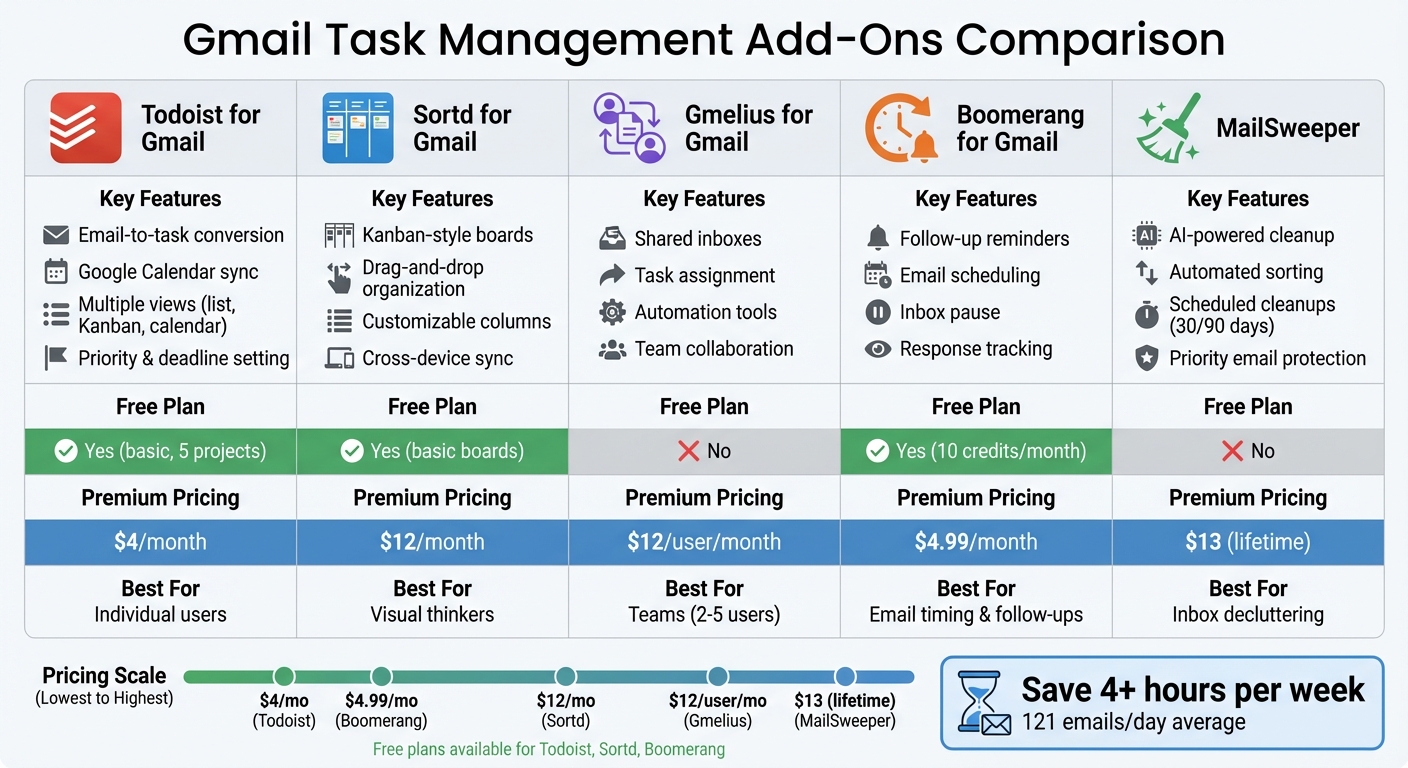
- Todoist for Gmail: Converts emails into tasks, syncs with Google Calendar, and offers multiple views (list, Kanban, calendar). Free for basic use; premium starts at $4/month.
- Sortd for Gmail: Transforms your inbox into a Kanban board for visual task management. Free version available; premium starts at $12/month.
- Gmelius for Gmail: Ideal for teams, offering shared inboxes, task assignment, and automation. Plans begin at $12/user/month.
- Boomerang for Gmail: Focused on email timing and follow-ups, with features like reminders and inbox pause. Free for basic use; premium starts at $4.99/month.
- MailSweeper: AI-powered email cleanup tool that organizes unimportant emails. Lifetime access starts at $13.
These tools save time, simplify workflows, and help you stay on top of tasks directly from your inbox.
Quick Comparison
| Add-On | Key Features | Free Plan | Premium Pricing |
|---|---|---|---|
| Todoist | Email-to-task conversion, syncs with Google Calendar | Yes (basic) | $4/month (individual) |
| Sortd | Kanban boards, drag-and-drop organization | Yes (basic) | $12/month |
| Gmelius | Shared inboxes, task assignment, automation | No | $12/user/month |
| Boomerang | Follow-up reminders, email scheduling | Yes (10 credits) | $4.99/month |
| MailSweeper | AI email cleanup, scheduled cleanups | No | $13 (lifetime access) |
Choose the add-on that best fits your workflow and team needs.
Gmail Task Management Add-Ons Comparison: Features and Pricing
The To-Do List App Made Just for Google Users
sbb-itb-34b9fd2
Best Gmail Add-Ons for Task Management
Adding the right tools to your Gmail can make managing tasks a breeze - no need to leave your inbox. These add-ons integrate seamlessly with Gmail, helping you streamline your workflow. Here’s a closer look at some top options:
Todoist for Gmail
Todoist makes turning emails into tasks effortless. With just one click, it converts the email subject into a task title and includes the entire thread for context. You can prioritize tasks, set deadlines, and even sync everything with Google Calendar. The sidebar interface also offers flexibility with list, Kanban, and calendar views, so you can organize tasks in a way that works best for you.
Key features:
- Instantly convert emails into tasks with subject and body extraction
- Add priorities, deadlines, and recurring tasks
- Integrate with Google Calendar for a unified schedule
- Choose from list, board, or calendar views
Pricing:
Todoist offers a free plan for basic task management, while premium options start at $4/month (billed annually). For teams, the Business plan costs $6/month per user, adding collaboration tools.
| Plan | Price | Best For | Key Limitations |
|---|---|---|---|
| Free | $0 | Individuals with simple needs | Limited to 5 active projects |
| Premium | $4/month | Advanced individual task management | Single user only |
| Business | $6/month per user | Teams needing collaboration tools | Requires at least 2 users |
Sortd for Gmail

Sortd transforms your inbox into a Kanban-style board, perfect for visual task management. You can create columns like "To-Do", "Follow-Up", and "Later", then drag and drop emails into the right spot. This approach makes prioritizing tasks intuitive and keeps everything visible at a glance. Plus, it syncs across mobile and desktop for seamless use.
Key features:
- Turn your inbox into customizable Kanban boards
- Drag and drop emails to organize tasks
- Create personalized task lists and columns
- Sync across devices for consistent workflows
Pricing:
Sortd’s free version includes basic board functionality, while premium plans start at $12/month, unlocking features like shared boards, task assignments, and priority support.
| Feature | Visual Boards (Sortd) | Traditional Lists |
|---|---|---|
| Quick prioritization | Drag-and-drop | Manual sorting or tagging |
| Workflow visibility | View all stages | Sequential task view |
| Learning curve | Moderate | Minimal |
| Best for | Visual thinkers | Traditional list users |
Gmelius for Gmail
Gmelius turns Gmail into a collaborative workspace, ideal for team-based task management. It allows teams to share inboxes, assign tasks, and track progress using shared labels and Kanban boards. Built-in automation features can route emails, assign tasks, or send follow-ups automatically, streamlining communication and reducing confusion.
Key features:
- Shared inboxes for team collaboration
- Kanban boards to track workflows visually
- Automation tools for email routing and task assignment
- Shared labels for organized teamwork
Pricing:
Plans start at $12/month per user for basic collaboration, with advanced options at $24/month per user for features like analytics and integrations.
| Team Size | Recommended Plan | Key Features Needed | Monthly Cost |
|---|---|---|---|
| 2–5 users | Basic | Shared inbox, basic boards | $12/user |
| 6–15 users | Pro | Automation, analytics, integrations | $24/user |
| 16+ users | Enterprise | Advanced security, dedicated support | Custom pricing |
Boomerang for Gmail

Boomerang is perfect for managing email timing and follow-ups. Its standout feature is the follow-up reminder, which brings emails back to your attention if no response is received. You can also schedule emails to send later and pause your inbox to focus on tasks without distractions.
Key features:
- Follow-up reminders for unanswered emails
- Schedule emails to send at optimal times
- Pause inbox to minimize interruptions
- Track responses and get read receipts
Pricing:
Boomerang’s free plan includes 10 message credits per month. For unlimited credits, personal plans start at $4.99/month, while professional plans with advanced features cost $14.99/month.
| Reminder Type | How It Works | Best Use Case | Limitations |
|---|---|---|---|
| No reply | Resurfaces emails without response | Sales follow-ups, client emails | Manual setup for each email |
| Time-based | Returns email to inbox at set time | Deferred tasks, future needs | Can clutter inbox if overused |
| Conditional | Triggers based on recipient actions | High-stakes negotiations | Only in professional plan |
MailSweeper for Task Optimization
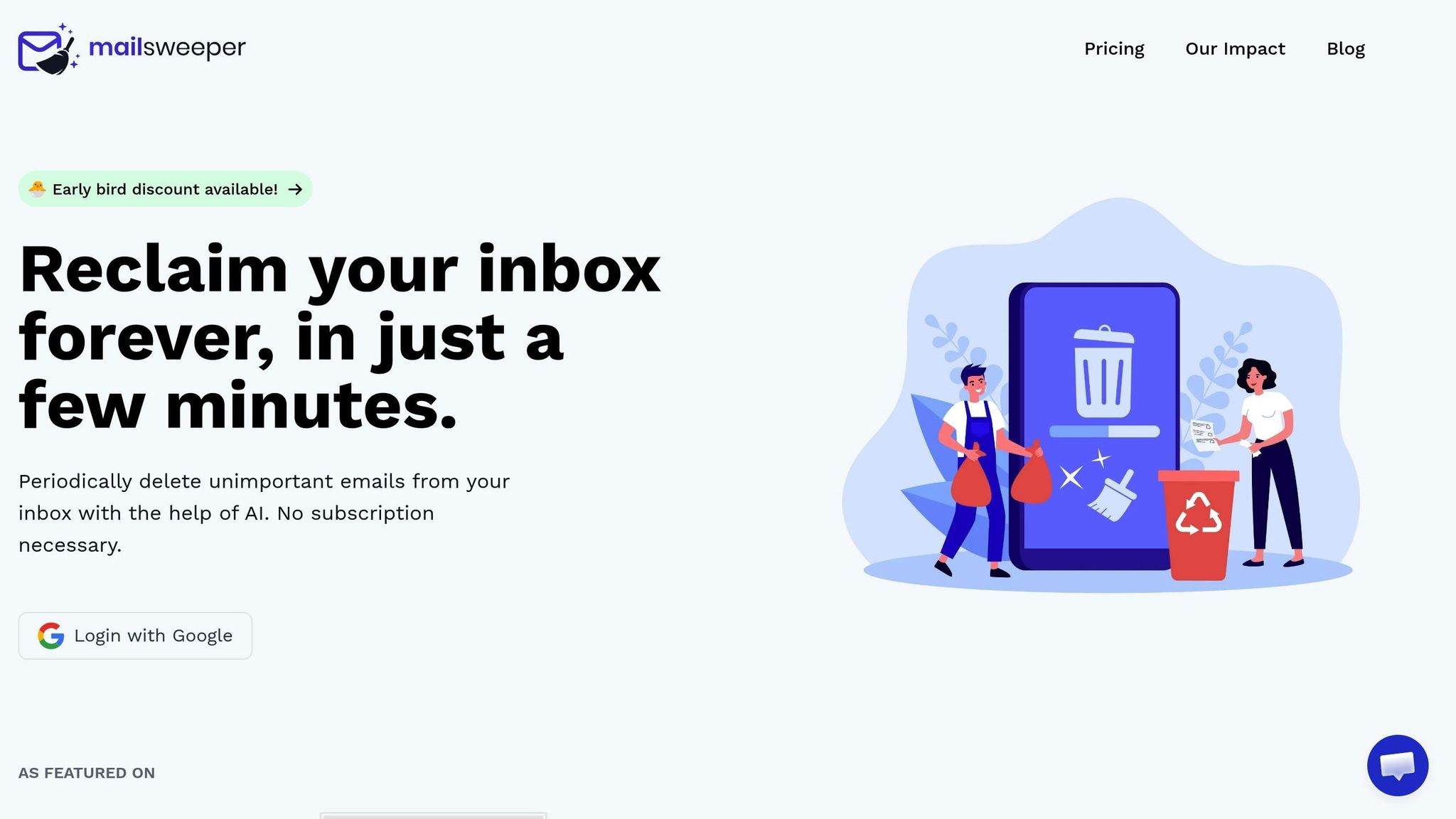
MailSweeper focuses on clearing out email clutter, so you can focus on important tasks. Using AI, it identifies unimportant emails and moves them to a "Dustpan" label. Starred or flagged emails stay untouched, and you can schedule automatic cleanups every 30 or 90 days. With a one-time payment for lifetime access, it’s a great option for keeping your inbox tidy long-term.
Key features:
- AI-powered email sorting and cleanup
- Routes unimportant emails to "The Dustpan"
- Customizable cleanup schedules (30 or 90 days)
- Excludes priority and starred emails
- One-time payment for lifetime access
Pricing:
MailSweeper offers three lifetime payment options:
| Plan | One-Time Price | Lifetime Value | Best For |
|---|---|---|---|
| Very Early Bird | $13 | Unlimited cleaning forever | Early adopters (limited slots) |
| Early Bird | $16 | Unlimited cleaning forever | Budget-conscious users |
| Personal | $20 | Unlimited cleaning forever | Long-term inbox organization |
How to Choose the Right Gmail Add-On
Picking the right Gmail add-on can make a big difference in how efficiently you manage your inbox. Start by looking for tools that align with your workflow. For example, Todoist or Boomerang can help you turn emails into tasks quickly, keeping your inbox organized. If you're working with a team, consider add-ons that offer shared inboxes and collaboration features, so everyone can work from the same account and track progress together.
Make sure the add-on integrates well with tools you already use, such as Slack, Google Calendar, or your CRM. You can confirm compatibility by checking the Google Workspace Marketplace.
Pay close attention to the permissions add-ons request. They should only ask for access that's absolutely necessary. It’s worth noting that the average office worker deals with roughly 121 emails every day, and by 2026, daily email traffic is expected to hit 392.5 billion messages. With such high email volumes, the right tools can save you a lot of time.
To avoid slowing down Gmail or overcomplicating your workflow, start with just one or two add-ons. Keep in mind that browser extensions usually only work on desktop, while official Gmail add-ons function on both web and mobile platforms.
Finally, make it a habit to review and remove any add-ons you no longer use. This helps maintain performance and protects your data. Whether you’re looking for Kanban boards, automated follow-ups, or tools to declutter your inbox, the best add-on will depend on your workflow, team size, and specific challenges.
Conclusion
Gmail add-ons can simplify your inbox and turn email management into a smoother, more efficient process. By saving over 4 hours each week, they free up time for you to focus on what matters most.
The add-ons mentioned earlier tackle specific workflow challenges, but the real trick is choosing the ones that fit your needs without overcomplicating things.
Keeping your inbox organized is just as critical as handling tasks effectively. Every unprocessed email can drain your mental energy by creating an open loop that lingers in your mind. Tools like MailSweeper, with its clever "Dustpan" feature that automatically clears out unimportant emails, are game-changers for reducing clutter and cutting down on decision fatigue.
FAQs
Do Gmail add-ons work on mobile, too?
Yes, Gmail add-ons work on mobile devices, allowing you to handle tasks like adding reminders and creating tasks directly in the Gmail app. That said, their functionality on mobile is somewhat limited compared to the desktop version. For example, while you can add tasks, managing entire task lists may require using the web version. Additionally, Google Workspace add-ons are designed to function smoothly across both desktop and mobile platforms.
What permissions should a Gmail add-on need?
Gmail add-ons often need permissions to interact with your emails, such as reading, sending, or modifying them. They might also require access to your calendar, contacts, or files, especially if their features go beyond managing emails. When you install these add-ons, permissions are granted, and trustworthy ones typically use encrypted, read-only access. This ensures your privacy is protected and prevents any unauthorized changes.
How do I avoid slowing down Gmail with add-ons?
To ensure Gmail works seamlessly with add-ons, stick to only the essential extensions and keep their number to a minimum. Having too many active add-ons can lead to conflicts and slow down performance. Make it a habit to disable or remove any add-ons you no longer use.
On top of that, regularly clearing your browser cache can help Gmail run more efficiently. Managing your Gmail labels and filters wisely also plays a big role in keeping things organized and responsive. By following these steps, you can enjoy a smoother Gmail experience while making the most of the add-ons you truly need.
More free Gmail tools.
Pair these together for a full inbox reset.
Bulk Unsubscribe from Gmail
See the senders flooding your inbox, ranked by volume — your shortlist for unsubscribes.
Open toolMass Delete Gmail Emails
Build a deletion plan by sender, date, label, or all-unread — with the exact Gmail search to run.
Open toolFind Large Emails in Gmail
Pick a size and we build the exact Gmail search to find your biggest emails — then open it in one click.
Open toolGmail Storage Cleanup
Move the slider to your current Gmail usage to see exactly what to delete to free space.
Open toolInbox Zero Score
Rate your inbox health on a 0–100 scale and see the weekly hours your inbox is costing you.
Open tool