
Email Management
50+ Gmail Search Operators for Power Users
Master 50+ Gmail search operators to find emails by sender, date, file type, or size and clean your inbox faster.
50+ Gmail Search Operators for Power Users
Gmail search operators allow you to quickly find specific emails in your inbox by filtering results based on criteria like sender, date, attachments, or keywords. Instead of scrolling endlessly, you can use these commands to pinpoint exactly what you need. Here’s why they’re useful:
- Save time: Locate emails faster by using precise filters.
- Stay organized: Combine operators to manage your inbox efficiently.
- Custom searches: Filter emails by sender, file type, size, or date range.
For example:
from:boss has:attachmentfinds emails from your boss with attachments.newer_than:7d is:unreadlists unread emails from the past week.filename:pdf larger:5Mlocates large PDF files in your inbox.
Mastering these operators can transform how you manage emails, making your inbox less overwhelming and more functional. Read on to explore step-by-step instructions and examples for using these search commands effectively.
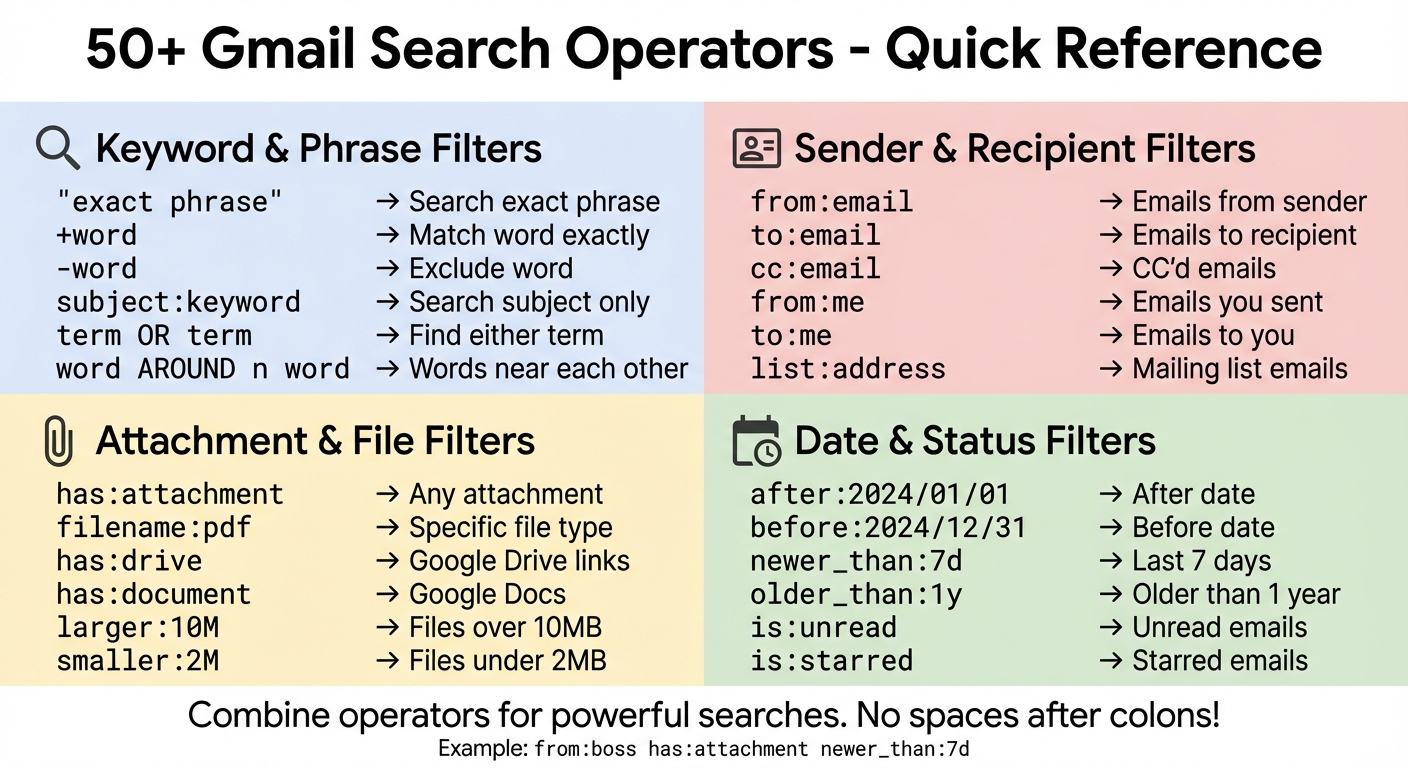
Gmail Search Operators Quick Reference Guide
How To Use Gmail Search Operators To Conquer Your Inbox
sbb-itb-34b9fd2
1. Keyword and Phrase Filters
Quickly locate emails by using specific words or phrases. These filters work across the email’s subject line, body, and metadata - unless you narrow the focus with extra commands.
1. Search for an exact phrase
Put your terms in double quotes (e.g., "monthly report") to find that exact sequence. Without quotes, Gmail will treat each word individually.
2. Match a word exactly
Add a plus sign before a word (e.g., +unicorn) to ensure Gmail matches it exactly.
3. Exclude specific keywords
Use a hyphen before a word to exclude it from your results (e.g., meeting -agenda).
4. Exclude an exact phrase
Combine the hyphen with double quotes (e.g., -"meeting notes") to filter out emails containing that specific phrase.
5. Search the subject line only
Use subject: followed by your keyword (e.g., subject:invoice) to limit results to email subject lines.
6. Find emails with multiple subject keywords
Group terms in parentheses (e.g., subject:(dinner movie)) to search for emails that mention any of the listed words in the subject.
7. Include one subject word but exclude another
Mix terms within the subject: operator (e.g., subject:(content -marketing)) to include one term while excluding another.
8. Search for one term OR another
Use OR in all caps between terms (e.g., from:amy OR from:david) to find emails that meet either condition. You can also use curly braces { } as an alternative.
9. Find words near each other
Use AROUND n (e.g., budget AROUND 10 2024) to locate words within a specific distance of each other. For ordered proximity, wrap the query in quotes (e.g., "secret AROUND 25 birthday").
10. Combine multiple operators
Gmail applies AND logic by default. Use parentheses for more complex searches (e.g., subject:(project -draft)).
11. Search with Boolean logic
Make sure Boolean operators like OR are capitalized so Gmail understands them correctly.
12. Avoid syntax errors
"Gmail search operators... are specialized commands you type into Gmail's search bar to narrow your results quickly and precisely." - Nitansha Tanwar, B2B SaaS content marketer
Avoid spaces in operators (e.g., subject:invoice).
13. Disable word variations
By default, Gmail searches for word stems and synonyms. Use quotation marks or the + operator to force exact matches and turn off this behavior.
These keyword filters can save you time and help you stay organized, especially when you’re dealing with a packed inbox.
Here’s a quick reference table for these operators:
| Operator | Purpose | Example |
|---|---|---|
| " " | Search for an exact phrase | "monthly report" |
| + | Match a word exactly | +miztake |
| - | Exclude a specific word | meeting -agenda |
| OR or { } | Find emails matching term A or B | from:amy OR from:david |
| AROUND n | Find words within n words of each other | holiday AROUND 10 vacation |
| ( ) | Group multiple search terms | subject:(dinner movie) |
| subject: | Search for words in the subject line | subject:invoice |
Next, discover how to fine-tune your searches using sender and recipient details.
2. Sender and Recipient Filters
Fine-tuning your email search becomes much easier when you focus on who sent or received the messages. These filters allow you to track conversations, locate specific emails, and manage communication threads more effectively. They work well alongside keyword filters, helping you zero in on the people involved in your email exchanges.
1. Find emails from a specific sender
Use from: followed by an email address or name (e.g., from:boss@company.com) to pull up all emails from a particular person.
2. Search for emails sent to someone
The to: operator lets you find messages sent to a specific recipient (e.g., to:client@gmail.com).
3. Locate emails where someone was copied
Use cc: to find emails where a person was carbon copied (e.g., cc:manager@company.com) or bcc: for blind copies in emails you sent (e.g., bcc:hr@company.com).
4. Filter emails sent to an alias
The deliveredto: operator is perfect for finding emails delivered to a specific alias or secondary address (e.g., deliveredto:alias@domain.com).
5. Narrow down mailing list messages
Use list: followed by the mailing list address (e.g., list:info@newsletter.com) to filter emails from newsletters or distribution lists.
6. Shortcut for your own emails
Search for emails you’ve sent with from:me, emails sent directly to you with to:me, or messages where you were copied using cc:me.
7. Search emails from multiple senders
Combine sender queries with OR (e.g., from:alice OR from:bob) or use curly braces for the same purpose (e.g., {from:amy from:david}).
8. Find conversations between two people
Combine sender and recipient operators to track direct exchanges (e.g., from:amy AND to:david).
9. Exclude emails from certain senders
Use a minus sign before the operator to filter out emails from specific senders (e.g., -from:newsletter@company.com).
10. Ensure exact sender matches
Enclose the email address in double quotes (e.g., from:"john.doe@example.com") to get precise results.
11. Group multiple recipients
Use parentheses to group recipient searches (e.g., to:(amy david)) and find emails sent to any of the listed individuals.
12. Combine sender filters with other criteria
Mix sender filters with additional operators for better targeting. For example, from:boss is:unread helps you find unread emails from your manager.
13. Avoid syntax mistakes
Make sure there are no spaces between the operator, colon, and search term. For instance, use from:jane instead of from: jane.
Quick Reference Table
| Operator | Purpose | Example |
|---|---|---|
| from: | Emails from a specific sender | from:boss@company.com |
| to: | Emails sent to a specific recipient | to:client@gmail.com |
| cc: | Emails where someone was CC'd | cc:manager@company.com |
| bcc: | Emails where someone was BCC'd | bcc:hr@company.com |
| deliveredto: | Emails delivered to a specific alias | deliveredto:alias@domain.com |
| list: | Emails from a mailing list | list:info@newsletter.com |
| from:me | Emails you sent | from:me subject:report |
| to:me | Emails sent directly to you | to:me is:unread |
| OR or { } | Emails from either sender A or B | from:alice OR from:bob |
Now that you’ve mastered sender and recipient filters, you're ready to explore how to filter emails by attachments and file types.
3. Attachment and File Filters
Building on the sender and keyword filters, attachment filters can make searching through your emails even more efficient.
By focusing on attachment types, you can quickly locate important files, manage storage, and track shared documents. These filters are a handy way to streamline your inbox. Let’s dive into the specific ways you can refine your searches using file-related filters.
1. Find any email with an attachment
To see all emails containing attachments, regardless of their format or size, use the operator has:attachment.
2. Search for specific file types
If you’re looking for a particular file format, the filename: operator is your go-to. For example, use filename:pdf to find PDFs or filename:docx to locate Word documents.
3. Locate files by name
For even greater precision, search for a specific file using its exact name. For example:
filename:"invoice.pdf" or filename:"project plan.xlsx". Remember to include quotation marks for exact matches.
4. Filter native Google Workspace files
Want to find Google Docs, Sheets, or Slides? Use the following operators:
has:documentfor Google Docshas:spreadsheetfor Google Sheetshas:presentationfor Google Slides
5. Find emails with Drive links
To locate emails containing Google Drive links or shared files, use the has:drive operator.
6. Search for images
Looking for emails with attached or embedded images? Use the has:image operator.
7. Find large attachments
If storage is a concern, use larger: followed by a size (e.g., larger:10M) to find emails with attachments exceeding a specific size. Use M for megabytes and K for kilobytes.
8. Locate smaller files
On the flip side, the smaller: operator helps you find emails with attachments below a certain size (e.g., smaller:2M).
9. Combine size filters
Need to search within a specific size range? Combine both operators, like this: larger:5M smaller:10M.
10. Exclude certain attachments
To exclude specific file types or senders, use a minus sign. For example:
has:attachment -filename:zip(excludes ZIP files)has:attachment -from:newsletter@company.com(excludes attachments from a specific sender)
11. Combine with other filters
You can mix these filters with others for even more targeted searches. Examples:
from:boss filename:pdf is:unread(find unread PDFs from your boss)larger:5M older_than:1y(find large files older than a year)
12. Clean up storage space
If you need to fix Gmail storage full issues, use larger:10M to identify the largest attachments. This makes it easier to delete unnecessary files and free up storage.
Quick Reference Table
| Operator | Purpose | Example |
|---|---|---|
| has:attachment | Finds emails with any file | has:attachment |
| filename: | Finds specific file types or names | filename:pdf |
| has:drive | Finds Google Drive links | has:drive |
| has:document | Filters for Google Docs | has:document |
| has:spreadsheet | Filters for Google Sheets | has:spreadsheet |
| has:presentation | Filters for Google Slides | has:presentation |
| has:image | Finds embedded or attached images | has:image |
| larger: | Finds emails larger than specified size | larger:10M |
| smaller: | Finds emails smaller than specified size | smaller:2M |
4. Date and Status Filters
These filters build on attachment filters, giving you tools to refine your search based on dates and email statuses.
Date and status filters are incredibly handy for narrowing down email searches, whether you're conducting an inbox cleanup, catching up on missed emails, or reviewing messages from a specific time period.
1. Find emails after a specific date
To locate emails received after a certain date, use after: or newer: followed by a date in the yyyy/mm/dd format. For instance, after:2025/07/15 will display all emails from July 15, 2025, onward. Both operators work the same way.
2. Find emails before a specific date
Similarly, the before: or older: operators help you find emails received before a specific date. For example, before:2024/12/31 will show all emails received prior to December 31, 2024.
3. Search by relative time periods
You can also search emails based on relative timeframes using older_than: or newer_than:, combined with time units like d for days, m for months, or y for years. For example:
newer_than:7ddisplays emails from the past week.older_than:2yfinds messages older than two years.
4. Create date ranges
By combining date operators, you can create precise timeframes. For example, after:2024/01/01 before:2024/01/31 will show all emails from January 2024. This is especially useful for pinpointing specific conversations or receipts.
5. Filter unread messages
The is:unread operator brings up all unopened emails. Pair it with a date filter like is:unread newer_than:7d to focus on unread emails from the past week.
6. Find read messages
To locate emails you've already opened, use is:read. For example, is:read older_than:1y can help you quickly identify older, read emails that might be ready for archiving or deletion.
7. Locate starred emails
Use is:starred to find all emails you've marked with a star. If you use multiple star types, you can be more specific with operators like has:yellow-star, has:blue-info, has:red-bang, or has:green-check.
8. Filter important messages
Gmail flags certain emails as important based on your behavior. Use is:important to find these messages. For example, is:important is:unread newer_than:7d will show high-priority unread emails from the last week.
9. Find snoozed emails
To locate emails you've snoozed, use in:snoozed or is:snoozed. This is helpful for keeping track of messages you've postponed for later.
10. Search across all folders
To include messages in Spam or Trash, use in:anywhere. For example, in:anywhere is:unread will find unread messages even if they've been moved to those folders by mistake.
11. Combine with categories
You can mix date filters with category operators for targeted searches. For instance:
category:purchases after:2024/06/01 before:2024/06/30will locate purchase receipts from June 2024.category:promotions older_than:1yhelps you identify and delete old promotional emails.
Quick Reference Table
| Operator | Description | Example |
|---|---|---|
| after: / newer: | Finds emails after a specific date | after:2025/01/01 |
| before: / older: | Finds emails before a specific date | before:2024/12/31 |
| older_than: | Finds emails older than a timeframe (d, m, y) | older_than:1y |
| newer_than: | Finds emails newer than a timeframe (d, m, y) | newer_than:30d |
| is:unread | Filters for unopened messages | is:unread |
| is:read | Filters for opened messages | is:read |
| is:starred | Finds all starred messages | is:starred |
| is:important | Filters for Gmail's priority messages | is:important |
| is:snoozed | Finds temporarily hidden messages | is:snoozed |
| in:anywhere | Searches all folders including Spam/Trash | in:anywhere |
Conclusion
Learning how to use Gmail search operators can turn your inbox from a cluttered mess into an organized, efficient workspace. Instead of wasting time scrolling endlessly, you can pinpoint exactly what you need - whether it's a specific PDF, unread messages from your team, or older files you rarely access. For example, crafting a query like from:john has:attachment newer_than:2d or category:promotions after:2024/06/01 before:2024/06/30 makes finding emails a breeze.
However, precision is key. Gmail's search syntax is unforgiving - something as simple as adding a space after a colon (e.g., from: jane) will throw off your search. Once you’ve fine-tuned a query, consider bookmarking the search URL for quick access or using the "Create filter" option to automatically organize future emails that match your criteria.
For even more efficiency, you can pair search operators with email productivity tools. While search operators help you manually locate emails, tools like MailSweeper’s Dustpan feature take things further by automatically managing clutter. It works in the background, identifying unimportant emails (while skipping primary, starred, or important messages) and deleting older ones after 30 or 90 days - based on your preferences. This reduces the need for constant manual cleanup and keeps your inbox under control.
FAQs
How do I build a Gmail search for a specific date range?
To search Gmail for emails within a specific date range, use the after: and before: operators along with dates in the YYYY/MM/DD format. For instance, if you're looking for emails sent between February 1, 2026 and February 10, 2026, type: after:2026/02/01 before:2026/02/10 in the search bar. Hit Enter, and Gmail will show emails from that exact timeframe. It's a quick way to narrow down your search to a specific period.
Why isn’t my Gmail operator working when I type it in?
If your Gmail search operator isn’t working, the issue might be a syntax error. Some common mistakes include:
- Forgetting the colon between the operator and the search term.
- Adding unnecessary spaces.
- Using the wrong formatting.
Gmail’s search operators need to follow an exact structure to work correctly. Take a moment to review your input for these errors to make sure everything is entered properly.
Can I save a Gmail search or turn it into an automatic filter?
Filters in Gmail allow you to save searches and automate actions like labeling, archiving, or deleting emails based on specific criteria. To create one, simply use the search bar to define your criteria, then choose the option to create a filter from the search results. It’s a handy way to keep your inbox organized without constant manual effort.
More free Gmail tools.
Pair these together for a full inbox reset.
Bulk Unsubscribe from Gmail
See the senders flooding your inbox, ranked by volume — your shortlist for unsubscribes.
Open toolMass Delete Gmail Emails
Build a deletion plan by sender, date, label, or all-unread — with the exact Gmail search to run.
Open toolFind Large Emails in Gmail
Pick a size and we build the exact Gmail search to find your biggest emails — then open it in one click.
Open toolGmail Storage Cleanup
Move the slider to your current Gmail usage to see exactly what to delete to free space.
Open toolInbox Zero Score
Rate your inbox health on a 0–100 scale and see the weekly hours your inbox is costing you.
Open tool