
Email Management
The Best Hidden Keywords for Gmail Searches
Use Gmail search operators to find emails by sender, attachment, label, date, or size; combine filters to clean and organize your inbox quickly.

The Best Hidden Keywords for Gmail Searches
Gmail search operators are powerful tools that help you quickly find specific emails without scrolling through endless threads. These hidden commands let you filter emails by sender, recipient, attachments, labels, categories, or even timeframes. For example, you can search for emails with large attachments older than a year or find unread messages from a specific sender.
Key Highlights:
- Basic Commands: Use
from:,to:, andsubject:to locate emails by sender, recipient, or subject. - Advanced Filters: Combine operators like
has:attachmentwithfilename:pdfto find specific file types. - Time-Based Searches: Use
older_than:90dorbefore:2025/01/01to clean up old emails. - Custom Queries: Combine multiple operators (e.g.,
from:boss@company.com AND is:unread) for precise results.
These operators save time, help declutter your inbox, and make email management seamless. Bookmark your favorite queries for quick access or turn them into filters to automate tasks.
How To Use Gmail Search Operators To Conquer Your Inbox
Basic Gmail Search Operators for Email Management
Getting the most out of Gmail starts with mastering its basic search operators. These simple commands let you filter emails by sender, recipient, or other specific criteria. By using the format operator:search_term, you can quickly locate the conversations you need without endless scrolling.
Some of the most useful operators include from: and to:, which help you narrow down emails based on who sent or received them. For example, from:me displays all the messages you've sent, while to:me pulls up emails addressed directly to you, excluding those where you're just CC'd. If you're managing multiple email aliases or forwarded accounts, the deliveredto: operator finds messages sent to a specific email address. Similarly, the list: operator focuses on emails from mailing lists. Let’s dive into how these core commands work.
Using from: and to: to Filter by Sender and Recipient
The from: operator is perfect for finding emails from a specific person or domain. For instance, typing from:paypal.com retrieves all emails from PayPal, while from:amy@example.com shows messages from a particular colleague. This makes it easy to isolate emails for review or cleanup.
On the flip side, the to: operator helps you locate emails sent to a particular recipient. For example, to:john@example.com pulls up messages you've sent to John, while to:me is a quick way to see emails addressed directly to your inbox. If you're looking for emails where someone was CC'd, use the cc: operator, like cc:manager@company.com.
To exclude emails from specific senders, just add a minus sign before the operator. For example, from:team -from:intern@company.com shows all team emails except those from the intern. You can also search for messages from multiple senders at once using the OR operator (capitalized): from:boss@company.com OR from:hr@company.com will display emails from either sender in one search.
Want even more precision? Combine these operators with exact phrases and exclusion techniques for refined results.
Refining Results with Exact Phrases and Exclusions
If you're searching for something specific, wrap multiword phrases in double quotes to find exact matches. For example, searching for "project update" ensures Gmail only shows emails containing that exact phrase, rather than emails where the words "project" and "update" appear separately. This works especially well for subject lines - try subject:"payment received" to locate emails with that exact subject.
The exclusion operator (-) is another handy tool for fine-tuning your search. Use it to filter out unwanted content. For instance, "project update" -draft will display final communications while hiding earlier drafts. You can exclude multiple terms by placing a minus sign before each one.
You can also use the plus sign (+) to force Gmail to match a specific term exactly. For example, searching +invoice ensures only emails containing that exact word appear, without pulling in synonyms or variations. Combine this with other operators for even more targeted results. For instance, from:accounting +urgent will show emails from your accounting team that include the exact word "urgent."
Here’s a quick reference table to summarize these operators:
| Operator | Purpose | Example |
|---|---|---|
from: |
Find emails from a specific sender | from:paypal.com |
to: |
Find emails sent to a specific recipient | to:me |
" " |
Search for an exact phrase | "quarterly report" |
- |
Exclude a specific sender or term | from:marketing -discounts |
+ |
Match a specific word exactly | +invoice |
cc: |
Find emails where a person is CC'd | cc:manager@company.com |
Advanced Operators for Better Inbox Control
Once you've got the basics down, Gmail's advanced search operators can take your inbox management to the next level. These commands allow you to dig deep into forgotten folders, find specific file types, and organize emails by categories or labels. By default, Gmail's search bar skips Spam and Trash, but these operators can help you include those folders when needed.
Searching Specific Locations: in:anywhere, in:trash, and in:spam
The in:anywhere operator is a powerful tool that searches every folder, including Spam and Trash. If you're struggling to locate an important email, try something like in:anywhere "tax return" to make sure no folder goes unchecked. This is especially useful when you're unsure where an email might have ended up.
For more targeted searches, use in:trash to focus on deleted emails or in:spam to comb through your junk folder. For example, in:trash older_than:60d helps you find deleted messages that are over 60 days old. Want to avoid clutter? Exclude newsletters with in:anywhere -newsletter to zero in on more meaningful emails.
Finding Attachments and Media Files
The has:attachment operator is great for locating emails with files attached, but you can get even more specific with filename:. For instance, searching filename:pdf will pull up all PDF files, while filename:invoice.xlsx finds a particular spreadsheet. Just make sure there's no space between the operator, the colon, and your keyword (e.g., filename:pdf).
Gmail also offers operators tailored to Workspace files: use has:document for Google Docs, has:spreadsheet for Sheets, or has:presentation for Slides. Looking for media? Try has:youtube to find emails with video links, or has:image to locate messages with embedded pictures. You can even combine operators for precision. For example, from:amy@example.com has:attachment filename:pdf will pull up all PDFs sent by Amy. Need to free up space? Use has:attachment larger:10M to identify oversized files taking up your storage.
Sorting by Labels and Tabs
Gmail organizes emails into tabs like Primary, Social, and Promotions. The category: operator lets you search these tabs directly. For instance, category:promotions shows all marketing emails, while category:social retrieves messages from social networks. Other categories include updates, forums, reservations, and purchases.
If you use custom labels, the label: operator can help you filter messages by those tags. Searching label:urgent will display everything you've marked as urgent. For labels with spaces, like "Office Expenses", use a dash in your query: label:office-expenses. To find emails that haven't been labeled yet, try has:nouserlabels - a handy way to identify messages that need sorting. Want to clean up old marketing emails? Combine operators like category:promotions older_than:1y to locate year-old promotional messages for quick bulk deletion. From here, you can refine your cleanup even further with time-based operators.
Time-Based Search Operators for Email Cleanup
Time-based search operators are a handy way to locate emails tied to specific dates or periods. They’re perfect for clearing out old newsletters or quickly pulling up recent conversations to declutter your inbox. Let’s break down how to use these tools effectively with real examples.
Using before:, after:, newer_than:, and older_than:
Gmail gives you two ways to search by time: specific dates and relative timeframes. The before: and after: operators work with exact calendar dates in the yyyy/mm/dd format. For instance, typing before:2026/01/01 will display all emails received before January 1, 2026. Similarly, after:2025/06/01 will pull up messages sent after June 1, 2025. Want to narrow it down to a specific range? Combine them like this: after:2025/01/01 before:2025/12/31 to see emails from the entire year of 2025.
The older_than: and newer_than: operators are based on relative timeframes and adjust automatically. These commands let you search emails by days (d), months (m), or years (y). For example, older_than:90d will always show emails older than 90 days, while newer_than:30d focuses on messages from the past month. Want to dig even deeper? Use older_than:2y to find emails from over two years ago. Remember, there shouldn’t be any space between the colon and the time unit, like this: older_than:90d.
For a more refined cleanup, combine time-based operators with other filters. For example:
- Use
older_than:1y larger:10Mto locate older emails with large attachments. - Try
category:promotions older_than:90dto clear out outdated marketing emails. - Avoid deleting important messages by adding
-is:starred -is:important.
sbb-itb-34b9fd2
Combining Operators for Custom Search Queries
Creating Complex Queries with Logical Operators
Gmail allows you to combine multiple operators to create highly specific search queries. By default, Gmail uses AND logic between search terms, meaning that all conditions must be met for an email to appear in the results. For example, the query from:amy has:attachment will return emails from Amy that include attachments.
If you want to find emails that meet at least one condition, use OR (in all caps). For instance, (from:amy OR from:david) subject:meeting will locate emails about meetings sent by either Amy or David. Parentheses are essential for grouping conditions correctly.
To exclude certain results, use the minus sign (-). For example, subject:invoice -is:read will find unread emails with "invoice" in the subject line. You can also combine exclusions with other operators for even more precision. A query like (label:work OR label:urgent) is:unread -is:starred will show unread emails in specific labels that aren't starred. Remember to use uppercase for OR and AND and avoid adding spaces between operators, colons, and keywords.
These combined queries can make sorting and organizing your inbox much more efficient.
Step-by-Step Cleanup Strategies Using Search Operators
Once you've mastered complex queries, you can use them to implement targeted email cleanup strategies. For example, start with has:nouserlabels is:read -is:starred to locate read emails without labels, which might be ready for deletion. Add a time filter like older_than:1y to narrow the results to older emails.
To free up storage space, try larger:10M older_than:1y to find emails larger than 10 MB that are more than a year old. If you want to focus on clearing out promotional emails, use category:promotions has:nouserlabels older_than:90d to identify unlabeled promotional messages older than 90 days. For users of MailSweeper's Dustpan feature, the query label:dustpan older_than:30d -is:starred can help identify non-essential emails that are ready for permanent deletion.
Once you've crafted a query that meets your needs, you can click "Show search options" and then "Create filter" to automate the cleanup process, saving time and effort in the future.
Quick Reference Table of Gmail Search Operators
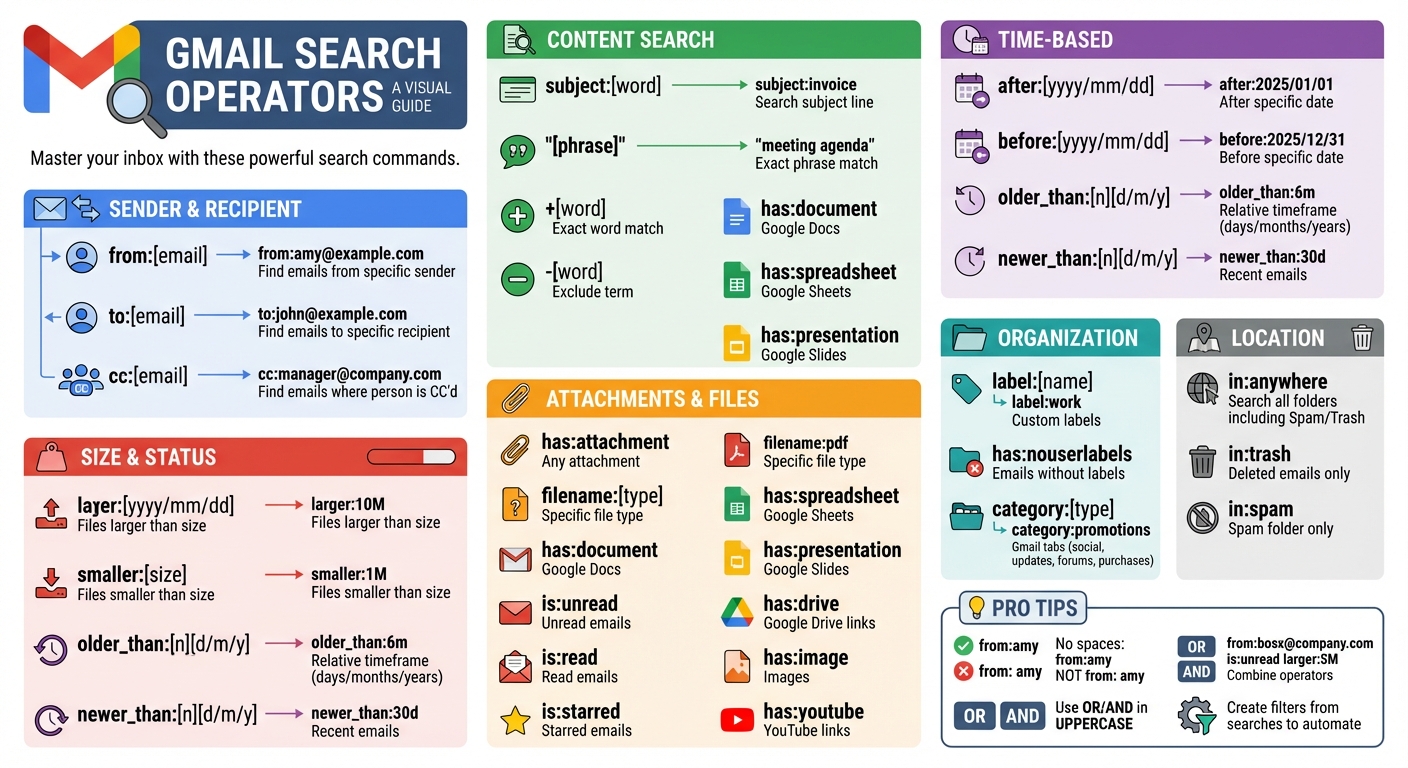
Gmail Search Operators Quick Reference Guide
Here's a handy table summarizing key Gmail search operators to help you quickly filter and organize your emails. Remember, the syntax must be precise - avoid spaces between the operator, the colon, and the search term (e.g., use from:amy, not from: amy). Logical operators like OR and AND should always be in uppercase. Gmail, by default, skips emails in Trash and Spam unless you include in:anywhere. For frequent searches, you can bookmark the results page URL for easy access.
| Operator | Syntax | Example | Use Case |
|---|---|---|---|
| From | from:[name/email] |
from:amy@example.com |
Find emails sent by a specific person or domain. |
| To | to:[name/email] |
to:john@example.com |
Locate emails sent to a specific person. |
| Subject | subject:[word] |
subject:invoice |
Find emails with specific words in the subject line. |
| Attachment | has:attachment |
has:attachment |
Filter emails that include any attachments. |
| File Type | filename:[type] |
filename:pdf |
Search for specific attachment types, such as PDFs or spreadsheets. |
| Google Drive | has:drive |
has:drive |
Find emails with Google Drive links or shared files. |
| Google Docs | has:document |
has:document |
Locate emails with Google Docs attached or linked. |
| Google Sheets | has:spreadsheet |
has:spreadsheet |
Search for emails with Google Sheets attached or linked. |
| Google Slides | has:presentation |
has:presentation |
Find emails with Google Slides attached or linked. |
| Images | has:image |
has:image |
Filter emails containing embedded or attached images. |
| YouTube | has:youtube |
has:youtube |
Locate emails with links to YouTube videos. |
| Date After | after:[yyyy/mm/dd] |
after:2025/01/01 |
Search for emails received after a specific date. |
| Date Before | before:[yyyy/mm/dd] |
before:2025/12/31 |
Find emails received before a specific date. |
| Relative Time | older_than:[n][d/m/y] |
older_than:6m |
Locate emails older than a specified number of days, months, or years. |
| Size (Larger) | larger:[size] |
larger:10M |
Filter emails larger than a specified size (e.g., 10 megabytes). |
| Size (Smaller) | smaller:[size] |
smaller:1M |
Search for emails smaller than a certain size. |
| Status | is:[status] |
is:unread |
Filter by status: unread, read, starred, or snoozed. |
| Label | label:[name] |
label:work |
Search within a specific custom label. |
| No Labels | has:nouserlabels |
has:nouserlabels |
Find emails without any custom labels applied. |
| Category | category:[type] |
category:promotions |
Search Gmail tabs like social, updates, or forums. |
| Exclude | -[word] |
-dinner |
Exclude emails containing a specific word. |
| Exact Word Match | +[word] |
+unicorn |
Find emails that match a word exactly, with no variations. |
| Exact Phrase | "[phrase]" |
"meeting agenda" |
Search for an exact sequence of words in double quotes. |
| Anywhere | in:anywhere |
in:anywhere receipt |
Search across all folders, including Spam and Trash. |
| In Trash | in:trash |
in:trash |
Search specifically within deleted emails. |
| In Spam | in:spam |
in:spam |
Search only within the spam folder. |
Use this table as a quick reference to streamline your Gmail searches and keep your inbox organized.
Conclusion
Getting the hang of Gmail's hidden search operators can make managing your inbox a breeze. Instead of endlessly scrolling through emails, you can quickly zero in on exactly what you're looking for - be it a specific message, a bulky attachment, or those unread emails you've been meaning to tackle. As Nitansha Tanwar, a B2B SaaS content marketer at Hiver, aptly says: "Using Gmail search operators makes it much easier to find what you need, no matter how full your inbox gets."
The real magic, though, lies in combining multiple operators to craft highly specific searches. For example, a query like larger:10M older_than:1y can instantly locate old, oversized files that are just taking up space, helping you clear out your storage with ease. You can even take it a step further by turning these refined searches into permanent filters, automating email sorting and saving yourself hours of manual effort.
To make things even smoother, pair these search operators with tools designed for ongoing inbox maintenance. Take MailSweeper, for instance - it automatically gathers less important emails under a "Dustpan" label and deletes older messages after a set period, like 30 or 90 days. This way, your manual cleanup with search operators stays impactful, while automation tackles the day-to-day clutter in the background.
Want to stay ultra-organized? Bookmark your favorite search queries to create dynamic, auto-updating URLs that act like smart folders. Whether you're freeing up storage, hunting for specific attachments, or sticking to a zero-inbox routine, these hidden tools give you unmatched control over your email chaos.
FAQs
How do I search for emails with specific attachments in Gmail?
To locate emails with specific attachments in Gmail, start by entering has:attachment in the search bar. This will display all emails containing attachments. To narrow down your search, you can use these additional filters:
- Search by file name: Use
filename:your-file-name.ext(e.g.,filename:invoice-2025.pdf) to find emails with a specific file. - Filter by file type: Try
has:attachment type:pdf,type:docx, ortype:imageto locate emails with particular types of attachments. - Combine filters: Mix these with other criteria like sender or date. For example:
from:john@example.com has:attachment type:imageafter:2024/01/01 before:2024/12/31 has:attachment type:pdf
Hit Enter after typing your query, and Gmail will display emails that match your search. This method helps you quickly find, download, or manage the attachments you need.
How can I combine Gmail search operators to find emails more efficiently?
Combining Gmail search operators can transform your email searches into a precision tool. For example, if you're hunting for unread emails with large attachments, you can use is:unread larger:5M. This query will pull up all unread messages with attachments over 5 MB. Need to find emails from a specific sender within a certain time frame? Try this: from:paypal.com after:2024/01/01 before:2024/12/31. It will display all emails from PayPal received during 2024.
To refine your searches even more, mix labels and keywords. For instance, in:projects label:urgent subject:"budget review" will show emails stored in the Projects folder, tagged as Urgent, and containing the phrase “budget review” in the subject line. Boolean operators like OR and AND add flexibility. Use is:starred OR is:important to find emails that are either starred or marked important. On the other hand, subject:invoice AND has:attachment will narrow your search to invoices with attachments.
Want to stack multiple filters? You can! For example, to:john cc:mary after:2023/06/01 older_than:30d will locate emails sent to John (with Mary CC’d), sent after June 1, 2023, and older than 30 days. These advanced combinations offer unparalleled control, making it easier to stay on top of your inbox chaos.
How can I use time-based search operators to better organize my Gmail inbox?
Time-based search operators in Gmail are a handy way to quickly locate emails by date, making it much simpler to manage your inbox. For example, you can use after:YYYY/MM/DD or before:YYYY/MM/DD to filter emails within a specific date range. This is perfect for tasks like finding last month’s receipts or emails tied to a particular project. Gmail also offers relative operators like older_than: and newer_than:, which allow you to search using time units such as days (d), months (m), or years (y). For instance, older_than:30d will pull up emails older than 30 days, making it easier to spot and clean up outdated conversations.
These tools are especially helpful for bulk actions. Say you want to manage emails from the past week - you could search using after:2024/12/01 before:2024/12/08, then select all the results to label, archive, or delete them in one step. You can even combine time-based operators with others, like is:unread older_than:7d, to narrow your search to specific types of emails. Regularly using these operators can save you time and help you maintain a clutter-free inbox with minimal effort.
More free Gmail tools.
Pair these together for a full inbox reset.
Bulk Unsubscribe from Gmail
See the senders flooding your inbox, ranked by volume — your shortlist for unsubscribes.
Open toolMass Delete Gmail Emails
Build a deletion plan by sender, date, label, or all-unread — with the exact Gmail search to run.
Open toolFind Large Emails in Gmail
Pick a size and we build the exact Gmail search to find your biggest emails — then open it in one click.
Open toolGmail Storage Cleanup
Move the slider to your current Gmail usage to see exactly what to delete to free space.
Open toolInbox Zero Score
Rate your inbox health on a 0–100 scale and see the weekly hours your inbox is costing you.
Open tool