
Email Management
What is Gmail's retention policy?
Overview of how long Gmail stores emails—Trash/Spam auto-delete in 30 days, Workspace custom retention and recovery windows, plus storage impacts.

What is Gmail's retention policy?
Gmail's retention policy determines how long emails are stored and when they are permanently deleted. Here's a quick breakdown:
- Personal Gmail Accounts: Emails stay indefinitely unless deleted or moved to Trash or Spam. Emails in Trash/Spam are automatically deleted after 30 days.
- Google Workspace Accounts: Administrators can set custom retention rules using Google Vault. Deleted emails can be recovered for an additional 25 days after the 30-day Trash period.
Key points:
- Archived emails are not deleted but still count toward storage limits.
- Exceeding storage limits may block incoming emails or lead to content deletion.
- Deleted drafts are unrecoverable immediately.
- Google Workspace allows legal holds and customizable retention periods (up to 100 years).
Understanding these rules helps you fix storage issues, recover emails, and prevent data loss.
Gmail Tip: Don't delete your emails, ARCHIVE them!
sbb-itb-34b9fd2
How Gmail's Retention Policy Works
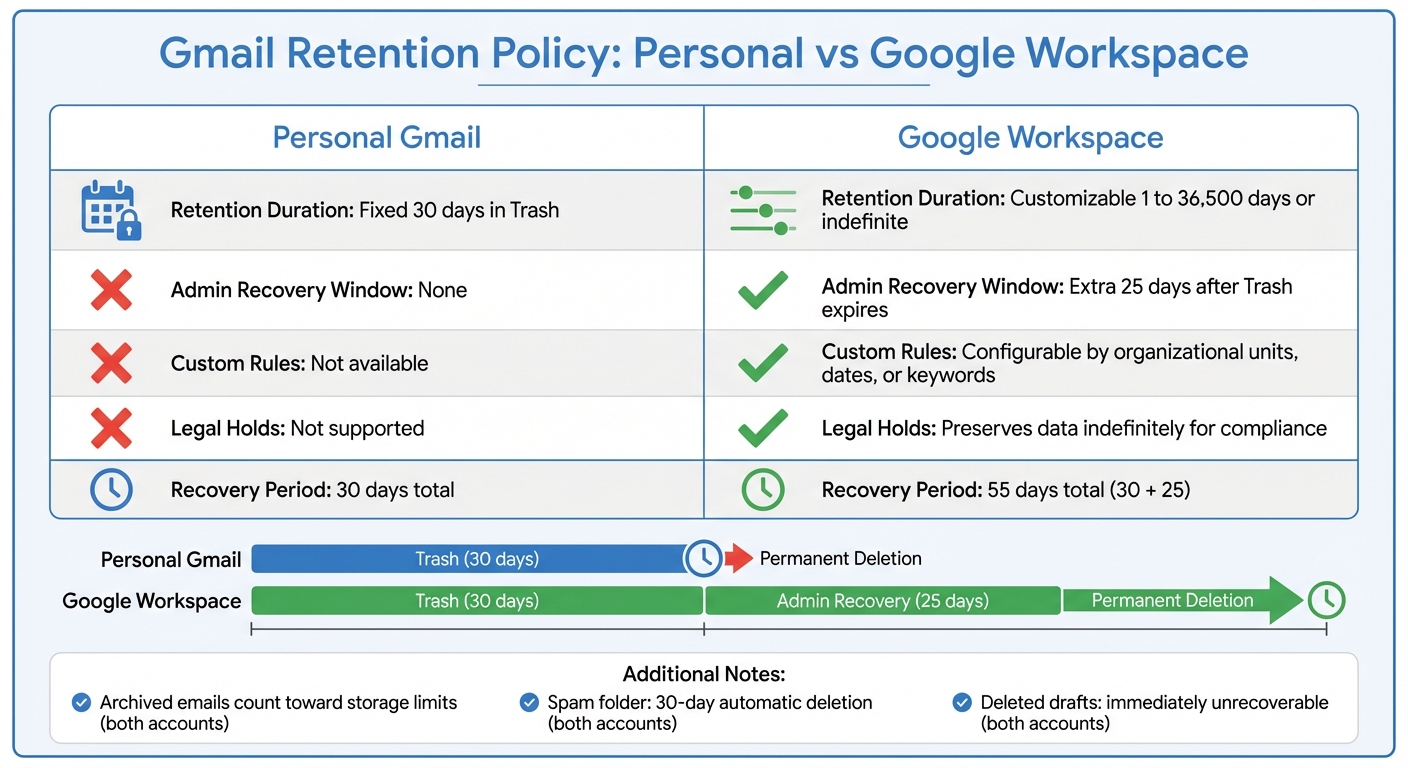
Gmail Retention Policy Comparison: Personal vs Google Workspace Accounts
Gmail's retention rules determine how long emails remain accessible in your account. For personal Gmail users, emails in the Inbox, Sent Mail, Archive, and custom labels are kept indefinitely - unless you choose to delete them.
Default Retention Settings
When you archive an email, it removes the Inbox label but keeps the email permanently in the "All Mail" folder. This is not the same as deleting an email. To permanently remove an email, you must move it to Trash. Emails in the Trash folder remain there for a limited time before being permanently deleted.
Similarly, Gmail's Spam folder has a 30-day limit. Any message marked as spam - whether automatically by Google or manually by you - is automatically deleted after 30 days. Drafts that you delete are immediately unrecoverable.
Now, let's break down what happens when you delete emails.
30-Day Timeline for Deleted Emails
When you delete an email, Gmail assigns it a hidden ^deleted label and moves it to the Trash folder. Emails remain in Trash for 30 days, during which you can restore them by moving them back to your Inbox.
After the 30-day period, emails disappear from your view. However, full removal from Gmail's active storage takes about two months, and encrypted backups may persist for up to six months. If you manually select "Delete forever" while the email is in Trash, it becomes unrecoverable immediately.
Google Workspace users, however, have more flexible retention options.
Google Workspace Retention Features
While personal Gmail accounts follow fixed retention rules, Google Workspace accounts offer customizable settings through tools like Google Vault. Administrators can create tailored retention policies that override user actions. These policies can be adjusted based on organizational needs, specific timeframes, or search criteria like keywords or sender addresses.
One notable advantage for Workspace accounts is an additional 25-day recovery window after the standard 30-day Trash period. This gives administrators a total of 55 days to recover deleted data using the Admin Console.
Here’s a quick comparison of Gmail's retention features for personal and Workspace accounts:
| Feature | Personal Gmail | Google Workspace |
|---|---|---|
| Retention Duration | Fixed (30 days in Trash) | Customizable (1 to 36,500 days or indefinite) |
| Admin Recovery Window | None | Extra 25 days after Trash expires |
| Custom Rules | Not available | Configurable by organizational units, dates, or keywords |
| Legal Holds | Not supported | Preserves data indefinitely for compliance |
Google Vault also allows administrators to place "Holds" on accounts during legal investigations. These holds preserve data indefinitely, overriding standard deletion settings. Additionally, if a retention rule applies to one email in a thread, Gmail retains the entire conversation to maintain context.
How Retention Policies Affect Email Management
Gmail's retention policies play a big role in how you handle your emails daily. They determine how long data is stored and influence decisions around archiving, deleting, and managing messages. These choices directly impact your storage limits, email recovery options, and the overall performance of your account.
Managing Archived Emails
Archiving emails in Gmail moves them to the "All Mail" folder without reducing your storage usage. In other words, archived emails still count toward your storage quota.
Since your Google storage is shared across Gmail, Google Drive, and Google Photos, even archived emails - especially older ones - can take up a lot of space. To identify emails you might no longer need, try using the search operator older_than:2y. You can also use has:attachment larger:10M to find emails with large attachments that consume significant storage.
Once you've identified these emails, you can decide whether to keep, delete, or download them to free up space. This approach ensures you maintain control over your storage while keeping important messages accessible.
Recovering Deleted Emails
When you delete an email, it isn't gone forever - at least not immediately. For personal accounts, deleted emails can be restored within 30 days. Google Workspace users have a slightly longer window, with up to 55 days for recovery. Additionally, Workspace administrators can use the Google Admin console to recover emails for an extra 25 days after the Trash period ends.
However, there's one key exception: drafts. Deleted drafts are permanently lost and cannot be recovered, unlike sent or received emails. Keeping this in mind can help you avoid losing unfinished work.
Storage Limits and Retention
Emails in the Trash and Spam folders continue to use storage until they're permanently deleted after 30 days. If you're running low on space and need an immediate fix, you can manually select "Empty Trash now" to free up storage.
Exceeding your storage quota comes with consequences. Google will prevent you from sending or receiving new emails, and incoming messages will be bounced back to the sender. If your account remains over the limit for two years, Google may delete content from Gmail, Drive, and Photos. Regularly clearing out unnecessary emails and attachments is crucial to avoid these disruptions.
For those looking to simplify email management, tools like MailSweeper can be a lifesaver. This AI-powered tool identifies less important emails and moves them to a "Dustpan" label. Depending on your settings, these emails are automatically deleted after 30 or 90 days. By working within Gmail's retention policies, MailSweeper helps you keep your inbox organized and stay within your storage limits.
Best Practices for Managing Gmail Retention
Managing Gmail's retention policies effectively involves setting up tailored rules, automating email cleanup, and conducting regular audits. These steps help prevent data loss, control storage, and keep your inbox organized.
Create Custom Retention Rules
Admins using Google Workspace can establish custom retention rules in Google Vault to control how long emails are preserved. These rules can be tailored to specific organizational units, date ranges, or search terms like has:attachment or from:user@example.com. Retention periods can range from as short as 1 day to as long as 36,500 days.
Before rolling out new rules across your organization, test them with a small group of users. This helps ensure the rules work as intended without disrupting workflows. When creating rules, carefully review the expiration options to align them with your organization's data management goals.
Custom rules take precedence over default settings, giving you greater control over retention. If multiple rules apply to the same message, Gmail prioritizes the rule with the longest retention period. Additionally, these rules apply to entire email threads - so if one email in a thread meets the criteria, the entire conversation is retained.
Once your custom rules are in place, you can further optimize email management with tools like MailSweeper.
Use MailSweeper for Automated Email Cleanup
MailSweeper simplifies email cleanup by identifying less critical messages and moving them to a "Dustpan" label. It automatically excludes emails from your primary inbox and those marked as important or starred.
You can configure MailSweeper to delete emails in the Dustpan after 30 or 90 days. This feature helps manage storage efficiently, especially since Gmail may block new messages if storage limits are exceeded.
For Google Workspace users, MailSweeper operates alongside retention rules set in Google Vault. Be cautious to ensure that automated cleanup does not interfere with legal holds or compliance policies your organization must follow.
Review Retention Settings Regularly
After setting up custom rules and automated cleanup, it's essential to review these settings periodically to ensure they remain effective and compliant. Regular audits help you adapt to changing storage needs and organizational policies.
Every few months, check that your retention periods are still appropriate. If you're using Google Workspace, audit which organizational units are inheriting rules from parent OUs, as these rules apply automatically to new units. Additionally, review any active "Matters" in Google Vault - holds take precedence over retention rules and prevent data from being purged, even after the retention period ends.
Common Mistakes with Gmail Retention Policies
Even seasoned users can stumble when managing Gmail retention policies. These errors can lead to unexpected data loss or wasted storage, so it’s crucial to understand where things might go wrong.
Believing Archived Emails Are Safe from Deletion
One of the biggest misunderstandings is assuming that archived emails are immune to retention rules. Emails in the "All Mail" folder are still subject to the same rules as every other message. For instance, if a Google Workspace administrator sets a rule to delete messages after a certain time, even archived emails will be purged - even if you thought archiving them would preserve them forever.
Another misconception is that Google Vault operates as a standalone backup system. In reality, Vault is tightly integrated with Gmail. If a retention rule deletes an email, it’s gone from both Gmail and Vault. This misunderstanding can lead to significant errors when setting up retention policies.
Misconfiguring Retention Rules
Setting up retention rules incorrectly can have serious consequences. According to Google Vault Help:
"An improperly configured retention rule can allow Gmail to immediately and irreversibly purge messages. Use caution when creating or changing retention rules."
For example, when you create or adjust a rule, Vault may delete all emails that exceed the new retention period. If you’re using custom rules based on Gmail labels, remember that they don’t automatically apply to sublabels unless you explicitly include each one in the rule.
Additionally, deleting a user account instead of suspending it is a critical mistake. Deleting an account permanently removes all associated emails from both the Admin Console and Vault, regardless of any retention rules or holds in place.
To avoid mishaps, test new retention rules on a small group of accounts before applying them broadly. Use the Vault search tool to verify that the rule targets the intended data. Proper testing ensures your retention policies align with your email management goals.
Ignoring Policy Expiration Dates
Retention rule expiration dates are another area where users often slip up. Overlooking these timelines can result in irreversible data loss. Gmail applies a specific hierarchy: custom rules override default ones, and when multiple custom rules apply, the one with the latest expiration date takes precedence.
To safeguard critical emails, consider placing them on a legal hold in Google Vault. As Google Vault Help explains:
"When a message is included in a hold, Gmail can't purge the message even after all applicable retention periods end."
Regularly review your custom rules to track expiration dates. This proactive step ensures you can update settings in time to prevent unintended deletions.
Key Takeaways
Understanding Gmail's retention policy is essential for protecting your data and managing emails effectively. By default, Gmail keeps emails indefinitely unless you delete them. However, emails in the Trash or Spam folders are automatically deleted after 30 days. For Google Workspace users, administrators can set custom retention rules, ranging from 30 days to an impressive 36,500 days (100 years).
Here are the key points to keep in mind about Gmail's retention management.
Learn Gmail's Retention Rules
Smart email management starts with understanding Gmail's retention policies. These rules apply to all emails, including archived ones. It's important to note that archiving does not guarantee permanent storage. Additionally, inactive accounts may be subject to deletion after two years, so staying active is crucial to avoid losing your data.
Use Smart Email Management Tools
Staying on top of email retention requires both awareness and the right tools. For instance, MailSweeper's "Dustpan" feature can help by automatically gathering less important emails (excluding those in your primary inbox or marked as important) and deleting them after a set period - typically 30 or 90 days. This tool works hand-in-hand with your retention rules, ensuring your email management stays efficient. Keep in mind that exceeding your storage limit can disrupt email flow and even lead to automatic deletions, so proactive management is key.
Keep Retention Settings Updated
Regularly reviewing and updating your retention settings helps prevent data loss and optimizes storage. If you're managing a Google Workspace account, test new retention rules in a controlled environment before rolling them out broadly. To safeguard your data, monitor storage levels and consider exporting emails using Google Takeout in MBOX format for local backups. Remember, once emails are permanently deleted, they cannot be recovered.
FAQs
Does archiving emails protect them from being deleted?
Archiving emails in Gmail doesn’t protect them from being deleted. When you archive an email, it’s simply moved to the 'All Mail' folder, where it stays accessible. However, it can still be deleted manually or removed according to Gmail’s retention policies.
Can I recover emails after they leave Trash or Spam?
Yes, it's possible to recover emails after they've been moved out of Trash or Spam, but only within 30 days of deletion. Once this 30-day period passes, the emails are permanently deleted and can't be restored using regular methods. If you need to retrieve an important email, make sure to act quickly within this timeframe.
Will Gmail delete emails if my storage is full?
If your Gmail storage is full, don’t worry - Google won’t delete your emails right away. However, if your account remains over the storage limit for two years, Google reserves the right to delete content from across its services, including Gmail, Drive, and Photos. To prevent this, it’s a good idea to manage your storage frequently and ensure you stay within the limit.
More free Gmail tools.
Pair these together for a full inbox reset.
Bulk Unsubscribe from Gmail
See the senders flooding your inbox, ranked by volume — your shortlist for unsubscribes.
Open toolMass Delete Gmail Emails
Build a deletion plan by sender, date, label, or all-unread — with the exact Gmail search to run.
Open toolFind Large Emails in Gmail
Pick a size and we build the exact Gmail search to find your biggest emails — then open it in one click.
Open toolGmail Storage Cleanup
Move the slider to your current Gmail usage to see exactly what to delete to free space.
Open toolInbox Zero Score
Rate your inbox health on a 0–100 scale and see the weekly hours your inbox is costing you.
Open tool