
Email Management
How Gmail Filters Save Time on Team Projects
Use Gmail filters to auto-label, archive, and forward project emails, reduce inbox clutter, and save your team time.
How Gmail Filters Save Time on Team Projects
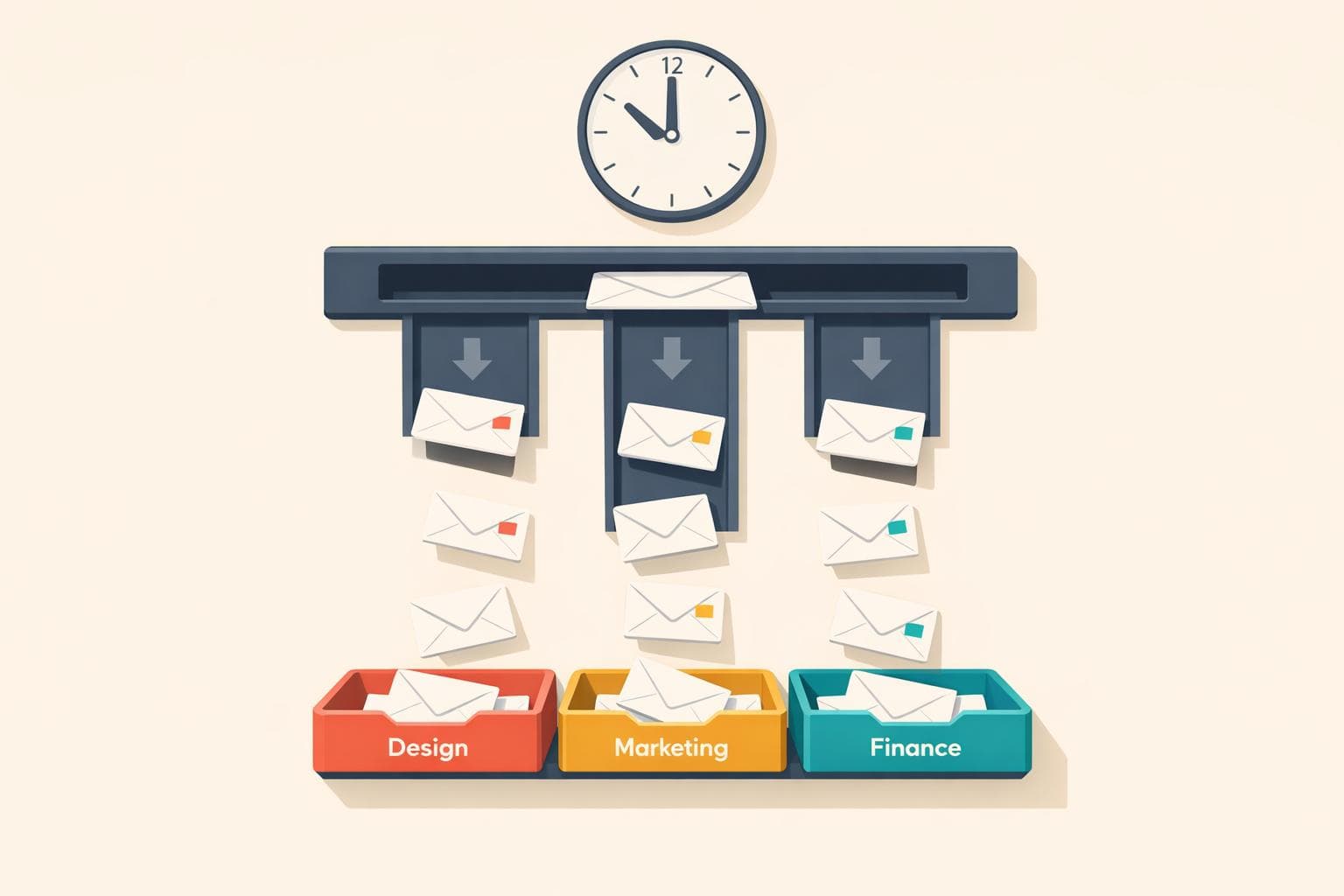
Email overload slows teams down. With Gmail filters, you can automate inbox management, ensuring important messages stay visible while routine ones get sorted. Filters help you:
- Organize emails by project keywords or sender.
- Auto-archive completed threads to reduce clutter.
- Forward priority emails to team inboxes.
Top 6 Gmail Filters for Productivity!
Email Problems Teams Face on Projects
Before diving into advanced filtering techniques, it’s important to grasp the core email challenges that can derail team productivity.
Too Many Project Update Emails
Teams often find themselves drowning in a sea of status updates, automated notifications, and endless reply-all chains. This avalanche of messages pushes urgent client communications and critical tasks deeper into the clutter.
The issue isn’t just the sheer number of emails - it’s how they bury the important ones. When your inbox is overloaded with routine updates, spotting a deadline change or an urgent client question becomes a serious challenge. Key information can easily slip through the cracks.
Losing Track of Tasks in Email Threads
Email threads can quickly become a mess, scattering key action items across multiple conversations. Some threads involve the whole team, while others only loop in a few members, making it hard to track what needs to be done.
This lack of organization often leads to confusion and missed deadlines. Without an efficient way to categorize and retrieve project-related emails, team members waste valuable time scrolling through their inboxes or relying on Gmail’s search function to piece things together.
Time Lost to Manual Email Sorting
Manually sorting emails is a time sink. Every moment spent organizing your inbox is time taken away from meaningful project work.
"Rise above inbox madness by leveraging automation to manage your emails for you." - Judy Tsuei, Writer, Clockwise
Without automated tools, managing emails becomes a tedious daily chore.
These challenges underscore the importance of automated solutions, like Gmail filters, to save time and streamline email management for project teams.
Setting Up Gmail Filters for Team Projects
How to Set Up Gmail Filters for Team Projects in 3 Steps
Streamline your email management by setting up Gmail filters. These steps directly address the challenges of overflowing inboxes and misplaced tasks.
Filtering Emails by Project Keywords
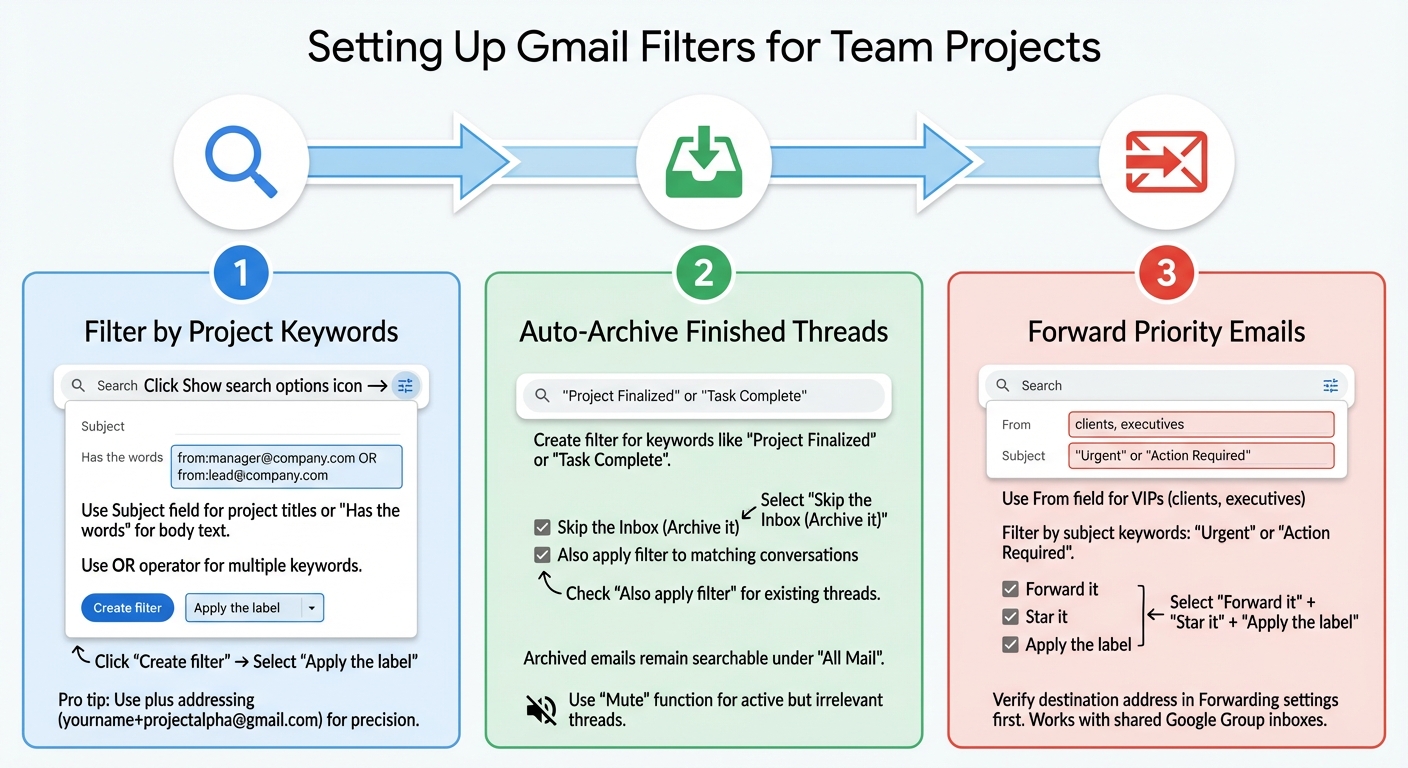
Start by clicking the Show search options icon (the slider icon) in Gmail's search bar. This opens up options to create a filter. Use the Subject field to target emails with specific project titles, or the Has the words field to search entire email bodies for terms like "Project Alpha" or "budget review."
To filter multiple keywords at once, use the OR operator (in all caps). For instance, entering "from:manager@company.com OR from:lead@company.com" ensures emails from both key stakeholders are captured. Once you've defined your criteria, click Create filter and select Apply the label to automatically tag these emails with a project name.
"You can also let your team know that if they need something approved, to put 'Needs approval' in the subject line. Try this tip out for other emails like newsletters or reports and see how it works for you - I did this and it has made a big difference for me." - Greg Wilson, Director, Developer Advocacy, Google Workspace
For even more precision, use plus addressing (e.g., yourname+projectalpha@gmail.com). Create a filter where the To: field matches this address to ensure pinpoint accuracy.
Once you've organized incoming emails, it's time to deal with completed conversations.
Auto-Archiving Finished Email Threads
Keep your inbox tidy by archiving threads for completed projects. Set up a filter to look for keywords like "Project Finalized" or "Task Complete" in the subject line. When creating the filter, select Skip the Inbox (Archive it) to move these emails out of sight.
Check the Also apply filter to matching conversations box to archive existing threads that meet the criteria instantly. Don’t worry - archived emails remain searchable under All Mail, so you can always find them later.
For threads that are still active but no longer relevant to you, Gmail’s Mute function is a lifesaver. Go to More > Mute, and any future replies to that conversation will bypass your inbox entirely, even if someone else responds later.
Now, let’s make sure critical emails get to the right people.
Forwarding Priority Emails to Team Inboxes
Before setting up forwarding rules, verify the destination address under Gmail's Forwarding and POP/IMAP settings. Then, create a filter using the From: field to identify emails from VIPs like clients or executives. You can also filter by subject keywords such as "Urgent" or "Action Required."
When defining the filter actions, select Forward it and choose the verified team inbox or a colleague’s email. To keep track of these emails yourself, combine this with Star it and Apply the label actions. This ensures you maintain a record while your team gets immediate access. This approach works especially well for shared Google Group inboxes, where team members can assign tasks to themselves.
| Priority Category | Filter Criteria | Recommended Actions |
|---|---|---|
| VIP Senders | From: (manager@co.com OR director@co.com) | Forward to Team, Star it, Mark as important |
| Urgent Requests | Subject: ("Urgent" OR "ASAP") | Forward to Shared Inbox, Apply label "URGENT" |
| Financial Items | Subject: ("Invoice" OR "Billing") | Forward to Accounting, Skip the Inbox |
sbb-itb-34b9fd2
Advanced Gmail Filter Techniques for Teams
Once you've got the basics of Gmail filters down, these advanced techniques can help your team manage emails more effectively. They go beyond simple filtering to streamline workflows and improve productivity across your projects.
Creating Shared Labels for Team Access
Shared labels can act as a central hub for project-related communication, cutting down on unnecessary forwarding and CC’ing. For example, you can set up a filter to apply a shared label to emails based on specific criteria like the sender, subject keywords, or recipient aliases such as team+projectalpha@company.com.
To make things even smoother, standardize subject line formats across your team. Agree on prefixes like “[Project Alpha]” or “Needs Approval” so filters can easily route emails to the correct shared label. You can also organize emails by source: apply an “Internal” label to emails from @your_organization.com and an “External” label to client communications. This makes it easier to separate internal updates from external stakeholder messages.
Want to keep your inbox clutter-free? Use the "Skip the Inbox" action with shared labels for project updates. For meeting-related emails, set up a filter with Has the words: invite.ics to label and archive calendar responses automatically. This keeps your project threads focused on discussions, not scheduling logistics.
Additionally, you can use visual markers like stars to flag crucial emails for quick attention.
Using Stars with Filters to Prioritize Emails
Stars are a simple but effective way to prioritize important messages. You can create a filter with an OR condition for key team members, such as manager@company.com OR lead@company.com, and select "Star it" to highlight emails from these VIPs.
To make this even more effective, coordinate with your team to use specific subject line triggers for urgent matters. For example, agree to prefix critical emails with terms like “URGENT” or “Needs Approval.” Then, set up a filter to automatically star messages containing those phrases. You can also use Gmail’s plus-addressing feature (e.g., yourname+urgent@company.com) for high-priority submissions and create a filter to star any email sent to that address.
For teams dealing with a high volume of updates, you can star and archive emails simultaneously. This keeps your inbox clean while making it easy to find important messages later. Always use the Test search feature during filter setup to ensure the rule works as intended before activating it.
Once you've fine-tuned your labels and stars, the next step is to cut through the email clutter.
Blocking Spam and Reducing Email Noise
Unnecessary emails can be a major distraction. One way to tackle this is by filtering at the domain level instead of individual email addresses. For instance, using from:@importantclient.com ensures all emails from a specific partner organization are captured. To separate external messages from internal ones, try filtering external emails with -@your_organization.com in the From field. This helps you quickly distinguish between team collaboration and outside communications.
For newsletters and bulk emails, use the list:* operator or the word unsubscribe in the "Has the words" field to identify and label them. Move these emails to a dedicated folder to keep them out of your main inbox. To avoid missing important external messages, create a safety-net filter with criteria like -from:noreply -from:no-reply has:attachment -in:spam. This will catch legitimate emails with attachments while excluding automated ones.
"The goal isn't to filter every single email perfectly. The goal is to create a system that handles 90% of your email automatically, so you can focus on the messages that actually matter." - Philippe Creytens
Once your team lead has built a solid set of filters, they can export them as an XML file and share it with the entire team. This ensures everyone’s inbox stays organized and aligned.
Time Saved and Tools That Help
How Much Time Gmail Filters Save
Gmail filters take care of the repetitive task of sorting and organizing emails, allowing your team to concentrate on actual project work. On average, these filters save each team member 10–15 minutes every morning, which adds up to several hours each month that can be redirected to more meaningful tasks.
Another advantage is the reduction in context switching. With Gmail filters in place, project updates automatically land under their assigned labels, urgent messages are starred, and low-priority notifications are kept out of your inbox. This smoother workflow minimizes interruptions and helps your team respond more quickly to critical project communications.
How MailSweeper's Dustpan Cleans Up Your Inbox
While Gmail filters do a great job of handling routine email management, they might not catch all low-value emails. That’s where MailSweeper's Dustpan comes into play. It steps in to clean up the clutter that filters might leave behind.
MailSweeper uses AI to tag unimportant emails with a 🧹Dustpan label. Unlike Gmail filters, which require you to manually set up rules, MailSweeper learns to identify low-priority messages on its own. It integrates seamlessly with your email system by ignoring emails in your primary inbox, as well as those that are starred or marked as important. Over time, the tool automatically deletes older emails in the Dustpan, typically within 30 to 90 days.
The results speak for themselves: MailSweeper has processed over 3.6 million emails and saved users a total of 266 GB in storage space. For teams juggling multiple projects, this can help you stay within Gmail’s free 15 GB storage limit, avoiding the need to upgrade to Google One.
MailSweeper is available for a one-time payment of $20, with no recurring subscription fees. During the first few weeks, it’s a good idea to monitor the Dustpan label and adjust any misclassified emails so the AI can improve its accuracy.
Wrapping Up
Managing team project emails doesn't have to eat up your valuable time. With Gmail filters, you can automate the sorting and organizing process, allowing your team to focus on actual project tasks instead of constantly tidying up the inbox. Pairing these filters with tools like MailSweeper creates a powerful system that keeps your inbox organized while preventing old emails from piling up.
Setting up this system is straightforward and pays off immediately. Key messages stay visible, project-specific emails are easy to locate, and filters reduce the need to juggle multiple apps, streamlining your workflow.
Start simple: create filters for your busiest projects and clients. Use auto-labeling for emails with specific keywords, set up forwarding for priority messages, and mark urgent items with stars. Once the basics are in place, you can introduce advanced features like shared labels to further refine your system.
For an extra layer of organization, MailSweeper's Dustpan feature automatically clears out outdated, non-essential emails for a one-time $20 fee. This ensures your inbox stays clutter-free without risking the loss of important communications.
The end result? Less stress, quicker responses, and more time to focus on the work that matters most. Your inbox becomes a tool that actively supports your projects, not a distraction.
FAQs
What’s the easiest first Gmail filter to set up for a team project?
One of the easiest ways to manage emails for a team project is by creating a Gmail filter based on the sender's email or project-specific keywords. Using Gmail's filter tool, you can set up criteria like a teammate's email address or words related to the project. Once defined, you can choose actions such as applying a label, archiving, or even forwarding the emails. This approach streamlines email organization, saves time, and keeps your inbox tidy and focused.
How do I avoid filters archiving or forwarding the wrong emails?
To make sure email filters work as intended and don’t misfile important messages, it’s crucial to set them up thoughtfully and test them thoroughly before rolling them out across your inbox. Pay close attention to the criteria you set - like sender, subject line, or specific keywords - to ensure they’re precise and effective.
A helpful tip: Use the "Also apply filter to matching conversations" option to test how the filter works on existing emails. This gives you a chance to see if it’s capturing the right messages. Over time, regularly review and tweak your filters to keep them running smoothly. And remember, avoid using criteria that are too broad or vague, as this might accidentally snag emails you didn’t intend to filter.
Can my whole team use the same Gmail filters and labels?
Yes, your team can share Gmail filters and labels by providing the filter criteria and label names to each member. However, each person must set them up individually in their own Gmail account. This approach ensures everyone benefits from a consistent email organization system while still keeping personal control over their inbox.
More free Gmail tools.
Pair these together for a full inbox reset.
Bulk Unsubscribe from Gmail
See the senders flooding your inbox, ranked by volume — your shortlist for unsubscribes.
Open toolMass Delete Gmail Emails
Build a deletion plan by sender, date, label, or all-unread — with the exact Gmail search to run.
Open toolFind Large Emails in Gmail
Pick a size and we build the exact Gmail search to find your biggest emails — then open it in one click.
Open toolGmail Storage Cleanup
Move the slider to your current Gmail usage to see exactly what to delete to free space.
Open toolInbox Zero Score
Rate your inbox health on a 0–100 scale and see the weekly hours your inbox is costing you.
Open tool