
Email Management
How Gmail Templates Save Time on Repeated Emails
Use Gmail templates to insert pre-written emails, cut drafting time, personalize replies, and automate responses with filters for a cleaner inbox.
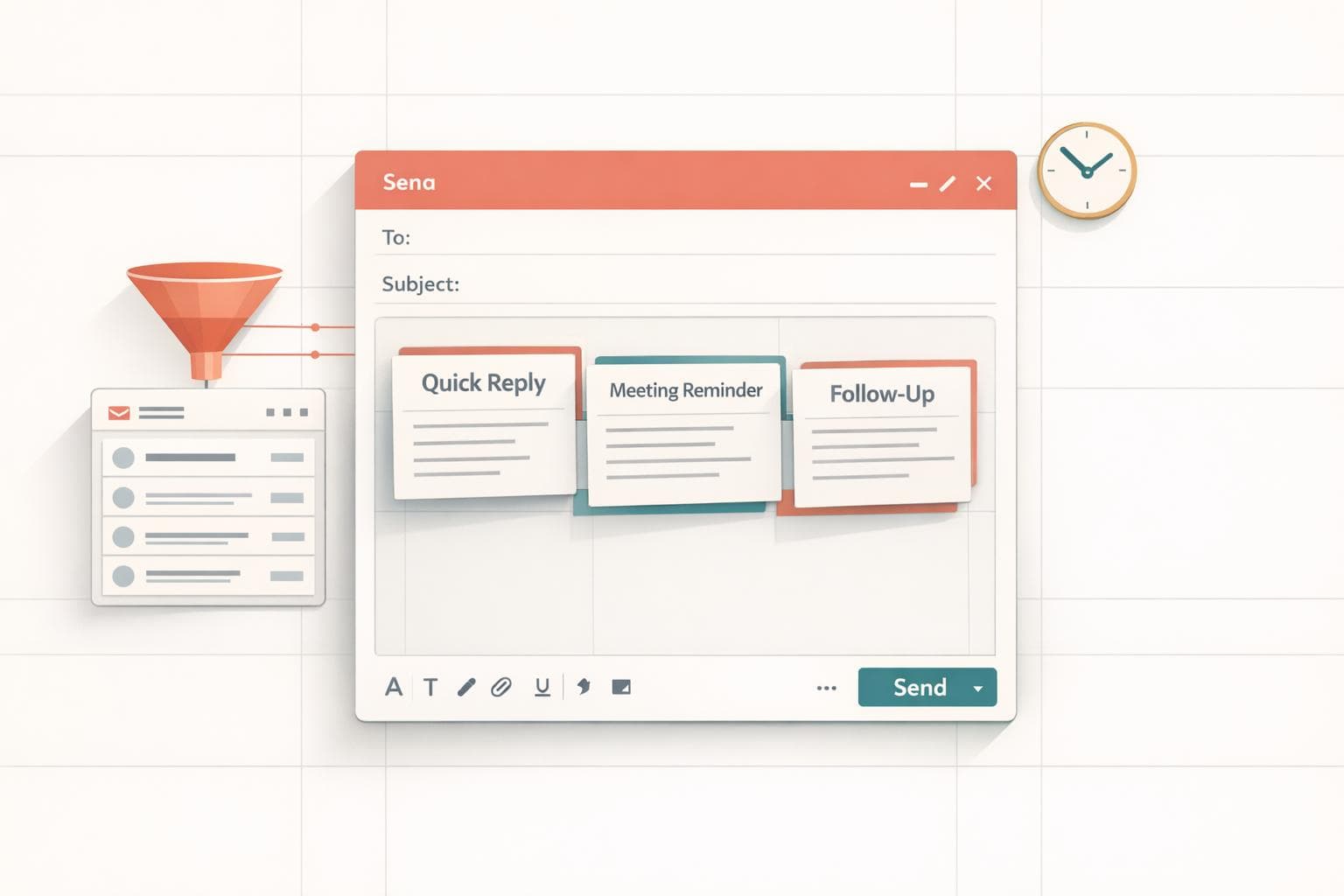
How Gmail Templates Save Time on Repeated Emails
If you’re tired of typing the same email repeatedly, Gmail templates can save you hours every week. By storing pre-written messages, you can quickly insert them into emails in just a few clicks - cutting email drafting time from minutes to seconds. They’re free, easy to use, and help reduce errors in repetitive communication. Here’s what you need to know:
- What they are: Gmail templates are saved drafts you can reuse for common emails like pricing inquiries, meeting schedules, or onboarding guides.
- How they work: Enable templates in Gmail settings, save your draft as a template, and insert it into emails when needed.
- Benefits: Save time, avoid repetitive typing, and maintain consistency in your communication.
- Limitations: Templates can only be created and used on desktop - not on mobile apps.
Combine templates with tools like MailSweeper for managing incoming emails and Gmail filters for automating replies to maximize productivity. Together, these tools can free up hours of your workweek, letting you focus on more important tasks.
How to use Email Templates in Gmail (no more copy & paste!)
sbb-itb-34b9fd2
What Gmail Templates Are and How They Work
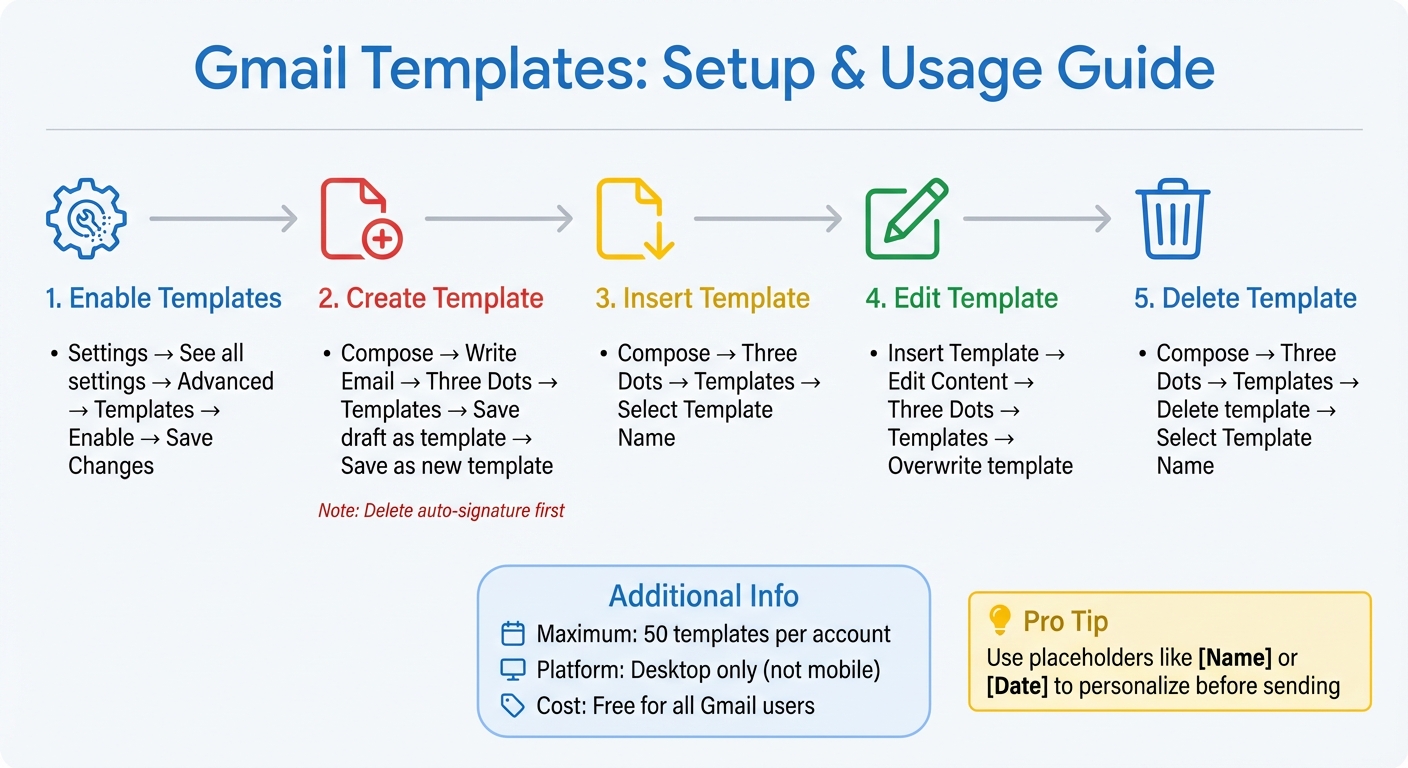
How to Set Up and Use Gmail Templates: 5-Step Visual Guide
Gmail Templates Defined
Gmail templates are pre-saved email drafts that you can insert into new messages with just a few clicks. They keep all your original formatting, links, and images intact, so your emails look exactly as you designed them.
You can store up to 50 templates in Gmail, making it easy to create ready-to-go responses for different situations. Whether you're answering pricing questions, sharing meeting links, or sending onboarding details, templates save you from writing the same email over and over.
However, there's a catch: templates are only available on desktop. You can’t create or use them on the Gmail mobile apps for iOS or Android. The good news? Gmail templates are completely free and available to both standard Gmail and Google Workspace users.
How to Set Up and Use Gmail Templates
Once you know what templates are, setting them up is quick and easy.
To enable templates, open Gmail on your desktop. Click the Settings gear icon, select "See all settings", then go to the Advanced tab. Find the Templates section, click Enable, and save your changes.
Creating a template is just as simple. Start by clicking Compose and drafting the email you want to save, including the subject line. If you have an automatic signature, delete it from the draft to avoid duplicating it later. Then, click the three-dot menu (More options) at the bottom of the compose window, go to Templates > Save draft as template > Save as new template. Give your template a clear, descriptive name like "Pricing Inquiry Reply" so you can easily find it later.
Here’s a quick reference for using Gmail templates:
| Action | Steps |
|---|---|
| Enable Templates | Settings > See all settings > Advanced > Templates > Enable > Save Changes |
| Create Template | Compose > Write Email > Three Dots > Templates > Save draft as template > Save as new template |
| Insert Template | Compose > Three Dots > Templates > Select Template Name |
| Edit Template | Insert Template > Edit Content > Three Dots > Templates > Overwrite template |
| Delete Template | Compose > Three Dots > Templates > Delete template > Select Template Name |
To use a template, open a new Compose window or reply to an existing email. Click the three-dot menu, hover over Templates, and select the one you need under the Insert template section. The email will populate with your saved text, and you can tweak it before sending without altering the original template.
Need to update a template? Insert it into a new email, make your changes, then go to More options > Templates > Save draft as template > Overwrite Template. To delete a template, click More options > Templates > Delete template and pick the one you want to remove.
Pro tip: Use placeholders like [Name] or [Date] in your templates to remind yourself to personalize them before sending. Also, take a moment every few months to review your templates and update outdated information, such as pricing, links, or business hours. This keeps your emails relevant and professional.
Time Savings and Productivity Gains from Gmail Templates
Common Situations for Using Gmail Templates
Gmail templates are a lifesaver when it comes to automating repetitive messages. Think about customer support teams - they rely on templates to handle tasks like troubleshooting, sending order updates, and confirming shipping details. This ensures responses are both quick and consistent every time. Similarly, sales professionals and freelancers use templates for tasks like providing pricing quotes, sharing payment details, or sending sales decks. These templates help maintain accuracy and eliminate the hassle of retyping the same information over and over.
Another big win is scheduling. Instead of writing availability messages from scratch, you can use a template to share your calendar options, reschedule meetings, or send event reminders. This not only saves time but also reduces the back-and-forth of coordinating schedules. For internal communications, templates make weekly status reports a breeze and let you politely decline invitations without crafting a new message each time. Logistics teams also benefit by reusing templates for delivery instructions, pickup details, or gate codes - avoiding the need to rewrite these details for every shipment.
By applying templates in these situations, you streamline your workflow and save valuable time.
How Much Time Gmail Templates Save
The time savings from Gmail templates are impressive, especially when dealing with repetitive tasks. Take Anu Joy, a Features Author at Android Police, for example. In September 2025, she started using Gmail templates for her professional communications. Tasks like rescheduling meetings or sharing recurring documents - such as contracts or onboarding guides - went from taking five minutes per email to just 30 seconds or even 15 seconds. This shift cut her overall inbox management time in half.
"What used to take five minutes now takes less than thirty seconds." – Anu Joy, Features Author, Android Police
Repetitive emails often reuse 80% to 90% of the same wording. Templates eliminate this redundancy, saving time while also reducing decision fatigue. By freeing up mental energy, they allow you to focus on more complex and meaningful work.
Keeping Emails Personal and Professional with Templates
Adding Personal Details to Templates
One way to make email templates feel more personal is by including placeholders like [FIRST NAME], [PROJECT NAME], or [DATE]. Using bold or all-caps placeholders ensures they stand out and remind you to add those unique details before hitting send. Brackets are another helpful way to highlight these placeholders so they’re easy to spot.
When you insert a template in Gmail, it appears as an editable draft. This setup allows you to tweak the content, add context, or include specific answers while following the pre-written structure. As Michael Miello, Founder of Webodew, puts it:
"What I like about this method is that it's creating an email draft and so you can go back into the email and personalize it."
To avoid an overly automated tone, include at least one sentence that references something specific about the recipient, like a recent conversation or a shared project. This small addition keeps the email feeling authentic and human, while still saving you time.
For even greater flexibility, create multiple versions of your templates - one for formal communications (like new clients) and another for casual exchanges (like internal team updates). This ensures your emails remain efficient but still feel tailored to the audience, helping build stronger professional connections.
Keeping Your Messaging Consistent
Once you’ve personalized your emails, consistency in tone and style across all templates is key to reinforcing your professional image. When everyone on your team uses standardized templates, it creates a unified brand voice and ensures accurate, reliable messaging.
To stay organized, use clear naming conventions for your templates. For example, labels like “Client Onboarding Welcome” or “Weekly Report Reminder” make it easy to find the right one without wasting time opening multiple drafts. Additionally, maintain uniformity by using the same fonts, greetings, and sign-offs in every template.
Don’t forget to periodically review and update your templates. Check for outdated language, incorrect contact details, or old signatures to keep your communication current and polished. This habit not only maintains professionalism but also ensures your emails reflect the best version of your brand.
Combining Templates with Better Email Management
While Gmail templates make sending repetitive emails a breeze, managing the flood of incoming messages is just as important for staying productive.
Using MailSweeper to Keep Your Inbox Clean
Sure, Gmail templates help with outgoing emails, but what about the endless stream of incoming messages cluttering your inbox? That’s where MailSweeper steps in. This AI-powered tool automatically detects and labels low-priority emails - like newsletters, notifications, and promotional content - with a "Dustpan" label. These emails are neatly tucked away, leaving your primary inbox, starred messages, and important conversations untouched. Plus, MailSweeper automatically deletes these older emails after 30 or 90 days, saving you from storage headaches.
Here’s the impact: MailSweeper has processed over 2.8 million emails, freed up more than 208 GB of Google storage, and users report saving 1–2 hours each month on manual inbox cleanup. According to its creator:
"MailSweeper gives me back focused time. I'm not context-switching to delete junk. It integrates with Gmail, so there's zero workflow change".
Worried about mistakes? If an email lands in "Dustpan" by accident, you can easily remove the label, helping the AI learn your preferences. And at just $20 for a one-time payment, MailSweeper is a no-brainer for keeping your inbox tidy while perfectly complementing Gmail templates.
Once your inbox is under control, you can take things a step further by automating template replies with Gmail filters.
Automating Template Use with Gmail Filters
Now that incoming email chaos is handled, why not automate your outgoing responses? Gmail filters let you set up automatic replies using your pre-written templates, saving you even more time. Here’s how to set it up:
- Click the "Show search options" button in the Gmail search bar and define your criteria (e.g., specific subject lines or senders).
- Select "Create filter", check the "Send template" box, and pick your saved response.
- Use the "Search" function to test your filter before finalizing it.
For example, you could set up a filter to automatically send a welcome email for messages with the subject line "New form response." Gmail supports up to 50 templates at a time, giving you plenty of flexibility. Need to update a reply? Just edit the template and use the "Save draft as template" > "Overwrite Template" option - no need to recreate the filter.
Wrapping Up
Gmail templates are a game-changer when it comes to handling repetitive emails. What used to take five minutes can now be done in under 30 seconds. Over time, that saved effort adds up - especially when the average professional spends 28% of their workweek managing emails. Templates not only save time but also ensure your messages stay consistent while reducing the mental effort of retyping the same information.
That said, while templates speed up drafting, dealing with incoming email clutter is another hurdle. This is where combining templates with tools like MailSweeper can make a big difference. MailSweeper’s "Dustpan" feature automatically removes unimportant emails after 30 or 90 days, keeping your inbox tidy without lifting a finger. On average, users save 1–2 hours per month on inbox cleanup, and it only costs a one-time fee of $20.
In short, templates slash the time spent drafting emails, and MailSweeper clears out distractions, helping you focus on what truly matters. Together, they’re not just about saving time - they’re about freeing up your energy to tackle the tasks that drive real results.
FAQs
Can I use Gmail templates on my phone?
Yes, you can create and manage Gmail templates using the Gmail web interface. However, these templates are only available when using Gmail in a web browser - they can't be directly accessed or used within the mobile app.
How do I keep templates from sounding automated?
To make your Gmail templates feel more personal and less robotic, try adding specific details like the recipient's name or referencing a recent conversation or interaction. Adjust the message to fit the context, and use a conversational tone instead of stiff or overly generic language. These small tweaks can make your templates feel more genuine and relatable.
Can Gmail filters auto-send a template reply?
Yes, Gmail filters can automatically send a template reply. To do this, set up a filter and choose the Send template option when the filter is triggered. This is a great way to handle repetitive email responses efficiently, saving you time and effort.
More free Gmail tools.
Pair these together for a full inbox reset.
Bulk Unsubscribe from Gmail
See the senders flooding your inbox, ranked by volume — your shortlist for unsubscribes.
Open toolMass Delete Gmail Emails
Build a deletion plan by sender, date, label, or all-unread — with the exact Gmail search to run.
Open toolFind Large Emails in Gmail
Pick a size and we build the exact Gmail search to find your biggest emails — then open it in one click.
Open toolGmail Storage Cleanup
Move the slider to your current Gmail usage to see exactly what to delete to free space.
Open toolInbox Zero Score
Rate your inbox health on a 0–100 scale and see the weekly hours your inbox is costing you.
Open tool