
Email Management
Gmail API rate limits, and why they matter
How Gmail API quota units, per-user and per-project limits, and retries affect bulk email tasks—and how to avoid 403/429 errors.
Gmail API rate limits, and why they matter
Understanding Gmail API rate limits is crucial for anyone using tools like MailSweeper to handle bulk email tasks. Google sets these limits to prevent server overload and ensure fair usage across all users. Here’s what you need to know:
- Quota Units: Every Gmail API action consumes a specific number of quota units. For example, sending an email costs 100 units, while reading one uses 5 units.
- User Limits: Each Gmail account has a limit of 15,000 quota units per minute. Exceeding this triggers errors like 403 or 429, pausing operations until the quota resets.
- Project Limits: Apps also face a project-wide cap of 1,200,000 quota units per minute, shared across all users.
- Impact on Tools: Bulk operations like deleting emails or scanning large inboxes slow down due to these restrictions. Tools often use strategies like exponential backoff to manage retries when limits are reached.
To work effectively within these limits:
- Focus on lower-cost API methods.
- Use batching to reduce the number of calls.
- Monitor quota usage in the Google Cloud Console.
These limits are not obstacles but safeguards to ensure Gmail remains stable for everyone.
429 Too many requests - Gmail - Make.com #automation
sbb-itb-34b9fd2
What Are Gmail API Rate Limits?
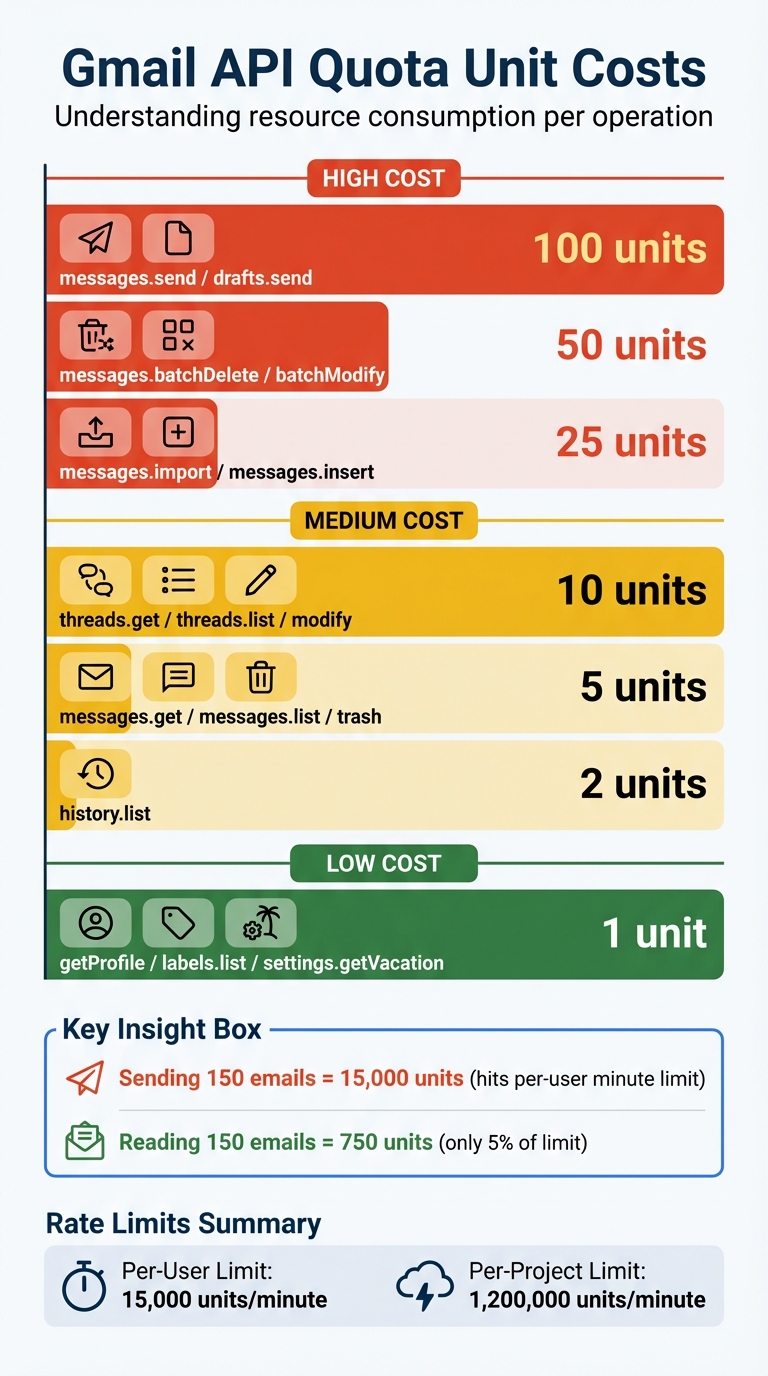
Gmail API Quota Units Cost by Operation Type
Gmail API rate limits are restrictions on how often an app can call Gmail's API methods. Think of these limits as safeguards that prevent automated tools from overwhelming Google's servers. For instance, MailSweeper adheres to these limits, which is why its initial email scan is deliberately paced.
These restrictions are in place to protect Google's infrastructure from misuse or poorly written code. The reasoning is simple: they ensure that one app's activity doesn't disrupt Gmail's performance for everyone else.
Gmail API operations are measured in quota units, which reflect the resource usage of specific actions. Every interaction with the API, whether it's reading, sending, or managing emails, consumes a certain number of these units. Below, you'll find a detailed breakdown of how these units are allocated.
How Quota Units Work
Each API operation has a different quota unit cost, depending on how demanding it is. For example, sending an email with messages.send costs 100 units, while retrieving a message with messages.get only uses 5 units. Simpler tasks, like checking your profile with getProfile or listing labels, cost just 1 unit.
Here's a snapshot of the most common Gmail API methods and their corresponding costs:
| Gmail API Method | Quota Unit Cost |
|---|---|
messages.send / drafts.send |
100 |
messages.batchDelete / batchModify |
50 |
messages.import / messages.insert |
25 |
threads.get / threads.list / modify |
10 |
messages.get / messages.list / trash |
5 |
history.list |
2 |
getProfile / labels.list / settings.getVacation |
1 |
The takeaway? Bulk actions consume far more quota than simple reads. For instance, reading 150 emails would use 750 quota units, but sending 150 emails would require 15,000 units - enough to hit the per-user minute limit.
Per-Project vs. Per-User Limits
Google enforces two types of limits simultaneously: per-project and per-user. Both thresholds must be respected, and exceeding either will trigger an error.
- The per-project limit caps the total number of requests an app can make across all its users at 1,200,000 quota units per minute. This ensures no single app can dominate Gmail's resources, no matter how many users it has.
- The per-user limit restricts each Gmail account to 15,000 quota units per minute. This limit is tied to the specific Gmail account being accessed, not the app's developer credentials. Even if an app has unused project-level quota, an individual user can still only consume up to 15,000 units per minute.
If the project limit is exceeded, the API returns a rateLimitExceeded error. If the user limit is hit, you'll encounter a userRateLimitExceeded error. Both result in 403 or 429 error codes, requiring your app to pause and retry. Knowing these limits is key to managing bulk email tasks efficiently.
Why Gmail API Rate Limits Matter
Understanding Gmail API rate limits is key to grasping how they influence tasks like email cleanup, especially when dealing with thousands of messages.
Rate limits directly affect how quickly you can clean up your inbox. This becomes particularly noticeable during bulk operations, where you can quickly hit the 15,000-unit-per-minute ceiling. For instance, the messages.batchDelete operation costs 50 units per call. That means you can only delete around 300 emails per minute before reaching the limit. If your inbox has 10,000 unread emails, even under ideal conditions, the cleanup process could stretch beyond 30 minutes.
How Rate Limits Impact Bulk Email Tasks
Different tasks consume quota at varying rates. For example, listing messages uses 5 units per call, while batch deletions use 50 units. This discrepancy means high-cost operations can drain your quota much faster, slowing down the entire process.
Once the limit is exceeded, Google returns a 403 "User Rate Limit Exceeded" or 429 "Too Many Requests" error. At that point, any tool accessing your inbox must pause until the quota resets. This can cause unavoidable delays, especially during large-scale cleanup tasks.
Adding to the challenge, all apps connected to your Gmail account share the same 15,000-unit limit. If your mobile email client, backup service, or any other tool is syncing while you're performing a cleanup, they all compete for the same quota. As Gmelius explains:
A large number of independent API clients accessing the Gmail user mailbox simultaneously can lead to this error.
This competition for quota explains why automated tools often need to pause and retry when limits are reached.
Why Automated Tools Experience Delays
Automated tools like MailSweeper are designed to work within these limits. For example, during its initial scan of an inbox with 20,000 emails, MailSweeper makes thousands of API calls to identify which emails should be flagged for deletion. Each of these calls consumes quota units.
To avoid exceeding limits, MailSweeper uses a strategy called exponential backoff. When a rate limit error occurs, the tool waits one second before retrying, doubling the wait time with each subsequent failure (e.g., 2 seconds, then 4 seconds, and so on). While this approach prevents continuous API requests that could trigger blocks, it also introduces noticeable delays during the cleanup process.
Google also imposes limits on concurrent requests, capping the number of parallel API calls to a single mailbox at 50. Even if you haven’t used all 15,000 quota units, exceeding 50 simultaneous requests results in a 429 error. This forces tools to process emails in smaller batches, further extending the time required for large-scale cleanups.
These rate limits are essential for maintaining Google’s infrastructure but highlight the patience required to efficiently manage a large inbox.
How to Work Within Gmail API Rate Limits
Managing Gmail API rate limits doesn't have to be overly complicated. Below are some practical strategies to help you optimize your API usage and navigate the delays that can arise during bulk email operations.
Reduce API Quota Usage
One of the simplest ways to avoid hitting rate limits is by reducing the quota usage per request. Prioritize methods that use fewer quota units to handle emails more efficiently.
For instance, sending an email (messages.send) consumes 100 units, whereas retrieving an email (messages.get) only uses 5 units. By focusing on lower-cost operations, you can process large volumes of emails more effectively. Additionally:
- Use partial responses with the
fieldsparameter to fetch only the data you need. - Enable gzip compression by including the
Accept-Encoding: gzipheader and ensuring your user agent supports it. This reduces bandwidth usage. - Turn off unused IMAP/POP protocols to free up quota for other operations.
Use Exponential Backoff for Retries
When you encounter a rate limit, the Gmail API typically returns a 403 or 429 error. To handle this, implement exponential backoff - a retry strategy that gradually increases the delay between attempts.
Start with a 1-second delay after the first error, doubling the wait time with each subsequent retry (e.g., 2, 4, 8 seconds, etc.). Add up to 1,000 milliseconds of random jitter to avoid simultaneous retries across multiple processes. Cap the delay at 32 or 64 seconds and stop retrying after 5–7 attempts.
As noted in Google Workspace Events API Documentation:
Exponential backoff is a standard error handling strategy for network applications.
This method is particularly effective for tools like MailSweeper, which uses it during large-scale inbox cleanups to respect Gmail's limits while ensuring all emails are eventually processed.
Track Your Quota Usage
Keeping an eye on your quota usage is essential for managing API limits. Use the Google Cloud Console's "Quotas" tab to monitor your real-time usage. The "Usage" tab provides historical data, helping you identify patterns and peak activity times.
For Google Workspace administrators, the Investigation Tool (available at admin.google.com/ac/sc/investigation/d) allows you to search "OAuth log events" to determine which third-party apps are making the most API calls. If you're managing high volumes, consider exporting Google Workspace logs to BigQuery. This can give you detailed insights into your API usage across different operations and time frames.
Conclusion
Gmail API rate limits play a key role in how MailSweeper manages large inboxes. For anyone handling bulk email operations, understanding these limits is crucial. Gmail enforces a per-project limit of 1,200,000 quota units per minute and a per-user limit of 15,000 quota units per minute to safeguard its infrastructure and maintain fair access for all developers. If these limits are exceeded, you’ll encounter 403 or 429 errors, which can disrupt workflows.
To avoid such interruptions, focus on optimizing your API usage. Prioritize methods with lower quota costs and use batching whenever possible. As noted in Google Workspace Documentation:
Limits help ensure that one developer's actions cannot negatively impact the larger community.
This principle explains why MailSweeper processes emails at a measured pace, especially during initial operations. By implementing strategies like exponential backoff, keeping a close eye on quota usage through the Google Cloud Console, and fine-tuning your API calls, you can create a system that operates smoothly within Gmail's framework.
These limits aren't roadblocks - they're essential guardrails that help maintain a stable and equitable environment for all Gmail users.
FAQs
Why does MailSweeper’s first scan take so long?
When MailSweeper performs its first scan, it takes longer because of Gmail API rate limits. The system needs to send a large number of requests to gather email data, but Gmail imposes restrictions on how many requests can be made per second. To stay within these limits, MailSweeper has to space out its requests, which naturally slows things down. Since initial scans require more API calls than follow-up scans, this adds to the extended time needed for the first run.
How do I avoid Gmail API rate limit errors (403/429)?
To steer clear of Gmail API rate limit errors (403/429), implement exponential backoff. This means retrying failed requests after gradually increasing delay intervals. Keeping a close eye on your request rates is crucial, as Gmail API imposes strict quotas both per project and per user.
If you're handling large volumes of emails, space out your requests to avoid sudden spikes that could hit these limits. Additionally, make it a habit to regularly review your quota usage in the Google Cloud Console to ensure you're staying within the allowed limits.
Do other connected apps slow down my cleanup?
Yes, connected apps can cause delays in your email cleanup because of Gmail API rate limits. When multiple apps are linked to your Gmail account, they all share the same API quota. If this limit is exceeded, it can slow things down. To minimize these delays, keep an eye on your API usage and streamline app requests to ensure your cleanup stays efficient within the allowed limits.
More free Gmail tools.
Pair these together for a full inbox reset.
Bulk Unsubscribe from Gmail
See the senders flooding your inbox, ranked by volume — your shortlist for unsubscribes.
Open toolMass Delete Gmail Emails
Build a deletion plan by sender, date, label, or all-unread — with the exact Gmail search to run.
Open toolFind Large Emails in Gmail
Pick a size and we build the exact Gmail search to find your biggest emails — then open it in one click.
Open toolGmail Storage Cleanup
Move the slider to your current Gmail usage to see exactly what to delete to free space.
Open toolInbox Zero Score
Rate your inbox health on a 0–100 scale and see the weekly hours your inbox is costing you.
Open tool