
Email Management
How to Find your Oldest Emails in Your Gmail Inbox
Jump to your oldest Gmail messages using the All Mail view or search operators like older_than:5y; locate large attachments and free up storage.

How to Find your Oldest Emails in Your Gmail Inbox
Struggling to locate your oldest emails in Gmail? Here's the fastest way: Use Gmail's 'All Mail' view or search operators like older_than:5y to jump directly to emails older than five years. These tools save you from endless scrolling and help you reclaim storage space by clearing out outdated messages.
Quick Steps:
-
'All Mail' View:
- On desktop, go to 'All Mail' (expand the sidebar if needed).
- Hover over the email counter (e.g., "1-50 of 5,124"), select 'Oldest' to view your earliest emails.
-
Search Operators:
- Use commands like:
older_than:5y(emails older than 5 years)before:2020/01/01(emails before a specific date)has:attachment larger:10M older_than:2y(large, old emails).
- Use commands like:
-
Mobile App:
- Type search operators in the app's search bar (e.g.,
older_than:10y).
- Type search operators in the app's search bar (e.g.,
-
Advanced Cleanup:
- Tools like MailSweeper automate inbox cleanup by tagging and deleting old emails, freeing up storage.
These methods help you locate and manage old emails effortlessly, keeping your inbox organized and within Gmail's 15 GB limit.
How to Find Old Emails Using Gmail's 'All Mail' View

Accessing the 'All Mail' View
The 'All Mail' view in Gmail shows every email in your account, including archived ones, but excludes emails in Spam and Trash.
You can find 'All Mail' in the left-hand sidebar. If you don't see it, click 'More' to expand the menu or enable it by going to Settings > Labels > Show. Keep in mind that archiving an email simply removes the Inbox label - it doesn't delete the email.
Navigating to Your Oldest Emails
While Gmail doesn’t have a "Sort by Oldest" option, there’s a simple way to jump directly to your earliest emails. In the 'All Mail' view, locate the email counter at the top right of your message list (e.g., "1-50 of 5,124").
Hover over the counter, and a dropdown will appear. Select 'Oldest' to load the final page of your emails, where your oldest messages will be displayed at the bottom. Note that this feature is only available when using Gmail on a desktop browser.
Once you’ve reviewed your oldest emails, you can use the back arrow (<) near the counter to move forward through slightly newer messages. To return to your most recent emails, hover over the counter again and choose 'Newest'.
For even more precise results, consider using Gmail’s search operators to locate specific old emails.
How to FInd Oldest Emails in Gmail - The first/oldest Email in your Inbox
Finding Old Emails with Gmail Search Operators
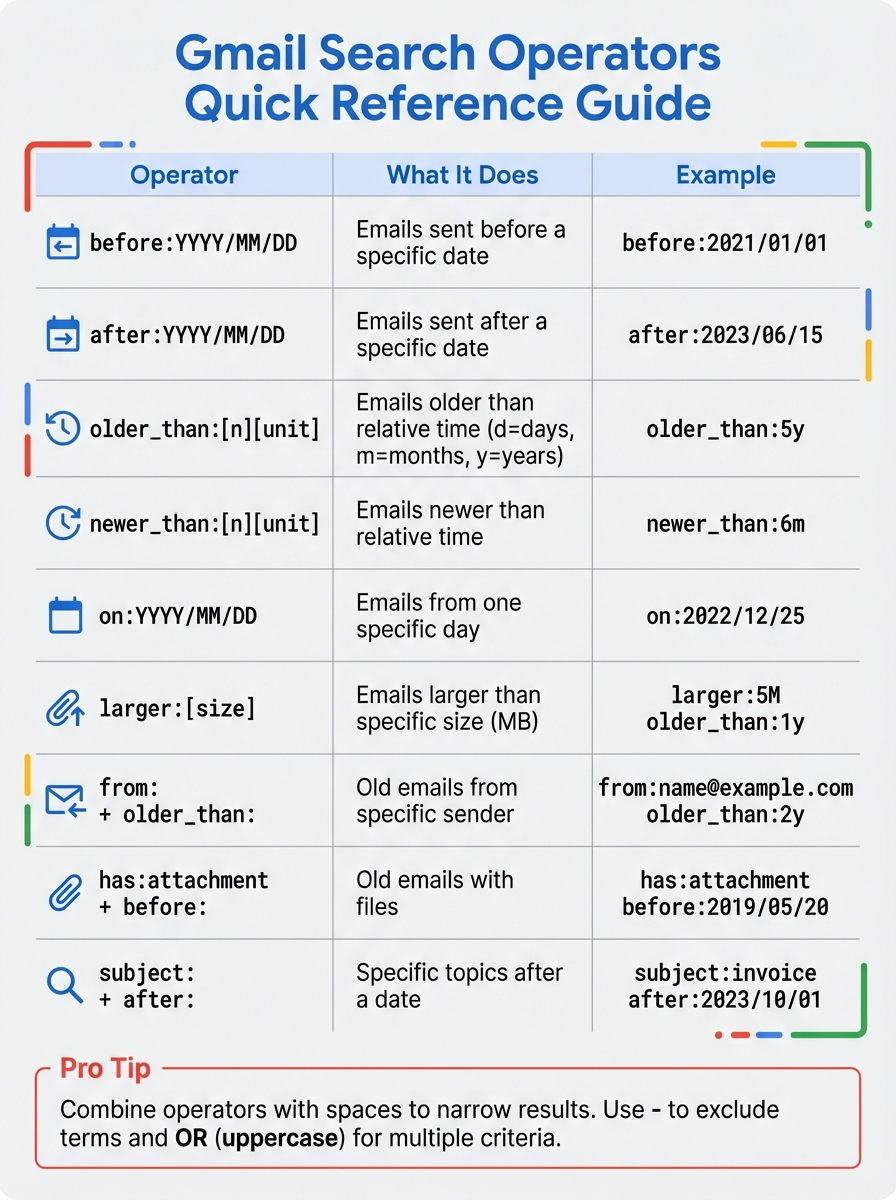
Gmail Search Operators Quick Reference Guide
Search operators in Gmail give you precise control over finding old emails. These handy commands, typed directly into the search bar, let you filter messages by date, sender, size, and more. Unlike simply scrolling through the 'All Mail' view, these tools help you zero in on exactly what you need - whether you’re looking for emails from a particular year or trying to identify messages taking up too much storage.
Basic Search Operators for Old Emails
Date-based operators are your go-to tools for tracking down older messages. For instance, before:YYYY/MM/DD retrieves emails sent before a specific date, while after:YYYY/MM/DD focuses on emails sent after that date. If you want to see all emails from before January 1, 2021, you’d type before:2021/01/01 into the search bar. Remember to format dates as YYYY/MM/DD for accurate results.
Want something even more adaptable? Use relative time operators like older_than:. This operator adjusts automatically based on the current date, making it perfect for ongoing cleanup. For example, older_than:5y will show emails older than five years, while older_than:6m finds messages older than six months. You can use d for days, m for months, and y for years to customize your search window.
If you’re looking for emails from a specific day, use on:YYYY/MM/DD. This is helpful when you know the exact date of an event but need to locate related correspondence. Gmail also accepts older: as a shorthand for before: and newer: as a shorthand for after:, though the standard commands are more commonly used.
Combining Multiple Search Operators
Once you master the basics, you can combine search operators to refine your results even further. For example, if you want to find emails from your boss that are more than two years old, you’d type from:boss@company.com older_than:2y. Each operator you add narrows the search, as Gmail treats spaces between them like an AND condition.
To search within a specific timeframe, use the "sandwich method" by combining after: and before:. For instance, after:2023/01/01 before:2023/12/31 will display all emails from 2023. This approach works well for filtering emails from a particular month, quarter, or project timeline.
Looking to clear out large, old emails? Pair size and date operators. For example, larger:10M older_than:2y finds attachments over 10 megabytes from more than two years ago. You can refine this further with has:attachment larger:5M older_than:1y, which targets old files hogging space. If you’re after specific file types, add filename:pdf older_than:3y to locate old PDF documents.
Want to exclude certain results? Use - to filter out specific terms or senders. For example, older_than:2y -from:boss@company.com will show emails older than two years but exclude those from your boss. You can also filter out keywords like older_than:1y -newsletter, which removes newsletters from your search. For multiple criteria, use OR in uppercase, such as from:amy OR from:david older_than:2y, to find old emails from either person.
These advanced search techniques make it easier to locate old emails, paving the way for efficient inbox management.
Search Operators Reference Table
| Search Operator | Function | Example |
|---|---|---|
before:YYYY/MM/DD |
Emails sent before a specific date | before:2021/01/01 |
after:YYYY/MM/DD |
Emails sent after a specific date | after:2023/06/15 |
older_than:[n][unit] |
Emails older than a relative time (d, m, y) | older_than:5y |
newer_than:[n][unit] |
Emails newer than a relative time (d, m, y) | newer_than:6m |
on:YYYY/MM/DD |
Emails from one specific day | on:2022/12/25 |
larger:[size] |
Emails larger than a specific size (in MB) | larger:5M older_than:1y |
from: + older_than: |
Old emails from a specific sender | from:name@example.com older_than:2y |
has:attachment + before: |
Old emails with files | has:attachment before:2019/05/20 |
subject: + after: |
Specific topics after a date | subject:invoice after:2023/10/01 |
sbb-itb-34b9fd2
Finding Old Emails on Mobile and Using Advanced Search
Using Search Operators on Mobile
If you’ve ever tried to find old emails in the Gmail mobile app, you’ve probably noticed there’s no "Sort by Oldest" option - it always shows the newest emails first. But don’t worry, search operators work just as well on your phone or tablet as they do on desktop. Just open the Gmail app, tap the search box, and type in your operator. For instance:
- Use
older_than:10yto pull up emails that are over a decade old. - Try
before:2015/01/01to find messages received before January 1, 2015.
"It's not possible to sort messages by date in the Gmail app." - Heinz Tschabitscher, Writer, Lifewire
Want to clear up some storage space? Combine has:attachment with date operators like older_than:5y to locate emails with large attachments from years ago. These combinations work seamlessly on mobile, so you can search consistently across all your devices.
If typing operators feels too manual, Gmail’s advanced search filters offer another way to narrow things down.
Using Gmail's Advanced Search Filters
For those who prefer a more visual approach, Gmail’s mobile app includes built-in filters. When you tap the search bar, you’ll see filter icons - or "chips" - appear below it. These let you refine your search by options like "From", "Any time", or "Has attachment." For date-specific searches, tap "Any time" to pick from predefined ranges, or choose "Custom range" to set exact start and end dates without needing to type commands.
"The mobile app also has a filter icon on the search bar that gives you a visual interface for picking dates, but typing the operators directly is usually faster." - Inbox Zero
This interface is a simplified version of the "Show search options" menu available on desktop. You can combine filters - like specifying a sender, selecting a date range, and requiring attachments - to create powerful searches without memorizing operator syntax. Just keep in mind that a stable internet connection is crucial for complete results, as offline searches only include emails already synced to your device.
Cleaning Up Old Emails with MailSweeper

Sorting through years of old emails can feel like an endless chore. Once you've pinpointed those outdated messages, the next challenge is clearing them out efficiently. Manually deleting emails takes forever and delays the process of reclaiming storage space. That’s where MailSweeper steps in - a smart tool that automates inbox cleanup without tying you to subscription fees.
How MailSweeper Handles Old Emails Automatically
MailSweeper makes organizing old emails a breeze by tagging them with a "🧹Dustpan" label. This label acts as a holding zone for outdated notifications, expired calendar invites, and promotional clutter. The tool’s AI works according to your preferences, ensuring it avoids touching starred, important, or primary emails.
Once the emails are labeled, MailSweeper takes care of the rest. It moves everything in the Dustpan to the trash every 30 or 90 days, depending on your settings. If you spot an email you’d like to keep, just remove the Dustpan label before the next cleanup cycle. So far, MailSweeper has helped users clear out 3,382,267 emails, freeing up a total of 245 GB of storage space.
Why Choose MailSweeper for Managing Your Inbox
For a one-time payment of $20, MailSweeper’s Personal plan gives you lifetime access, avoiding the hassle of recurring fees. It’s a straightforward way to manage your budget while keeping your inbox under control.
MailSweeper doesn’t just save time - it also reduces stress by automating email organization. Plus, it’s CASA certified, meaning it doesn’t read, store, or sell your private email data. On top of that, the tool has contributed to reducing the collective carbon footprint by 111.61kgCO2e.
Conclusion
Finding your oldest emails in Gmail doesn’t need to feel like searching for a needle in a haystack. The "All Mail" view makes it easy - just hover over the message count and select "Oldest" to jump straight to your very first email. For more precision, Gmail’s search operators like older_than:5y or before:2020/01/01 help you zero in on specific timeframes without endless scrolling. These tools make email management simpler and faster.
Once you’ve located those old emails, it’s time to manage them. Large attachments and outdated messages can eat up your storage quickly. Gmail’s bulk selection feature makes it easy to archive or delete multiple emails in just a few clicks.
For an even smoother experience, MailSweeper takes care of the cleanup for you. This tool automatically moves older emails to a designated Dustpan label and deletes them after 30 or 90 days. And the best part? It’s a one-time $20 payment for lifetime access, with no subscription fees to worry about.
FAQs
How do I find emails older than a specific date in Gmail?
To locate emails older than a certain date in Gmail, you can use search operators like before: or older_than:. Here’s how they work:
before:: Use this operator with a specific date in the formatyyyy/mm/dd. For example, typingbefore:2010/12/31in the search bar will display emails sent before December 31, 2010.older_than:: This operator works with time units like days (d), months (m), or years (y). For instance,older_than:2ywill pull up emails that are more than two years old.
To use these search tools:
- Open Gmail and click on the search bar at the top.
- Enter either
before:orolder_than:with your desired parameters. - Press Enter to see the filtered results.
These operators are handy for managing your inbox, whether you’re organizing, reviewing, or clearing out older messages.
How can I use Gmail search operators to find my oldest emails?
To find your oldest emails in Gmail, you can rely on search operators that help filter messages by specific dates or time frames:
older_than:This operator lets you locate emails older than a certain period. For example, typingolder_than:1ywill display emails older than one year, whileolder_than:6mfinds those older than six months.before:Use this to search for emails sent before a specific date. Enter the date in the formatYYYY/MM/DD, likebefore:2010/12/31, to see messages from earlier than December 31, 2010.- Combine operators like
after:andbefore:to narrow down a date range. For instance,after:2009/01/01 before:2010/12/31will show emails sent between January 1, 2009, and December 31, 2010.
These shortcuts are a handy way to sift through your inbox, manage older emails, and clear up space by identifying messages you no longer need.
How can MailSweeper help me manage old emails in Gmail?
MailSweeper takes the hassle out of managing old emails in Gmail by automating the cleanup process. It uses Gmail's search operators, such as older_than:1y, to pinpoint emails that are older than a specific timeframe, making it easier for you to review or delete outdated messages.
By leveraging no-code automation tools, MailSweeper can set up regular schedules for deleting or archiving emails. This not only saves you time but also helps free up storage space and keeps your inbox tidy. Best of all, you don’t need any technical expertise to use it - it’s a straightforward solution for decluttering and simplifying your email management.
More free Gmail tools.
Pair these together for a full inbox reset.
Bulk Unsubscribe from Gmail
See the senders flooding your inbox, ranked by volume — your shortlist for unsubscribes.
Open toolMass Delete Gmail Emails
Build a deletion plan by sender, date, label, or all-unread — with the exact Gmail search to run.
Open toolFind Large Emails in Gmail
Pick a size and we build the exact Gmail search to find your biggest emails — then open it in one click.
Open toolGmail Storage Cleanup
Move the slider to your current Gmail usage to see exactly what to delete to free space.
Open toolInbox Zero Score
Rate your inbox health on a 0–100 scale and see the weekly hours your inbox is costing you.
Open tool