
Cloud Storage
Understanding Google Workspace Storage Reports
Learn how admins use Google Workspace storage reports to track Gmail and Drive usage, spot waste, export data, and automate cleanup to cut storage costs.
Understanding Google Workspace Storage Reports
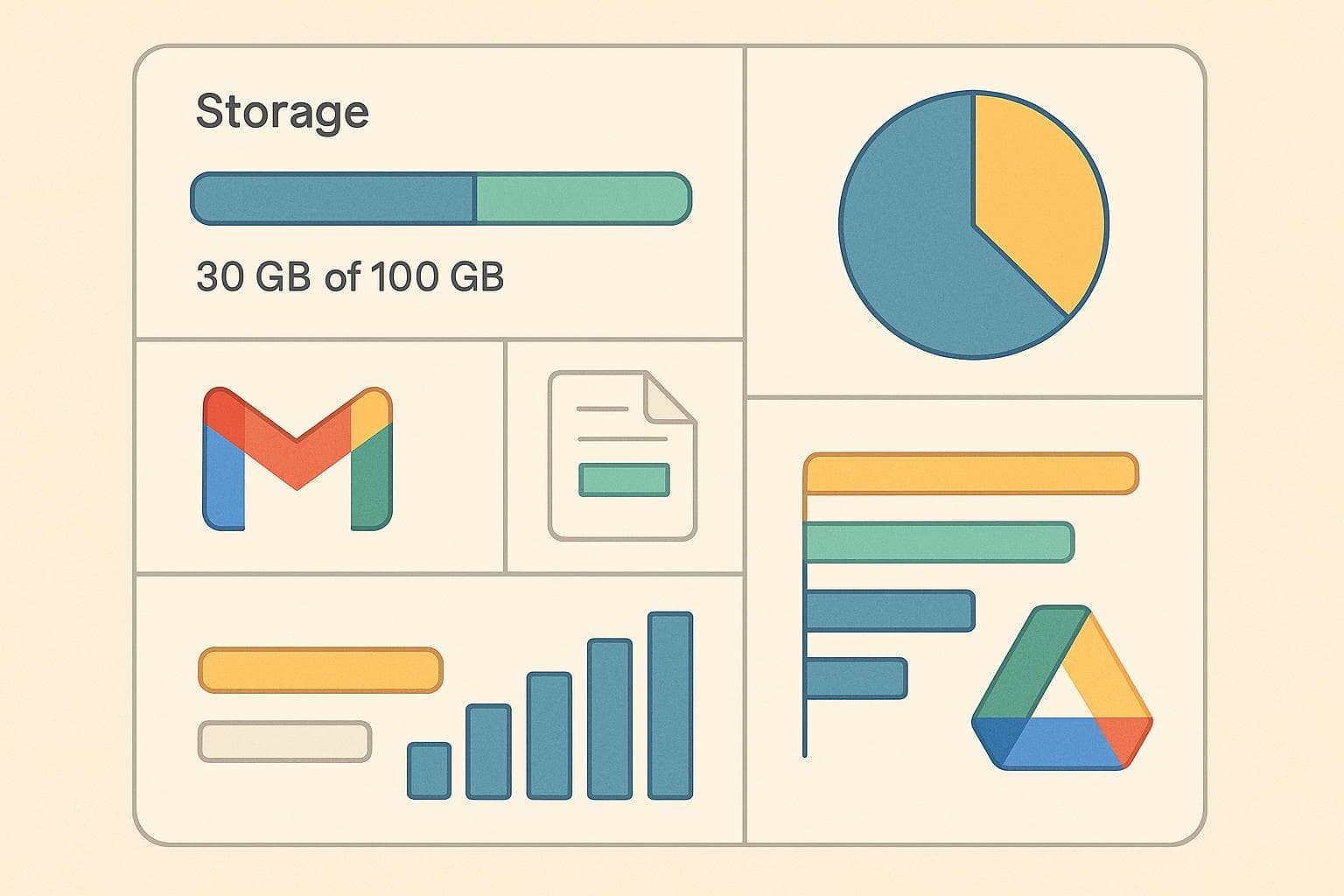
These reports provide insights into Gmail, Drive, and other app usage, enabling better storage planning, cost control, and data governance. Key takeaways include:
- Track storage usage by app and user: Separate Gmail (emails/attachments) and Drive (files) storage for targeted optimization.
- Identify inefficiencies: Spot redundant files, unused data, and high-consumption accounts.
- Improve sharing practices: Monitor file visibility and sharing to ensure compliance and reduce unnecessary duplication.
- Export and share reports: Use CSV or Google Sheets formats for analysis and collaboration.
- Automate email cleanup: Tools like MailSweeper can reduce Gmail storage by removing unnecessary emails.
Admins can access these reports via the Google Admin Console, but permissions depend on their role. Regularly using these tools can help organizations cut storage costs by up to 15% while ensuring efficient and secure storage management.
How to Check Your Google Storage in Google Workspace
How to Access Google Workspace Storage Reports
Getting storage insights in Google Workspace is straightforward if you have the right admin access. The Reports section in the Google Admin Console is your go-to place. It provides a clear view of storage data through graphs, tables, and charts, making it easy to track trends at both the domain and user levels.
Using the Google Admin Console
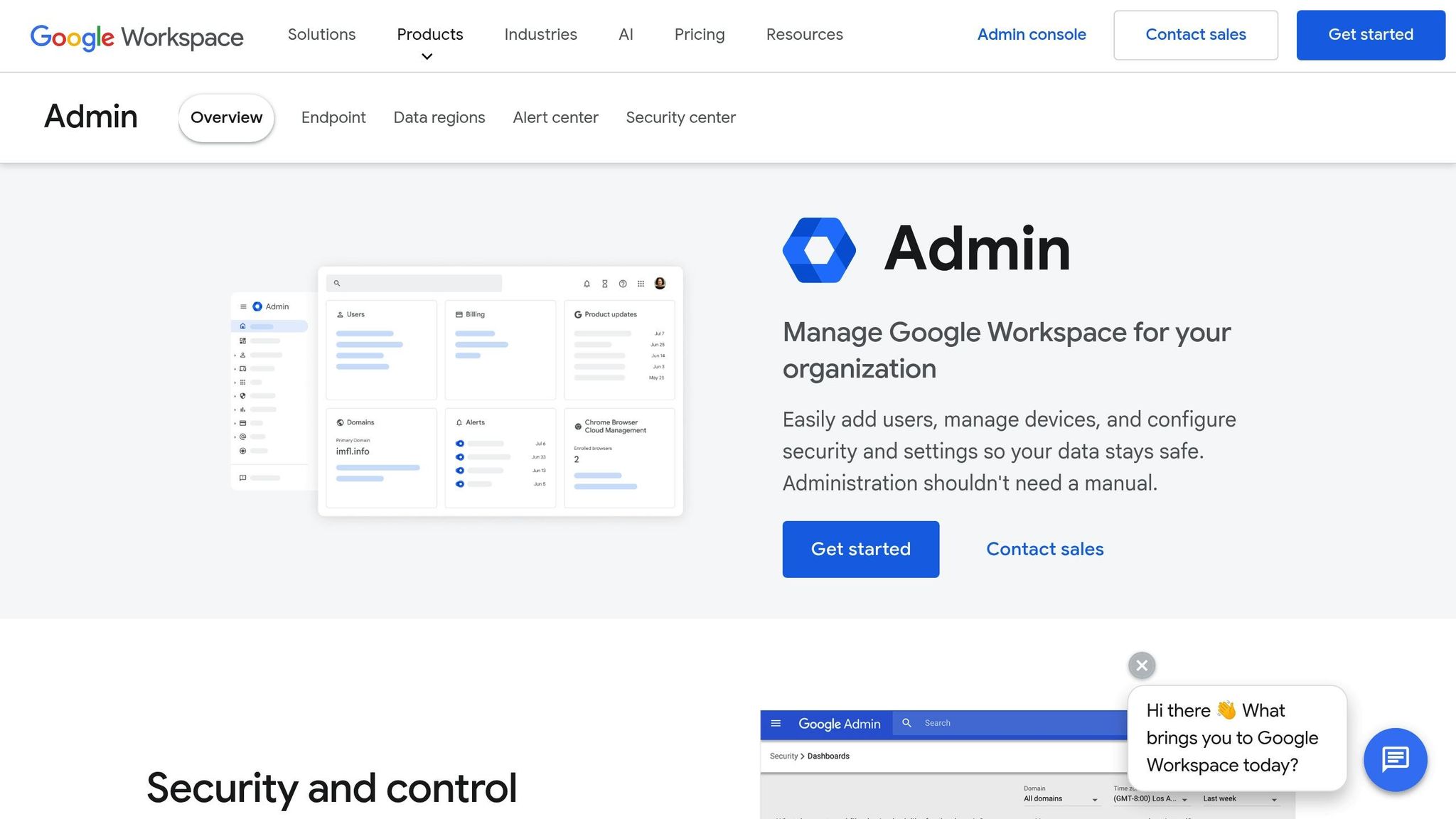
Start by logging into the Google Admin Console and selecting the Reports option. From there, click "Create Report" to generate a new storage analysis. You'll need to specify the product you want to analyze and select your report type. For a detailed overview, choose "Storage for SaaS Applications Usage Report".
Filters allow you to tailor the report to your needs. Set the time frame that works best for your analysis - daily or weekly views are great for short-term tracking, while monthly or quarterly views help identify long-term trends. This flexibility is especially helpful when comparing periods to measure the success of storage optimization efforts.
Once you're ready, name your report and click "Create." You'll be able to download the report as a CSV file or access it later whenever needed.
If your organization uses managed services, you can also navigate to MSC > Reports > Google Workspace > Storage Consumption Report. This report provides additional details like storage usage, resource counts, and total backup data in gigabytes.
Keep in mind that storage data updates take 6–12 hours, and new accounts might take 24–48 hours to appear. Be sure to wait for the data to fully process before diving into trend analysis or making major storage changes.
Lastly, double-check that your admin permissions allow you full access to these reports.
Required Permissions
Your ability to view and generate storage reports depends on your administrative role within Google Workspace.
Super administrators generally have full access to all reports, including data on login history, storage usage, and installed apps across the domain. However, if you're working with a custom admin role, your access might be limited based on the permissions assigned to you. If you're in charge of storage management, ensure your role includes the necessary permissions in the Google Admin Console.
It's important to note what administrators can and cannot do. For example, while you can view usage reports and audit activities like Drive file access, you cannot view personal email content or files stored in users' Drive accounts unless specific access has been granted. This setup ensures user privacy while still allowing you to monitor storage metrics and file-sharing behaviors effectively.
To maintain tight data governance, organizations should regularly review admin role assignments. This ensures the right individuals have access to storage reports without granting permissions unnecessarily, striking a balance between security and efficient storage management.
Key Storage Metrics Explained
When you dive into your storage reports, you'll uncover a wealth of data that can guide your decisions about storage allocation, identify potential problems, and help you plan for future needs. These metrics aren't just numbers - they're tools to help you manage storage efficiently across teams and departments.
Reports use unique identifiers to pinpoint specific entries within large datasets. This feature is especially helpful for managing multi-department environments and tracking issues effectively.
Google Workspace categorizes storage consumption by workload type, with Gmail (emails and attachments) and Google Drive (documents, files, and shared content) being the primary contributors. Each entry clearly identifies which service is consuming storage, making it easier to determine whether the cause is an email backlog or an overflow of files.
The reports also include adoption metrics, such as 1-day, 7-day, and 30-day active users for Google Drive, Docs, Sheets, Slides, Forms, and Drawings. These figures not only show how much storage is being used but also highlight how actively your team engages with various tools. Another handy feature is delta metrics, which track changes in file visibility and ownership over time. This makes it easier to identify unusual activity or sudden spikes in storage use.
Note: Storage data updates every 6–12 hours.
Storage Quota Usage
Armed with these metrics, administrators can quickly spot when storage use approaches critical levels. The storage quota usage metric shows how much of your organization's allocated storage is being consumed across all users and services. Think of it as an early warning system - when usage nears the limit, it might be time to upgrade your plan, initiate cleanup efforts, or educate users on better storage practices.
Reports allow you to filter by service plan and customer name, making it easier to focus on specific areas of concern. By keeping an eye on usage trends, you can detect patterns or spikes that might indicate inefficient practices, redundant files, or unused data. For example, a sudden increase in storage use within a specific department could signal either a legitimate need or unnecessary data hoarding.
One common issue is email storage. Many users accumulate years’ worth of notifications, old calendar invites, and promotional emails that no longer serve a purpose. These can quickly add up and eat into your overall storage quota.
User and Department Storage Consumption
Taking a closer look at individual and department-level storage consumption can reveal which accounts or teams are using the most resources. This granular view is key to allocating resources effectively and identifying areas for optimization.
The User Reports: Apps usage section offers detailed insights into Gmail and Drive usage, including the number of documents created, shared, and the amount of Drive storage each person is using. This allows you to spot outliers - users whose storage consumption is significantly higher than their peers. For department-level insights, you'll often need to aggregate individual user data manually, which can be time-intensive for larger organizations. However, this process can uncover departments that use a disproportionate amount of storage compared to their size, sparking discussions about improving storage practices.
While these reports show how much space files take up, they won't display the actual content of emails or files. This privacy safeguard means that when you identify high-storage accounts, you'll need to collaborate with department heads or individual users to decide what can be safely deleted.
It's also worth noting that the reports don't automatically flag duplicate, redundant, or unused data. You'll need to manually review high-storage accounts to determine whether their usage aligns with their role or if cleanup opportunities exist.
For organizations focusing on email cleanup, identifying high-storage accounts can pave the way for automation. Tools like MailSweeper have proven effective in reclaiming storage space. For instance, MailSweeper has helped users recover 213 GB of email storage by periodically identifying and removing unnecessary emails. This automated approach is particularly useful when Gmail accounts are responsible for a significant portion of your storage usage.
These metrics are essential for crafting smart, data-driven strategies to manage storage effectively.
Storage Usage by Application
To refine cleanup strategies, it's essential to understand how storage is distributed across different Google Workspace applications. Since storage is shared among various services, each consuming space differently, pinpointing the largest contributors can help you focus your optimization efforts. Gmail and Google Drive are the two main culprits when it comes to storage consumption.
The Admin Console's User Reports section offers detailed insights into how each application uses storage. This data helps identify whether the storage issues stem from an overload of emails, an accumulation of files, or both. Armed with this knowledge, you can fine-tune your approach to storage management, building on the metrics discussed earlier.
Gmail and Email Attachments
Gmail's storage usage primarily comes from two sources: emails and their attachments. While individual emails might seem insignificant in size, they add up quickly. Notifications, calendar invites, and promotional emails can quietly pile up in inboxes, eventually consuming gigabytes of storage across an organization.
Attachments, however, are the real space hogs. For instance, a 10 MB file sent to five recipients ends up being stored six times - one for the sender and five for the recipients. Multiply this by the number of users and emails, and the storage demand can skyrocket.
Using storage reports, administrators can identify accounts with unusually high email storage usage. While these reports won't reveal the content of emails, they can guide conversations with users or department heads to decide what can be safely deleted.
Manually cleaning up emails is a tedious task, which is why automation tools like MailSweeper are game-changers. This AI-powered tool identifies and deletes unimportant emails periodically, saving users time and reducing storage costs. It collects non-essential emails into a "Dustpan" before moving them to the trash. Users can customize preferences to protect important emails, such as starred messages or those in the primary inbox, from being removed.
To date, MailSweeper has helped users delete 2,962,250 emails, freeing up 213 GB of storage. This automated solution complements broader strategies for optimizing storage.
Google Drive and Shared Files
Google Drive presents a different set of challenges compared to Gmail. While email storage grows gradually, Drive storage can spike when users upload large files or create extensive shared folders. Storage reports track the number of documents created and shared, file activities, and overall storage usage per user.
Sharing habits significantly impact storage use. The Admin Console provides detailed reports on sharing types, such as files shared within the domain, via a link, with specific users, or kept private. These insights can help identify redundant files. For example, if the same document is shared with multiple departments, consolidating it into a single shared version can save space.
Shared drives introduce additional complexity. Files stored in these drives don’t count against individual user quotas but still consume the organization’s overall storage. The Reports API provides visibility into how files are shared both internally and externally.
Duplicate files are another common issue. When users download, modify, and re-upload files or save multiple versions, storage gets wasted. While storage reports don’t automatically flag duplicates, tracking file creation and sharing activity can highlight inefficiencies. Training users on better file management practices can help address this problem.
New audit event data now makes it easier for administrators to spot permission changes that lead to files being shared differently. Collaboration metrics, which track team activities like shared document edits and comments, can also provide valuable insights. High collaboration activity might indicate a need for better shared file management to avoid duplication, while lower activity could suggest teams rely more on email attachments than shared Drive files.
sbb-itb-34b9fd2
Using Report Data to Optimize Storage
Once you've reviewed the metrics discussed earlier, it's time to put that data to work. By analyzing storage consumption, you can identify wasteful practices and reduce unnecessary costs. The key is to focus on inefficient areas, clear out redundant files and emails, and implement automated cleanup tools. This approach helps you manage storage effectively while keeping workflows intact. Below, we’ll explore how to locate redundant data and streamline cleanup processes.
Finding Redundant or Unused Data
The first step is identifying files that no longer serve a purpose. Over time, it's easy for outdated or duplicate files to pile up. For instance, employees often download, edit, and re-upload documents instead of making changes directly, leading to multiple versions of the same file. Similarly, old project files and emails with large attachments can linger long after their relevance has passed, needlessly consuming valuable space.
Google Workspace now offers enhanced metrics for file visibility and sharing status. These tools can reveal unnecessary external sharing, which often indicates duplicate content. Using the Reports API, administrators can access adoption metrics - such as 1-, 7-, and 30-day active user counts for Google Drive and its associated tools (Docs, Sheets, Slides, Forms, and Drawings). For example, files that haven’t been accessed in 30 days could be prime candidates for archiving or deletion.
Quick filters in the Storage Consumption Report allow you to zoom in on specific departments or teams with unusually high storage usage. This can highlight areas where cleanup efforts might have the most impact. Additionally, new delta metrics in the Reports API make it easier to track changes in file ownership and visibility, helping you spot sudden spikes in storage use.
Automating Email Cleanup with MailSweeper
While pinpointing storage issues is critical, manually clearing out large amounts of data - especially emails - can be a daunting task. This is where automation becomes a game-changer, offering a smart way to handle email storage without requiring constant manual effort.
MailSweeper is an AI-powered tool designed to simplify email cleanup in Gmail. It works by periodically identifying and deleting unimportant emails, helping you save both storage and time. The tool operates on a one-time purchase model, so there’s no need for ongoing subscriptions. MailSweeper collects less critical emails under a "Dustpan" label, where they’re eventually moved to the trash. Users can set preferences to decide which types of emails should be cleaned, ensuring that high-priority messages remain untouched.
For organizations with storage reports highlighting heavy email usage, MailSweeper can provide quick relief. It’s particularly effective at targeting emails that tend to accumulate, such as notifications, old calendar invites, and promotional messages. This ensures that inboxes stay manageable while preserving essential communications.
That said, users should periodically review the "Dustpan" label to ensure no important emails are mistakenly flagged for deletion. After cleanup, reviewing updated storage reports can confirm the tool’s impact and, in some cases, help organizations stay within free storage limits.
Exporting and Sharing Storage Reports
Exporting and securely sharing your storage reports is a key step in turning insights into action. With the Google Admin Console, you can easily export data in formats that integrate with popular business tools, while built-in sharing options help ensure reports are distributed securely. These features make it simple to incorporate storage insights into your overall management strategy.
Exporting to CSV or Google Sheets
Google Workspace storage reports can be exported in two formats: CSV (Comma-Separated Values) and Google Sheets, each suited to different workflows and analysis needs.
- CSV files provide raw data, making them ideal for flexible analysis. They’re compatible with tools like Microsoft Excel, Google Sheets, and other spreadsheet software. Finance teams often prefer CSVs because they can easily integrate this data into their budgeting and forecasting models.
- Google Sheets exports offer a dynamic advantage: they can maintain live data connections, automatically updating your dashboards. This is perfect for creating real-time, interactive dashboards without manual updates.
To export, simply open the Storage Consumption Report in the Admin Console and select your preferred format. If you're using third-party platforms like Druva's Managed Services Center (MSC), navigate to MSC > Reports > Google Workspace > Storage Consumption Report, then choose your export format. Keep in mind that data refreshes every 6–12 hours, and new customers may experience an initial 24–48 hour delay for data population.
Exports include key fields like Global Customer ID, Customer Name, Account Name, Workload, Resource Count, and Total Backup Data (GB). You can customize the report by reordering columns to focus on metrics relevant to your audience. For example, executives might need high-level summaries, while IT teams often require detailed, user-specific data.
Once in Google Sheets, you can take advantage of powerful features like pivot tables, which allow you to summarize storage usage by user, department, or application. Use charts and graphs to visualize trends, such as a line chart showing storage growth over time or a pie chart breaking down usage by department. Conditional formatting can highlight areas exceeding storage thresholds, helping you identify issues at a glance.
For regular reporting, Google Workspace offers a subscription feature to automate the process. Instead of manually exporting and sending reports, set up a subscription to receive them on a schedule - daily, weekly, or monthly. Specify recipients and file formats, and let the system handle the rest. This automation ensures stakeholders receive timely updates without extra effort on your part.
Sharing Reports Securely
When sharing reports, safeguarding sensitive information is crucial. Storage reports often include user consumption patterns and capacity planning details, so careful handling is necessary to protect privacy and prevent misuse.
Limit access to those with a legitimate need to view the data. Within Google Workspace, use Google Sheets' permission settings to control who can view, comment on, or edit reports. For external stakeholders like consultants or auditors, consider password-protecting files or using encrypted email to ensure secure transmission. For added privacy, anonymize user data by replacing names with department codes or user IDs.
It’s important to note that administrators can see storage usage and user details but cannot access personal email content or Drive files without explicit user permission. Communicating this built-in privacy protection can ease concerns when sharing reports.
Establish clear retention policies for exported reports. Regular exports can pile up quickly, and outdated files containing sensitive data should be securely deleted after a set period. Most organizations retain reports for one to three years, depending on compliance requirements.
Organize your reports systematically for long-term reference. Create a dedicated folder structure in Google Drive, categorizing reports by date, department, or type. Use consistent naming conventions, such as "Storage_Report_Q4_2025_Exported_12_01_2025.csv", to make locating files straightforward. Maintaining a master spreadsheet to track exported reports, including file locations and key findings, creates an audit trail that supports compliance and demonstrates proactive management.
Tailor your reports to meet the needs of different stakeholders. Executives typically prefer high-level summaries with clear visualizations highlighting trends and costs. IT teams require granular, user-level data to implement storage strategies, while finance departments need historical data for budgeting. Customizing your reports ensures the information is both relevant and actionable for each audience.
Conclusion
Google Workspace storage reports offer a practical way to manage storage by shedding light on how space is used across Gmail, Google Drive, and other apps. These reports empower administrators to make smarter decisions about storage allocation. By analyzing key metrics like individual user consumption, file-sharing trends, and document visibility, organizations can pinpoint inefficiencies and take action to streamline their storage usage.
Keeping an eye on storage reports can also lead to noticeable financial savings. Many organizations that regularly review these reports manage to cut storage consumption by 5–10% annually. This is often achieved through simple steps like cleaning up unused files or enforcing storage policies, which can help avoid costly upgrades - or even allow a downgrade to free storage tiers. These savings make it easier to adopt tools that further optimize storage automatically.
Automation takes this process to the next level. Email storage, particularly large attachments and archived messages, often eats up a big chunk of space. Tools like MailSweeper work hand-in-hand with storage reports, using AI to identify and remove unnecessary emails. For example, MailSweeper has been shown to save up to 213 GB of storage and clear 2,962,250 emails, reducing Gmail storage by 15–40% - all for a one-time cost of $16–$20.
FAQs
How can organizations use Google Workspace storage reports to manage storage efficiently and cut costs?
Google Workspace storage reports offer a clear picture of how storage is utilized across your organization. By diving into these reports, you can pinpoint areas with heavy storage use and make informed decisions to better manage and optimize your resources.
For instance, tackling email storage can significantly cut costs. Regularly decluttering inboxes is a practical approach, and tools like MailSweeper can simplify the process. These tools can automatically identify and delete unnecessary emails, reducing clutter and freeing up valuable storage space. The result? Lower expenses and a more streamlined, efficient workspace.
How does storage management differ between Gmail and Google Drive in Google Workspace?
When it comes to storage in Google Workspace, Gmail and Google Drive serve distinct purposes. Gmail focuses on storing emails and their attachments, while Google Drive is tailored for files like documents, spreadsheets, presentations, and various types of media.
Knowing how these two systems manage storage can make a big difference in how efficiently you use your available space. For instance, large attachments in Gmail can quickly eat up storage, while in Google Drive, shared files might count toward your quota depending on who owns them. Taking the time to regularly clean up your inbox and organize your Drive can help you make the most of your storage and potentially lower costs.
What permissions are needed to access and generate Google Workspace storage reports, and how can organizations ensure the right people have access?
To create and view Google Workspace storage reports, you'll generally need administrator privileges or a designated role within the Google Admin Console. These permissions are essential for accessing detailed storage insights and generating reports to help manage resources efficiently.
To ensure the right people have access, organizations should carefully assign roles in the Admin Console. By using custom roles, you can grant specific permissions to only those who require them. This approach not only limits unnecessary access but also helps maintain strong data security.
More free Gmail tools.
Pair these together for a full inbox reset.
Bulk Unsubscribe from Gmail
See the senders flooding your inbox, ranked by volume — your shortlist for unsubscribes.
Open toolMass Delete Gmail Emails
Build a deletion plan by sender, date, label, or all-unread — with the exact Gmail search to run.
Open toolFind Large Emails in Gmail
Pick a size and we build the exact Gmail search to find your biggest emails — then open it in one click.
Open toolGmail Storage Cleanup
Move the slider to your current Gmail usage to see exactly what to delete to free space.
Open toolInbox Zero Score
Rate your inbox health on a 0–100 scale and see the weekly hours your inbox is costing you.
Open tool