
Email Management
Periodic Email Cleanup: Save Gmail Storage
Reclaim Gmail storage by emptying Trash/Spam, removing large attachments, and automating cleanups to avoid paid plans and blocked email.
Periodic Email Cleanup: Save Gmail Storage
Your Gmail storage fills up faster than you think. If you’re nearing the 15 GB limit shared across Gmail, Google Drive, and Google Photos, your email functionality could grind to a halt. Here’s the good news: you can reclaim space without paying for extra storage.
Key Takeaways:
- Trash and Spam count toward your storage. Emails in these folders linger for 30 days unless manually cleared.
- Large attachments are storage hogs. Use Gmail search operators like
has:attachment larger:10Mto find and delete them. - Google One plans start at $1.99/month. But manual cleanups or tools like MailSweeper can save you from upgrading.
- Automate your cleanup. Tools like MailSweeper handle clutter for you, saving time and effort.
Bottom line: Regular inbox maintenance - manual or automated - keeps your Gmail running smoothly. Don’t let clutter cost you money or productivity.
How to FREE UP GMAIL STORAGE FAST
sbb-itb-34b9fd2
How Gmail Storage Works
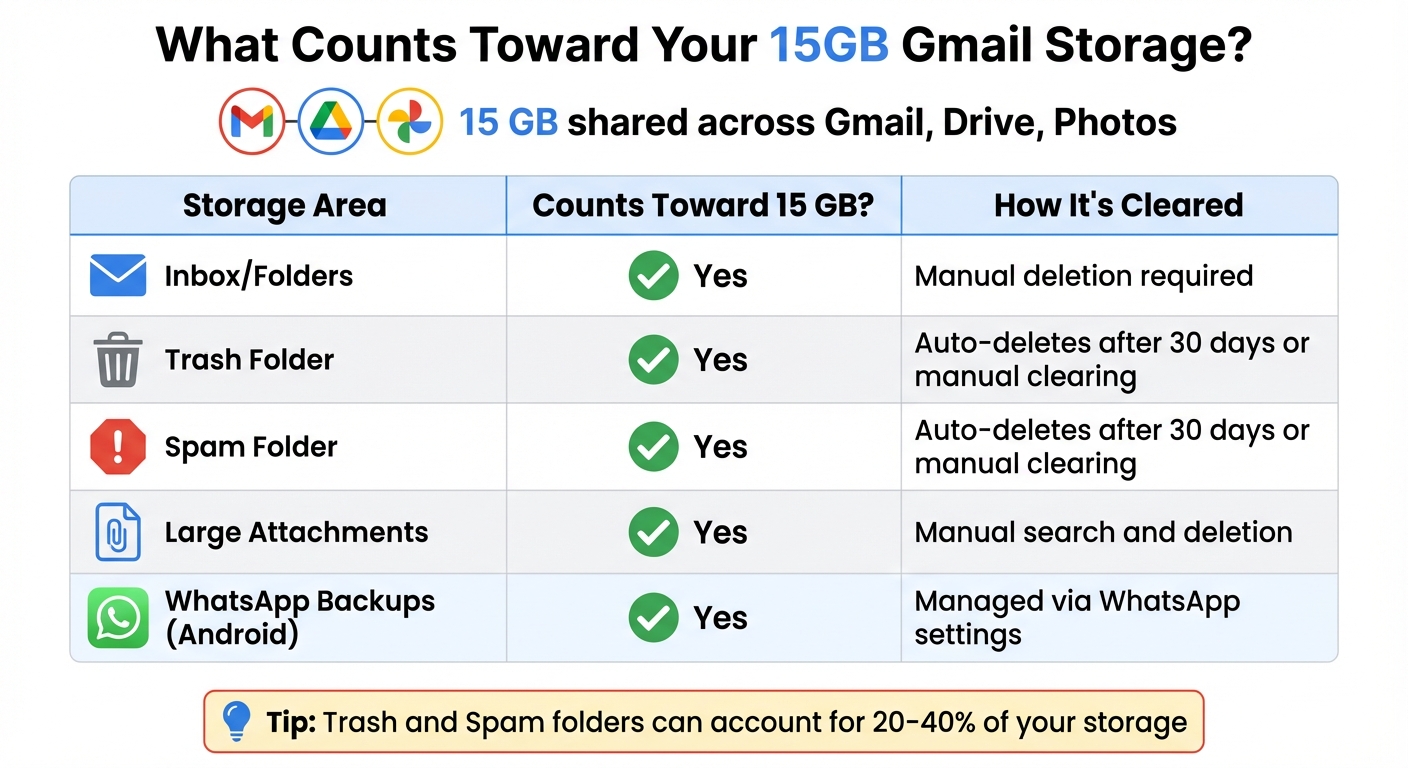
Gmail Storage Breakdown: What Counts Toward Your 15GB Limit
Every Gmail account includes 15 GB of free storage, which is shared across Gmail, Google Drive, Google Photos, and even WhatsApp backups on Android devices. This shared storage can fill up quickly, especially with large video files, photo uploads, or email attachments. To fix Gmail storage full issues and manage your space effectively, it's essential to understand how Trash and Spam folders impact your available space.
Emails in the Trash and Spam folders still count toward your storage limit. When you delete an email, it doesn't disappear immediately - it moves to the Trash folder, where it remains for up to 30 days before Gmail automatically removes it. Spam messages follow the same rule. Until these folders are emptied, either manually or through automatic cleanup, the emails inside continue to use up storage space.
Even after you clear out these folders, it may take 48 to 72 hours for your available storage to update. This delay occurs because Gmail processes the changes in the background.
Why Trash and Spam Take Up Storage
Gmail keeps deleted emails for 30 days to allow for recovery if needed. During this period, these emails continue to occupy space in your account.
Many users overlook the Trash and Spam folders, allowing them to accumulate months of unnecessary emails. Without regular maintenance, this digital clutter can quickly eat into your storage limit.
The 15 GB Storage Limit Across Google Services
Your 15 GB isn't just for Gmail - it's shared across all Google services. A few high-resolution photos in Google Photos, large files in Drive, and emails with attachments can quickly push you toward the limit.
"When your account reaches its storage limit, you won't be able to upload or create files in Drive, send or receive emails in Gmail, or back up photos or videos to Google Photos."
- Google Help
Once you hit the storage cap, Gmail disables sending, receiving, and file uploads. Incoming emails may even bounce back to the sender. If you remain over the limit for two years, Google may delete content from your account across all services. Google does send a warning at least three months before taking such action, but it's better to avoid reaching this point altogether.
Here's a quick breakdown of what counts toward your 15 GB and how to manage it:
| Storage Area | Counts Toward 15 GB? | How It's Cleared |
|---|---|---|
| Inbox/Folders | Yes | Manual deletion required |
| Trash Folder | Yes | Auto-deletes after 30 days or manual clearing |
| Spam Folder | Yes | Auto-deletes after 30 days or manual clearing |
| Large Attachments | Yes | Manual search and deletion |
| WhatsApp Backups (Android) | Yes | Managed via WhatsApp settings |
Bottom line: Your Gmail storage is part of a shared ecosystem. Keeping your inbox organized and regularly clearing out unnecessary emails ensures you have enough space for everything Google stores on your behalf.
What Happens When You Skip Regular Email Cleanup
Neglecting regular email cleanup can seriously hinder your email's functionality and reduce productivity. When Gmail storage hits its limit, the ripple effects can disrupt your workflow, cost you money, and make communication unnecessarily difficult.
Storage Costs and Access Issues
Once you hit Gmail's 15 GB storage limit, the system stops sending and receiving emails. This disruption can lead to missed opportunities, especially during busy periods. In some cases, users have lost access for up to 48 hours after large uploads pushed them over the limit.
The quickest fix? Paying for extra storage. Google One plans start at $1.99/month for 100 GB and go up to $9.99/month for 2 TB. Over a year, that's $24 to $120 just to keep your email functioning. But here's the kicker: much of this problem can often be resolved by clearing out trash and spam folders. These folders alone can account for 20–40% of your storage. By simply emptying them, many users recover 1–2 GB of space instantly, avoiding the need for an upgrade altogether.
Ignoring this clutter not only costs money but also slows down your daily operations.
How Clutter Impacts Productivity
A cluttered inbox isn't just annoying - it directly affects how efficiently you work. Searching through a messy inbox can take 2–5 times longer. On average, workers lose 2.5 hours every week managing disorganized emails, with daily inbox triage taking about 28 minutes to sift through 100+ irrelevant messages. This inefficiency leads to missed deadlines, decision fatigue, and a measurable drop in productivity - up to 20%.
When your Gmail account accumulates 100,000+ emails or reaches 90% of its storage capacity, the platform itself starts to lag. Searches take longer, and finding attachments becomes a time-consuming chore. Regular email cleanup isn't just about organization - it's essential for keeping your email system running smoothly and your day-to-day tasks on track.
Manual Methods to Clean Up Your Gmail
If you're running low on Gmail storage, manual cleanup can help you reclaim space quickly without having to pay for additional storage. Here are some practical steps to get started.
Empty Your Trash and Spam Folders
Did you know that emails in your Trash and Spam folders still count toward your 15 GB storage limit? To free up space, head to the Trash or Spam labels in Gmail's sidebar and click Empty Trash now or Delete all spam messages now. This simple action can make a noticeable difference. Just remember, Google’s system may take 48 to 72 hours to reflect the updated storage availability.
Find Large Emails with Search Operators
Search operators are a powerful way to track down emails that hog storage. For example:
- Use
has:attachment larger:10Mto find emails with attachments over 10 MB. - Try
filename:.pdf larger:5Mto locate large PDFs. - Combine operators like
has:attachment larger:5M older_than:1yto target older, bulky emails.
Here’s a quick reference table for more search operators:
| Search Operator | Purpose |
|---|---|
has:attachment larger:10M |
Finds emails with attachments over 10 MB |
older_than:2y |
Finds emails older than two years |
filename:.pdf larger:5M |
Finds large PDF files |
category:promotions |
Filters marketing and promotional emails |
is:read older_than:1y |
Finds read emails older than one year |
Once you’ve identified large or unnecessary emails, delete them and empty your Trash folder. Remember, archiving emails won’t free up space - only deleting them will.
Use Google One Storage Manager

Google One Storage Manager is another helpful tool for tackling storage issues. Here’s how to use it:
- Go to the Google One website and click Storage in the left-hand menu.
- Select Free up account storage to see a breakdown of your Gmail, Drive, and Photos usage.
- Review categorized data like Discarded items (Trash and Spam), Large items (emails with big attachments), and Other items (unsupported files). You can delete items individually or use the Delete All option for bulk removal.
If you’re using the Gmail app on your phone, tap your profile icon, then the cloud icon, and select Clean up space. This gives you a clear visual of how much space you’re using and how much you can recover, helping you prioritize what to delete.
Create a Regular Cleanup Schedule
Manual cleanups are great in emergencies, but why wait until you're out of space? A regular cleanup schedule can help you manage your Gmail storage effortlessly and avoid the stress of hitting that 15 GB limit.
Weekly and Monthly Cleanup Tasks
Spending just 15 minutes a week can save you from storage headaches later. Pick a consistent time - like Sunday mornings - to delete emails larger than 25 MB after saving any important attachments.
Once a month, take a closer look at your storage usage through Google One. Focus on categories that take up a lot of space. For example, you can use search operators like category:promotions older_than:30d to find promotional emails you haven't touched in over a month. Similarly, category:social can help you clear out old social media notifications. If there’s a newsletter you haven’t opened in weeks, it might be time to unsubscribe and cut down on future clutter.
Twice-Yearly Storage Reviews
Every six months, set aside time for a deeper storage audit. Use search operators like older_than:182d subject:(notification OR alert) to clean out outdated notifications or larger:5M older_than:1y to find and delete large attachments you no longer need. You can also target automated emails with from:(noreply OR no-reply) to free up even more space.
These twice-yearly reviews are also a good opportunity to check if you're nearing the 15 GB limit. Staying over quota for two years could lead to Google permanently deleting content from Gmail, Photos, and Drive. A quick check every six months can help you avoid that risk.
Once your schedule is set, consider automating some of these tasks. Tools like MailSweeper's Dustpan feature can handle recurring cleanups, making maintenance even easier.
Automate Email Cleanup with MailSweeper
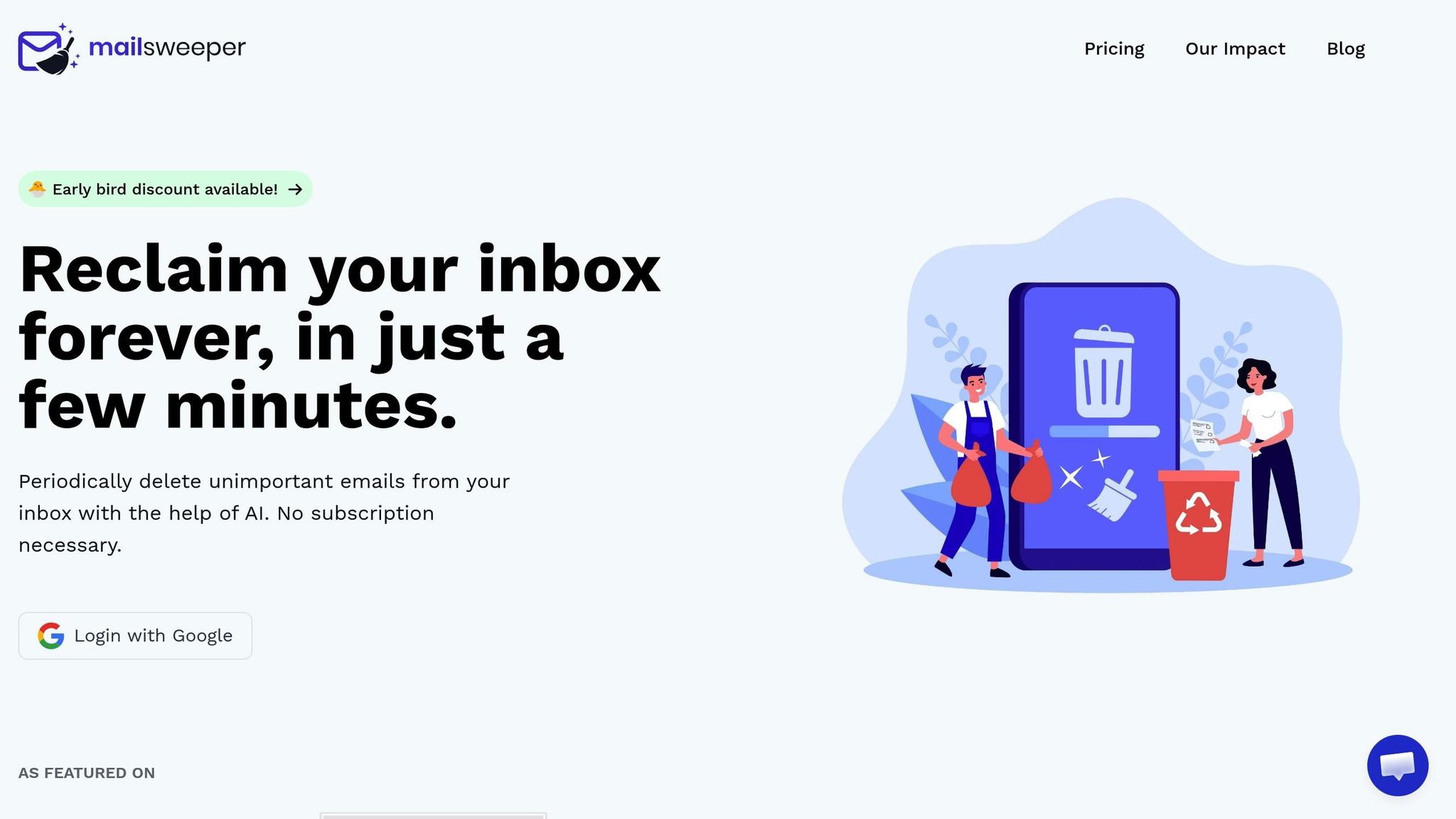
Keeping your inbox tidy can feel like a never-ending chore, but MailSweeper offers an AI-powered solution to take that task off your hands. With this tool, email cleanup becomes automatic, saving you time and effort.
How the Dustpan Feature Works
MailSweeper's "Dustpan" feature integrates directly into your Gmail workflow, making it easy to manage unimportant emails. When you install the tool, it adds a "Dustpan" label to your inbox. This label acts as a temporary folder for emails that don’t need your immediate attention - things like promotional offers, outdated calendar invites, and shopping notifications.
Here’s the best part: MailSweeper’s safety filters ensure it won’t touch crucial emails. It leaves your primary inbox, starred messages, and anything marked important completely untouched. You can check the Dustpan label anytime to rescue emails you want to keep. Then, every 30 or 90 days (depending on your settings), the tool automatically moves everything left in the Dustpan to the trash.
This system eliminates the need for constant manual searches using Gmail operators like larger:10M or older_than:1y. It’s a simple and effective way to clear out clutter while keeping your important messages safe.
Benefits of Automated Cleanup
MailSweeper has already cleared over 3.4 million emails and freed up 252 GB of storage. For most users, this means staying within Gmail's free 15 GB storage limit and avoiding the extra cost of Google One subscriptions, which range from $2 to $10+ per month.
The time savings are just as impressive. Instead of spending 15 minutes every week deleting old emails and attachments, you can set up MailSweeper in just three steps and let the AI handle the rest. With plans starting at a one-time payment of $13, you can keep your inbox organized without worrying about recurring fees. It’s a hassle-free way to maintain a clean inbox and manage your storage efficiently.
Wrapping It Up
Regular email cleanup is your best defense against storage headaches. Letting trash, spam, and old emails pile up eats away at the 15 GB limit shared between Gmail, Google Drive, and Google Photos. Hit that limit, and Gmail might start blocking incoming emails, leaving you scrambling to upgrade your storage.
A mix of manual and automated cleanup methods can make this process smoother. Manual tasks - like clearing your trash folder or using search commands like "has:attachment larger:10M" - offer quick fixes but can feel like a chore if done weekly.
That’s where tools like MailSweeper come in. They simplify the process by automatically handling things like promotional emails, outdated calendar invites, and shopping alerts. With features like its Dustpan tool, which clears clutter every 30 or 90 days, you can keep your inbox tidy without lifting a finger - while still keeping important emails safe.
The bonus? It’s cost-effective. Staying under the 15 GB limit saves you from paying for extra storage or dealing with service interruptions. Plus, MailSweeper’s one-time fee, starting at $13, is a small price for the time and effort you’ll save compared to manual cleanup.
Don’t wait. Whether you prefer scheduling monthly reviews or automating the process, setting up a cleanup routine now will keep your Gmail running smoothly and your wallet intact.
FAQs
Why does Gmail say I’m out of storage even after deleting emails?
Gmail might still display a "storage full" message because deleted emails aren't permanently removed until you empty the Trash or Spam folders. On top of that, the storage used by Google Drive and Google Photos also contributes to your total storage limit. To free up space, make it a habit to clear out your Trash and Spam folders regularly. It's also a good idea to review your storage usage across your entire Google account to identify other areas where you can save space.
What’s the fastest way to find my biggest space-wasting emails?
Gmail has some handy search operators to help you pinpoint large emails quickly. For instance, typing larger:10M or larger:10MB in the search bar will instantly show emails that are 10 megabytes or larger. This is especially useful for finding messages with large attachments.
Once you've identified these space-hogging emails, you can decide whether to delete them or manage them differently to free up storage.
Can I automate cleanup without risking important emails?
Absolutely! Tools like Gmail filters or AI-driven solutions such as MailSweeper make it easy to automate email cleanup without risking your important messages. These tools are designed to target and delete only unimportant emails - leaving critical ones, such as those in your primary inbox or marked as starred or important, untouched.
To maintain accuracy, it's a good idea to periodically review and adjust your settings. This way, you can ensure your essential emails are always protected.
More free Gmail tools.
Pair these together for a full inbox reset.
Bulk Unsubscribe from Gmail
See the senders flooding your inbox, ranked by volume — your shortlist for unsubscribes.
Open toolMass Delete Gmail Emails
Build a deletion plan by sender, date, label, or all-unread — with the exact Gmail search to run.
Open toolFind Large Emails in Gmail
Pick a size and we build the exact Gmail search to find your biggest emails — then open it in one click.
Open toolGmail Storage Cleanup
Move the slider to your current Gmail usage to see exactly what to delete to free space.
Open toolInbox Zero Score
Rate your inbox health on a 0–100 scale and see the weekly hours your inbox is costing you.
Open tool