
Email Management
Top 10 Email Productivity Tips
Tame your inbox with 10 practical email habits that cut clutter, save hours, and protect your focus.
Top 10 Email Productivity Tips
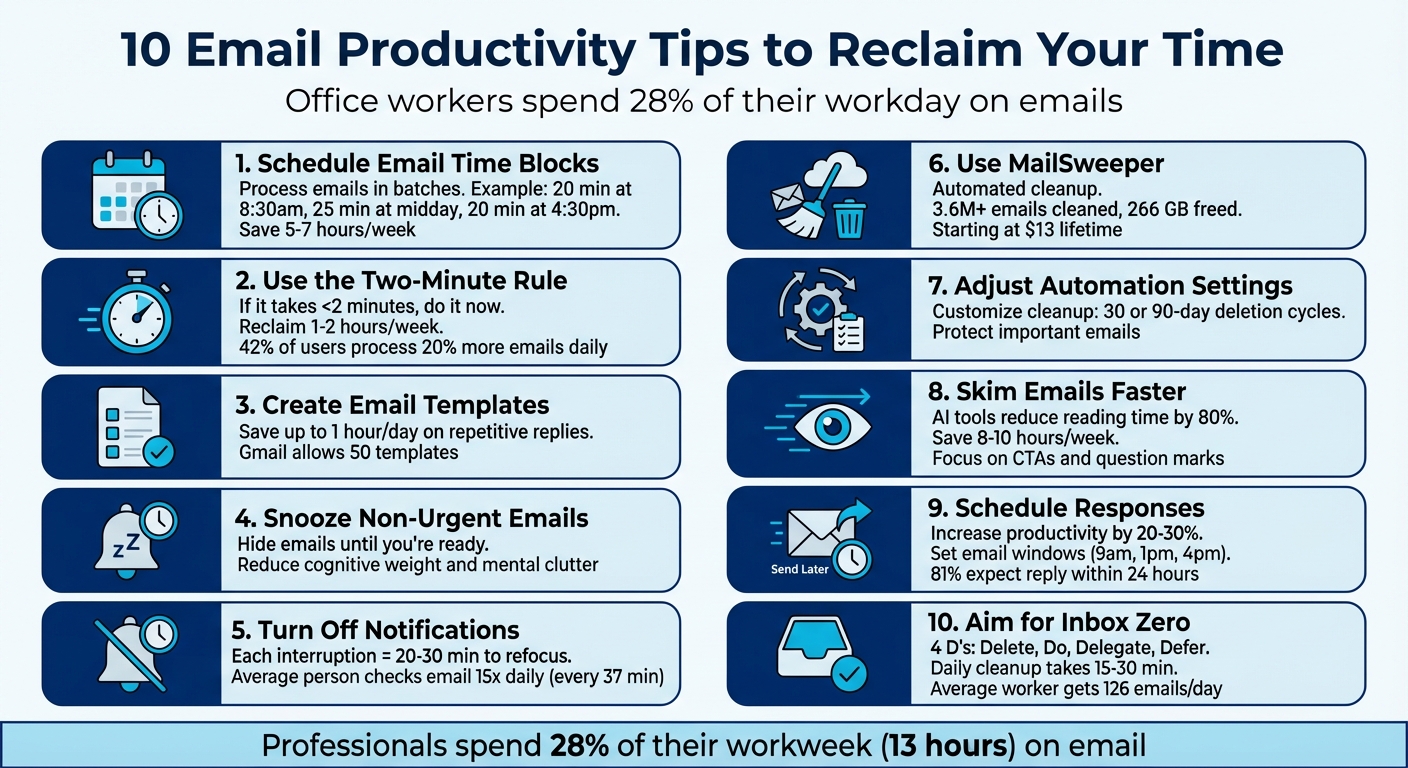
Your inbox can be a major time drain, with office workers spending 28% of their workday on emails. Constant notifications, "inbox anxiety", and the mental toll of unread messages disrupt focus and productivity. But managing your inbox doesn't have to be overwhelming. Here's how you can take control with 10 practical email management strategies:
- Schedule email time blocks: Process emails in batches to minimize interruptions.
- Use the Two-Minute Rule: Handle emails that take under 2 minutes immediately.
- Create templates: Save time on repetitive replies with pre-written responses.
- Snooze non-urgent emails: Temporarily hide emails until you're ready to address them.
- Turn off notifications: Protect your focus by silencing email alerts.
- Automate cleanup with tools: Use tools like MailSweeper to declutter your inbox.
- Adjust automation settings: Fine-tune tools to match your email habits.
- Skim emails faster: Focus on key points and use AI summarization tools.
- Schedule and plan responses: Draft emails during focused times and set clear reply expectations.
- Aim for Inbox Zero: Process every email daily using the "4 D's" framework (Delete, Do, Delegate, Defer).
These tips reduce clutter, save time, and make email less stressful. Start small, pick one or two strategies, and build from there. Over time, you'll notice smoother workflows and more mental clarity.
10 Email Productivity Tips to Reclaim Your Time
10 ONE-MINUTE Email Habits for Productivity!
sbb-itb-34b9fd2
1. Process Emails in Scheduled Time Blocks
Set specific times during the day to handle emails in batches. This approach turns constant interruptions into focused, manageable sessions, helping you stay on track and maintain momentum.
When you jump between tasks without finishing one, part of your mind lingers on the previous activity. Researcher Sophie Leroy explains:
"When you switch away from a task before completing it, part of your attention remains stuck on the previous task. This residue impairs performance on whatever you do next".
Even checking email just six times a day can drain over 130 minutes due to the mental effort required to refocus. By scheduling email time, you reduce these disruptions and free up mental energy for more demanding tasks.
Time-Saving Potential
Using a structured email schedule can protect your most productive hours for deep, focused work. One effective framework includes three daily sessions - for example, 20 minutes at 8:30 a.m., 25 minutes around midday, and 20 minutes at 4:30 p.m. - while applying the two-minute rule to handle quick replies.
Take Sarah, a marketing manager, as an example. In 2024, she shifted from constantly checking emails to three daily sessions (9:30 a.m., 1:00 p.m., and 4:30 p.m.). She also encouraged her team to text her only for urgent matters. This change saved her 5–7 hours each week and reduced her stress level from 7 to 5 within just one month.
Ease of Implementation
Start by disabling all email notifications and selecting two to three time slots that align with your natural energy dips. Use a timer to ensure you don’t exceed your designated time, and let your colleagues know about your schedule. For emergencies, provide an alternative way to reach you.
2. Use the Two-Minute Rule for Quick Responses
If an email takes less than two minutes to address, handle it right away. This straightforward approach, popularized by David Allen in Getting Things Done, helps prevent minor tasks from snowballing into a mountain of unfinished work.
Taking care of quick emails immediately saves you from the hassle of revisiting and re-reading them later. By tackling these small tasks on the spot, you avoid the mental clutter that comes with leaving them unresolved.
This habit not only keeps your inbox under control but also clears up time for tackling more demanding projects.
Time-Saving Potential
On average, professionals spend about 28% of their workweek - roughly 13 hours - dealing with email. By using the Two-Minute Rule, you could reclaim 1–2 hours each week, simply by cutting out the inefficiency of repeatedly reviewing the same messages without acting on them.
In fact, a survey revealed that 42% of professionals who adopted this rule processed 20% more emails daily. The trick is to stay disciplined: if a task will take longer than two minutes, add it to your task list or calendar instead.
This method sets you up for a more efficient and less stressful email management routine.
Impact on Email Clutter Reduction
The Two-Minute Rule acts like a quick triage system. For every email, you decide to either: Do it (if it’s under two minutes), Delegate it, Defer it, or Delete/Archive it. Sticking to this system can turn daily email chaos into a more manageable process, while also avoiding the "re-reading tax" - the wasted time spent repeatedly opening low-priority emails without ever resolving them.
David Allen sums it up perfectly:
"If it takes less than two minutes, then do it now. If you put it off, it'll take longer to manage it than to just finish it".
Ease of Implementation
The beauty of the Two-Minute Rule is that it doesn’t require fancy tools - just a change in how you approach decision-making. Use it during your dedicated email-checking times, rather than letting notifications constantly interrupt your workflow. For emails that need more time, send a quick acknowledgment like, "Got it! I’ll get back to you by [Date/Time]".
Keep responses short and clear by using headers, bullet points, or simple phrases like "Confirmed" or "Thanks, received". This keeps communication efficient without sacrificing professionalism.
3. Build Email Templates for Common Messages
Once you've streamlined how you handle emails, the next step is to simplify repetitive tasks with email templates. These templates save time by automating responses to frequent inquiries, cutting down the need to retype standard phrases, signatures, or answers to FAQs. Instead of crafting each response from scratch, you can simply insert a pre-written template. This approach pairs perfectly with scheduled email sessions and quick replies, reducing the manual effort required for everyday tasks.
Templates are especially handy for situations like customer support questions, sales follow-ups, booking confirmations, and onboarding emails. For example, Gmail allows up to 50 templates, making it easy to standardize responses for common queries like pricing information or service details. This ensures your replies remain consistent while saving you valuable time.
Time-Saving Potential
Professionals reportedly spend about 28% of their workday reading and replying to emails. Using templates could help you reclaim up to an hour a day by streamlining your inbox management.
To make templates even more effective, include placeholders like [NAME] or {First Name} as a reminder to personalize each message before sending it. Even small adjustments - like tweaking a template for a podcast invitation versus a backlink request - can make a big difference. A 5% improvement in how tailored your response feels is worth the effort of creating separate templates.
Ease of Implementation
Setting up templates in Gmail is straightforward. First, enable "Templates" under Settings > See all settings > Advanced. After that, compose an email, click the three dots under "More options", select "Templates", and save your draft as a template.
For low-priority emails, you can take it a step further by automating responses. Use Gmail filters to trigger specific templates when certain keywords or labels appear in incoming messages. As Neil Sheth, Founder of Writefully, points out:
"It's about streamlining your day where possible".
Support for Long-Term Productivity
Templates aren't just a quick fix - they're a tool for maintaining long-term efficiency. Regularly updating your templates ensures they stay relevant and accurate, which keeps your communication consistent and effective. Bryce Emley from Zapier sums it up well:
"The beauty of templates is that you don't have to spend time on them once they're done, so make each one reduce as many variables as possible".
4. Snooze Non-Urgent Emails for Later
Snoozing works like a "remind me later" button. It temporarily hides emails until a specific date and time, ensuring non-urgent messages stay out of your way until you're ready to deal with them. This method pairs well with other productivity techniques, helping you focus only on emails that need immediate attention.
How It Reduces Email Clutter
One major perk of snoozing is how it lightens your mental load. Every email in your inbox requires some mental energy, often referred to as "cognitive weight". By moving non-urgent messages to a Snoozed folder, you reduce the visual and mental clutter in your inbox. This makes it easier to concentrate on tasks that truly matter.
Simple to Use
Modern email platforms like Gmail and Outlook make snoozing a breeze. With just a click or swipe, you can set a snooze time, and it syncs across all your devices. If you want to stay organized, try labeling emails (e.g., "Budget" or "Team Meeting") before snoozing them. This way, when they pop back up, you'll immediately know their context.
Boosting Productivity, Not Avoiding Tasks
Snoozing isn't about dodging responsibilities - it's about timing them wisely. Deb Tennen, Managing Editor at Zapier, puts it perfectly:
"You're not putting something off because you don't want to deal with it - you're putting something off because it makes more sense to do it later".
That said, if you find yourself snoozing the same email more than three times, it’s time to take action. Either handle it right away or delete it to avoid unnecessary delays.
5. Turn Off Email Notifications During Focus Time
Pair your scheduled email sessions with silenced notifications to protect your focus. Email alerts are notorious for breaking concentration and eating up time. As Laura Mae Martin, Executive Productivity Advisor at Google, puts it:
"Don't bother your brain with notifications for every new email - proactively check your email instead."
Time-Saving Potential
Each time you're interrupted by an email, it can take 20–30 minutes to fully regain focus. With the average person checking email about 15 times daily - roughly every 37 minutes - these disruptions can quickly snowball, stealing hours of productive time each week. Turning off notifications could dramatically boost your efficiency, doubling or even tripling your output.
Ease of Implementation
The good news? Disabling notifications is quick, easy, and completely free:
- iPhone: Go to Settings > Notifications > Mail and switch off Allow Notifications.
- Android: Head to Settings > Apps, select your email app, tap Notifications, and toggle it off.
- Gmail (web): Navigate to Settings > See all settings, scroll to Desktop notifications, and choose Mail notifications off.
Many platforms also let you keep alerts for "VIP" contacts, so you can still catch urgent messages while silencing non-essential ones. This small adjustment fits neatly into any plan to minimize email distractions and reclaim your focus.
Support for Long-Term Productivity
Constant notifications don’t just waste time - they also spike stress and anxiety, which can lead to burnout. By turning them off, you set clear boundaries between focused work and administrative tasks, conserving your mental energy for what truly matters. In essence, you regain control of your inbox rather than letting it control your day.
6. Use MailSweeper for Automated Email Cleanup
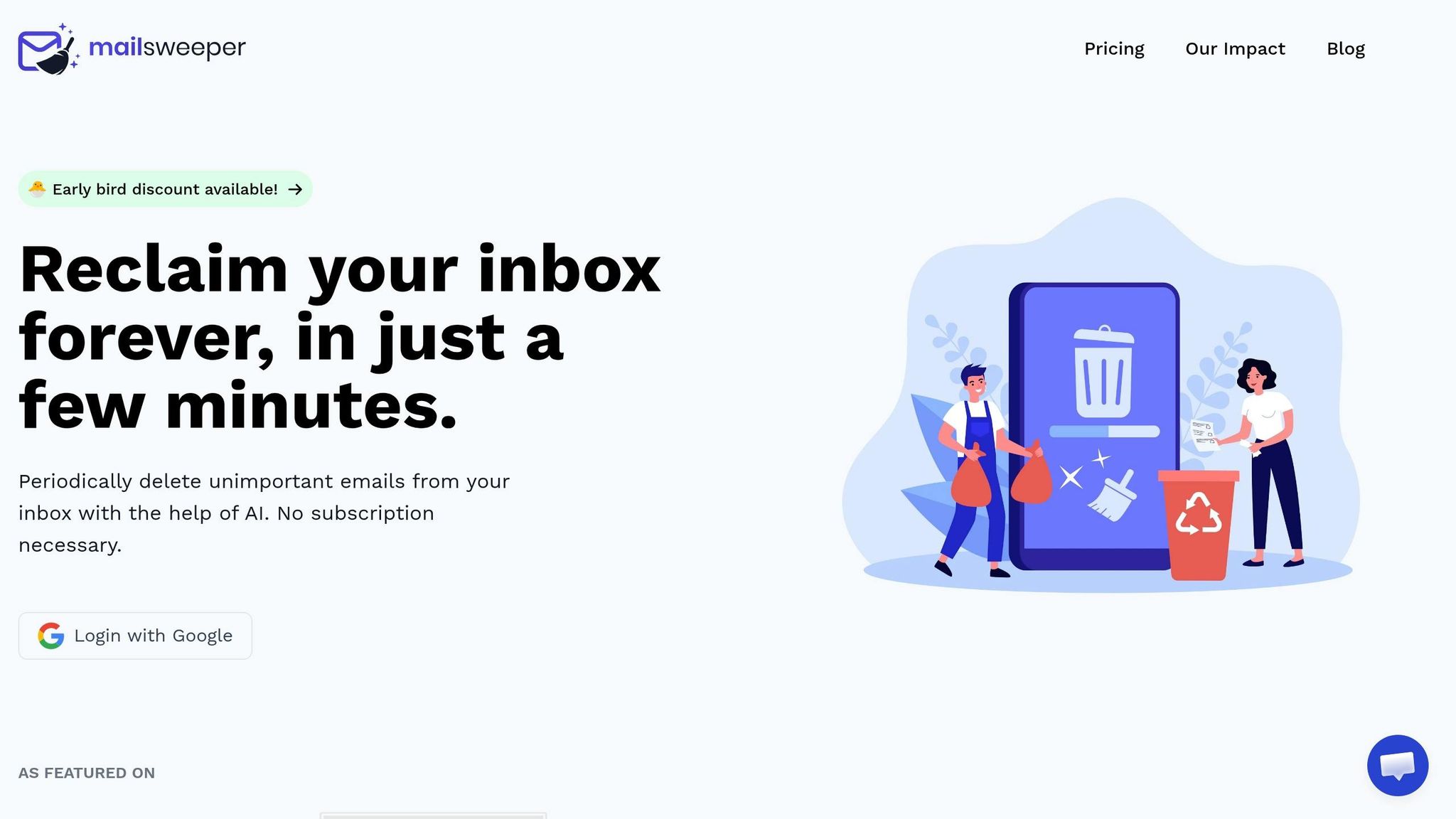
Once you've fine-tuned your email management strategies, let MailSweeper handle the heavy lifting by automating the cleanup process. This email productivity tool is designed to streamline your inbox by identifying and sorting clutter like notifications, outdated calendar invites, and promotional emails into a "Dustpan" label. From there, you can review the emails, and after a set period - typically 30 or 90 days - the tool permanently deletes them.
Time-Saving Potential
MailSweeper has already helped users clean up 3,658,202 emails, freeing up 266 GB of storage space. The setup is quick and straightforward: log in with your Google account, answer a few customization questions, and install the tool. Once set up, it works quietly in the background. Stefan, Founder of Automateed, shared his experience:
"The AI quickly analyzed my emails, and I loved how it collected unimportant ones into the Dustpan for me to review. This extra step made me feel confident that I wouldn't accidentally delete something crucial".
This added layer of review ensures that important emails remain untouched.
Impact on Email Clutter Reduction
MailSweeper's AI focuses on specific clutter categories while safeguarding your essential messages. Emails marked as starred, important, or those in your primary inbox are left alone by default. This balance between decluttering and protecting key emails is a game-changer. Plus, users have collectively reduced their carbon footprint by 121.00 kgCO2e simply by minimizing email storage.
Ease of Implementation
Getting started with MailSweeper is a breeze. The three-step setup allows you to customize which types of emails - like promotions or social notifications - you want the AI to target. During the first week, you can review the Dustpan label to fine-tune the AI's sorting based on your preferences. This simple process fits seamlessly into your email management routine. And with CASA certification, MailSweeper guarantees your data's security by ensuring it doesn’t read, store, or sell your emails.
Support for Long-Term Productivity
MailSweeper is built for lasting efficiency. The tool operates on a one-time payment model, starting at just $13 for lifetime access. Its "set and forget" design means you no longer need to manually sift through countless old emails or worry about hitting Gmail's 15GB free storage limit. As the team at MailSweeper puts it:
"MailSweeper will periodically move emails from your 🧹Dustpan to the trash to minimize your email storage costs by helping you stay under the size limit for free Gmail storage".
With MailSweeper, maintaining a clean inbox - and staying productive - has never been easier.
7. Adjust MailSweeper Settings to Match Your Needs
Fine-tuning MailSweeper ensures it works seamlessly with your email habits. By customizing its settings, you decide which types of emails get swept into the Dustpan and how long they stay there before automatic deletion. This flexibility allows you to shape the tool to fit your specific workflow.
Quick and Simple Setup
Tailoring MailSweeper to your needs is straightforward and takes only a few minutes. During setup, you’ll answer questions about the types of emails - like promotions, social updates, or old calendar invites - you want the tool to target. For instance, if newsletters you value end up in the Dustpan, you can easily adjust the filters to keep them in your inbox. The user-friendly interface ensures you don’t need any technical expertise to make these changes.
Better Email Clutter Management
Customizing settings directly impacts how effectively MailSweeper reduces email clutter. You can specify which emails are important to you, allowing the AI to better identify and remove what’s unnecessary. Additionally, you can choose a cleanup frequency, such as 30 or 90 days. If you prefer a tidier inbox, a shorter timeframe works best. For those who want a longer safety net, the 90-day option provides extra reassurance.
Long-Term Usability
MailSweeper’s adjustable settings adapt to your evolving email habits. Whether you subscribe to new services or your work priorities shift, you can tweak the tool to stay aligned with your needs. This ensures it remains a helpful part of your productivity toolkit over time. Plus, with a one-time payment of $13 and no recurring fees, you maintain full control to keep your inbox organized without additional costs.
8. Read Emails Faster with Skimming Techniques
Skimming techniques are a practical way to speed up email processing, building on earlier time-management tips.
Time-Saving Potential
Did you know that knowledge workers spend about 28% of their workweek - roughly 13 hours - dealing with emails? Skimming can help you cut down this time by letting you focus only on what’s important. For instance, AI summarization tools can slash newsletter reading time by 80%, and frequent email users can save 8–10 hours per week with AI-powered digests.
The key is training your eyes to pick out essential details. Look for question marks or Calls to Action (CTAs) to figure out what the email needs from you right away. Many professionals now start their emails with the CTA, making it easier to spot the main request. For long email threads, enabling the Reading Pane in your email settings can be a game-changer. This split-view layout lets you see messages alongside your inbox, cutting down on constant clicking and making email handling twice as fast.
Ease of Implementation
The best part? These skimming techniques are easy to set up and quickly become second nature. Activating a Reading Pane, for example, takes less than 30 seconds in Gmail or Outlook. Similarly, setting up AI summarization tools only takes a few minutes. Once enabled, these tools automatically condense lengthy emails into key points, so you can understand the context in seconds.
When skimming manually, focus on bold headers, bullet points, and the first and last lines of an email. These simple habits can lead to big productivity gains over time.
Support for Long-Term Productivity
Skimming isn’t just about speed - it also helps reduce the mental load of unanswered emails. Unread messages often create “open loops” in your mind, which can drain energy. By quickly sorting emails into actionable and non-actionable categories, you close these loops and free up mental space for more important tasks. As Cal Newport, author of Deep Work, puts it:
"The goal is not to read everything, but to read what matters most - efficiently, reducing stress".
9. Schedule Emails and Set Clear Response Times
Scheduled emails, like batch processing and templated responses, offer a practical way to streamline your workflow. By writing emails during focused work sessions and scheduling them for delivery at optimal times - such as 9:00 a.m. on a Monday - you can ensure your messages land when recipients are most attentive. This approach not only safeguards your deep-focus periods but also boosts the chances of your emails being read and acted upon.
Time-Saving Potential
Leveraging scheduled send features can increase productivity by as much as 20–30%. For example, you might draft follow-ups at the end of your workday and schedule them for early the next morning. This reduces the need for constant context switching and keeps your workflow smooth.
Setting specific response times further enhances efficiency. By creating "email windows" - say, at 9:00 a.m., 1:00 p.m., and 4:00 p.m. - you train others to expect replies during those periods instead of expecting an immediate response. Research even shows that limiting email checks to three times a day can significantly lower stress levels. As Rares Enescu, Founder of Recurrr, puts it:
"By scheduling emails, you're doing more than just delaying a message. You're strategically placing your communication for maximum impact while causing minimal disruption to your own workflow."
Reducing Inbox Clutter
Scheduling emails also keeps your inbox more organized. For example, sending project reminders exactly 24 hours before a deadline eliminates the need for mental reminders or "don't forget" drafts. Plus, the "Scheduled" folder in most email platforms allows you to double-check attachments and details before delivery, reducing the chance of errors.
Clear response policies add another layer of order. For complex requests, a quick acknowledgment like "Received - I'll respond fully by 2:00 p.m. tomorrow" can prevent follow-up emails like "Did you get my message?". This small step can significantly reduce unnecessary back-and-forth.
Easy to Implement
Most email platforms, like Gmail and Outlook, make scheduling simple. Just click the arrow next to "Send" and select your desired delivery time - it takes less than 30 seconds. For recurring messages, such as weekly reports, third-party tools with dashboard-based scheduling can be helpful, though Gmail’s built-in feature works perfectly for one-off emails.
Setting response expectations is equally straightforward. You can add a note to your email signature, such as "I typically respond within 24 hours on business days", or communicate your batch-checking times to frequent contacts. This helps align expectations - especially since 81% of professionals expect a reply within one business day, but 50% respond within just two hours.
Supporting Long-Term Productivity
Scheduling emails offers a buffer that can reduce mistakes and help maintain work-life boundaries. For instance, you can draft emails on a Sunday evening and schedule them for Monday morning, clearing your to-do list without interrupting colleagues during their personal time. This buffer also allows you to verify details, like checking Google Drive permissions in an incognito window, before the email is sent.
Over time, this practice trains you to view email as a tool you control, rather than a constant source of interruptions. By combining scheduled sends with defined response windows, you create a system that keeps communication efficient without sacrificing your focus or deep work time.
10. Work Toward Inbox Zero with Daily Cleanup
Achieving Inbox Zero involves processing every email so nothing is left unattended. This approach isn't just about clearing out your inbox; it's about mental clarity. As Merlin Mann, the creator of Inbox Zero, puts it:
"The 'zero' in Inbox Zero refers to eliminating the mental clutter caused by unmanaged emails - not the number of messages."
Time-Saving Potential
Daily cleanup builds on earlier email management strategies to deliver clarity and efficiency. Considering the average worker receives about 126 business emails daily and spends 28% of their workweek dealing with them, this step can save significant time. Once your inbox is initially organized, maintaining it takes just 15–30 minutes a day. The 4 D's framework - Delete irrelevant emails, Do quick tasks under two minutes, Delegate tasks as needed, or Defer them to your to-do list - keeps your inbox manageable and minimizes the mental fatigue of revisiting emails repeatedly.
Reducing Email Clutter
An overcrowded inbox can weigh heavily on your mind, with thousands of unread messages creating anxiety and disrupting focus. Unsubscribing aggressively from unnecessary emails can shrink your incoming messages by up to 80%. If you're overwhelmed by unread emails, archiving everything older than two weeks can provide a psychological reset. Anything critical will likely resurface in a new thread, and older emails remain searchable for reference.
Simple Steps to Start
Tackle emails from newest to oldest since recent messages are usually more urgent. Instead of deleting emails, archive them to declutter your inbox while keeping them searchable. Automating filters for newsletters and promotions can also help by routing these messages away from your primary inbox. To stay on top of things, schedule a 15-minute block at the end of each day to handle any missed messages and prepare for the next day.
Long-Term Productivity Benefits
Daily cleanup isn't just about short-term gains; it supports long-term productivity. Adopting the "touch it once" rule - making a decision the first time you open an email - prevents digital clutter and reduces mental strain. This habit also combats the Zeigarnik Effect, where unfinished tasks, like unanswered emails, linger in your mind. A weekly 15-minute review to remove outdated subscriptions and filters keeps your inbox streamlined and complements your daily efforts. Together, these practices ensure your email habits support ongoing productivity.
Conclusion
Email takes up a large chunk of the workday for office professionals. The strategies shared here offer practical ways to reclaim your focus and reduce inbox chaos. The key is to implement them gradually for lasting results.
Start small - pick one or two tips to try first. For instance, if constant pings disrupt your workflow, turn off notifications and set specific times for checking emails. If your inbox feels like an endless mountain, try the Two-Minute Rule or aggressively unsubscribe from unnecessary emails to keep things manageable.
These straightforward changes can simplify your email habits and lead to noticeable productivity boosts over time.
"If you spend just 15 minutes per day to revisit, readdress, or reread documents or emails, you will waste 97 hours per year where no action is taken."
- Chet Holmes, Author of The Ultimate Sales Machine
Remember, it’s about progress, not perfection. Whether it’s automating inbox cleanup, using templates for repetitive responses, or aiming for Inbox Zero, each step strengthens your overall productivity game. These tactics help cut down decision fatigue, reduce the stress of unread emails, and ensure you don’t miss important messages.
To start improving your email routine, try adopting one strategy for a week. Once it feels natural, layer on another. Over time, you’ll notice a major difference in both your inbox and your ability to focus.
FAQs
How do I pick the best email-check times?
Instead of keeping an eye on your inbox all day, set aside 2-3 specific times daily to check your email. This habit helps cut down on distractions and lets you focus on tasks that require your full attention. Avoid diving into emails first thing in the morning - it can throw off your entire day. Instead, pick times that fit naturally into your routine and when interruptions are less likely. This approach keeps your productivity on track while making email management smoother.
When should I snooze vs. defer an email?
When you use snooze, you're temporarily removing an email from your inbox to handle it later. It reappears at a time you choose, making it perfect for follow-ups or reminders without cluttering your inbox in the meantime.
On the other hand, defer means postponing an email or task to a specific time or date. While snoozing can be considered a form of deferring, deferring often involves more intentional scheduling or planning for when and how you'll address the task.
How do I prevent MailSweeper from deleting important emails?
To keep MailSweeper from deleting emails you need, mark them as starred or important in Gmail. These settings take priority over deletion rules, ensuring your key messages stay safe. You can also use Gmail’s labels and importance markers to organize emails effectively. Make it a habit to review your auto-delete rules regularly, and avoid setting overly broad deletion criteria to minimize the chances of losing important messages.
More free Gmail tools.
Pair these together for a full inbox reset.
Bulk Unsubscribe from Gmail
See the senders flooding your inbox, ranked by volume — your shortlist for unsubscribes.
Open toolMass Delete Gmail Emails
Build a deletion plan by sender, date, label, or all-unread — with the exact Gmail search to run.
Open toolFind Large Emails in Gmail
Pick a size and we build the exact Gmail search to find your biggest emails — then open it in one click.
Open toolGmail Storage Cleanup
Move the slider to your current Gmail usage to see exactly what to delete to free space.
Open toolInbox Zero Score
Rate your inbox health on a 0–100 scale and see the weekly hours your inbox is costing you.
Open tool