
Email Management
Checklist for Eco-Friendly Email Management
Practical steps to shrink your inbox, lower storage use, and reduce email-related CO₂—delete, unsubscribe, automate, and back up efficiently.
Checklist for Eco-Friendly Email Management
Every email you keep or send has a small energy cost, but when multiplied by billions of users, it contributes to global electricity consumption. Here's the bottom line: a tidy inbox isn't just about organization - it can help reduce your digital carbon footprint. For instance, deleting 1,000 emails can save roughly 300g of CO₂.
Key Actions to Reduce Email Impact:
- Delete unnecessary emails: Older messages and large attachments consume storage and energy.
- Unsubscribe from unwanted emails: Stop receiving newsletters or promotions you don't read.
- Use filters and automation: Tools like MailSweeper can sort and delete unimportant emails for you.
- Share links instead of attachments: Large files significantly increase email emissions.
- Optimize backups: Only save essential emails and use low-energy storage options.
By adopting these habits, you can reduce your inbox's storage demands and its environmental impact. Small changes, like clearing out unused emails and unsubscribing from unnecessary lists, add up over time.
10 Tips to Reduce your Digital Carbon Footprint 😎🌳
sbb-itb-34b9fd2
Step 1: Evaluate Your Email Habits and Storage
Carbon Footprint of Different Email Types - CO2 Emissions Comparison
Take a close look at your email habits and storage usage to identify areas for cleanup and to minimize your environmental impact.
Check Your Email Storage and Usage
In Gmail, your storage is shared across Gmail, Google Drive, and Google Photos. A quick glance at the bottom of your Gmail sidebar on a web browser will show your total storage usage and limit. For a more detailed view, head to the Google Drive Storage page, where files are conveniently sorted by size, from largest to smallest.
On mobile, tap your profile icon and select "Storage used" to see how much space your Gmail, Drive, and Photos are consuming. This is a great way to spot whether your inbox is clogged with large attachments or if you're keeping things tidy.
To locate oversized emails, search for "has:attachment size:10mb" in your Gmail search bar. This will pull up emails with large files attached. You can also check for high-volume senders, like newsletters or marketing emails, that may be piling up over time. And don’t forget to regularly empty your Trash and Spam folders - those messages count toward your storage limits too.
Once you’ve got a clear picture of your storage, it’s time to consider the environmental impact of your email habits.
Estimate Your Email Carbon Footprint
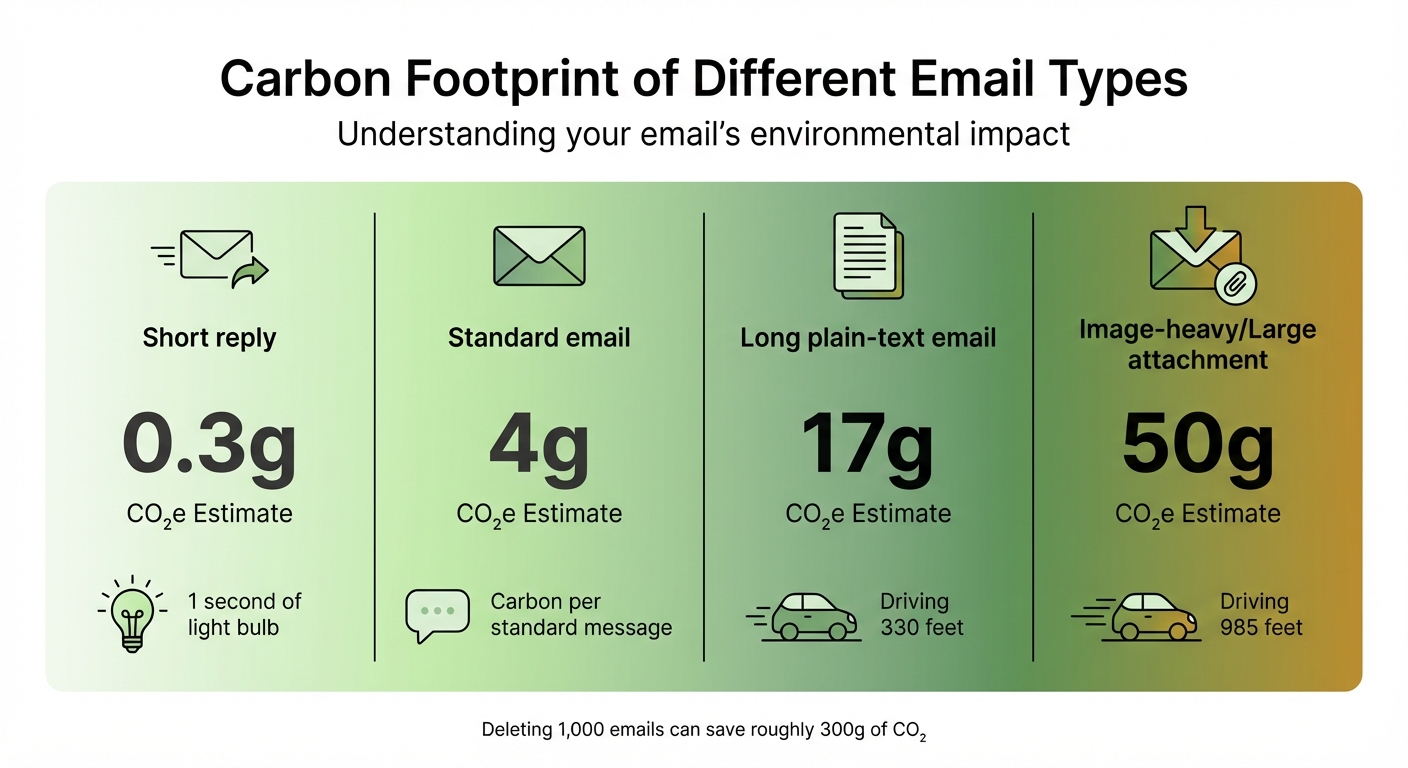
Now that you know how much email storage you’re using, calculate the carbon footprint of your email activity. A short reply generates about 0.3g of CO₂e, but emails with large attachments can produce up to 50g of CO₂e.
To make this easier, tools like the EcoSend Carbon Calculator can help. These tools take into account factors like email size, server energy, number of recipients, and how long emails are stored. If you prefer to calculate manually, multiply your monthly email volume by 0.3g for short emails or 50g for emails with large attachments. For example, sending a newsletter to 10,000 people can generate roughly 200kg of CO₂e - comparable to the emissions from a flight between Paris and Rome.
Here’s a snapshot of the carbon impact of different email types:
| Email Type | CO₂e Estimate | Real-World Equivalent |
|---|---|---|
| Short reply | 0.3g | 1 second of light |
| Standard email | 4g | Carbon per standard message |
| Long plain-text email | 17g | Driving 330 feet |
| Image-heavy/Large attachment | 50g | Driving 985 feet |
Understanding these numbers can help you prioritize which emails to delete and reduce the carbon footprint of your digital life. This sets you up perfectly for the next step: cleaning up your inbox strategically.
Step 2: Clear Out Inbox Clutter
Once you understand your email's carbon footprint, it's time to tackle graymail - those promotional emails, newsletters, and notifications that flood your inbox. With the average person receiving 121 emails daily, this clutter can quickly add up, consuming storage space and requiring constant energy from data centers. Start by cutting back on emails you no longer need.
Unsubscribe from Unwanted Emails
Take a closer look at recurring emails you rarely open. Scroll to the bottom of these messages and click the "Unsubscribe" link. This simple step stops future emails from arriving, reducing the data stored and the server resources needed to process them. Even when data centers rely on renewable energy, trimming your inbox reduces the demand on those resources, leaving more energy for other essential uses.
Create Email Filters
Automate your inbox cleanup with email filters. In Gmail, use the search bar's "Show search options" to set criteria like sender, subject keywords, or "has:attachment." Preview the results with "Search" to ensure important emails aren't affected, then click "Create filter" and select actions like "Skip the Inbox" or "Delete." Regularly review your filters by navigating to Settings > Filters and Blocked Addresses to keep them up to date. These automated steps help reduce unnecessary storage needs and energy use at data centers.
Share Cloud Links Instead of Attachments
Attachments, especially large ones, can significantly increase an email's carbon footprint - up to 50g of CO₂e per email. Instead of attaching files, upload them to Google Drive and share a link. This approach stores the file once, cutting down on storage duplication and energy consumption.
Step 3: Automate Email Cleanup with MailSweeper
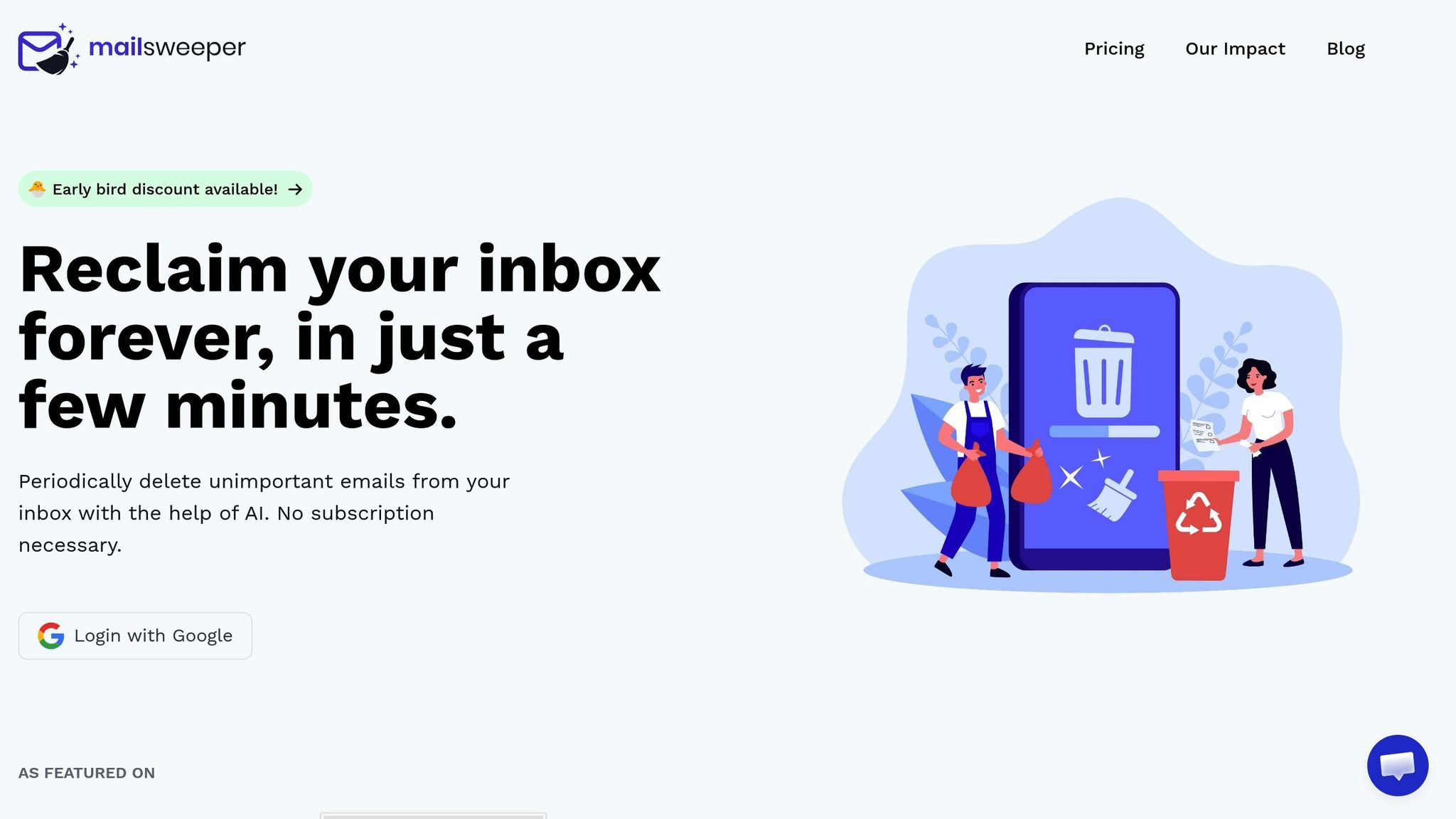
Cleaning up your inbox manually can be a major time sink. That’s where MailSweeper steps in. Using AI, it identifies less important emails - think old notifications, calendar invites, and promotional messages - and moves them into a special label called 🧹Dustpan. This automated process helps you stay within Gmail's free 15GB storage limit and cuts down on the energy data centers use to store unnecessary emails.
Install MailSweeper and Configure the Dustpan
To get started, log in to MailSweeper with your Google account and complete a one-time payment to activate the service. After installation, the tool creates the 🧹Dustpan label in your Gmail and begins sorting unimportant emails there automatically. Plus, MailSweeper is CASA certified, ensuring your private email data remains secure - it doesn’t read, store, or sell your information.
"By default, we will never delete emails that are 'starred', marked important, or in your primary inbox." - MailSweeper
During setup, you’ll answer a few questions to tailor the tool to your needs. You can specify which types of emails - like promotions or social updates - should be moved to the Dustpan. Rest assured, emails marked as starred, flagged as important, or located in your primary inbox will stay untouched. If an email lands in the Dustpan by mistake, you can simply remove the label to keep it safe before the next cleanup.
Once configured, you can adjust the cleanup settings to match your email habits.
Set Your Cleanup Preferences
MailSweeper lets you choose between a 30- or 90-day interval for automatic deletion of emails in the Dustpan. This gives you plenty of time to review before anything is permanently removed. Once set, the tool handles the rest - deleting old emails from the Dustpan and clearing space without requiring any manual intervention.
Why Use MailSweeper
The benefits go beyond just decluttering your inbox. So far, MailSweeper has processed over 3,472,382 emails, freeing up 252GB of storage and reducing carbon emissions by 114.73kgCO2e. Considering that storing 1GB of emails uses roughly 32kWh of energy, this cleanup delivers real energy savings.
On top of helping the environment, MailSweeper saves you money. You can avoid paying for extra Google storage - plans start at a one-time fee of just $13 with no subscriptions. It’s a simple way to save time, cut costs, and lower your digital carbon footprint, all while keeping your inbox organized and efficient.
Step 4: Optimize Gmail Storage
Once you've automated your email cleanup with MailSweeper, there are a few more ways to keep Gmail running smoothly. Keep in mind that Gmail shares its 15GB storage limit with Google Drive and Google Photos. If you exceed this limit, you won't be able to send or receive emails. Taking steps to optimize your Gmail storage can help you stay within those limits and keep your inbox functional.
Enable Auto-Archive for Processed Emails
Archiving is a great way to clear your inbox while keeping emails accessible in the "All Mail" section. Gmail offers a Send & Archive button that lets you reply to an email and archive it in one click. To enable this feature, go to Settings > See all settings > General, find the "Send and Archive" section, and select "Show 'Send & Archive' button in reply".
You can also create filters to automatically archive certain emails. For example, if you want newsletters or notifications out of your inbox but still searchable, click the search options icon, enter a sender or keyword, hit "Create filter," and check "Skip the Inbox (Archive it)". This keeps your inbox tidy without losing important information.
Empty Trash and Spam Folders Regularly
Deleting emails alone doesn’t free up space unless you empty the Trash and Spam folders. These folders hold emails for 30 days before Google deletes them automatically. To speed up the process, open the Trash folder and click "Empty Trash now". Note that it may take Google 48–72 hours to update your available storage after purging these folders.
For a quicker way to find large emails hogging space, use the search operator larger:10M in Gmail's search bar. This will pull up emails with attachments over 10MB, which you can delete to free up significant storage.
Set Up Gmail Priority Inbox
Gmail's Priority Inbox can help you focus on what matters most by sorting emails into three sections: "Important and unread," "Starred," and "Everything else". To enable this feature, click the Settings gear icon, scroll to "Inbox type," and select "Priority Inbox".
Gmail determines importance based on factors like who you email often, which messages you open or reply to, and keywords in the email content. You can fine-tune this system by clicking the yellow importance marker next to a sender's name to toggle it on or off. Over time, Gmail gets better at filtering low-priority emails, making it easier to archive or delete them. A cleaner inbox not only improves your email experience but also reduces energy consumption in data centers.
These small adjustments can make a big difference in keeping your Gmail storage manageable and ready for the next step: streamlining email backups.
Step 5: Back Up Emails Efficiently
Now that your inbox is more organized, it’s time to back up only the emails that matter. By focusing on selective backups, you can save storage space and reduce the energy needed to maintain that data.
Export Only Important Emails Using Google Takeout
Google Takeout is a handy tool for downloading Gmail data, but you don’t need to export everything. Stick to the essentials. For instance, if you’ve labeled vital work emails as "To Archive", you can export just that folder and skip the rest.
Before starting, clear out your Bin and Spam folders as previously suggested. Then, in Google Takeout, use the "Deselect all" option and manually select only "Mail" to avoid downloading unnecessary data from other Google services. Opt for "One-time archive" instead of "Scheduled exports" to prevent creating backups you don’t need every couple of months. To keep things manageable, set the archive size to the maximum (50GB), so your backup isn’t split into multiple files.
Remember, Google Takeout archives expire after about seven days and can only be downloaded five times. Once the archive is ready, download it promptly and store it in a secure location.
Choose Low-Energy Storage Options
Where you store your backups can make a big difference in energy usage. Data centers account for about 1% of global electricity consumption, as they require constant power for servers, cooling, and redundancy. A local hard drive is a far more energy-efficient option compared to cloud storage, which typically demands more power.
For backups you rarely need to access, consider using an external hard drive instead of cloud services. If you prefer cloud storage, go with providers like Google, Microsoft, or Apple, as they prioritize renewable energy sources such as wind and solar. For long-term storage, look into low-energy solutions like AWS Glacier or tape libraries, which store data offline and consume minimal power.
Remove Duplicate Backups
Duplicate backups can clutter your storage and waste energy. Often, the same data exists on the sender’s server, the recipient’s server, and both devices - add manual backups, and you could be storing the same email four or more times. In fact, most businesses use less than 1% of the unstructured data they store, leaving the rest forgotten and redundant.
Set aside time annually to review your backups. Delete outdated or duplicate files to free up space. If you use automatic syncing tools like OneDrive, disable them unless you genuinely need every file backed up - this helps prevent unnecessary duplicates. Before creating a new backup, check if the emails are already stored elsewhere.
"By reducing unnecessary redundancy and backup, you not only reduce your carbon footprint but also declutter your digital lives and (hopefully) focus on what matters" - Pascal J.
Taking the time to streamline your backups not only saves storage and energy but also makes it easier to locate important emails when you need them. These practices set the stage for better email management moving forward.
Step 6: Track and Maintain Your Email Habits
Tidying up your inbox once is a great start, but keeping it organized requires consistent effort. Regularly checking in ensures clutter doesn’t creep back in and helps you maintain a smaller digital carbon footprint.
Monitor Monthly Storage Usage
Since Google storage spans Gmail, Google Drive, and Google Photos, it’s important to keep an eye on your unified storage dashboard. This tool shows which service is taking up the most space. Make it a habit to review this dashboard monthly. Use specific search queries like has:attachment larger:10M or older_than:2y to find large attachments or old, unnecessary emails. Don’t forget to check for hidden storage hogs in your account settings. These monthly reviews lay the groundwork for keeping your email setup streamlined.
Review Emails Every 3 Months
After your initial inbox cleanup, schedule quarterly reviews to stay on top of things. Set a reminder every three months to assess your email setup. Revisit your filters, labels, and subscriptions to ensure they’re still working for you. This is also a good time to manually clear out your Trash and Spam folders, as emails in these folders count toward your storage for 30 days. These quarterly check-ins complement your monthly monitoring and help maintain long-term organization.
Calculate Carbon Footprint Reduction
Want to see the real-world impact of your email cleanup? Revisit the estimates you calculated in Step 1 to track your environmental progress. For instance, deleting 1,000 standard emails reduces CO₂ emissions by about 300g. Use tools like MailSweeper’s dashboard to monitor these savings in real time.
If you prefer to calculate manually, multiply the number of deleted emails by 0.3g - adjusting for emails with large attachments. Unsubscribing from a daily newsletter can also make a difference, preventing roughly 365 emails per year and saving around 110g of CO₂ annually. Considering that an average office worker receives about 126 emails daily, this habit could significantly reduce the 184kg of CO₂ generated annually by emails alone.
Conclusion: Your Checklist for Cleaner Email Management
This checklist brings together all the strategies we've covered, helping you maintain a cleaner inbox while also reducing your environmental impact. Did you know that every email you store contributes about 0.3g of CO₂ to the environment? It's a small amount, but it adds up quickly with hundreds or even thousands of emails.
Start by assessing your current email storage and its carbon footprint. From there, tackle the clutter by unsubscribing from unnecessary mailing lists, setting up filters, and using cloud links instead of attachments to share files.
Automation can make this process much easier. Tools like MailSweeper take care of the tedious task of sorting and deleting emails that slip past spam filters - think promotional offers or those "read-once" notifications. Just set your preferences, and features like the Dustpan will handle the rest.
For Gmail users, take it a step further by archiving emails you’ve already processed, regularly clearing out your trash folder, and only backing up the emails that are truly important. Opt for low-energy storage solutions and eliminate duplicate backups to further cut down on your carbon footprint. Every small step helps.
FAQs
Do emails in Trash and Spam still use storage?
Yes, emails sitting in your Trash and Spam folders still use up storage space in your email account. These emails remain there until they’re either automatically deleted after 30 days or manually removed by you.
If you’re looking to free up some space, it’s a good idea to regularly clear out these folders. A quick cleanup can make a noticeable difference in managing your account's storage.
What email habits create the most CO₂e?
Email habits that contribute the most to CO₂e emissions include sending emails with large attachments, letting old emails pile up in cluttered inboxes, and storing unnecessary emails for extended periods. These actions demand more energy from data centers and devices, which leads to higher carbon emissions.
How does MailSweeper’s Dustpan avoid deleting important emails?
MailSweeper’s Dustpan keeps your important emails secure by automatically skipping over any messages marked as important, starred, or sitting in your primary inbox. Instead, it focuses only on low-priority emails, moving them to the Dustpan folder for you to review later. Plus, older emails are cleared out periodically according to the settings you choose.
More free Gmail tools.
Pair these together for a full inbox reset.
Bulk Unsubscribe from Gmail
See the senders flooding your inbox, ranked by volume — your shortlist for unsubscribes.
Open toolMass Delete Gmail Emails
Build a deletion plan by sender, date, label, or all-unread — with the exact Gmail search to run.
Open toolFind Large Emails in Gmail
Pick a size and we build the exact Gmail search to find your biggest emails — then open it in one click.
Open toolGmail Storage Cleanup
Move the slider to your current Gmail usage to see exactly what to delete to free space.
Open toolInbox Zero Score
Rate your inbox health on a 0–100 scale and see the weekly hours your inbox is costing you.
Open tool